Vovsoft SVG Converter: Batch SVG to PNG, JPG or PDF, and Images Back to SVG, Offline
SVG Converter is a $19 Windows program from Vovsoft that converts whole batches of SVG files to PNG, JPG, WEBP, BMP, PDF or HTML at the exact pixel size you set, and since version 2.0 also vectorizes JPG, PNG, WEBP and TIFF images into SVG files. Everything runs on your PC, with no uploads. The $19 is a one-time lifetime license, and there's a free trial.
It's for designers, web developers and crafters who have a folder of icons or logos in one format and need them in another, at a set size, without feeding them one at a time through a website that caps uploads.
Quick facts
- Version: 2.1, released October 30, 2026
- Developer: Vovsoft
- Platform: Windows 11, 10 and 8/8.1, 64-bit only. No Mac version
- SVG to image: PNG, WEBP, JPEG, BMP, HTML and PDF, at any width and height
- Image to SVG: JPG, JPEG, PNG, WEBP, TIF and TIFF
- Extras: grayscale filter, transparent PNG overlay for watermarks or logos, folder import
- Editions: installer (11.75 MB) and portable (13.66 MB), one license for both
- Price: $19, one-time payment, lifetime license with free updates
- Trial: converts files, with a nag screen and for non-commercial use only
- What we checked: installer file version 2.1.0.0 (12,322,160 bytes) with a valid code signature, downloaded from the vendor on November 11, 2026, and $19.00 on the order page with no auto-renewal on November 11, 2026. We didn't judge the vectorizer's output quality ourselves
Download Free TrialBuy Now
Overview
The window has two big buttons on the left: Image to SVG (Vectorize) and SVG to Image (Rasterize). Each works the same way in two steps. First you build a list with Add Files or Add Folder, which shows each file's path and size; then you click Next, set the options and click Process. There's no editor or canvas. SVG Converter is a batch converter, and its whole job is to turn a list of files into another list of files.
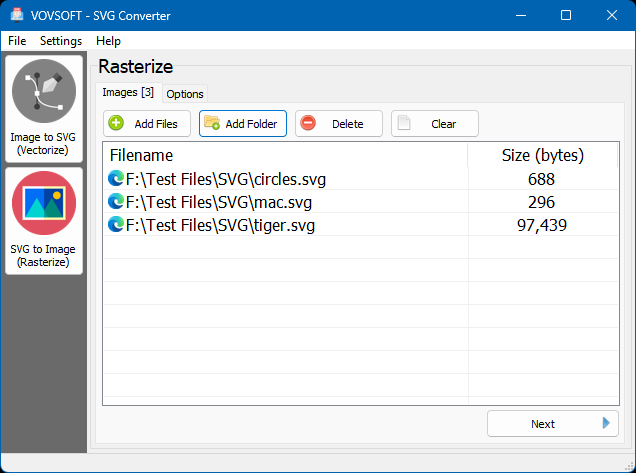
Rasterize mode: three SVG files queued, with Add Files, Add Folder, Delete and Clear above the list.
Features
Batch SVG to PNG, JPG, WEBP, BMP, PDF or HTML
SVG Converter's Rasterize mode renders every SVG in the list at the width and height you enter (512 by 512 pixels by default), with a Keep aspect ratio box so nothing gets stretched. Because SVG is vector, you can export a 16-pixel icon at 2,000 pixels with no blur. Transparency carries over to formats that support it, such as PNG and WEBP. PDF and HTML output are there for printing or embedding.
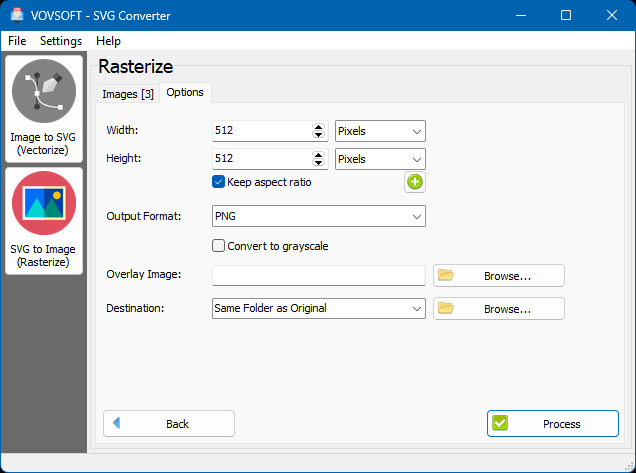
Rasterize options: width and height in pixels, Keep aspect ratio, PNG output, Convert to grayscale, Overlay Image and destination folder.
Vectorize photos and logos into SVG
SVG Converter 2.0 added the reverse direction: it traces JPG, PNG, WEBP and TIFF images into SVG. You choose a Preset (Black and White, Poster or Photo), the Clustering (Black and White, Color Cluster or Watershed), a Hierarchical style (Stacked, or Cutout for a seam-free mosaic) and the curve Mode (Pixel, Polygon or Spline). A clean logo with flat colors traces well with this kind of tool; a busy photo turns into many color shapes, which is a look rather than a faithful copy.
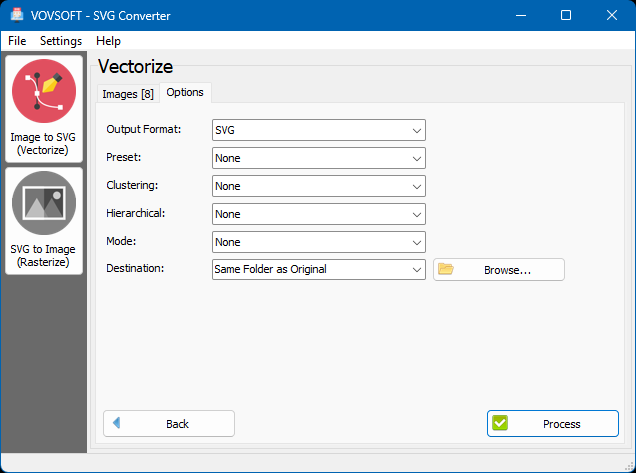
Vectorize options: SVG output, Preset, Clustering, Hierarchical and Mode menus, and the destination folder.
Watermark or brand a whole batch
SVG Converter's Overlay Image field, added in version 1.5, places a transparent PNG over every converted image, so a folder of product graphics comes out with your logo or watermark already on it. The Convert to grayscale box makes black-and-white versions in the same pass.
Offline, so nothing gets uploaded
SVG Converter does all the work on your computer. Online converters are free and quick for one file, but most cap file count or size, and you're sending a client's logo or unreleased artwork to someone else's server. Here, files never leave the PC.
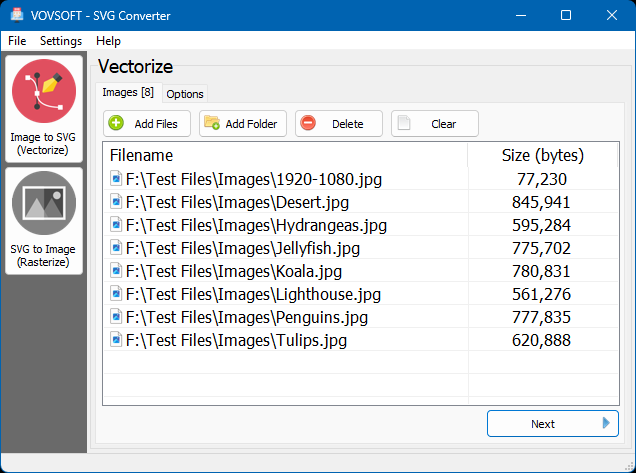
Vectorize mode with eight JPG photos in the list, ready for the options step.
Benefits
The point is doing a dull job once instead of fifty times. Export an icon set at three sizes, turn a folder of SVG diagrams into PNGs a document editor will accept, or stamp a logo across a product catalog, each in one run. For $19 with no subscription, it costs less than a month of most online converters' paid plans, and it keeps working when you're offline.
Real-World Uses
- A web developer exports an SVG icon set as 64, 128 and 512 pixel PNGs for an app store listing.
- A writer converts SVG charts to PNG because the publishing platform won't accept SVG.
- A crafter traces a simple PNG logo into an SVG for a cutting machine.
- A shop owner converts SVG product graphics to WEBP for a faster site and adds a watermark overlay in the same run.
- An office turns vector diagrams into PDFs for printing.
Who It's For, and Who Should Skip It
SVG Converter suits Windows users who regularly convert SVG files in batches, or want a simple offline way to vectorize logos and line art.
Skip it if you need to edit vector artwork: a vector editor such as Inkscape, which is free, or Illustrator, can open, change and export SVGs, and both have their own tracing tools with far more control. Skip it too if you convert one file a month, since a free online converter does that well enough, or if you're on 32-bit Windows, Windows 7 or a Mac, where it doesn't run.
Usage Guide
- Download the installer or the portable edition and start SVG Converter.
- Click SVG to Image to export SVGs, or Image to SVG to vectorize pictures.
- Add files or a folder, or drag them onto the list, then click Next.
- Set the options: size and output format for rasterizing, or preset, clustering and mode for vectorizing, plus the destination.
- Click Process and open the output folder.
Before you buy
The trial converts files with a nag screen and is for personal use; work use needs the license. One license covers one person on any number of their own computers. Vovsoft's general policy is no refunds, since the trial comes first (it may refund an accidental order at its discretion, and PayPro Global has the final say on its orders), so run your own files through the trial, especially for vectorizing, before you pay.
Where it falls short
- No preview: you see the result only after processing, so tuning the vectorizer means several runs.
- Vectorizing is automatic tracing. Photos become stylized shapes, and complex art still needs cleanup in a vector editor.
- No SVG to SVG optimizing or editing, and no EPS, AI or DXF output.
- 64-bit Windows 8 or later only, English interface.
What Users Say
TrishTech review (September 2023)
TrishTech reviewed version 1.x, before vectorizing was added, and walked through adding files or folders, setting the size and choosing the format. Its verdict:
"Vovsoft SVG Converter is a useful tool for converting the SVG vector images to many popular raster image formats. It is lightweight and works without any problems on a Windows PC."
MajorGeeks
MajorGeeks lists SVG Converter 2.1 and highlights the offline processing: "The best thing with VOVSOFT SVG Converter is the conversion is done entirely offline."
On Vovsoft's site
The product page shows 4.7 out of 5 from 3 ratings, with no written comments. Vovsoft's How to Use SVG Converter guide shows 3.5 out of 5 from 2 ratings.
In short, the reviews praise it as light, simple and offline, and none reports a problem, but they're few and mostly predate the new vectorizer. The trial will tell you more about tracing quality than any of them.
Comparisons
SVG Converter vs online converters
Online converters cost nothing for a few files and work on any OS. SVG Converter wins on volume and privacy: unlimited batches, folders at once, exact sizes, overlays, and no uploads.
SVG Converter vs a vector editor
A vector editor can do everything SVG Converter does and much more, but one file at a time unless you script it. SVG Converter is the faster choice when the job is the same conversion on many files, and the wrong one when the artwork itself needs work.
Editions and Pricing
| Option | Price | License | What you get |
|---|
| Trial | Free | Personal, non-commercial use | Conversions, with a nag screen |
| SVG Converter license | $19 one time | Lifetime, commercial use allowed | No nag screen, all future updates |
| Vovsoft Universal License | $99 one time | Lifetime | All 115+ Vovsoft programs |
The license key arrives by email right after payment. Prices include tax.
FAQs
Does SVG Converter keep transparent backgrounds?
Yes. SVG Converter keeps transparency when the output format supports it, such as PNG and WEBP. JPEG and BMP have no transparency, so those get a solid background.
Can SVG Converter make SVG files for Cricut or Silhouette machines?
SVG Converter can trace a PNG or JPG into an SVG that cutting software can import, and simple, high-contrast logos with the Black and White preset suit that best. Check the result in your machine's software before cutting, since detailed images trace into many small shapes.
Does SVG Converter run on 32-bit Windows or Windows 7?
No. SVG Converter needs 64-bit Windows 8, 8.1, 10 or 11.
Is there a limit on how many files SVG Converter converts at once?
SVG Converter takes as many files as you add, and you can add whole folders.
Is the $19 a subscription?
No. SVG Converter's $19 is a one-time payment for a lifetime license with future updates. Nothing renews.
Can I use one license on my laptop and desktop?
Yes. Vovsoft's license lets one person use SVG Converter on any number of their own computers, installed or portable. A business with several users needs a license per user.
System Requirements
- Windows 11, 10 or 8/8.1, 64-bit
- About 12 MB for the installer, or 14 MB for the portable edition
- English interface
Conclusion
SVG Converter is worth $19 if you convert SVG files in batches, at set sizes, and want it done offline: that's what it does best, with overlays and grayscale as handy extras. The new vectorizer makes it more useful for logos and line art. The reason not to buy it: it's a converter, not an editor, with no preview and no control beyond a few menus, so anyone who shapes vector art should use a vector editor instead. Try your own files in the trial first.
Download Free TrialBuy Now