Able Batch Image Converter: Convert, Resize and Clean Up Thousands of Images in One Run
Able Batch Image Converter is a Windows tool from GraphicRegion that converts any number of images between more than 90 formats (HEIC, WebP, camera RAW, TIFF, PDF and more) and applies the same edits to all of them, such as resizing, cropping, deskewing or watermarking. A personal license costs $35, and there's a 30-day free trial.
It's the kind of program you reach for when the job is boring and big: 400 scanned cookbook pages at the wrong DPI, a folder of iPhone HEIC photos your website won't take, or 2,000 product shots that all need to be 1200 pixels wide. You set it up once, press Start, and it works through the lot.
Quick facts
- Version: 3.25.3.12, released March 12, 2025
- Developer: GraphicRegion (Graphic-Region Development)
- Runs on: Windows 11, 10 and 8, plus older versions. There's no Mac version
- Formats: 90+ input formats, about 20 output formats including JPG, PNG, TIFF, WebP, PDF, PSD and ICO
- Automation: saved action lists, a right-click Explorer menu and a command line
- Price: $35 personal (non-commercial), $65 business, $900 site license
- Trial: 30 days
- Updates: free for one year, then upgrades at 50% off
What we checked: on October 17, 2026 we downloaded the installer from GraphicRegion (8.6 MB, file version 3.25.3.12, digitally signed), confirmed the $35.00 personal license price on the order page, and read the version history, the command-line help, the PAD file and the upgrade policy. We didn't run batch jobs with the program ourselves.
Before you buy
- The $35 license is for home use only. Using it in a business, government or other organization needs the $65 business license.
- PDF, EPS, PS and AI files need GhostScript. The installer offers to download it. Skip that step and those formats won't open.
- The interface is old-school. It's a plain Windows dialog with tabs and buttons. It works, but it doesn't look like a modern app.
Download Free TrialBuy Now
Overview
Able Batch Image Converter works in four numbered steps that match its tabs. 1 - Files holds the list of images, added one by one, by folder or by drag and drop. 2 - Actions is a list of edits applied to every image in order, and it can be empty if you only want a format change. 3 - Result sets the output folder, format and file naming. 4 - Start runs the batch.
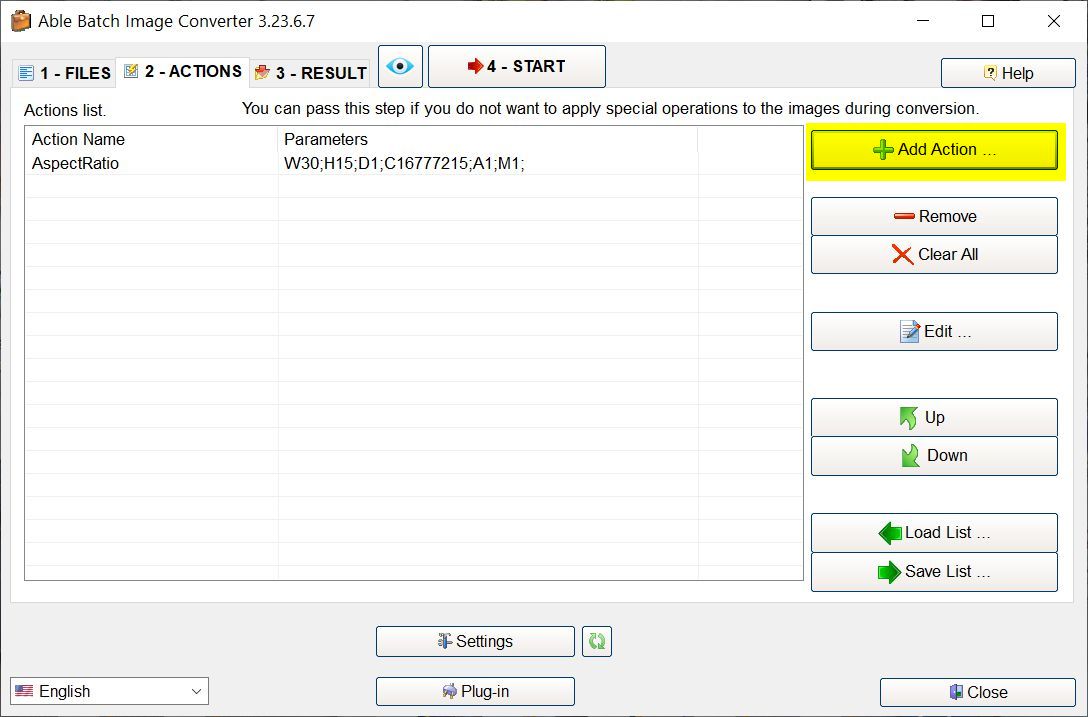
The Actions tab in version 3.23.6.7: one AspectRatio action with its parameters, buttons to add, edit and reorder actions, and Load List / Save List for reusable action lists. The eye icon next to Start opens the conversion preview.
GraphicRegion has sold the program for many years and still updates it a few times a year. Recent versions added WebP input and output (version 3.24.2.8), EXIF tag editing and GPS locations, a Polish interface, a default action list, and a QR code action in 3.25.3.12.
Features
Opens almost any image format, including HEIC, WebP and RAW
Able Batch Image Converter reads more than 90 formats. Besides the everyday JPG, PNG, GIF, BMP and TIFF, that includes iPhone HEIC/HEIF and WebP (through Windows Imaging Component), camera RAW files from Canon, Nikon, Sony, Fuji, Olympus, Panasonic and others (CR2, NEF, ARW, RAF, ORF, RW2, DNG and more), Photoshop PSD, PDF, EPS and Illustrator AI, SVG, JPEG 2000, DICOM medical images, FITS and multi-page fax TIFFs. Output covers about 20 formats: JPG, TIFF, GIF, PNG, BMP, TGA, JPEG 2000, PDF, PostScript, PSD, ICO, WebP, WMF/EMF and others. You can also send the batch straight to a printer.
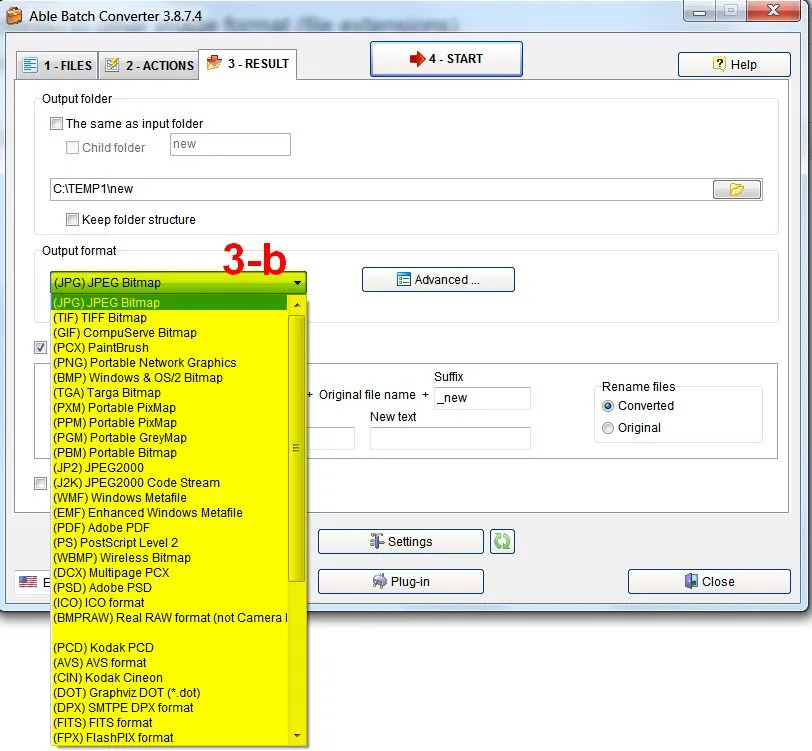
The Result tab in an older version (3.8.7.4) with the output format list open: JPEG, TIFF, GIF, PCX, PNG, BMP, TGA, JPEG2000, PDF, PostScript, PSD, ICO and more. GraphicRegion's tutorial highlights the list in yellow.
Dozens of batch edits, stacked in any order
Able Batch Image Converter applies a whole chain of edits to every file. The Actions list includes resizing (in pixels, inches, millimeters or percent, optionally only when an image is larger than a limit), canvas size, crop, center crop and several auto-crop modes, rotate and flip, change aspect ratio by extending or trimming, borders and margins, change resolution (DPI), JPEG quality, color depth down to black and white, color adjustments, auto enhance, white balance, effects, text and watermarks with transparency and shadow, soft shadows, alpha channel tools and QR codes. Actions run in the order you set and can be moved up and down.
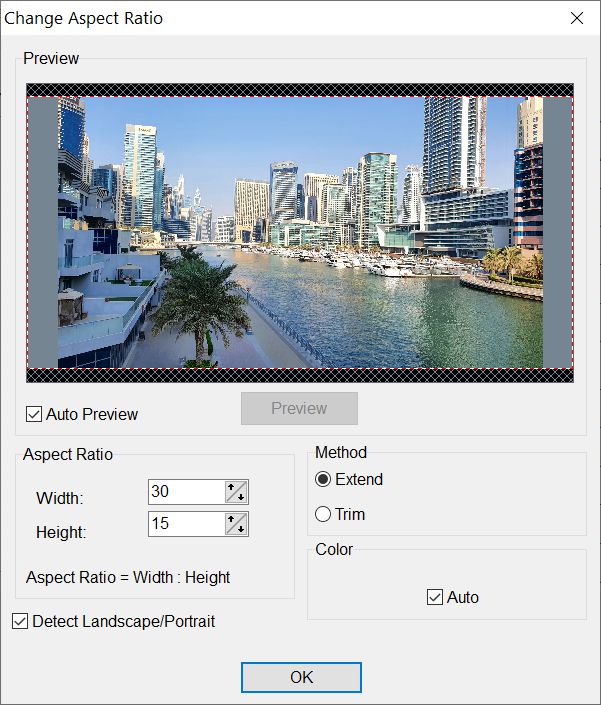
The Change Aspect Ratio action: a 30:15 ratio, the Extend method adding margins in an automatically chosen color, and Detect Landscape/Portrait.
Clean-up tools for scanned documents
Able Batch Image Converter has a set of actions aimed at scans, which is unusual in a photo converter. It can deskew crooked pages (with a fine mode), remove noise and isolated pixels, remove black areas and punch holes, delete all blank pages, and split, reorder, reverse or remove pages in multi-page TIFF and PDF files. It can also edit and remove TIFF tags and merge TIFF annotations into the image.
Metadata: EXIF, GPS and privacy
Able Batch Image Converter can add or change EXIF tags, add a GPS location, or strip EXIF and all other metadata before you publish photos. It can also rotate photos automatically by their EXIF orientation tag and manage color with ICC profiles.
Preview before you commit
Able Batch Image Converter shows a conversion preview so you can check the result before running a large batch. Format settings such as JPEG quality have their own side-by-side preview with the original and compressed file sizes.
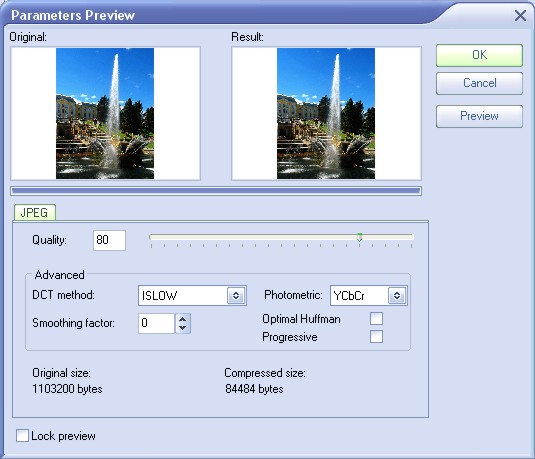
The JPEG Parameters Preview from an older version: original and result side by side at quality 80, with DCT method, smoothing, progressive and optimal Huffman options, and the size dropping from 1,103,200 to 84,484 bytes.
Command line and reusable jobs
Able Batch Image Converter runs from the command line as ablebatchconverter.exe /inputfile="..." /outputfile="..." with options such as /resize, /dpi, /autocrop, /deskewing, /rotate, /text, /prefix, /suffix, /deleteorig and /actlist to load a saved action list. That lets you schedule a nightly job or call it from another program. In the window, action lists, file lists and all settings can be saved to files and loaded again, and one action list can be set as the default.
Benefits
- Repeatable results: a saved action list makes this month's product photos come out exactly like last month's.
- One tool for photos and paperwork: the same program handles RAW photos and scanned PDFs, which usually needs two.
- Light on your PC: the installer is under 9 MB and the stated minimum is a 600 MHz processor with 512 MB of RAM.
Real-World Uses
- Online sellers: resize phone photos for eBay or a web shop, add a watermark and save them as JPG in one pass.
- Office scanning: deskew and brighten faint scanned pages, remove punch holes and blank pages, and save the result as PDF or TIFF.
- Photographers: turn a folder of NEF or CR2 RAW files into JPGs, fix orientation from EXIF and strip GPS data before sharing.
- Archiving: convert lossy JPGs to TIFF with LZW compression for long-term storage.
- Websites: convert iPhone HEIC photos to WebP or JPG at a fixed width.
Who It's For, and Who Should Skip It
Able Batch Image Converter suits Windows users who process the same kind of images again and again, especially offices dealing with scanned documents and small sellers preparing product photos, and anyone who wants to automate a job from the command line.
Skip it if:
- You use a Mac or Linux. It's Windows-only. A cross-platform batch converter such as XnConvert fits better.
- You need to edit photos one at a time. It applies the same edits to a whole batch. Retouching individual images needs a photo editor.
- You want a modern, polished interface. The program is functional but looks dated.
- You only convert a few files a year. Windows' own Photos app or a free converter will do.
Usage Guide
- Install: run batchconverter_setup.exe. On the components screen, leave GhostScript ticked if you'll work with PDF, EPS, PS or AI files, and the installer downloads it.
- Add files: on 1 - Files, click Add Files or Add Folder, or drag files and folders from Explorer.
- Add actions (optional): on 2 - Actions, click Add Action and pick Resize, Auto Crop, Watermark or any other edit. Use Up and Down to set the order and Save List to keep it.
- Set the output: on 3 - Result, choose the output folder (or a child folder next to the originals), the output format and its Advanced settings, and a prefix or suffix for file names.
- Preview and run: click the eye icon to preview, then 4 - Start.
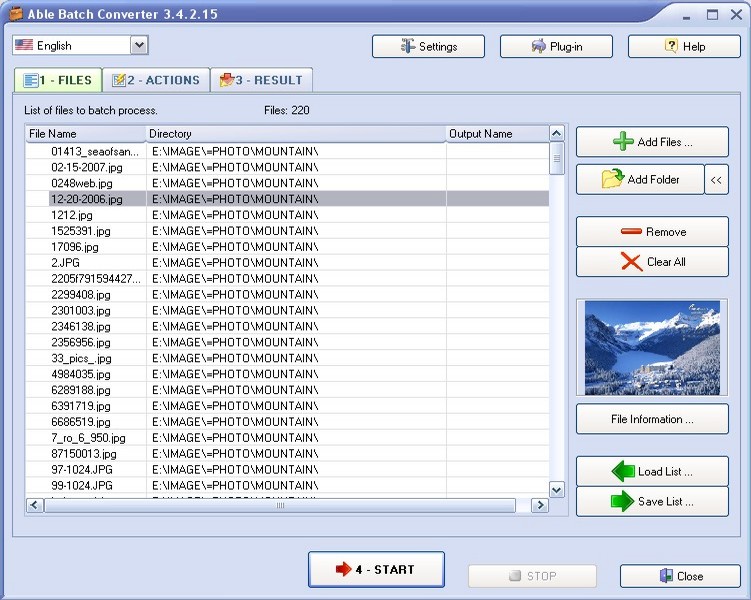
The Files tab in an older version (3.4.2.15) with 220 photos queued, a thumbnail of the selected file, and the File Information, Load List and Save List buttons. The current version has the same layout with a newer Windows look.
Tips
- Use "Resize with condition" so small images aren't blown up when you only want to shrink the large ones.
- Tick Keep folder structure on the Result tab when converting a folder tree, so the output mirrors the originals.
- Try your action list on a handful of files first. "Delete original files after conversion" is useful for big jobs but can't be undone.
Where it falls short
- Dated look and documentation. Many screenshots and help pages on GraphicRegion's site show versions from years ago, and the online help still lists old prices.
- A steeper start than the simplest converters. With dozens of actions and parameters, it takes some exploring before you know which crop or color action you need.
- Few independent reviews. Most feedback comes from the developer's own testimonials page, so there's little outside evidence on reliability with very large batches.
What Users Say
Customer stories on GraphicRegion's testimonials page
Bruce T. used it to fix a scanned cookbook: "I scanned an old cookbook which was sold to raise money for library books at my old elementary school. It has 402 pages. The image cropper I reset the resolution to 96 DPI, and this caused the pdf to have huge pages (compared to the front and back covers, which had 300 DPI). Able Batch Converter fixed all of the images in a snap!"
Jack R.: "I've generally used Batch Converter to resize the ever-larger digital images from my phone for eBay or blog uploads. I'm now looking forward to using it to remove punch holes and re-order pages after scanning booklets that I either scan two pages at a time or after removing the staples for auto-feeding."
Daniel L. Lieberman: "I receive pdfs of scanned documents that are too light and not straight. I can deskew them and increase the contrast so they are more readable."
Michael Kovnat, on the product page: "What I like most about Able Batch Image Converter is just the simplicity and how easy it is to learn to use."
On Uptodown
Uptodown's editor Andrés López wrote that Able Batch Converter "is an image edition application that makes easy the task of modifying a group of pictures at once." The site shows a single user rating of 5 out of 5, from a user who described it as a good option when you need to resize many images at once.
That's thin coverage for a program that has been around this long, and the developer's testimonials are naturally positive. The pattern in them is consistent, though: people buy it for one repetitive job (resizing for eBay, fixing scan resolution, archiving to TIFF) and keep using it for others. Nobody mentions the interface as a selling point.
Editions and Pricing
| License | Price | Who may use it |
|---|
| Personal | $35 | One user, non-commercial use at home |
| Business | $65 | One user in a company, government or other organization |
| Site | $900 | Unlimited computers in one company or institution |
The order page also gives volume discounts on personal licenses: $30 each for 3-4, $25 each for 5-8 and $20 each for 9 or more.
FAQs
Can Able Batch Image Converter convert iPhone HEIC photos to JPG?
Yes. Able Batch Image Converter reads HEIC and HEIF files through Windows Imaging Component, so it can convert a whole folder of iPhone photos to JPG, PNG or WebP. Windows needs the free HEVC Video Extensions (and on older systems HEIF Image Extensions) from the Microsoft Store for this.
Does Able Batch Image Converter work on a Mac?
No. Able Batch Image Converter is a Windows program, and GraphicRegion doesn't offer a Mac version.
Can I use the $35 personal license at work?
No. Able Batch Image Converter's personal license is only for non-commercial use at home. Any business, government or organizational use needs the $65 business license, and each user needs their own license.
Are updates free after I buy Able Batch Image Converter?
Able Batch Image Converter updates are free for one year from the purchase date. After that, GraphicRegion sells upgrades at a 50% discount, and the version you own keeps working.
Can Able Batch Image Converter convert PDF pages to JPG?
Yes. Able Batch Image Converter can open PDF, EPS, PostScript and Illustrator files once GhostScript is installed, which the setup program offers to do, and save each page as an image.
Can Able Batch Image Converter process video files?
Able Batch Image Converter can open video files through DirectShow (AVI, MPEG, WMV and other formats Windows can play), but it's an image tool, not a video converter.
What if Able Batch Image Converter doesn't solve my problem?
GraphicRegion offers a 100% satisfaction guarantee on all its products: if your problem hasn't been resolved, it refunds what you paid. The 30-day trial lets you test it on your own files first.
System Requirements
- Windows: Windows 11, 10 or 8, and older versions back to Windows XP according to GraphicRegion's PAD file
- Processor: Pentium 600 MHz or faster
- Memory: 512 MB RAM
- Disk: 8.6 MB download
- Optional: GhostScript for PDF, EPS, PS, PRN and AI files
Conclusion
Able Batch Image Converter is worth $35 if you have a repetitive image job on Windows and want to set it up once and run it forever. The one reason to buy it is the depth of its actions: few converters at this price also deskew scans, remove punch holes, edit EXIF and GPS data, and run from the command line. The main reason not to is its dated, technical interface. If you just want to turn a few HEIC photos into JPGs, it's more tool than you need. If you process hundreds of photos or scanned pages every week, it will pay for itself quickly. Business users should budget for the $65 license.
Download Free TrialBuy Now