Able Image Search: Find Photos on Your PC by Size, Resolution and Orientation
Able Image Search is a $19.95 Windows tool from GraphicRegion that finds image files on your drives by their technical attributes: width and height, file size, resolution, color format and landscape or portrait orientation. It's for anyone who has thousands of photos and needs, say, every portrait shot or every image over 1920 pixels wide, without opening them one by one.
File names rarely help. A camera calls everything IMG_4821.jpg, downloads land in random folders, and Windows search can't answer "show me only the large landscape photos in this folder tree". Able Image Search answers exactly that kind of question in three steps: pick the folders, stack up the filters, click Start.
Quick Facts
- Version: 3.24.8.23, released August 23, 2024
- Developer: GraphicRegion.com, makers of Able Fax Tif View and Able Batch Converter
- Platform: Windows 11, 10, 8, 7, Vista and XP, 32-bit and 64-bit
- Installer: 5.8 MB
- Price: $19.95 personal license, $49.95 business license, one-time payment
- Trial: 30 days free
- Updates: free for one year after purchase
- Guarantee: GraphicRegion offers a 100% satisfaction guarantee and refunds you if it can't solve your problem
What we checked: installer version 3.24.8.23 (5.8 MB) downloaded from GraphicRegion on October 12, 2026, and the personal license at $19.95 per copy in the PayPro Global checkout on October 12, 2026.
Download Free TrialBuy Now
Overview
Able Image Search is a filter-based photo finder. It doesn't look at what's in a picture. Instead, it reads each file's properties, the pixel dimensions, byte size, resolution and color depth, and keeps only the files that match every rule you set. That makes it fast to understand and predictable: if you ask for images wider than 3000 pixels, that's exactly what you get.
The whole program is one window with three tabs, 1 - Files, 2 - Filters and 3 - Result, so there's no learning curve. You work left to right, and the Result tab shows thumbnails with each file's name, folder, dimensions and size.
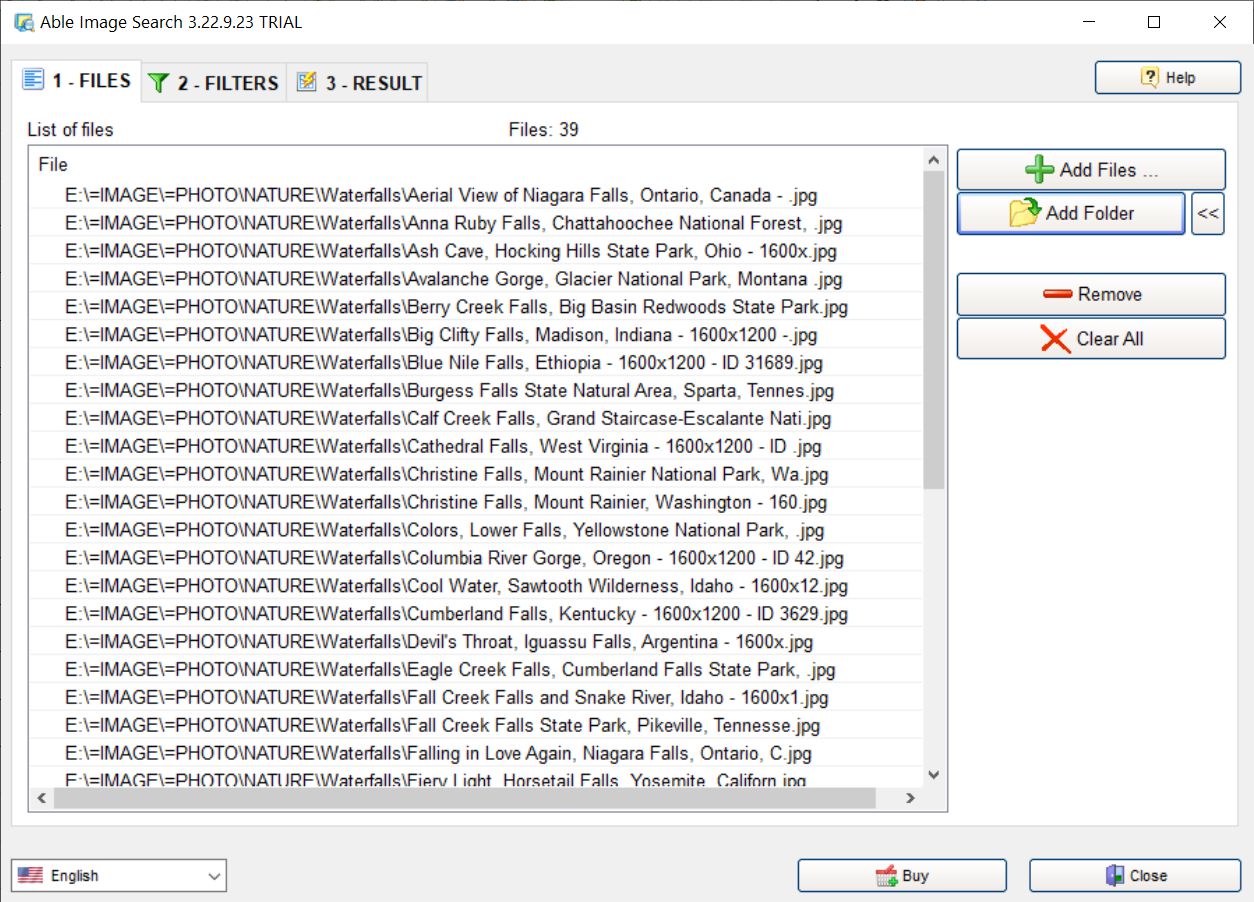
The Files tab with 39 photos from a Waterfalls folder loaded, and the Add Files, Add Folder, Remove and Clear All buttons on the right. The title bar shows version 3.22.9.23 in trial mode.
Features
Five filters, each with larger than, smaller than or equals
Able Image Search filters images by orientation (landscape or portrait), width and height (together or separately), file size, resolution and color format. Every numeric filter takes "larger than", "smaller than" or "equals", so "wider than 1920 and taller than 1080" or "smaller than 200 KB" are each one rule.
You can add several filters at once, reorder them with the Up and Down buttons, and a file has to pass all of them to show up in the results.
Color format filter for black-and-white and low-color images
Able Image Search's color format filter separates true color with an alpha channel, plain true color, 256-color and black-and-white images. That's handy for pulling scanned black-and-white documents out of a photo collection, or finding the images that carry transparency.
Saved filter lists you can reuse
Able Image Search saves a set of filters with Save List and brings it back with Load List. Tick "Use this list by default" and your usual search is ready every time you open the program, which suits a job you repeat, like checking a folder of product photos for anything below your minimum size.
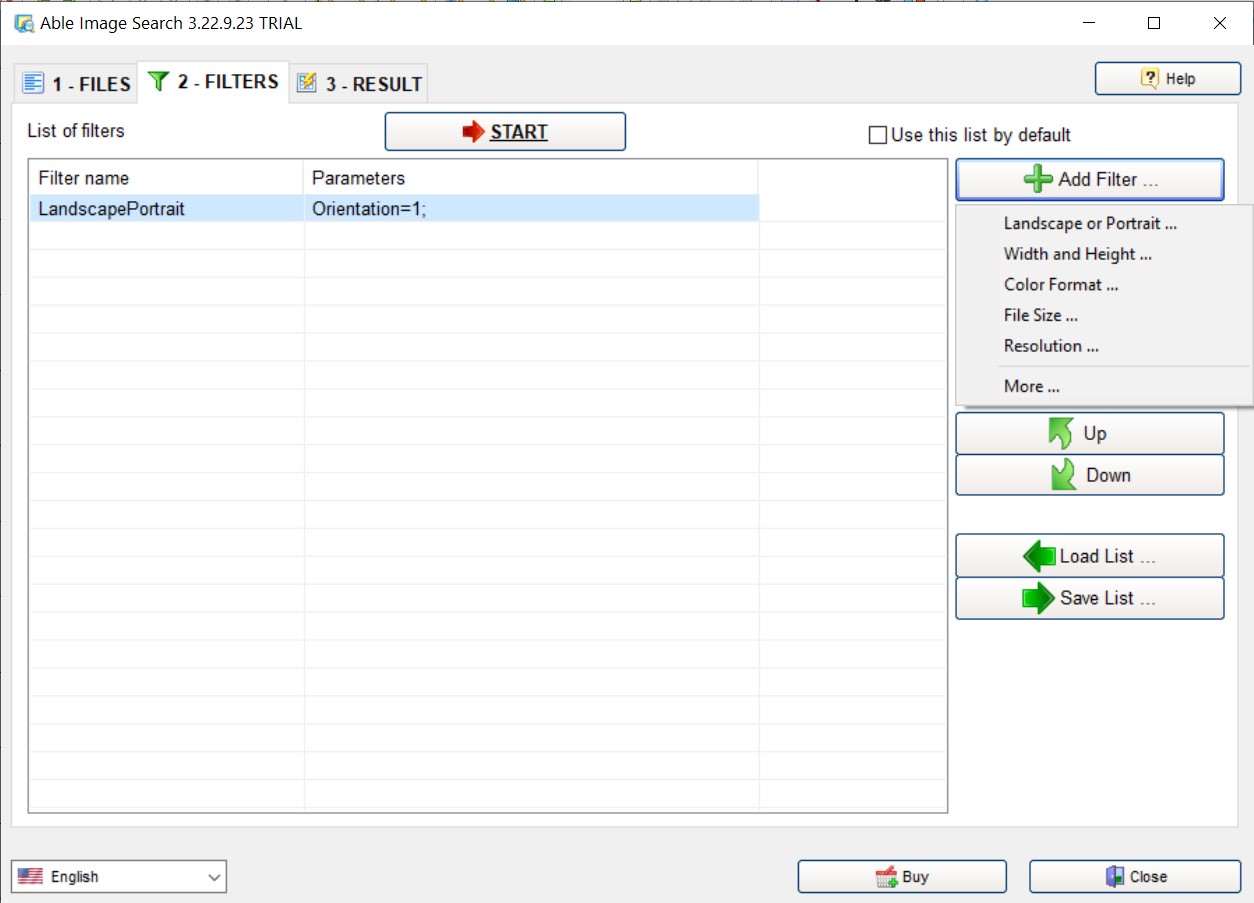
The Filters tab: one LandscapePortrait filter added, and the Add Filter menu showing Landscape or Portrait, Width and Height, Color Format, File Size, Resolution and More. Up, Down, Load List and Save List sit below.
Reads camera RAW, PSD, HEIC and WebP as well as the usual formats
Able Image Search reads JPEG, TIFF (including fax TIFF), GIF, PNG, BMP, ICO and cursor files, PCX and multipage DCX, Targa, WMF and EMF, the PBM/PGM/PPM family, WBMP and JPEG 2000. It also reads Photoshop PSD and camera RAW files (CRW, CR2, NEF, PEF, RAF, X3F, ORF, SRF, MRW, DCR and RAW).
Through the Windows Imaging Component it adds HEIC and HEIF (iPhone photos), WebP, JPEG XR and DDS, so a folder copied from a phone or saved from the web is searchable too. On older Windows versions, HEIC support depends on the codecs installed in Windows.
Thumbnail results with dimensions and size
Able Image Search lists every match as a thumbnail with its file name, folder, pixel dimensions and file size, for example "1067 x 1600, 344 KB". Zoom buttons change the thumbnail size, and the Display and Export buttons on the Result tab let you view and hand off the matching files.
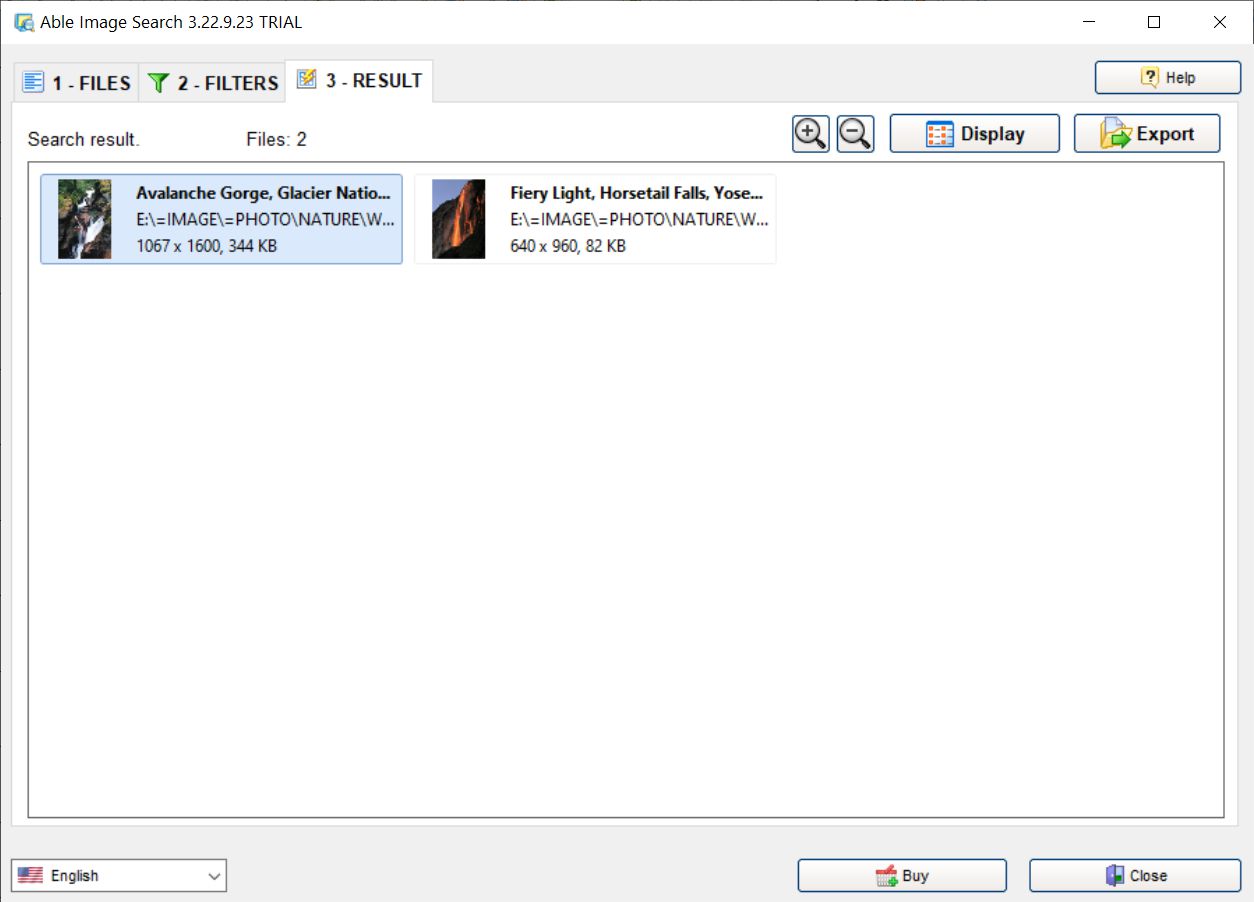
The Result tab after the portrait filter ran: 2 of the 39 files matched, shown as thumbnails with 1067 x 1600, 344 KB and 640 x 960, 82 KB. Zoom, Display and Export buttons are at the top right.
Benefits
- You stop opening files to check them. The program answers "how big is it, which way does it face" for a whole folder tree in one pass.
- Results are exact. Because it filters on numbers rather than guessing at content, you never wonder why a file was or wasn't included.
- It's cheap and small. A 5.8 MB download and $19.95 once, with no subscription.
- Repeat jobs take seconds. A saved filter list turns a weekly check into open, Start, done.
Real-World Uses
- Printing an album: pull every portrait photo from a holiday folder so the portrait pages can be laid out together.
- Finding wallpapers: search your pictures for anything at least 1920 x 1080 that's landscape, and you have a ready list of desktop backgrounds.
- Freeing disk space: look for images larger than a set file size to find the heavy scans and RAW files worth archiving.
- Checking web or shop images: run a "smaller than" width filter over an upload folder to catch images too small for your product pages.
- Sorting scans: use the black-and-white color format to separate scanned letters and receipts from color photos.
Who It's For
Able Image Search suits home users with big photo collections, photographers sorting shoots by orientation or size, and small businesses that keep image libraries for print or the web. It's a poor fit if you want to search by what a picture shows (faces, objects, "beach"), by date taken, or to find duplicates; it doesn't do those.
Usage Guide
- Install and launch: download the 5.8 MB installer from GraphicRegion, run it, and open Able Image Search. The trial runs for 30 days.
- Add your images: on the 1 - Files tab, click Add Folder for a whole folder or Add Files for individual pictures. The file count shows at the top.
- Set the filters: on 2 - Filters, click Add Filter, choose a filter such as Width and Height, and enter the rule. Add more filters if you need them.
- Run it: click START.
- Review the matches: the 3 - Result tab shows the matching files. Zoom the thumbnails, then use Display or Export.
- Save the search: back on the Filters tab, click Save List if you'll run it again.
Before you buy
- Personal vs business: the $19.95 personal license is for non-commercial use at home. Use at work, in government or in any business needs the $49.95 business license.
- No content search: Able Image Search filters on file properties only. It won't find "photos with people in them".
- Updates: the latest version, 3.24.8.23, dates from August 2024, and the screenshots on GraphicRegion's site show the slightly older 3.22 window. The program still lists Windows 11 support.
What Reviewers Say
Able Image Search is a small niche utility, and there are almost no user reviews of it on the big review sites. There's no Trustpilot, Capterra or G2 page for it.
Softpedia's editor rated it 4 out of 5. The review found the filters fairly general and pointed out that the program has no AI image recognition, which limits it on very large libraries where you'd want to search by content. That matches what you see in the program: it's quick and clear for size, shape and color questions, and not built for anything beyond them.
Comparisons
Able Image Search vs Windows File Explorer search
Windows File Explorer can sort a folder by dimensions and search by some properties, but it has no simple "larger than / smaller than" rules for width, resolution or color format, no orientation filter, and no way to save a set of rules. Able Image Search does all of that in one window.
Able Image Search vs photo managers
Photo managers and AI galleries search by faces, places and dates, but you have to import your library into them first. Able Image Search works directly on folders, leaves your files where they are, and answers technical questions a gallery usually can't, such as "every image under 800 pixels wide".
Editions and Pricing
| License | Price | Allowed use |
|---|
| Personal | $19.95 | Private, non-commercial use at home |
| Business | $49.95 | Corporate, government or business use |
Both are one-time payments sold through PayPro Global, and the serial number arrives by email. Buying several personal licenses lowers the price per copy at checkout: $17.95 each for 3 to 4, $15.95 for 5 to 8, and $13.95 for 9 or more.
FAQs
Does Able Image Search work on Windows 11?
Yes. GraphicRegion lists Able Image Search for Windows 11, 10 and 8, and it also runs on Windows 7, Vista and XP, in 32-bit and 64-bit versions.
Is there a Mac version of Able Image Search?
No. Able Image Search is Windows only.
Does Able Image Search stop working after a year?
No. An Able Image Search license never expires. You get free updates for one year from purchase; after that you can keep using your version forever or buy a discounted upgrade, which includes another year of updates.
Can I move my Able Image Search license to a new computer?
Yes. GraphicRegion's licenses are moved by deactivating the program on the old computer and then installing and activating it on the new one.
Can Able Image Search find photos of a person or object?
No. Able Image Search filters on file properties (dimensions, size, resolution, color format, orientation), not on what the picture shows, so it can't recognize faces or objects.
Does Able Image Search open iPhone HEIC photos?
Yes, through the Windows Imaging Component. Able Image Search reads HEIC and HEIF files when Windows itself can decode them, which on Windows 10 and 11 may need Microsoft's HEIF extensions.
What if Able Image Search doesn't do what I need?
GraphicRegion backs all its programs with a 100% satisfaction guarantee: if it can't resolve your problem, it refunds what you paid. The 30-day trial lets you test it on your own folders first.
Can I use the personal license at work?
No. The Able Image Search personal license covers non-commercial use at home only; using it in a business or government office needs the $49.95 business license.
System Requirements
- Windows 11, 10, 8, 7, Vista or XP (32-bit or 64-bit)
- Pentium 600 MHz or faster processor
- 512 MB RAM
- About 6 MB for the installer
Conclusion
Able Image Search does one job and does it plainly: it tells you which of your images are big or small, wide or tall, color or black-and-white, across any folders you point it at. If you regularly need "all the portrait shots" or "everything under 1000 pixels", it saves a lot of opening and squinting for less than twenty dollars. If you need to search by faces, dates or content, look at a photo manager instead. Try it free for 30 days on your own pictures first.
Download Free TrialBuy Now