Able Video Snapshot: Pull Still Pictures Out of Your Video Files for $9.95
Able Video Snapshot is a $9.95 Windows program that plays a video file (AVI, MPG, MPEG, VOB or WMV), stops on the frame you choose and saves it as a picture. It suits anyone who wants a clean still from home movies, security footage or test recordings.
Your phone screenshot of a paused video comes out with the player controls in it and at screen resolution. This does one narrow job instead: find the frame, press SnapShot, keep the picture.
Quick facts
- Version: 1.24.8.26, file date August 27, 2024
- Developer: GraphicRegion.com
- Platform: Windows (the vendor lists versions through Windows 10)
- Video types: AVI, MPG, MPEG, VOB, WMV
- Price: $9.95, one payment, with free upgrades for one year
- Trial: 30 days
- Refund: GraphicRegion promises its money back if a problem can't be resolved
- What we checked: installer version 1.24.8.26 (5.1 MB) downloaded from the vendor and the $9.95 order page price on November 10, 2026. We read the installer's file details and did not install it or capture a frame.
Download Free Trial
Buy Now ($9.95)
Overview
Open a clip, play it or drag along the timeline, pause where you want, and click the large SnapShot button. Able Video Snapshot then asks where to save the picture, or saves it without asking if you've turned that on. The window is plain: a toolbar, a timeline and the picture.
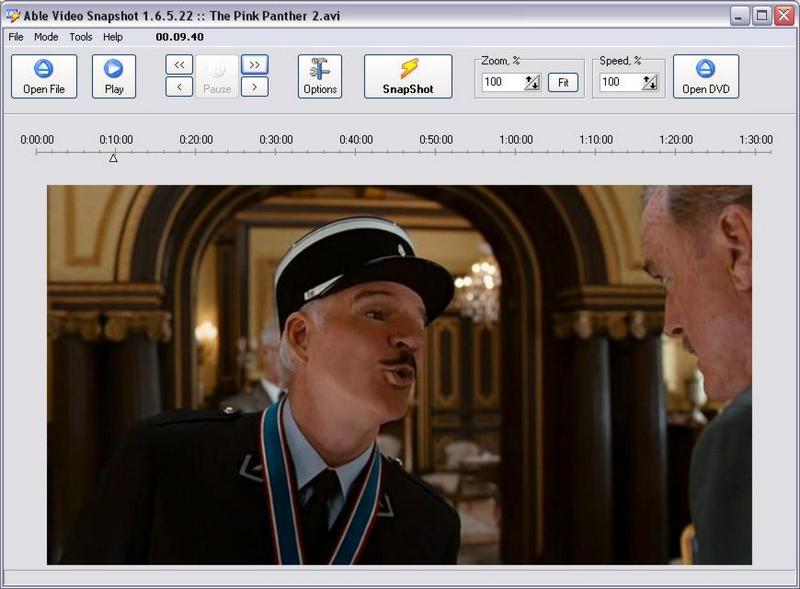
The main window, from the vendor's site, with SnapShot, zoom and speed controls above the timeline. This picture shows the older version 1.6.5.22.
Features
Stop on the exact frame you want
Able Video Snapshot gives you a timeline, Pause, and stepping buttons either side of it, plus a Set Position command in the Tools menu for jumping to a known point. Zoom and playback speed sit on the toolbar, so you can slow a fast scene down before you pick the frame.
Fix the picture before it is saved
Able Video Snapshot opens an Edit dialog for the grabbed frame with contrast, HSV, HSL, RGB, equalization, FFT, gamma and sharpen controls, an Auto Equalize command and Undo. Dark footage is the usual reason to reach for this.
Effects, rotation and flips
Able Video Snapshot includes bump map, lens, wave and morphing filters, a user-defined filter, rotation, and vertical and horizontal flips. Flips help with footage shot in a mirror or a sideways camera.
Automatic saving for long sessions
Able Video Snapshot has an Options, Save, Automatically setting where you choose the path, file type and name once. After that a click on SnapShot saves the picture with no dialog, which is what you want when you are collecting dozens of frames from credits or a recording.
Correct the aspect ratio
Able Video Snapshot lets you customize the aspect ratio, so a frame from a clip stored with non-square pixels doesn't come out squashed.
Real-World Uses
- Pulling the one good picture of a family event out of an hour of camcorder footage.
- Saving stills from security recordings to attach to a report.
- Capturing frames from test recordings for documentation.
- Making a title slide or a DVD insert from a scene in your own movie.
Who It's For, and Who Should Skip It
It fits Windows users who grab stills from older video formats often enough to want saved settings and pre-save color work, at a price that barely needs thinking about.
Skip it if your videos are mostly MP4 or MKV, since those aren't on the list of supported types. Skip it too if you only need a picture now and then: free players such as VLC have a snapshot command. And if you want a batch of frames taken every few seconds without you choosing them, look for a dedicated frame extractor.
Usage Guide
- Download the trial and run the installer.
- Start Able Video Snapshot and click Open File.
- Play the clip, then Pause near the moment you want.
- Use the timeline or stepping buttons to reach the exact frame.
- Click SnapShot, adjust the picture if you need to, and save it.
Before you buy
Run the 30-day trial on the actual files you plan to use. Windows 11 isn't on the vendor's list of supported systems, so if you're on it, the trial is how you find out.
Where it falls short
- New features have stopped: the last entry adding features is dated April 24, 2013. The August 2024 build keeps it available, but don't expect it to catch up with modern formats.
- MP4, MKV and MOV are not among the listed video types, and those are what most phones and cameras record today.
What Users Say
We found no recent independent reviews with real testing, and no ratings worth repeating. These comments come from the testimonials GraphicRegion publishes, so expect them to lean positive, and note how many describe older formats and uses.
From the vendor's testimonials
Bill L.: "By the way I use it to review AVI security video files. It is very handy. I have multiple purchased copies on multiple computers."
Jim Ritter: "Thank you for this very easy to use and useful software. I review high-speed digital recordings of aircraft seat crash tests, and this software makes it possible for me to capture scenes from the video for description and reporting."
Jill Molton: "I did a search on the net to find a program to capture still images from video clips. Often, I use my camera in movie mode, and miss out on a lot of still pictures.. so this way I can continue taking my movies, then go thru them and take whatever still photos I want from them."
Roland Meylan: "It is easy to use and has a simplified GUI"
Eduardo Homem: "Your program is the best I know in what concerns high quality snapshots and LARGE enough . So the most interesting feature is the SIZE of the snapshots: LARGE with QUALITY."
The recurring themes are ease of use and picture quality, and the uses are practical ones: security clips, crash-test recordings, family footage.
Editions and Pricing
| License | Price | Includes |
|---|
| Personal license | $9.95 (one payment) | Full version, free upgrades for one year, email support |
Buy Personal License ($9.95)
FAQs
Does Able Video Snapshot work with MP4 files?
Able Video Snapshot lists AVI, MPG, MPEG, VOB and WMV as its supported video types, and MP4 is not among them. Try your own file in the trial before buying.
Does Able Video Snapshot run on Windows 11?
Able Video Snapshot's published system list stops at Windows 10. Windows 11 isn't listed either way, so test it with the free trial.
Is Able Video Snapshot a subscription?
Able Video Snapshot is a single $9.95 payment. Free upgrades run for one year from purchase, and the program keeps working after that.
Can Able Video Snapshot save frames without asking for a file name every time?
Able Video Snapshot can, through Options, Save, Automatically, where you set the path, file type and name in advance.
Does GraphicRegion have a separate program for DVDs?
GraphicRegion sells DVD Snapshot, also $9.95, for grabbing frames from DVD movies. Able Video Snapshot is the one for video files.
System Requirements
- Windows 10, 8, 7, Vista, XP or 2000, or Windows Server 2003 through 2012
- Pentium-400 or better
- 64 MB of RAM
- About 5.1 MB for the installer
Conclusion
Worth $9.95 if your footage is in AVI, MPG, MPEG, VOB or WMV and you grab frames regularly. The reason to buy it is the pairing of automatic saving with pre-save color correction at a very low price. The reason not to is its age: no new features since 2013 and no listed MP4 support, so anyone working with phone video should look elsewhere.
Download Free Trial
Buy Now ($9.95)