Vovsoft Text to Image Converter: One Image per Line of Text, in a Batch
Text to Image Converter is a $19 Windows program from Vovsoft that turns a list of text, one item per line, into a separate image for every line, as PNG, WebP, JPEG, TIFF, GIF or BMP. Use a plain background color and font, or design a template with a background picture, text layers and shapes, and it fills in each line. It runs on Windows 8 to 11. The $19 is a one-time lifetime license, and there's a free trial.
It's for anyone who needs dozens or hundreds of simple text graphics that differ only in their words: name badges, quote cards, labels, numbered tiles, or email addresses shown as pictures on a web page.
Quick facts
- Version: 2.3, released May 22, 2026
- Developer: Vovsoft
- Platform: Windows 11, 10 and 8/8.1, 32-bit and 64-bit. No Mac version
- Input: typed or pasted lines, a text file, or a Word document
- Modes: Simple (color, font, margins) and Advanced (template with background image, text layers and shapes)
- Shapes: rectangle, circle, rounded rectangle
- Output: PNG, WebP, JPEG, TIFF, GIF, BMP, numbered from 1
- Editions: installer (10.51 MB) and portable (11.65 MB), one license for both
- Price: $19, one-time payment, lifetime license with free updates
- Trial: creates images, with a nag screen and for non-commercial use only
- What we checked: installer file version 2.3.0.0 (11,021,800 bytes) with a valid code signature, downloaded from the vendor on November 11, 2026, and $19.00 on the order page with no auto-renewal on November 11, 2026. We didn't generate images ourselves
Download Free TrialBuy Now
Overview
The text list sits on the left, one item per line, with buttons to start a new list, open one and save it. On the right are two tabs. Simple asks only for a destination folder, background color, font and four margins. Advanced is a small layout editor: a background image, an image size, a canvas where you place text and shapes, a Layers list, and position and size boxes. Click Start and every line becomes Output1, Output2 and so on.
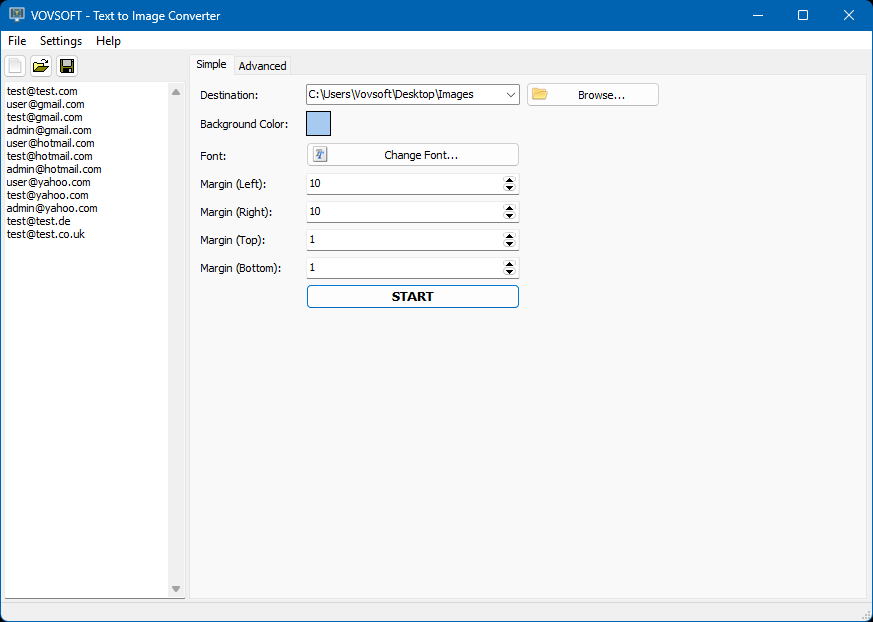
Simple mode: twelve sample email addresses in the list, a light blue background, the font and margins.
Features
Simple mode: text labels in seconds
Text to Image Converter's Simple mode makes a tight image around each line, using your background color, font and margins. It's the quickest way to get, say, a set of email addresses or phone numbers as small PNGs for a web page, where text in an image is harder for spam bots to copy.
Advanced mode: a template every line drops into
Text to Image Converter's Advanced tab lets you build one design: choose a background picture or color and an image size, drag the text where you want it or type exact left, top, width and height values, and add rectangles, circles or rounded rectangles as extra layers (shapes beyond rectangles arrived in version 2.2). Each line of your list is then rendered into that layout.
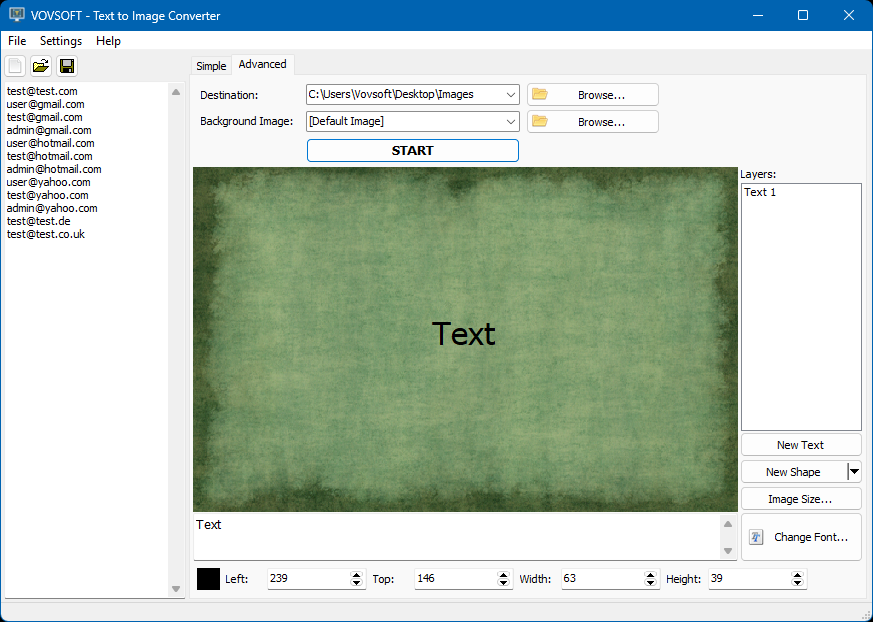
Advanced mode: a textured background image, one text layer in the middle, the Layers list, New Text, New Shape, Image Size and Change Font buttons, and position boxes.
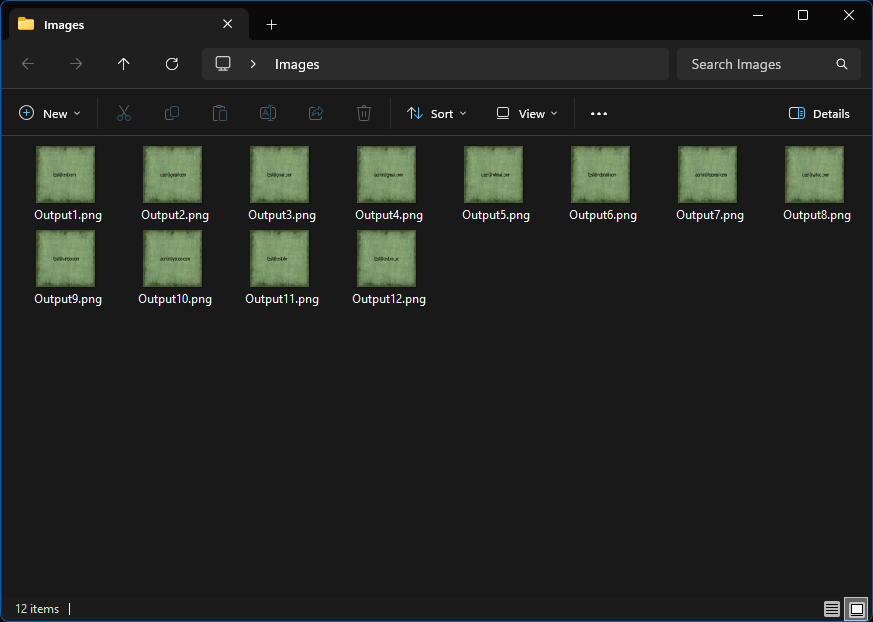
The result: Output1.png to Output12.png, each line of the list on the same textured background.
Lists from text files or Word, output in six formats
Text to Image Converter loads lists from text files and Microsoft Word documents, so a few hundred lines from a spreadsheet or a document become a few hundred images in one run. Save as PNG for sharp text and transparency-friendly web use, JPEG or WebP for small files, or TIFF, GIF or BMP when another program wants them.
Benefits
Making the same graphic 200 times with different words is exactly the kind of job image editors are bad at without scripting. Text to Image Converter makes it one design and one click, with no Photoshop or GIMP skills needed, and the result is consistent: same font, same position, same size every time.
Real-World Uses
- Showing staff email addresses on a website as images rather than text.
- Making a quote card for each line of a list of quotes, on a branded background.
- Creating numbered or lettered tiles for a game, a classroom or signage.
- Generating name tags or labels for an event from a guest list.
- Producing text images for flashcards, one word or phrase per card.
Who It's For, and Who Should Skip It
Text to Image Converter suits Windows users who need many simple text images from a list, with no design software or scripting.
Skip it if you need more than one changing field per image (say, a name and a job title in different places from a spreadsheet's columns): it uses one line of text per image. Mail-merge style tools, or Canva's bulk create feature, handle multi-field designs. For a single graphic, any free image editor or Canva is the better fit.
Usage Guide
- Download the installer or the portable edition and start Text to Image Converter.
- Type or paste your list, one item per line, or open a text file or Word document.
- On the Simple tab, choose the destination, background color, font and margins. Or on the Advanced tab, set the background image, image size, text position and any shapes.
- Click Start.
- Open the destination folder to find one image per line.
Before you buy
The trial creates images, with a nag screen, and is for personal use only; making images for work needs the license. One license covers one person on any number of their own computers. Vovsoft's general policy is no refunds, since the trial comes first (it may refund an accidental order at its discretion, and PayPro Global has the final say on its orders), so build your design in the trial first.
Where it falls short
- One line of text per image: no multi-column data merge.
- Files are named Output1, Output2 and so on, not after their text, so you'll rename them if names matter.
- Basic layout tools only: no text effects such as outlines or shadows are listed.
- No Windows 7 support, and an English interface.
What Users Say
On Vovsoft's site
Text to Image Converter's product page shows 4.5 out of 5 from 2 ratings, with one comment:
"I like this program and how easy it is to use." Anonymous User
That's all the feedback we found, so it can't tell you much beyond ease of use. The trial costs nothing and shows you the output directly.
Comparisons
Text to Image Converter vs Canva bulk create
Canva's bulk create fills designs from spreadsheet columns and has far better templates, but it's online and generally tied to a paid plan. Text to Image Converter is offline, a one-time $19, and simpler, at the cost of a single text field per image.
Text to Image Converter vs scripting
ImageMagick or a short Python script can do the same for free if you can write one. Text to Image Converter is for everyone else, with a visual template editor instead of code.
Editions and Pricing
| Option | Price | License | What you get |
|---|
| Trial | Free | Personal, non-commercial use | Image generation, nag screen |
| Text to Image Converter license | $19 one time | Lifetime, commercial use allowed | No nag screen, all future updates |
| Vovsoft Universal License | $99 one time | Lifetime | All 115+ Vovsoft programs |
The license key arrives by email right after payment. Prices include tax.
FAQs
Is Text to Image Converter an AI image generator?
No. Text to Image Converter renders your words as text on a background; it doesn't create pictures from descriptions the way AI image tools do.
Can I use my own background picture?
Yes. Text to Image Converter's Advanced tab takes any background image of yours, and you set the output image size.
How many images can it make at once?
Text to Image Converter makes one image per line, and the vendor describes loading text files with hundreds of lines in a single batch.
Does Text to Image Converter run on Windows 7?
No. Text to Image Converter supports Windows 8, 8.1, 10 and 11, 32-bit and 64-bit.
Is the $19 a subscription?
No. Text to Image Converter's $19 is a one-time payment for a lifetime license with future updates. Nothing renews.
System Requirements
- Windows 11, 10 or 8/8.1, 32-bit or 64-bit
- About 10.5 MB for the installer, or 11.7 MB for the portable edition
- English interface
Conclusion
Text to Image Converter is worth $19 if you regularly need batches of simple text images from a list, such as labels, cards or email images, and don't want to script it or pay for an online design plan. The reason to buy it: one template, one click, hundreds of consistent images. The reason not to: it handles one text field per image with basic styling, so richer designs belong in Canva or an image editor. Build your template in the trial first.
Download Free TrialBuy Now