Vovsoft Video to Photos: Extract Frames from Videos as JPG, PNG or BMP
Video to Photos is a $19 Windows program from Vovsoft that pulls still images out of videos: every frame, or one frame every set number of milliseconds, saved as JPG, PNG or BMP. It reads MP4, MKV, MOV, AVI, MPEG, WEBM and WMV, one file or a batch, and runs on 64-bit Windows 7 to 11. The $19 is a one-time lifetime license, and the free trial adds a watermark.
It's for anyone who needs stills from footage: the best shot from a family video, frames for a thumbnail, images for analysis or a dataset, or an image sequence to edit.
Quick facts
- Version: 1.6, released April 24, 2025
- Developer: Vovsoft
- Platform: Windows 11, 10, 8/8.1 and 7, 64-bit only. No Mac version
- Video in: AVI, MKV, MOV, MP4, MPEG, WEBM, WMV, single or batch
- Images out: JPG (with quality setting), PNG, BMP
- Modes: all frames, or one frame per interval in milliseconds
- Engine: FFmpeg, with input seeking for speed
- Editions: installer (40.06 MB) and portable (51.12 MB), one license for both
- Price: $19, one-time payment, lifetime license with free updates
- Trial: extracts frames with a watermark, a nag screen, for non-commercial use only
- What we checked: installer file version 1.6.0.0 (42,009,136 bytes) with a valid code signature, downloaded from the vendor on November 11, 2026, and $19.00 on the order page with no auto-renewal on November 11, 2026. We didn't extract frames ourselves
Download Free TrialBuy Now
Overview
Video to Photos is one window. The left side lists the videos you've added with their length in seconds; the right side has the choice between All Frames and Image Duration (an interval in milliseconds, with the matching frames per second shown beside it), the image format and JPG quality, the destination folder and a Convert button. Each video's frames go to the output folder as numbered image files.
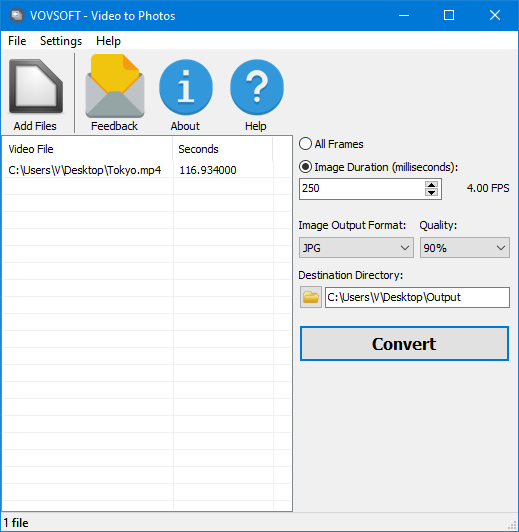
A 117-second MP4 loaded, one frame every 250 ms (4 FPS), saved as JPG at 90% quality to an Output folder.
Features
Every frame, or one per interval
Video to Photos either saves every frame (a 30 fps clip gives 30 images per second of video) or one frame at the interval you set: 1000 ms for one image per second, 250 ms for four. Intervals keep the image count sensible for long videos, and a Round Image Durations option is in the menu.
JPG, PNG or BMP, your choice of quality
Video to Photos saves JPG with a quality setting when disk space matters, PNG for lossless frames, or BMP for the highest quality at a very large file size. A Pad Output Files with Leading Zeros option names files 0001, 0002 and so on, so they sort correctly in Explorer and in editing programs that read image sequences.
Batch processing built on FFmpeg
Video to Photos runs on FFmpeg, the open-source engine behind many video tools, so it reads the common formats from phones, cameras and screen recorders. Add several videos and it processes them in one go. Input seeking jumps straight to each needed position instead of decoding every frame, which speeds up interval extraction. Version 1.6 moved to a 64-bit executable because the 32-bit FFmpeg failed on certain video formats.
Benefits
Pausing a video player and taking screenshots gives you screen-resolution images with the player's interface in the way, one at a time. Video to Photos gives clean frames at the video's own resolution, as many as you want, in a couple of clicks. Everything stays on your PC, which one user called out: they could keep their images "local and private".
Real-World Uses
- Grabbing the sharpest still of a moment from a phone video, like a child blowing out candles.
- Pulling frames from a video to choose a YouTube thumbnail.
- Extracting one frame a second from lab, traffic or sports footage for analysis.
- Building an image dataset from video for machine-learning work.
- Turning a clip into an image sequence for frame-by-frame editing or rotoscoping.
Who It's For, and Who Should Skip It
Video to Photos suits Windows users who want frames from videos often, in bulk or at intervals, without the command line.
Skip it if you're comfortable with FFmpeg itself, which does all of this free from the command line, or if you need a single still now and then: VLC's free Take Snapshot command saves the current frame. It also can't pick a start and end time or crop, so for one short section of a long video you'll get frames from the whole thing.
Usage Guide
- Download the installer or the portable edition and start Video to Photos.
- Click Add Files and choose one or more videos.
- Pick All Frames, or Image Duration and enter the interval in milliseconds.
- Choose JPG, PNG or BMP, and the JPG quality.
- Set the destination directory and click Convert.
Before you buy
The trial extracts frames but watermarks them, shows a nag screen and is for personal use; the license removes the watermark and allows work use. One license covers one person on any number of their own computers. Vovsoft's general policy is no refunds, since the trial comes first (it may refund an accidental order at its discretion, and PayPro Global has the final say on its orders). All Frames on a long video creates thousands of files, so try a short clip first.
Where it falls short
- No start and end times: it always works through the whole video.
- No preview or frame picker; you choose the best frames afterwards in Explorer.
- No resizing or cropping of the output images.
- A large download (40 MB) for a small tool, because FFmpeg is included.
- 64-bit Windows only, English interface.
What Users Say
On Vovsoft's site
Video to Photos' product page shows 4.7 out of 5 from 3 ratings, with these English comments among others:
"Thumbs up for Video to Photos! Simple, powerful, and just saved me hours of time while letting me keep my images local and private." Anonymous User
"It really is amazing how easy the software works. The developers didn't try to reinvent the wheel. It is functional and fast. Tnx, VIDEO TO PHOTOS developers." Andreishareware
"Good output" Zahid
"Thanks for the great program!" MFM
On YouTube
OnlineComputerTips published a walkthrough, "Extract Video Frames Easily with Vovsoft Video to Photos", which Vovsoft features on the product page, and the pdhowler channel has a short how-to on extracting frames with it.
Users praise the same things: it's simple, fast and keeps files local. Nobody reports a failure, but the number of ratings is small.
Comparisons
Video to Photos vs FFmpeg
FFmpeg is free and Video to Photos uses it inside. What the $19 buys is a window instead of commands: add files, set an interval, click Convert, with batch processing and sensible file numbering, and no need to learn command-line options.
Video to Photos vs VLC
VLC's snapshot and scene-filter features are free, but snapshots are one at a time and the scene filter is buried in advanced settings. Video to Photos is simpler for regular, bulk extraction.
Editions and Pricing
| Option | Price | License | What you get |
|---|
| Trial | Free | Personal, non-commercial use | Watermarked frames, nag screen |
| Video to Photos license | $19 one time | Lifetime, commercial use allowed | No watermark, no nag screen, all future updates |
| Vovsoft Universal License | $99 one time | Lifetime | All 115+ Vovsoft programs |
The license key arrives by email right after payment. Prices include tax.
FAQs
What resolution are the extracted frames?
Video to Photos saves frames from the video itself, so a 1080p video gives 1920 x 1080 images and a 4K video gives 4K images. It doesn't resize them.
How many images will Video to Photos create?
With All Frames, Video to Photos creates the video's frame rate times its length: a two-minute 30 fps clip gives about 3,600 images. With a 1000 ms interval, the same clip gives about 120.
Does the trial add a watermark?
Yes. Video to Photos' trial watermarks the extracted images, and the $19 license removes it.
Can it extract frames from YouTube videos?
Video to Photos works on video files on your PC, not on web links. It handles any MP4, MKV, MOV, AVI, MPEG, WEBM or WMV file you have the right to use.
Is the $19 a subscription?
No. Video to Photos' $19 is a one-time payment for a lifetime license with future updates. Nothing renews.
System Requirements
- Windows 11, 10, 8/8.1 or 7, 64-bit
- About 40 MB for the installer, or 51 MB for the portable edition, plus space for the extracted images
- English interface
Conclusion
Video to Photos is worth $19 if you regularly pull frames from videos and don't want to learn FFmpeg's commands: it batch-extracts every frame or one per interval, at full resolution, in a couple of clicks. The reason not to buy it: FFmpeg and VLC do the same free for those willing to fiddle, and it can't limit extraction to part of a video. Try a short clip in the trial (the frames will carry a watermark) to see if it fits your workflow.
Download Free TrialBuy Now