Bandicut Video Cutter: Fast, Lossless Video Trimming on Windows for $34.15
Bandicut is a $34.15 one-time Windows program from Bandicam Company that cuts, splits and joins video files, usually without re-encoding them, so the job is quick and the picture stays as it was. It's for people who record gameplay, lessons or meetings and just need to remove parts and stitch clips together, not for anyone who wants a full video editor.
If you've ever waited 20 minutes for an editor to re-export a one-hour recording because you trimmed the first minute, that wait is the problem Bandicut solves.
Quick facts
- Version: Bandicut 2025 (4.2.8.2572), released October 30, 2026
- Developer: Bandicam Company
- Platform: 64-bit Windows 11, 10, 8 and 7, with a separate 32-bit download. No Mac version
- Price: $34.15 one time for this Personal Lifetime license
- License: 1 PC, non-commercial use, runs indefinitely, 1 year of support, updates within the same title
- Free version: full features, with a watermark at the end, slower editing and fewer High-Speed formats
- Refunds: within 14 days and only if the serial number hasn't been registered
What we checked: installer named Bandicut 2025 (28 MB, digitally signed by Bandicam Company Corp.), and the order page, which listed this license at $37.95 less a 10% Personal License discount, a total of $34.15 with no renewal term, on November 5, 2026. We didn't run the program or time any cuts.
Download Free TrialBuy Now
Overview
Bandicut opens on three big buttons: Cut, Split and Join. Pick one, load a video, and you get a preview with a timeline and a list of segments. When you press Start, you choose between High-Speed mode and Encoding mode, and that choice is the heart of the program.
High-Speed mode copies the video stream directly, so nothing is recompressed except tiny sections around the cut points, which keeps cuts frame-accurate. Encoding mode fully converts the video, which is slower but lets you change format, size or quality. Most people will use the first and only need the second occasionally.
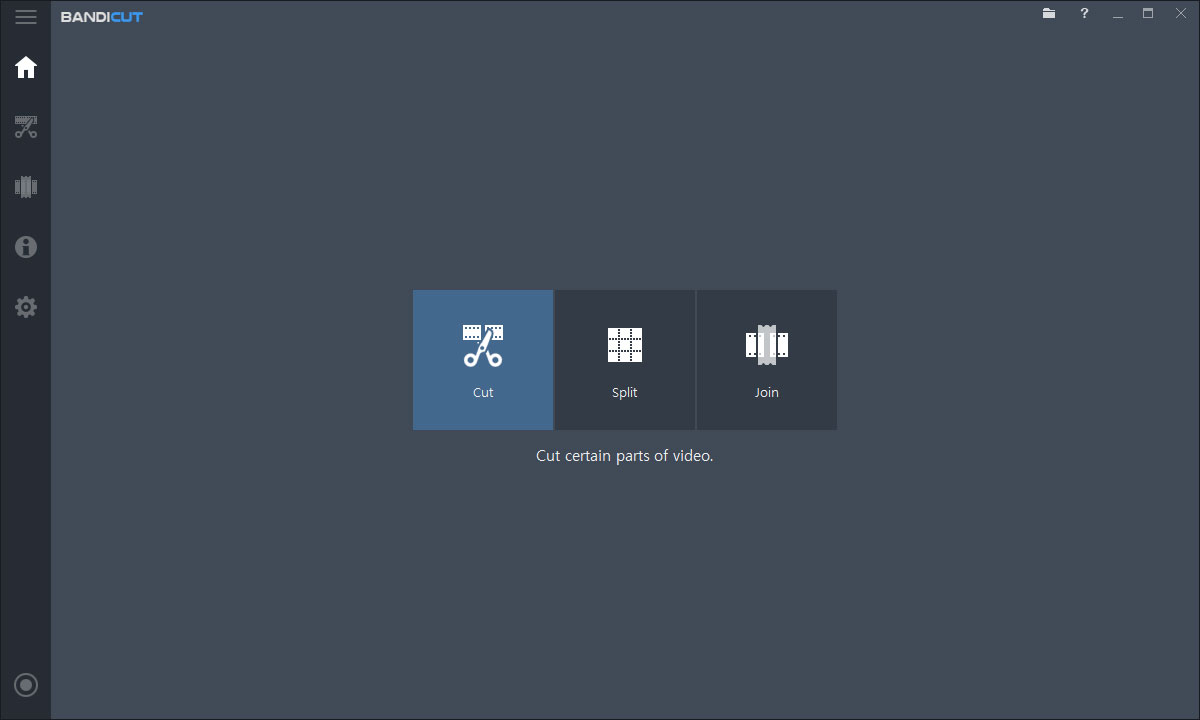
Bandicut's start window offers Cut, Split and Join.
Features
Lossless cutting with High-Speed mode
Bandicut's High-Speed mode uses stream copy to trim video without a full re-encode, so the original quality is kept in everything it doesn't touch. It works when cutting AVI, MP4, MOV, MKV, WMV, WebM, FLV, MPEG, VOB, TS and related formats, and the vendor recommends it whenever it's available. It doesn't cover every codec: when it can't be used, you fall back to Encoding mode.
Split one long video into many
Bandicut's Split option divides a large file into multiple equal parts, which suits long recordings headed for upload limits. Each part appears as its own segment, and you can change them before saving. Tick Merge Segments and the kept parts are written out as a single file.
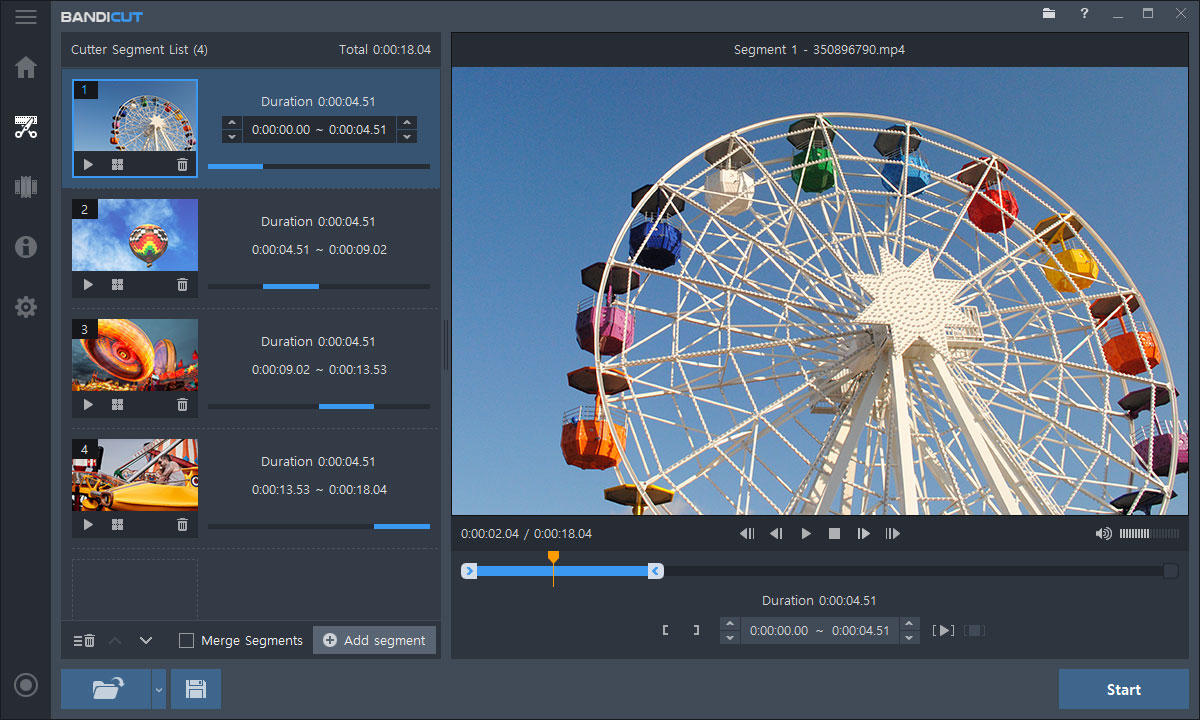
A video split into four equal segments, each with its own start and end time.
Join clips, losslessly when they match
Bandicut joins several files into one. Joining is lossless only when every file matches exactly in format, resolution and codec, as clips from one camera or one recorder usually do. Mixed sources have to go through Encoding mode instead. Clips appear as thumbnails, and you can reorder them before you start.
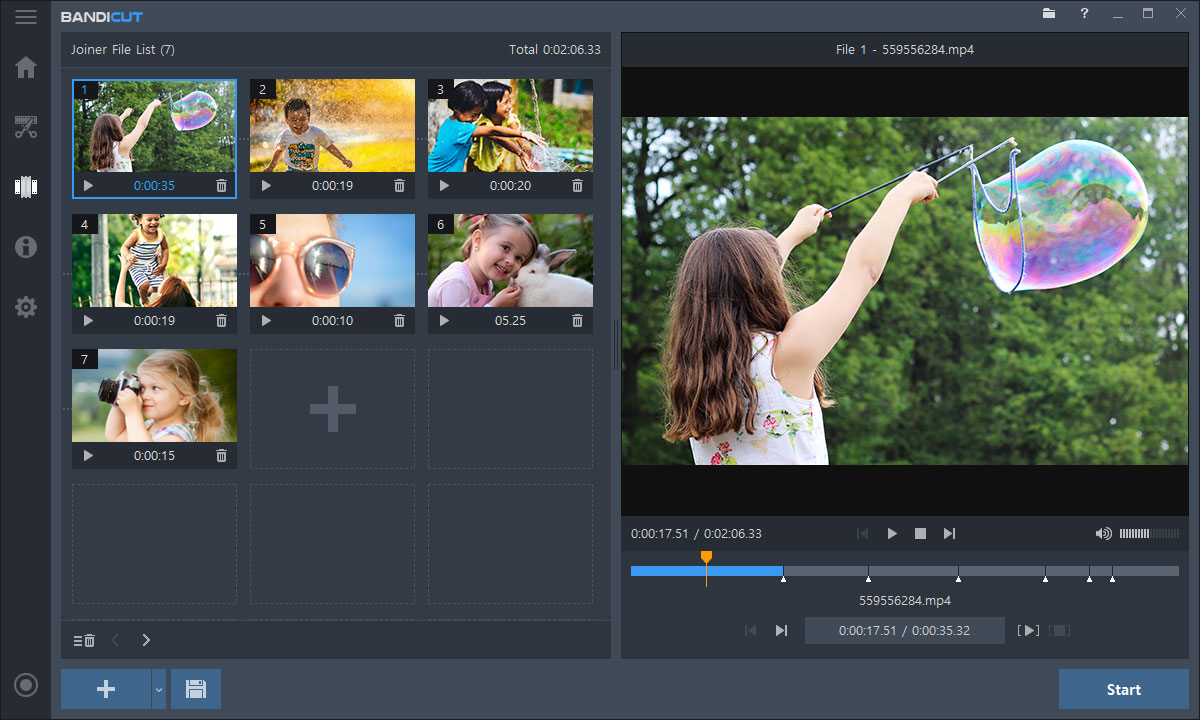
The Joiner with seven clips loaded and a preview of the first.
Batch editing, rotation and speed changes
Bandicut 2025 added multi-video editing, so you can load several files in Cut mode and process them together, plus 90, 180 and 270 degree rotation and horizontal or vertical flip. Playback speed runs from 0.1x to 99.9x, which covers slow motion and time-lapse style clips.
Audio extraction and hardware encoding
Bandicut can save a video's audio as MP3, or remove the audio track altogether. In Encoding mode it supports hardware-accelerated H.264 on NVIDIA, Intel and AMD graphics, which shortens the job compared with encoding on the processor alone.
Benefits
- Your time back. A trim that doesn't re-encode finishes in a fraction of the time, which matters most on long files.
- No quality loss from a simple cut. Every re-encode loses a little. Skipping it keeps your recording as it was.
- Nothing to learn. There are no tracks or layers, so a first-time user can finish a job in minutes.
Real-World Uses
- Gameplay highlights: pull the good minutes from a three-hour Bandicam or OBS session without recompressing them.
- Meeting recordings: remove the small talk at the start and end before sharing.
- Taped TV shows: cut out the commercials from your own recording and merge what's left.
- Phone videos: rotate a clip shot the wrong way, and join several from the same day.
- Course audio: save a lecture's sound as MP3.
Who It's For, and Who Should Skip It
Buy it if you cut recordings often and care about speed and quality, especially if you already use Bandicam. The two products are designed to work together, and the vendor sells them as a package.
Skip it if you need titles, transitions, multi-track audio or effects, because a full editor does that and Bandicut doesn't. Skip it if you trim once in a while, since the free version does the same cuts with a watermark and free tools such as Clipchamp or LosslessCut may be enough. It's also no use on a Mac. If you're using it for work, you need the Business license, not this one.
Usage Guide
- Download and install Bandicut, then start it.
- Choose Cut, Split or Join and select your video.
- In Cut mode, drag the markers to the part you want to keep and click Add segment for each extra part.
- Tick Merge Segments if you want one output file.
- Click Start, choose High-Speed mode if it's offered, set the file name and folder, and start.
- To register, click the Lock image at the top and enter the email address and serial number you received.
Before you buy
- Know what "Lifetime" means here. The license runs indefinitely, but free updates stay within the same title, such as Bandicut 2025, and support lasts one year. A later title can mean a paid upgrade.
- Don't register until you're sure. You can get a refund within 14 days only if the serial number hasn't been registered. Use the free version for testing, and buy after that.
- Check for High-Speed support. Try your own files in the free version, though remember it only offers High-Speed mode for AVI, MP4 and MOV.
Where it falls short
- Not every file is lossless. Unsupported codecs, or clips that differ in resolution or format, force Encoding mode, which takes longer and can lower quality.
- Very basic editing. A Capterra reviewer notes there's no way to blur sensitive information, and there are no titles or transitions.
- Upgrades split opinion. Trustpilot and Capterra both have buyers unhappy about paying again for a new version after a lifetime purchase.
- Limited refunds. The moment you register your serial, the refund option is gone.
- Support is mixed. Capterra users rate customer service 3.8 out of 5.
What Users Say
Bandicut has only a handful of reviews on business software sites, and we read those through search summaries because the sites block direct reading. Bandicam Company's own Trustpilot page is much busier, mostly about the screen recorder, and was read through a page summarizer.
Capterra
Capterra shows 4.3 out of 5 from 8 reviews, with 4.5 for ease of use and 3.8 for customer service.
Praise: "The feature I liked the most in Bandicut is the lossless (and pretty fast) video trimming and joining feature." Another reviewer says: "It works smooth, the wait time for exporting is low, and it is easy enough to navigate."
Criticism: one user warns it's "not recommended if you need to edit your videos professionally," another found that "there is no option to blur out sensitive information," and a third reports "the only issue was with ONE video where I could not cut the last 5 seconds."
FileHorse
Sophia Jones' FileHorse review calls it "an excellent choice for users seeking a fast and efficient tool." Its pros include "Simple and intuitive interface" and "High-speed processing with lossless quality." Its cons are "Limited to Windows OS," "Lacks advanced editing features" and "Free version outputs watermarked files."
Bandicam Company on Trustpilot
The company's page shows 4.2 out of 5 from 211 reviews. These are the comments that touch on Bandicut or on lifetime licenses:
"I've used Bandicam and Bandicut for a couple of years now and am extremely happy with it." - Blue Blue, November 14, 2025
"And as I have the lifetime package, it was terrific value." - Michael Parnis, October 31, 2026
"License upgrade support and whole service was smooth and could use my own language as well..." - Markus Kemppainen, September 20, 2026
"So I paid the update price of $26." - Douglas Sheft, October 2, 2026, who then reports being blocked from opening the new version
"I bought Bandicam + Bandicut for life, in order to help me, not to block me" - Daniela Draghici, June 23, 2026, 1 star. The company replied that it had no record of her purchase and asked for proof.
The pattern: people like the speed, the lossless trim and how little there is to learn. Complaints are about what happens around the software: paid upgrades on "lifetime" licenses, the strict refund rule, and the free version's watermark. Few users criticize the cutting itself.
Comparisons
Bandicut vs a full video editor
A full editor such as Filmora or DaVinci Resolve gives you tracks, titles and effects, but it usually re-encodes on export. Bandicut does much less and finishes much sooner. If you're only removing and joining parts, Bandicut is the better tool. If you're creating something, it isn't.
Bandicut Personal Lifetime vs Annual
The Annual Personal plan on the vendor's site is $25.16 a year and includes all versions during the term. Lifetime pays for itself in under two years and keeps working if you stop paying, though you stay on your title unless you upgrade. Choose Annual only if you always want the newest version.
Editions and Pricing
| License | Price | Term | Use |
|---|
| Personal Lifetime (this listing) | $34.15 on the order page | Indefinite, updates within the title | 1 PC, non-commercial |
| Personal Annual | $25.16 a year on the vendor site | 1 year, renewable | 1 PC, non-commercial |
| Business Annual | $36.92 a year on the vendor site | 1 year, renewable | 1 PC, commercial |
| Bandicam + Bandicut, 1-Year Perpetual | $49.97 on the vendor site | 1 year of use, per the vendor site | Recorder and editor together |
Vendor site prices were promotional when we looked, with Personal Perpetual at $38.47 and a list price of $54.95, so this order page price was the better deal for the single license.
FAQs
Is the Bandicut Lifetime license really one payment?
Yes. Bandicut's Personal Lifetime license was a single $34.15 on the order page with no renewal term. It keeps working indefinitely, but updates cover only the same title and technical support runs for one year.
Can I use Bandicut for work?
No, not with this license. Bandicut's Personal License is for non-commercial use, and companies, schools, government offices and non-profits need the Business License, which also comes with an invoice.
How do I remove the Bandicut watermark?
Bandicut adds its watermark only in the unregistered version. Buy a license, then click the Lock image at the top of the program and enter your email and serial number. The watermark disappears from future videos.
Why is High-Speed mode unavailable for my video in Bandicut?
Bandicut usually offers High-Speed mode when cutting a single video, but when joining it requires all files to match exactly in format, resolution and codec. Some codecs aren't supported at all. In those cases use Encoding mode.
Can I move Bandicut to a new PC?
Yes. Bandicut can be transferred to another device by unregistering it from the current computer. A registered license can't be resold or moved to a different email address.
Can I get a refund on Bandicut?
Only in a narrow case. Bandicam Company offers a full refund within 14 days of purchase if the serial number hasn't been registered. Once it's registered, no refund is available.
Does Bandicut work with Bandicam recordings?
Yes. Bandicut was built with Bandicam users in mind and handles the common formats Bandicam records, such as MP4 and AVI. You don't need Bandicam to use it, though.
System Requirements
- Windows 11, 10, 8 or 7, 64-bit (a separate 32-bit download is available)
- 28 MB installer
- NVIDIA, Intel or AMD graphics for hardware-accelerated H.264 encoding (optional)
Conclusion
Bandicut is worth $34.15 if you trim or join recordings regularly. The reason to buy is simple: it saves real time on long files, and the quality stays intact. The main reason not to is that "lifetime" here doesn't include future titles, and refunds end when you register. Occasional users can stay on the free version, and anyone who needs real editing should buy an editor instead.
Download Free TrialBuy Now