Vovsoft Photos to Video: Make a Simple Slideshow Video with Music from Your Pictures
Photos to Video is a $19 Windows program from Vovsoft that turns a set of pictures into a video: line up your photos, set how long each stays on screen, add an MP3 or WAV music track, and save it as MP4, MKV, AVI, MOV, WEBM, WMV, MPEG or FLV, or an animated GIF, at up to 4K resolution. It runs on 64-bit Windows 7 to 11. The $19 is a one-time lifetime license, and the free trial adds a watermark.
It's for people who want a plain photo slideshow, for a family event, a product showcase or a time-lapse from still frames, without learning a video editor.
Quick facts
- Version: 2.6, released October 21, 2024
- Developer: Vovsoft
- Platform: Windows 11, 10, 8/8.1 and 7, 64-bit only. No Mac version
- Images in: BMP, JPEG, GIF, PNG, TIFF
- Music: one MP3 or WAV track
- Video out: MP4, MOV, AVI, WEBM, MPEG, FLV, WMV, MKV, or animated GIF
- Resolution: chosen from a list, up to 3840 x 2160 (4K); images resized automatically
- Editions: installer (21.65 MB) and portable (26.46 MB), one license for both
- Price: $19, one-time payment, lifetime license with free updates
- Trial: makes videos with a watermark, a nag screen and for non-commercial use only
- What we checked: installer file version 2.6.0.0 (22,704,608 bytes) with a valid code signature, downloaded from the vendor on November 11, 2026, and $19.00 on the order page with no auto-renewal on November 11, 2026. We didn't render a video ourselves
Download Free TrialBuy Now
Overview
Photos to Video fits on one screen. On the left, the list of images with their width and height, and arrow buttons to reorder them. On the right, the audio file, the Image Duration in milliseconds (with the resulting frames per second shown beside it), the output format, the output resolution, the destination folder and a Convert button. There's no timeline and no preview: you set it up, convert, and watch the result.

Twelve JPG, PNG and TIF images of mixed sizes, music.mp3 as the soundtrack, 1,000 ms per image (1 FPS), and MP4 output at 1920 x 1080.
Features
Photos in order, with one duration for all
Photos to Video takes images as files or whole folders, and you set the order by dragging or with the up, down, top and bottom buttons. Every picture gets the same on-screen time, set in milliseconds, so 3000 means three seconds a photo and 100 makes a fast flip-book or time-lapse at 10 frames per second.
Background music
Photos to Video adds one MP3 or WAV file as the soundtrack. Pick a track roughly the length of your slideshow: 60 photos at three seconds each make a three-minute video.
Any common format, up to 4K
Photos to Video writes MP4 for phones, TVs and YouTube, MKV, MOV, AVI, WEBM, WMV, MPEG or FLV, or an animated GIF for the web. Choose the output resolution from a list up to 3840 x 2160; photos of mixed sizes are resized to fit. The default encoder is OpenH264, with Windows' own encoder as the alternative in the menu.
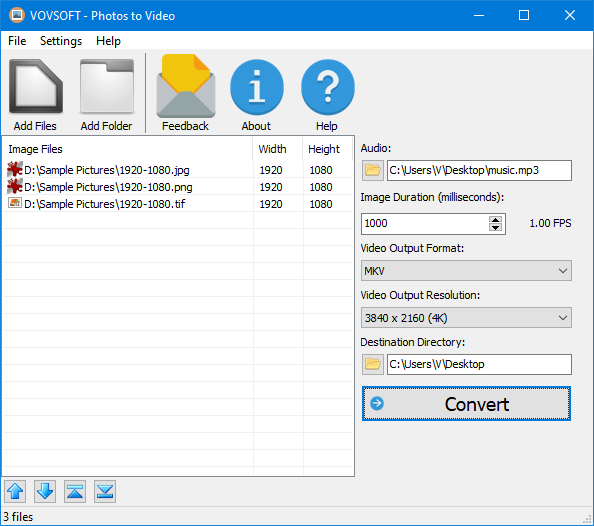
Three Full HD images set to make a 4K (3840 x 2160) MKV video.
Benefits
A video plays everywhere a folder of photos doesn't: on a TV from a USB stick, in a messaging app, on YouTube, on a screen at a party. Photos to Video gets you there in a couple of minutes with nothing to learn, and it keeps your photos on your PC instead of uploading them to an online slideshow site.
Real-World Uses
- A looping MP4 of wedding or birthday photos with music, played on a TV at the party.
- A simple product slideshow for a shop's social media or website.
- A time-lapse video from hundreds of still frames taken by a camera at intervals.
- An animated GIF of a few screenshots for a tutorial.
- A memorial or anniversary slideshow sent to family as one file.
Who It's For, and Who Should Skip It
Photos to Video suits Windows users who want a basic photo-to-video conversion, quickly, with music and a choice of format and resolution.
Skip it if you want a slideshow with transitions, pan-and-zoom effects, titles or captions, or different timing per photo: it does none of those. Windows' own Clipchamp and the Photos app make slideshows with effects, and free editors such as Shotcut give full control. For a few photos on a phone, the gallery app often makes a slideshow free too.
Usage Guide
- Download the installer or the portable edition and start Photos to Video.
- Click Add Files or Add Folder and put the images in order.
- Choose an MP3 or WAV file under Audio, if you want music.
- Set the Image Duration in milliseconds.
- Choose the Video Output Format and Resolution, and the destination folder.
- Click Convert and wait for the Success message.
Before you buy
The trial makes full videos but with a watermark, shows a nag screen, and is for personal use. The license removes the watermark and allows commercial use. One license covers one person on any number of their own computers. Vovsoft's general policy is no refunds, since the trial comes first (it may refund an accidental order at its discretion, and PayPro Global has the final say on its orders), so make a test video from your own photos first.
Where it falls short
- No transitions, effects, text or captions: photos simply cut from one to the next.
- One duration for every photo, and one music track.
- No preview before converting.
- No updates since October 2024, though it still works on current Windows.
- 64-bit Windows only, English interface.
What Users Say
On Vovsoft's site
Photos to Video's product page shows 4.0 out of 5 from 4 ratings, with these comments:
"This lightweight application can come in handy when you are trying to generate slideshows out of a bunch of images." Mihaela Teodorovici
"Hi, your program is very good, thank you." Anonymous User
On YouTube
The OnlineComputerTips channel has a walkthrough, "Create Video Slideshows with Music from Your Photos for Free", which Vovsoft features on the product page.
Feedback is thin and mildly positive, with a 4.0 average from only four ratings. It does what it says, and its simplicity is both the praise and the limit.
Comparisons
Photos to Video vs Clipchamp
Clipchamp comes with Windows 11 and makes slideshows with transitions, text and per-photo timing through a timeline editor. Photos to Video is faster for a plain, evenly timed slideshow and offers more output formats, including MKV, AVI and GIF, at up to 4K.
Photos to Video vs Vovsoft Video to Photos
They're opposites: Video to Photos pulls still frames out of a video, Photos to Video builds a video from stills. Together they cover a round trip, for example extracting frames, editing them, and rebuilding the clip.
Editions and Pricing
| Option | Price | License | What you get |
|---|
| Trial | Free | Personal, non-commercial use | Videos with a watermark, nag screen |
| Photos to Video license | $19 one time | Lifetime, commercial use allowed | No watermark, no nag screen, all future updates |
| Vovsoft Universal License | $99 one time | Lifetime | All 115+ Vovsoft programs |
The license key arrives by email right after payment. Prices include tax.
FAQs
Does Photos to Video add a watermark?
Only the trial does. Photos to Video's $19 license removes the watermark from the videos you make.
Can Photos to Video add transitions between photos?
No. Photos to Video cuts straight from one photo to the next. For fades and zoom effects, use a slideshow editor such as Clipchamp.
Can I give some photos more time than others?
Not directly. Photos to Video uses one duration for all images.
Which format should I choose for YouTube or a TV?
MP4 at 1920 x 1080 is the safe choice for Photos to Video: YouTube, phones, smart TVs and most USB media players play it.
Is the $19 a subscription?
No. Photos to Video's $19 is a one-time payment for a lifetime license with future updates. Nothing renews.
Does Photos to Video upload my photos?
No. Photos to Video builds the video on your PC, so your photos stay private.
System Requirements
- Windows 11, 10, 8/8.1 or 7, 64-bit
- About 22 MB for the installer, or 26 MB for the portable edition
- English interface
Conclusion
Photos to Video is worth $19 if you want plain, evenly timed slideshows or time-lapses with music, in the format and resolution you choose, without learning an editor. The reason to buy it is speed and simplicity. The reason not to: no transitions, captions or per-photo timing, and Windows' free Clipchamp does more if you'll spend ten minutes learning it. Make a test video in the trial (it will carry a watermark) and see if plain is what you want.
Download Free TrialBuy Now