MobiKin HEIC to JPG Converter: Batch Convert iPhone Photos on Windows
MobiKin HEIC to JPG Converter is a $19.95 Windows program (lifetime license, 1 PC) that turns the HEIC/HEIF photos an iPhone or iPad takes into ordinary JPG or PNG files, one by one or a whole folder at once, on your PC and without watermarks. It is for people who copied iPhone photos to a PC and found that their editor, website upload form or older Windows install won't open them.
It does one job and does it simply. Whether it's worth paying for depends on how often you face HEIC files, because Windows and the iPhone both have free ways around the problem, covered below.
Quick facts
- Version: 3.10.8, released June 12, 2025
- Developer: MobiKin
- Runs on: Windows 11, 10, 8 and 7 (a separate Mac version is sold)
- Input: HEIC and HEIF
- Output: JPG/JPEG or PNG, with adjustable quality and optional Exif data
- Price: $19.95 lifetime for 1 PC. A 1-year license is $9.95
- Trial: converts 3 images, with no watermark
- Refunds: 30-day money-back guarantee, under MobiKin's refund conditions
- What we checked: installer 7.09 MB downloaded from mobikin.com, and the lifetime 1-PC license at $19.95 on the order page on November 11, 2026.
Download Free TrialBuy Now
Overview
Since iOS 11, iPhones save photos as HEIC by default. The files are smaller than JPGs at similar quality, but plenty of software still can't read them. MobiKin HEIC to JPG Converter was first released in April 2022 and has had regular fixes since: in 2024 it gained drag and drop, thumbnails and a file-type column, corrected image orientation errors and stopped producing duplicate files; in January 2025 it fixed conversion failures with iOS 18 photos; and the current 3.10.8 added six more interface languages.
The window is a drop zone. Once photos are added, you see a list with thumbnails, size, dimensions and date, and a settings panel on the right for format, Exif, quality and output folder.
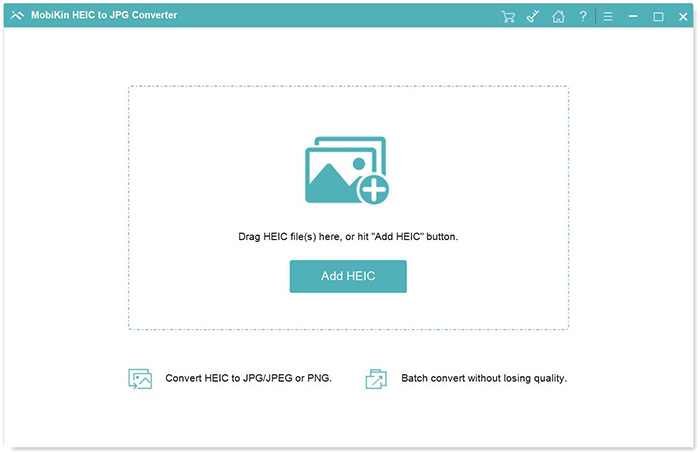
The start screen: drag HEIC files in or click Add HEIC.
Features
Convert HEIC to JPG or PNG in batches
MobiKin HEIC to JPG Converter converts any number of HEIC or HEIF photos in one go with the paid license. Use Add File for single photos, Add Folder for a whole directory, or drag them onto the window, then tick the ones to convert and click Convert. JPG is the choice for sharing and uploads; PNG for editing without further compression.
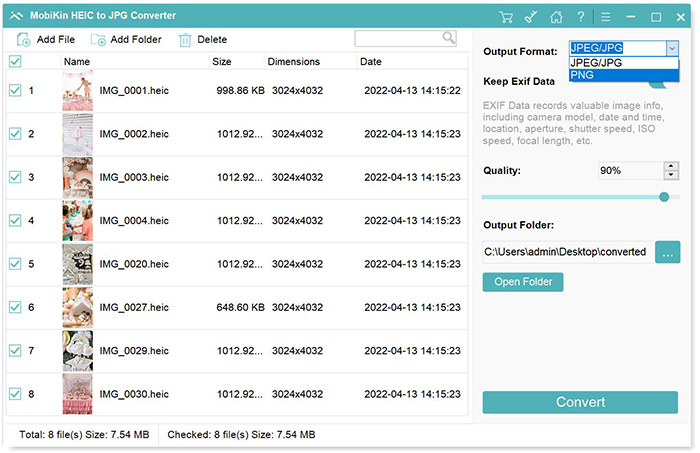
Eight HEIC photos loaded, with the Output Format menu open on JPEG/JPG and PNG and the quality set to 90%.
Choose the quality
MobiKin HEIC to JPG Converter lets you set the output quality before converting. At 100% the JPG keeps the original's quality, and MobiKin recommends 90% or more; lower values give smaller files for email or web forms. Since 2022 the default has been 100%.
Keep or drop the Exif data
MobiKin HEIC to JPG Converter has a "Keep Exif Data" switch. Leave it on to carry over the camera model, date and time, location, aperture, shutter speed and ISO into the JPG; turn it off when you're posting photos publicly and don't want to share where they were taken.
Converts on your PC, no ads
MobiKin HEIC to JPG Converter does the conversion on your PC, so nothing is uploaded to a website, which matters for family or work pictures you wouldn't upload to a free online converter. There are no ads or watermarks, in the trial or the full version.
Benefits
- Privacy: nothing is uploaded, unlike web converters.
- Speed for large batches: a folder of holiday photos converts in one run instead of file by file.
- Control: quality and Exif settings that many free converters don't offer.
- Cheap one-time price: $19.95 for life, with free updates.
Real-World Uses
- You copied 600 iPhone photos to a Windows laptop for a photo book, and the print service only accepts JPG.
- You manage a website and need product photos from an iPhone as PNG for your editor.
- You're sending family photos to a relative whose old PC can't open HEIC, and you want to strip location data first.
- You switched from iPhone to Android and the gallery app doesn't show your old HEIC pictures.
Who It's For, and Who Should Skip It
MobiKin HEIC to JPG Converter suits Windows users who receive HEIC files regularly, from their own iPhone or from other people, and want a quick, private batch converter with quality and Exif control.
Skip it if you only need to view HEIC files: Microsoft's HEIF Image Extensions from the Microsoft Store lets the Windows Photos app open them. Skip it too if the photos come from your own iPhone: setting Camera > Formats to "Most Compatible" makes the phone shoot JPG, and Photos > Transfer to Mac or PC set to "Automatic" converts photos to JPG when you copy them over USB. And if you need TIFF, WebP or resizing, a general image converter covers more formats.
Usage Guide
- Download the trial, install it and launch it.
- Click Add HEIC (or Add File / Add Folder), or drag your photos onto the window. Photos copied from an iPhone are usually in the DCIM folder of the device in This PC.
- Tick the photos to convert, choose JPEG/JPG or PNG under Output Format, set the quality and the Keep Exif Data switch, and pick an output folder.
- Click Convert. When the Finished notice appears, click "Show in folder" to see the new files.
- To remove the 3-image limit, register with the license code from your order.
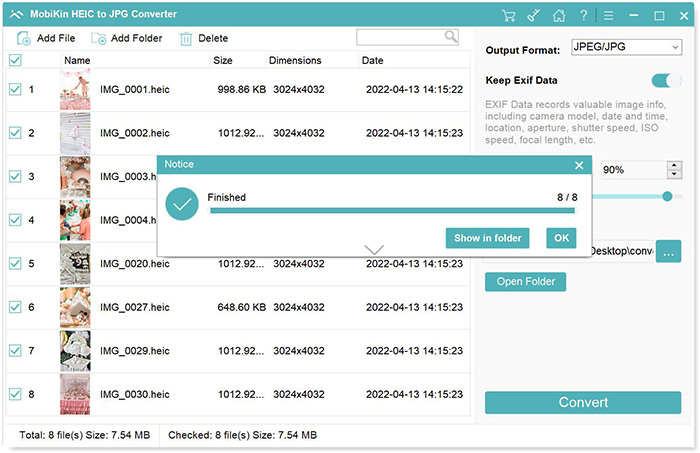
A batch of eight photos converted, with a Show in folder button.
Where it falls short
- Two output formats: only JPG and PNG. Comments on MobiKin's page keep asking for TIFF and other formats.
- No preview or editing: you can't compare before and after, crop or resize.
- Large batches take time: several users note it slows with very big folders.
- Free alternatives exist: for occasional files, the built-in options above may be all you need.
What Users Say
We found no independent reviews of this converter; download sites only list it. The comments on MobiKin's own review page can't be checked, but they are specific and include requests and complaints:
Comments on MobiKin's review page
"This tool works great for converting my iPhone photos. A bit slow on large batches, though." - David Miller, March 9, 2026
"it doesn’t let you preview the images before converting." - Kevin Johnson, December 26, 2025
"Didn’t expect such clean JPG output, colors stayed surprisingly accurate." - Lily Morgan, March 23, 2026
"Well done! Would be nice to keep original file names." - Emily Davis, December 8, 2025
"Great tool for HEIC to JPG conversion. Would be nice if it supported more formats like TIFF." - John Smith, October 31, 2025
"Simple to use and effective for converting HEIC to JPG, but lacks any advanced editing features." - Rachel Green, August 2, 2025
"Converted a batch of HEIC files in seconds, super handy for non-Apple users like me." - Olivia Martinez, June 13, 2025
MobiKin on Trustpilot
MobiKin's company page shows a TrustScore of 3.6 from 48 reviews across its products (read through a page summarizer). None mentions the HEIC converter; most praise quick refunds and helpful support, while a few report software that didn't work for them.
The pattern: users find it simple and the output clean. The wishes are always the same: more output formats, a preview and faster big batches.
Comparisons
MobiKin HEIC to JPG Converter vs online HEIC converters
Free web converters work for a handful of files but usually cap batch sizes and require uploading your photos. MobiKin's program runs on your PC, has no limits once registered, and keeps or removes Exif as you choose.
MobiKin HEIC to JPG Converter vs Windows' HEIF extension
The HEIF Image Extensions let Windows display HEIC; they don't batch convert a folder to JPG for apps or services that still need JPG. If viewing is all you need, the extension is enough.
Windows vs Mac version
The Mac version is a separate product with the same price and features. Mac users already have free conversion built into Preview and Finder, so the Windows version is the more useful of the two.
Editions and Pricing
| License | Term | PCs | Price |
|---|
| Lifetime (this listing) | One-time payment | 1 PC | $19.95 |
| Lifetime | One-time payment | 2-5 PCs | $29.95 |
| Lifetime | One-time payment | 6-10 PCs | $39.95 |
| 1 Year | Renews yearly | 1 PC | $9.95 |
| 1 Year | Renews yearly | 2-5 PCs | $19.95 |
| 1 Year | Renews yearly | 6-10 PCs | $29.95 |
The 1-year plans renew automatically. At $10 more, the lifetime license pays for itself in the second year.
FAQs
Does MobiKin HEIC to JPG Converter reduce photo quality?
MobiKin HEIC to JPG Converter keeps the original quality when the quality setting is 100%, which is the default. Lower settings make smaller files with some loss, as with any JPG.
Can MobiKin HEIC to JPG Converter convert photos straight from a connected iPhone?
MobiKin HEIC to JPG Converter works on HEIC files on your PC. You can add them from the iPhone's DCIM folder in This PC, but it isn't a phone transfer tool.
What if a file ends in .heic but is really a JPG?
MobiKin HEIC to JPG Converter has handled this since version 3.0.3: it shows each file's actual type and converts images named .heic that are really JPG or PNG.
What does the free trial do?
The trial of MobiKin HEIC to JPG Converter converts 3 HEIC images, with no watermark. A license removes the limit.
Can I use one license on two computers?
The lifetime license in this listing covers 1 PC. Licenses for 2-5 and 6-10 PCs cost $29.95 and $39.95.
Is there a refund?
MobiKin offers a 30-day money-back guarantee on most products, including this one, but its policy excludes refunds for a simple change of mind, so try the free version first.
System Requirements
- Windows 11, 10, 8 or 7
- 1 GHz Intel or AMD processor
- 1 GB RAM or more
- 1 GB of free disk space
Conclusion
A fair buy if HEIC files keep landing on your Windows PC. MobiKin HEIC to JPG Converter is simple, private and cheap for life, and it handles big batches with sensible quality and Exif settings.
If you only see the odd HEIC photo, Windows' free HEIF extension or your iPhone's "Most Compatible" setting solves it at no cost. Test the 3-image trial to see whether you'd use it enough.
Download Free TrialBuy Now