Cisdem VideoPaw for Mac: Converter, Downloader, Disc Ripper and Recorder in One App
Cisdem VideoPaw for Mac is a $69.99 one-time-purchase media toolkit for one Mac that converts video and audio in batches, saves video from websites, rips DVDs and Blu-ray discs, records your screen and compresses large files. It suits Mac users who would otherwise keep a converter, a downloader and a ripper side by side.
Macs make this kind of chore oddly awkward. QuickTime won't open half the files people send you, recent Macs have no disc drive, and a browser won't save a video for offline viewing. VideoPaw handles those jobs from one sidebar. It was sold as Cisdem Video Converter until version 10.0.0 in December 2025, so older guides and reviews use that name.
Quick facts
- Version: 11.0.0, released October 9, 2026
- Developer: Cisdem
- Platform: macOS 10.15 Catalina through macOS 27, Intel or Apple Silicon; a separate Windows edition exists
- Download size: 125 MB
- Price: $69.99 one-time for 1 Mac
- License: doesn't expire
- Trial: free download, with limits in each module (listed below)
- Guarantee: 30-day money-back
What we checked: version 11.0.0 in the vendor's release notes dated October 9, 2026, the 125 MB download size, and the price of $69.99 with a one-time, non-renewing term on the order page, all on November 6, 2026. We didn't run the program, so nothing here is our own measurement of conversion speed or quality.
Before you buy
- Know the trial limits. Converting, ripping, editing and merging stop at the first 5 minutes of each file (half the file if it's shorter than 5 minutes). You get 3 video downloads, 1-minute screen recordings, 3 compressions with a watermark, and 20 seconds of AI enhancement.
- Most current Macs need an external drive for discs. DVD and Blu-ray ripping needs a drive connected to the Mac. ISO files and disc folders work without one.
- This listing is the Mac edition. The Windows edition is sold separately.
- Copying discs and downloading video has legal limits. Cisdem says VideoPaw rips protected discs. Whether you may do that, or save a given video, depends on your country's law and the site's terms. Stick to content you own or have permission to use.
Download Free TrialBuy Now
Overview
VideoPaw for Mac keeps every tool in a left sidebar, grouped as Video, DVD & Blu-ray and Recorder. Each module works the same way: drop in files or links, pick an output, press the button at the bottom right. Learn the converter and the ripper needs almost no extra learning.
The Mac edition has changed a lot in a short time. Version 10.0.0 added the screen, webcam and audio recorders, 10.4.0 in June 2026 added full Apple Silicon support, and 11.0.0 brought a redesigned interface, Dark Mode and fixes for private-link and live-stream downloads. The download module also gets frequent updates of its own, which matters because video sites change often.
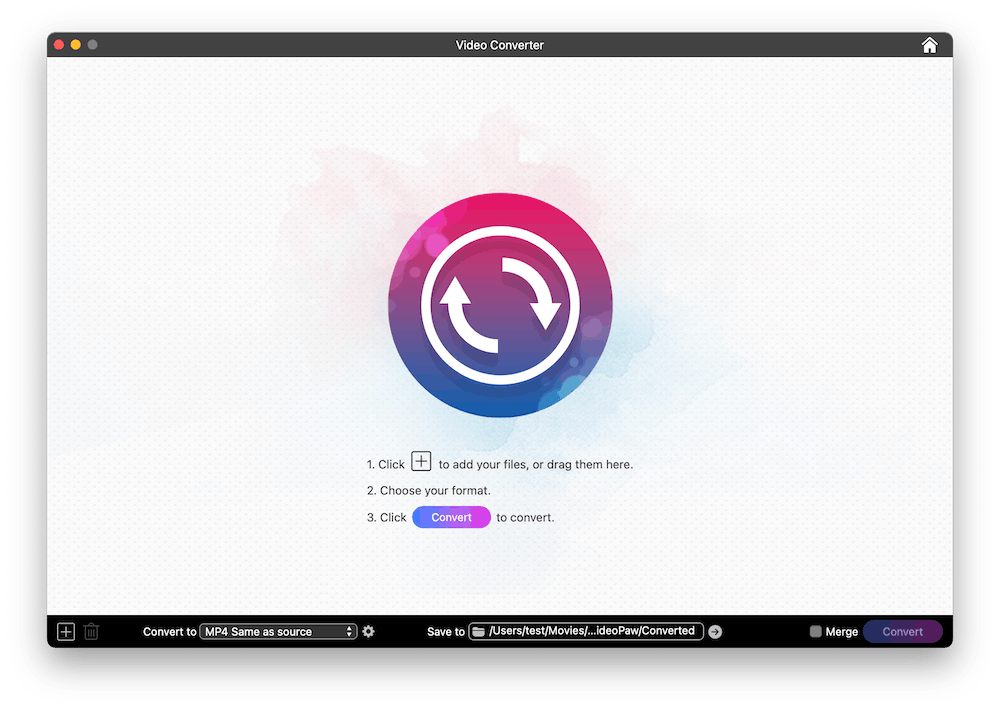
The Mac sidebar lists every module, here open on the empty Video Converter.
Features
Convert batches between 1,000+ formats
Cisdem VideoPaw converts whole folders of video and audio between MP4, HEVC, MOV, MKV and many other formats. Mac users get Apple ProRes MOV and M4V output in the picker, along with device and web presets, at resolutions up to 8K. The Same as source option keeps the original resolution.
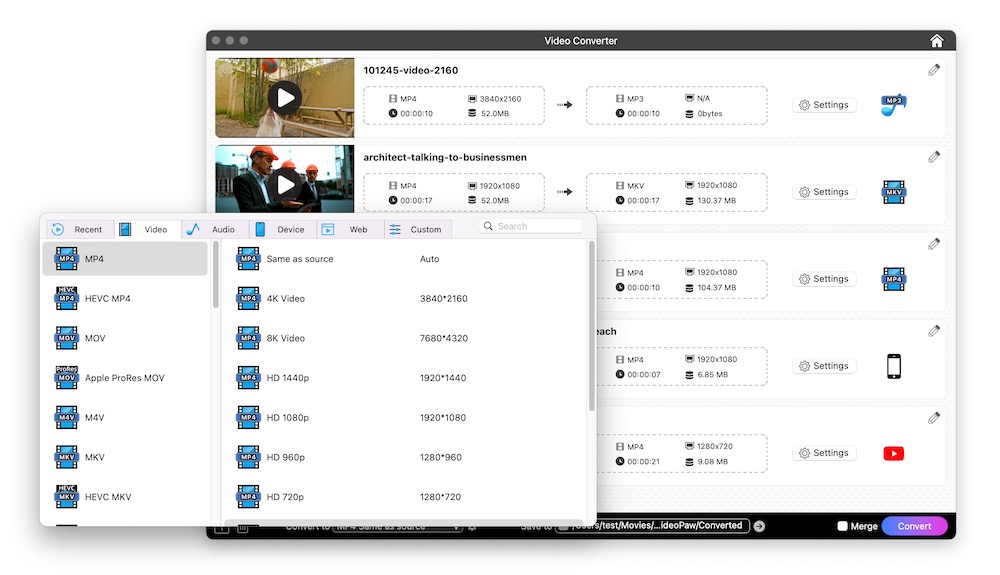
The format picker on a Mac, with Video, Audio, Device, Web and Custom tabs, and Same as source at the top of the resolution list.
Save video and audio from websites
Cisdem VideoPaw's downloader takes links from 10,000+ sites, Cisdem says, including YouTube, Facebook and Vimeo. A Site Login link lets you sign in first when a video needs an account, and a menu beside the link box switches away from Video when you want something else from the page.
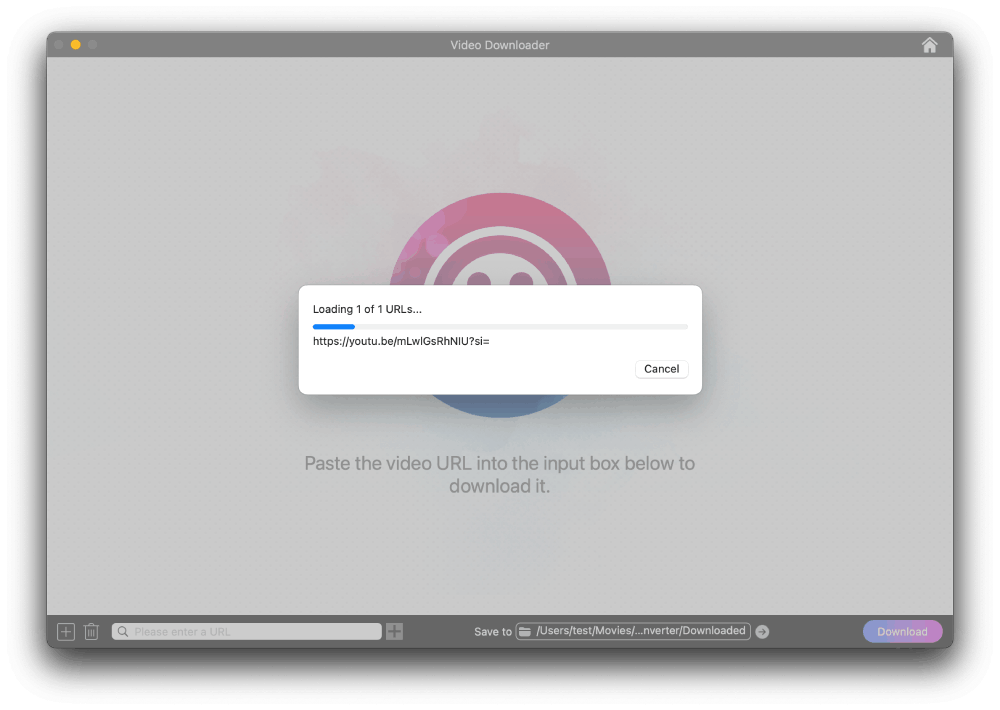
The Video Downloader with a pasted link, a Video menu, and the Site Login option.
Rip DVDs and Blu-ray discs
Cisdem VideoPaw reads DVD and Blu-ray discs, VIDEO_TS and BDMV folders and ISO files, then saves them as MP4 and other formats. Subtitles default to none, so choose your subtitle track before you start.
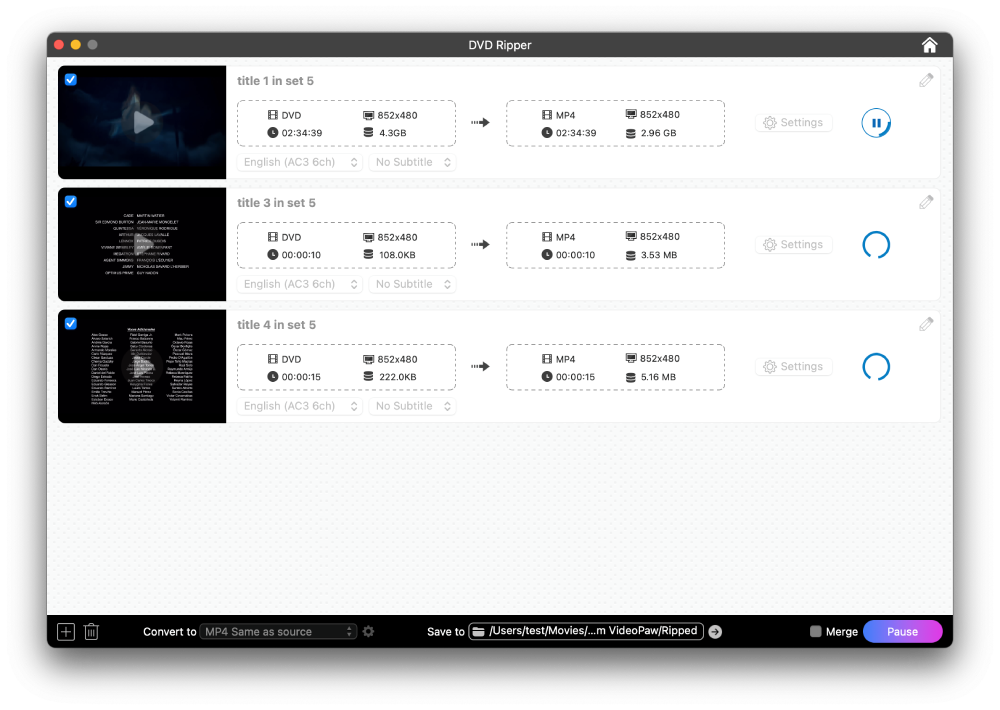
The DVD Ripper working through four titles, with source and estimated output sizes side by side.
Record the screen, webcam or audio
Cisdem VideoPaw for Mac has separate Screen Recorder, Webcam Recorder and Audio Recorder modules. You choose the screen, resolution and frame rate, then start with one click. Long desktop recordings were a problem in the first build with recorders, and Cisdem lists that fix in version 10.1.0.
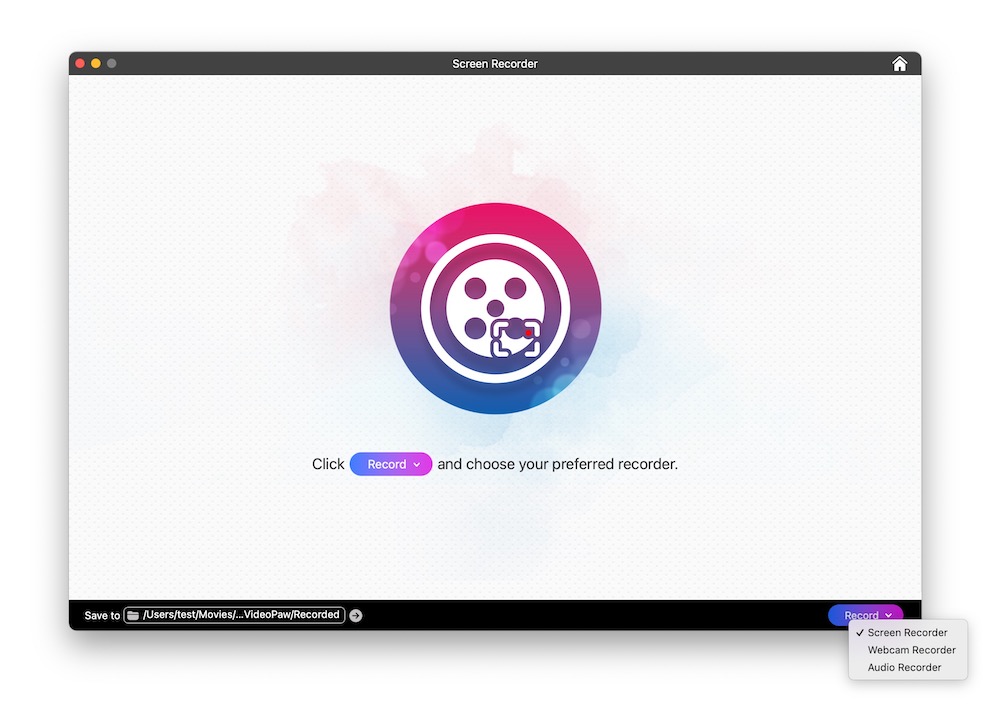
The Screen Recorder module, one of three recorders in the sidebar.
Compress video and enhance old footage
Cisdem VideoPaw's compressor shrinks files by percentage, in bulk, with an estimated size range for each clip and a preview before you commit. The AI Video Enhancer, added in version 9.0.0, is sold as a way to upscale and denoise older footage.
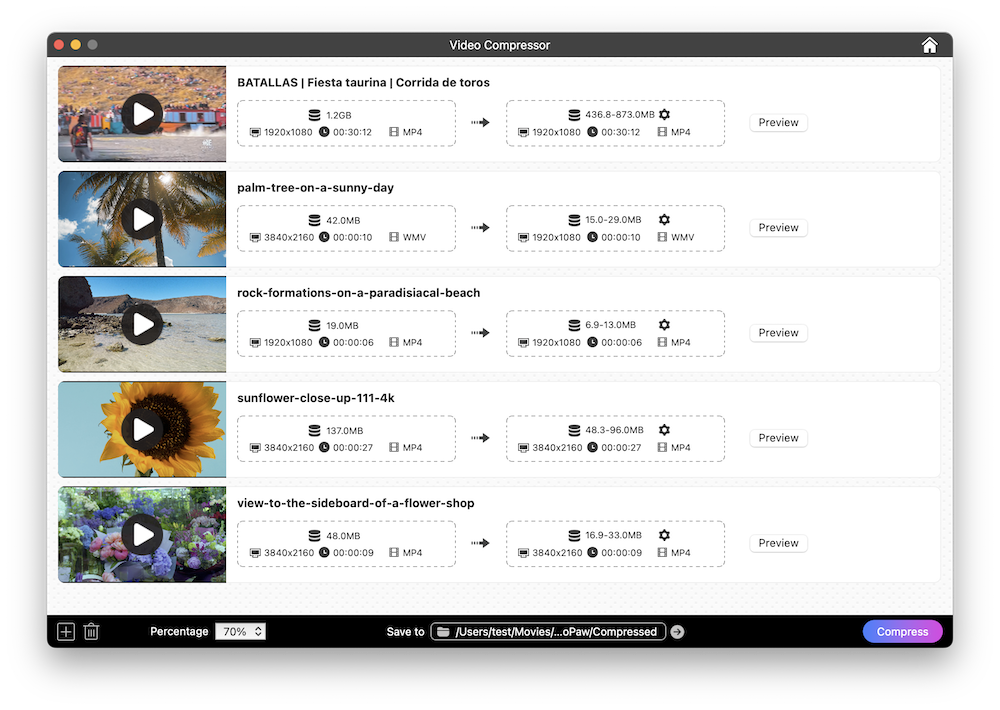
The Video Compressor at 70%, with a 1.22 GB file estimated at 436.8 to 873.5 MB and a preview window open.
Benefits
- One purchase covers several jobs. You learn one interface and pay once, instead of keeping separate Mac apps up to date.
- No renewal to remember. The one-time plan doesn't expire, which suits software you may open only a few times a year.
- Batch work runs unattended. Queue a folder, leave the Mac working, and come back to finished files.
Real-World Uses
- A video editor gets MXF or AVI footage from a client and converts it to ProRes MOV before editing.
- A student saves a lecture video to a MacBook to watch on a train with no signal.
- A collector plugs in a USB disc drive and moves a DVD shelf to MP4 files, with the right subtitle track chosen for each film.
- A marketer compresses a product video to fit under a 25 MB email limit.
- A family archivist tries the AI enhancer on old low-resolution home videos.
Who It's For, and Who Should Skip It
VideoPaw fits Mac users with mixed, occasional media chores who want one app and dislike subscriptions.
Skip it if you only need to change a format now and then, because the free HandBrake covers that on a Mac. Skip it too if you need real timeline editing: the tools here are for light edits and merging, so iMovie or Final Cut Pro is the better home for that work. And if you own both a Mac and a Windows PC, each platform is sold separately.
Usage Guide
- Download the DMG, install the app and open it.
- Pick a module from the sidebar, such as Video Converter or Video Downloader.
- Drag in files, paste links or load a disc.
- Choose the output format from the Convert to list, and the Save to folder.
- For discs, choose your subtitle track.
- Press Convert, or Import for a pasted link.
- When a download fails, choose Cisdem VideoPaw in the top menu, then Check for Updates, and try again.
Where it falls short
- The downloader can tie you to MP4. A MacUpdate reviewer on an older version says they had to convert downloaded MP4 files to MOV afterwards.
- Downloads break when sites or macOS change. Cisdem's release notes list download fixes in version after version, and 11.0.0 fixed problems on newer macOS releases. Expect to update often.
- Apple Silicon support is recent. Full support arrived only in 10.4.0 in June 2026, so stay on the current version on an M-series Mac.
- Independent testing is thin. Big claims such as 10,000+ sites are the vendor's, and we found few detailed third-party tests of the current Mac version.
What Users Say
Trustpilot: 4.9 out of 5 from 304 reviews of Cisdem
These cover all Cisdem products, not only VideoPaw.
- "Downloading/converting videos is a breeze." Alex, July 20, 2026
MacUpdate: 4.7 out of 5 from 3 ratings
- "Stable and give the best results. Using it for converting a 2 hour video to mp4 took less than 20 minutes." EllemJien, August 7, 2025, version 8.4.1
- "But it only allows to download videos to MP4 format, I have to convert the downloaded MP4 videos to MOV again after that." taw9527, December 3, 2024, version 8.1.1
AlternativeTo: 8 likes
These comments don't say which platform they used.
- "VideoPaw read both discs without any errors." ThomasCole, May 7, 2026, on ripping two 20-year-old DVDs
- "Each disc took about ten minutes. So fast!" ThomasCole, same review
- "Very user-friendly and clear interface!" Katharina Smith, September 5, 2025
- "It's a feature-rich tool that keeps getting better with constant updates." mutenka, April 29, 2026
Customers quoted on Cisdem's own site
Cisdem shows 4.9 out of 5 on its product page. The vendor chooses what appears there, so give these less weight.
- "Using this for years and still love it!!!" Michael, DE
- "Fast response times with support and a vast number of options to manage and transform video content. the YouTube functionality is awesome! Thank you!" Anthony Darden, US
The pattern: people like the simple interface, quick disc jobs and fast support replies. The complaint on the Mac side is the downloader's output format. Rating counts on Mac sites are very small, so treat the high scores as a sign of happy customers, not as proof of speed or quality.
Comparisons
VideoPaw vs HandBrake
HandBrake is free on Mac and very good at converting video files, but it doesn't download from websites or record the screen. VideoPaw is what you pay for when you want those jobs in one app.
VideoPaw for Mac vs VideoPaw for Windows
The two editions are sold at the same prices but as separate licenses, with separate version numbers. The Mac app is at 11.0.0, while Windows runs its own numbering.
Editions and Pricing
Prices are the vendor's Mac store prices on November 6, 2026. The $69.99 plan is the one sold through the buttons on this page.
| Plan | 1 Mac | 2 Macs | 5 Macs | Term |
|---|
| One-Year Subscription | $49.99 | $69.99 | $124.99 | Renews yearly |
| One-Time Purchase | $69.99 | $97.99 | $174.99 | Doesn't expire |
| Business License | $89.99 | $125.99 | $224.99 | Commercial use |
FAQs
Is Cisdem VideoPaw for Mac the same as Cisdem Video Converter?
Yes. Cisdem VideoPaw is the new name of Cisdem Video Converter for Mac, changed in version 10.0.0 in December 2025.
Does Cisdem VideoPaw run natively on M-series Macs?
Yes. Cisdem VideoPaw for Mac has had full Apple Silicon support since version 10.4.0 in June 2026.
Which macOS versions does Cisdem VideoPaw support?
Cisdem VideoPaw lists macOS 10.15 Catalina through macOS 27 Golden Gate, including Sonoma, Sequoia and Tahoe.
Does the Cisdem VideoPaw one-time license expire?
No. Cisdem describes the One-Time Purchase as "Purchase and use it forever, the license does not expire." The order page shows no renewal.
Can I use one Cisdem VideoPaw license on two Macs?
No, the $69.99 plan covers 1 Mac. Cisdem sells 2-Mac and 5-Mac one-time licenses for $97.99 and $174.99.
Why is my ripped MP4 from Cisdem VideoPaw missing subtitles?
Cisdem VideoPaw sets subtitles to No Subtitles by default. Load the disc, choose a language, and rip again.
What should I do when Cisdem VideoPaw says No DVD Detected?
Cisdem's advice is to reload the DVD in VideoPaw, then restart the app and add the disc again, and finally eject and reinsert it.
System Requirements
- macOS 10.15 Catalina, 11 Big Sur, 12 Monterey, 13 Ventura, 14 Sonoma, 15 Sequoia, 26 Tahoe or 27 Golden Gate
- Intel or Apple Silicon processor
- 512 MB RAM or more
- 100 MB or more for installation
- A DVD drive for disc work
Conclusion
Cisdem VideoPaw for Mac is worth $69.99 if you'll really use at least two of its jobs, such as ripping and converting, or downloading and compressing. The one reason to buy it is having all those tools under one license that doesn't expire. The main reason not to is that format conversion alone is free elsewhere. Try your hardest file and your most-used site in the trial first, since the downloader is where users report the most friction.
Download Free TrialBuy Now