Cisdem DVD Burner for Windows Review

Burning video files to a physical disc often feels like an outdated task until you actually need it. Maybe you want to preserve family footage without relying on cloud storage that might disappear, or perhaps you have a home theater setup that still relies on standard DVD players. Cisdem DVD Burner for Windows is designed specifically for this purpose. It takes modern digital video formats and converts them into playable DVDs with custom menus.
This review breaks down how the software works, what features it offers, and whether it justifies its price tag for users who need reliable disc creation tools. We will look at the interface, the burning process, and real user experiences to help you decide if this tool fits your workflow.
On this page
Overview
Cisdem DVD Burner for Windows is a dedicated application for converting digital video files into standard DVD discs. Unlike general-purpose media players or complex editing suites, this software focuses strictly on the output format required for physical playback devices. It supports a wide range of input formats, including MP4, MKV, VOB, FLV, MTS, MPEG, AVI, 3GP, and AVCHD. This broad compatibility means you rarely need to convert files beforehand using other tools.
The core value proposition here is simplicity combined with customization. You can drag and drop videos, adjust basic settings, create interactive menus, and burn the result to a blank disc. The software handles the technical encoding necessary to make these files compatible with standalone DVD players, which often struggle with raw digital file structures.
At a price point of $59.99, it positions itself as a professional-grade utility for individuals and small businesses who regularly produce physical media. It is not free, but it removes many of the headaches associated with open-source alternatives that require manual codec management or command-line inputs.
Key Features
Extensive Format Support
The software accepts almost any common video container. If you have files from a smartphone (MP4), a camcorder (MTS, AVCHD), or older computer archives (AVI, MPEG), Cisdem DVD Burner processes them directly. This eliminates the need for intermediate conversion steps that degrade quality or consume time.
Customizable DVD Menus
One of the standout capabilities is the menu editor. You are not stuck with a static list of titles. The interface allows you to choose from various layout templates, add background images, and configure button styles. This makes the final product feel like a commercial release rather than a data dump.
Video Editing Tools
Before burning, you can perform basic edits. The interface includes options to trim unwanted sections, crop black bars, rotate videos, and adjust brightness or contrast. These tools are integrated directly into the workflow, so you do not need to open a separate video editor to fix minor issues before creating the disc.
High-Quality Output
The encoder prioritizes visual fidelity. When converting high-definition sources to standard definition DVDs, the software manages the downsampling process to minimize artifacts. This ensures that the resulting disc looks clean on both large TV screens and smaller monitors.
Burn Settings Control
You have control over the technical aspects of the burning process. Options include selecting the target drive, adjusting the write speed, and choosing between different disc types (DVD-R, DVD+R, etc.). This level of detail helps prevent errors during the writing phase, especially when using older hardware.
Why Choose This Tool?
For users who frequently share video content physically, the benefits of Cisdem DVD Burner center on reliability and ease of use. Here is why it stands out:
- Time Savings: By handling multiple formats natively, you skip the step of finding and running separate converters. The integrated editing tools also mean quick fixes happen within the same window.
- Professional Presentation: The ability to create custom menus transforms a collection of video files into a navigable experience. This is crucial for gifts, presentations, or archival projects where user interaction matters.
- Compatibility Assurance: Standalone DVD players can be finicky. Cisdem’s encoding engine is tuned to produce discs that play back smoothly on most consumer electronics, reducing the risk of "disc error" messages.
- User-Friendly Interface: The layout is intuitive. Tabs clearly separate source selection, editing, menu design, and burning settings. Even beginners can follow the logical flow without consulting extensive documentation.
Tip: If you plan to burn multiple copies of the same project, save the project file after setting up the menu and edits. This allows you to reload the configuration quickly without starting from scratch each time.
Step-by-Step Usage Guide
Getting started with Cisdem DVD Burner is straightforward. Follow these steps to create your first disc.
Step 1: Installation and Launch
Download the installer from the official vendor site and run it. Follow the on-screen prompts to complete the installation. Once finished, launch the application. You will see the main dashboard, which typically presents options to start a new project or open recent ones.
Step 2: Adding Source Videos
Click the "Source" tab or the "Add Files" button. Browse your computer to select the video files you want to burn. You can select multiple files at once. As you add them, thumbnails appear in the workspace, giving you a visual preview of each clip.
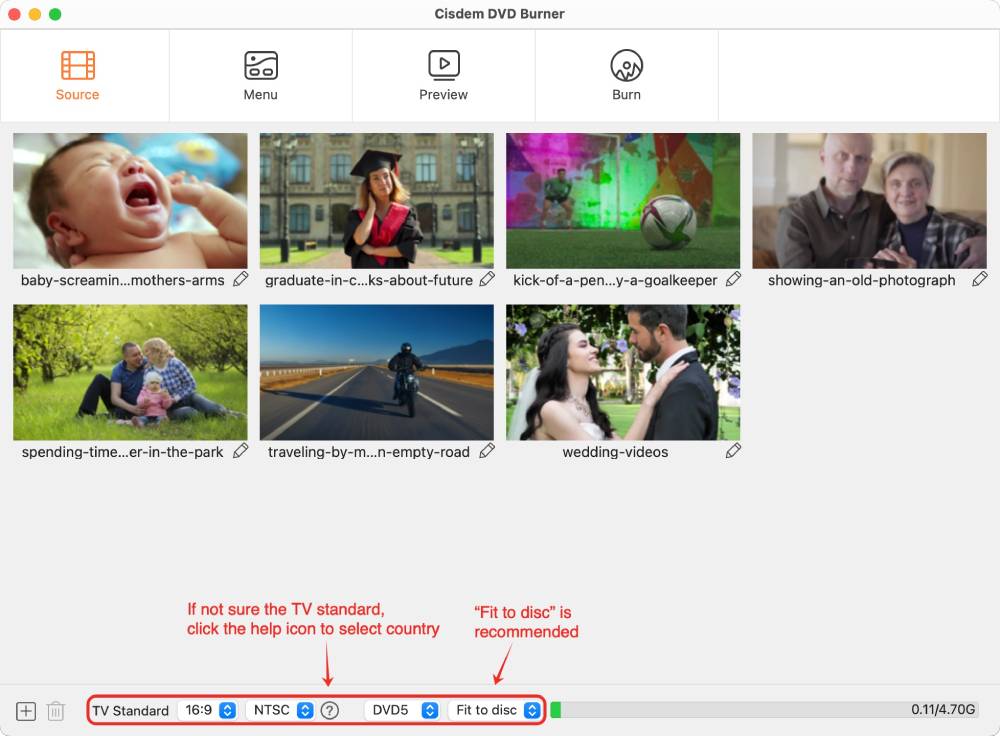
Figure 1: The Source tab displays imported video thumbnails alongside initial burning settings.
Step 3: Editing Your Clips
If any clips need trimming or adjustment, click the edit icon next to a thumbnail. A new pane opens showing the original video and the output preview side-by-side. Use the sliders to set start and end points for trimming. You can also apply effects like rotation or cropping here. Once satisfied, confirm the changes to return to the main list.
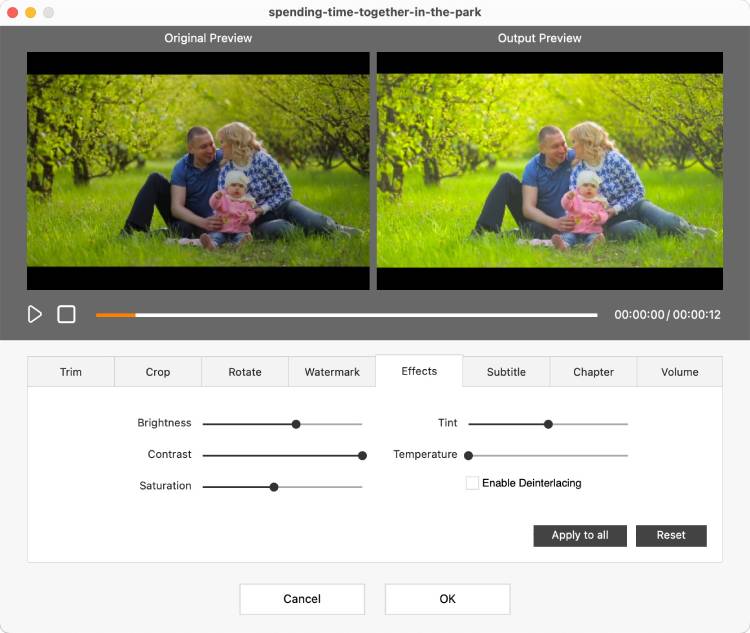
Figure 2: The editing interface allows precise adjustments with live previews.
Step 4: Designing the Menu
Navigate to the "Menu" tab. Here, you can choose a template for your DVD menu. Select a layout that suits your content type—whether it’s a simple title screen or a multi-page navigation system. Customize the text, buttons, and background images. You can assign specific videos to each button so viewers know exactly what they are selecting.
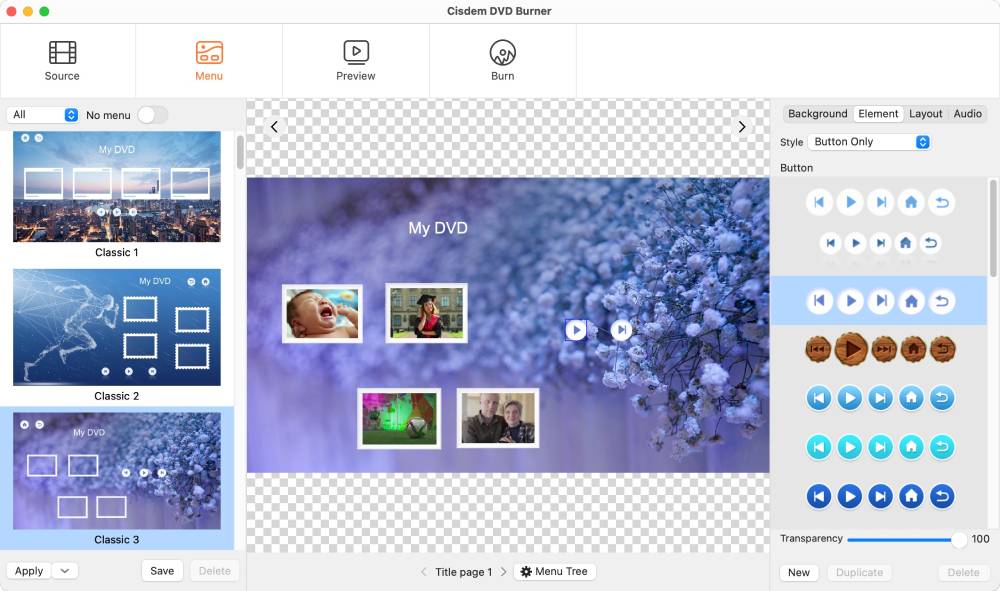
Figure 3: The menu editor provides templates and styling options for professional-looking interfaces.
Step 5: Configuring Burn Settings
Go to the "Burn" tab. Insert a blank DVD into your optical drive. The software should detect the drive automatically. Select the correct drive letter if you have multiple. Choose the write speed; lower speeds are generally safer for preventing errors, while higher speeds finish faster. Set the volume label for the disc so it is easily identifiable later.
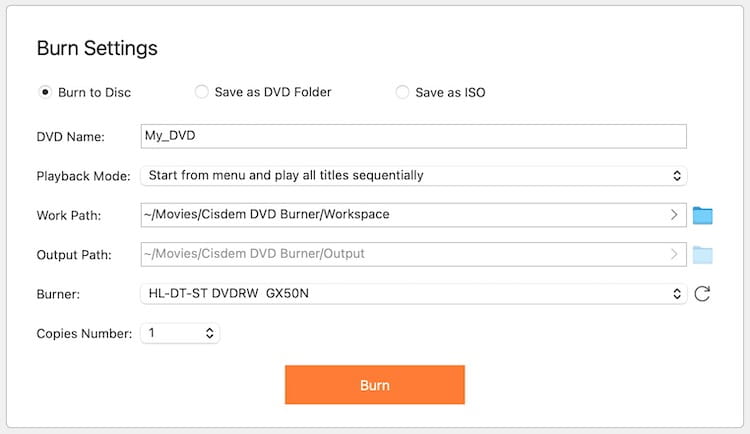
Figure 4: Configure drive selection and write speed in the burn settings dialog.
Step 6: Starting the Process
Review all settings one last time. Click the "Burn" button. The software will begin encoding the videos and writing them to the disc. A progress bar indicates how much time remains. Do not eject the disc or close the program until the process completes successfully.
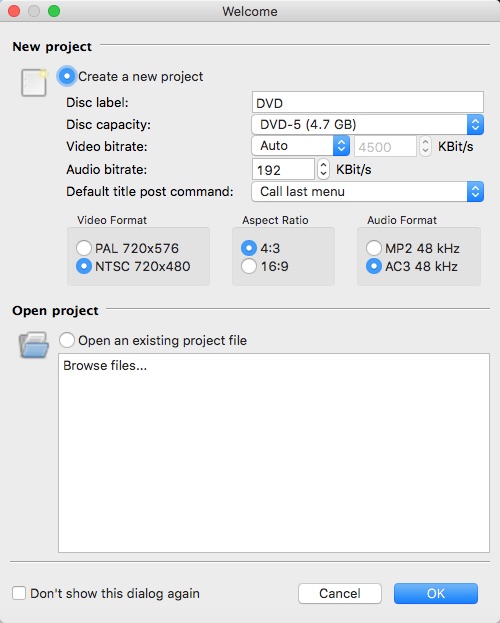
Figure 5: Initial project configuration ensures correct DVD standards are applied.
Troubleshooting Common Issues
Sometimes, a file might not be immediately compatible. If this happens, the software may prompt you to convert the file. Accept the prompt, and the application will handle the necessary codec adjustments in the background.
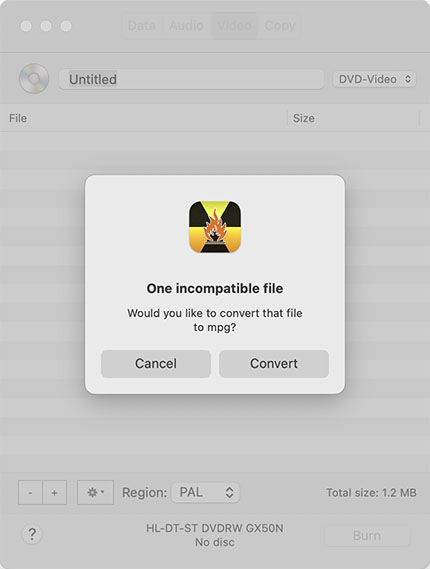
Figure 6: Automatic conversion prompts ensure unsupported formats are processed correctly.
Ensure your project window reflects all added files and settings before initiating the final burn. Double-check the file list to avoid missing content.
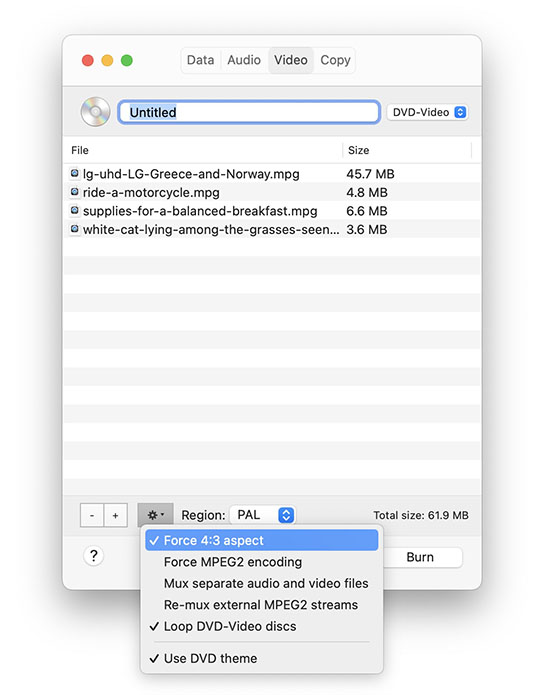
Figure 7: The main project view consolidates file lists and global settings.
Finally, verify the drive selection and speed options in the burn dialog. Incorrect drive mapping is a common cause of failed burns.
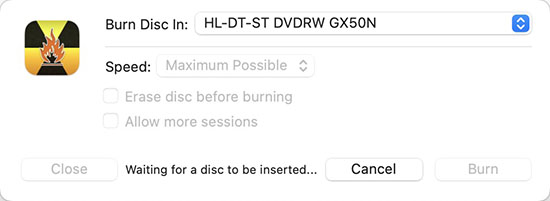
Figure 8: Precise control over drive and speed minimizes write errors.
What Users Say
Real-world feedback provides insight into the software's reliability and support quality. Below are selected reviews collected from the vendor's product page.
"With over 1,000,000 users trusting Cisdem DVD Burner, it’s a proven choice for reliable disc burning. Read what users and experts are saying about it!"
-- Tech Reviews User Reviews Trustpilot Reviews
"Great product. Does precisely what it is intended to do as advertised. Recently had a support issue that was addressed and resolved efficiently and very promptly. Highly recommended."
-- Brandon Horn, US
"Great product and great company. I emailed them 4 years after purchasing my initial license since it was tied to a different machine, and they fixed it so my license worked on the new machine. No issues, not trying to make you buy the product again ... great experience with this company."
-- JP
Comparisons
How does Cisdem DVD Burner stack up against other methods of creating DVDs?
Versus Free Open-Source Tools
Free tools like ImgBurn or HandBrake combinations require more technical knowledge. You often need to encode videos separately, author the DVD structure manually, and then burn the image. Cisdem integrates these steps into one interface. While free tools cost nothing, they demand time and troubleshooting skills. For users who value convenience and guaranteed compatibility, the paid solution is often worth the investment.
Versus Built-in OS Features
Windows has limited native support for creating playable DVDs from arbitrary video files. It primarily handles data discs or requires specific codecs installed. Cisdem bypasses these limitations by including its own robust encoding engine. This ensures that the output plays on standard DVD players, whereas OS-native methods might result in discs that only work on computers.
Versus Professional Authoring Suites
High-end professional suites offer advanced scripting and Blu-ray authoring capabilities. However, they come with steep learning curves and significantly higher prices. Cisdem strikes a balance for users who need DVD functionality without the complexity of enterprise-level software. It is ideal for home users and small businesses who do not need Blu-ray support or advanced interactive scripting.
Frequently Asked Questions
Can I burn Blu-ray discs with this software?
No, Cisdem DVD Burner for Windows is designed specifically for standard DVD discs. It does not support Blu-ray burning. If you need Blu-ray capability, you would need to look for a different product in the Cisdem lineup or another vendor that specializes in HD disc authoring.
Do I need to convert my videos before adding them?
In most cases, no. The software supports a wide variety of formats including MP4, MKV, AVI, and MOV. It handles the conversion internally during the burning process. However, extremely unusual or corrupted files might trigger a prompt asking for additional processing.
Is there a trial version available?
Yes, the vendor typically offers a free trial version. This allows you to test the interface and features before purchasing. Note that trial versions often limit the number of burns or add watermarks to the output to encourage upgrading to the full licensed version.
What happens if the burn fails?
If a burn fails, check your disc quality and drive connection. Try lowering the write speed in the settings. Higher speeds can sometimes cause errors on certain drives or media. If the problem persists, contact customer support, as noted in user reviews, they are responsive to technical issues.
Can I edit the menu after burning?
No. Once the data is written to the disc, it is permanent. You must design and finalize the menu before starting the burn process. If you make a mistake, you will need to burn a new disc with corrected settings.
System Requirements
Before installing, ensure your computer meets the minimum specifications. These requirements are modest, meaning most modern PCs can run the software without performance issues.
- Processor: 1 GHz or faster processor.
- Memory: 4 GB RAM.
- Disk Space: 500 MB of free disk space for installation.
- Operating System: Windows (compatible with recent versions).
- Hardware: An optical drive capable of writing DVDs (DVD-RW or DVD+RW).
Note: Burning large amounts of video data can take significant time depending on your CPU speed and drive performance. Ensure your computer does not go to sleep during the process.
Conclusion
Cisdem DVD Burner for Windows delivers on its promise of simplifying the creation of playable DVDs from diverse video sources. Its strength lies in combining format flexibility, integrated editing, and customizable menus into a single, easy-to-use package. While the $59.99 price tag might seem high compared to free alternatives, the time saved and the reliability of the output justify the cost for regular users.
The positive feedback regarding customer support adds another layer of confidence. Knowing that assistance is available if technical issues arise is valuable for software that interacts with hardware components like optical drives.
If you frequently need to share video content on physical media, whether for archiving, gifting, or distribution, this tool is a practical choice. It removes the technical barriers associated with DVD authoring, allowing you to focus on the content rather than the codecs. For occasional users, the trial version is a good way to determine if the workflow fits your needs before committing to the purchase.