Cisdem PDF Password Remover for Windows: Unlock Your Own Protected PDFs in a Few Clicks
Cisdem PDF Password Remover for Windows is a $49.99 Windows 10 and 11 app (lifetime license for one PC) that saves unlocked copies of protected PDF files. It removes permission passwords (the ones that block printing, copying and editing) without asking for them, removes open passwords once you type them in, and can try to recover an open password you've forgotten. It's for people who deal with locked PDFs they own or are allowed to use: old documents whose password nobody remembers, restricted manuals, invoices you can't print.
You know the moment. The PDF opens fine, but Print is greyed out, or you can't select a single line of text to paste into your notes. Or worse, it won't open at all, and the password lived in the head of a colleague who left two years ago. This app is a small, single-purpose tool for exactly that.
Quick facts
- Version: 2.4.0, released October 29, 2025
- Developer: Cisdem Inc.
- Runs on: 64-bit Windows 10 and Windows 11 (a separate Mac app exists)
- Removes: permission (owner) passwords without the password, open (user) passwords you know, and open passwords you recover with the built-in brute-force search
- Batch size: up to 200 files at a time
- PDF support: PDF 1.0 to 1.7. AES-encrypted PDFs and certificate protection aren't supported
- Price: $49.99 for a lifetime license on one PC, or $29.99 a year
- Trial: 14 days, exporting half the pages (up to 3) with a watermark
- Guarantee: 30-day money-back guarantee
What we checked: on October 18, 2026 we confirmed the $49.99 lifetime price for one PC on the order page, downloaded the Windows installer from Cisdem (15.1 MB, dated October 29, 2025), and read its version (2.4.0) and its digital signature (valid, signed by Aneesoft Co., Ltd.). We didn't install it or unlock or recover a password on a test file, so the trial limits come from Cisdem's FAQ.
Before you buy
- AES-encrypted PDFs are out. Cisdem's FAQ says the current version can't decrypt AES-protected files. Newer versions of Acrobat use AES when you add a password, so check your own locked file in the trial before paying.
- A forgotten open password isn't a sure thing. Recovery means trying combinations, one file at a time. A short, simple password can fall quickly. A long, random one may take days or never be found.
- Use it on files you're entitled to open. Your own documents, your company's files, or files whose owner has given you permission. The tool doesn't make sense, or comply with most terms of use, for anything else.
- Windows 10 or 11, 64-bit only. Windows 7 and 8 aren't on the current requirements list.
Download Free TrialBuy Now
Overview
PDFs can carry two different kinds of password, and most of the confusion around "unlocking" a PDF comes from mixing them up. An open password (also called a user password) stops the file from opening at all. A permission password (owner or master password) lets anyone open and read the file but switches off printing, copying, editing or other changes.
Cisdem PDF Password Remover sorts these for you as soon as you add a file. A file with an open password gets a red lock icon. A file with only a permission password goes in without one. A file with no protection at all is refused, so you can't waste time on it. From there it's one window, an output folder and a Remove button. The app writes a new, unlocked copy and leaves your original PDF untouched.
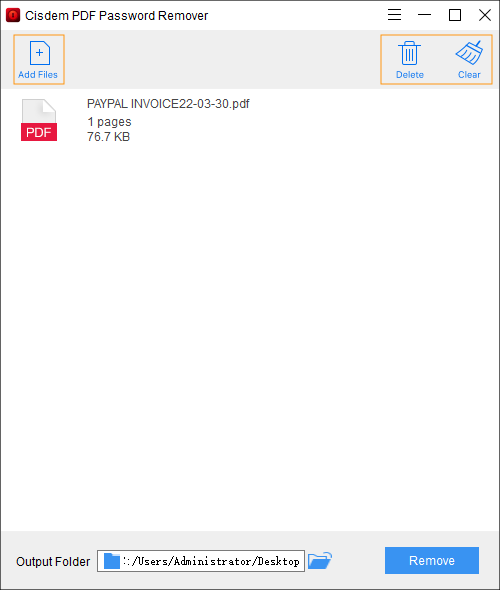
The main window: Add Files, Delete and Clear at the top, one queued PDF (a one-page invoice), the output folder and the Remove button at the bottom.
Features
Remove print, copy and edit restrictions without the password
Cisdem PDF Password Remover strips a permission password without asking you for it. If a PDF only restricts printing, copying or editing, you add it, pick an output folder and click Remove. The new copy prints, copies and edits normally. This is the job the app does fastest and most reliably, and it's the one most people actually need.
Remove an open password you know, from many files at once
Cisdem PDF Password Remover removes an open password permanently once you enter it, so you never have to type it again. Click the lock icon next to the file, type the password and click OK. If a whole batch shares one password, as monthly statements from the same bank often do, tick Apply to All and every file is unlocked together. When a file has both an open and a permission password, both are removed in the same pass.
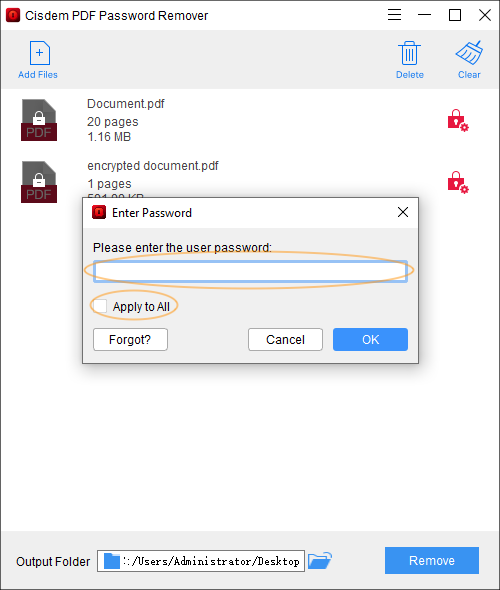
Two locked PDFs marked with red lock icons, and the Enter Password dialog with the Apply to All checkbox and the Forgot? button.
Recover a forgotten open password with hints
Cisdem PDF Password Remover can search for an open password you've lost, by trying combinations within limits you set. In the Forgot Password window you give a minimum and maximum length and tick the character sets it might contain: lowercase letters, uppercase letters, numbers, a space or tab, special symbols, or extra characters you type in yourself. The app shows the progress, the average speed and the estimated time left, and you can carry on with other work while it runs. Once it finds the password, you're back in the main window and click Remove.
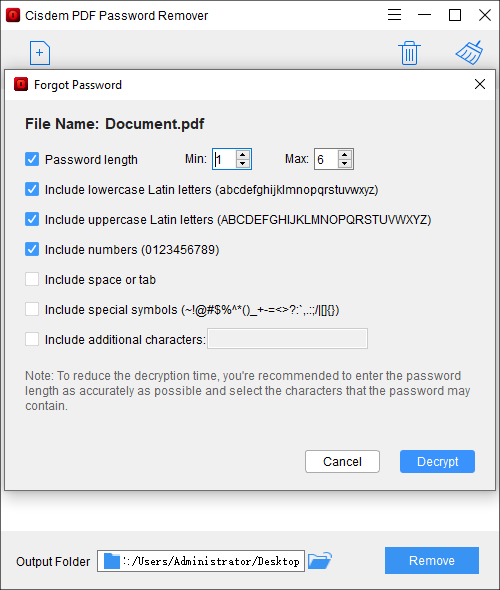
The Forgot Password window set to search 1 to 6 characters of lowercase and uppercase letters and numbers, with space, symbols and extra characters left off.
Batch processing that leaves your originals alone
Cisdem PDF Password Remover takes up to 200 PDFs in one batch, by drag and drop or the Add Files button, and writes each unlocked copy to the output folder you choose. The original files stay exactly as they were, still protected, so you can always go back to them. It reads PDF versions 1.0 to 1.7 and doesn't need Adobe Reader installed. The interface comes in English, Japanese, German, French, Italian, Spanish and Portuguese.
Benefits
- No learning curve. There are no settings to understand for the common case. Add, Remove, done. The app tells you which kind of protection each file has, which is the part that usually confuses people.
- Your files stay on your PC. Unlike online unlocking sites, nothing is uploaded. That matters for contracts, payslips, medical letters and anything else you wouldn't email to a stranger.
- Fewer passwords to type. Removing a known open password once saves typing it every time you open a statement or report you've already been given.
Real-World Uses
- Printing restricted paperwork. An accounts team receives supplier invoices with printing disabled. They drop the month's batch in, click Remove, and print or archive the copies.
- Quoting from a locked manual. A trainer has a product manual that blocks copying. After removing the permission password, they can highlight and paste sections into their course notes.
- Archiving bank or payroll statements. A year of statements all open with the same password. Apply to All removes it from every file, so the archive opens without a prompt years later.
- Getting back into an old document. You password-protected a PDF years ago and remember it was "six characters, letters and numbers". That's the kind of hint the Forgot? search is built for.
Who It's For, and Who Should Skip It
It's a good fit for Windows users who regularly receive restricted PDFs, small offices that print or archive locked documents, and anyone with a few old files whose open password they've half forgotten. It suits people who want one button rather than a command line.
Skip it if:
- Your locked files use AES encryption. That covers many PDFs protected with newer Acrobat settings. Run the trial on your actual file first. If it fails, you need a recovery tool that explicitly supports AES-256.
- You only need to unlock one file once and you know its password. Opening it and saving or printing to a new PDF without security in a PDF editor you already own may be enough.
- You need serious password recovery. For a long, random open password, a dedicated GPU-based recovery tool is a better bet than a simple combination search.
- You're on a Mac. Cisdem sells a separate Mac edition, and this Windows license doesn't cover it.
Usage Guide
- Install and launch. Download the installer, double-click the .exe file and follow the setup steps, then open Cisdem PDF Password Remover. To register, click the key icon in the top-right corner, paste your license code and click Activate.
- Add your PDFs. Drag them into the window or click Add Files. Files with an open password show a red lock icon. Use Delete or Clear to remove files from the list.
- Enter any open password you know. Click the lock icon, type the password and click OK. Tick Apply to All if the other files use the same one.
- Or recover a forgotten one. Click the lock icon, then Forgot?, set the length and character sets you think it uses, and click Decrypt. Narrow settings finish much sooner.
- Choose the output folder and click Remove. When the bar reaches 100%, click the folder icon to open the unlocked copies.
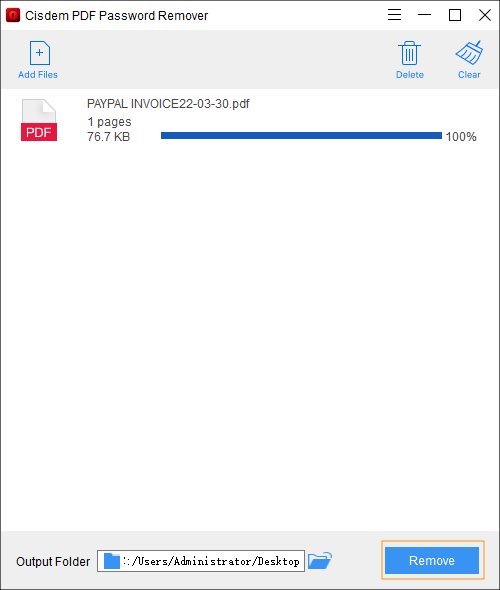
A finished job: the progress bar at 100% next to the PDF, with the Remove button highlighted.
Tips for the Forgot? search
- Every extra character set multiplies the work. Six characters of lowercase, uppercase and numbers is 62 to the power of 6, about 57 billion combinations. Six characters of numbers only is one million.
- Set the length as tightly as you can. If you're sure it was 6 to 8 characters, don't search from 1.
- Use "additional characters" for odd symbols. If you always add a specific symbol, add just that one instead of ticking every special symbol.
- If it fails, widen one setting at a time. Cisdem's FAQ says a miss usually means the password is longer than your range or uses characters you didn't tick.
Where it falls short
- Password recovery is plain brute force. There's no dictionary or common-password list in the Forgot Password window, only length and character sets. Cisdem's FAQ warns that a long password with many characters can take a few days.
- Recovery runs one file at a time. Batch processing only applies to removal. If several files need their open password found, each one is a separate search.
- Certificate-protected PDFs aren't supported. Only password protection can be removed.
- Large files can stall. One SourceForge reviewer said a large file "was stuck a bit" while unlocking.
- Few independent reviews. Most of the praise you'll find for the Windows edition is on Cisdem's own site.
What Users Say
Independent reviews of the Windows edition are thin on the ground. Most user comments sit on Cisdem's own review page, which shows only what Cisdem chose to publish, plus a handful of ratings on download sites. Here's what we found, by source.
Independent sites
SourceForge has one review, rated 4.0 out of 5, from a teacher (posted August 11, 2025). It doesn't say whether it was the Windows or the Mac version:
"I forgot my PDF password I set a few months ago, I tried 3 password removers and this one worked, very rapidly." On the downside: "When I put a large file to unlock, it was stuck a bit."
Uptodown rates the Windows download 5.0 from two user ratings. One user, youngblackswan97077, wrote: "I was in despair. I’m impressed that I was able to unlock it successfully." Another, hotblackpig36974, called it "The savior for dealing with passwords I have previously set myself."
MajorGeeks lists version 2.4.0 with a reader rating of 5 from 4 votes. Its write-up describes the features rather than testing them.
Cisdem's own review page (chosen by the vendor)
Cisdem's review page for the Windows edition shows ten user reviews, nine of them 5 stars. A few that describe real use:
Duncan (June 20, 2025), the one 4-star review: "Our accounting team often gets PDFs with restrictions on printing. This tool helped us remove those limitations so we could file them properly. It doesn't work on open passwords unless you know them, but it’s perfect for unlocking usage restrictions."
Tiffany (June 24, 2025): "I received a user manual with copy restrictions and couldn't highlight or extract text. Cisdem helped me unlock it so I could take notes for training. It’s lightweight, fast, and gets the job done without hassle."
Natasha (September 5, 2024): "I love the "Apply to All" feature so much! When you imported multiple PDF files with the same open password, instead of entering the password for every PDF file, you can directly apply the password to each PDF file."
Darrel (August 22, 2024): "It does a great job of batch unlocking editing restrictions from PDF files, it created 50+ newly unlocked PDF files in minutes. An awesome tool!"
Cisdem as a company
On Trustpilot, Cisdem scores 4.8 out of 5 from 299 reviews, with 87% at 5 stars and 11% at 1 star. None of the reviews visible there mention PDF Password Remover. Most praise fast replies from support and quick help with license problems, and one 3-star reviewer complains that Cisdem Duplicate File Finder "has become increasingly difficult to use." (Trustpilot's text reached us through a page summarizer.)
The pattern: people who use it to lift print, copy and edit restrictions are consistently happy, and the batch handling gets specific praise. Recovering a forgotten open password draws more mixed comments, from "this one worked" to Duncan's view that it only really helps when you know the password. That matches how brute force works. There isn't enough independent feedback to judge reliability across many file types, so test your own files in the trial.
Comparisons
Cisdem PDF Password Remover vs. the Cisdem PDF bundle
Cisdem's store also sells PDF Converter OCR, PDF Password Remover and PDF Compressor for Windows together for $99.99. If you also need to convert scanned PDFs to Word or shrink large files, the bundle costs less than buying the converter and this app separately. If you only need to unlock files, the $49.99 single app is all you need.
Cisdem PDF Password Remover vs. free tools
Free command-line tools such as QPDF can also remove permission restrictions and strip an open password you already know. They cost nothing but have no window to click, no lock icons and no password search. Cisdem's app is worth paying for if you want drag and drop, batches with Apply to All, and a built-in Forgot? search without learning commands. Free online unlockers do the same job in a browser but upload your file to someone else's server.
Editions and Pricing
Cisdem sells three kinds of license for the Windows edition. All come with the 30-day money-back guarantee. The lifetime license for one PC is the one our Buy Now button adds to the cart.
| License |
1 PC |
2 PCs |
5 PCs |
Terms |
| One-Year Subscription |
$29.99 |
$41.99 |
$74.99 |
Renews automatically each year, cancel any time |
| One-Time Purchase |
$49.99 |
$69.99 |
$124.99 |
Lifetime, the license doesn't expire |
| Business License |
$64.99 |
$90.99 |
$162.99 |
For commercial use |
Prices are from Cisdem's Windows store page on October 18, 2026. The lifetime license costs less than two years of the subscription, so it's the better buy unless you only need the app for a few months.
FAQs
Does Cisdem PDF Password Remover work on PDFs protected with AES encryption?
No. Cisdem PDF Password Remover for Windows can't decrypt AES-protected PDFs, according to Cisdem's own FAQ. Try your file in the free trial first: if it's AES-encrypted, the app won't unlock it.
Can Cisdem PDF Password Remover open a PDF if I don't know the open password?
Sometimes. Cisdem PDF Password Remover can try to recover a forgotten open password by testing combinations within the length and character types you set. Short or simple passwords are realistic to find. Long, random ones may take days or not be found at all.
Does the Windows license also work on my Mac?
No. Cisdem PDF Password Remover for Windows and the Mac edition are separate products with separate licenses. If you need both, you buy each one.
Does Cisdem PDF Password Remover run on Windows 7 or 8?
Cisdem PDF Password Remover's current requirements list only 64-bit Windows 10 and Windows 11. Older versions of Windows aren't supported.
Do I need the business license at work?
Yes, if you use Cisdem PDF Password Remover for commercial purposes. Cisdem asks commercial users to buy the Business License, which costs $64.99 for one PC instead of $49.99.
What happens when the one-year subscription ends?
Cisdem PDF Password Remover's yearly subscription renews automatically, and you can cancel it at any time. If you'd rather not deal with renewals, the One-Time Purchase license doesn't expire.
Can I get a refund if it doesn't unlock my file?
Cisdem PDF Password Remover comes with a 30-day money-back guarantee on Cisdem's store. Since the trial lets you test removal on your own files first, check that your file works before you buy.
System Requirements
- 64-bit Windows 10 or Windows 11
- 1 GHz or faster Intel or AMD processor
- 512 MB RAM or more
- 50 MB free disk space for installation
Conclusion
Cisdem PDF Password Remover for Windows is worth $49.99 if you regularly need to lift print, copy and edit restrictions from PDFs you're entitled to use, or to strip a known open password from batches of files. That's where it shines: drop in a folder of files, click Remove, and you have clean copies in seconds without uploading anything. The main reason not to buy it is the hard case: it can't handle AES-encrypted PDFs, and its forgotten-password search is a simple brute force that only helps when the password is short or you remember a lot about it. Try your own locked files in the 14-day trial before paying.
Download Free TrialBuy Now