AOMEI Partition Assistant Professional: Resize, Clone and Move Windows to an SSD
AOMEI Partition Assistant Professional is a $59.95 one-time Windows partition manager for 2 PCs that resizes, moves and merges partitions without data loss, migrates Windows to an SSD, and converts disks between MBR and GPT. It suits home users and tinkerers who have run out of room on C: or are upgrading a drive.
The free Standard edition does basic resizing, so Pro only earns its price if you need OS migration, a system disk conversion or recovery tools. Those are the jobs most people come here for.
Quick facts
- Version: 10.12.2, file dated November 5, 2026
- Developer: AOMEI
- Platform: Windows 11, 10, 8.1, 8 and 7, 32-bit and 64-bit
- Price: $59.95 once for 2 PCs, with lifetime upgrades
- Trial: free demo download
- Guarantee: 90 days money back, unconditional per the vendor
What we checked: demo installer version 10.12.2 (72 MB, digitally signed by AOMEI International Network Limited), and the order page, which showed $59.95 with no renewal, on November 6, 2026. We didn't resize or migrate a real disk, so we can't speak to speed or reliability.
Download Free TrialBuy Now
Before you buy
- Back up first. Any partition change can go wrong in a power cut, however good the tool is.
- The demo lets you get far before asking for money. A Trustpilot reviewer was asked to pay at nearly the last step. Assume paid features need a license from the start.
- Pick the Lifetime plan. At $59.95 it costs only $10 more than the vendor's $49.95 yearly auto-renewing plan.
Overview
The window is laid out like Disk Management, but with far more options. A disk map shows your drives, and a toolbar groups the jobs into Clone, Convert, Free up, Recover, Wipe, Test and Tools. Changes queue up as a preview, and nothing happens to your disk until you click Apply. AOMEI claims over 80 million users across its Partition Assistant editions.
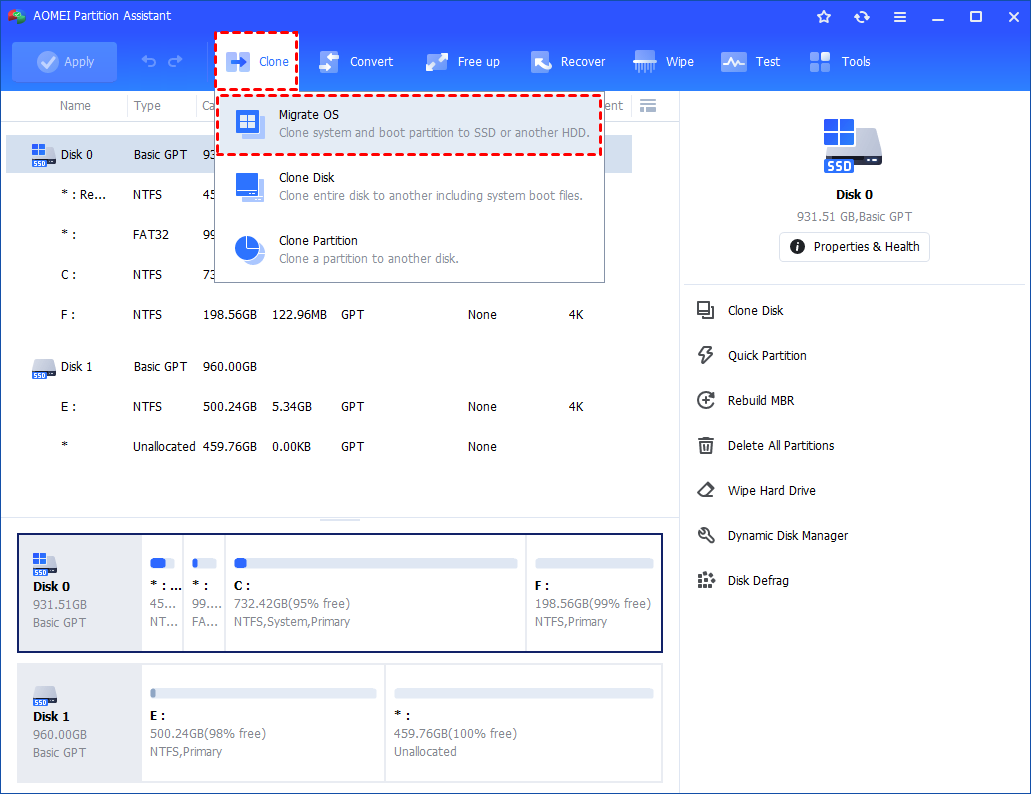
The main window with the Clone menu open. Migrate OS is at the top.
Features
Moves Windows to an SSD without reinstalling
AOMEI Partition Assistant Professional copies the system and boot partitions to an SSD or another hard disk. If your source is a running system, you'll need Pro, because the Standard edition doesn't cover it. Clone Disk copies everything, including hidden partitions.
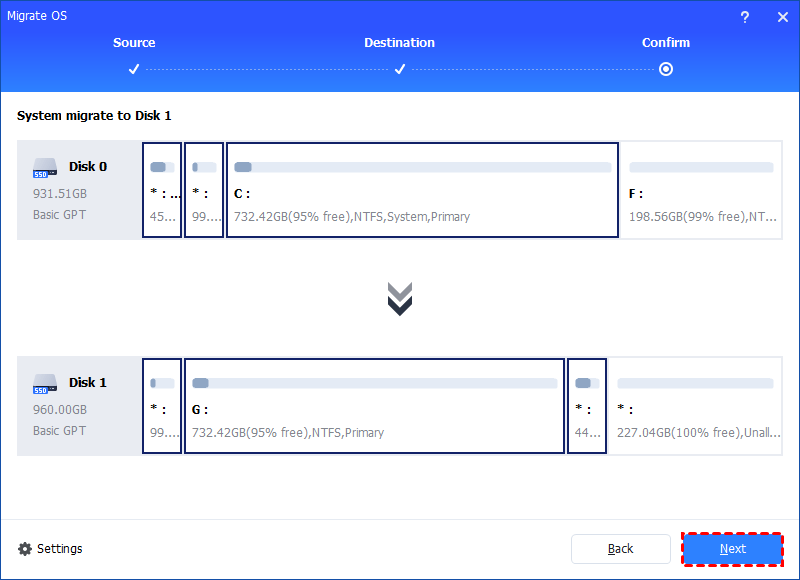
The preview step of Migrate OS, from the vendor's help pages.
Resizes and merges partitions with no data loss
AOMEI Partition Assistant Professional creates, resizes, moves, merges and splits partitions. Allocate Free Space moves spare room from one partition to another, which is the usual fix for a full C: drive. It can also resize BitLocker-encrypted partitions.
Converts disks without wiping them
AOMEI Partition Assistant Professional converts a system disk between MBR and GPT, which matters for Windows 11 upgrades. It also converts dynamic to basic, NTFS to FAT32, and primary to logical.
Moves apps and clears space
AOMEI Partition Assistant Professional's App Mover shifts installed programs and folders to another drive. A PC cleaner, duplicate file finder and large file tool help free up space.
Recovers data and partitions, and wipes disks
AOMEI Partition Assistant Professional can find lost partitions with a fast or full scan and recover deleted files. For disposal, it wipes drives, shreds files, securely erases SSDs, and has DoD 5220.22-M and Gutmann wipe methods.
Benefits
- A new SSD without a weekend of reinstalling. Windows, apps and settings come across.
- A safety check before you commit. You see the result before anything is written.
- Two PCs for one price. The license covers a home desktop and laptop.
- No subscription. Lifetime upgrades are included.
Real-World Uses
- Fixing a "low disk space" warning on C: by taking space from D:.
- Upgrading a laptop from a hard drive to a larger SSD.
- Converting an MBR system disk to GPT so a PC can meet Windows 11 requirements.
- Moving a large game library to a second drive.
- Wiping a drive before selling a PC.
Who It's For, and Who Should Skip It
AOMEI Partition Assistant Professional fits home users and PC enthusiasts who need system-level jobs done on one or two Windows PCs.
Skip it if you only need to resize a data partition: the free Standard edition or Windows Disk Management may do. Skip it if you run servers, since Windows Server needs the Server edition or higher, and if you are a technician serving clients, look at the Technician edition. Mac users need a different tool.
Usage Guide
- Back up anything important.
- Install the program and enter your license code.
- Choose the job from the toolbar, such as Clone, then Migrate OS.
- Pick the target disk and check the preview.
- Click Apply, then Proceed. System jobs may restart into PreOS or Windows PE mode.
- For a migration, set the new drive as the first boot device in BIOS or UEFI.
Where it falls short
- Long jobs can be slow. A 1-star Trustpilot reviewer described an operation of almost 80 minutes with no way to cancel, and thesweetbits called operating time slow.
- Support varies. thesweetbits rated support poor on the Standard and Professional editions, even though AOMEI promises free technical support.
- Migrate OS has limits. It only migrates the system of the PC it's running on. It can't help if the system and boot partitions are spread across different drives without extra steps.
- Too many upsells for some. The vendor promotes bundles and other products across its site.
What Users Say
Trustpilot: 4.9 out of 5 from 3,178 reviews
That is a strong score: 93% are 5-star and only 2% are 1-star, with about 1,800 in the past 12 months. Trustpilot notes that the company hasn't recently invited reviews and hasn't replied to negative ones. Text below was read through a summarizer.
- JustADude, 5 stars, October 26, 2026: "Amazing! The software actually did what it promised!" He also complained of being asked for "like 50$ when reaching 99% of progress bar".
- Aijaz Siddiqui, 5 stars, October 30, 2026: "AOMEI helped me move a recovery partition to combine two partitions into one"
- Hamza, 5 stars, November 1, 2026: "the basic free version has everything you would need for personal use"
- Eeyore, 5 stars, November 4, 2026: "Licence registration issue on replacement server resolved by Owen (Tan) very quickly"
- Boatman Blue, 5 stars, June 9, 2026: "I Used the DOD disk clean function and Partition reset. its worked perfectly"
- A 1-star reviewer signed Windows, October 29, 2026: "There is also no button to cancel a process to stop it"
- Christoph Lampert, 4 stars, November 2, 2026, on support: "The problem was first not resolved. It was not understood!"
thesweetbits: "a gem that stands out"
Raymond Pon calls the Professional edition the clear choice. After conversions and migrations, he says "there was no data loss, and all files were intact." His complaints: "operating time is slow", "Customer support is poor on the Standard and Professional editions", and the lack of a dark theme.
Capterra and Softpedia
Capterra shows 4.0 out of 5 from 8 users, in a search excerpt, with one reviewer who moved from MiniTool calling it expensive. Older Softpedia reviews of version 4 said the interface was intuitive and similar to EaseUS, though the reviewer also reported malfunctions in that version, which is now well out of date.
The pattern: people are happy that it does what it promises, including on real disks. Complaints are about paying late in the process, slow jobs with no cancel button, and support answers on harder cases.
Comparisons
AOMEI Partition Assistant Professional vs Standard
Standard is free and handles basic partition work. Professional adds running-system OS migration, more conversions, App Mover, recovery and wipe tools. If your job needs one of those, Standard stops being an option.
AOMEI Partition Assistant vs MiniTool Partition Wizard and EaseUS Partition Master
All three share the same basic features and a free tier. The choice usually comes down to the price and license on the day. AOMEI's lifetime plan for 2 PCs is good value, and one Capterra reviewer felt it was still expensive compared with MiniTool, so check current prices.
Editions and Pricing
| Edition | Price | License | Best for |
|---|
| Standard | Free | Personal use | Basic partition work |
| Pro Yearly | $49.95 a year at the vendor store | 2 PCs, auto-renews | Short-term use |
| Pro Lifetime | $59.95 once | 2 PCs, lifetime upgrades | Most home users |
| Pro Family Lifetime | $89.95 once | 5 PCs, lifetime upgrades | Families |
| Server, Unlimited, Technician | Higher | Business use | Servers and service providers |
FAQs
Does AOMEI Partition Assistant Professional work on Windows 11?
Yes. AOMEI Partition Assistant Professional supports Windows 11, 10, 8.1, 8 and 7 in 32-bit and 64-bit versions.
How many PCs does a AOMEI Partition Assistant Professional license cover?
AOMEI Partition Assistant Professional is licensed for 2 PCs. The Family Lifetime plan covers 5.
Does AOMEI Partition Assistant work on Windows Server?
Not in the Professional edition. AOMEI sells a separate Partition Assistant Server edition for server systems.
Can AOMEI Partition Assistant Professional clone to a smaller SSD?
AOMEI Partition Assistant Professional can migrate the OS to an SSD as long as the target has room for the data you're moving. It can show this in the preview before you click Apply.
Can I get a refund on AOMEI Partition Assistant Professional?
Yes. AOMEI advertises a 90-day unconditional money-back guarantee on AOMEI Partition Assistant Professional.
Will the lifetime license for AOMEI Partition Assistant renew?
No. The lifetime plan showed no renewal on the order page. The vendor's separate yearly plan renews automatically until you cancel.
System Requirements
- Windows 11, 10, 8.1, 8 or 7
- 32-bit or 64-bit
- 72 MB download
Conclusion
Verdict: AOMEI Partition Assistant Professional is worth $59.95 if you need to migrate Windows to an SSD or convert a system disk, and its Trustpilot record is unusually strong. For a simple resize, try the free Standard edition first.
The one reason to buy is getting system-level disk jobs done without reinstalling Windows, with a preview before anything changes. The main reason not to is that free tools already cover the easy cases.
Download Free TrialBuy Now