AOMEI Backupper Technician and Technician Plus: One License for Every PC You Look After
AOMEI Backupper Technician is a Windows backup, cloning and image-deployment toolkit licensed per technician for unlimited PCs, at $799 once or $499 a year; Technician Plus adds unlimited Windows Servers for $999 once or $699 a year. They're built for in-house IT staff and service providers who image, deploy and rescue many computers and don't want to buy a license per machine.
Read the security warning below first: earlier in 2026 attackers tampered with AOMEI's update servers, and machines that ran AOMEI Backupper before version 8.5.1 should be checked.
Quick facts
- Version: 8.5.1, released October 19, 2026
- Developer: AOMEI
- Platform: Technician: Windows 11, 10, 8.1, 8 and 7. Technician Plus: also Windows Server 2025, 2022, 2019, 2016, 2012 and SBS 2011
- License: one technician, unlimited PCs (Plus: unlimited PCs and servers), billable service to clients allowed
- Price: Technician $799 once or $499 a year; Technician Plus $999 once or $699 a year
- Adds over Workstation: AOMEI Image Deploy, a portable version, unlimited machines
- Trial: 30 days
- Guarantee: 90 days money back
What we checked: the Technician trial installer, file version 8.5.1.0 (221 MB, validly signed by AOMEI International Network Limited), AOMEI's changelog, license FAQ and security notes, and the order page, which showed $799 and $499 for Technician and $999 and $699 for Technician Plus (lifetime and yearly), on November 15, 2026. We didn't run Image Deploy or PXE boot across a network ourselves.
Security warning: AOMEI's update servers were hacked
Between April and July 2026, attackers briefly altered two configuration files on AOMEI's servers so that AOMEI Backupper's update and notification features downloaded and ran malware, BleepingComputer reported on October 19, 2026. ManageEngine, Google's Threat Intelligence Group and Mandiant traced a downloader and a backdoor at IT services, telecom and higher-education organizations in the United States, Australia, India, Singapore, Spain and Switzerland. For a technician, that means any client machine that ran an older Backupper may need checking too.
Version 8.5.1 switches off automatic in-app updates and promotional pop-ups, stops using the old update domain, and refuses configuration files that fail a signature check. That stops new infections; it doesn't clean a machine that was already hit.
For machines that ran AOMEI Backupper before 8.5.1: run AOMEI's Security Scanner from its site, update to 8.5.1 from the vendor's site, run a full scan with your security software, and change the Windows and domain account passwords used on them.
Download Free TrialBuy Technician LifetimeBuy Technician YearlyBuy Technician Plus LifetimeBuy Technician Plus Yearly
Before you buy
- Servers need Plus. Plain Technician runs on Windows desktops only. If even one Windows Server is in scope, buy Technician Plus.
- The license follows the technician, not the client. If Backupper must stay installed on a client's PCs after your job ends, AOMEI says the client needs its own license; otherwise uninstall it when you're done.
- No central console in the box. Each machine is set up on its own. AOMEI sells a separate add-on, AOMEI Backupper Central, for managing Technician installs on a LAN from one console.
- Test your rescue media and network boot before relying on them, and note that updates are manual from 8.5.1 on.
Overview
AOMEI Backupper Technician is the full AOMEI Backupper (backup, restore, sync, clone and tools) with two extra tools for working on many machines at once, and a license that isn't counted per PC. The interface is the familiar left-hand menu of Home, Backup, Sync, Clone and Tools. The Technician-only tools sit under Tools and carry a "Tech" badge in the cheaper editions.
There are two ways to use it. An in-house IT person installs it on every office PC under one license. A service technician carries the portable version on a USB drive, runs it on a client's machine without installing it, and bills for the work, which AOMEI's license explicitly allows.
Features
Deploys one image to many PCs over the network
AOMEI Backupper Technician includes AOMEI Image Deploy, which restores one system or disk image to multiple computers on the LAN at once. You pick a backup image, the clients boot from the network into a WinPE environment and appear by IP address, and you choose which ones to deploy to, the destination disk and how many machines to do at a time. It's the tool for rolling a standard Windows build onto a room of new PCs.
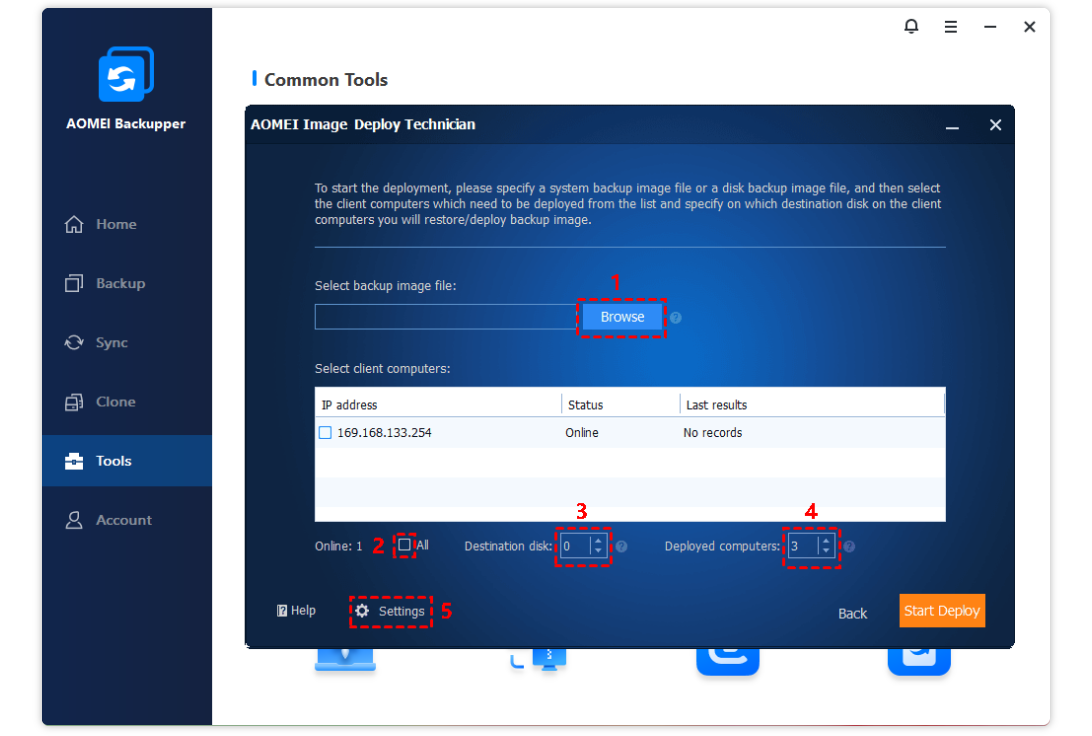
AOMEI Image Deploy: choose the image, tick the client computers found on the network, set the destination disk and the number of computers, then Start Deploy.
Runs from a USB drive without installing
AOMEI Backupper Technician's Create Portable Version copies the program and its settings to a removable drive. On a client's PC you run Backupper.exe straight from the stick, do the backup or clone, and leave nothing installed behind, which keeps you inside the license terms for one-off jobs.
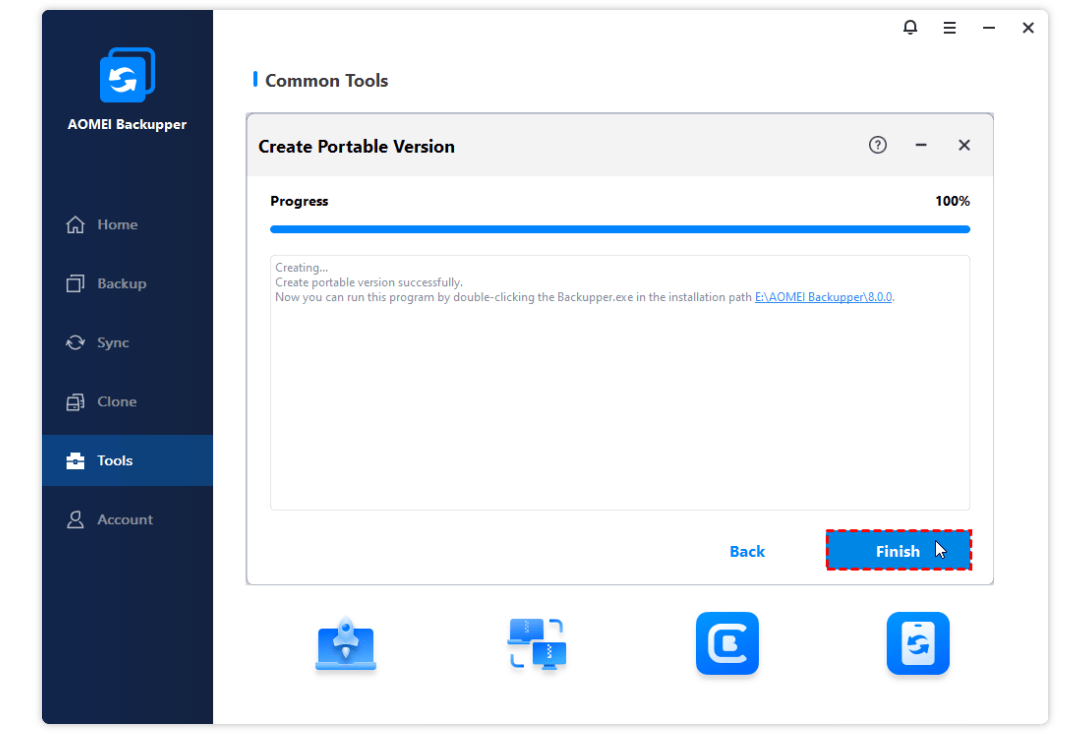
Create Portable Version at 100%: the program can now be run from Backupper.exe on the removable drive.
Starts LAN machines with the PXE Boot Tool
AOMEI Backupper Technician's PXE Boot Tool lets wired computers on the same network segment boot AOMEI's Windows PE system, or your own bootable ISO, from the technician's PC. Combined with an image, it's how you restore several machines that no longer start, without a USB stick for each.
Everything the single-PC editions do
AOMEI Backupper Technician images systems, disks, partitions, files, Outlook data and email accounts on schedules or event triggers, with incremental and differential backups and automatic cleanup. It clones systems and disks to SSDs (including live), syncs folders in four modes, restores to dissimilar hardware, keeps NTFS permissions, and runs jobs from the command line with pre- and post-commands. Version 8.4 added an option to reset the system's SID during clone and restore, which avoids network and permission conflicts when one image goes to several PCs.
Benefits
- Fixed cost however many PCs. At about ten PCs Technician already costs less than single Workstation licenses.
- A legal tool for paid work. Most cheap backup licenses forbid commercial service; this one is sold for it.
- Deployment and backup in one product. No separate imaging server to buy and learn.
- Nothing left behind on client PCs when you work from the portable copy.
Real-World Uses
- A school IT technician deploys one prepared Windows image to a classroom of 25 PCs over the network, resetting each machine's SID.
- A repair shop clones a customer's failing hard drive to a new SSD from the portable version, then leaves nothing installed.
- An office administrator schedules nightly images on 40 desktops under one license.
- An MSP with Technician Plus images a client's two Windows Servers and its office PCs with the same toolkit.
- After a bad update, a technician PXE-boots several dead PCs and restores last night's images.
Who It's For, and Who Should Skip It
AOMEI Backupper Technician fits IT staff in companies with roughly ten or more Windows PCs, school and lab administrators who redeploy machines, and independent technicians and repair shops who back up and clone client PCs for a fee. Technician Plus is for the same people when servers are part of the job.
Skip it if you have a handful of PCs: Workstation at $79.95 per PC is cheaper below about ten. Skip it if you need to see every machine's backup status in one place; that takes the Backupper Central add-on or a centrally managed product such as AOMEI Cyber Backup. Skip it for VM-level Hyper-V or VMware backup and SQL database backup. And if AOMEI's 2026 update-server breach makes you unwilling to run its software on clients' machines, that's a fair professional judgment.
Usage Guide
- Download the Technician trial from the vendor, install it on your own PC, and enter the license code after buying.
- To make a reference image, open Backup > System Backup on a prepared PC and save the image to a network share.
- To deploy it, open Tools > AOMEI Image Deploy, create or select the bootable ISO for clients, and boot the client PCs from the network.
- Select the image, tick the clients that appear, set the destination disk and the number of computers, and click Start Deploy.
- For field work, use Tools > Create Portable Version, choose a USB drive and click Start Creating.
- On a client PC, run Backupper.exe from the USB drive, do the job, and close it.
Where it falls short
- Network deployment has strict conditions. AOMEI's PXE FAQ requires wired clients on the same network segment, a DHCP server on the LAN and ports 67, 69 and 4011 free; a large boot image can fail on clients with too little memory.
- Boot media is a long-standing weak spot. PCWorld's November 2026 test found the Windows PE USB drive Backupper made wasn't recognized as bootable, and called it "a long-running issue with the program".
- No built-in monitoring. Without Backupper Central, you check each machine's jobs where they run.
- Small interface gaps. PCWorld found you can't create a folder while choosing a destination, and network paths must be typed.
What Users Say
Independent reviews test AOMEI Backupper's engine, usually through the Professional edition; the Technician tools themselves get little outside coverage.
PCWorld: Jon L. Jacobi, Backupper Professional 8.5, November 6, 2026
"Backupper is a very good performer and super reliable with most tasks — but, geez, Aomei, fix the darn boot media!" He notes that some tools, "such as creating a portable version, are only available in the pricier corporate versions", and lists "Technician for $499, and Technician Plus for $699 with image deployment and the portable version."
His verdict: "With online storage and malware protection, Aomei Backupper 8.5 can now compete with the likes of Acronis True Image in the backup, sync, and disaster recovery category. If only it would fix a couple niggling issues."
MSPoweruser: Dennis Otieno, 8 out of 10
He found it "good at making exact copies of your entire disk". But during his clone test, "I got this error 'Unable to clone to current system partition, please choose other location' even after inserting an external 2TB hard drive," and the clone only started "after a few tries". His conclusion: "the tool's reliability is a bit shaky."
Trustpilot: 4.9 out of 5 from 2,597 reviews (ubackup.com)
93% five-star and 3% one-star; recent reviews mostly thank support staff by name.
- Complete System Computer, October 13, 2026: "Fast response in recover my PKD"
- Larry, October 12, 2026: "Kamlee helped me fast to troubleshoot with my problem."
- Roy, October 30, 2026: "it really works man...no kidding old school programmers still doing a great job. Thanks guys"
The pattern: reliable everyday backup and fast support, with boot media and occasional clone errors as the recurring complaints. For a technician, those are exactly the paths to test before a client depends on them.
Comparisons
Technician vs Technician Plus
Same tools: Image Deploy, portable version, PXE Boot Tool, billable service. Technician covers unlimited Windows PCs; Technician Plus covers unlimited PCs and Windows Servers, for $200 more on either the yearly or the lifetime plan.
Technician vs Workstation and Server
Workstation ($79.95 lifetime per PC) and Server ($299 lifetime per server) run the same backup engine but count machines and lack Image Deploy and the portable version. Technician wins on cost from about ten PCs; Technician Plus wins once you have several servers plus desktops.
Editions and Pricing
| Edition | Price | Covers | Term | Buy |
|---|
| Technician Lifetime | $799 once | Unlimited PCs | Lifetime use and upgrades | Buy |
| Technician Yearly | $499 a year | Unlimited PCs | Renews yearly, cancel anytime | Buy |
| Technician Plus Lifetime | $999 once | Unlimited PCs and servers | Lifetime use and upgrades | Buy Plus |
| Technician Plus Yearly | $699 a year | Unlimited PCs and servers | Renews yearly, cancel anytime | Buy Plus |
Prices are from the order page on November 15, 2026. AOMEI's own store also offers yearly plans with 1 TB of AOMEI Cloud storage, and bundles with the Backupper Central console.
FAQs
How many AOMEI Backupper Technician licenses do I need?
One per technician. AOMEI says one Technician license covers a single technician, IT professional or administrator, registers unlimited PCs, and can be used for several of that technician's clients at the same time.
Can I charge clients for work done with AOMEI Backupper Technician?
Yes. AOMEI Backupper Technician and Technician Plus are licensed to provide billable technical service. If the software has to stay installed on a client's machines after the job, AOMEI says to buy a license for that client.
Does AOMEI Backupper Technician work on Windows Server?
No. AOMEI Backupper Technician supports Windows 11, 10, 8.1, 8 and 7. Technician Plus adds Windows Server 2025, 2022, 2019, 2016, 2012 and SBS 2011.
Can AOMEI Backupper Technician restore an image to a PC with different hardware?
Yes. AOMEI Backupper Technician's Universal Restore puts a system image on a computer with dissimilar hardware, and from version 8.4 you can reset the system's SID during clone or restore so copied PCs don't clash on the network. Test one machine of each model first.
Is AOMEI Backupper Technician safe to use on client machines after the 2026 attack?
AOMEI Backupper Technician 8.5.1 is the version AOMEI says closes the update path the attackers used, and our trial download was validly signed. AOMEI hasn't said how its servers were breached. Use 8.5.1 or later, download only from AOMEI, and check any client machine that ran an older Backupper with AOMEI's scanner.
Can I upgrade from Technician to Technician Plus later?
Yes. AOMEI lets you move between paid editions by paying the price difference plus a small upgrade fee.
System Requirements
- Technician: Windows 11, 10, 8.1, 8 or 7
- Technician Plus: also Windows Server 2025, 2022, 2019, 2016, 2012 and SBS 2011 (including R2)
- File systems: NTFS, FAT32, FAT16, EXT2, EXT3 and others
- Storage: internal and external HDD/SSD, USB flash drives, NAS, hardware RAID, virtual machines
- Image Deploy and PXE: wired clients on the same LAN segment with a DHCP server
- 221 MB download
Conclusion
Verdict: AOMEI Backupper Technician is good value for anyone backing up, cloning or redeploying ten or more Windows PCs, and one of the few low-cost backup licenses sold for paid service work; Technician Plus is the right buy once servers are involved. The reason to buy it is a complete imaging and deployment kit for a fixed price, portable enough to carry to clients. The reasons to hesitate: there's no central dashboard without an add-on, the boot media needs testing, and AOMEI's update servers were used to plant malware on business machines in 2026, which matters more when you install software on other people's computers. If you go ahead, standardize on 8.5.1, keep updates manual, and prove PXE and boot media in your own environment first.
Download Free TrialBuy Technician LifetimeBuy Technician YearlyBuy Technician Plus LifetimeBuy Technician Plus Yearly