AOMEI Backupper Workstation: Business-Licensed Backup and Cloning for Office PCs
AOMEI Backupper Workstation is a Windows PC backup, disk cloning and folder sync program licensed for business use, at $79.95 once per PC or $49.95 a year. It is the edition a small office buys when the home-only Professional license doesn't cover a work computer, and it adds a PXE Boot Tool for starting several office PCs from the network.
Read the security warning below first: earlier in 2026 attackers tampered with AOMEI's update servers, and anyone running a version older than 8.5.1 should act on that before anything else.
Quick facts
- Version: 8.5.1, released October 19, 2026
- Developer: AOMEI
- Platform: Windows 11, 10, 8.1, 8 and 7 (no Windows Server in this edition)
- License: 1 PC, business use allowed
- Price: $79.95 once with lifetime upgrades, or $49.95 a year; a 5-PC Team lifetime license is $399.75
- Extra over Professional: business use and the PXE Boot Tool
- Trial: 30 days
- Guarantee: 90 days money back
What we checked: the Workstation trial installer, file version 8.5.1.0 (200 MB, validly signed by AOMEI International Network Limited), AOMEI's changelog and security notes, and the order page, which showed $79.95 for the lifetime 1-PC license, $49.95 for the yearly license and $399.75 for the 5-PC Team license, on November 15, 2026. We didn't run backups, restores or a PXE boot ourselves.
Security warning: AOMEI's update servers were hacked
Between April and July 2026, attackers briefly altered two configuration files on AOMEI's servers so that AOMEI Backupper's update and notification features downloaded and ran malware on some PCs, BleepingComputer reported on October 19, 2026. ManageEngine, Google's Threat Intelligence Group and Mandiant found the campaign. Victims included IT services, telecom and higher-education organizations in the United States, Australia, India, Singapore, Spain and Switzerland, so business installs were the ones hit.
Version 8.5.1 switches off automatic in-app updates and promotional pop-ups, stops using the old update domain, and refuses configuration files that fail a signature check. A fixed update path stops new infections but does not clean a PC that was already hit.
If your office ran AOMEI Backupper before 8.5.1: run AOMEI's Security Scanner from its site, update to 8.5.1 from the vendor's site, run a full scan with your security software, and change the Windows or domain passwords used on those PCs.
Download Free TrialBuy Lifetime (1 PC)Buy Yearly (1 PC)Buy Team Lifetime (5 PCs)
Before you buy
- One license is one PC. Five office PCs on single licenses cost the same as the Team license. At around eight or more PCs, AOMEI itself points small businesses to the Technician edition ($499 a year, unlimited PCs).
- No servers. A Windows Server machine needs Backupper Server or Technician Plus.
- Test your rescue media. PCWorld's November 2026 test of version 8.5 found the Windows PE USB drive Backupper made wasn't recognized as bootable. Build yours and boot a PC from it before you depend on it.
- Updates are manual now. Automatic in-app updating is switched off in 8.5.1, so someone in the office has to check the vendor's site for new versions.
Overview
AOMEI Backupper Workstation is the same program as AOMEI Backupper Professional, with a license that allows business use. The window has a left-hand menu (Home, Backup, Sync, Clone, Tools), and each section opens a page of large tiles: pick a job, pick a source and a destination, set a schedule, start. If you've used the free Standard edition at home, there is nothing new to learn.
What changes is who may run it and one extra tool. The Professional license is for personal use, while Workstation is sold "for 1 business PC". It also includes the PXE Boot Tool, which Professional doesn't have, and it shares AOMEI's 24/7 support line with the other paid editions.
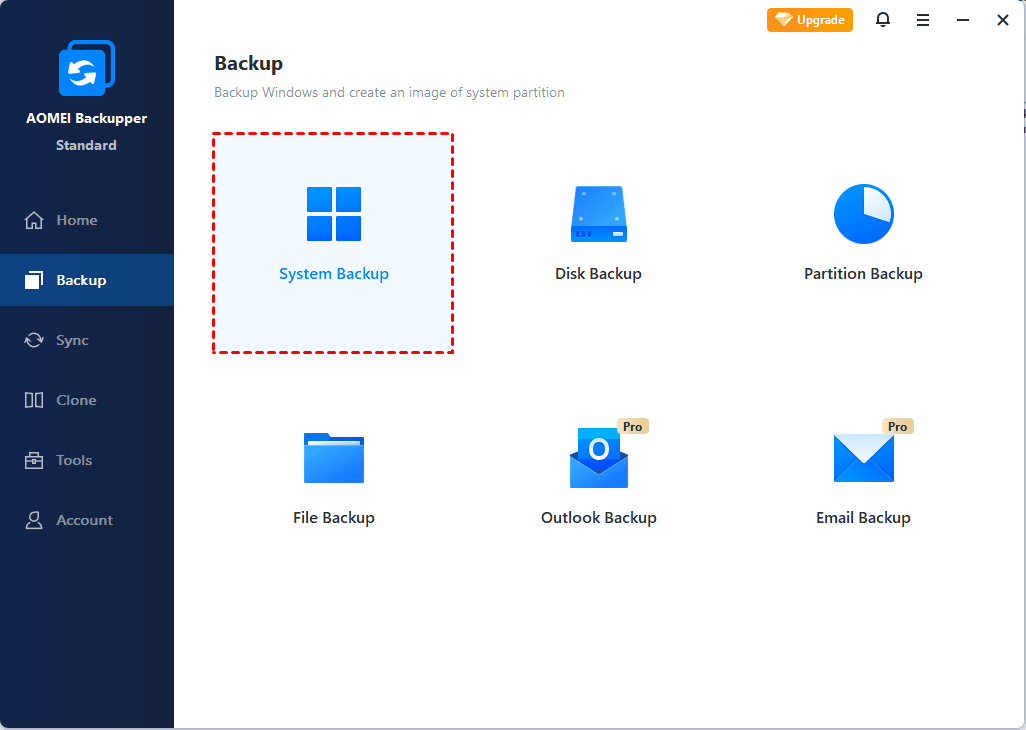
The Backup page, shown here in the free Standard edition. In Workstation the Outlook and Email Backup tiles are available.
Features
Images a work PC on a schedule, or when something happens
AOMEI Backupper Workstation backs up the system, whole disks, partitions, files and folders, plus Outlook data and email accounts, to internal or external drives, USB sticks, a network share, a NAS or AOMEI's cloud. Backups can run daily, weekly or monthly, or fire on events: logon, logoff, startup, shutdown or plugging in a USB drive. Incremental and differential backups copy only what changed, and Backup Cleanup deletes old images by age or count.
Starts office PCs from the network with the PXE Boot Tool
AOMEI Backupper Workstation's PXE Boot Tool turns the PC it runs on into a boot server, so other computers on the same LAN can start into AOMEI's Windows PE environment, or a Linux or Windows PE bootable ISO of your own, without a USB stick each. That's how you restore or check several office PCs that won't boot. AOMEI's PXE FAQ says clients must be wired (no Wi-Fi), on the same network segment as the boot PC, with network boot enabled in the BIOS, and the LAN needs a DHCP server.

The Tools page with AOMEI PXE Boot Tool highlighted. Image Deploy and Create Portable Version carry a Tech badge: they need a Technician edition.
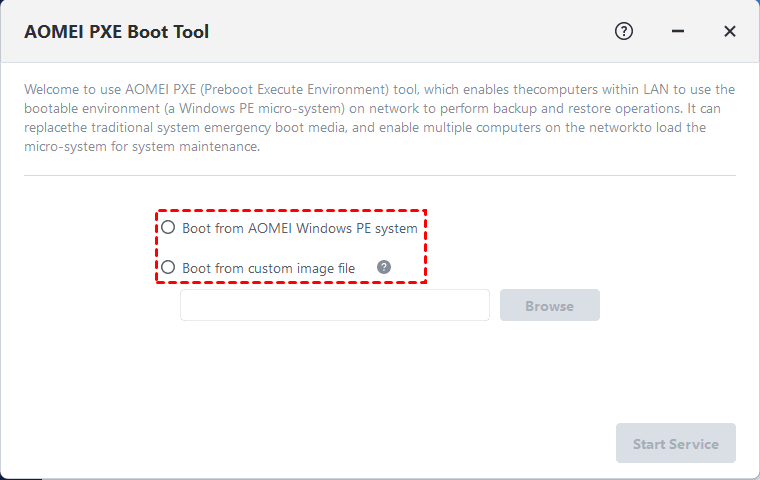
The PXE Boot Tool: boot clients from AOMEI's Windows PE system or a custom image file, then Start Service.
Moves Windows to a new SSD without a reinstall
AOMEI Backupper Workstation has System Clone, Disk Clone and Partition Clone, including cloning a live system without restarting. It aligns partitions for SSDs, converts between MBR and GPT, lets you resize partitions on the target and can clone sector by sector. For an office, that means upgrading a slow PC's drive in one sitting instead of rebuilding the user's setup.
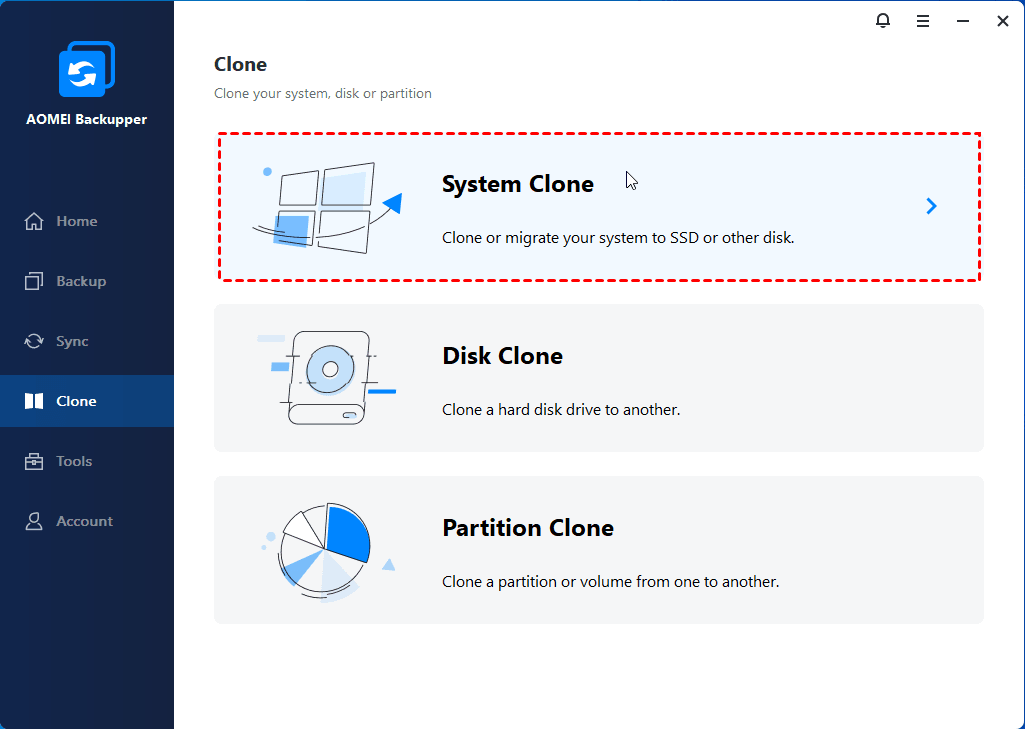
The Clone page: System, Disk and Partition Clone.
Keeps shared folders in step
AOMEI Backupper Workstation offers Basic, Real-Time, Mirror and Two-Way Sync, with an integrity check on the copied files. Real-Time Sync copies changes as they happen, which suits a folder of working files mirrored to a NAS. Mirror Sync deletes anything in the destination that isn't in the source, so set it up with care.
Restores to different hardware, and keeps permissions
AOMEI Backupper Workstation's Universal Restore puts a system image on a computer with different hardware, or moves a physical PC into a virtual machine. File backups can carry their NTFS permissions, which matters on shared office folders, and single files can be pulled from an image by mounting it or opening it in Windows Explorer.
Scripts and alerts for unattended PCs
AOMEI Backupper Workstation has a command-line utility for backup, restore and clone jobs, pre- and post-backup commands, email notifications through AOMEI's or your own SMTP server, and task import/export so one PC's jobs can be copied to the next.
Benefits
- A license that covers work use. The cheaper Professional edition is for personal use, so this is the honest choice for a company PC.
- Backup, cloning and sync from one vendor and one interface. One tool to learn and support across the office.
- No subscription if you don't want one. The lifetime plan includes later versions.
- Network boot without a pile of USB sticks. PXE makes rescuing several PCs a one-desk job.
Real-World Uses
- A nightly incremental image of the front-desk PC to the office NAS, with an email if it fails.
- Moving an accountant's PC from a hard drive to an SSD over lunch, with every program still installed.
- Starting three PCs that won't boot after a bad Windows update from the network, then restoring last night's images.
- Real-time sync of a project folder to a shared drive, with NTFS permissions kept.
- Rebuilding a dead PC's system on a replacement machine with different hardware.
Who It's For, and Who Should Skip It
AOMEI Backupper Workstation fits small businesses, home offices and freelancers who need image backups and cloning on a handful of Windows PCs and want a license that permits business use.
Skip it if the PC is purely personal: Professional is cheaper and identical apart from PXE. Skip it for servers, which need Backupper Server. Past about eight PCs, Technician's unlimited license costs less than a stack of single ones, and an IT team that wants to manage every PC's backups from one console should look at AOMEI Cyber Backup or another centrally managed product, since Workstation is configured PC by PC. And if the 2026 server attack rules AOMEI out for your business, that's a reasonable call for software that runs with full access to your disks.
Usage Guide
- Download the Workstation trial from the vendor and install it. Enter your license code when you buy.
- Open Backup and choose System Backup (or Disk, Partition, File or Outlook Backup).
- Pick a destination off the PC: an external drive, a network share or a NAS. For a network path you type the address, such as \\192.168.1.105\Backups.
- Under Schedule, choose daily, weekly, monthly or an event trigger, and set a backup scheme so old images are cleaned up.
- Add your email under notification settings so a failed job doesn't go unnoticed.
- Go to Tools and create bootable rescue media, then boot a PC from it once to confirm it works.
- For network boot, open Tools > AOMEI PXE Boot Tool, choose the AOMEI Windows PE system, click Start Service, and set the client PCs to boot from the network.
Where it falls short
- Boot media is the weak point. PCWorld got a working USB stick only by writing Backupper's ISO with Rufus and lowering the PC's boot security settings, calling it "a long-running issue with the program".
- PXE has limits. Wired clients only, the same network segment, a DHCP server on the LAN, and ports 67, 69 and 4011 free on the boot PC. AOMEI's FAQ also warns that a large boot image can fail on a client with too little memory.
- Small interface gaps. PCWorld found you can't create a new folder while choosing a destination, and network locations must be typed in.
- No central console. Each PC has its own copy and its own schedule.
- Cloning hiccups. MSPoweruser's tester hit "Unable to clone to current system partition" before a clone went through, and the 8.5.0 changelog fixed several clone and backup error codes.
What Users Say
Reviews cover AOMEI Backupper as a whole rather than the Workstation license, which runs the same program.
PCWorld: Jon L. Jacobi, Backupper Professional 8.5, November 6, 2026
The verdict: "With online storage and malware protection, Aomei Backupper 8.5 can now compete with the likes of Acronis True Image in the backup, sync, and disaster recovery category. If only it would fix a couple niggling issues." In testing, the program "performed both quickly and without error this time around in nearly every task", and "Backupper is a very good performer and super reliable with most tasks — but, geez, Aomei, fix the darn boot media!"
On the interface: "The GUI is clean, friendly, and the features are explained with easily understandable language." On the business plans, he lists "Workstation for $50 yearly with PXE boot ($60 with the 1TB of online storage)". His cons: "Doesn't support third-party online storage services", "Doesn't let you create new folders when defining a backup destination" and "Boot disk creation remains problematic".
MSPoweruser: Dennis Otieno, 8 out of 10
He found scheduled backups quick ("a few seconds for 300 MB") and support fast ("I tested the response time and got a reply within one hour"), but noted "there are no options for chat and phone support for urgent issues." His verdict: "The tool offers a quick and easy way to backup, sync, restore, and clone your data," but "the tool's reliability is a bit shaky. I received Windows Defender Firewall warnings when backing up files to the cloud. It also failed to detect my external hard drive during cloning."
Trustpilot: 4.9 out of 5 from 2,597 reviews (ubackup.com)
93% of the ratings are 5 stars and 3% are 1 star. Most recent reviews are about support and license help rather than backups, and the profile notes AOMEI hasn't replied to negative reviews.
- Roy, October 30, 2026: "it really works man...no kidding old school programmers still doing a great job. Thanks guys"
- John Browning, October 9, 2026: "I got a fast service response and fix. These guys are on the ball and I love using the backer upper."
- Larry, October 12, 2026: "Kamlee helped me fast to troubleshoot with my problem."
- Mike Hamel, November 13, 2026, on the free edition: "I am running the free version because I don't need a complex file back up system."
The pattern: reviewers like how easy the program is and how quickly support answers. The complaints repeat too: rescue media that doesn't boot, small interface gaps, and email-only support.
Comparisons
AOMEI Backupper Workstation vs Professional
The features are the same except the PXE Boot Tool, which only Workstation and the higher editions have. The real difference is the license: Professional ($39.95 a year, $69.95 lifetime for 1 PC at the vendor) is for personal use, and Workstation ($49.95 a year, $79.95 lifetime) is for business use.
AOMEI Backupper Workstation vs Technician
Technician ($499 a year, $799 lifetime) covers unlimited PCs in a company and adds AOMEI Image Deploy, a portable version that runs from a USB drive, and the right to provide paid technical service to clients. Workstation is cheaper up to about ten PCs, on both the yearly and the lifetime plans.
Editions and Pricing
| Plan | Price | PCs | Term | Buy |
|---|
| Workstation Lifetime | $79.95 once | 1 | Lifetime use and upgrades | Buy Lifetime |
| Workstation Yearly | $49.95 a year | 1 | Renews yearly, cancel anytime | Buy Yearly |
| Workstation Team Lifetime | $399.75 once | 5 | Lifetime use and upgrades | Buy Team |
Prices are from the order page on November 15, 2026. AOMEI's own store also sells a yearly plan bundled with 1 TB of AOMEI Cloud storage; on its own, the cloud space is $19.95 a year.
FAQs
Can I use AOMEI Backupper Professional at work instead of Workstation?
No. AOMEI sells Professional for personal use and lists business use from the Workstation edition up, so a company PC needs Workstation or higher.
Can AOMEI Backupper Workstation back up Windows Server?
No. AOMEI Backupper Workstation runs on Windows 11, 10, 8.1, 8 and 7 only. Servers need Backupper Server, or Technician Plus for unlimited PCs and servers.
Is AOMEI Backupper Workstation safe to install after the 2026 attack?
AOMEI Backupper Workstation 8.5.1 is the version AOMEI says closes the update path the attackers used, and the trial we downloaded was validly signed by AOMEI. Nobody outside AOMEI has published how the attackers got into its servers, so it can't be called risk-free. Download it only from AOMEI's site, and update by hand.
Can I upgrade from Workstation to Technician later?
Yes. AOMEI says you can move from one paid edition to another by paying the price difference plus a small upgrade fee.
Does AOMEI Backupper Workstation include cloud storage?
Not in the plain plans. AOMEI Backupper Workstation can back up to AOMEI Cloud, which costs $19.95 a year for 1 TB, and it can only be used for Backupper's own backups and restores.
Can I get a refund on AOMEI Backupper Workstation?
Yes. AOMEI offers a 90-day unconditional money-back guarantee on its paid editions.
System Requirements
- Windows 11, 10, 8.1, 8 or 7
- Backup targets: internal and external disks, USB flash drives, network shares, NAS, CD/DVD and AOMEI Cloud
- PXE Boot Tool: wired clients on the same LAN segment, a DHCP server on the LAN, ports 67, 69 and 4011 free on the boot PC
- 200 MB download
Conclusion
Verdict: AOMEI Backupper Workstation is fair value at $79.95 once per PC for a small office that wants scheduled images, SSD cloning and sync under a license that actually permits business use, and the PXE Boot Tool is a real help when several PCs fail at once. The one reason to buy it is getting a complete, easy backup tool for each work PC without a subscription. The main reason not to is trust: AOMEI's update servers were used to plant malware on business PCs in 2026, and the vendor hasn't explained how. If you go ahead, start on 8.5.1, update by hand, and test your boot media before you need it.
Download Free TrialBuy Lifetime (1 PC)Buy Yearly (1 PC)Buy Team Lifetime (5 PCs)