MyRecover Professional: AOMEI's Windows Data Recovery, With No Size Limit
MyRecover Professional is a Windows data recovery program from AOMEI that finds and restores deleted, formatted and lost-partition files from hard drives, SSDs, USB sticks and SD cards, at $99.95 once for one PC (or $59.95 a year, $39.95 a month). The free edition recovers up to 500 MB, so you can see whether it finds your files before you pay.
Quick facts
- Version: 5.4.2, released November 11, 2026
- Developer: AOMEI
- Platform: Windows 11, 10, 8.1, 8 and 7, and Windows Server 2012 to 2025
- Recovers: deleted and Shift+Deleted files, emptied Recycle Bin, formatted drives, lost partitions, files from a PC that won't boot
- Price: $99.95 once (lifetime upgrades), $59.95 a year or $39.95 a month, 1 PC
- Free edition: recovers up to 500 MB
- Guarantee: 30 days money back
What we checked: the Pro trial installer, file version 5.4.2.0, and the free installer, 5.4.1.0 (159 MB, both validly signed by AOMEI International Network Limited), the free edition's limits on AOMEI's site, and the order page, which showed $99.95 for the lifetime license, $59.95 yearly and $39.95 monthly, on November 15, 2026. We didn't run a recovery ourselves.
Download Free TrialBuy LifetimeBuy YearlyBuy Monthly
Before you buy
- Scan first, pay second. Run the free edition on the drive. If it lists the files you need, a license only removes the 500 MB cap.
- Stop using the drive. Don't install MyRecover on, or recover files to, the drive you lost data from; new writes can overwrite what's left.
- Monthly can be enough. For a one-off accident, a month at $39.95 does the job; just cancel the renewal afterwards. The vendor's own store has at times listed the lifetime plan with a coupon below the $99.95 shown here.
- Physical damage is out of scope. A clicking or dead drive needs a lab, not software.
- AOMEI's update servers were compromised in 2026. Attackers used AOMEI Backupper's update and notification features to plant malware between April and July 2026, BleepingComputer reported. MyRecover wasn't named, but download it only from MyRecover's or AOMEI's own site.
Overview
MyRecover opens on one screen: "Select a location to search for lost data". Quick Access tiles cover the Desktop, Recycle Bin and a chosen folder, and below them every internal and external drive is listed, including any lost partition it detects. The left-hand menu groups the recovery jobs by situation: Deleted Files, Recycle Bin, USB/SD Card and Format Recovery, then Disk Data, Partition Lost and PC Crashed Recovery. You hover over a location, click Scan, and pick files from the results.
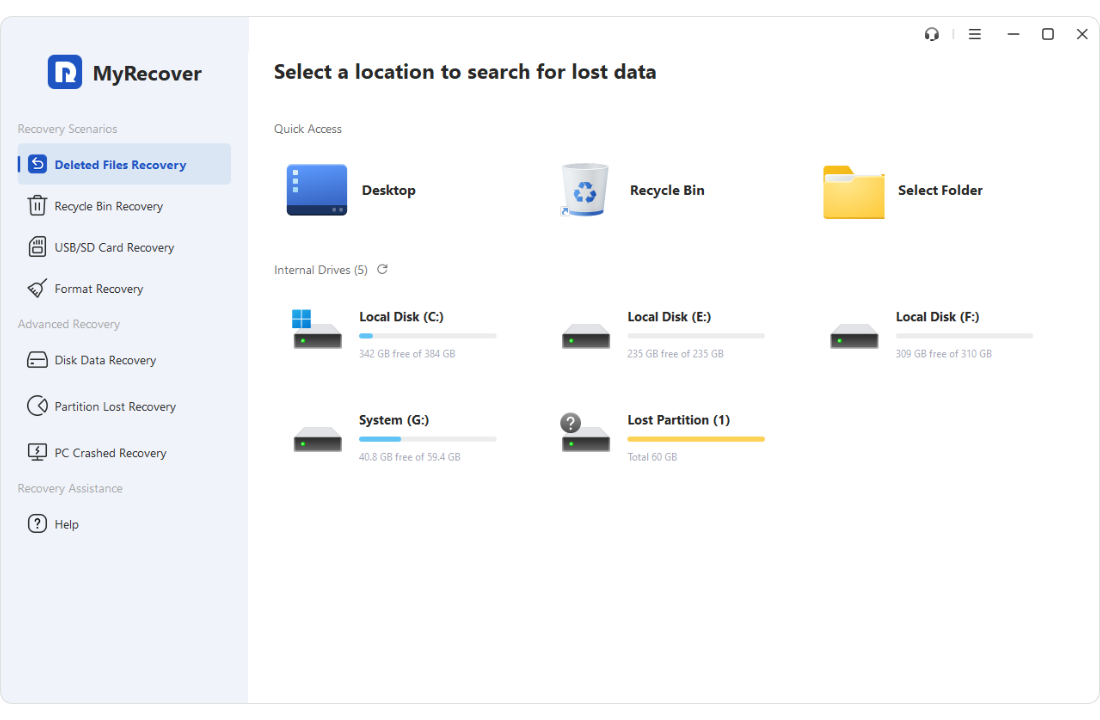
MyRecover's start screen: recovery scenarios on the left, locations and drives (including a detected lost partition) on the right.
Features
Quick scan, then a deep scan
MyRecover Professional starts with a Quick Scan for recently deleted files and then, usually on its own, a sector-by-sector Deep Scan that finds files by their signatures when names and folders are gone. It remembers earlier scans of a drive and offers to load them or continue an unfinished one, so a long scan doesn't have to be repeated.
Deleted, formatted and Recycle Bin recovery
MyRecover Professional recovers files removed with Delete or Shift+Delete, files emptied from the Recycle Bin, and files on a drive that has been formatted, from internal disks, external drives, USB sticks and SD cards. AOMEI says it recognizes over 1,000 file formats, from photos and video to Office documents, archives and email files.
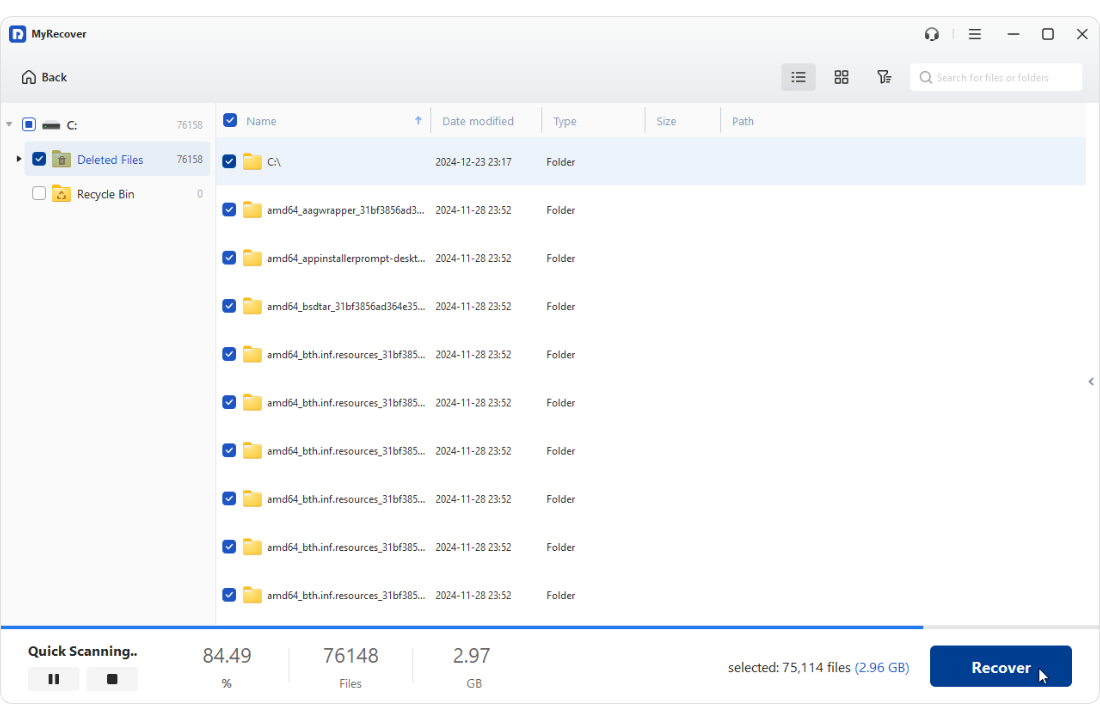
A Quick Scan in progress: found files are grouped under Deleted Files and Recycle Bin, with a running count and the Recover button.
Lost, deleted and RAW partitions
MyRecover Professional detects deleted or lost partitions and recovers individual files from them, or restores a partition with its data. AOMEI's site also lists RAW and inaccessible partitions and files damaged by power cuts and virus attacks among the cases it handles.
Recovery from a PC that won't start
MyRecover Professional's PC Crashed Recovery creates a Windows PE USB boot drive, or exports an ISO, so you can boot a crashed computer and copy its files off. This is a paid-edition feature.
Filter, preview, recover
MyRecover Professional filters results by type and size, searches by name or extension, shows a thumbnail view, and previews common formats (Dealarious counted 23, including JPG, PNG, DOCX, MOV and MKV) before you recover, so you don't restore broken files. Recovered files are written to a location you choose.
Benefits
- You know before you pay. The free 500 MB is a real test, not just a scan.
- No recovery cap once licensed. Recover a whole photo library, not a few files.
- Plain workflow. Situations on the left, drives on the right, one Scan button.
- Fits a one-time disaster. The monthly plan is cheap if you only need it once.
Real-World Uses
- Getting back a folder of documents deleted with Shift+Delete from a work laptop.
- Recovering a camera's SD card after it was formatted by mistake.
- Finding files on a USB drive whose partition was deleted.
- Pulling photos off a PC that blue-screens at boot, using a WinPE USB stick.
- Restoring files emptied from the Recycle Bin last week.
Who It's For, and Who Should Skip It
MyRecover Professional fits home users and small offices on Windows who have just lost files to deletion, formatting or a lost partition and want a simple tool with a real free test.
Skip it on a Mac, and skip it if the drive is physically failing (clicking, not detected), which needs a recovery lab. If you lost only a few small files, the free edition or a free tool may be all you need. Technicians recovering data on many PCs should look at AOMEI's MyRecover Technician edition instead.
Usage Guide
- Download MyRecover from the vendor and install it on a different drive from the one with the lost data.
- Pick a scenario on the left, or simply hover over the drive, folder or lost partition and click Scan.
- Let the Quick Scan finish; the Deep Scan follows. If it stops after the Quick Scan, recover what was found and scan again.
- Use Filter (type, size) or the search box, and switch to thumbnail view or preview files to check them.
- Tick the files and click Recover, saving them to another drive.
- For a PC that won't boot, use PC Crashed Recovery on a working PC to create a USB boot device, then boot the broken PC from it.
Where it falls short
- Old files come back less well. Dealarious found recently deleted files usually kept their names and folders, but long-lost files were hit-or-miss.
- Lost-partition results came back unsorted. In the same test, recovery from a deleted partition first failed to save until support sent a patch, and files lost their folder structure.
- The boot drive didn't build on one test PC. Dealarious couldn't create the WinPE USB drive; support said Windows PE components were missing.
- Small workflow gaps. No results while the scan runs, and selecting search results cleared earlier selections. Deep scans used about 1.4 GB of RAM.
- Recycle Bin recovery asks for the original folder rather than scanning the bin itself.
What Users Say
Dealarious: Debarati Datta, 3.7 out of 5, July 28, 2026
Tested with a Professional license supplied by MyRecover. The verdict: "Overall, I found MyRecover to be a decent data recovery solution, but nothing exceptional. It handles the basics well, such as recovering recently deleted files, Shift+Delete scenarios, and formatted files." On a formatted 32 GB USB drive, "The Quick Scan took about one hour and detected all 95 files," and "most retained their filenames."
Pros listed: "Intuitive interface", "Preserves filenames and folder structure for many recently deleted files", "Helpful support assistance", "Reliable results in common data-loss scenarios". Cons: "Some features didn't work as expected", "Struggles to recover usable long-lost files", "Unusual approach to Recycle Bin recovery". Ratings: usability 4/5, features 4/5, recovery rate 3.5/5, scanning speed 3.5/5.
Trustpilot: myrecover.com, 4.5 out of 5 from 14 reviews
A small sample, all five stars, mostly about support response times.
- Business Computer Services, August 15, 2025: "The deep search on crashed PCs is very effective and recovered all personal files."
- Frank C., December 12, 2025: "Helped me recover so many lost photo's."
- Von Loyrangsy, July 30, 2026: "I submitted a ticket and I got a response from Kamlee under 10 minutes."
- Payton Sutton, May 12, 2026: "Lanry was very helpful in resolving my problem."
The pattern: reliable for the common accidents (recent deletions, formatted cards and sticks) with quick support, weaker on long-lost files and the more advanced partition and crashed-PC paths.
Comparisons
MyRecover Free vs Professional
Free recovers up to 500 MB on one PC with business-hours support. Professional removes the limit and adds full file preview, the boot drive for recovering from a crashed computer, Windows Server support and 24/7 support.
Professional vs Technician
MyRecover Technician, sold on AOMEI's own store ($99 a month, $199 a year, or $299 lifetime with the store's current discount), covers unlimited computers and allows paid technical service to clients. For your own PC, Professional is enough.
Editions and Pricing
| Plan | Price | PCs | Term | Buy |
|---|
| Free | $0 | 1 | Up to 500 MB recovered | Free download |
| Professional Lifetime | $99.95 once | 1 | Lifetime use and upgrades | Buy Lifetime |
| Professional Yearly | $59.95 a year | 1 | Renews yearly | Buy Yearly |
| Professional Monthly | $39.95 a month | 1 | Renews monthly | Buy Monthly |
Paid prices are from the order page on November 15, 2026. Subscriptions renew automatically until cancelled.
FAQs
Is MyRecover really free?
MyRecover Free is free to use and recovers up to 500 MB of data in total. To recover more, or to use full preview and crashed-PC recovery, you need Professional or Technician.
Can MyRecover recover files from an SSD?
MyRecover can scan SSDs, but on an SSD with TRIM enabled, Windows often wipes deleted blocks quickly, so results are usually worse than on a hard drive or memory card. Scan as soon as possible after the loss.
Can I move a MyRecover license to another PC?
Yes, through support. A MyRecover Professional license covers one computer, and MyRecover support can reset it so you can use it on another.
Does MyRecover Professional work on Windows Server?
Yes. AOMEI lists Windows Server 2025, 2022, 2019, 2016, 2012 and 2008 support for MyRecover Professional and Technician.
Does MyRecover upload my files anywhere?
No. AOMEI says MyRecover runs locally on your computer and writes recovered data straight to the location you choose.
Can I get a refund on MyRecover Professional?
Yes. MyRecover's store offers a 30-day unconditional money-back guarantee.
System Requirements
- Windows 11, 10, 8.1, 8 or 7; Windows Server 2012 to 2025 (paid editions)
- 500 MHz x86 or compatible CPU, 2 GB RAM
- File systems: NTFS, ReFS, FAT16, FAT32, exFAT
- Drives: internal and external HDD and SSD, USB flash drives, SD cards
- 159 MB download
Conclusion
Verdict: MyRecover Professional is a sound, easy choice for the everyday data accidents on Windows (deleted files, an emptied Recycle Bin, a formatted card or stick), and the free 500 MB lets you prove it works on your drive before paying. The one reason to buy it is that low-risk path from free scan to full recovery. The main reason not to: independent testing found it only average on long-lost files and rough on lost partitions and boot media. For a single accident, the $39.95 month is the smart buy; take the $99.95 lifetime license only if you expect to need it again.
Download Free TrialBuy LifetimeBuy YearlyBuy Monthly