AOMEI Cloner Professional: Move Windows to a New SSD Without Reinstalling
AOMEI Cloner Professional is a $59.95 one-time (or $39.95 a year) Windows tool that copies your system, a whole disk or a single partition to another drive, so you can upgrade to an SSD or replace a failing disk and boot straight from the copy. It's for anyone swapping a drive in a Windows PC who wants a dedicated cloning tool rather than a full backup suite.
Quick facts
- Version: 6.1.0, released October 27, 2026
- Developer: AOMEI
- Platform: Windows 11, 10, 8.1, 8 and 7, and Windows Server 2008 R2 to 2022
- Clone types: System, Disk (including one disk to several), Partition, from Windows or a WinPE boot drive
- Price: $59.95 once with lifetime upgrades, or $39.95 a year, for 1 computer
- Trial: free download that previews and simulates operations; the actual clone needs a license
- Guarantee: 90 days money back
What we checked: the installer from AOMEI's site, file version 6.1.0.0 (157 MB, validly signed by AOMEI International Network Limited), AOMEI's changelog and help pages, and the order page, which showed $59.95 for the lifetime license and $39.95 for the yearly license for 1 computer, on November 15, 2026. We didn't clone a drive ourselves.
Download Free TrialBuy LifetimeBuy Yearly
Before you buy
- The free download won't clone your system. It shows and simulates the steps; Trustpilot reviewers have complained that the "free" cloner asked them to pay when they tried to clone the OS drive. Plan on buying before the job, not after.
- A one-off upgrade? The lifetime license is only $20 more than a year, and you'll probably want it again for the next drive.
- Back up first. AOMEI itself says a clone can fail from a power cut or other conflicts, so keep a backup of anything important before you start.
- AOMEI's update servers were compromised in 2026. Attackers used AOMEI Backupper's update and notification features to plant malware between April and July 2026, BleepingComputer reported. Cloner wasn't named, but download it only from AOMEI's own site.
Overview
AOMEI Cloner is the cloning part of AOMEI's backup software, split out into its own small program. The window has four items on the left: System Clone, Disk Clone, Partition Clone and Bootable Media. Pick one, choose the destination disk, review a before-and-after map of the partitions, and click Start Clone. When it finishes you set the new disk as the boot drive in the BIOS or UEFI and start Windows from it, with every program and setting where you left them.
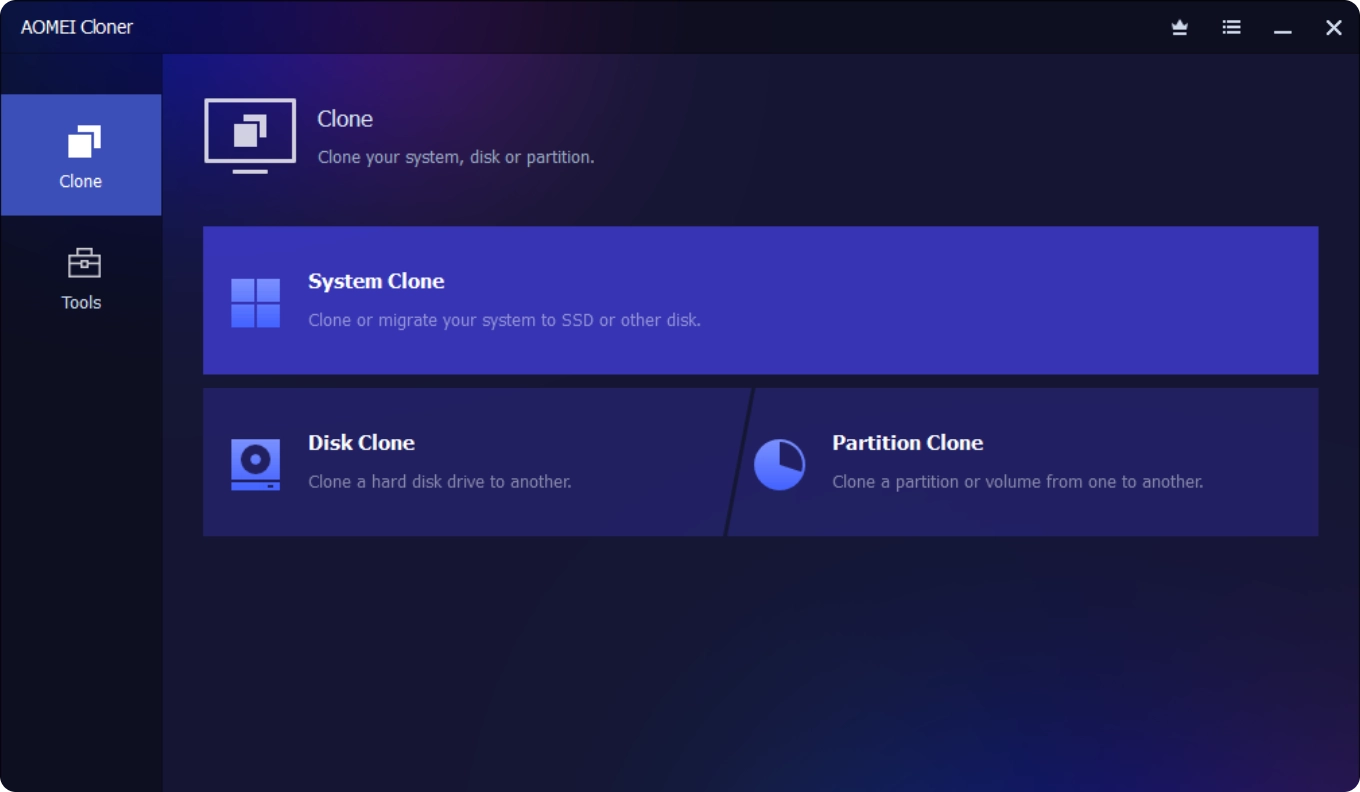
AOMEI Cloner's System Clone screen: the Windows system is picked as the source; you click to choose the destination disk.
Features
Moves just Windows to an SSD
AOMEI Cloner's System Clone copies only the partitions Windows needs to boot (the system and boot partitions), so it's quicker than copying a whole disk and fits a smaller SSD. Data on other drive letters such as D: or E: stays where it is. Since version 3.5 it can clone between MBR and GPT disks, which matters when an old BIOS-style drive moves to a modern UEFI PC.
Copies a whole disk, including to a smaller one
AOMEI Cloner's Disk Clone copies every partition (system, recovery and data) to the new drive. It can clone a larger disk to a smaller SSD as long as the used space fits, and version 5.1 made a cloned Windows 10 or 11 disk boot even when it wasn't the running system disk, useful for external system drives and dual-boot setups.
Clones one disk to several at once
AOMEI Cloner added One-to-Many Disk Clone in version 5.2: a single source disk is copied to several destination disks at the same time. With enough drive bays or USB docks, that's a quick way to prepare identical drives for a batch of new PCs.
Fits the copy to the new drive
AOMEI Cloner's Edit Partitions option resizes partitions on the destination or spreads unused space across them, so a bigger drive doesn't end up with empty unallocated space. SSD Alignment sets 4K alignment for the new SSD, and Sector-by-Sector Clone copies every sector, used or not, for disks with unusual layouts or missing system-reserved partitions.
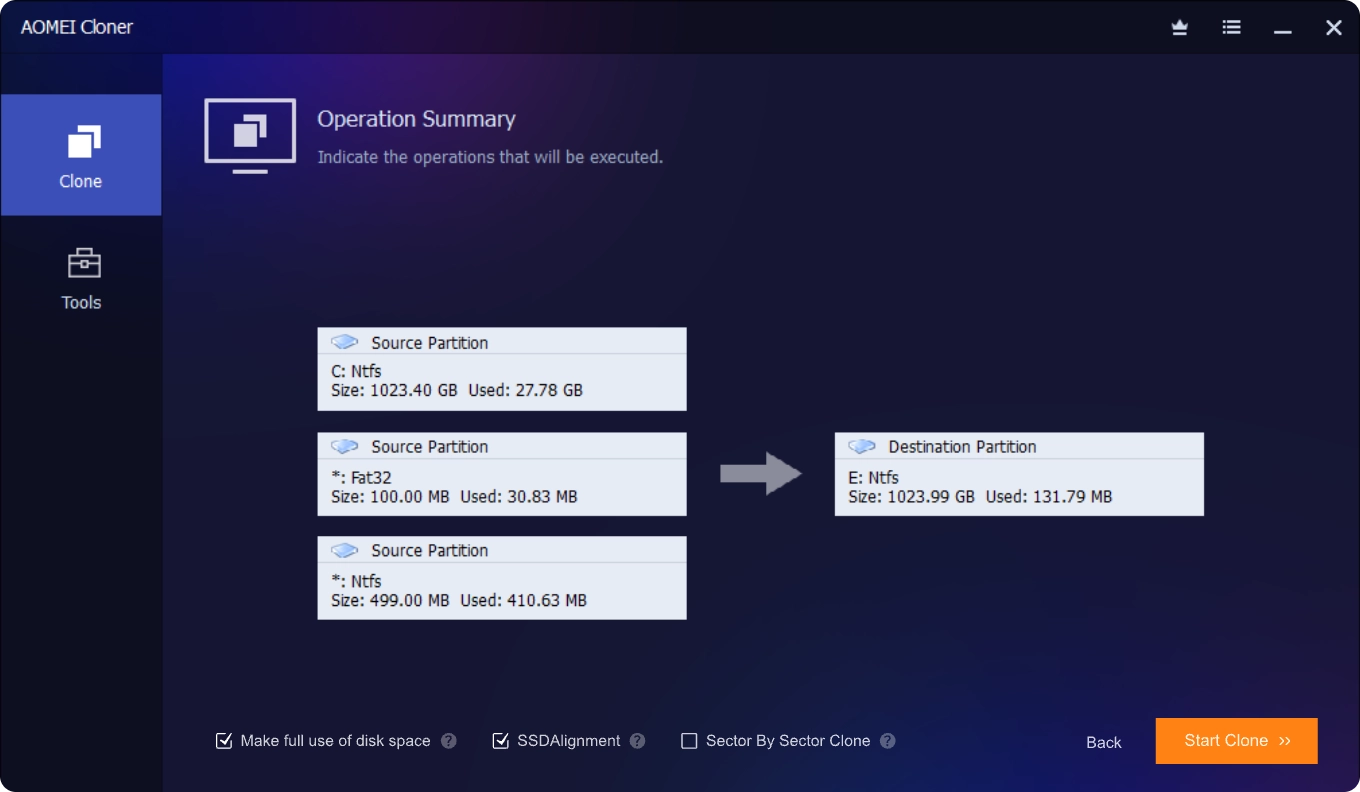
The confirmation step: source partitions above, the destination disk below, with SSD Alignment and Sector-by-Sector Clone check boxes.
Clones even when Windows won't start
AOMEI Cloner's Bootable Media item builds a Windows PE USB stick or disc. Boot a PC from it and you can clone its disk or partitions outside Windows, which is the way to rescue data from a failing system drive. A command-line mode also runs system, disk and partition clones from scripts.
Benefits
- A faster PC without a rebuild. Your apps, licenses and settings come across with Windows.
- Less to learn than a backup suite. Four menu items and a three-step wizard.
- A cheap lifetime license. $59.95 once, with later versions included.
- An exit from a dying drive. Clone it from the boot media before it fails completely.
Real-World Uses
- Moving a laptop's Windows 11 from a 1 TB hard drive to a 500 GB NVMe SSD.
- Replacing a clicking hard drive in a desktop by cloning it from the WinPE USB stick.
- Preparing three identical SSDs from one configured disk for new office PCs, with one-to-many clone.
- Copying just a data partition from an old WD drive to a new larger disk.
- Making an exact sector-by-sector copy of a disk with an odd partition layout before working on it.
Who It's For, and Who Should Skip It
AOMEI Cloner Professional fits home users and small offices upgrading a Windows PC to an SSD, and anyone who clones drives now and then and wants a simple, focused tool.
Skip it if your SSD came with free cloning software from its maker; many drive brands offer one. Skip it if you also want scheduled backups: AOMEI Backupper Professional includes the same System, Disk and Partition Clone plus imaging and sync, for a little more. Skip it on a Mac. And if you only need a one-time copy and don't mind a more technical tool, free open-source options exist.
Usage Guide
- Connect the new SSD inside the PC or with a USB-to-SATA or NVMe adapter. Check the old disk for errors and back up important files.
- Download AOMEI Cloner from the vendor, install it, and register your license code.
- Choose System Clone to move Windows only, or Disk Clone to copy the whole drive. The system partition is selected for you as the source.
- Select the destination disk and click Next. Everything on the destination will be overwritten.
- On the confirmation screen tick SSD Alignment for an SSD, adjust partitions if needed, and click Start Clone.
- Reboot into BIOS/UEFI, set the new disk as the first boot device, and start Windows from it.
Where it falls short
- "Free" causes confusion. Several one-star Trustpilot reviews of AOMEI say the free cloner wouldn't clone an OS drive without paying, for example Musa Paradisiaca (August 9, 2026): "it'll ask for $40 when I try to clone the OS drive."
- Cloning, nothing else. No scheduled backups, images or sync. A clone is a one-time copy.
- Booting still depends on your BIOS. After cloning you have to change the boot order yourself, and an older PC may need Legacy or UEFI settings changed to match the disk.
- Bug-fix releases. Version 5.0 fixed duplicate Windows Boot Manager entries after cloning to GPT disks and failed clones after editing partitions, and 6.1 fixed display problems on high-DPI screens.
What Users Say
AOMEI Cloner is a newer stand-alone product, so there are few independent reviews yet; the cloning engine is the one inside AOMEI Backupper, which has been reviewed widely.
Trustpilot: AOMEI (aomeitech.com), 4.8 out of 5 from 786 reviews
85% of ratings are five stars and 11% are one star. The praise is mostly about support; the cloning complaints are about the free version.
- Markus, November 12, 2026, 5 stars: "My problem was solved within 10 minutes. I'm thrilled with the service! Great!"
- IALI, November 13, 2026, 5 stars: "Prompt response, resolution and explanation provided by Lanry Lucky of the AOMEI support team to a license issue"
- Fox Chaotica, October 22, 2025, 1 star, titled "Free program doesn't allow cloning an OS": "the free option doesn't allow this, so what's the point?"
- Thomas Petersen, November 18, 2025, 1 star: "You can not diskclone SSD as they write on the webpage."
Reviews of the same clone engine in AOMEI Backupper
MSPoweruser's Dennis Otieno found Backupper "good at making exact copies of your entire disk", but hit "Unable to clone to current system partition, please choose other location" before the clone went through "after a few tries"; it then took "around 20 minutes".
PCWorld's Jon L. Jacobi (November 6, 2026) found Backupper "a very good performer and super reliable with most tasks", while criticizing its recovery boot media.
The pattern: the paid tool does the job and support is quick, but don't expect the free download to move your Windows install.
Comparisons
AOMEI Cloner Professional vs AOMEI Backupper Professional
Both clone systems, disks and partitions. Backupper Professional ($69.95 lifetime for 1 PC at the vendor) adds scheduled image backups, sync and restore; Cloner Professional ($59.95) is smaller and adds One-to-Many Disk Clone. Buy Cloner if you only want to move drives; buy Backupper if you also want backups.
Professional vs Technician
AOMEI also sells a Cloner Technician edition on its own store for 99 computers ($399 a year or $599 lifetime), for technicians who clone drives for many PCs. For one computer, Professional is the one to buy.
Editions and Pricing
| Plan | Price | Computers | Term | Buy |
|---|
| Professional Lifetime | $59.95 once | 1 | Lifetime use and upgrades | Buy Lifetime |
| Professional Yearly | $39.95 a year | 1 | Renews yearly, cancel anytime | Buy Yearly |
Prices are from the order page on November 15, 2026, and match AOMEI's own store.
FAQs
Can AOMEI Cloner clone a larger hard drive to a smaller SSD?
Yes. AOMEI Cloner can clone a larger disk to a smaller SSD as long as the used data fits on the new drive. System Clone, which copies only the Windows partitions, is the easiest way to do it.
Which drives does AOMEI Cloner support?
AOMEI Cloner works with drives Windows recognizes: SATA and NVMe (M.2, U.2, PCIe) SSDs, hard drives, hybrid drives, SAS, USB external disks, SD cards and hardware RAID, on MBR or GPT disks with UEFI boot.
Can I use AOMEI Cloner Professional on more than one PC?
No. An AOMEI Cloner Professional license covers 1 computer. Technicians cloning many PCs need the Technician edition from AOMEI's store.
Does AOMEI Cloner work on Windows Server?
Yes. AOMEI's help pages list Windows Server 2008 R2, 2012, 2016, 2019 and 2022 and SBS 2011 alongside Windows 11, 10, 8.1, 8 and 7.
Can I get a refund on AOMEI Cloner?
Yes. AOMEI offers a 90-day unconditional money-back guarantee on AOMEI Cloner.
System Requirements
- Windows 11, 10, 8.1, 8 or 7; Windows Server 2008 R2, 2012 (R2), 2016, 2019, 2022 and SBS 2011
- 500 MHz x86 or compatible CPU, 256 MB RAM, 300 MB free disk space
- File systems: NTFS, FAT16, FAT32; ReFS, Ext2/3 and exFAT cloned sector by sector
- USB stick or DVD drive for bootable media (optional)
- 157 MB download
Conclusion
Verdict: AOMEI Cloner Professional is worth $59.95 if you want a simple, dedicated way to move Windows to a new SSD or replace a failing drive, with extras like one-to-many cloning and a WinPE boot drive that free tools often lack. The reason to buy it is a three-step clone that keeps every program in place. The reason not to: if you already own AOMEI Backupper Professional or your SSD maker's tool, you have the same job covered. Just don't expect the free download to do the clone; it's a preview.
Download Free TrialBuy LifetimeBuy Yearly