Short answer: you can put a full, bootable Windows 11 on a USB drive for free. Rufus (free, open source) has a "Windows To Go" option, the free edition of WinToUSB builds a portable Windows 11 from an ISO for home use, and AOMEI Partition Assistant Standard has a Windows To Go Creator too. Use an external SSD, not a cheap flash stick: the drive decides whether this works at all.
Pay only when you need more: WinToUSB Professional ($44.95 once, lifetime upgrades) clones the Windows you already run onto the drive, encrypts it with BitLocker and is licensed for work. Windows To Go Upgrader Professional ($29.95) upgrades a portable drive to a newer Windows without rebuilding it, and AOMEI Partition Assistant Professional ($59.95) suits you if you also want a full partition manager. Microsoft's own Windows To Go is gone: it was removed in Windows 10 version 2004 and never existed in Windows 11.
At a glance
| Fact | Rufus | WinToUSB Free / Professional | AOMEI Partition Assistant Standard / Professional | Windows To Go Upgrader Professional |
|---|
| Price | Free | Free (home use); Pro $44.95 once with lifetime upgrades ($29.95 without, on Hasleo's store) | Standard free; Pro $59.95 once, lifetime upgrades | $29.95 once; the free version only checks a drive |
| Portable Windows 11 from an ISO | ✓ | ✓ (Free: Home and Pro editions of Windows only) | ✓ (listed in every edition) | ✗ (upgrades an existing drive) |
| Clone the Windows you're running | ✗ | Pro only | ✓ ("with current system") | ✗ |
| BitLocker on the portable drive | ✗ | Pro only | Not in the Windows To Go wizard | Upgrades BitLocker drives |
| Upgrade a portable drive in place | ✗ | Pro: Delta Clone syncs a newer Windows from your PC | ✗ | ✓ (needs VirtualBox and a second PC) |
| Use at work | ✓ (GPLv3) | Pro only (2 PCs) | Standard: personal use; Pro: 2 PCs | ✓ (1 PC) |
| Money back | n/a | 30 days, for cases in Hasleo's refund policy | 90 days, unconditional | 30 days, technical problems support can't solve |
How we picked and what we checked
- We read Microsoft's own Windows To Go documentation and its removed-features list for the dates and the limits that still apply to any portable Windows.
- We read Rufus's changelog, FAQ and the program's own message text for what its Windows To Go option does and the warnings it shows.
- We compared the edition tables of WinToUSB, Windows To Go Upgrader and AOMEI Partition Assistant on the vendors' sites, and their how-to guides for each step.
- We read the prices on the order pages and checked the download links.
What we checked: Rufus 4.16 (1.9 MB, released November 17, 2026) on its official site; order-page prices of $44.95 for WinToUSB Professional + Lifetime Free Upgrades, $29.95 for Windows To Go Upgrader Professional and $59.95 for AOMEI Partition Assistant Professional, and Hasleo's Black Friday code on the same order pages, on November 23, 2026; WinToUSB 10.9 and Windows To Go Upgrader 4.2 on Hasleo's site the same day. We compared features, prices and the documented limits. We didn't build a portable drive or boot one, so we can't speak to speed on any particular USB drive, and we didn't test Windows activation on a second PC.
First: what happened to Windows To Go?
Windows To Go was Microsoft's own feature for booting a full Windows from a USB drive. It only came with the Enterprise and Education editions (Windows 8, 8.1 and 10), and Microsoft only supported it on a short list of certified USB drives. Microsoft announced it as deprecated in Windows 10 version 1903 and removed it in version 2004, saying it "does not support feature updates" and "requires a specific type of USB that is no longer supported by many OEMs." Windows 11 never had it.
So every way of running Windows 11 from USB today uses a third-party tool. They all build something that works like Windows To Go, and they inherit the limits Microsoft documented for it:
- Your PC's internal disks are hidden by default while you run from the USB drive, so you don't damage the host's own Windows by accident.
- No TPM. BitLocker on a portable drive asks for a password before Windows starts, because the TPM chip belongs to one PC and the drive moves between PCs.
- Hibernate is off by default, and the Windows Recovery Environment, Reset and Refresh don't work. If the drive breaks, you rebuild it.
- No in-place upgrades. Microsoft's design couldn't upgrade a portable drive to a newer Windows version; you re-imaged it. (Windows To Go Upgrader, below, exists to get around this.)
- Each new PC gets set up on first boot. Windows detects the hardware and installs drivers the first time, then recognizes that PC next time.
- Macs and USB hubs aren't supported by Microsoft's design, and USB 2.0 ports are noticeably slower. Plug the drive straight into a USB 3 port.
The drive matters more than the software
A portable Windows 11 is only as fast as the USB drive's random reads and writes, and most flash sticks are poor at exactly that. Rufus's FAQ is blunt: if creating the drive "takes more than 20 minutes, then it means that the media you are trying to use is ill-suited to actually run Windows," and "there is no alternative to getting a better suited media." The sequential speed printed on the box doesn't tell you much, because Windows reads and writes thousands of small files.
There's a second catch. Rufus warns that a drive without the FIXED attribute (most USB flash sticks report themselves as REMOVABLE) will "most likely freeze during boot, as Microsoft hasn't designed it to work with drives that instead have the 'REMOVABLE' attribute", and it won't put Windows To Go on a GPT-partitioned drive that isn't FIXED. External SSDs and hard drives in USB enclosures report as FIXED. Hasleo says WinToUSB works on "ordinary USB flash drives" as well, and offers a VHD/VHDX-based mode for compatibility, but the safe buy is the same for every tool: an SSD in a USB 3.1 or faster enclosure, or a USB stick built on an SSD.
How big a drive each source says you need (GB)
AOMEI: minimum for its Windows To Go Creator13 GB
Microsoft: recommended minimum for Windows To Go20 GB
Hasleo: recommended for any Windows To Go drive32 GB
Hasleo: recommended for Windows 11 with apps and data128 GB
From each vendor's own pages, read on November 23, 2026. Microsoft's figure dates from Windows 10. For Windows 11 with your programs, the 128 GB figure is the realistic one.
The free way: Rufus
Rufus is the free, open-source way to make a Windows To Go drive, and many people already have it for making Windows installation USBs. Version 4.16 came out on November 17, 2026, runs on Windows 8 or later (x64, x86 and ARM64 builds) and is a 1.9 MB download from its official site, with a portable version that needs no install. It's licensed under the GPL, so you can use it at work too.
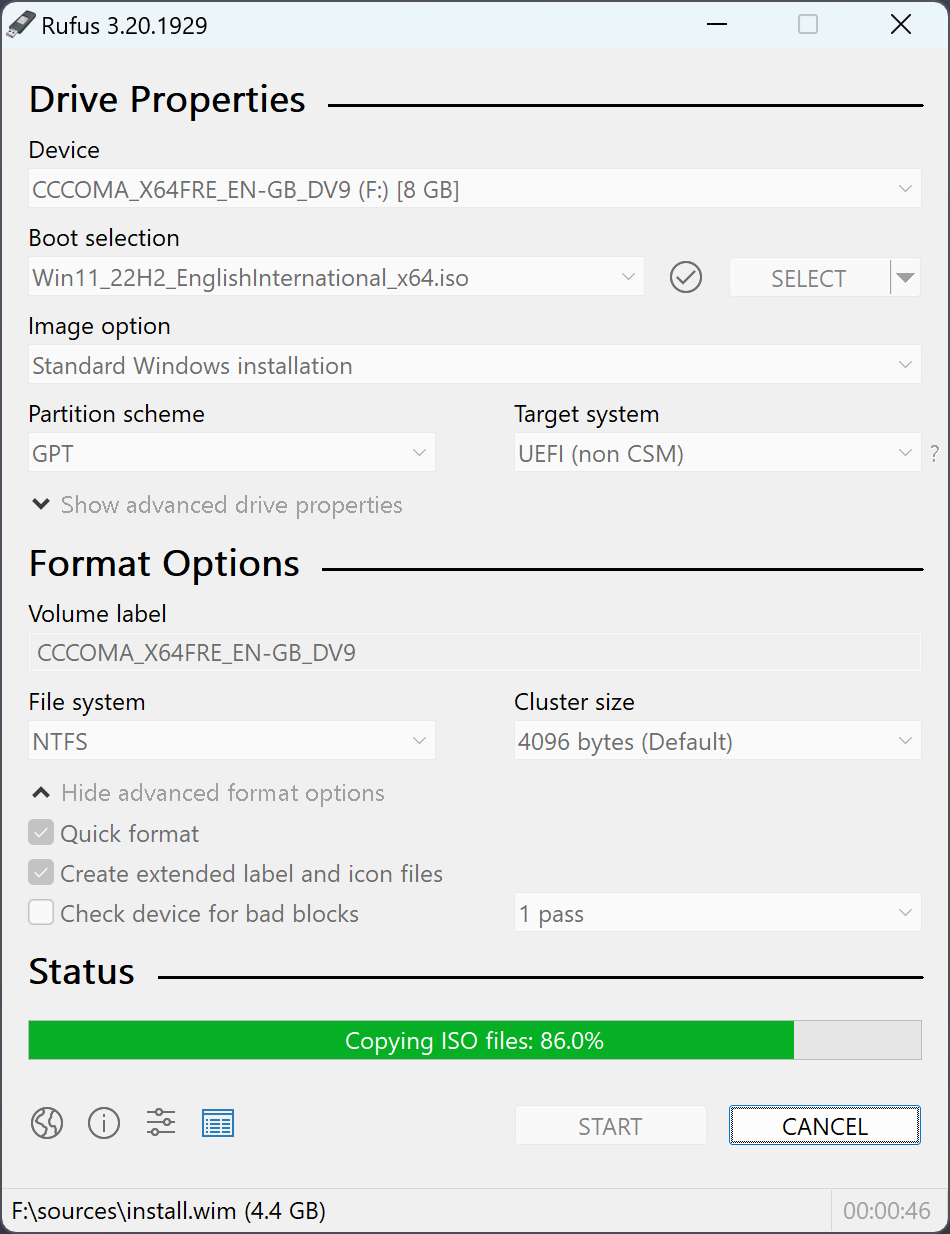
Rufus (older version 3.20 shown) with a Windows 11 ISO loaded. The Image option box under Boot selection is where you switch from "Standard Windows installation" to "Windows To Go".
- Get a Windows 11 ISO. Rufus can download one from Microsoft for you through the arrow next to its SELECT button.
- Show your external SSD. Rufus lists only flash drives by default, to stop people erasing a backup drive by mistake. Open the advanced drive properties and tick List USB Hard Drives (or press Alt+F). Rufus says formatting USB hard drives isn't officially supported, so double-check you picked the right disk.
- Pick the ISO and set Image option to "Windows To Go". Rufus then asks which version of Windows in the ISO to install, such as Windows 11 Pro.
- Choose the Windows User Experience options. With a Windows 11 ISO, Rufus offers to remove the TPM, Secure Boot and RAM checks, skip the Microsoft account, create a local account and "Prevent Windows To Go from accessing internal disks". Leave that last one on: Rufus warns that otherwise Windows To Go may be "silently performing irreversible file system upgrades" on the host PC's disks.
- Click START, then boot the target PC from the drive with the boot-menu key it shows at power-on, or by putting USB first in the boot order.
What we like
- Free for any use, open source, no upsell
- Windows 11 setup tweaks (local account, no TPM check) built in
- Option to keep the host PC's disks offline
- Actively maintained: Windows To Go fixes appear in the 2026 releases
Watch out for
- Installs from an ISO only: it can't clone the Windows you're running
- No BitLocker option and no way to upgrade the drive later
- External SSDs are hidden until you tick List USB Hard Drives
- No support beyond the FAQ and GitHub issue tracker
Get Rufus from its official site, not a download mirror.
WinToUSB (Free and Professional)
WinToUSB Professional + Lifetime Free Upgrades by Hasleo Software
- Price: Free edition for home use; Professional $44.95 once at checkout, lifetime upgrades, 2 PCs
- Version: 10.9 (installer 10.9.0.2, 61 MB, dated September 10, 2026)
- Runs on: Windows 7 or later; builds portable Windows 11, 10, 8 and 7 (x64, x86, ARM64) and Windows Server
- Best for: the easiest portable Windows 11, and the only tool here that clones your current Windows with BitLocker on top
WinToUSB is the tool built for this one job, and Hasleo has sold it since 2014. You pick a source (an ISO, WIM, ESD or VHD file, a DVD, or in Professional your running Windows), pick the USB or Thunderbolt drive, choose the partition scheme and click Proceed. Hasleo says the job typically takes 10 to 30 minutes.
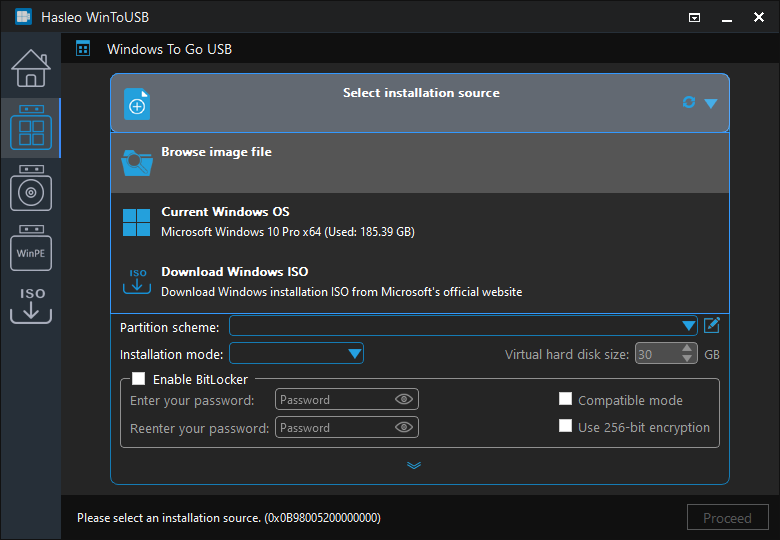
WinToUSB's source menu: an image file, the current Windows (cloning is a Professional feature) or a Windows ISO downloaded from Microsoft.
The free edition is a real option for a home user: it creates a portable Windows 11 from an ISO, plus Windows installation and WinPE USBs. What it leaves out matters, though. Free can't clone your current Windows, can't encrypt with BitLocker, can't build from VHDX or Hasleo backup images, can't use the Education, Enterprise or Server editions of Windows, clones more slowly, shows upgrade prompts and isn't allowed at work. That last rule covers the drives it creates too, not just the program.
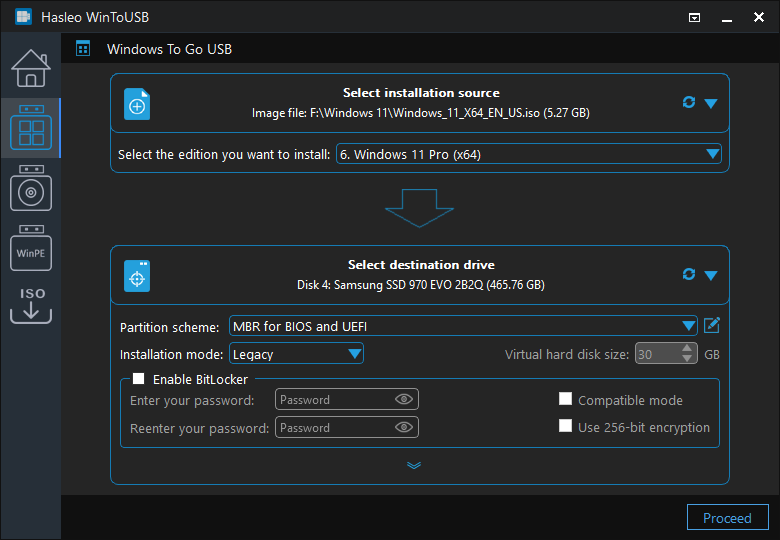
Ready to go: a Windows 11 ISO as the source, Windows 11 Pro chosen, an external Samsung SSD as the destination, with partition scheme, installation mode, BitLocker and "Windows UEFI CA 2023" options.
Professional is worth it in three cases. You want your own Windows, with its programs and settings, on the drive (clone it rather than set up from scratch). You'll carry the drive around and want BitLocker on it. Or you use it for work. Professional also adds Delta Clone, which updates an existing portable drive from your PC to a newer Windows version without rebuilding it. Hasleo's store lists the plain Professional license at $29.95; the listing we link is the $44.95 license with lifetime upgrades, so you never pay for a new major version.
What we like
- Clones the Windows you already run onto USB (Pro)
- BitLocker-encrypted portable drives (Pro)
- Works with external SSDs and Thunderbolt drives without hidden switches
- Also builds portable Windows for Mac computers
- One payment, lifetime upgrades, frequent releases
Watch out for
- Free edition: home use only, ISO route only
- Professional covers 2 PCs and the license can't be moved once registered
- Little independent testing in the press
- Refunds only for the cases in Hasleo's policy, not a no-questions guarantee
What users say
WinToUSB has a long release history (Neowin posts each version) but we found no recent hands-on review from a major magazine, and no Trustpilot profile for Hasleo. Most first-hand reports are questions on Hasleo's own forum about specific PCs that won't boot from USB, which matches Hasleo's own troubleshooting list: update the BIOS, plug in directly rather than through a hub or USB 3 add-on card, try a USB 2.0 port, and know that some BIOSes can't boot from beyond the first 32 or 128 GB of a large drive. Try the free edition with your own drive before you pay.
Download WinToUSB FreeBuy WinToUSB Professional
AOMEI Partition Assistant (Standard and Professional)
AOMEI Partition Assistant includes a Windows To Go Creator under Tools, and AOMEI's edition comparison lists it in every edition, including the free Standard. It's a wizard: choose "for personal computer" or "for Mac computer", then build from a system disc or ISO, or "with current system", then pick the USB drive. An Advanced button chooses a General, VHD or VHDX system and Legacy, UEFI or both for booting. AOMEI says a drive of about 13 GB is enough and recommends USB 3.0 for both the drive and the port.
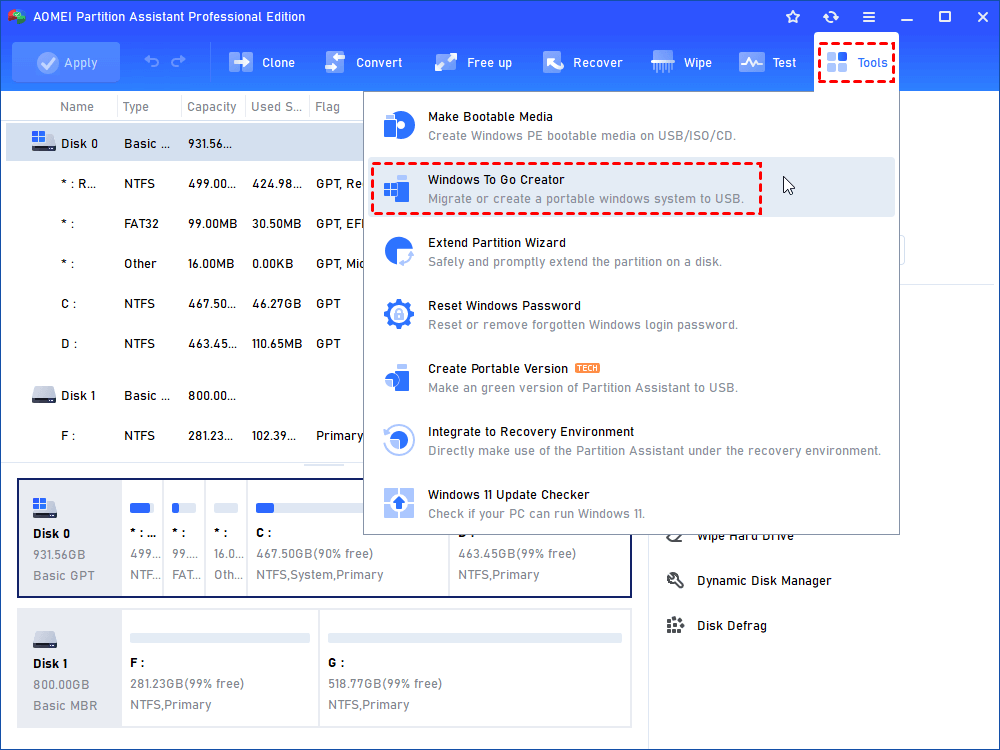
AOMEI Partition Assistant Professional's Tools menu, with Windows To Go Creator ("Migrate or create a portable windows system to USB") next to Make Bootable Media and Windows 11 Update Checker.
One quirk to know: AOMEI's guide says the creator uses the first edition in the ISO, which is Windows 11 Home. For Pro, you have to extract install.wim from the ISO's sources folder and pick that file instead. Rufus and WinToUSB both let you choose the edition from a list.
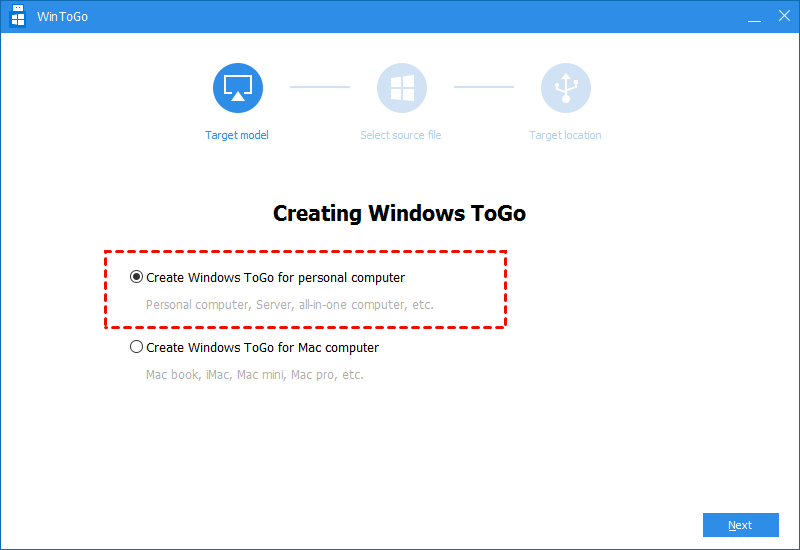
The first step of AOMEI's WinToGo wizard: a portable Windows for a PC (personal computer, server, all-in-one) or for a Mac.
Should you pay for Professional for this? Not for Windows To Go alone, since Standard lists the same creator. Professional is worth $59.95 when you also want what Standard lacks, such as moving Windows to an SSD and converting a system disk between MBR and GPT. Our AOMEI Partition Assistant editions comparison covers the differences in detail.
What we like
- Windows To Go Creator listed even in the free Standard edition
- Builds from an ISO or from the running system
- VHD/VHDX and Legacy/UEFI choices in one dialog
- Professional: 90-day unconditional money back
Watch out for
- Takes Windows 11 Home from an ISO unless you extract install.wim
- No BitLocker step in the Windows To Go wizard
- No tool to upgrade the portable drive later
- Standard is for personal use only
What users say
AOMEI Partition Assistant has a large, positive Trustpilot profile (4.9 out of 5 from over 3,000 reviews when we checked it for our Professional review), though the comments are about partition work in general rather than Windows To Go. Two that bear on the free-or-paid choice, read through a summarizer:
"the basic free version has everything you would need for personal use" Hamza, 5 stars, November 1, 2026
JustADude (5 stars, October 26, 2026) wrote "Amazing! The software actually did what it promised!" but complained of being asked for "like 50$ when reaching 99% of progress bar". If you use the Professional demo, expect paid features to ask for a license when you apply them.
Download AOMEI Partition Assistant StandardDownload AOMEI Professional DemoBuy AOMEI Partition Assistant Professional
Windows To Go Upgrader Professional (for an existing drive)
Windows To Go Upgrader Professional by Hasleo Software
- Price: $29.95 once at checkout, 1 PC, lifetime upgrades; the free version only checks whether a drive can be upgraded
- Version: 4.2 (4.6 MB)
- Needs: a second Windows PC, VirtualBox, VT-x or AMD-V turned on, 4 GB of RAM (8 GB for Windows 11) and 16 GB free on its boot drive
- Best for: a portable drive you've set up carefully and want on a newer Windows, such as Windows 10 to Windows 11
Windows To Go Upgrader solves the problem Microsoft never did: Windows Setup won't upgrade a Windows that's running from USB. The Upgrader runs the upgrade inside a VirtualBox virtual machine on another PC, with your portable drive attached, from a Windows ISO or DVD. It handles BitLocker-encrypted drives, VHD/VHDX-based drives and older Windows To Go drives, and can bypass the Windows 11 hardware checks during an upgrade to Windows 11. It doesn't create portable drives; WinToUSB does that.
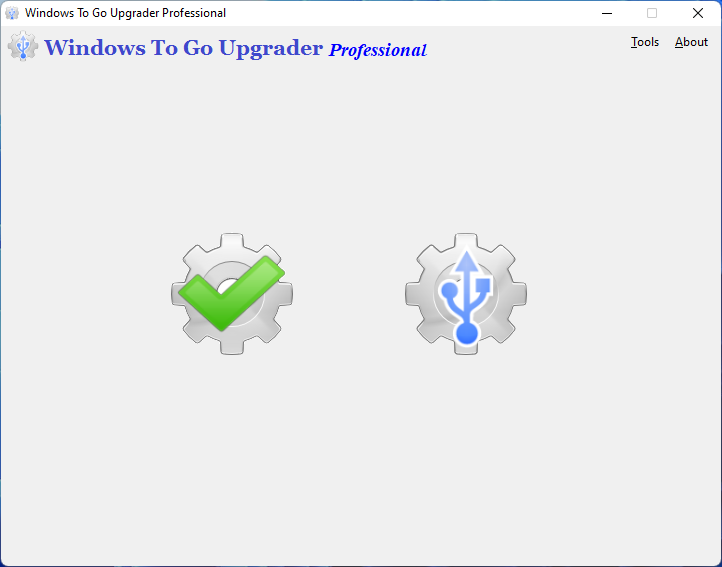
Windows To Go Upgrader Professional's main window: one button checks whether a drive can be upgraded, the other starts the upgrade.
Do you need it? Often not. If your drive holds nothing you can't reinstall, rebuilding it with a newer ISO is simpler. If you made it with WinToUSB Professional by cloning your PC, Delta Clone can bring it up to date from your PC instead. The Upgrader is for a drive whose setup is the point, and you can run its free check before you pay.
What we like
- Keeps your programs and files through a Windows upgrade
- Works on BitLocker and VHD/VHDX drives
- Free check before you buy
- Business use allowed on every edition
Watch out for
- Needs VirtualBox and a second PC with virtualization turned on
- Fiddly compared with rebuilding the drive
- Almost no public reviews, all of older versions
- Professional activates on 1 PC only
What users say
The only first-hand reports we found are on Hasleo's forum, and they're about versions from 2018:
"I have used the Windows to Go Upgrader so far twice and succeeded in the end. But the Installation process is not self-explanatory" Skylinebasser, May 2018
"somewhere in the middle of the process it hung and seemed to fail. I can no only boot into safe mode." littlemart, April 2018. Back up the drive (a disk image is enough) before any upgrade.
Download Windows To Go Upgrader FreeBuy Windows To Go Upgrader Professional
What it costs
Price of the paid licenses, one payment (USD)
Windows To Go Upgrader Professional (1 PC)$29.95
WinToUSB Professional + Lifetime Free Upgrades (2 PCs)$44.95
AOMEI Partition Assistant Professional (2 PCs)$59.95
Regular order-page prices checked on November 23, 2026, before any tax. Rufus, WinToUSB Free and AOMEI Partition Assistant Standard cost nothing.
Hasleo's Black Friday code
On November 23, 2026, Hasleo's code HASL-ID8W-NWOE took 25% off single programs on the order page: WinToUSB Professional + Lifetime Free Upgrades came to $33.71 instead of $44.95, and Windows To Go Upgrader Professional to $22.46 instead of $29.95. Hasleo hasn't published an end date, and its sale page says the code can't be combined with other discounts, so check the order page before you count on it.
Which should you choose?
| Your situation | Pick | Why |
|---|
| You want a clean Windows 11 on an external SSD, for home, at no cost | Rufus or WinToUSB Free | Both build from an ISO for free; WinToUSB shows external SSDs without extra steps, Rufus adds the Windows 11 setup tweaks |
| You want your own Windows, with its programs, on a drive you carry | WinToUSB Professional | The only tool here that clones your running Windows and adds BitLocker; Delta Clone keeps it current |
| You'll use the drive for work | WinToUSB Professional or Rufus | WinToUSB Free and AOMEI Standard are home or personal use only; Rufus is GPL |
| You also need to resize partitions or move Windows to an SSD | AOMEI Partition Assistant Professional | A full partition manager with the same Windows To Go Creator, and 90 days to change your mind |
| You already have a portable Windows 10 drive you don't want to rebuild | Windows To Go Upgrader Professional | Upgrades it to Windows 11 in place; run the free check first |
| You actually want Windows on a new internal SSD | None of these | That's a clone, not Windows To Go: see how to move Windows 11 to a new SSD |
Our pick: start with WinToUSB Free or Rufus and a fast external SSD. If the drive boots and runs well and you want your own setup, encryption or work use, WinToUSB Professional is the upgrade that adds the most for this job. Skip WinToUSB Professional if a fresh Windows from an ISO is all you need; skip AOMEI Professional if you'd only use it for Windows To Go; skip Windows To Go Upgrader if rebuilding your drive would take less than an evening.
What commonly goes wrong
- A slow or REMOVABLE flash stick. Creation crawls, then Windows freezes at boot or runs painfully. Rufus's rule of thumb: more than 20 minutes to create means the drive can't run Windows. Use an SSD.
- The PC won't boot from it. Update the BIOS, turn on USB boot, plug the drive straight into the PC (not a hub or a USB 3 add-on card), and try another port. Some BIOSes can't boot from beyond the first 32 or 128 GB of a large drive.
- Erasing the wrong disk. Every tool here wipes the target drive. Unplug your backup drives before you start.
- Expecting it to stay current on its own. Microsoft's Windows To Go never supported feature updates. Plan to rebuild, use WinToUSB's Delta Clone, or use Windows To Go Upgrader.
- Activation. The Windows on the drive needs its own license. Microsoft designed Windows To Go for volume activation in companies and noted that a per-PC key (MAK) would need a separate activation on each host PC, so a drive used on several PCs may ask again.
- Older or locked-down PCs. Hasleo notes that Windows 11 To Go needs a host PC that meets Windows 11's requirements, including TPM 2.0 and Secure Boot. Test the drive on every PC you plan to use before you rely on it.
FAQs
Can Windows 11 run from a USB drive?
Yes. Windows 11 can be installed on and run from a USB drive with a third-party tool such as Rufus, WinToUSB or AOMEI Partition Assistant. Microsoft doesn't offer it itself: its Windows To Go feature was removed in Windows 10 version 2004, before Windows 11 existed.
Is Windows To Go still available?
No, not from Microsoft. Windows To Go was announced as deprecated in Windows 10 version 1903 and removed in version 2004, and it only ever came with the Enterprise and Education editions. The name lives on in Rufus's "Windows To Go" option and in WinToUSB and AOMEI's Windows To Go Creator, which work with Home and Pro editions too.
Is WinToUSB free?
Yes, WinToUSB has a free edition for home use that creates a portable Windows 11 from an ISO. Cloning your current Windows, BitLocker, Education or Enterprise editions of Windows and any business use need WinToUSB Professional, which costs $44.95 once with lifetime upgrades.
Can I use a normal USB flash drive for Windows To Go?
You can try, but expect trouble. Rufus warns that a drive with the REMOVABLE attribute, which most flash sticks have, will most likely freeze during boot, while WinToUSB says it supports ordinary flash drives. Either way, an SSD in a USB 3 enclosure, or an SSD-based USB stick, is what makes a portable Windows usable.
How big should the USB drive be for Windows 11?
Get at least 128 GB for Windows 11 with your programs, as Hasleo recommends. AOMEI's creator needs about 13 GB and Microsoft's old Windows To Go guidance said 20 GB, but those leave little room for Windows 11's updates and your apps.
Can I copy my current Windows 11 to a USB drive with all my programs?
Yes, with WinToUSB Professional or AOMEI Partition Assistant's "with current system" option, which clone the running Windows to the USB drive as a portable Windows. Rufus and WinToUSB Free only install a fresh Windows from an ISO.
Can a portable Windows 11 drive see the PC's internal disks?
Not by default. A Windows To Go-style drive keeps the host PC's internal disks offline so you don't change them by accident, and Rufus has a "Prevent Windows To Go from accessing internal disks" option it advises leaving on.
Can I upgrade a Windows 10 USB drive to Windows 11?
Yes, with Windows To Go Upgrader Professional ($29.95), which runs the upgrade in a VirtualBox virtual machine on a second PC and keeps your programs and files. Windows Setup itself won't upgrade a Windows running from USB. If the drive was made by cloning with WinToUSB Professional, its Delta Clone feature is the other route.
Can I boot a portable Windows drive on a Mac?
WinToUSB and AOMEI Partition Assistant both have an option to build a portable Windows for Mac computers. Microsoft's original Windows To Go didn't support Macs, so check that your Mac can boot Windows from an external drive before you buy.
Conclusion
Running Windows 11 from a USB drive is free and works well when the drive is right: an external SSD on a USB 3 port, not a bargain flash stick. Rufus and the free WinToUSB both build one from an ISO, and AOMEI Partition Assistant Standard lists its own creator. WinToUSB Professional is the paid tool worth buying for this job, because it's the only one here that copies the Windows you already use onto the drive, encrypts it with BitLocker and keeps it up to date with Delta Clone, for $44.95 once. Add Windows To Go Upgrader only if you have a drive you'd hate to rebuild.
Download WinToUSB FreeBuy WinToUSB Professional