AOMEI Partition Assistant Unlimited: One License for Every PC and Server in a Company
AOMEI Partition Assistant Unlimited is a $599 one-time Windows partition manager that one company can activate on as many PCs and servers as it likes. It suits IT departments that resize, clone and migrate disks often enough to be tired of counting licenses.
The tools are the same ones you'd get in AOMEI's Server edition. What you're paying for here is the license: no seat counts, plus a portable version your technicians can carry on a USB stick.
Quick facts
- Version: 10.12.2, released October 19, 2026
- Developer: AOMEI
- Platform: Windows 11, 10, 8.1, 8 and 7, and Windows Server 2025, 2022, 2019, 2016 and 2012
- Price: $599 once, with lifetime upgrades
- License: unlimited PCs and servers within one company
- Trial: demo that simulates operations
- Guarantee: 90 days money back, unconditional per the vendor
What we checked: demo installer version 10.12.2 (72 MB, digitally signed by AOMEI International Network Limited), and the order page, which showed $599 with lifetime upgrades, on November 6, 2026. We didn't deploy it across a network or run a job on real disks, so we can't speak to speed or reliability.
Download Free TrialBuy Now
Before you buy
- One company means one company. Serving paying clients, or several separate companies, needs the Technician edition.
- Do the sums. At $249 for 2 servers, the Server edition is cheaper if you only have a couple of machines. Pro for 2 PCs is much cheaper still.
- The demo can't finish a job. It simulates operations so you can check they apply to your disks.
- About the AOMEI Backupper attack. Attackers tampered with AOMEI's Backupper update servers in 2026. The reports we read don't name Partition Assistant, and version 10.12.2 lists stronger update security, but your security team should still review the vendor before a company-wide rollout.
Overview
Partition Assistant looks like Disk Management with far more buttons. A disk map sits below a partition table, a toolbar groups the jobs, and changes wait in a pending list until you click Apply. That pending list is the main protection against a slip on a production machine, and the vendor makes a point of it.

The Clone menu, from the vendor's help pages. All editions share this layout.
Features
Covers every machine under one license
AOMEI Partition Assistant Unlimited activates on unlimited Windows PCs and servers within one company, with no extra charge as you add machines. Professional and Server licenses, by contrast, stop at 2 computers.
Runs from a USB stick without installing
AOMEI Partition Assistant Unlimited can create a portable version for IT support staff, so a technician can plug in a USB drive at a problem PC instead of installing software there. Portable creation is reserved for the Unlimited and Technician editions.
Repartitions without losing data
AOMEI Partition Assistant Unlimited resizes, moves, merges, splits, creates, formats and deletes partitions, and Allocate Free Space moves spare room from one partition to another. Dynamic Disk Manager handles simple, spanned, striped, mirrored and RAID-5 volumes.
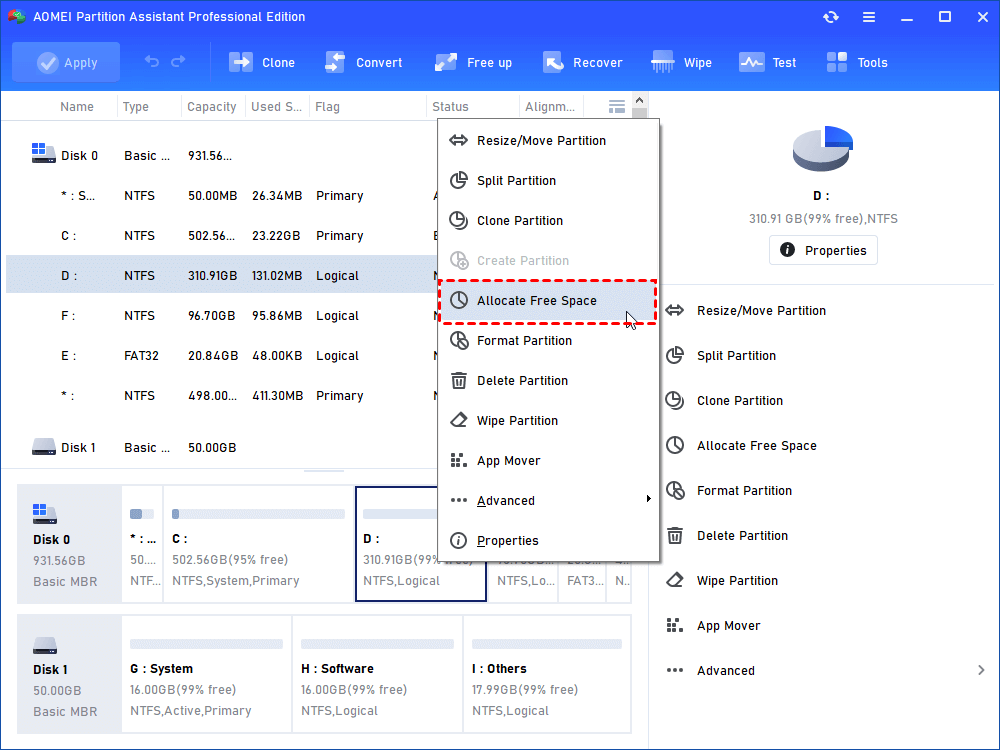
The partition menu with Allocate Free Space, shown in the Professional edition's window.
Migrates systems when hardware is replaced
AOMEI Partition Assistant Unlimited moves Windows to a new SSD or HDD without reinstalling, and clones whole disks. For a fleet of hard-drive laptops moving to SSDs, that removes most of the rebuild work.
Converts disks ahead of a Windows upgrade
AOMEI Partition Assistant Unlimited converts system disks between MBR and GPT in place, and includes a Windows 11 Update Checker. That helps when older company PCs need GPT before they can move to Windows 11.
Wipes, recovers and repairs
AOMEI Partition Assistant Unlimited wipes disks, shreds files, recovers lost partitions and files, repairs boot problems, checks disk health and resets forgotten Windows passwords. Command-line operation through partassist.exe suits scripted jobs.
Benefits
- No license tracking. Nobody has to count seats before fixing a machine.
- One tool on desktops and servers. Your staff learn one interface.
- Predictable cost. The lifetime plan is one payment however much the company grows.
- Faster desk-side work. The portable version leaves nothing installed on the user's PC.
Real-World Uses
- An IT team moving 50 office laptops from hard drives to SSDs.
- Getting older PCs from MBR to GPT ahead of a Windows 11 rollout.
- Growing C: on file servers that have run short of space.
- A help desk fixing a full system drive from a USB stick.
- Wiping retired PCs before disposal.
Who It's For, and Who Should Skip It
AOMEI Partition Assistant Unlimited fits a single company with enough Windows machines that per-seat licensing would cost more than $599, and an IT person to use it.
Skip it if you only look after a few machines: Pro or Server cost less. Skip it if you sell IT services, because the license doesn't allow billable work for clients, and you need the Technician edition. It also isn't a remote deployment tool, so don't buy it expecting a central console.
Usage Guide
- Install the program on one PC and enter the license code.
- Under Tools, choose Create Portable Version and pick a USB drive if you want it portable.
- Back up the target machine.
- Pick the job from the toolbar, such as Clone then Migrate OS.
- Review the preview and the pending list.
- Click Apply, then Proceed. System jobs may restart into PreOS or Windows PE mode.
Where it falls short
- No central management. Nothing on the vendor's page describes a console for pushing jobs to many machines, so work is still done one PC at a time.
- Long jobs are hard to stop. A Trustpilot reviewer described an operation of almost 80 minutes with no way to cancel it.
- The demo proves little. You can't complete a real job before paying, so lean on the 90-day guarantee.
- Support is by email. The vendor describes lifetime free technical support via email.
What Users Say
Trustpilot: 4.9 out of 5 from 3,179 reviews
This score covers every Partition Assistant edition, and few reviewers say which one they own. Trustpilot notes the company hasn't recently invited reviews and hasn't replied to negative ones.
- Mr Customer, July 8, 2026: "This software did what Microsoft is unable to"
- Boatman Blue, June 9, 2026: "its worked perfectly", on the wipe tool and partition reset.
- A 1-star reviewer signed Windows, October 29, 2026: "It started an operation that was going to take almost 80 minutes, and didn't even give me an estimated time"
Vendor's customer quotes
AOMEI's Technician page carries this comment from a System Administrator: "I used this software to migrate Windows 10 to SSD for improving PC's performance and move some big applications from C: drive to D: drive to free up more space." As it's from the vendor, treat it as marketing.
The pattern: people find it effective on real disks. We found no independent review of the Unlimited license itself, so judge it on the same tool plus the licensing terms.
Comparisons
Unlimited vs Technician
Both cover unlimited PCs and servers and can create a portable version. Unlimited stays inside one company. Technician, at $799 lifetime, extends to multiple companies and paid client work.
Unlimited vs Server
Server, at $249 lifetime, covers 2 servers. If you have more than four servers, or want your PCs covered too, Unlimited is the better buy.
Editions and Pricing
| Plan | Price | License | Best for |
|---|
| Unlimited Yearly | $399 a year | Unlimited PCs and servers, one company, auto-renews | A single migration project |
| Unlimited Lifetime (this listing) | $599 once | Unlimited PCs and servers, one company | Companies keeping it long term |
| Technician Lifetime | $799 once | Unlimited, multiple companies, paid services | MSPs |
| Server Lifetime | $249 once | 2 servers | Small sites |
FAQs
Is AOMEI Partition Assistant Unlimited a site license?
AOMEI Partition Assistant Unlimited works like one. A single license activates on unlimited PCs and servers within one company, wherever they are, as long as they belong to that company.
Can an MSP use AOMEI Partition Assistant Unlimited on client machines?
No. AOMEI Partition Assistant Unlimited stays within one company. Billable client work needs the Technician edition.
Does AOMEI Partition Assistant Unlimited work on Windows Server 2025?
Yes. AOMEI Partition Assistant Unlimited runs on Windows Server 2025, 2022, 2019, 2016 and 2012 as well as Windows 11, 10, 8.1, 8 and 7.
Is there a yearly version of AOMEI Partition Assistant Unlimited?
Yes. AOMEI sells a $399 yearly plan that renews automatically. If you'll use it for two years or more, the $599 lifetime plan is cheaper.
Can I get a refund on AOMEI Partition Assistant Unlimited?
Yes. AOMEI offers a 90-day unconditional money-back guarantee and may ask why you want the refund.
System Requirements
- Windows 11, 10, 8.1, 8 or 7
- Windows Server 2025, 2022, 2019, 2016 or 2012
- 72 MB download
Conclusion
Verdict: AOMEI Partition Assistant Unlimited is worth $599 for a company with a real number of Windows machines and regular disk work. Below that, the cheaper editions do the same jobs.
The one reason to buy it is never counting seats again, with a portable version for your technicians. The main reason not to is that it has no central console, and a small shop won't get its money back.
Download Free TrialBuy Now