Tipard Video Converter: Convert, Trim and Tidy Up Videos in 350+ Formats on Windows
Tipard Video Converter is a $45 Windows program (lifetime license for one PC) that converts video and audio between more than 350 formats, such as MKV to MP4, MOV to AVI or video to MP3, with basic editing, 3D output and presets for phones, tablets and TVs. It's for people who regularly need a file in a different format and don't want to learn a professional encoder.
You know the moment: a camera saves MTS clips your phone won't play, a screen recording comes out as a giant MKV, or a site only accepts MP4. Tipard Video Converter takes a folder of those files, lets you pick one output format from a list, and converts the whole batch while you do something else.
Quick facts
- Version: 9.2.62 (installer dated December 12, 2025)
- Developer: Tipard Studio
- Runs on: Windows 11, 10, 8 and 7. A separate Mac version is sold with its own license
- Formats: 350+ output formats, including MP4, MKV, MOV, ProRes, WebM, AVI, WMV, TS, MXF, MP3, FLAC, AAC and ALAC, up to 8K/4K
- Speed: up to 6x faster conversion with NVIDIA, Intel or AMD hardware acceleration (Tipard's figure)
- Price: $45.00 for a lifetime license on one PC
- Trial: free download with every feature, but each file converts only its first 5 minutes
- Guarantee: 30-day money-back guarantee on lifetime licenses
What we checked: on October 17, 2026 we downloaded the Windows installer from Tipard (94.6 MB, file version 9.2.62, signed by LongEasy Co., Ltd), confirmed the $45.00 lifetime price for one PC on the order page, and read Tipard's tech specs, user guide, purchase FAQ and the current Trustpilot reviews. We didn't time conversions or compare output quality ourselves.
Before you buy
- The trial only converts 5 minutes of each file. That's enough to check the output quality and the format you need, but not to finish real work.
- Licenses are platform-specific. A Windows license doesn't work with the Mac version, and a single lifetime license covers one computer. A 3-PC license costs more.
- This is the Standard edition. DVD ripping, AI upscaling, the 120x speed mode, the music video maker, video collage and the 20-tool toolbox belong to Tipard Video Converter Ultimate, not to this program.
- Tipard's own store adds a Blu-ray Player trial. Orders on tipard.com come with 7 days of Tipard Blu-ray Player that then renews at $30.00 a month unless you cancel. Our order page showed only the converter itself.
Download Free TrialBuy Now
Overview
Tipard Video Converter is built around one screen. You drop files in, each one appears as a row showing its source format, resolution, length and size, and on the right you see what it will become. An Output Format box at the bottom sets the target for everything at once, a Save to folder sits under it, and a big Convert All button starts the queue. Between adding and converting, every row has Edit, Cut and Enhance Video buttons for quick fixes.
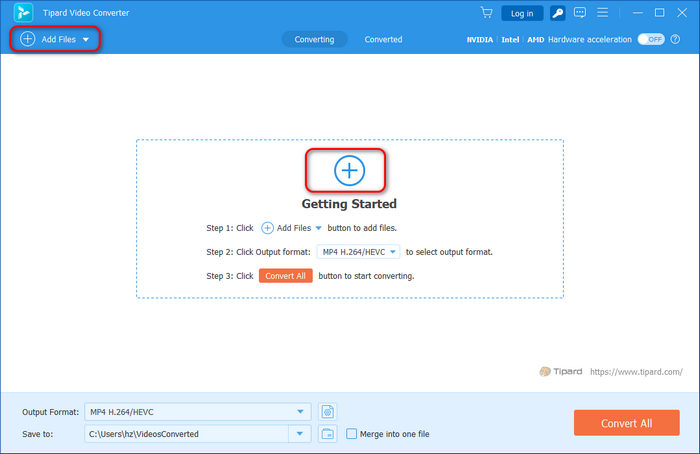
The empty main window: Add Files at the top left, the Converting and Converted tabs, the NVIDIA/Intel/AMD hardware acceleration switch, and the Output Format, Save to and Convert All controls at the bottom.
The program sits in the middle of Tipard's range. Above it, Video Converter Ultimate adds DVD ripping, AI tools and a toolbox. Tipard also sells single-purpose tools such as a 4K UHD Converter and a TS Converter. The Standard edition covers what most people buy a converter for: getting files into the right format, with a few edits on the way.
Features
Conversion between 350+ video and audio formats
Tipard Video Converter reads and writes the formats you'll actually meet: MP4, MKV, MOV, WebM, AVI, WMV, FLV, MTS/M2TS, TS, MXF, VOB and DV on the video side, with codecs including H.264, H.265/HEVC, AV1, VP9, ProRes (422, HQ, LT and Proxy) and MPEG-2. Audio goes out as MP3, AAC, FLAC, ALAC, WAV, OGG, AC3 and more, so it also works as a "video to MP3" tool. Resolutions range from SD to 4K and 8K.
The format picker groups presets by tab: Recently Used, Video, Audio and Device. Each preset shows its encoder, resolution and quality, and "Same as source" keeps the original resolution.
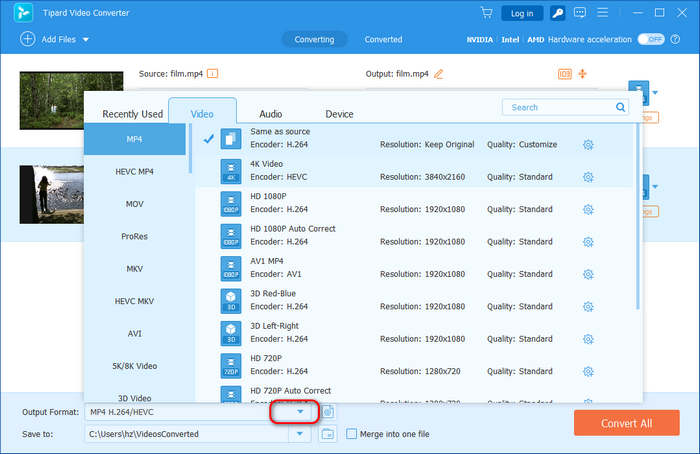
The output format list open on MP4: Same as source, 4K Video (HEVC), HD 1080P, AV1 MP4, 3D Red-Blue and 3D Left-Right presets, with ProRes, MKV, AVI and 5K/8K categories down the left.
Ready-made presets for phones, TVs and consoles
Tipard Video Converter has device profiles for current iPhones and iPads, Samsung Galaxy, Google Pixel, Huawei and Xiaomi phones, Apple TV, Samsung, Sony and other smart TVs, Roku, Chromecast, Xbox, PlayStation and Switch. There are also targets for YouTube, TikTok, Instagram, Facebook, Vimeo, Plex and Kodi. You pick the device, and the resolution and codec are set for you.
Batch conversion, merging and GPU acceleration
Tipard Video Converter converts a whole list in one run. Each file can have its own format, subtitle track and audio track, or you set one format for all of them. Tick Merge into one file and the clips are joined into a single video. Hardware acceleration on NVIDIA, Intel and AMD graphics is switched on from the toolbar, and Tipard rates the speed at up to 6x.

Two files queued: a 4096x2160 MP4 and a 720x480 DV clip, each with Edit, Cut and Enhance Video buttons, its own subtitle and audio track settings, and the Merge into one file and Convert All controls highlighted.
Rotate, crop, clip and adjust the picture
Tipard Video Converter's editor fixes the common problems before you convert. Rotate 90 degrees either way or flip horizontally or vertically, crop by dragging a frame or typing exact sizes, and lock the aspect ratio to 16:9, 4:3, 21:9, 1:1, 9:16 and others. The Effect & Filter tab adjusts brightness, contrast, saturation and hue, turns on deinterlacing, and applies filters such as Warm, Gray and Sketch. The Cut window trims the start and end or splits a long video into segments.
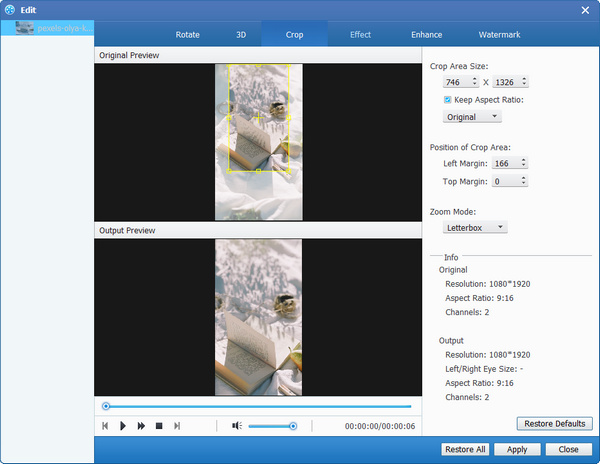
The Rotate & Crop tab: original and output previews side by side, rotation and flip buttons, the crop area in pixels and the aspect ratio list open.
Watermarks, subtitles and audio tracks
Tipard Video Converter adds a text or image watermark with your own font, size, color, rotation and opacity, placed anywhere on the frame. The Subtitle tab loads an external subtitle file and sets its font, color, outline, position, opacity and delay, and it can also remove or export a subtitle track. The Audio tab adds or removes tracks and fixes audio that's out of sync with a delay slider.
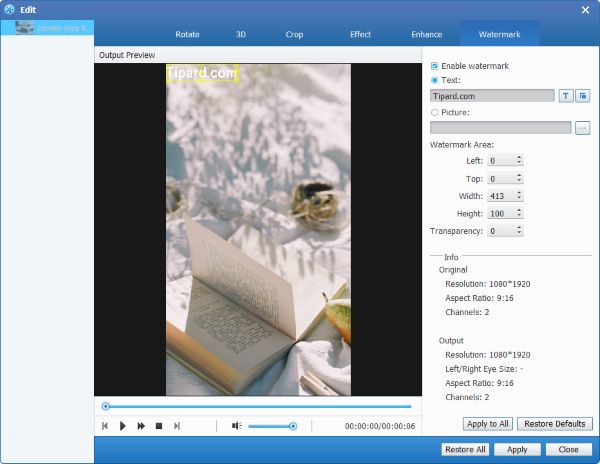
The Watermark tab with a text watermark placed on the preview, and its font, size, color, rotation and opacity settings below.
3D output and four quality fixes
Tipard Video Converter can turn an ordinary video into 3D: anaglyph red/cyan, green/magenta or amber/blue for paper glasses, or side-by-side and top-and-bottom for VR headsets and 3D TVs, with an adjustable depth. The Enhance Video window offers four options: upscale resolution, optimize brightness and contrast, remove video noise and reduce shaking, with a preview before you apply them.
Full control over encoding settings
Tipard Video Converter lets you override every preset. The gear icon next to a format opens a custom profile with the video encoder, resolution, frame rate and bitrate, and the audio encoder, sample rate, channels and bitrate. A built-in player previews the result, and a Snapshot button saves a still frame.
Benefits
- One purchase, no subscription: the lifetime license includes updates, so you pay once for a tool you'll probably use a few times a month for years.
- Less trial and error: device presets save you from guessing which codec a TV or phone wants.
- Small fixes without an editor: rotating a sideways phone clip or cutting a bad intro happens in the same step as the conversion.
Real-World Uses
- Camcorder and drone footage: batch-convert MTS or 4K HEVC clips to H.264 MP4 so they play on an older laptop or TV.
- Plex or Kodi libraries: turn odd AVI, FLV and WMV files into MP4 or MKV with the right audio track kept.
- Social posts: crop a landscape clip to 9:16 or 1:1, add your logo as a watermark and export with the TikTok or Instagram preset.
- Lectures and podcasts: pull the soundtrack out of recorded videos as MP3 or AAC.
- Home movies for a VR headset: make a side-by-side 3D version of a holiday video.
Who It's For, and Who Should Skip It
Tipard Video Converter suits Windows users who convert files now and then and want a clear interface with presets rather than a page of encoder settings, and who'd rather pay once than subscribe.
Skip it if:
- You need to rip DVDs or want AI upscaling. Those are in Video Converter Ultimate, so buying Standard and upgrading later costs more.
- You're comfortable with technical settings and convert rarely. Free, open-source converters such as HandBrake do the core job without presets for every device.
- You edit video seriously. The editing tools are for quick fixes. A timeline editor is the right tool for real cuts, transitions and titles.
- You switch between Windows and a Mac. Each license works on one platform only.
Usage Guide
- Install: download the installer from Tipard, run it and launch Tipard Video Converter. Turn on hardware acceleration from the toolbar if you have an NVIDIA, Intel or AMD graphics chip.
- Add files: click Add Files or drag videos into the window. Add as many as you like.
- Choose a format: open Output Format at the bottom to set one format for everything, or the format icon on a single row to set it per file. Use the gear icon to change the resolution, bitrate or encoder.
- Edit if needed: click Edit for rotate, crop, effects, watermark, audio and subtitles, Cut to trim, or Enhance Video for the four quality fixes.
- Convert: pick the Save to folder, tick Merge into one file if you want a single video, and click Convert All. Finished files appear on the Converted tab.
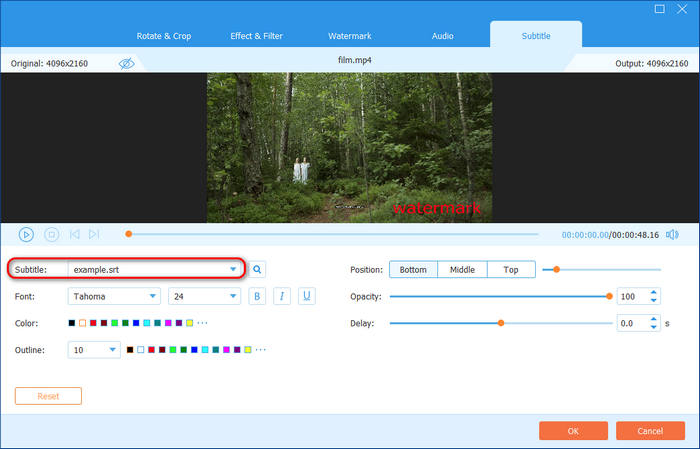
The Subtitle tab with an SRT file loaded, and the font, color, outline, position (bottom, middle, top), opacity and delay settings.
Tips
- Pick Same as source under MP4 when you only need a different container and don't want to lose resolution.
- Use the trial on your most awkward file first. If the first 5 minutes convert cleanly with the right audio and subtitles, the rest will too.
- For the smallest files at good quality, try the HEVC or AV1 presets, but check that the device you'll play them on supports those codecs.
Where it falls short
- No DVD input. Tipard Video Converter converts files only. Discs need the Ultimate edition or Tipard's DVD Ripper.
- The enhancement tools are basic. The AI upscaling, auto color correction and video watermark remover are Ultimate features, and the Standard edition's speed is rated at 6x against Ultimate's 120x.
- No public change log. Tipard doesn't publish release notes for this program, so you can't see what an update changed before installing it.
- Activation isn't always smooth. One Trustpilot reviewer found Tipard's registration screen confusing (see below). You can activate by signing in with your purchase email or by typing the registration code.
What Users Say
On Tipard's own review page
Tipard's page for this program shows 4.9 out of 5 from 309 reviews. The comments shown there are short and all positive, and since they're hosted by the vendor, treat them as a sign of what users like rather than an independent score. A few examples:
"It is the most versatile video converter I've ever met. It supports so many video input and output formats." LilacCloud, April 2022
"I need to convert my video to MTS. Guess what? It really supports this output format! I'm not quite familiar with video formats but it really helps me." PeachyDrift, May 2023
Even the friendly reviews ask for more. "I really need more updates. It supports so many video and audio formats and codecs. However, I want more fashionable features." TwinkleShade, May 2024
On Trustpilot (Tipard Studio as a company)
Tipard Studio's Trustpilot profile covers all its products and stood at 4.5 out of 5 from 91 reviews in October 2026. Reviewers there often mention helpful support. The main complaint we found was about registration. Pablo gave 2 stars in July 2026 after activating Tipard Screen Capture: "Such a complicated and incomprehensible activation, where you have the fields NAME, CODE and the SEND button." Tipard Video Converter uses the same registration system.
Independent reviews of this exact program are scarce. Most write-ups online cover Video Converter Ultimate or older editions, so we haven't quoted them here. The recurring themes are consistent, though: people like the format coverage and the simple three-step workflow, and the complaints are about activation and features that are held back for the Ultimate edition.
Editions and Pricing
| Edition | License | Price | What it adds |
|---|
| Video Converter (this page) | Lifetime, 1 PC | $45.00 at checkout | 350+ formats, 6x speed, basic editing and enhancement, 3D |
| Video Converter | Lifetime, 3 PCs | $75.00 list ($60.00 on Tipard's store) | The same program on three computers |
| Video Converter | 1 month, 1 PC, auto-renews | $24.00 list ($12.00 on Tipard's store) | Short-term use, 7-day money-back guarantee |
| Video Converter Ultimate | Lifetime, 1 PC | $70.00 list ($56.00 on Tipard's store) | 500+ formats, 120x speed, DVD ripping, AI upscaling, music video, collage, 20+ tools |
Store prices were checked on October 17, 2026 and change with Tipard's promotions.
FAQs
Is Tipard Video Converter a one-time purchase or a subscription?
Tipard Video Converter is sold both ways. The lifetime license is a one-time payment that includes future updates and support, while the 1-month license renews automatically each month until you cancel it.
Can I use my Tipard Video Converter license on a Mac?
No. Tipard Video Converter licenses are platform-specific and can't be moved between Windows and Mac. Tipard Video Converter for Mac (macOS 10.12 and later) is bought separately at the same prices.
How many computers can I install Tipard Video Converter on?
A 1-month or lifetime Tipard Video Converter license works on one computer. For more, buy the 3-PC lifetime license or contact Tipard about a multi-user license.
Can Tipard Video Converter rip DVDs or Blu-rays?
No. Tipard Video Converter only converts video and audio files. To convert DVDs, ISO images or VIDEO_TS folders, you need Tipard Video Converter Ultimate or Tipard's DVD Ripper.
How do I activate Tipard Video Converter after buying it?
Tipard Video Converter can be activated in two ways: sign up for a Tipard account with the email you bought with, which syncs your purchase, or enter the registration code from your order email.
Does Tipard Video Converter work on older PCs without a graphics card?
Yes. Tipard Video Converter needs only a 1.2 GHz Intel or AMD processor and 1 GB of RAM. Hardware acceleration is optional, so it converts on the CPU alone, just more slowly, especially with 4K or HEVC files.
Can I get a refund if Tipard Video Converter doesn't work for me?
Tipard Video Converter's lifetime licenses come with a 30-day money-back guarantee, and the 1-month license has a 7-day guarantee. Testing the trial on your own files first is still the best way to avoid needing one.
System Requirements
- Windows: Windows 11, Windows 10, Windows 8 or Windows 7
- Processor: 1.2 GHz Intel or AMD CPU or faster
- Memory: 1 GB RAM or more
- Disk: 2 GB or more of free space recommended
- Display: 1024 x 768 or higher
- GPU acceleration (optional): NVIDIA, AMD or Intel
Conclusion
Tipard Video Converter is worth $45 if you convert video files regularly on Windows and value presets and a tidy interface over tinkering. The main reason to buy it is the combination of a wide format list, batch conversion and quick fixes (crop, rotate, trim, subtitles, watermark) in one window, paid for once. The main reason not to is that the most interesting tools, DVD ripping and AI upscaling, sit in the Ultimate edition. If you want those, go straight to Ultimate. If you only convert a file a few times a year and don't mind manual settings, a free converter will do. Run the 5-minute trial on your own files before deciding.
Download Free TrialBuy Now