Tipard Screen Capture for Mac: Record Your Screen, Webcam and Mac System Sound
Tipard Screen Capture for Mac is a macOS screen recorder that captures the whole screen, a region or one window together with system audio and your microphone, records the webcam or audio on its own, and lets you draw on the screen while recording. The Buy Now button here sells a lifetime license at $49, paid once with no renewal.
macOS can record the screen by itself (Shift-Command-5), but it won't capture the sound coming out of your Mac without extra software. That gap, recording a webinar, a call or a video with its audio, is the main reason people look for a tool like this.
Quick facts
- Developer: Tipard Studio
- Version: 1.1.52 (build 5245)
- macOS: 10.13 High Sierra or later; native builds for Apple silicon and Intel
- Modes: Video Recorder, Window Recorder, Audio Recorder, Webcam Recorder, Screen Capture (screenshots)
- Extras: drawing while recording, record length limit, Task Schedule, watermark, recording history
- Price via Buy Now: $49 one-time for a lifetime license (20% off the $61.25 list price)
- Trial: saves only 3 minutes of each recording; no Clip tool
- What we checked: the Mac app packages for Intel and Apple silicon (version 1.1.52.5245, dated April 18, 2025, the arm64 one native), the trial limits written in the app, and the order page, rechecked on November 4, 2026, which listed "Tipard Screen Capture for Mac - Lifetime" at $49.00 (down from $61.25) with no renewal. We didn't make test recordings.
Before you buy
- One payment, no renewal. The Buy Now button sells the lifetime license at $49, so there's nothing to cancel later. For more than one Mac, Tipard's store sells a 3-Mac lifetime license.
- The Mac version trails the Windows one. Tipard's product page is shared by both and advertises features from the newer Windows release; the Mac app's last update was April 2025.
- The trial cuts recordings at 3 minutes. Test with short clips, and don't rely on the trial for a meeting you can't repeat.
Download Free TrialBuy Now
Overview
Tipard Screen Capture for Mac opens to a compact panel of recording modes. Pick one, set the area and audio sources, press REC, and a floating toolbar appears with pause, stop, a timer, the file size and drawing tools. When you stop, a preview window lets you clip the start and end before saving.
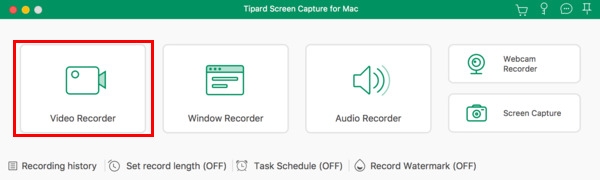
The main panel of Tipard Screen Capture for Mac: Video Recorder, Window Recorder, Audio Recorder, Webcam Recorder and Screen Capture, with Recording history, Set record length, Task Schedule and Record Watermark below.
Features
Screen or window, with system sound
Tipard Screen Capture for Mac records the full screen, a region you drag out or a single app window, and mixes in Mac system audio, the microphone or both. It installs its own audio driver to capture system sound, something the built-in macOS screen recorder doesn't do.
Draw on the screen while you record
Tipard Screen Capture for Mac's recording toolbar adds rectangles, ellipses, lines, arrows, a pen and text in any color during the recording, with undo and clear, plus a camera button for snapshots.
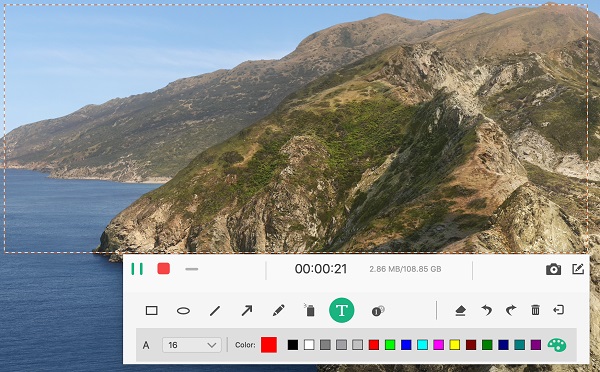
Recording a region of the Mac desktop: pause and stop, 00:00:21 elapsed, file size, and the drawing bar with shapes, arrow, pen, text, font size and color palette.
Audio-only and webcam-only recording
Tipard Screen Capture for Mac's Audio Recorder saves system sound or the microphone without video, for podcasts, voice notes or streaming audio, and its Webcam Recorder records just the camera with your chosen camera and microphone.
Unattended recording
Tipard Screen Capture for Mac can stop a recording automatically after a set length, and Task Schedule starts and stops recordings at set times, so a live stream or webinar can be captured while you're away. A watermark option stamps your name or logo on every recording.
Preview, clip and save
Tipard Screen Capture for Mac shows each recording in a preview window where you set start and end points with Clip, re-record, or save. Output formats include MP4 and MOV, with HEVC and Apple ProRes options, and screenshots can be annotated before saving.
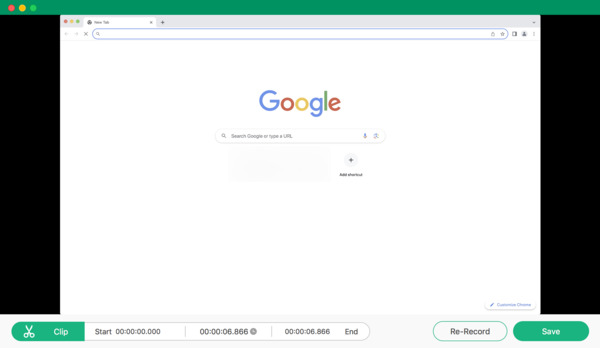
The preview after recording a browser window: Clip with start and end times, Re-Record and Save.
Benefits
The practical win is recording what you hear as well as what you see, without setting up a separate audio routing tool. Add on-screen drawing, scheduled recording and a simple trim step, and a teacher, support agent or reviewer can go from recording to a shareable MP4 in one app.
Real-World Uses
- Online classes and webinars. Schedule a recording of a lecture stream with its sound and come back to a saved file.
- Software tutorials. Record one app window and draw arrows and text to point at buttons.
- Bug reports. Capture a short clip of a problem with your narration and send the MP4 to support.
- Audio capture. Save an internet radio show or a voice memo with the Audio Recorder.
Who It's For, and Who Should Skip It
It's a good fit for Mac users who need system audio in their recordings and want a few presentation tools without learning a complex app.
- Skip it if you don't need system sound. macOS's Screenshot toolbar and QuickTime record the screen and microphone for free.
- Skip it if you stream or mix scenes. OBS Studio is free and handles multi-source scenes and live streaming.
- Skip it if you're on Windows. Mac licenses don't carry over; the Windows edition is sold separately.
Usage Guide
- Install. Unzip screen-capture-for-mac.zip and open the installer app; it downloads the Apple silicon or Intel version.
- Grant permissions. When asked, allow Screen Recording and Microphone access in System Settings > Privacy & Security, and allow the audio driver if you want system sound.
- Pick a mode. Click Video Recorder, Window Recorder, Audio Recorder or Webcam Recorder.
- Set it up. Choose the area or window, switch system sound, microphone and webcam on or off, and click REC.
- Finish. Click Stop, trim with Clip if needed, and click Save. Past recordings appear in Recording history.
Where it falls short
- Behind the Windows edition. Newer recording features Tipard advertises on the shared product page may not be in the Mac app, which hasn't been updated since April 2025.
- Light editing. After recording you can clip the start and end, not cut out a section in the middle or add titles.
- Activation trouble. One Trustpilot reviewer lost an hour-long recording when Tipard Screen Capture stayed unregistered after he entered his code.
- A system audio driver. Capturing Mac sound means installing Tipard's audio component, which some managed or work Macs won't allow.
What Users Say
Tipard Screen Capture on Trustpilot
Tipard has 4.5 stars from 91 Trustpilot reviews. Several are about Screen Capture, though they don't say whether they used the Mac or Windows edition.
Simon (US), 5 stars, "Best screen capture product", says he "found it is the most powerful screen capture product".
Irv Brenner (US), 5 stars, "I use Tipard Screen Capture", likes how easily it records, trims and compresses, and captures system and microphone sound together, adding that "Tipard's support is timely, knowledgeable".
Pablo (Czech Republic), 2 stars, "Activate Screen capture…": after activation the program still showed as unregistered and asked for payment, an hour-long recording was lost, and support told him the code had already been used. "Such a complicated and incomprehensible activation."
Other Tipard customers
Ravi Kumar (India) uses Tipard's video recording feature regularly, calls it excellent and praises responsive support. Tipard's product page shows 4.9 from 745 ratings for Screen Capture across both platforms.
The pattern is clear: recording itself gets strong marks, especially system-plus-microphone audio, and support is well regarded. The one serious complaint is activation, so register right after buying and make a short test recording before anything important.
Comparisons
Tipard Screen Capture for Mac vs macOS's built-in recorder
Shift-Command-5 records the screen or a region with the microphone, free and native. Tipard adds system audio capture, webcam and audio-only modes, on-screen drawing, scheduled and length-limited recordings and watermarks.
Tipard Screen Capture for Mac vs OBS Studio
OBS is free and more powerful for streaming and multi-source scenes, but it's harder to learn and needs a separate tool for Mac system audio on older macOS versions. Tipard is the simpler point-and-record choice.
Editions and Pricing
| Plan | Price | Billing | Macs |
|---|
| Lifetime (Buy Now on this page) | $49 (list $61.25) | Once | 1 |
| Lifetime, 3 Macs (Tipard's store) | $87.50 list | Once | 3 |
Tipard's store usually shows coupon prices below list, and bundles Screen Capture for Mac with Mac Video Converter Ultimate.
FAQs
Can Tipard Screen Capture for Mac record internal Mac audio?
Yes. Tipard Screen Capture for Mac records system sound through its own audio driver, alone or together with the microphone, which the built-in macOS recorder can't do.
Is Tipard Screen Capture for Mac native on Apple silicon?
Yes. Tipard Screen Capture for Mac has a separate arm64 build that the installer downloads on M-series Macs, and an Intel build for older Macs.
How long can I record with the free trial?
The Tipard Screen Capture for Mac trial records, but only the first 3 minutes of each recording are saved, and the Clip tool is locked until you register.
Can I record a Zoom or Teams meeting on a Mac with it?
Yes. Tipard Screen Capture for Mac can record the meeting window or screen with system audio for the other participants and your microphone for your voice. Check your organization's rules and tell participants you're recording.
Does the license renew automatically?
No. The Tipard Screen Capture for Mac license on our Buy Now button is a lifetime license: the order page charges $49 once and sets no renewal.
Which macOS versions does it support?
Tipard lists macOS 10.13 High Sierra and later for Tipard Screen Capture for Mac, on Intel and Apple silicon.
System Requirements
- macOS 10.13 or later
- Intel processor or Apple silicon
- 1 GB RAM or more
- Screen Recording and Microphone permissions in macOS
Conclusion
Tipard Screen Capture for Mac is a straightforward, native Mac recorder whose main selling point is capturing system audio along with the screen, plus handy drawing and scheduling tools. That's the reason to buy it. The reason for caution is that the Mac app lags the Windows edition and hasn't been updated since April 2025. This page's button sells a $49 lifetime license, paid once with no renewal. Try the trial, register promptly, and make a test recording before an important session.
Download Free TrialBuy Now