AutoDWG PDF to DWG Converter: Turn PDF Drawings Back into Editable AutoCAD Files
AutoDWG PDF to DWG Converter is a $130 Windows program that converts PDF drawings into editable DWG or DXF files for AutoCAD and other CAD software, rebuilding lines, arcs, text, hatches and layers as real CAD objects. It's a perpetual license for one user, with a free trial that never expires but watermarks its output.
You know the situation: a client, a contractor or the city archive sends you a drawing as a PDF, and you need to change it. Redrawing it by hand over the PDF takes hours. A converter like this one hands you a DWG you can open, measure and edit, so you only fix what the conversion missed.
Quick facts
- Developer: AutoDWG, which has developed this converter since 2004
- Version: PDF to DWG Converter 2026 (installer version 5.1)
- Platform: Windows 11, 10, 8, 7, Vista and XP. AutoDWG sells a separate PDF to DWG converter for Mac.
- Input: vector PDFs (exported from CAD) and scanned, raster PDFs
- Output: DWG or DXF, saved as any AutoCAD file version from R2.5 to 2027, in metric or English units
- Price: $130 one-time for the Stand-Alone edition, $229 for Pro with batch conversion
- Trial: free, doesn't expire, adds a watermark to converted drawings
- Updates: one year included, after that a major-version upgrade costs 50% of the list price
- Download: 45.24 MB MSI installer
- What we checked: the installer (PDF2DWG-SA2026.msi, 47.4 MB, product version 5.1, dated October 15, 2026) downloaded from AutoDWG and the $130.00 USD one-time price on the order page, both on November 3, 2026. We didn't run conversions on our own drawings.
Before you buy
- Test your own PDFs in the trial first. AutoDWG doesn't refund a purchase because you changed your mind or the results disappointed you. Refunds are only considered within 15 days, for a technical fault their support can't fix or work around within a month.
- Stand-Alone converts one PDF at a time. If you have a folder of drawings to convert, you want the Pro edition, and AutoDWG treats Pro as a separate product, so moving up later isn't free.
- The license covers one user. You can install it on two computers you own, such as a desktop at work and a laptop at home, but only use one copy at a time.
- Updates run for one year. The program keeps working after that. You only pay (50% of the list price) if you want the next major version.
Download Free TrialBuy Now
Overview
AutoDWG PDF to DWG Converter does one job. You give it a PDF, pick the AutoCAD version and the file type, and it writes a DWG or DXF next to it. The window is small and old-fashioned: a preview of the PDF on the left, four tabs (General, Scanned Image, Text, Advanced) on the right, and a Convert button. You don't need to know CAD to run it, though you will need a CAD program to do anything with the result.
The conversion runs on your own PC, not on a server, which matters if your drawings are confidential. AutoDWG also has a free online converter on the same page, but it only converts the first page of a PDF and is limited on scanned files. The desktop program is the full version.
How good the result is depends mostly on the PDF. A vector PDF, one exported from AutoCAD or another CAD program, still contains the actual lines and curves, and the converter can rebuild them almost one to one. A scanned PDF is just a picture, so the converter has to trace it, and the result is only as clean as the scan.
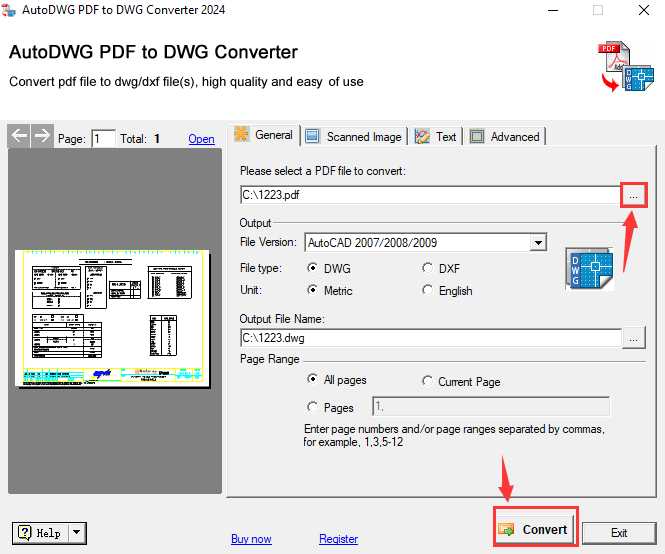
The converter's General tab (2024 interface): the PDF to convert, the AutoCAD file version, DWG or DXF, metric or English units, the output file and the page range, with a preview of the PDF on the left.
Features
Arcs and circles stay arcs and circles
AutoDWG PDF to DWG Converter recognizes curves in a vector PDF and rebuilds them as true arcs and circles, which AutoDWG calls Smart Object Recognition. Weaker converters break a curve into dozens of short line segments, which looks right on screen but is miserable to edit or dimension. Lines keep their position, shape and line width.
Text you can search and edit
AutoDWG PDF to DWG Converter recreates the selectable text of a PDF as CAD text in the DWG or DXF, so room names, dimensions and title-block entries can be found with a search and changed in place instead of retyped. Text that's only part of a scanned image isn't selectable in the PDF, so it comes across as traced shapes, not text.
Layers, solids and hatches carried over
AutoDWG PDF to DWG Converter keeps the layers of a PDF that has them, so walls, furniture and annotations stay on separate layers you can switch off. Filled areas and hatch patterns can be converted as solids and hatches, or you can keep only their border lines if the fills get in your way.
Scanned drawings traced into vectors
AutoDWG PDF to DWG Converter can trace a scanned PDF into CAD lines instead of just dropping the scan into the drawing as an image. On the Scanned Image tab you choose center line (one line down the middle of each stroke, best for line drawings) or outline (the edges of each stroke), and whether the scan has a white or black background. You can also import the scan as a plain image to trace by hand.
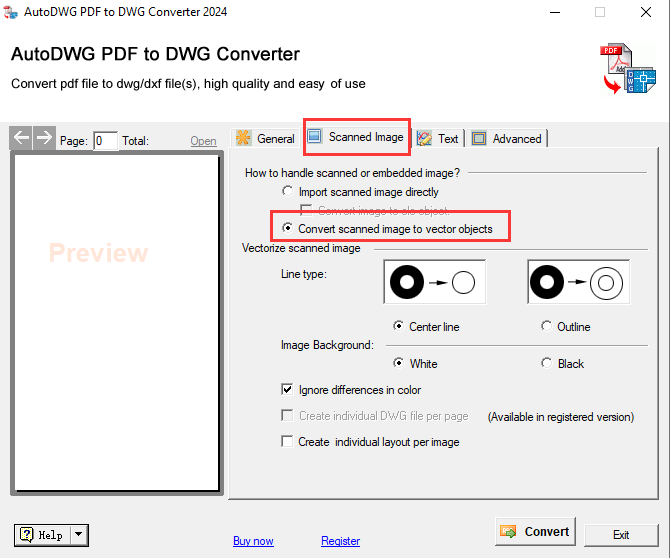
The Scanned Image tab (2024 interface) set to convert a scanned image to vector objects, with center line or outline tracing, the background color, and the per-page DWG option marked as available in the registered version.
Any page, any AutoCAD version
AutoDWG PDF to DWG Converter converts all pages of a multi-page PDF, the current page, or a list such as "2, 5-8, 23". It saves to the DWG or DXF format of any AutoCAD release from R2.5 up to 2027, which helps when a client or an old machine still runs an older AutoCAD. You can also put each image on its own layout, and the registered version can write each page to its own DWG file.
Benefits
- Hours of redrawing saved. Even when a conversion needs cleanup, fixing a few lines beats tracing a whole floor plan.
- Edits that behave like CAD. Because curves, text and layers come through as real objects, you can snap, dimension and modify the drawing normally.
- Your files stay on your PC. Nothing is uploaded, which matters for client drawings under NDA.
- No subscription. You pay once and keep using the version you bought.
Real-World Uses
- Renovation drawings from a PDF set. An architect gets the original building plans as PDFs from the owner, converts the floor plans to DWG and draws the new layout on top.
- Supplier details into your own drawing. A mechanical designer converts a manufacturer's PDF datasheet drawing to DXF and inserts the part outline into an assembly.
- Old paper drawings. A facilities manager scans archived site plans to PDF and traces them into center-line vectors as a starting point for an updated plan.
- A single page from a big set. A contractor converts only sheets 5 to 8 of a 40-page drawing set to mark up the part of the job they're bidding on.
- Laser and CNC cutting. A maker converts a vector PDF pattern to DXF, the format most cutting software imports.
Who It's For, and Who Should Skip It
It's a good fit for architects, engineers, drafters and contractors on Windows who regularly receive drawings as PDFs and need them back in AutoCAD or another DWG-based program, one file at a time. It's also suited to anyone who has to deliver files in an old AutoCAD format.
Skip it if:
- You convert dozens of files at once. Stand-Alone has no batch mode. Buy the Pro edition instead.
- You only convert a drawing now and then. AutoDWG's free online converter handles the first page of a vector PDF, which may be all you need.
- Your PDFs are mostly poor scans. Tracing dirty or low-resolution scans is where every converter struggles, and this one is no exception. Dedicated raster-to-vector tools with scan cleanup do better there.
- You're on a Mac. This is a Windows program. AutoDWG's Mac converter is a separate product.
- You don't have CAD software. The output is a DWG or DXF file. To view and edit it you need AutoCAD or another DWG editor.
Usage Guide
- Install the trial. Download the 45 MB MSI from AutoDWG and run it. A "PDF to DWG Converter" shortcut is added.
- Open the PDF. On the General tab, click the "..." button and pick the PDF. A preview of its first page appears on the left.
- Pick the output. Choose the AutoCAD file version, DWG or DXF, and metric or English units. Change the output file name if you like.
- Choose the pages. Leave "All pages", choose "Current Page", or type page numbers and ranges separated by commas.
- Set up scans. For a scanned PDF, open the Scanned Image tab, tick "Convert scanned image to vector objects", and choose center line or outline and the background color.
- Convert. Click Convert and open the result in your CAD program.
- Register. After buying, enter the registration code in the same installed trial. The watermark disappears, and you don't need to reinstall.
Tips for better conversions
- Check whether your PDF is vector or raster. Zoom in as far as you can: if lines stay sharp, it's vector and should convert well. Jagged, pixelated lines mean a scan.
- Scan clean. For paper drawings, a high-contrast, evenly lit scan with no stains or folds makes the tracing far more usable.
- Match the AutoCAD version to the recipient. Save to the oldest version anyone on the project uses, so nobody gets an "unsupported file" error.
Where it falls short
- Poor scans give poor results. AutoDWG itself says the quality of a scanned conversion depends on how clean, even and high-contrast the scan is, and reviewers name low-quality PDFs as its weak spot.
- Complex drawings can lose detail. DP Associates, a CAD conversion service, reports that drawings with many overlapping layers can come out with missing pieces, so check a converted drawing against the PDF before relying on it.
- A dated interface. The window looks like Windows software from many years ago. It works, but don't expect a modern design.
- Batch conversion costs extra. Converting many files at once needs the $229 Pro edition.
What Users Say
Independent reviews of AutoDWG PDF to DWG Converter are few. Capterra lists it with no user reviews yet, so the most useful opinions come from a tech magazine and a CAD conversion service.
TechRadar: best PDF to AutoCAD converter overall
In TechRadar's roundup of PDF to AutoCAD converters by Daniel Blechynden (last updated January 13, 2025), AutoDWG took the top spot as "The top choice for PDF to AutoCAD conversion":
"In our experience, AutoDWG is the best PDF to AutoCAD converter you can download right now. It boasts a free trial, it's simple to use, and has a wide variety of output options."
"The conversions retain the line and arc precision, and both DWG and DXF file output options are available."
Its reasons to buy: "Great free trial available", "Fast, accurate PDF to AutoCAD conversions", "Both DWG and DXF outputs are supported" and "Basic user interface for easy use". Its reasons to avoid: "Paid licenses are quite expensive" and "Conversion of poor-quality PDFs is limited".
DP Associates: accurate on vector PDFs, weaker on scans
DP Associates, which sells PDF to DWG conversion as a service, reviewed AutoDWG's converters for its customers:
"Unlike broader suites, it focuses heavily on the "accuracy" of the conversion, particularly regarding how geometry is reconstructed. However, it can occasionally result in loss of some of the information contained in the original drawing."
On the plus side they credit its arc and circle recognition, its support for AutoCAD versions back to R14 and its "Extremely simple, wizard-style interface that requires zero CAD knowledge to operate". On the minus side: "The UI feels dated compared to modern SaaS tools and lacks advanced built-in editing features", and "Conversion of poor-quality raster PDFs is limited; it is much more effective on vector-based PDFs."
Both sources agree on the same picture: AutoDWG PDF to DWG Converter is accurate and easy on clean vector PDFs, weaker on bad scans, and not cheap.
Comparisons
Stand-Alone vs Pro
AutoDWG PDF to DWG Converter Stand-Alone and Pro produce the same conversions. Pro adds batch mode: you add a list of PDFs and convert them in one run. For one drawing at a time, Stand-Alone at $130 is enough. For converting whole drawing sets regularly, Pro at $229 pays for itself in clicks.
Desktop converter vs AutoDWG's free online converter
AutoDWG's free online PDF to DWG tool converts only the first page of a PDF and is limited with scanned files, and your file is uploaded to their server. The desktop converter handles every page and every option (AutoCAD version, scans, page ranges) and keeps the files on your computer.
Editions and Pricing
All licenses are one-time purchases, valid for the major version you buy, with a year of updates and free technical support.
| Edition | Price | License | What it adds |
|---|
| Stand-Alone | $130 ($117 each for 2-5 users) | Perpetual, single user | All conversion features, one PDF at a time |
| Pro | $229 ($199 each for 2-5 users) | Perpetual, single user | Batch conversion of many PDFs |
| Server | $396 per concurrent user (3-5 users) | Floating license on your network | Licenses shared by a team |
Larger orders get lower per-user prices on every edition. A year after purchase, the next major version costs 50% of the list price, but you can keep using your version without paying anything.
FAQs
Does the AutoDWG PDF to DWG Converter trial expire?
No. The AutoDWG PDF to DWG Converter trial doesn't expire, but it adds a watermark to the converted drawings, and writing each page to its own DWG file only works in the registered version. Entering a registration code removes the limits in the same installation.
Can I get a refund on AutoDWG PDF to DWG Converter if the results aren't good enough?
Usually not. AutoDWG's policy is that orders can't be refunded once the registration code has been sent. Exceptions are only made within 15 days of purchase when the software doesn't work for technical reasons and support can't provide a fix or workaround within a month. That's why the free trial is the place to test your drawings.
Which AutoCAD versions can AutoDWG PDF to DWG Converter save to?
AutoDWG PDF to DWG Converter saves DWG and DXF files in the formats of AutoCAD releases from R2.5 through 2027, so the result opens in current AutoCAD as well as old versions and other DWG-based CAD programs.
Can I use one AutoDWG license on my office PC and my laptop?
Yes. AutoDWG's single-user license allows installation on one computer plus a second one you own, such as a work desktop and a home laptop, as long as only one copy runs at a time. To move it to a new PC, install the program there and register with your original code.
Is AutoDWG PDF to DWG Converter a subscription?
No. AutoDWG PDF to DWG Converter is a one-time purchase, $130 for Stand-Alone. It includes a year of updates. After that, upgrading to a new major version costs 50% of the list price, and you can skip it and keep using what you have.
Does AutoDWG PDF to DWG Converter work on a Mac?
No, the Stand-Alone and Pro editions are Windows programs. AutoDWG sells a separate PDF to DWG converter for Mac.
Does AutoDWG PDF to DWG Converter upload my drawings?
No. The desktop AutoDWG PDF to DWG Converter processes PDFs locally on your computer. Only AutoDWG's free online converter uploads files to their server.
What if a PDF won't convert well?
AutoDWG offers free technical support, and buyers can email the problem PDF to info@autodwg.com with their order ID. AutoDWG will run the conversion and send back the DWG or DXF.
System Requirements
- Windows 11, 10, 8, 7, Vista or XP (64-bit Windows is supported)
- 1 GB of RAM or more (large drawings need more)
- 40 MB of free disk space for the program
- A CAD program that opens DWG or DXF files to edit the results
Conclusion
AutoDWG PDF to DWG Converter is worth $130 if you regularly get drawings as vector PDFs and need them back in AutoCAD: it rebuilds arcs, text and layers properly, keeps your files on your PC, and you pay once. The main reason to hesitate is that refunds are only for technical faults, and poor scans convert poorly, so run your own drawings through the trial first. If you need to convert whole sets at once, go straight to the Pro edition.
Download Free TrialBuy Now