Leawo DVD Creator: Turn Windows Videos and Photos into DVDs with Menus
Leawo DVD Creator is a Windows 7 to 11 program that burns your video files and photo slideshows to a DVD that plays in an ordinary DVD player, complete with a menu, chapters and subtitles, or saves the result as a DVD folder or ISO image. It costs $29.95 for a year or $39.95 for a lifetime license, and there's a free trial that burns the first 5 minutes of your content so you can test it on your own player first.
It suits the person who has a folder of MP4s from a phone, an MKV download or an old camcorder's AVCHD clips, and a relative, school or client who still wants a disc. You load the files, pick a menu, and press Burn; the program does the conversion to DVD-Video for you.
Quick facts
- What it is: the Burn module of Leawo Prof. Media 13 for Windows, sold on its own
- Version: 13.0.1.6 (installer dated October 10, 2026)
- Windows: 7, 8, 8.1, 10 and 11; a Mac edition is sold separately
- Input: about 30 video containers listed in the specs (MP4, MKV, AVI, WMV, MOV, FLV, WEBM, VOB, MTS/M2TS and more; Leawo's headline figure is 180+ formats), 11 photo formats, SRT/ASS/SSA subtitles and DVD ISO files
- Output: DVD-5 or DVD-9 disc, DVD folder (VIDEO_TS) or ISO, NTSC or PAL, 16:9 or 4:3
- Price: $29.95 for one year (auto-renews) or $39.95 lifetime, one PC
- Free trial: every feature works, but only the first 5 minutes of content are converted and burned
- Developer: Leawo Software Co., Ltd.
- What we checked: the Windows installer from Leawo's download page (ltmcp_setup.exe, "Leawo Prof. Media Setup", file version 13.0.1.6, 209,171,392 bytes, dated October 10, 2026), Leawo's Windows user guide and tech specs for this module, all 53 reviews on Leawo's review page for DVD Creator, and the order page for "Leawo DVD Creator": $29.95 for 1 year (next renewal quoted at $19.09) and $39.95 lifetime, no discount applied, on November 4, 2026. We didn't burn a disc ourselves.
Before you buy
- Run the trial to the end. Burn the 5-minute test disc and play it on the actual DVD player or car system it's meant for. Leawo's refund policy covers bugs it can't fix, hardware incompatibility and duplicate orders, not a change of mind, so the trial is your real safety net.
- The lifetime license pays for itself fast. $39.95 once versus $29.95 now and $19.09 at the first renewal.
- The 1-year license needs renewing to keep working. Leawo's rule for its 1-year licenses is that once one lapses you renew or buy another license to keep using the program.
- A blank-disc drive is needed only for discs. Without a DVD writer you can still make an ISO or DVD folder and burn it elsewhere.
Download Free TrialBuy Now
Overview
Install Leawo DVD Creator and what opens is Leawo Prof. Media 13, Leawo's suite window with Home, Convert, Burn, Copy, Download and Cinavia tabs. Your license activates the Burn tab; the others stay in trial mode unless you own those modules too. That's worth knowing so the bigger window doesn't surprise you.
The Burn tab is a single screen. Clips appear as rows with their length and estimated output size, each with a subtitle drop-down, an audio-track drop-down and an edit button. The template list sits on the right. Along the bottom you set the disc type, the quality ("Fit to disc" by default) and the aspect ratio, and a green bar shows how full the disc will be.
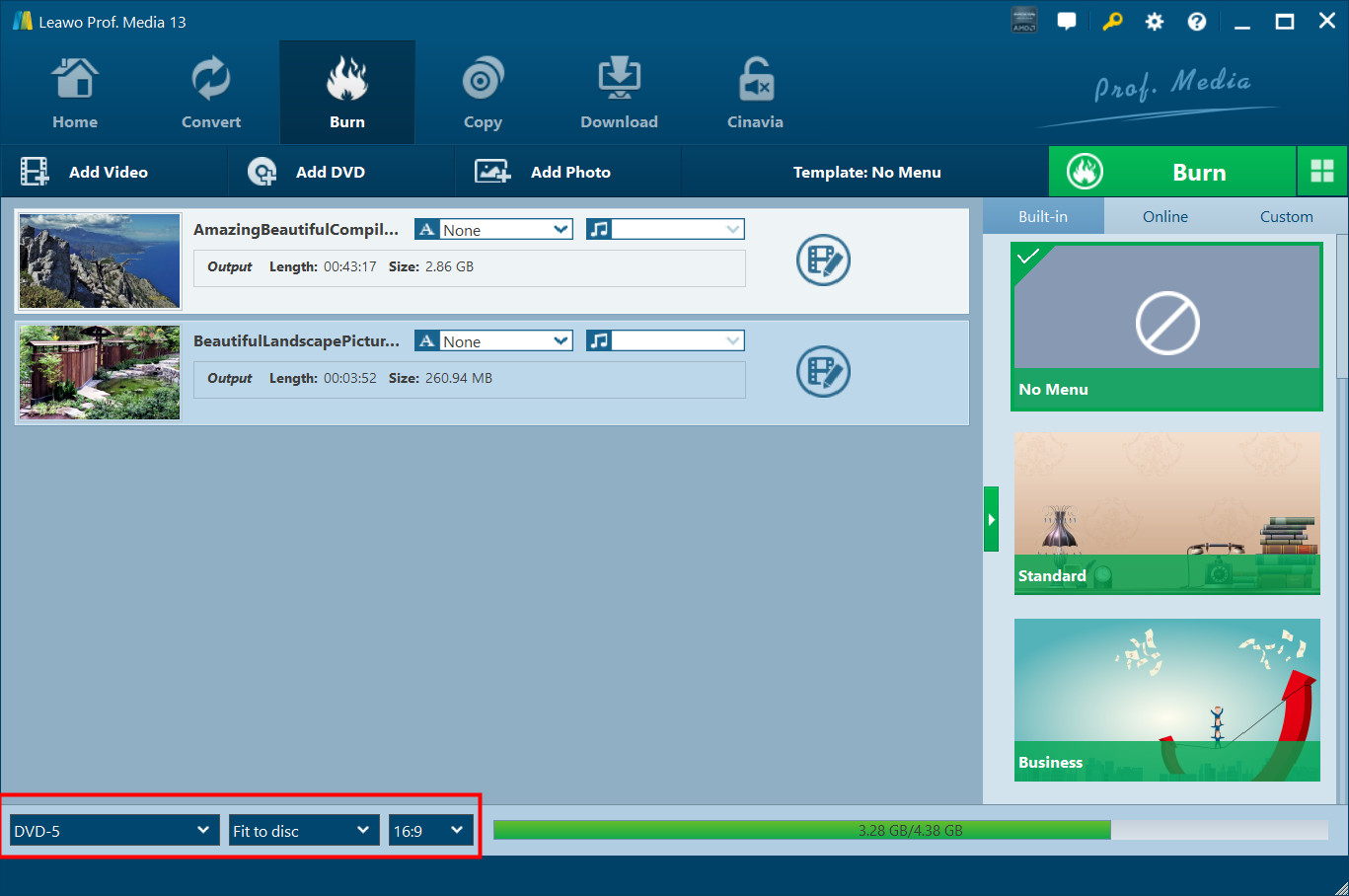
The Burn tab on Windows with two clips (43:17 and 3:52) loaded, subtitle and audio drop-downs on each row, No Menu selected, and DVD-5, Fit to disc and 16:9 highlighted at the bottom with 3.28 GB of 4.38 GB used (Leawo's Windows guide, Prof. Media 13).
Features
Drop in almost any video file and get a standard DVD
Leawo DVD Creator re-encodes whatever you add, from H.265 phone clips and 4K files to WMV, DVR-MS recordings and AVCHD camcorder footage, into the MPEG-2 video a DVD player expects. You don't need a separate converter or codec pack. Add single files, a whole folder, or a DVD ISO to burn back to disc, and each clip becomes its own title. The "Fit to disc" setting squeezes everything onto the disc you picked, which is how the two clips above, nearly 47 minutes in total, fit on a single-layer DVD-5.
Menus from 40+ templates, edited in place
Leawo DVD Creator ships with built-in menu themes (Standard, Business, Childhood and others), more on an Online tab, and a Custom tab for designs you've saved. Click a template and an editor opens over a full-size preview: rename the title and buttons, move items around, change fonts, and replace the background with your own picture or video clip and your own music. "No Menu" makes a disc that plays straight away.
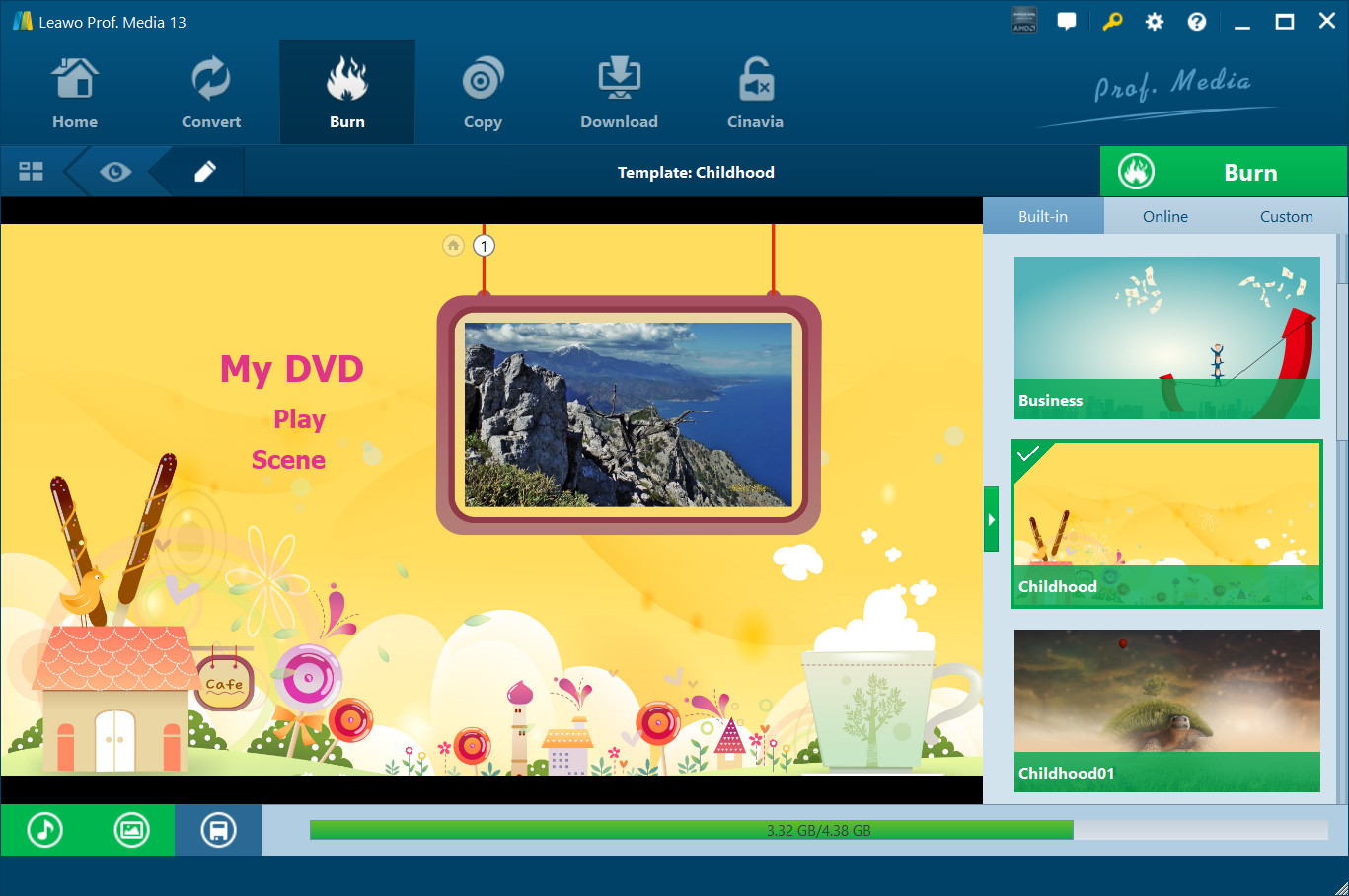
The menu editor with the Childhood template: "My DVD", Play and Scene buttons, a clip thumbnail in the frame, music, background and save buttons at the bottom left, and Business, Childhood and Childhood01 in the Built-in list.
A per-clip editor with millisecond trimming
Leawo DVD Creator's editor has seven tabs: Video & Audio (rotate, flip, speed, volume, Remove Noise), Trim, Watermark (text or image, with transparency and position), Crop, Effect (brightness, contrast, saturation), 3D, and Create Chapter. Trim takes start and end times down to the millisecond, or you mark them with in and out buttons while the clip plays. An "Apply to All" box copies a watermark to every clip.
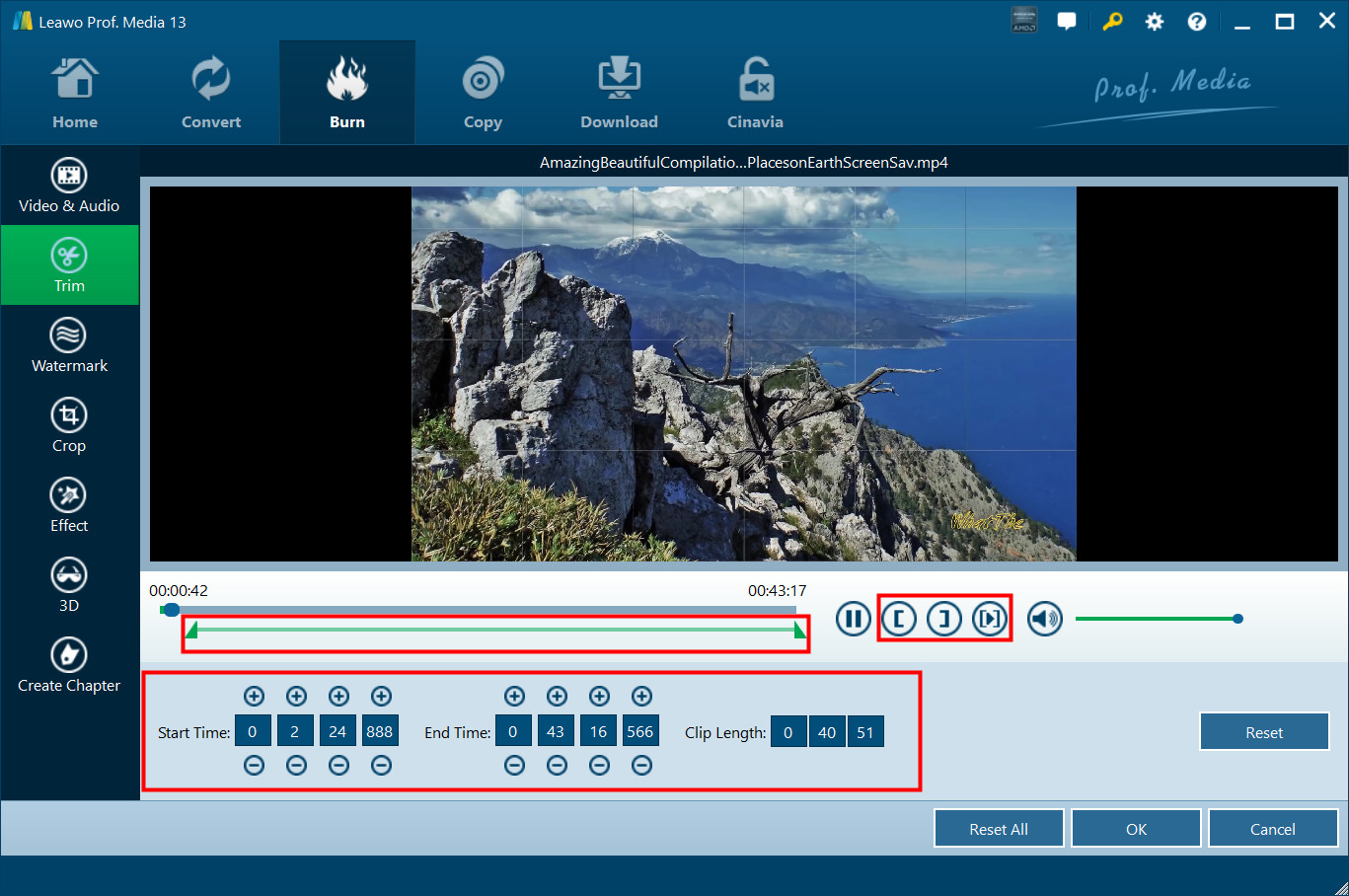
The Trim tab: the edit tabs on the left, a preview of the clip, in/out marker buttons, and Start Time, End Time and Clip Length fields in hours, minutes, seconds and milliseconds (red boxes are Leawo's).
Chapters and a 2D-to-3D option
Leawo DVD Creator's Create Chapter tab inserts chapter points by hand or automatically, so a two-hour recital can be skipped through with a remote. The 3D tab turns ordinary footage into one of six 3D styles (Red/Cyan, Red/Green, Red/Blue, Blue/Yellow, Interleaved or Side by Side) with an adjustable depth, for anaglyph glasses or a 3D TV.
Photo slideshows with background music
Leawo DVD Creator's Add Photo button (or Add Photo Folder) turns pictures into a slideshow title. In the slideshow editor you reorder, rotate or remove photos, set how long each one stays up and the transition between them, and add background music on the Audio tab; music longer than the slideshow is cut off at the end. Slideshows and videos can share a disc and a menu.
Disc, folder and ISO from one burn
Leawo DVD Creator's Burn sidebar lets you tick your DVD writer, Folder and ISO File in any combination, so one conversion can produce a disc plus an ISO to make more copies later. You name the disc label, pick where files go, and see the required space against what's free on that drive.
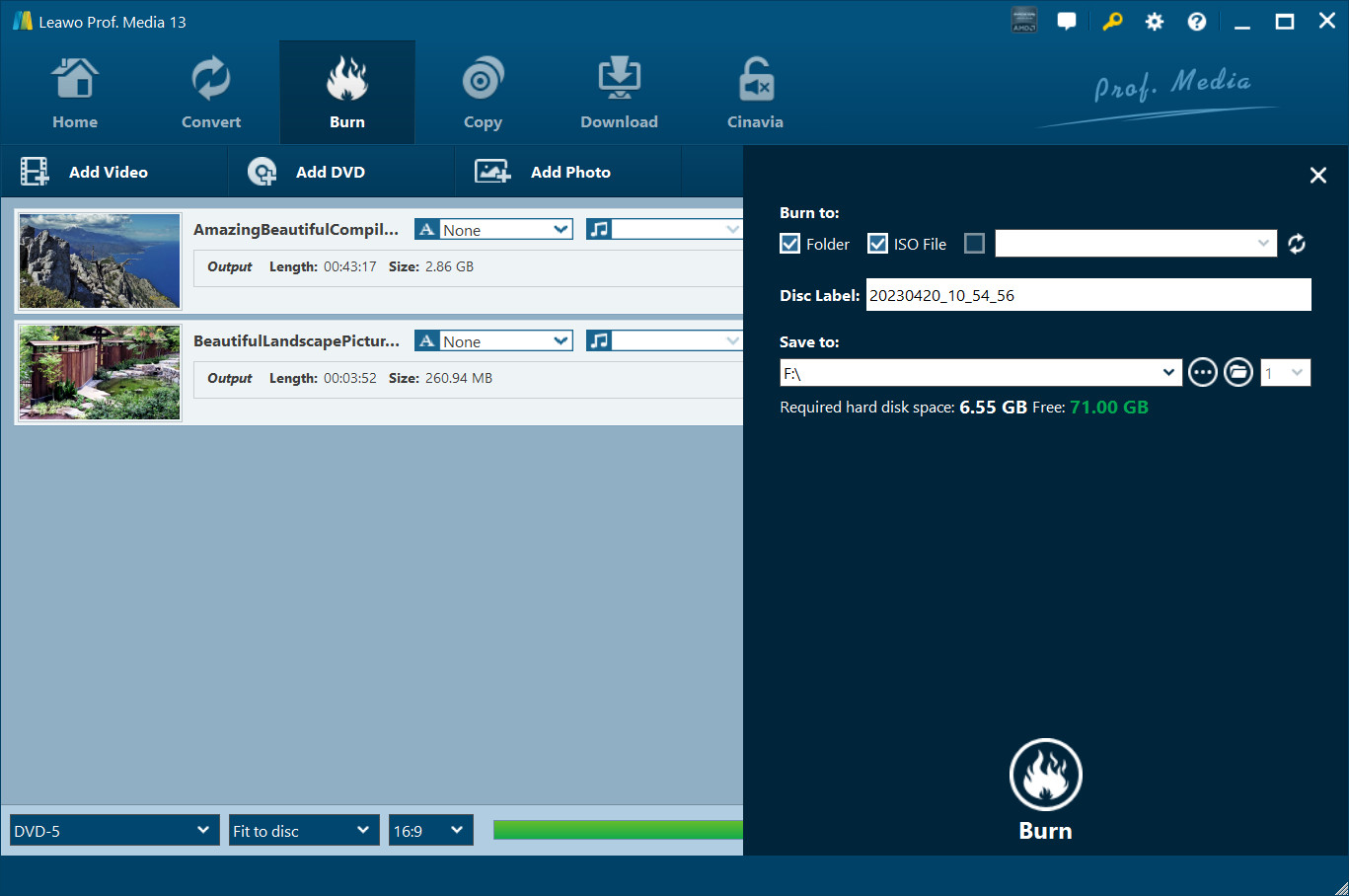
The Burn sidebar: Folder and ISO File ticked with no burner selected, a date-stamped disc label, F:\ as the save location, and 6.55 GB required against 71.00 GB free.
GPU acceleration on Windows
Leawo DVD Creator can hand the encoding to your graphics card through NVIDIA CUDA/NVENC, AMD APP or Intel Quick Sync. Leawo claims up to 50x faster burning; the real gain depends on your hardware, but on a PC with a recent graphics chip, conversion is usually the slow part of making a DVD, so it matters.
Benefits
- One step instead of three. No converting to MPEG-2 in one tool, authoring in another and burning in a third.
- A disc older relatives can actually use. Put it in, press Play, pick a chapter.
- A cheap lifetime license. $39.95 is less than many video tools charge per year.
Real-World Uses
- A funeral or anniversary slideshow of scanned prints and phone photos, with the family's chosen songs, played at the venue from a DVD player.
- Dance recital or sports season footage trimmed, chaptered by routine or game, and burned in batches for every family on the team.
- Old camcorder MTS clips and Windows Media Center DVR-MS recordings moved onto discs before the PC that holds them dies.
- A wedding videographer's client disc with the couple's photo as the menu background and their song playing behind it.
Who It's For, and Who Should Skip It
It fits Windows users who make DVDs from their own footage now and then and want menus and chapters without learning an authoring program.
Skip it if:
- You want high definition on a disc. DVD is standard definition. Leawo Blu-ray Creator burns HD Blu-rays and includes DVD Creator.
- You want to back up a movie DVD. That's a disc copier, such as Leawo DVD Copy.
- You only burn data discs. Windows' own burning or a general disc tool is enough for files.
- You need professional authoring with scripted navigation, multiple angles or menus built from scratch rather than templates.
Usage Guide
- Install. Run ltmcp_setup.exe from Leawo's download page, then open Leawo Prof. Media and click the Burn tab.
- Set the TV standard once. Click the gear icon, open Copy & Burn and choose NTSC (US, Canada) or PAL (most of Europe, Australia, parts of Asia).
- Add media. Use Add Video (a file, a folder or an ISO), Add Photo, or drag files into the window.
- Pick subtitles and audio. Each row has its own drop-downs; you can also load an external SRT, ASS or SSA file.
- Edit if needed. The edit icon opens trimming, cropping, watermark, effects, 3D and chapters.
- Choose a menu. Pick a template on the right, click it to change text, background and music, or choose No Menu.
- Set the disc. Use the three drop-downs under the clip list for disc size, quality and aspect ratio, keeping an eye on the space bar.
- Burn. The green Burn button opens a sidebar: choose the outputs (writer, Folder, ISO File), name the disc, pick a save location, then press the round Burn button.
- Register with the key icon at the top right of the window to lift the 5-minute limit.
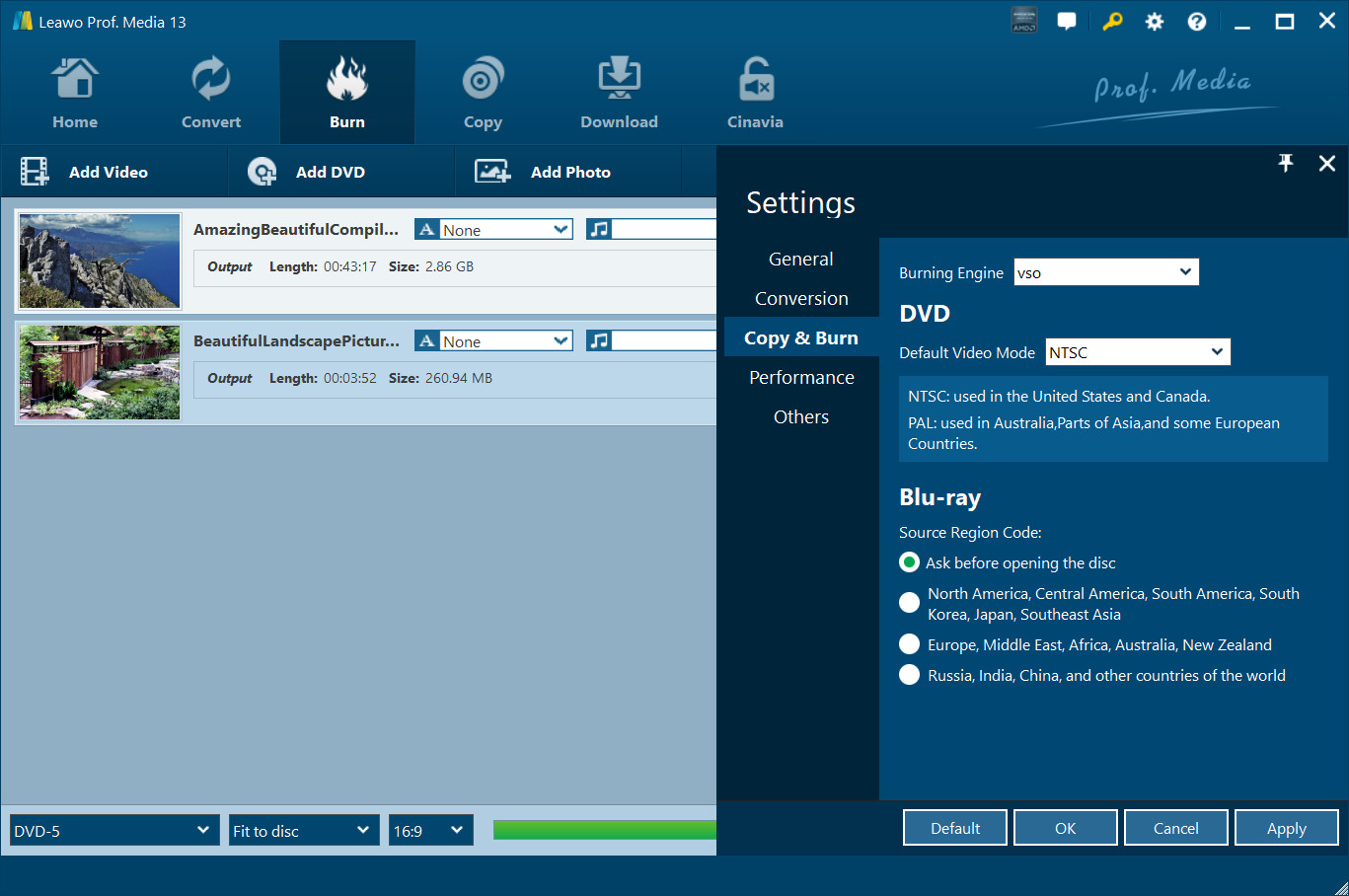
Settings, Copy & Burn: the Burning Engine drop-down set to vso, Default Video Mode NTSC with a note on where NTSC and PAL are used, and Blu-ray region options below (Prof. Media 13 on Windows).
Tips
- Keep the free space bar honest. A DVD-5 holds about 4.38 GB of video, not the 4.7 on the label. If the bar is close to full, switch to DVD-9 or split the footage over two discs rather than letting quality drop.
- Leave room on drive C:. Leawo's FAQ suggests about 20 GB free for temporary files while it converts.
- Use the trial on the toughest file. If one clip is an odd format, make that the one in your 5-minute test.
Where it falls short
- Template menus, not a blank canvas. You can restyle a template heavily, but you can't design menu logic from scratch.
- Burns can fail on some drive and disc combinations. Several testers in a 2015 giveaway reported discs that wouldn't play or "coasters". That was version 7.3, but it's why the trial test disc matters.
- The suite window can confuse. You install all of Prof. Media, and the other tabs keep offering trials of modules you didn't buy.
- Few recent reviews. Most reviews of the program are from 2013 to 2020.
What Users Say
Leawo DVD Creator has been sold since the early 2010s (it was called Leawo Video to DVD Creator in older reviews), so there's a long, if mostly older, trail of user feedback. The two main sources disagree: Leawo's own review page is almost uniformly glowing, while a 2015 giveaway drew blunt complaints.
Leawo's review page for DVD Creator (5.0 out of 5, 53 reviews)
Leawo moderates this page. Of its 53 reviews, 52 give 5 stars and one gives 3. Many are a word or two, so here are the ones that say something specific:
"I've used this software for a couple of years and have to say honestly - It's very fast. I've tried paid and free versions of the big names and this seems to be the fastest in my opinion. Thank you for good software. Oh and the quality is very good as well" Anthony Botello, 5 stars, April 2019
"I have tried lots of different DVD authoring software, this is the only one that works all the time, and every time. Highly Recommended." Anon, 5 stars, January 2017
"it works great, I've been adding small clips and it makes a chapter for each one" Walter Oldenburg, 5 stars, October 2018
"This program cuts my production time by +50% and it is easy to use. No Einstein thinking required just love it." Ray, 5 stars, September 2014
"I used this program at first with W7 then W8 ,W10, lost all files W10 update so glad this offer came up it is the best and easiest DVD burning program I have ever used." Ray, 5 stars, November 2017
"Love the software of Leawo DVD Creator 13.0.0.7 outstang Great Software." paul, 5 stars, May 2026, the newest review
"Easy to use. Great little software for the low price. Only 1 thing I would add, is the ability to disable the so called main screen to go directly to the title screen which in my oppinion covers all needs." Jean-Pierre Sullivan, 5 stars, August 2013
"One of the best apps on the market I have found but NOT THE BEST apps on the market (but it could be!). Get rid of the video quality option and automatically give me the best video quality for the amount of video." Chris Khilds, 3 stars, September 2012
Giveaway of the Day comments (version 7.3.0, October 2015)
Giveaway of the Day gave away a 1-year license on October 16, 2015, and 28 comments followed. Many were about getting the giveaway code activated, which doesn't apply to a bought license. The ones about the program itself were mostly critical:
"Burned a disc. No issue. Disc will not play with any player on the same computer burned on AND will not play on a blu-ray player." Fingerlakes Dave
"Compared to other software of this type I have tried, sadly this program is lacking in features such as menu design, adding chapter marks and no preview of the menu before writing to a disc." Brian
"Trimming clips is not easy and I still can't figure out how to add chapter points." Jim Jones
Version 13 has since gained a Create Chapter tab, a full-size menu preview and millisecond trim fields, which answer two of those three complaints. Disc compatibility can't be judged from screenshots, which is what the trial is for.
The recurring themes
People who stick with Leawo DVD Creator praise how easy it is, the speed, and the menu choices, and several have used it across several Windows versions. The criticism is about discs that won't play on some setups and, in older versions, thin chapter and menu tools. As a company, Leawo has a 4.4 TrustScore from 151 Trustpilot reviews of leawo.org, though none we saw were about DVD Creator.
Comparisons
DVD Creator vs Blu-ray Creator
Leawo Blu-ray Creator adds BD-25 and BD-50 Blu-ray output and includes DVD Creator in the same window. The lifetime license is $59.95, $20 more than DVD Creator alone. If you have a Blu-ray writer and HD footage, that's the better buy.
Windows edition vs Mac edition
Both share the templates, editor and prices. The Windows edition runs on Windows 7 to 11 and can use NVIDIA, AMD or Intel graphics acceleration; the Mac edition has native Apple silicon and Intel builds for macOS 10.13 and later. A license covers one platform.
Editions and Pricing
| Option |
Price |
Term |
Includes |
Money-back period listed |
| DVD Creator, 1 Year |
$29.95 |
One year, one PC, auto-renews ($19.09 quoted at checkout) |
DVD Creator |
5 days |
| DVD Creator, Lifetime |
$39.95 |
One-time payment, one PC |
DVD Creator |
14 days |
| Blu-ray Creator, Lifetime |
$59.95 |
One-time payment, one PC |
Blu-ray Creator, DVD Creator |
14 days |
All plans include free upgrades for their term. The money-back periods are what the pricing cards list; Leawo's refund policy limits refunds to problems its support confirms and can't fix.
FAQs
Does Leawo DVD Creator have a free trial?
Yes. Leawo DVD Creator's trial has every feature but converts and burns only the first 5 minutes of your content to a disc, folder or ISO. A tester in 2015 saw the message "Inactive DVD Creator module converts 5 minute content only" when burning; a registration code removes the limit.
Is Leawo DVD Creator a good Windows DVD Maker replacement?
Leawo DVD Creator covers what Windows DVD Maker did (menus, slideshows with music, burning to DVD) and adds chapters, subtitles, trimming and ISO output, on Windows 7 through 11. Windows 10 and 11 no longer include a DVD authoring program of their own.
Will a DVD from Leawo DVD Creator play in a car or an old DVD player?
Leawo DVD Creator writes standard DVD-Video, which car and home DVD players are built to read, and Leawo says the discs are region-free. Older players can be fussy about DVD+R versus DVD-R or about dual-layer discs, so burn your 5-minute trial disc on the blanks you plan to use.
Why does Leawo DVD Creator say there isn't enough space for a 4 GB video?
Leawo DVD Creator counts a DVD-5 as about 4.38 GB of usable space, and its temporary files need room on your system drive too. Leawo's fix is to switch to DVD-9, shorten the video, or free up around 20 GB on drive C:.
Can I burn 4K or H.265 videos to DVD with Leawo DVD Creator?
Yes. Leawo DVD Creator decodes 4K and HEVC/H.265 files and scales them down to DVD's standard definition automatically. The disc will look like a DVD, not like the 4K original.
Can I use Leawo DVD Creator for paid client work?
Leawo DVD Creator's single-user license allows commercial use on the one licensed PC, according to Leawo's license policy, so a videographer can sell the discs they make with it.
Can I install Leawo DVD Creator on two PCs?
No. A Leawo DVD Creator license is a single-user license for one computer, and Leawo's license policy says it is invalid on any other PC, so a second computer needs a second license.
System Requirements
- Windows: 7, 8, 8.1, 10 or 11
- Processor: 1 GHz or faster Intel processor
- Memory: 256 MB RAM, 512 MB recommended
- Disk space: 512 MB for the program, plus working space for the DVD files you create
- Graphics: DirectX 8.1 or later; an NVIDIA, AMD or Intel GPU for hardware acceleration (optional)
- Drive: a DVD writer for burning discs (not needed for folders or ISO files)
- Disc types: DVD-R, DVD-R DL, DVD-RW, DVD+R, DVD+R DL, DVD+RW and DVD-RAM
- Download: 199 MB installer (the whole Prof. Media suite)
Conclusion
Leawo DVD Creator is worth $39.95 for Windows users who need to turn their own videos and photos into DVDs with real menus a few times a year. It accepts nearly any file, handles the conversion for you, and gives you templates, chapters, subtitles and a decent editor in one screen.
The one reason to buy it: it's a cheap, one-window way to get a menu-driven DVD out of a folder of modern video files. The main reason not to: if you want HD, Blu-ray Creator includes it for $20 more, and since refunds don't cover a change of mind, you should burn the 5-minute trial disc and play it on the target player before you pay.
Download Free TrialBuy Now