Movavi Video Converter for Mac: Convert MOV, MKV, MTS and More on Apple Silicon and Intel Macs
Movavi Video Converter for Mac is a macOS 12+ converter for video, audio and images that runs on Apple silicon and Intel Macs, handles 180+ formats, and has a SuperSpeed mode that remuxes files without re-encoding. The yearly plan costs $54.95 on Movavi's order page (a sale price that ends November 1, 2026; regularly $79.95), and a lifetime license is $109.95.
Macs play MOV and MP4 happily, but camcorder MTS files, MKV downloads, old AVI and WMV clips and odd audio formats are another story. This converter turns them into something QuickTime, Photos, iMovie or your iPhone will open.
Quick facts
- Current version: 24.5.0 for Mac, updated August 18, 2026
- Developer: Movavi
- Runs on: macOS 12 Monterey or later, on 64-bit Intel or Apple M1 and later chips
- Formats: 180+, including MOV, MP4, MKV, AVI, WMV, VOB, FLV, DVD, MPEG, GIF, M4A, MTS and AVCHD
- Price: 1 month $19.95, 1 year $54.95 (regularly $79.95), lifetime $109.95
- Trial: 7 days, with a Trial watermark on videos, and only half of each audio file or SuperSpeed conversion is saved
- Refund: 14-day money-back guarantee for technical problems support can't solve
- Installer: a 3.1 MB online installer (DMG) that downloads the app
What we checked: the Mac installer on Movavi's site (MovaviVideoConverterSetup.dmg, 3,275,680 bytes, an online installer), Mac version 24.5.0 and the August 18, 2026 update date in the product page's data, the Mac trial limits on Movavi's trial-limitations page, and the prices on the order page the Mac product page links to (1 year $54.95 marked down from $79.95 as a limited-time offer), all on October 31, 2026. We didn't run conversion speed tests on a Mac ourselves.
Before you buy
- macOS 12 or later only. The current version won't install on Big Sur, Catalina or older Macs. One Trustpilot reviewer had trouble loading the converter on an older iMac.
- Codecs come from macOS. Movavi says the Mac app uses Apple's AVFoundation to read media, so codec support can vary with your macOS version, and some codecs may need installing separately.
- The trial is limited. Videos get a watermark and audio is cut to half length, so the trial is for testing, not for finishing jobs.
- No copy-protected discs. Movavi states the converter does not convert copy-protected media files and DVDs.
Download Free TrialBuy Now
Overview
The Mac version works the same way as Movavi's Windows converter: add files at the top, choose a format at the bottom, click Convert. The file list shows each file's codec, resolution, bitrate and output size, and flags when SuperSpeed is possible. The format library has Popular, Video, Devices, Audio and Images tabs, with ready-made presets for 200+ devices.

From Movavi's Mac help: three clips in the file list with "SuperSpeed conversion supported" notes, and the Video tab of the format library (MP4, AVI, WMV, MOV, DVD-Compatible Video, HEVC, 4K Ultra HD, HD/Full HD) with the format search box.
Features
SuperSpeed: lossless remuxing for MKV, MTS and other containers
Movavi Video Converter for Mac's SuperSpeed mode copies the video stream into a new container instead of re-encoding it, so an H.264 MKV becomes an MP4 or MOV in about the time it takes to copy the file, with no quality loss. Movavi's help explains it works only when the codec and resolution don't change and no adjustments (stabilization, effects, cropping) are applied. The trial converts only half the length in this mode.

The SuperSpeed badge next to the "MOV - Original Size" preset (MOV, same as input, H.264), from Movavi's Mac help on accelerating conversion.
Video, audio and image conversion in one app
Movavi Video Converter for Mac handles more than video. You can drag a video in and choose an audio format to save just the soundtrack, convert audio between formats, and batch-convert images between popular image formats. Device presets set the resolution and codec for you.
Edit before you convert
Movavi Video Converter for Mac's Edit window covers stabilization, audio volume and normalization, color adjustments, effects, subtitles, a text or image watermark, cropping, rotation and trimming, with a Before/After preview switch.
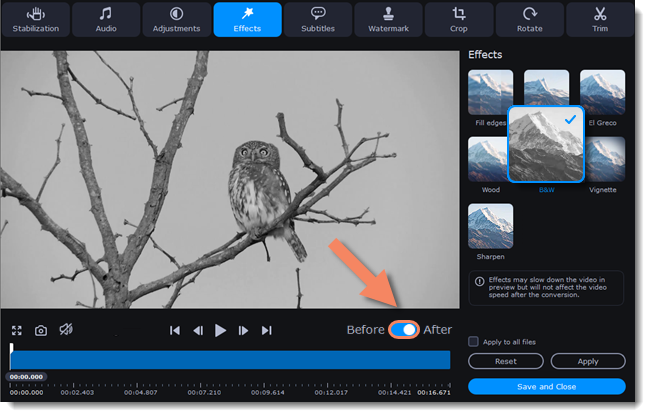
From Movavi's Mac help on conversion options: the Edit window with the Effects tab, the B&W effect applied and the Before/After switch, and tabs for Stabilization, Audio, Adjustments, Subtitles, Watermark, Crop, Rotate and Trim.
AI upscaling, compression and subtitle search
Movavi Video Converter for Mac's AI upscaling raises the resolution of grainy clips by up to 8 times, compression shrinks big files for sharing, and online subtitle search finds and adds subtitles for foreign-language films. Batch conversion and lossless merging of several files are included.
Benefits
- Everything opens in Apple's apps. Convert once and the file works in QuickTime, Photos, iMovie, Final Cut Pro and on your iPhone.
- Fast on large files. SuperSpeed skips re-encoding when it can, which matters most for long recordings.
- One tool for three jobs. Video, audio and image conversion share the same window and presets.
Real-World Uses
- Camcorder archives: turn AVCHD/MTS folders into MOV or MP4 for Photos or iMovie.
- MKV downloads: remux to MP4 so they play in QuickTime and on Apple TV, keeping the original quality.
- Photo batches: convert a folder of images to JPG in one go for a website or an email.
- Old family videos: upscale low-resolution clips before adding them to a slideshow.
Who It's For, and Who Should Skip It
Good fit: Mac users with mixed media from cameras, Windows PCs and downloads, who want point-and-click presets rather than encoder settings.
Skip it if:
- Your Mac runs macOS 11 or older. The current version needs macOS 12.
- You only need MP4 or MKV now and then. Free HandBrake for Mac covers that if you're comfortable with its settings.
- You need protected DVD or Blu-ray ripping. The converter doesn't handle copy-protected discs.
- You want to edit, not just convert. Movavi Video Editor for Mac is the better buy.
Usage Guide
- Install: open MovaviVideoConverterSetup.dmg and run the installer. It downloads the app, so stay online.
- Add files: click Add Media or drag files into the window.
- Edit (optional): click Edit next to a file to trim, crop, add subtitles or adjust audio.
- Choose a format: pick it in the Video, Audio, Images or Devices tab, or type it in the search box.
- Convert: choose a folder with Save to and click Convert.
Tips
- Use "Original Size" presets for SuperSpeed. Keeping the source codec and resolution is what lets the converter remux instead of re-encode.
- Test an awkward file first. Because codec support depends on macOS, run one sample of your oddest format through the trial before you buy.
Where it falls short
- "Free" expectations. Trustpilot's most frequent complaint about the converter is that the free download is a limited trial.
- Older Macs. macOS 12 is the minimum, and installation on older machines has tripped some users up.
- Bundle upsells. The order page and app push Video Suite and Video Editor alongside the converter.
What Users Say
Mac users
- Mike L (5 stars on Trustpilot, April 2026), "I had some issues loading the converter…": "I had some issues loading the converter software on my older iMac."
- Patricia Batton, designer, quoted on Movavi's Mac product page: "Excellent program and does just what I need in the way of converting the mts files I am using to the Quicktime format I need for the finished product."
- Movavi's Mac product page shows 5.0 from 57 reviews collected by Movavi itself.
Trustpilot: the converter overall
Movavi's Trustpilot page (all products, Windows and Mac) showed a TrustScore of 3.5 out of 5 from 22,156 reviews on October 31, 2026.
- Jakub (5 stars, July 2025), "Very convenient converter": "Perfect for changing the format of video materials and embedding subtitles."
- Alex Curutiu (5 stars, April 2025): "Excellent product, I am using video converter since many years and it is a really great product."
- Travis Smith (1 star, May 2026): "you can't really do anything without a paid subscription."
- Fred S. (1 star, May 2025): "Very sneaky of you to say free WTV to MP4 converter and then after going through 2 minutes of an install say NOPE"
- Robyn Freedman (1 star, March 2026), "Purchased software specifically to go from MP4 to JPEG": "Purchased software specifically to go from MP4 format to jpeg forward which it site states it can do."
Press quoted by Movavi
Movavi's Mac page quotes Macworld: "Movavi makes converting the format of your video content quick and ease." and TopTenReviews: "It's incredibly easy to learn and use. It converts videos faster than any product we tested."
The pattern: regular users like how quickly the converter handles awkward formats, especially camera MTS files, and how simple it is. Most complaints come from people expecting a free tool, plus occasional installation trouble on older Macs and one-off format disappointments. The 7-day trial is the place to check your own files.
Comparisons
Movavi Video Converter for Mac vs HandBrake for Mac
HandBrake is free and runs natively on Apple silicon, but it only writes MP4, MKV and WebM and always re-encodes. Movavi's converter writes many more formats including MOV and audio and image formats, and its SuperSpeed remux is much faster when the codec can stay the same. HandBrake suits tinkerers; Movavi suits people who want presets.
Movavi Video Converter for Mac vs QuickTime Player
QuickTime's Export As command re-saves files it can open as MOV in a few resolutions, for free. It can't open MKV, AVI or WMV files and offers no other output formats, which is where Movavi's converter earns its price.
Editions and Pricing
Prices on the Movavi Video Converter order page linked from the Mac product page, October 31, 2026:
| Plan | Price | Term | Updates |
|---|
| 1 month | $19.95 | Renews monthly | All updates while subscribed |
| 1 year | $54.95 (regularly $79.95, offer until November 1, 2026) | Renews yearly | All updates while subscribed |
| Lifetime | $109.95 | One-time | Minor updates within the version bought |
Each plan has a 14-day money-back guarantee for technical problems that can't be solved. Prices can vary by country.
FAQs
Does Movavi Video Converter for Mac run natively on M1, M2 and M3 Macs?
Yes. Movavi Video Converter for Mac supports Apple M1 and later chips as well as 64-bit Intel processors, on macOS 12 Monterey or later.
Can Movavi Video Converter for Mac convert video to audio?
Yes. Drag the video into Movavi Video Converter for Mac, choose an audio format such as MP3 in the Audio tab and click Convert. The trial saves only half of the audio length.
Will it work on macOS Big Sur or Catalina?
Not the current version. Movavi Video Converter for Mac 24.5 requires macOS 12.0 or later.
Is Movavi Video Converter for Mac safe to install?
Yes. Movavi Video Converter for Mac is downloaded from Movavi's own servers as a small DMG installer that fetches the app. Movavi's Mac page states the program and its website are safe to use.
How much disk space does it need?
Movavi Video Converter for Mac needs 140 MB to install and 750 MB for ongoing operations, plus room for your converted files.
Can Movavi Video Converter for Mac convert images?
Yes. Movavi Video Converter for Mac recognizes popular image formats: drag the images in, choose the output format in the Images tab and click Convert.
System Requirements
- macOS: 12.0 Monterey or later
- Processor: 64-bit Intel processor, or Apple M1 or later
- Graphics: NVIDIA GeForce series 8, Intel HD Graphics 2000, AMD Radeon R600 or higher, with up-to-date drivers
- Memory: 4 GB RAM
- Display: 1280 × 768, 32-bit color
- Disk: 140 MB to install, 750 MB for ongoing operations
Conclusion
Movavi Video Converter for Mac is a good buy for Mac owners who keep running into files Apple's apps won't open. It covers far more formats than QuickTime, is much simpler than HandBrake, and its SuperSpeed remuxing makes MKV and MTS conversions fast and lossless. At the $54.95 sale price the yearly plan is fair value; after November 1, 2026, the $109.95 lifetime license is the better deal if you'll use it for more than a year or so.
The main reason not to buy: if you convert a file only now and then, a free tool will do, and the trial's watermark and half-length limits won't finish the job for you. Use the 7-day trial to test your trickiest files first.
Download Free TrialBuy Now