Kernel Extractor for PDF: Pull Images, Text and Links Out of PDFs in Bulk
Kernel Extractor for PDF is a Windows tool from KernelApps, $29 for a one-year Personal License, that extracts the images, text, bookmarks, comments, hyperlinks and metadata from PDF files, many at a time, and saves each kind in its own folder. It's for anyone who needs the pictures or words inside a PDF as separate files, not a converted copy of the whole page.
Getting images out of a PDF usually means screenshots, which lose resolution, or an Acrobat Pro subscription. Copying text out of a long PDF by hand mangles the line breaks. This tool saves the embedded images in their original quality and dumps the text to TXT, DOCX, HTML or PDF.
Quick facts
- Version: 24.1 (released July 2024)
- Developer: KernelApps Pvt. Ltd. (Kernel Data Recovery), Noida, India
- Platform: Windows 11, 10, 8.1, 8, 7, Vista, XP and Windows Server 2022, 2019 and older
- Extracts: images (JPEG, PNG, GIF, TIFF, BMP); text, bookmarks, comments, hyperlinks and metadata (TXT, PDF, HTML, DOCX)
- Price: $29 Personal (1 year), $99 Corporate (1 year), $199 Technician (1 year); 2-year licences $49, $179 and $359; one payment on the order page
- Trial: extracts the first page of each PDF you add
- Refund: 30-day money-back policy, limited to cases where the full version fails where the trial worked
What we checked: the installer (198 MB, dated June 27, 2024) on the vendor's server, and the order page, which showed $29 for Kernel Extractor for PDF - Personal License (Yearly Subscription) and the five other licences at the prices in the table below, on November 17, 2026. We didn't extract files ourselves, so output quality is the vendor's and its users' claim.
Download Free TrialBuy Personal LicenseBuy Corporate LicenseBuy Technician License
Overview
Kernel Extractor for PDF looks like Kernel's PDF Converter: a file list on the left, a preview on the right, and a Filter for Extraction panel underneath. The difference is the six tabs in that panel: Image, Text, Bookmark, Comment, Hyperlink and Metadata. Tick what you want from each tab, set its output format, choose the pages, and click Extract. The output lands in a dated "PDF Extractor" folder with sub-folders such as Extracted Images and Extracted Text.
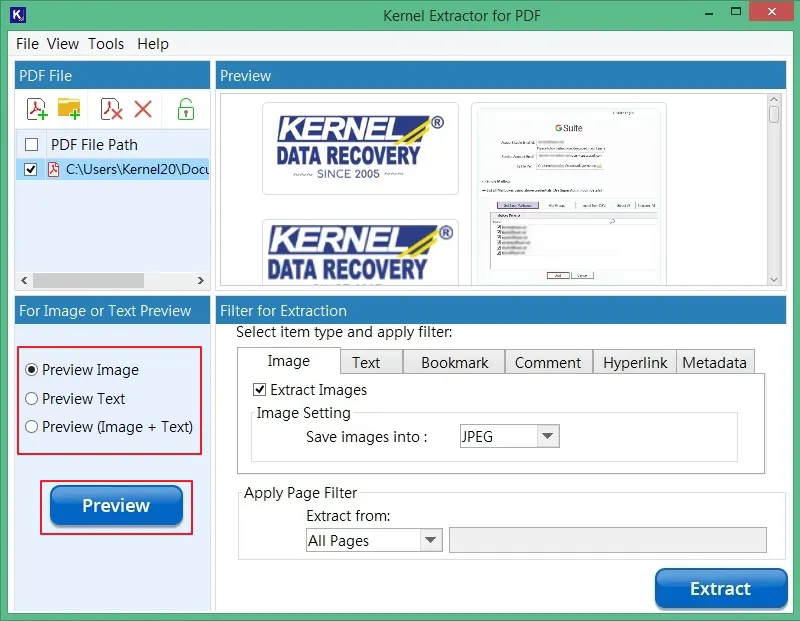
The main window: the PDF list, the image preview, and the six extraction tabs with the page filter below.
Features
Images in their original quality
Kernel Extractor for PDF saves every embedded image as JPEG, TIFF, GIF, PNG or BMP without re-rendering the page, so photos come out at the resolution they were placed in the PDF. Preview Image shows them as thumbnails first, and you can click one to see it on its own.
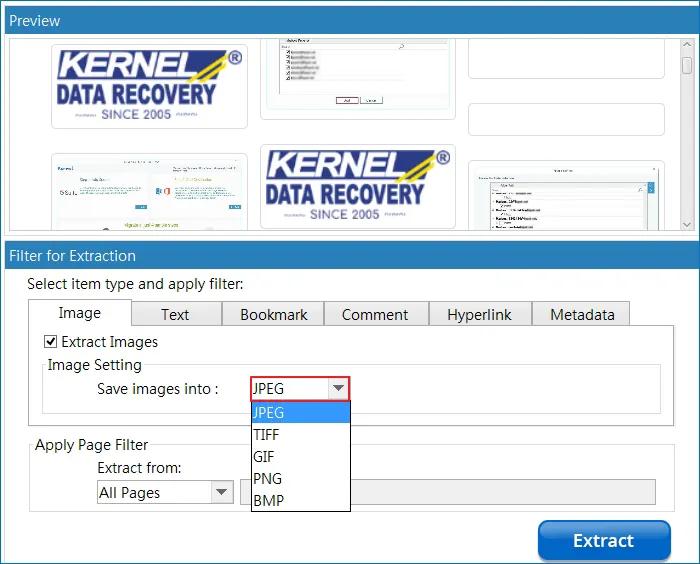
The Image tab: tick Extract Images and choose the image format.
Text to TXT, PDF, HTML or DOCX
Kernel Extractor for PDF pulls the text of each PDF into a TXT, PDF, HTML or DOCX file. Preview Text shows what it will get before you extract, which is a quick way to check whether a PDF has real text or only scanned images.
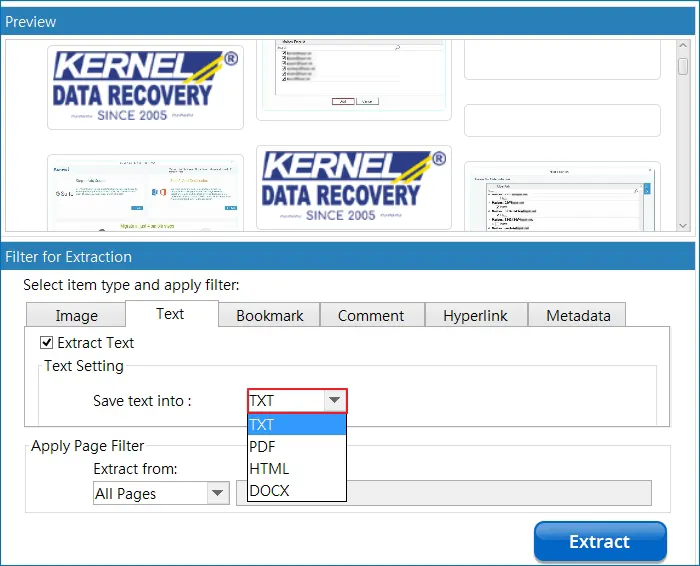
The Text tab and its four output formats.
Bookmarks, comments, links and metadata
Kernel Extractor for PDF also exports the bookmarks (title, page number and level), comments left by reviewers, every hyperlink in the document, and the file's metadata (path, name, size, timestamps, page count). These are the parts most PDF converters ignore, and they're handy for auditing a contract's review history or checking a report's links.
Batches, page filters and passwords
Kernel Extractor for PDF takes many PDFs or a folder at once and extracts them all in one click, from All, Even or Odd pages, Page Ranges or Page Numbers. Password-protected PDFs work once you type the password. Before extracting, it offers to show you the item filters for review, and afterwards it writes a TXT log listing any file that failed.
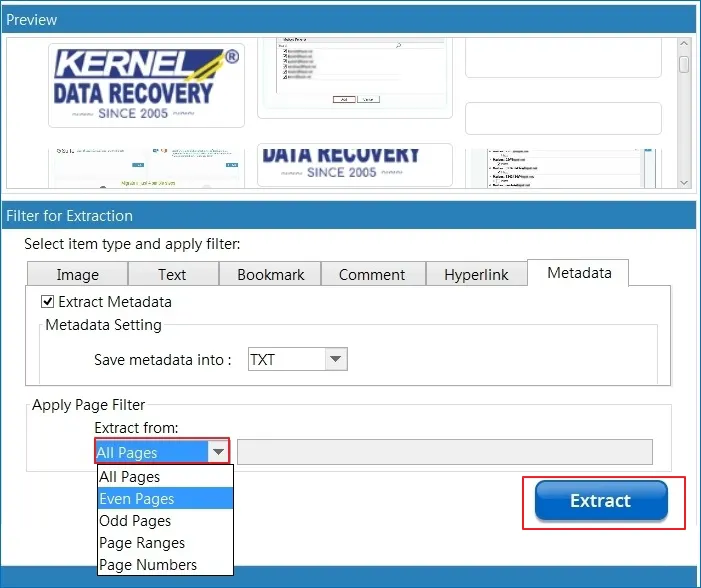
The page filter, shown here on the Metadata tab.
Benefits
- Original images, not screenshots. Product photos and charts come out at full quality.
- Everything sorted. Images, text, links and comments land in separate labelled folders.
- Offline and in bulk. A folder of PDFs processed on your own PC, with nothing uploaded.
- Cheap for occasional heavy jobs. $29 for a year of personal use.
Real-World Uses
- Reusing catalogue photos. Pull every product image out of a supplier's PDF catalogue for your web shop.
- Quoting a report. Extract the text of a long PDF to DOCX and copy passages without broken lines.
- Checking links. Export all hyperlinks from a set of brochures or e-books and test them.
- Collecting review comments. Gather the comments reviewers left on a contract draft into one file.
- Indexing an archive. Export metadata from a folder of PDFs to see page counts and dates at a glance.
Who It's For, and Who Should Skip It
It's for designers, marketers, researchers and office staff on Windows who regularly need the images or text out of PDFs, and especially for anyone handling many PDFs at once.
Skip it if you want a whole page in another format (a PDF as an editable Word document with its layout): that's a converter's job, such as Kernel PDF Converter. Skip it too for scanned PDFs, since there's no OCR listed and a scan's "text" is an image. And if you need images from one PDF once, a free online extractor will do.
Usage Guide
- Download and install the trial, then launch Kernel Extractor for PDF.
- Click the add-file or add-folder button (or File, Add File) to load PDFs.
- Select a PDF and choose Preview Image, Preview Text or Preview (Image + Text), then click Preview.
- On each tab you need (Image, Text, Bookmark, Comment, Hyperlink, Metadata), tick the extract box and pick the output format.
- Under Apply Page Filter, choose all pages or a subset, then click Extract.
- Click Continue (or Review to check the filters), choose the destination, and open the output folder from the completion message.
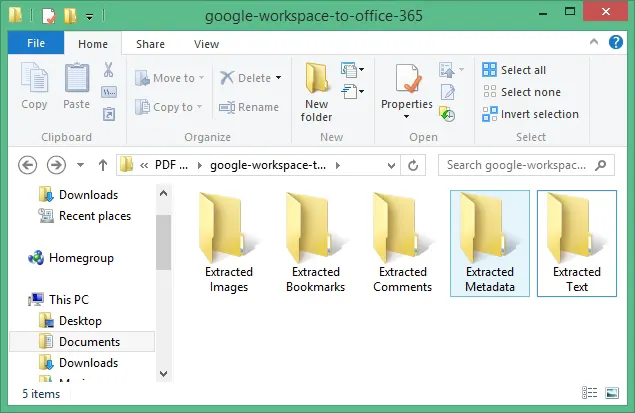
The output: one sub-folder per item type.
Before you buy
- Test with the trial. It extracts the first page of every PDF you add, with every item type, which is enough to check image quality and text order.
- Licences last 1 or 2 years. The Personal licence covers one year and 25 files, with no automatic renewal at checkout.
- 25 files is a low cap for batch work; Corporate allows 100 and Technician unlimited.
- The refund policy is narrow. Kernel refunds when the full version gives different results from the trial, after support has tried to fix it, not for a change of mind.
Download Free TrialBuy Personal License
Where it falls short
- No OCR listed. Scanned pages give you images, not text.
- Text loses its layout. Extraction gets the words; tables and columns aren't rebuilt.
- Time- and file-limited licences, where many simple extractors are sold once.
- Windows only, with a 198 MB installer.
What Users Say
Reviews we could find
We found no independent hands-on review of Kernel Extractor for PDF, and the vendor's page shows no customer quotes for it. KernelApps as a company holds a 4.9 out of 5 TrustScore from 167 reviews on Trustpilot; none of the recent ones names this tool, and most praise Kernel's support staff for quick, patient help with its email and migration products.
That makes the one-page trial your best evidence. Run it on the PDFs you actually work with.
Comparisons
Kernel Extractor for PDF vs Kernel PDF Converter
Both cost $29 a year for personal use. The Extractor pulls out the pieces (images, text, links, comments, bookmarks, metadata). The Converter turns whole pages into Word, Excel, PowerPoint, image or e-book files. Buy the one that matches what you need to end up with.
Kernel Extractor for PDF vs free online extractors
Online image extractors handle one file at a time and need an upload. Kernel's tool works offline on whole folders and also extracts text, links, comments and metadata.
Editions and Pricing
Each Buy button orders that exact licence and term, as a one-time payment with no automatic renewal. Personal is for home use, Corporate for use within one organization, Technician for consultants and service providers. All include 24x7 technical support by chat, email and phone, according to the vendor.
FAQs
Does Kernel Extractor for PDF reduce image quality?
No. Kernel Extractor for PDF saves the images embedded in the PDF without changing their quality, in the format you choose (JPEG, PNG, GIF, TIFF or BMP).
Can Kernel Extractor for PDF read scanned PDFs?
Kernel Extractor for PDF doesn't list OCR. From a scanned PDF it can save the page images, but it won't turn them into text.
Can I extract only from certain pages?
Yes. Kernel Extractor for PDF extracts from all pages, even or odd pages, page ranges or specific page numbers.
Does it open password-protected PDFs?
Yes, if you know the password. Kernel Extractor for PDF asks for it when you add a locked PDF, then extracts as normal. It doesn't recover unknown passwords.
Where does the output go?
Kernel Extractor for PDF saves to a folder you choose, inside a "PDF Extractor" folder named with the date and time, with one sub-folder per item type.
Is there a Mac version?
No. Kernel Extractor for PDF runs on Windows, from XP to Windows 11, and on Windows Server.
System Requirements
- Windows 11, 10, 8.1, 8, 7, Vista, XP or Windows 365; Windows Server 2022, 2019 and older
- Intel Pentium compatible (x86, x64) processor
- 64 MB RAM minimum
- 250 MB of disk space, plus room for the extracted files
Conclusion
Kernel Extractor for PDF is worth $29 if you regularly need the images or text out of PDFs on Windows, especially in batches. Its edge over a converter or a screenshot is that it gets the original images and the less obvious parts (links, comments, bookmarks, metadata) into tidy folders in one run. The reasons to hold back are the yearly, file-capped licence and the lack of OCR for scans. Run the first-page trial on your own files; if the images and text come out as you need, the Personal licence covers home use and Corporate an office.
Download Free TrialBuy Personal LicenseBuy Corporate LicenseBuy Technician License