WinToHDD Professional: Reinstall or Clone Windows Without a USB Drive
WinToHDD Professional is a $29.95 one-time Windows tool from Hasleo Software that reinstalls Windows from an ISO file, installs it on another disk, or clones it to a new drive, with no DVD or USB stick. It suits home users and technicians who reinstall Windows more often than they want to make boot media.
A free edition covers the same core jobs on Windows Home. Pro matters when the PC runs Windows Pro, when you want BitLocker or 4K-sector disks, or when it's a work machine.
Quick facts
- Version: 7.0, installer dated June 2, 2026
- Developer: Hasleo Software
- Installs: Windows 11, 10, 8.1, 8, 7, Vista and Windows Server 2008 or later, 32-bit and 64-bit
- Image sources: ISO, WIM, ESD, SWM, VHD and VHDX files
- Price: $29.95 once for 2 PCs, with lifetime free upgrades
- Free edition: yes, for home use on Windows Home
- Refunds: up to 30 days, for technical problems that support can't solve
- What we checked: installer file version 7.0.2.2 (36.6 MB) downloaded from the vendor and checkout price $29.95 on November 6, 2026. We read the version from the file's properties and didn't run a reinstall or a clone
Download Free TrialBuy Now
Before you buy
- Back up first, and check the target disk twice. Reinstalling wipes the chosen partitions, and Hasleo says formatting is irreversible. One forum user reported that a failed clone formatted the wrong internal SSD.
- You still need a Windows license and an ISO. WinToHDD installs Windows, it doesn't supply it.
- Check your Windows edition. The free edition doesn't run on Windows Pro or Enterprise, so you'll see quickly whether you need to pay.
- The Windows 11 bypass has a catch. WinToHDD can skip the TPM 2.0 and RAM checks, but Microsoft doesn't support Windows 11 on hardware below its requirements.
Overview
Reinstalling Windows normally means finding a USB stick, writing the installer to it, and changing the boot order. WinToHDD skips that. You point it at an ISO on your hard drive, choose the target, and it builds a small WinPE environment, restarts the PC, and runs the install from there.
Its home screen has four jobs: Reinstall Windows, New Installation, System Clone and Multi-Installation USB. The last one is for technicians: one USB drive holding several Windows ISO files, which boots on both BIOS and UEFI PCs.
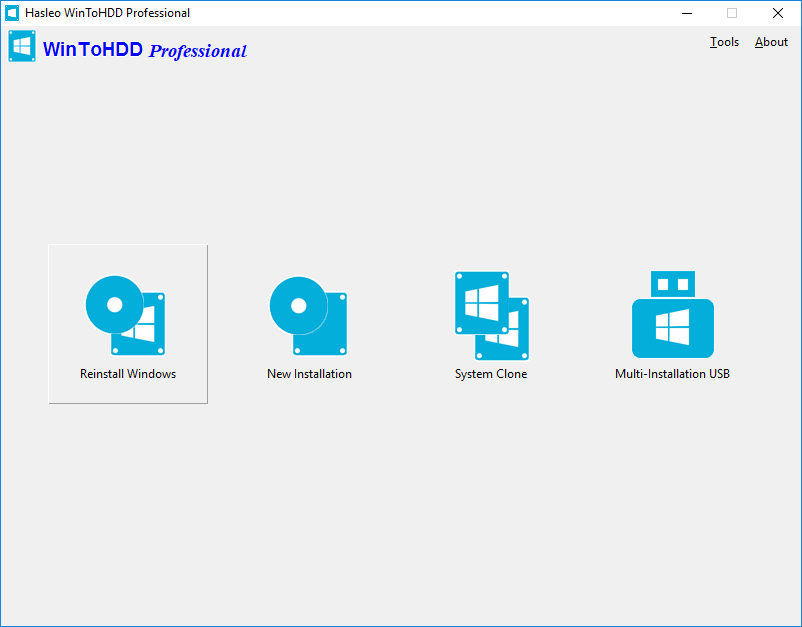
The four jobs: Reinstall Windows, New Installation, System Clone and Multi-Installation USB.
Features
Reinstall Windows from an image file
WinToHDD Professional reinstalls Windows 11, 10, 8.1, 8, 7, Vista or Server 2008 and later directly from an ISO, WIM, ESD, SWM, VHD or VHDX file. It selects the target disk and partitions for you, then restarts into WinPE to finish.
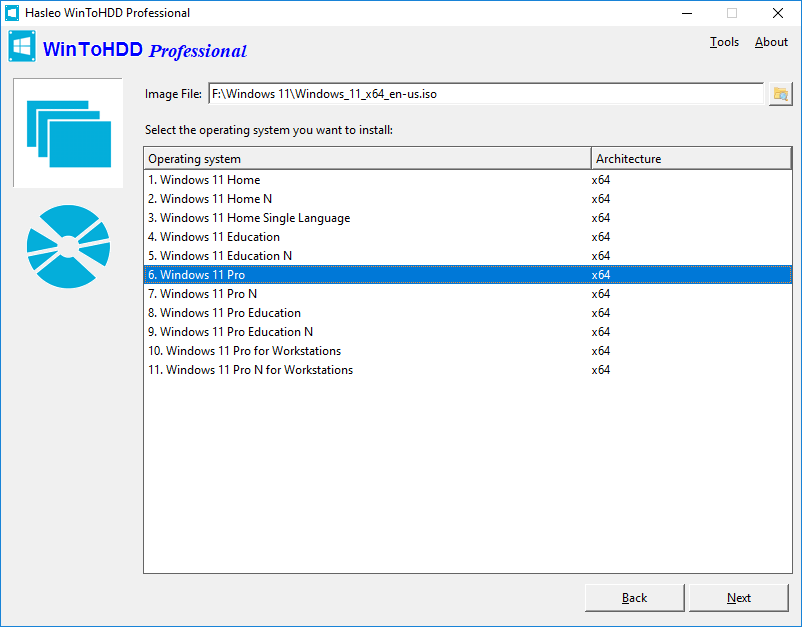
After you pick an ISO, WinToHDD lists the editions inside it.
Install Windows on another disk
WinToHDD Professional puts a fresh Windows on a disk other than the one you're running from, from an image file or a CD/DVD drive, and leaves your current system in place.
Move Windows to a new SSD
WinToHDD Professional clones your existing Windows to a new HDD or SSD, so you don't reinstall your programs. Pro clones faster than the free edition and handles 4K-sector disks. To copy a whole non-system disk, Hasleo points you to its separate Disk Clone tool.
A single USB drive for many Windows versions
WinToHDD Professional creates a multi-installation USB that holds several ISO files and installs any Windows from Vista or Server 2008 onward, 32-bit or 64-bit, on BIOS and UEFI PCs. It also carries the system clone feature.
Windows 11 setup options
WinToHDD Professional can bypass Windows 11 requirements such as TPM 2.0, RAM and the internet connection. The target screen also has tick boxes to skip the online account requirement, prevent automatic device encryption, turn off privacy data collection, and create a local account.
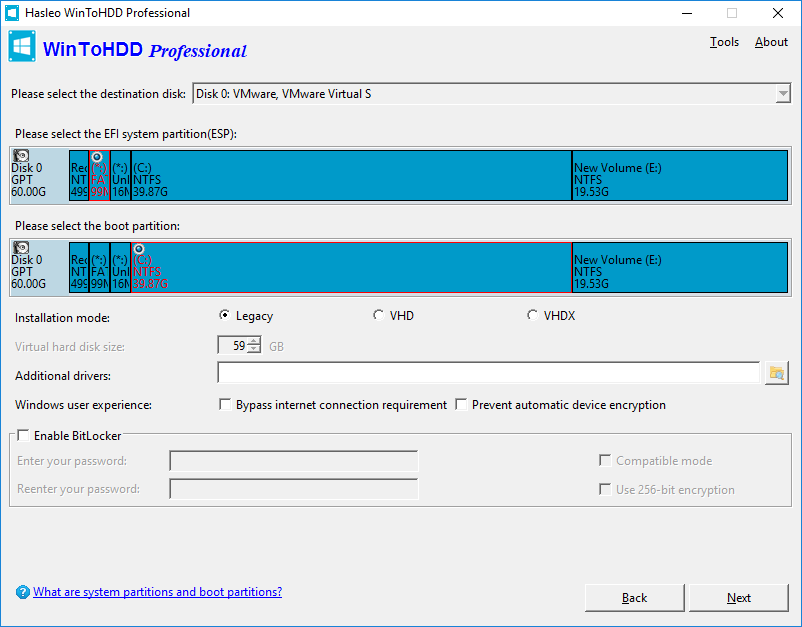
The target screen: disk map, installation mode, setup options and BitLocker.
BitLocker during install
WinToHDD Professional can encrypt the Windows partition with BitLocker as it installs or clones. The free edition can't.
Benefits
- You skip making boot media. That saves a USB stick and a trip to the firmware menu, which helps most on a PC that's awkward to boot from USB.
- You choose the setup up front. Local account and privacy choices are made once, on one screen.
- One license covers two machines, and upgrades are free for life, so it stays useful as Windows moves on.
Real-World Uses
- A slow PC needs a clean start. You download the Windows ISO, run Reinstall Windows, and let it restart. Your files on other partitions stay, though you should still back them up.
- You bought an NVMe SSD. You fit it, run System Clone, and boot from the new drive with your programs intact.
- A repair shop bench. You keep one USB drive with Windows 11, 10 and 7 ISO files on it and boot it on whatever comes in.
- An older PC fails the Windows 11 check. You install it anyway, accepting that it's unsupported.
Who It's For, and Who Should Skip It
Buy it if you run Windows Pro or Enterprise, need BitLocker or 4K-sector disk support, or use it for work. Those are the things the free edition blocks. At $29.95 it's priced for one job well done.
Skip it if you're on Windows Home and just need a reinstall, because the free edition does that. Skip it too if you want to clone data disks (Hasleo Disk Clone is the vendor's own answer) or back up on a schedule. For servers you need Enterprise at $199.95. People who rely on a screen reader should test it first, since Hasleo said in 2021 that its interface library didn't support screen readers.
Usage Guide
- Download and install WinToHDD, and download the Windows ISO you want.
- Back up anything important, then open the program and pick Reinstall Windows.
- Browse to the ISO, choose the Windows edition and click Next.
- Confirm the target disk and partitions it selected, set the options you want, and click Next.
- Answer Yes to create the WinPE and restart. The install carries on by itself.
- To register, click About, then Activate license, enter the license code from your order email, and restart WinToHDD.
Where it falls short
- A failed job can leave a mess. The worst forum report we found describes a clone that stopped with an error and left a different internal SSD reformatted. Hasleo couldn't undo it.
- Boot errors happen. Hasleo's forum has threads on INACCESSIBLE_BOOT_DEVICE and 0xc000000f errors. In the first, on a Windows drive fitted in a DVD bay, support sent the user to the hardware maker.
- It depends on admin rights. A user who got "A required privilege is not held by the client" was told to run it as administrator.
- Public reviews are old and short. The review quotes Hasleo shows date from 2017 and 2018.
What Users Say
WinToHDD is widely listed but rarely reviewed in depth. These are the words we could verify, from two download sites as quoted on Hasleo's page, and from Hasleo's forum.
Download-site reviews
"WinToHDD allows more installation types than most other programs of the same type. When tried, it worked exactly as described by its developer... I am glad that this product can be used for free if you have non-commercial purposes." software.informer.com, July 10, 2018
"WinToHDD offers a method to conveniently install or clone Windows without a disc or a bootable drive. This alternative will surely have its public, especially since it is easy to use and should pose no problems to the average user." softpedia.com, May 22, 2017
Hasleo forum
"So, I was trying to clone windows 11 from one sdd nvme to an external one. I used wintohdd, chose the external sdd. It did a few things and asked to restart the system. After a while it did not progress and gave an error ( don´t remember the big number that appeared ). After rebooting, I saw that wintohdd "formatted" another internal ssd" Tecoboy, July 2023
"I am very sorry that formatting is irreversible, you can only try to recover as many lost files as possible using data recovery software." Hasleo support, replying to Tecoboy
"Goodmorning I got Hasleo WinToHDD by free offer When I downloaded and installed it, I noticed that the screen reader could not move inside it" MesterPerfect, May 2021
The pattern: reviewers like how simple it makes a job that usually needs boot media, and the complaints are the ones you'd expect from a tool that rewrites disks. It works, and when it goes wrong, the damage can be real.
Comparisons
WinToHDD vs WinToUSB
WinToHDD installs Windows on an internal or fixed disk. WinToUSB, also from Hasleo, installs a portable Windows that runs from a USB or external drive. Choose by where Windows should live.
WinToHDD vs Windows' own Reset this PC
Reset this PC is free and needs no image file, and it's the first thing to try on a healthy PC. WinToHDD adds a choice of Windows version, cloning, a multi-install USB and the Windows 11 bypass.
Editions and Pricing
| Edition | Price | PCs | Windows supported | Adds |
|---|
| Free | $0 | Not stated | Home editions | Install, reinstall, clone, multi-install USB. Home use only |
| Professional (this listing) | $29.95 at checkout | 2 PCs | Home, Pro, Enterprise | BitLocker, 4K-sector disks, faster clone, business use, lifetime upgrades, support |
| Enterprise | $199.95 at checkout | Unlimited, same site | Adds Windows Server | Site license |
FAQs
Does WinToHDD delete my files when it reinstalls Windows?
WinToHDD replaces what's on the Windows partition it reinstalls to, so anything there is gone. Files on other partitions aren't part of the job, but a backup is still the safe plan, since a failed run can damage more than you intended.
Is WinToHDD really free?
WinToHDD has a free edition for home users on Windows Home editions. It covers install, reinstall, clone and the multi-install USB, but it doesn't run on Windows Pro or Enterprise and can't be used at work.
Do I need a Windows product key to use WinToHDD?
WinToHDD doesn't include a Windows license. It installs from your own image file, so you need valid Windows licensing for each PC you install on.
Can WinToHDD install Windows 11 on an unsupported PC?
WinToHDD can bypass the TPM 2.0, RAM and internet connection checks. Windows 11 then runs, but on hardware Microsoft doesn't support.
Does WinToHDD work with Secure Boot and the new Windows certificates?
WinToHDD is listed as fully compatible with GPT/UEFI and Windows UEFI CA 2023, and its target screen has an option to enable support for that certificate.
Can I get a refund if WinToHDD doesn't suit me?
WinToHDD falls under Hasleo's policy of up to 30 days, which covers technical faults support can't fix. A change of mind isn't covered, so use the free edition first.
System Requirements
- Windows Vista or Server 2008 or later, 32-bit or 64-bit
- 1 GHz Intel Pentium or compatible processor
- 1 GB of RAM, 2 GB recommended
- 1024 MB of free disk space
Conclusion
WinToHDD Professional is worth $29.95 if the free edition won't run on your Windows, or if you use it at work. The one reason to buy it is a clean Windows install or an SSD move with no boot media, on Windows Pro. The main reason not to is that Windows Home users get the core jobs free, and that any tool this close to your disks deserves a full backup first.
Download Free TrialBuy Now