AOMEI Backupper Professional: Windows Backup, Cloning and File Sync in One Program
AOMEI Backupper Professional is a $79.95 one-time Windows backup program for 2 PCs that images your system, disks and files on a schedule, clones Windows to a new SSD, and keeps folders in sync. It suits home users who want automatic backups and a drive upgrade tool in the same package.
Read the security warning below first. In October 2026 it came out that attackers had tampered with AOMEI's update servers earlier in the year, so anyone running an older version should act on that before anything else.
Quick facts
- Version: 8.5.1, released October 19, 2026
- Developer: AOMEI
- Platform: Windows 11, 10, 8.1, 8 and 7 (no Windows Server in this edition)
- Price: $79.95 once for 2 PCs, with lifetime upgrades
- Trial: 30 days
- Guarantee: 90 days money back, unconditional per the vendor
What we checked: trial installer version 8.5.1 (191 MB, digitally signed by AOMEI International Network Limited), AOMEI's incident statement and changelog, and the order page, which showed $79.95 for the lifetime license for 2 PCs, on November 6, 2026. We didn't run a backup or restore a system, so we can't speak to speed or reliability from our own testing.
Security warning: AOMEI's update servers were hacked
Attackers compromised AOMEI's servers and used AOMEI Backupper's own update and notification features to put a backdoor on some users' PCs, BleepingComputer reported on October 19, 2026. Google's Threat Intelligence Group, Mandiant and ManageEngine tracked the attack, which ran from April to July 2026. AOMEI lists three windows of 5 to 10 minutes each, on May 28, July 16 and July 20, 2026 (UTC). A PC that received the changed files in one of those windows may be at risk.
Affected organizations were in the United States, Australia, India, Singapore, Spain and Switzerland, in IT services, telecoms and higher education. AOMEI first suggested the content may have been intercepted in transit, which the researchers rejected. It has not confirmed how the attackers got in, and says it is still assessing the scope.
AOMEI released version 8.5.1 on October 19, 2026, and says it moved its update service to a new server and added signature checks. A server fix stops new infections, but it does not remove a backdoor already on a PC.
If you used AOMEI Backupper before version 8.5.1, AOMEI advises these steps, in this order:
- Run the AOMEI Security Scanner from the vendor's site. Updating doesn't replace this check.
- Update to AOMEI Backupper 8.5.1 from aomeitech.com.
- Update your security software and run a full scan.
- Change your Windows or domain account password, and the same password anywhere else you use it. AOMEI says changing a Windows Hello PIN alone isn't enough.
Download Free TrialBuy Now
Before you buy
- Lifetime here covers 2 PCs. The vendor's own store sells a 1-PC lifetime plan for less, so if you own one PC, compare the two.
- Test your rescue media. PCWorld found the recovery media Backupper 7 made wouldn't boot on real machines. Build yours and boot from it before you depend on it.
- Updates are manual now. Automatic in-app updating is switched off in 8.5.1, so check the vendor's site yourself every so often.
Overview
The window has a plain left-hand menu: Home, Backup, Sync, Clone, Tools. Each one opens a page of large tiles, so you pick a job, choose a source and a destination, and start. The free Standard edition uses the same layout, with paid features marked Pro. AOMEI's vendor guides show that edition's window in several screenshots here.
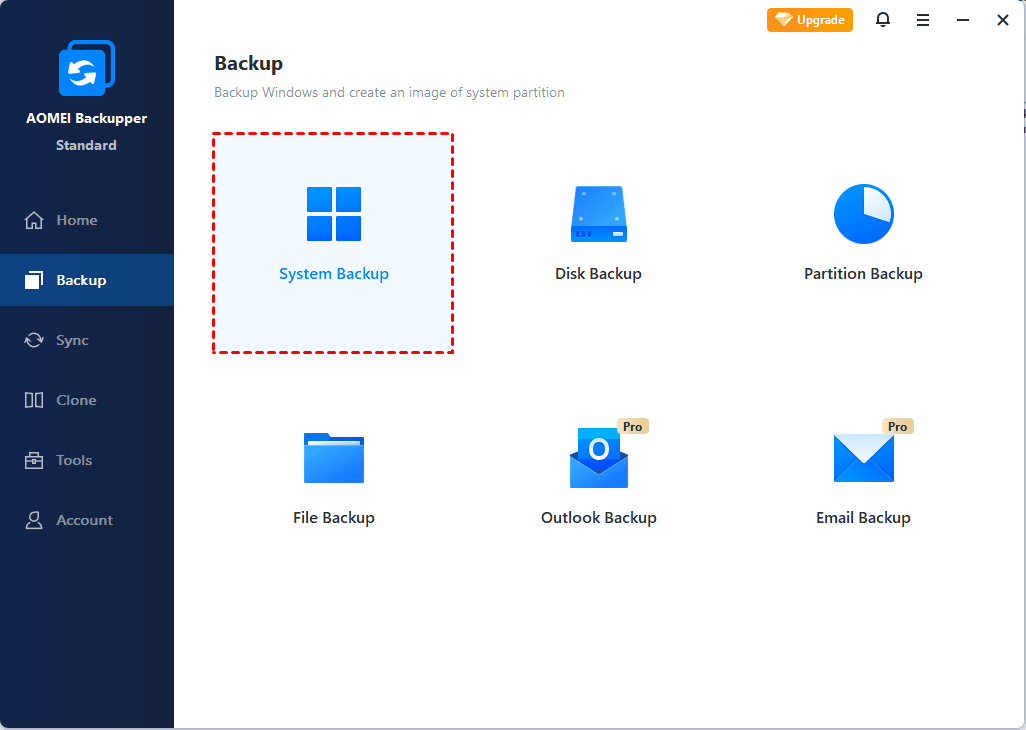
The Backup page, shown in the Standard edition. Outlook and Email Backup carry a Pro badge.
Features
Images the whole system, or just the files you care about
AOMEI Backupper Professional backs up the Windows system, whole disks, partitions, files and folders to internal or external drives, USB sticks, CD/DVD, a NAS or a network share. Email and Outlook backup are in this paid edition, and cloud backup is available as storage you buy on top.
Runs on a schedule and cleans up after itself
AOMEI Backupper Professional schedules backups daily, weekly or monthly, or fires them on events such as logon, shutdown or plugging in a USB drive. Incremental and differential backups save only what changed, and Backup Cleanup deletes old images by age or count so the destination doesn't fill up.
Clones Windows to an SSD without reinstalling
AOMEI Backupper Professional has System Clone for moving Windows and installed programs to a faster SSD, plus Disk Clone and Partition Clone. It can clone a large disk to a smaller one as long as the data fits, convert between MBR and GPT during the copy, and align partitions for SSDs.
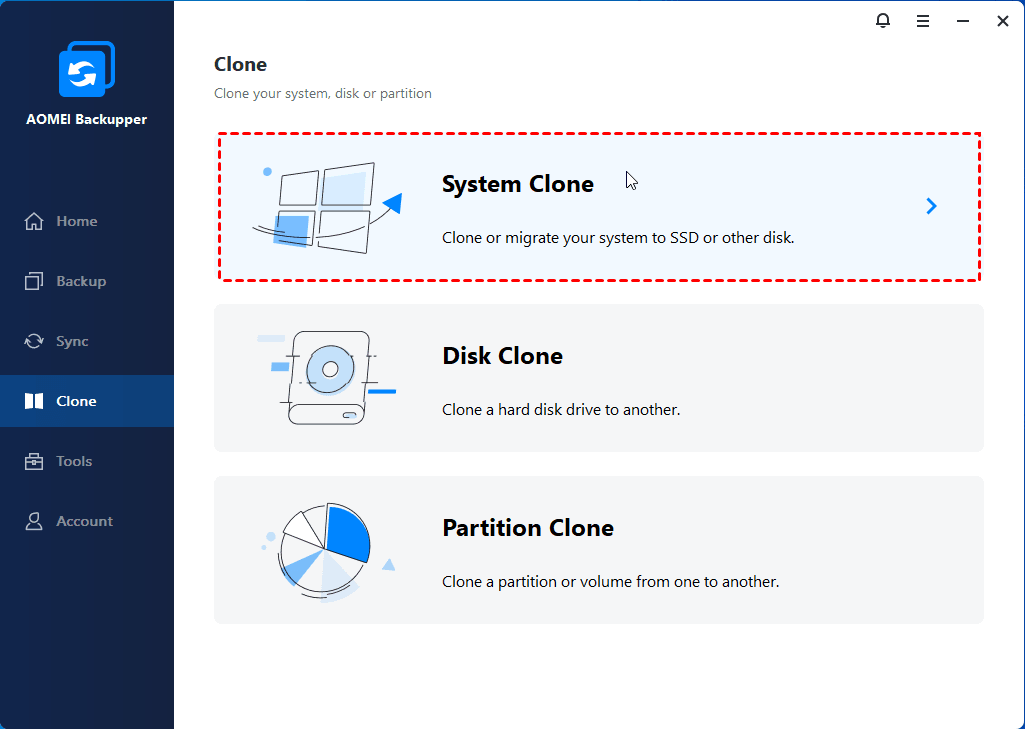
The Clone page offers System, Disk and Partition Clone.
Keeps folders in step with four sync modes
AOMEI Backupper Professional offers Basic, Real-Time, Mirror and Two-Way Sync. Real-Time Sync watches a folder and copies changes as they happen. Mirror Sync is the one to treat with care: it deletes anything in the destination that isn't in the source.
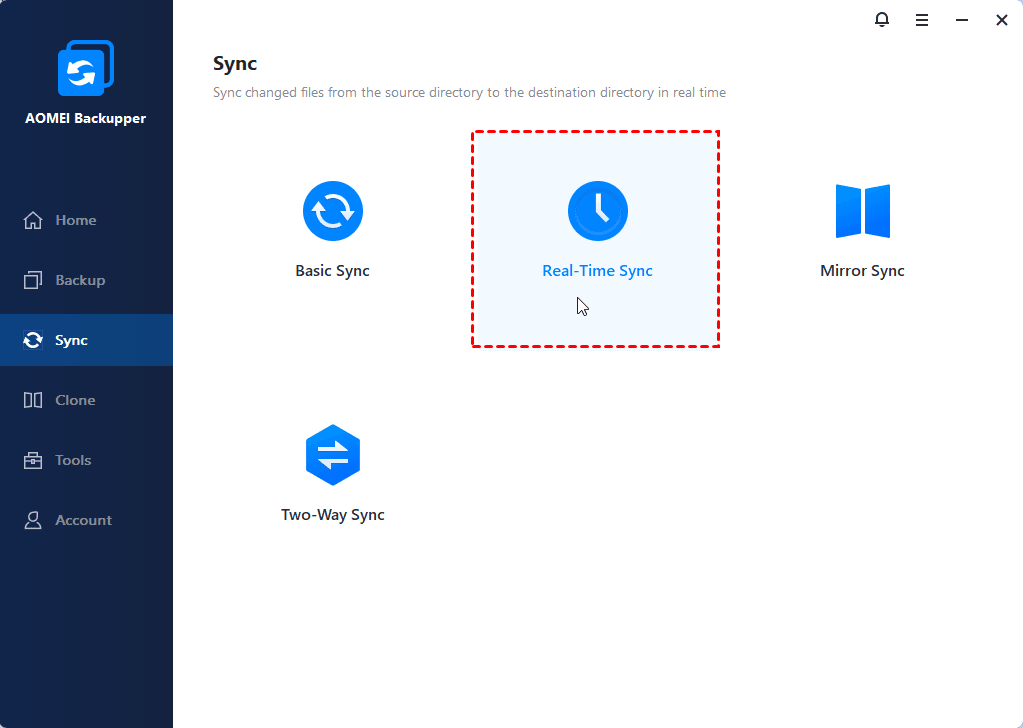
The Sync page, with Real-Time Sync selected.
Restores to different hardware
AOMEI Backupper Professional can restore a system image to another computer with different hardware, or move a physical machine to a virtual one. You can also mount an image as a virtual partition and copy out a single file instead of restoring everything.
Starts a dead PC from rescue media
AOMEI Backupper Professional builds a WinPE bootable disc or USB stick, with room to add drivers, so you can restore when Windows won't start. A Recovery Environment option adds a boot entry to the PC itself, and there's a Disk Wipe tool in the same Tools page.
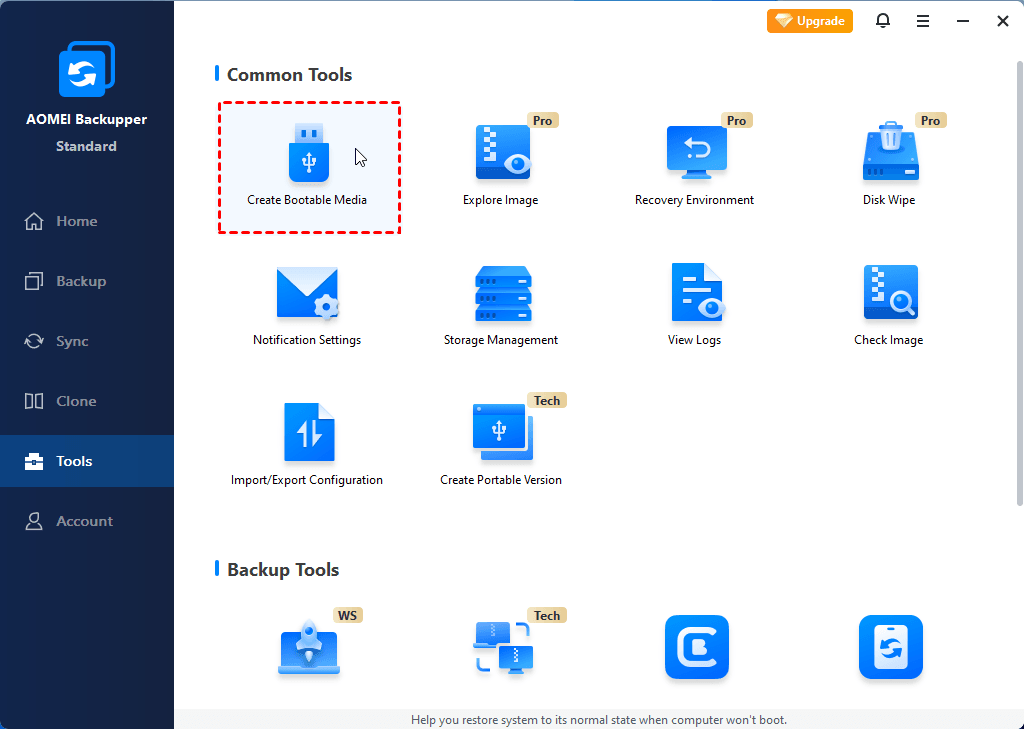
The Tools page. Create Bootable Media is the first tile.
Benefits
- One program for three jobs. You don't need separate tools for imaging, drive upgrades and folder sync.
- Backups that happen without you. Once a schedule is set, the point of a backup program is that you forget about it.
- A way back from a bad update. A system image returns the PC to the day it was taken.
- No subscription on this plan. You pay once and later versions are included.
Real-World Uses
- Moving a laptop from a hard drive to a larger SSD without reinstalling Windows.
- Taking a nightly incremental image of a work PC to a NAS.
- Keeping a project folder mirrored to an external drive as you edit.
- Pulling one deleted document out of last week's image.
- Moving an old PC's system image to a new machine with different hardware.
Who It's For, and Who Should Skip It
AOMEI Backupper Professional fits home users and enthusiasts with a Windows PC or two who want scheduled imaging and cloning in one tool.
Skip it if a basic image is all you need: the free Standard edition may do. Business use needs the Workstation edition or higher, and Windows Server needs the Server edition. Mac users need AOMEI's separate Mac product or another tool. If the 2026 incident makes you uneasy about AOMEI's infrastructure, that's a fair reason to choose a different vendor for software that runs with full access to your disks.
Usage Guide
- Download the trial from the vendor and install it.
- Enter your license code in the program if you've bought one.
- Open Backup and choose System Backup, or Disk, Partition or File Backup.
- Pick the destination, ideally an external drive or NAS rather than the same disk.
- Set the schedule and backup scheme in the options.
- Click Start Backup, then use Tools to make bootable rescue media.
- Boot from that media once to confirm the PC can start from it.
Where it falls short
- Boot media isn't always reliable. PCWorld's version 7 test found neither the Linux nor the Windows PE media would boot on real machines, the flaw that cost it half a star.
- No VHD or VHDX support, and PCWorld noted minor interface glitches.
- Mixed speed results. PCWorld found it fast, while TechRadar found EaseUS, O&O and Macrium faster.
- Errors still turn up. The changelog for 8.5.0 lists fixes for clone and backup error codes, including 4098 and 4107, in some environments.
- Trust. The update server incident above is a real mark against a program this privileged.
What Users Say
PCWorld: Jon L. Jacobi, Backupper 7, July 29, 2025
The verdict: "With the addition of online storage, Aomei Backupper 7 can now compete with other premium offerings." He liked "File backup, sync, and imaging in one program" and an "Interface is easy to learn and use", and found that "Backupper performed both quickly and without error."
His cons were "Minor interface glitches and sloppiness", "Doesn't support VHD/VHDX" and "Problematic boot disk creation": "neither the Linux or Windows PE recovery media that Backupper Professional created would boot properly on real machines".
TechRadar
TechRadar's review of the Backupper line found it simple to operate with a decent feature set and fair pricing. It marked the program down for slower performance than EaseUS, O&O and Macrium and for thin customer support, and noted the 90-day refund window as a plus.
Trustpilot: 4.9 out of 5 from 2,595 reviews
The ubackup.com page scores very high, with 3% 1-star and 1% 2-star ratings. Most reviews we read were about support and license resets, not backups, and those were written before many readers will have heard about the incident.
- Roy, October 30, 2026: "it really works man...no kidding old school programmers still doing a great job."
- Charles R Barbour, October 10, 2026: "almost always comes within 24 hours of my request, and always on point."
- Rene Rasmussen, October 10, 2026: "I had no problem getting Kamlee Kamlee from AOMEI support to reset my activation."
- Cody O, October 11, 2026, on a lost license, still 5 stars: "I was having trouble because my email didnt get saved or something."
The pattern: people like how easy it is and how quickly support resets licenses. Expert reviewers are less consistent on speed, and the boot media is the feature to check for yourself.
Comparisons
AOMEI Backupper Professional vs Standard
Standard is free and covers basic backup, restore, sync and clone. Professional adds faster reading from disk, differential backup, System Clone, Real-Time, Mirror and Two-Way Sync, Outlook and Email Backup, and restore to different hardware.
AOMEI Backupper vs Macrium and EaseUS
TechRadar found Macrium and EaseUS faster in its tests. Backupper's case is its price and the amount of sync and clone tooling for the money. Weigh that against the 2026 incident.
Editions and Pricing
| Edition | Price | License | Best for |
|---|
| Standard | Free | Home use | Basic backup and clone |
| Pro Yearly | $39.95 a year | 1 PC, auto-renews | Short-term use |
| Pro Lifetime (this listing) | $79.95 once | 2 PCs, lifetime upgrades | Two home PCs |
| Pro Family Lifetime | $89.95 once | 5 PCs, lifetime upgrades | Households |
| Workstation Yearly | $49.95 a year | 1 PC, business use | Office PCs |
| Server, Technician, Technician Plus | Higher | Servers or unlimited PCs | Companies and service providers |
AOMEI's store also sells a Yearly + 1 TB Cloud option, and its Pro Lifetime for one PC. Prices above were read on the order page or the vendor store on November 6, 2026.
FAQs
Is AOMEI Backupper safe to install after the 2026 attack?
AOMEI Backupper 8.5.1 is the version the vendor says fixes the update path, and our copy was validly signed by AOMEI. No one outside AOMEI has published a full account of how the attackers got in, so we can't call it risk-free. Download it only from the vendor's site.
Can AOMEI Backupper Professional back up Windows Server?
No. AOMEI Backupper Professional is for Windows 11, 10, 8.1, 8 and 7. Servers need the Server edition.
Can AOMEI Backupper Professional be used at work?
No. The vendor's comparison lists business use starting with the Workstation edition.
How do I move an AOMEI Backupper license to a new PC?
AOMEI Backupper licenses are reset by support. Trustpilot reviewers report getting a reset within about a day.
Does AOMEI Backupper include cloud storage?
Not in this plan. AOMEI sells 1 TB of cloud storage as an add-on, and PCWorld reported it at $30 extra on a perpetual license in 2025.
Can I get a refund on AOMEI Backupper Professional?
Yes. AOMEI offers a 90-day unconditional money-back guarantee and says its staff may ask for the reason.
Does the AOMEI Backupper lifetime plan renew?
No. The order page showed a lifetime term, while the vendor's yearly plans renew each year until you cancel.
System Requirements
- Windows 11, 10, 8.1, 8 or 7
- File systems: NTFS, FAT32, FAT16, EXT2, EXT3 and others
- Storage: internal and external HDD or SSD, USB flash drive, CD/DVD, NAS and hardware RAID
- 191 MB download
Conclusion
Verdict: on features, AOMEI Backupper Professional is good value at $79.95, covering imaging, cloning and sync for two PCs with no subscription. Experts disagree on its speed, and users are pleased with its support.
The one reason to buy it is getting all three jobs in one easy program. The main reason not to is the 2026 update server attack: this software runs with full access to your disks, and the vendor is still investigating. If you do buy, start from 8.5.1 and test your rescue media.
Download Free TrialBuy Now