Vovsoft Hide Files: Make Private Files, Folders and Drives Vanish Behind a Password
Hide Files is a $19 Windows folder locker from Vovsoft that hides files, folders and whole drives (including USB drives) so they disappear from File Explorer and searches until you unlock them with your master password. The $19 is a one-time lifetime license with free updates and the ability to recover a forgotten password; the free trial hides and locks too.
It's meant for a shared family or office PC where you'd rather nobody stumbled on your tax papers, photo albums or a surprise-party plan. Read the "Before you buy" box first, though: how it hides files means you need to keep its backups if you ever reinstall Windows.
Quick facts
- Version: 10.1, released October 10, 2026
- Developer: Vovsoft, the one-person software company of Fatih Ramazan Çıkan in Turkey
- Platform: Windows 11, 10, 8/8.1, 7 and Vista, 32-bit and 64-bit. No Mac version
- Protects: files, folders and drives on the same PC, behind one master password
- Method: moves locked items into a hidden directory, renames them and keeps their names in the Windows Registry; optional content encryption
- Edition: installer only (4.43 MB), no portable version
- Price: $19, one-time payment, lifetime license with free updates
- Trial: free, hides and locks, but no forgotten-password recovery, a nag screen and no commercial use
- Refunds: no money-back guarantee; refunds are at the vendor's discretion, mainly for accidental orders
- What we checked: the installer we downloaded from vovsoft.com on November 8, 2026 is version 10.1.0.0, 4.43 MB, digitally signed by Fatih Ramazan Çıkan; the order page showed $19.00 with no auto-renewal on November 8, 2026. We didn't install the program or lock any files.
Overview
Hide Files asks for a master password every time it starts. Its main window is a list of the items you've added, with a status (Locked or Unlocked) and type, and a big-button toolbar: Add File, Add Folder, Add Drive, Lock and Unlock. You tick the items you want, press Lock, and they vanish; press Unlock and they're back where they were.
Under the hood, the vendor explains, it moves locked items into a special hidden directory at the root of their drive, renames the files (to .db, or .dbx when encrypted) and stores the original names and locations in the Windows Registry. It's been around for years and is updated often: 2025 and 2026 brought Lock All Items on Exit, registry backups on exit, Add Subfolders, network-drive support in Recover Lost Files and, in 10.1, interface improvements.
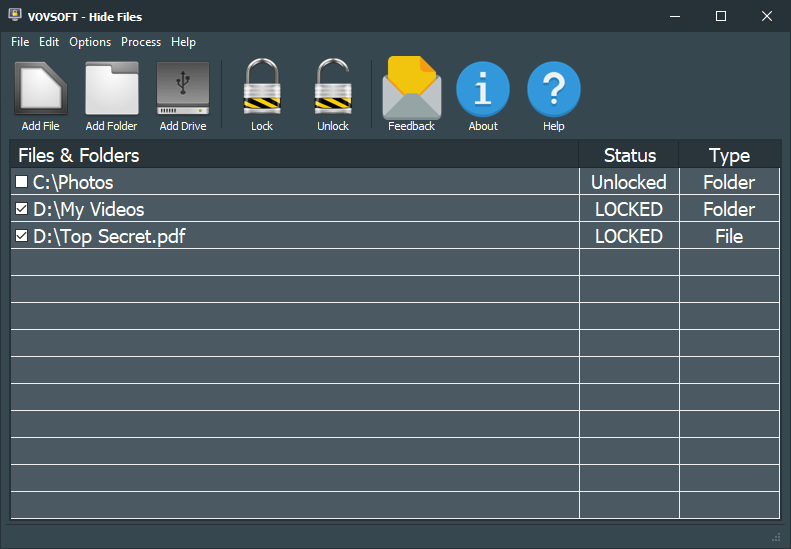
The main window: D:\My Videos and D:\Top Secret.pdf are locked, C:\Photos is unlocked.
Features
Hide files, folders and entire drives
Hide Files locks single files, whole folders (with Add Subfolders and Add Files in Folders options) and complete drives, including USB sticks. A locked item doesn't show in File Explorer and isn't found by a filename search, and the vendor says other users can't see it in safe mode or from the command line without significant technical knowledge.
One master password, fast locking
Hide Files protects everything with one master password, asked for at every launch, and locks or unlocks even large folders in seconds because it moves rather than rewrites the files. You can change the password from Edit, Change Password. Any Windows user account that knows the password can run it.

The password prompt at startup, with the Forgot Password link (licensed copies only) and the key icon for entering a license.
Optional content encryption
Hide Files can also encrypt the content of locked files (from the menu), using SHA256 and PKCS7 through the SynCrypto library and splitting big files into 100 MB pieces. Vovsoft is upfront that this is slow, usually irreversible if the key is lost, and not "military-grade"; plain locking only hides and renames.
Backups and Recover Lost Files
Hide Files keeps BAK backup files of its registry data and can back up on exit. If Windows is reinstalled, the Process, Recover Lost Files window reads a BAK file and restores the locked items, to their old place or to a folder you choose, and can change a drive letter. This is the safety net that makes the program usable long-term, as long as you keep a BAK file off the C drive.
Stealth mode and lock-on-exit
Hide Files' Stealth Mode (Ctrl+Alt+Shift+Z) hides the program itself from the screen, taskbar and system tray. Options to lock all items on exit and to confirm exit while items are unlocked stop you leaving private files exposed by accident.

The light theme, with the Options and Process menus that hold lock-on-exit, encryption and Recover Lost Files.
Benefits
The benefit is privacy without hassle on a PC you share. There's no separate encrypted vault to open and no files to copy in and out: your folders stay where they are and simply disappear until you unlock them. Locking is near-instant, and for most household snooping (a child, a partner, a colleague at your desk) hidden-and-renamed is enough.
Real-World Uses
- A shared family PC: keep financial documents and private photos out of sight of other users.
- Gifts and surprises: hide a folder of party plans or gift receipts.
- Work files on a shared office computer: lock a client folder when you step away, with lock-on-exit as a backstop.
- A USB drive that stays in the PC: hide an entire secondary drive from everyone else.
Who It's For, and Who Should Skip It
A good fit if you want to keep files out of sight of other people using the same Windows PC, quickly and with one password, and you'll keep its BAK backup somewhere safe.
Skip it if you need strong protection against theft or forensic recovery, or files you can carry between computers: an encrypted container or BitLocker is the right tool, since Hide Files can only unlock on the PC that locked it. Skip it too if you reinstall Windows often or can't be bothered with backups, and if you need a Mac tool.
Usage Guide
- Download the installer from vovsoft.com and run it (it needs administrator rights).
- On first launch, create a master password. Write it down; without a license, a forgotten password can't be recovered.
- Add items with Add File, Add Folder or Add Drive, or drag them in from File Explorer.
- Tick the items and click Lock. They disappear from File Explorer.
- To use them again, start Hide Files, enter the password, tick them and click Unlock.
- Copy the latest BAK file from
C:\Users\[USERNAME]\AppData\Roaming\VOVSOFT\Hide Files to another drive, and repeat after changes.
Before you buy
- Unlock everything before you reinstall Windows or format a drive. Hide Files keeps the names and locations of locked items in the Windows Registry. If Windows is reinstalled or crashes and you have no BAK backup, it can't restore them, and Vovsoft's advice is data recovery software. Several users on its FAQ page describe exactly this.
- Keep a BAK file on another drive. With a recent BAK file, Recover Lost Files restores locked items after a Windows reinstall.
- Locked drives stay on that PC. You can't lock an external disk on one computer and unlock it on another.
- Password recovery needs a license. The Forgot Password email only works for an activated copy with a registered email; trial users who forget the password are stuck.
- Possible antivirus warnings. MajorGeeks notes the installer gets a hit or two on VirusTotal and a "not commonly downloaded" warning; the installer we downloaded is signed by the developer.
- No refund if you change your mind. Vovsoft generally doesn't refund purchases, because the trial is there to evaluate the program; refunds are at its discretion, mostly for orders placed by accident.
Download Free TrialBuy Now
Where it falls short
- Hiding isn't encryption. By default files are moved and renamed, not encrypted; TrishTech observed that it locks multi-gigabyte files in seconds and doubted the files were fully encrypted. Turn on content encryption for anything sensitive, and accept that it's slow.
- No right-click menu. Users have asked repeatedly for a File Explorer context-menu entry; today you have to open the program to lock anything.
- Locked files are tied to one Windows installation, and an unexpected crash without a BAK file can make them very hard to recover.
- Its own FAQ is rated 3.6 out of 5, with comments from users who lost access after a Windows reinstall or a forgotten password.
What Users Say
Hide Files is rated 4.5 out of 5 from 19 votes on Vovsoft's product page. The praise is for its simplicity; the problems in the comments on its FAQ page are about data that couldn't be unlocked after Windows changed.
Buyers on vovsoft.com
"Purchased this program a few weeks ago and it’s been working flawlessly. Very useful and affordably priced. Totally recommended." (Juan I. Martin)
"I have been looking for an easy to use type of vault for a long time, Hide File suits me very well, thank you." (Robert Gee)
"THIS APP IS AMAZING, i really like how it can lock files and the many options like reset your password or add files or drives 10/10." (Mutaz M.)
"Does exactly what it is supposed to for less than the competition. Win-win for me" (Anonymous User)
"Very good, easy to use, small but powerful. I recommend it to all users" (Ed Naw)
TrishTech (independent review)
TrishTech found that "Hide Files has an extremely easy-to-use program interface" and that locking "will instantly make the selected items vanish from the File Explorer". It also warned: "If you lose this password, you won’t be able to unlock previously hidden/locked files", and noted that because it locks multi-gigabyte files in seconds, it "leads one to believe that it is not fully encrypting the files". TrishTech reviewed an older version; content encryption is now a separate option.
Problems reported on Vovsoft's FAQ page
"I used VovSoft Hide Files software in my previous Windows. But when I changed my Windows, this software was deleted and access to the files I had locked became impossible." (Erfan)
"I forgot my password, when I click "Forgot Password?", a "Send e-mail?" dialog box appears asking for confirmation, when I click "Yes", it shows my License Key and the "No registered email!" message, I can't get my forgotten password." (Herman Fu)
"I wish you would add a right-click menu in Windows Explorer. This way when I want to hide a file or folder I will just right-click my selected file/folder and then select Vovsoft Hide File to hide what I select." (John)
Vovsoft Support replied to one user whose C drive crashed: "Our software relies on Windows Registry. If Windows installation in C drive is corrupted (and you don't have a registry backup BAK file), you should use a recovery software or get professional recovery service (we don't offer)." Since then it has added automatic BAK backups, backup on exit and Recover Lost Files.
MajorGeeks and the company on Trustpilot
MajorGeeks lists it with a note that it "does get a hit or two on VirusTotal". Vovsoft as a company has a TrustScore of 4.6 from 410 Trustpilot reviews, 78% of them 5-star and 6% 1-star, covering all of its programs.
The pattern is clear: for everyday hiding on one PC, buyers find it simple and reliable. The real complaints are about losing access after a Windows reinstall or a forgotten trial password, which the BAK backup and a license prevent, if you use them.
Comparisons
Hide Files vs Windows' "Hidden" attribute
Windows' Hidden attribute is free but anyone can undo it by ticking "Show hidden items". Hide Files moves and renames the items behind a password, so they don't reappear with a view setting or a search.
Hide Files vs BitLocker or an encrypted container
BitLocker and encrypted-container tools protect data even if the drive is stolen and work across computers, but you have to manage a volume and its keys. Hide Files is quicker for hiding individual folders from people using your PC, with weaker protection unless you turn on its encryption.
Editions and Pricing
| Option | Price | License term | What you get |
|---|
| Free trial | $0 | No time limit | Hiding and locking, with a nag screen; no password recovery; personal use only |
| Hide Files license | $19 | One-time payment, lifetime, free updates | Forgotten-password recovery by email, commercial use, no nag screen or ads |
FAQs
Does Hide Files encrypt my files?
Only if you turn it on. Hide Files normally hides, moves and renames locked files; its optional content encryption encrypts them too, but is slow and can't be undone if the key is lost.
What happens to my hidden files if I reinstall Windows?
Hide Files can't see them unless you saved a BAK backup. With the BAK file, install Hide Files on the new Windows and use Process, Recover Lost Files to restore them. Safest of all is to unlock everything before reinstalling.
Can I hide files on a USB drive and open them on another PC?
No. Hide Files can only unlock items on the same computer that locked them. For a drive you carry around, use an encryption tool instead.
I forgot my Hide Files password. What now?
With an activated license, click Forgot Password and Hide Files emails a reminder to the address linked to your license key. The trial has no password recovery.
Can other Windows users unlock my files with Hide Files?
Only with the password. Hide Files works for every Windows account on the PC, so anyone who knows the master password can unlock the items; without it they can't.
Is Hide Files a subscription?
No. Hide Files costs $19 once. Vovsoft licenses never expire and include future updates, and the order page shows no auto-renewal.
System Requirements
- Windows 11, 10, 8/8.1, 7 or Vista, 32-bit or 64-bit
- About 5 MB of disk space; administrator rights to install
- Internet connection for online license activation and password recovery emails
Conclusion
Hide Files is worth $19 if you want to keep private files out of sight on a shared Windows PC with one password and one click, and the license is worth it for password recovery alone. It's simple, cheap and updated as recently as October 2026. The reason for caution is how it works: locked files depend on the Windows Registry, so you must keep a BAK backup on another drive (or unlock everything) before reinstalling Windows, and by default it hides rather than encrypts. If you need real encryption or portability, use an encryption tool instead.
Download Free TrialBuy Now