Vovsoft Batch Image Converter: Change the Format of a Whole Folder of Images at Once
Batch Image Converter is a $19 Windows program from Vovsoft that converts many images to another format in one run: HEIC iPhone photos to JPG, PNG screenshots to WEBP, PSD or SVG files to PNG, and so on, entirely on your PC. The $19 is a one-time lifetime license with free updates, and the free trial converts too.
A folder of iPhone photos that Windows won't preview, a website that wants WEBP or AVIF instead of 5 MB PNGs, or a client who sent PSDs when you needed JPGs: this is the kind of job it does with a file list, a format menu and a Convert button.
Quick facts
- Version: 2.4, released July 22, 2026
- Developer: Vovsoft, the one-person software company of Fatih Ramazan Çıkan in Turkey
- Platform: 64-bit Windows 11, 10 and 8/8.1. No 32-bit, Mac or Linux version
- Reads: PNG, WEBP, JPEG, JFIF, TIFF, BMP, GIF, ICO, WMP, AVIF, SVG, JP2, JXL, TGA, PSD, PDF and HEIC
- Writes: PNG, JPEG, WEBP, AVIF, TIFF, BMP, GIF, ICO, WMP and PSD
- Editions: installer (17.37 MB) and portable (21.57 MB), one license for both
- Price: $19, one-time payment, lifetime license with free updates
- Trial: free and not time-limited, with conversion, but with a nag screen and no commercial use
- Refunds: no money-back guarantee; refunds are at the vendor's discretion, mainly for accidental orders
- What we checked: the installer we downloaded from vovsoft.com on November 8, 2026 is version 2.4.0.0, 17.37 MB, digitally signed by Fatih Ramazan Çıkan; the order page showed $19.00 with no auto-renewal on November 8, 2026. We didn't install the program or convert any images.
Overview
Batch Image Converter works in two tabs. On Images you add files or a whole folder (or drag them in) and see each file's size; on Options you choose the output format, the quality for JPEG and WEBP, grayscale if you want it, and where the converted files go. When the batch finishes, a message tells you it's done.
It started with the classic formats in 2022 and has grown quickly since: WEBP in 1.1 (November 2022), a quality setting and animated GIF to animated WEBP in 1.6 (April 2024), AVIF in 1.7 (June 2024), and SVG, JPEG 2000, JPEG XL, TGA, PSD, PDF and HEIC input in 2.0 (June 2024). Version 2.3 (May 2025) became a 64-bit program to handle very large images, and 2.4 (July 2026) fixed a "Cannot create file" error with temporary BMP files.
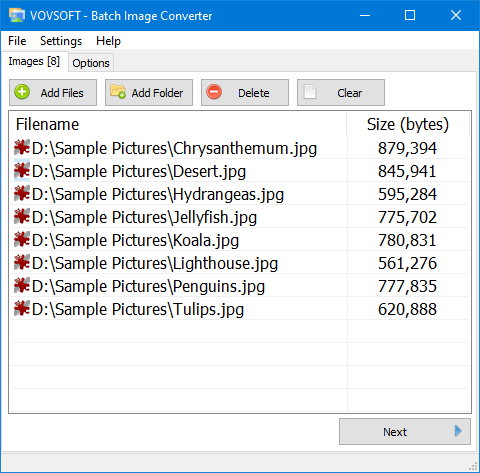
The Images tab with eight JPG files queued; Next takes you to the Options tab to choose the output format.
Features
Convert HEIC iPhone photos to JPG or PNG
Batch Image Converter reads HEIC, the format iPhones save photos in, and writes JPG, PNG, TIFF, BMP, GIF, ICO or PSD, so a folder of photos copied from a phone becomes files any Windows program can open.
Modern web formats: WEBP and AVIF
Batch Image Converter writes WEBP and AVIF, the compact formats websites use, with a quality setting for JPEG and WEBP so you can trade file size against detail. It also turns animated GIFs into animated WEBP files.
Opens design and specialist formats
Batch Image Converter accepts PSD, SVG, PDF, JPEG 2000 (JP2), JPEG XL (JXL) and TGA as input and saves them as everyday formats, which saves opening each file in an editor just to export it.
Transparency kept, grayscale optional
Batch Image Converter preserves the transparency of images with an alpha channel when the output format supports it, and a Convert to Grayscale option turns a whole batch black-and-white in the same pass.
Right-click conversion and remembered settings
The Batch Image Converter installer can add a Send To shortcut, so you can right-click files or a folder in File Explorer and send them straight to the program. It remembers your last settings, creates the destination folder if it doesn't exist, and has a Reset to Defaults menu item.
Benefits
The benefits are time and privacy. Converting a few hundred files one by one in an editor takes an afternoon; here it's one batch. And unlike free online converters, which limit file counts and sizes and receive copies of your photos, everything happens on your PC. The portable edition also runs on a work computer where you can't install software.
Real-World Uses
- iPhone photos on a Windows PC: convert a folder of HEIC files to JPG for sharing or printing.
- Speeding up a website: turn product photos into WEBP or AVIF at a chosen quality.
- Design handoffs: export a set of PSD or SVG files as PNGs for someone without Photoshop.
- Icons: convert PNG artwork to ICO files.
- Print or archive: make grayscale TIFF copies of a batch of scans.
Who It's For, and Who Should Skip It
A good fit if you regularly change image formats in bulk, especially HEIC, WEBP or AVIF, and want it done offline for a one-time $19.
Skip it if you need to resize, crop, rename or watermark in the same pass: Vovsoft sells those as separate tools, and an all-in-one batch photo processor does them together. Photographers who shoot RAW need a raw converter; this doesn't list camera RAW formats. It also won't run on 32-bit Windows, Windows 7 or a Mac.
Usage Guide
- Download the installer or the portable edition from vovsoft.com and run it. Let the installer add the Send To shortcut if you want right-click conversion.
- On the Images tab, click Add Files or Add Folder, or drag images in. Click Next.
- On Options, pick the output format and, for JPEG or WEBP, the quality.
- Tick Convert to Grayscale if you want black-and-white copies, and choose the destination folder.
- Start the conversion and wait for the completion message.
- After buying, enter your key using Vovsoft's "How to Activate using License Key" steps; offline activation is available.
Before you buy
- 64-bit Windows 8 or later only. Since version 2.3 it's a 64-bit program, so 32-bit Windows can't run it.
- Test your own files with the trial. Format support differs between input and output (HEIC, SVG and PDF are read but not written), so check that your exact conversion works first.
- No refund if you change your mind. Vovsoft generally doesn't refund purchases, because the trial is there to evaluate the program; refunds are at its discretion, mostly for orders placed by accident.
Download Free TrialBuy Now
Where it falls short
- Converts only. No resizing, cropping or renaming; Vovsoft's Batch Image Resizer and Rename Multiple Files are separate purchases.
- File dates aren't kept. Users have asked for converted files to inherit the original's date and time, which matters if you sort photos by date; it's still an open request.
- No dimensions in the file list and no option to delete the originals after a successful conversion, both open user requests.
- English only. Unlike several Vovsoft tools, the interface isn't translated.
What Users Say
Batch Image Converter is rated 4.1 out of 5 from 14 votes on Vovsoft's product page. Independent coverage is short write-ups on download sites rather than hands-on tests.
MajorGeeks (editor's description, version 2.4)
MajorGeeks says it "is designed to be as simple as possible; it can easily take images from one format and quickly convert them through its straightforward interface", and concludes that it "is an excellent resource for performing conversions efficiently and includes just enough options to make it a viable app, even for the less tech-savvy." Its format list (PNG, WEBP, JPEG, TIFF, BMP, GIF, ICO and WMP) covers the output side; the newer input formats aren't mentioned.
A buyer on vovsoft.com
"Good for buy one. The price of the products are relatively affordable. And the overall performance is good!" (Peter K.T. Ng)
Online Computer Tips (video walkthrough)
Online Computer Tips made the tutorial the vendor embeds on its page, "How to Bulk Convert Images and Photos to Any Format (Batch Image Converter)", which walks through a bulk conversion.
What users ask for
Vovsoft's public feature request page shows the open wishes: deleting source files after a successful conversion, showing image width and height, keeping the original file dates, rounded-corner effects and a translated interface. Most earlier requests have been delivered, including the JPEG quality setting, a 64-bit build for huge files, and AVIF, HEIC, JPEG XL, JPEG 2000, PDF, PSD, SVG, TGA and WEBP support.
The company on Trustpilot
Vovsoft as a company has a TrustScore of 4.6 from 410 Trustpilot reviews, 78% of them 5-star and 6% 1-star. They cover all of Vovsoft's programs and its support, not this tool in particular.
The common thread: simple and effective for straightforward conversions. The complaints are about missing extras (file dates, dimensions, deleting originals), not failed conversions, though we found no independent quality tests either.
Comparisons
Batch Image Converter vs online image converters
Online converters are free for a handful of files but cap uploads and see your photos. Batch Image Converter handles whole folders offline for a one-time $19, with no file-size limits other than your PC's memory.
Batch Image Converter vs Vovsoft Batch Image Resizer
The two are sister tools with the same two-tab layout: the Converter changes formats, the Resizer changes pixel sizes. If you need both, Vovsoft's $99 Universal License covers them and the rest of its catalogue.
Editions and Pricing
| Option | Price | License term | What you get |
|---|
| Free trial | $0 | No time limit | Batch conversion, with a nag screen; personal use only |
| Batch Image Converter license | $19 | One-time payment, lifetime, free updates | Commercial use, no nag screen or ads; installer and portable |
FAQs
Can Batch Image Converter convert JPG to HEIC?
No. Batch Image Converter reads HEIC but doesn't write it. It converts HEIC to JPG, PNG and other common formats, not the other way round.
Does Batch Image Converter resize images while converting?
No. Batch Image Converter keeps the original pixel size. Vovsoft's separate Batch Image Resizer changes dimensions.
Does Batch Image Converter upload my images?
No. Batch Image Converter converts files locally on your PC; nothing is sent to an online service.
Can Batch Image Converter convert a PDF to images?
Batch Image Converter accepts PDF files as input. For multi-page PDFs with page selection and resolution settings, Vovsoft's dedicated PDF to Image Converter is the more specialized tool.
Is Batch Image Converter a subscription?
No. Batch Image Converter costs $19 once. Vovsoft licenses never expire and include future updates, and the order page shows no auto-renewal.
Can I use Batch Image Converter's free version at work?
No. Batch Image Converter's trial doesn't allow commercial use; the $19 license does.
Can I move my Batch Image Converter license to a new PC?
Yes. Vovsoft says you can activate the same key on your new computer without deactivating the old one. A lost key can be retrieved from Vovsoft's User Panel with your purchase email.
System Requirements
- 64-bit Windows 11, 10 or 8/8.1
- About 18 MB of disk space for the installer version, 22 MB for the portable edition, plus room for the converted files
- Internet connection only for online license activation (offline activation is available)
Conclusion
Batch Image Converter is worth $19 if you convert image formats in bulk and want a wide range covered offline: HEIC, PSD, SVG and PDF in, WEBP and AVIF out, with quality control, grayscale and a right-click shortcut, on a lifetime license updated as recently as July 2026. The reason not to buy is its single job: it doesn't resize, rename or keep file dates, so photographers organizing by date or needing a full batch editor should look at broader tools. The trial converts for real, so test it on your own files first.
Download Free TrialBuy Now