Vovsoft Batch Image Resizer: Resize Hundreds of Photos at Once, Offline
Batch Image Resizer is a $19 Windows program from Vovsoft that resizes whole folders of JPG, PNG, WEBP, GIF, BMP, TIFF and DDS images in one run, by percentage or to exact pixel sizes, entirely on your PC. The $19 is a one-time lifetime license with free updates, and the free trial resizes images too.
Shrinking 400 phone photos before backing them up, making every product shot on a web shop 1200 pixels wide, or turning one big logo into six icon sizes: these are the jobs it does in a couple of clicks, without uploading anything to an online resizer.
Quick facts
- Version: 2.4, released August 11, 2026
- Developer: Vovsoft, the one-person software company of Fatih Ramazan Çıkan in Turkey
- Platform: Windows 11, 10, 8/8.1 and 7, 32-bit and 64-bit. No Mac or Linux version
- Editions: installer (16.31 MB) and portable (20.05 MB), one license for both
- Formats: JPEG, PNG, WEBP, BMP, GIF, TIFF, WMP and DDS, with transparency kept
- Price: $19, one-time payment, lifetime license with free updates
- Trial: free and not time-limited, with batch resizing, but with a nag screen and no commercial use
- Refunds: no money-back guarantee; refunds are at the vendor's discretion, mainly for accidental orders
- What we checked: the installer we downloaded from vovsoft.com on November 8, 2026 is version 2.4.0.0, 16.31 MB, digitally signed by Fatih Ramazan Çıkan; the order page showed $19.00 with no auto-renewal on November 8, 2026. We didn't install the program or resize any images.
Overview
Batch Image Resizer is a two-tab window. On the Images tab you add files or a whole folder (or drag them in) and see each file's size; on the Options tab you set the new width and height, the interpolation mode, whether to resize the originals or make copies, and the destination. Press Start and a Result window reports how many files were processed, how long it took and how much disk space was saved.
First released in October 2021, it's updated regularly: 2.0 (May 2024) added translations into 30-plus languages, 2.3 (March 2025) an Automatic mode that keeps each photo's orientation and picks the interpolation itself, and 2.4 (August 2026) width and height columns in the file list.
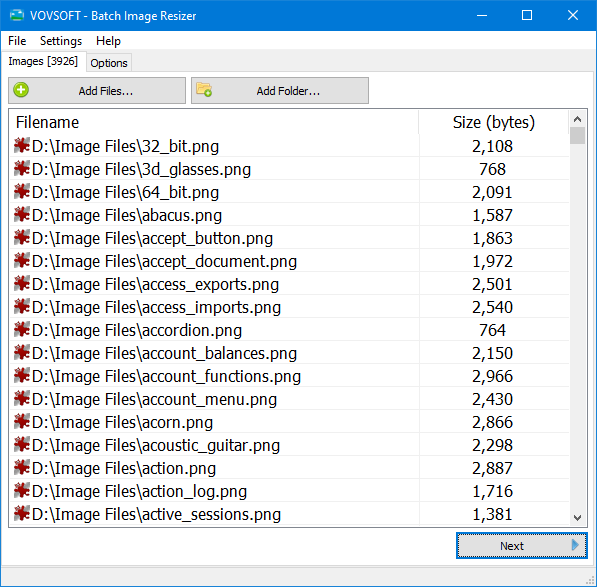
The Images tab with 3,926 PNG files loaded from one folder, each with its size in bytes.
Features
Resize by percentage or exact pixels
Batch Image Resizer sets the new size either as a percentage of the original or as a pixel width and height, with a "Keep aspect ratio" box so photos aren't stretched. It remembers your last width, height and unit, and can add the new dimensions to each output file name.
Several sizes of every image in one run
Batch Image Resizer can create multiple sizes of each image at once: from one 1024x1024 image it can write 512, 256, 128, 64, 32 and 16 pixel versions in a single pass, which is handy for icons, thumbnails and responsive web images.
Choice of interpolation
Batch Image Resizer offers Fant (marked as recommended in the program), Cubic, Linear, Nearest Neighbor and Automatic interpolation. Fant and Cubic give smooth photos; Nearest Neighbor keeps hard pixel edges, which suits pixel art and screenshots; Automatic picks for you and preserves the image's orientation.
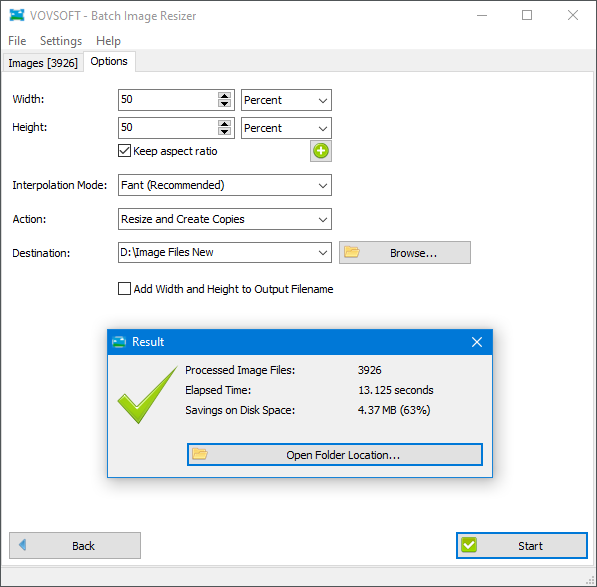
50% resize with Fant interpolation, creating copies in a new folder: 3,926 files processed in about 13 seconds, saving 4.37 MB (63%).
Copies or originals, your choice
Batch Image Resizer's Action setting either creates resized copies in a destination folder (created for you if it doesn't exist) or resizes the originals. When resizing originals, TrishTech notes it can move the old files to the Recycle Bin rather than delete them. It's built for resizing; for changing formats Vovsoft sells a separate Batch Image Converter.
Resize from File Explorer's Send To menu
The Batch Image Resizer installer adds a shortcut to Windows' Send To menu, so you can right-click a folder or a selection of images in File Explorer and send them straight to the program.
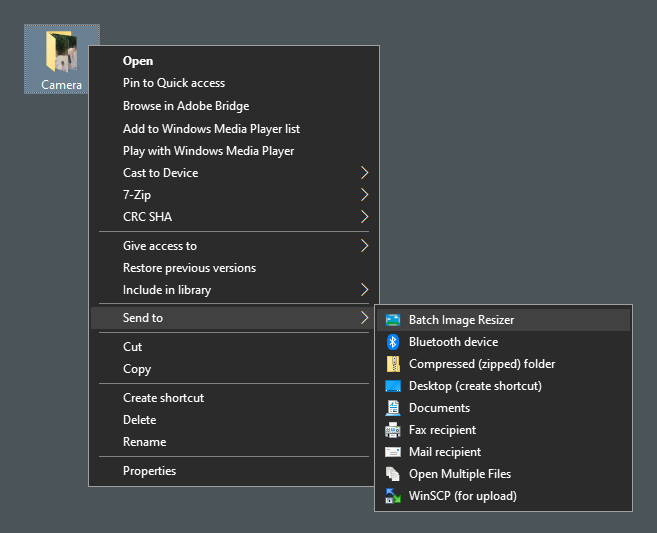
Right-click a folder, choose Send to, then Batch Image Resizer.
Benefits
The two practical benefits are speed and privacy. Thousands of files go through in one run, as the vendor's 3,926-file example shows, and nothing is uploaded: online resizers cap uploads and see your photos, while this works offline. The portable edition also makes it easy to use on a work PC where you can't install software.
Real-World Uses
- Phone photo archives: one buyer uses it to shrink pictures before moving them from a phone to an external drive.
- Web shops and blogs: make every product photo the same pixel width before upload.
- YouTube and web thumbnails: produce 1280x720 thumbnails from a batch of images.
- App and site icons: generate a full set of square icon sizes from one master image.
- Email attachments: scale a folder of photos to 50% so they fit in one message.
Who It's For, and Who Should Skip It
A good fit if you resize batches of images regularly, want it done offline, and prefer a one-time $19 over a subscription photo tool.
Skip it if you also need cropping, format conversion, watermarks or renaming in the same pass: an all-in-one batch photo processor does that. Windows Vista and XP users can't run the current version, and Mac users have no version at all. For one or two images, Windows' own Photos app or Paint is enough.
Usage Guide
- Download the installer or the portable edition from vovsoft.com and run it. The installer adds the Send To shortcut.
- On the Images tab, click Add Files... or Add Folder..., or drag images in. Click Next.
- On Options, set Width and Height in percent or pixels and tick Keep aspect ratio.
- Choose an Interpolation Mode (Fant is the default recommendation) and an Action: Resize and Create Copies is the safe choice.
- Pick a Destination folder and click Start. The Result window has an Open Folder Location button.
- After buying, enter your key using Vovsoft's "How to Activate using License Key" steps; offline activation is available.
Before you buy
- Make copies first time round. Resizing the originals replaces them; start with "Resize and Create Copies" until you're happy with the settings.
- Use the trial. Vovsoft generally doesn't refund purchases, because the trial is there to evaluate the program; refunds are at its discretion, mostly for orders placed by accident.
- One license per person. Vovsoft's EULA lets one person use a license on all of their own computers, or several people use one shared workstation, but not both.
Download Free TrialBuy Now
Where it falls short
- Resize only. No cropping, watermarking or renaming; for format changes Vovsoft points to its separate Batch Image Converter.
- Upscaling isn't magic. Enlarging uses standard interpolation, so big enlargements look soft; Vovsoft sells an AI-based Batch Image Upscaler for that job.
- Larger download than most Vovsoft tools at a 16 MB installer and 20 MB portable, though still small by photo-software standards.
What Users Say
Batch Image Resizer is rated 4.8 out of 5 from 5 votes on Vovsoft's product page. The written feedback is positive but brief.
TrishTech (independent review, December 2024)
TrishTech went through both tabs, the interpolation modes and the copy or original options and concluded: "Vovsoft Batch Image Resizer stands out as a reliable and efficient solution for anyone dealing with image resizing tasks. Its ability to maintain quality while handling bulk operations ensures it remains a go-to tool for professionals and casual users alike."
Online Computer Tips (video walkthrough)
Online Computer Tips made the tutorial the vendor embeds on its page, covering the installable and portable versions and showing it shrink files for a website, save disk space and enlarge images by a percentage.
Buyers on vovsoft.com
"I tried the application Batch Image Resizer. I am glad because this software product is reliable and is doing the perfect job it was created for." (Valentin)
"I use this program before transferring pictures from my phone to my external drive. Files get smaller without loss of quality." (Anonymous User)
"Simple and straight to the point program. Thanks!" (Smats)
"It works just fine. Thanks." (Li)
The company on Trustpilot
Vovsoft as a company has a TrustScore of 4.6 from 410 Trustpilot reviews, 78% of them 5-star and 6% 1-star. They cover all of Vovsoft's programs and its support, not this tool in particular.
The common thread: reliable, simple and quick for bulk resizing. We found no complaints specific to this tool, but also no in-depth image-quality tests, so judge the output on your own photos with the trial.
Comparisons
Batch Image Resizer vs online image resizers
Online resizers are free for a few files but limit uploads and send your photos to someone else's server. Batch Image Resizer handles thousands of files offline for a one-time $19.
Batch Image Resizer vs all-in-one batch photo editors
All-in-one batch editors add cropping, watermarks, format conversion and renaming in one pass, usually at a higher price or with a steeper learning curve. Batch Image Resizer does only resizing, with very few settings to get wrong.
Editions and Pricing
| Option | Price | License term | What you get |
|---|
| Free trial | $0 | No time limit | Batch resizing, with a nag screen; personal use only |
| Batch Image Resizer license | $19 | One-time payment, lifetime, free updates | Commercial use, no nag screen; installer and portable |
Vovsoft also sells a $99 Universal License that covers all of its programs, including Batch Image Converter and Batch Image Upscaler, which pays off if you want several of them.
FAQs
Is Batch Image Resizer a subscription?
No. Batch Image Resizer costs $19 once. Vovsoft licenses never expire and include future updates, and the order page shows no auto-renewal.
Does Batch Image Resizer upload my photos anywhere?
No. Batch Image Resizer processes every image offline on your PC; Vovsoft says no image file is sent to the internet.
Can Batch Image Resizer convert JPG to PNG or WEBP?
Batch Image Resizer is made for resizing, not converting. Vovsoft's separate Batch Image Converter is the tool for changing formats.
Does Batch Image Resizer keep PNG transparency?
Yes. Batch Image Resizer preserves transparency in formats that support it, such as PNG.
Can I use Batch Image Resizer's free version at work?
No. Batch Image Resizer's trial doesn't allow commercial use; the $19 license does.
Does Batch Image Resizer support HEIC photos from iPhones?
HEIC isn't among Batch Image Resizer's listed formats (JPEG, PNG, WEBP, BMP, GIF, TIFF, WMP, DDS), so convert iPhone photos to JPG first or set the phone to save JPGs.
Can I move my Batch Image Resizer license to a new PC?
Yes. Vovsoft says you can activate the same key on your new computer without deactivating the old one. A lost key can be retrieved from Vovsoft's User Panel with your purchase email.
System Requirements
- Windows 11, 10, 8/8.1 or 7, 32-bit or 64-bit
- About 17 MB of disk space for the installer version, 20 MB for the portable edition
- Internet connection only for online license activation (offline activation is available)
Conclusion
Batch Image Resizer is worth $19 if you resize lots of images and want it done offline: percentage or pixel sizes, several sizes per image, a choice of interpolation, safe copy mode and a Send To shortcut, with a lifetime license and updates as recent as August 2026. The reason not to buy is its single purpose: if you also need conversion, cropping or watermarks, a broader batch editor makes more sense. The free trial resizes for real, so test it on a folder of your own photos first.
Download Free TrialBuy Now