Vovsoft Auto Mouse Clicker: Record and Replay Mouse Clicks on Windows
Auto Mouse Clicker is a $19 Windows tool from Vovsoft that records your mouse moves and left, right and middle clicks, then plays them back as often as you like, from a hotkey, in a fixed number of loops or forever. The $19 is a one-time lifetime license, and the free trial records and plays too.
If you've ever clicked the same three buttons a few hundred times in a game, a web form or an old business app, this is the small utility that does the clicking for you while you get a coffee.
Quick facts
- Version: 3.2, released December 24, 2025
- Developer: Vovsoft, the one-person software company of Fatih Ramazan Çıkan in Turkey
- Platform: Windows 11, 10, 8/8.1, 7 and Vista, 32-bit and 64-bit. No Mac or Linux version
- Editions: installer (3.46 MB) and portable (2.14 MB), one license for both
- Automates: mouse movement and left, right and middle clicks, including double clicks. Not the keyboard
- Price: $19, one-time payment, lifetime license with free updates
- Trial: free and not time-limited, with recording and playback, but with a nag screen and no commercial use
- Refunds: no money-back guarantee; refunds are at the vendor's discretion, mainly for accidental orders
- What we checked: the installer we downloaded from vovsoft.com on November 8, 2026 is version 3.2.0.0, 3.47 MB, digitally signed by Fatih Ramazan Çıkan; the order page showed $19.00 with no auto-renewal on November 8, 2026. We didn't install the program or record a macro.
Overview
Auto Mouse Clicker works like a tape recorder for the mouse. Press Ctrl+Alt+R (or the Record button) and it logs every position the pointer passes through and every click, as X and Y screen coordinates. Press Ctrl+Alt+P to play it back. The recording appears as a list of steps you can edit, delete, add waits to, and save as a CSV file for later.
First released in May 2020, it had its biggest update in December 2025: versions 3.0 to 3.2 added changeable hotkeys, step editing, double clicks in the editor, auto-load and auto-play of the last file, auto-close after playing, mouse locking during playback, and options to put the pointer back where it was.
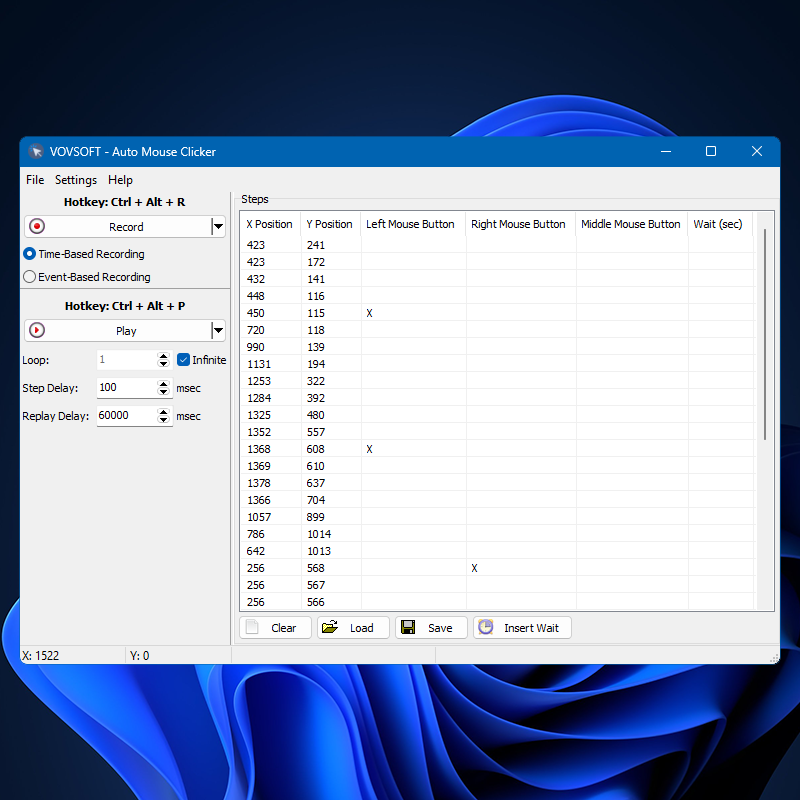
The main window: Record (Ctrl+Alt+R) and Play (Ctrl+Alt+P) hotkeys on the left with loop, step delay and replay delay settings, and the recorded steps with X/Y positions and button clicks on the right.
Features
Time-based or event-based recording
Auto Mouse Clicker records in two modes. Time-Based Recording keeps the real pauses between your moves, so playback runs at the speed you worked; Event-Based Recording drops those pauses and plays the steps back to back, with a step delay you set in milliseconds. A live X/Y readout in the status bar shows where the pointer is, which helps when you edit coordinates by hand.
Loops, delays and waits
Auto Mouse Clicker plays a recording a set number of times or in an infinite loop until you press the hotkey again. A Replay Delay (added in 2.5) waits between loops, and Insert Wait adds a pause of any length, including fractions of a second, at any step, for example while a web page loads.
Editable steps saved as CSV
Auto Mouse Clicker lists every step with its X position, Y position, left, right or middle button and wait time. You can edit a step from the right-click menu or delete steps, and save the list as a CSV file that you can load again, drag onto the window, or run straight from the command line (clicker.exe DoSomething.csv), which makes scheduled runs from Windows Task Scheduler possible.
Playback settings that keep you in control
Auto Mouse Clicker 3.x adds settings to lock the mouse while a macro plays (so a nudge doesn't throw it off), to return the pointer to its starting point after each step, each loop or the whole run, and to load and play the last file automatically and close when done, which suits a one-click desktop shortcut. It can also stay on top, beep on hotkeys and minimize to the system tray.
Benefits
The point is saving your wrist and your time on dull, repeatable clicking. Because the macro is a plain step list rather than a script, there's nothing to learn: record, check, play. And because it's sold for $19 once, it's a cheap fix for a recurring chore compared with full automation suites.
Real-World Uses
- Idle and clicker games: repeat the same attack or collect clicks for hours with an infinite loop, within the game's rules.
- Repetitive office tasks: click through the same sequence of buttons in an old desktop application that has no batch mode.
- Web testing: replay a click path through a page with waits for loading, again and again.
- Keeping a session alive: a slow loop with long waits that clicks a harmless spot now and then.
Who It's For, and Who Should Skip It
A good fit if you need simple mouse-only automation on one Windows PC, want to record rather than script, and like a lifetime license.
Skip it if you need to type text or press keys: it doesn't automate the keyboard, so a macro recorder with keystrokes or a scripting tool fits better. It's also the wrong tool for anything that needs to "see" the screen (clicking a button wherever it appears), since it clicks fixed coordinates. Competitive online gamers should check the game's rules first.
Usage Guide
- Download the installer or the portable edition from vovsoft.com and run it.
- Choose Time-Based or Event-Based Recording.
- Press Ctrl+Alt+R or click Record, do your clicks, then stop the recording.
- Review the steps; right-click to edit one, or use Insert Wait for pauses.
- Set Loop (or tick Infinite), Step Delay and Replay Delay.
- Press Ctrl+Alt+P or click Play; an infinite loop runs until you stop it with the hotkey. Use Save to keep the macro as a CSV file.
- After buying, enter your key using Vovsoft's "How to Activate using License Key" steps; offline activation is available.
Before you buy
- Keep your screen layout fixed. Clicks go to recorded screen coordinates, so a moved window, a different resolution or display scaling will send them to the wrong place.
- Check game and site rules. Many online games and some websites ban auto clickers, and anti-cheat systems can flag them.
- Use the trial. Vovsoft generally doesn't refund purchases, because the trial is there to evaluate the program; refunds are at its discretion, mostly for orders placed by accident.
- One license per person. Vovsoft's EULA lets one person use a license on all of their own computers, or several people use one shared workstation, but not both.
Download Free TrialBuy Now
Where it falls short
- Mouse only. No keystrokes, no text entry; FileHorse's review lists the missing keyboard automation as a con.
- No image recognition or conditions. It can't wait for something to appear on screen or branch on what happens; it just replays.
What Users Say
Auto Mouse Clicker is rated 4.3 out of 5 from 13 votes on Vovsoft's product page. Written reviews are short and few.
Buyers on vovsoft.com
"Best mouse auto clicker software I have come across so far. Thanks! I really like it." (Sethmakavela)
"I like it! Very useful software for play game that need mouse click." (Anonymous User)
"Quick and Easy, code arrived by email almost instantly" (Eddy)
FileHorse
FileHorse's review by Michael Reynolds calls it "a lightweight automation tool designed to simplify repetitive mouse clicking tasks" and its pricing "competitive, making it an affordable solution for users who need reliable mouse automation." Its pros: easy to use, customizable click actions and intervals, hotkeys, lightweight, one-time purchase. Its cons: no keyboard automation, Windows only, and no saving or loading of click sequences, which is out of date, since the current version saves and loads CSV files.
The company on Trustpilot
Vovsoft as a company has a TrustScore of 4.6 from 410 Trustpilot reviews, 78% of them 5-star and 6% 1-star. They cover all of Vovsoft's programs and its support, not this tool in particular.
The common thread: it's easy and does what it says for repetitive clicking. The recurring wish is keyboard automation, which it doesn't do.
Comparisons
Auto Mouse Clicker vs free single-spot auto clickers
Free auto clickers usually click one spot (or the current pointer position) at a fixed interval. Vovsoft's Auto Mouse Clicker records whole paths with several click points, waits and loops, and saves them as files. If one spot at a fixed rate is all you need, a free clicker will do.
Auto Mouse Clicker vs scripting tools
Scripting tools such as AutoHotkey can automate the keyboard, read windows and make decisions, but you write code. Auto Mouse Clicker needs no code at all, at the cost of doing only mouse replay.
Editions and Pricing
| Option | Price | License term | What you get |
|---|
| Free trial | $0 | No time limit | Recording and playback, with a nag screen; personal use only |
| Auto Mouse Clicker license | $19 | One-time payment, lifetime, free updates | Commercial use, no nag screen; installer and portable |
Vovsoft also sells a $99 Universal License that covers all of its programs, which pays off only if you want several of them.
FAQs
Is Auto Mouse Clicker a subscription?
No. Auto Mouse Clicker costs $19 once. Vovsoft licenses never expire and include future updates, and the order page shows no auto-renewal.
Can Auto Mouse Clicker press keyboard keys?
No. Auto Mouse Clicker automates mouse movement and clicks only.
Can I run an Auto Mouse Clicker macro on a schedule?
Yes, indirectly. Auto Mouse Clicker accepts a saved CSV file as a command line argument and has settings to play it automatically and close afterwards, so Windows Task Scheduler can start it.
Can I use Auto Mouse Clicker's free version at work?
No. Auto Mouse Clicker's trial doesn't allow commercial use; the $19 license does.
How do I stop Auto Mouse Clicker during an infinite loop?
Use the hotkey: Vovsoft says an infinite loop plays until you stop it with a hotkey (Play is Ctrl+Alt+P by default). Both hotkeys can be changed with the Change Hotkey buttons.
Can I move my Auto Mouse Clicker license to a new PC?
Yes. Vovsoft says you can activate the same key on your new computer without deactivating the old one. A lost key can be retrieved from Vovsoft's User Panel with your purchase email.
System Requirements
- Windows 11, 10, 8/8.1, 7 or Vista, 32-bit or 64-bit
- About 4 MB of disk space (3.46 MB installer, 2.14 MB portable)
- Internet connection only for online license activation (offline activation is available)
Conclusion
Auto Mouse Clicker is worth $19 if you want record-and-replay mouse automation without scripting: two recording modes, loops and waits, editable steps saved as CSV, command line playback and sensible safety settings, with a lifetime license and regular updates through December 2025. The reason not to buy is that it's mouse-only and coordinate-based, so anything involving typing or a changing screen needs a different tool. The free trial records and plays, so test it on your task first.
Download Free TrialBuy Now