Vovsoft Rename Multiple Files: A Simple Batch Renamer for Windows
Rename Multiple Files is a $19 Windows batch renamer from Vovsoft: add files or folders, build a naming rule (text, auto-numbers, the old name, dates, letter case) or a simple search and replace, check the new names in the preview column, and rename them all in one click. The $19 is a one-time lifetime license, and the free trial renames files too.
Two hundred holiday photos called DSC_104955547.jpg and friends, a folder of scanned invoices, a music album with inconsistent names: this is the kind of job it's built for, without learning regular expressions.
Quick facts
- Version: 2.4, released September 24, 2023 (the latest release)
- Developer: Vovsoft, the one-person software company of Fatih Ramazan Çıkan in Turkey
- Platform: Windows 11, 10, 8/8.1, 7, Vista and XP, 32-bit and 64-bit. No Mac or Linux version
- Editions: installer (2.49 MB) and portable (2.25 MB), one license for both
- Interface language: English only
- Price: $19, one-time payment, lifetime license with free updates
- Trial: free and not time-limited, with all renaming features, but with a nag screen and no commercial use
- Refunds: no money-back guarantee; refunds are at the vendor's discretion, mainly for accidental orders
- What we checked: the installer we downloaded from vovsoft.com on November 8, 2026 is version 2.4.0.0, 2.50 MB, digitally signed by Fatih Ramazan Çıkan; the order page showed $19.00 with no auto-renewal on November 8, 2026. We didn't install the program or rename any files.
Overview
Rename Multiple Files is one window: a toolbar (Add Files, Add Folders, Load Files, Save Files, Rename All), a two-column list showing each file's full path next to its new filename, and two switches underneath, one for Search/Replace and one for a Rule. Adding a folder pulls in everything inside it, and Vovsoft says the list copes with well over 100,000 entries.
It has been around since November 2018, with 14 releases. The last one, 2.4 in September 2023, added CSV loading and saving; there have been no updates since, so this is a finished, stable tool rather than one that's still growing.
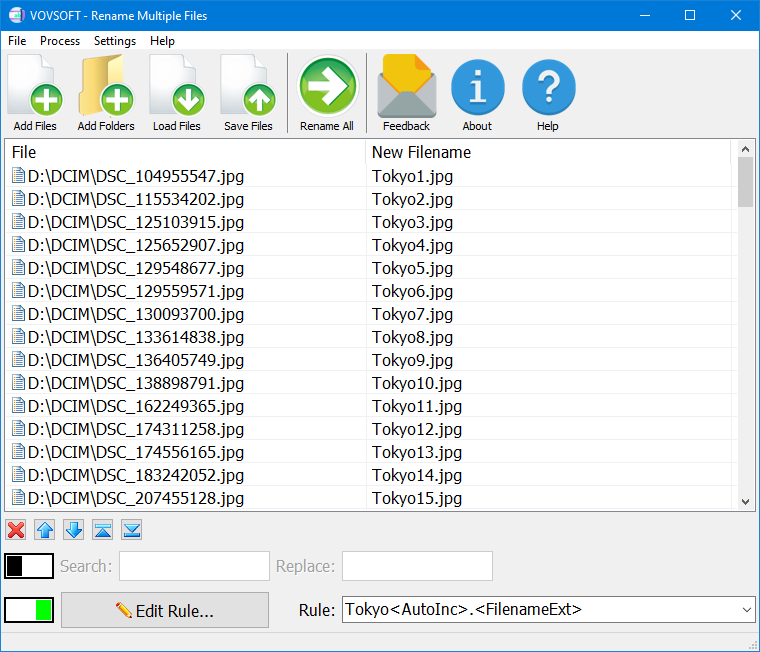
Camera files in D:\DCIM previewed as Tokyo1.jpg, Tokyo2.jpg... from the rule Tokyo<AutoInc>.<FilenameExt>, before Rename All is clicked.
Features
Rule-based renaming with auto-numbering
Rename Multiple Files builds each new name from a rule you assemble in the Edit Rule window: the original filename, its extension or both, your own text, an auto-increment number (with a starting value you can edit) or a random number, in any order. Version 2.2 added tokens for the date created, modified or accessed and for file size in bytes, KB, MB or GB, and 2.3 added an option to add numbers to existing filenames. A Rule History keeps your recent rules for reuse.
Letter case changes
Rename Multiple Files can turn names to upper case, lower case, proper case or sentence case, and the case can be set separately for the name and the extension, as in the vendor's example rule that produces photos-tokyo1.JPG.

The rule photos-<FilenameWoutExtL>.<FilenameExtU> adds a prefix, lower-cases the name and upper-cases the extension.
Search and replace in filenames
Rename Multiple Files has a plain search and replace switch that swaps one piece of text for another across every listed file, for example Tokyo for Japan. It's literal text matching; there are no wildcards or regular expressions.

Search "Tokyo", replace "Japan": the New Filename column shows the result for every file before anything is renamed.
Rename from a CSV list
Rename Multiple Files can load a CSV file where each line holds a full file path and its new name, so you can prepare renames in Excel (say, from a product list or a client's spreadsheet) and apply them in one go. Save Files writes the current list back to CSV. Values containing commas go in quotation marks.
Safe-guards for Windows naming rules
Rename Multiple Files refuses characters Windows doesn't allow in filenames, avoids a rename error when the target name already exists (since 2.2), has up, down, top and bottom buttons to set the order that numbering follows, and can restart itself as administrator for protected folders.
Benefits
The big win is the preview: the New Filename column shows exactly what each file will be called before you commit, so mistakes are caught on screen rather than on disk. It's also small and quick to learn: a rule like Tokyo<AutoInc>.<FilenameExt> reads almost like the result, and you don't need to know any syntax beyond the buttons in the rule editor.
Real-World Uses
- Holiday photos: turn DSC_xxxx.jpg camera names into Tokyo1.jpg, Tokyo2.jpg in shooting order.
- Office documents: add a client or project prefix to a folder of reports, or add the modified date to each file's name.
- Spreadsheet-driven renames: rename hundreds of product images to SKUs listed in Excel through the CSV import.
- Tidying downloads: lower-case names and replace a recurring word across a whole folder.
Who It's For, and Who Should Skip It
A good fit if you rename batches of files now and then and want something simpler than a power-user renamer, with a preview and a one-time price. It still runs on Windows XP, which few tools do.
Skip it if you need regular expressions, renaming from photo EXIF or music ID3 tags, or complex multi-step rules: a full-featured renamer suits you better. The interface is English only, and Mac users can't run it. If you only need "Report (1), Report (2)", Windows File Explorer's own F2 rename does that free.
Usage Guide
- Download the installer or the portable edition from vovsoft.com and run it.
- Click Add Files or Add Folders, or drag folders onto the window. Use the arrow buttons to change the order if numbering matters.
- Turn on the Rule switch and click Edit Rule..., then build the name from the buttons (text, AutoInc, filename, extension, date, case). Or turn on Search/Replace and type the two strings.
- Check the New Filename column.
- Click Rename All. Renamed files get a green tick and an "Operation Completed!" message appears.
- After buying, enter your key using Vovsoft's "How to Activate using License Key" steps; offline activation is available.

After Rename All, each renamed file gets a green tick and the program confirms "Operation Completed!".
Before you buy
- Test on a copy first. TrishTech's review advises backing up your files before any batch rename; a rule applied to thousands of files is hard to reverse by hand.
- Use the trial. The free version has every renaming feature. Vovsoft generally doesn't refund purchases, because the trial is there to evaluate the program; refunds are at its discretion, mostly for orders placed by accident.
- One license per person. Vovsoft's EULA lets one person use a license on all of their own computers, or several people use one shared workstation, but not both.
Download Free TrialBuy Now
Where it falls short
- No regular expressions or metadata. No regex, no EXIF dates from photos and no ID3 tags from music; one commenter on Vovsoft's own blog gave up on it for exactly that reason.
- No updates since September 2023. It works on current Windows, but don't expect new features soon.
- English only, unlike many newer Vovsoft tools that ship with 30-plus translations.
What Users Say
Rename Multiple Files has few published reviews, and they're mostly short. On its own product page it's rated 4.8 out of 5 from 4 votes.
TrishTech (independent review, February 2025)
TrishTech walked through the rules, search and replace and CSV options and concluded: "With its powerful features and ease of use, Vovsoft Rename Multiple Files is an essential tool for anyone looking for a fast bulk file rename tools for Windows PC. It is advisable to make a backup of your original files before starting any renaming process."
A reviewer quoted on vovsoft.com
Elena Opris, quoted on Vovsoft's product page, summed it up: "All aspects considered, Rename Multiple Files offers a simple solution for helping you change the name of multiple files in batch mode."
Buyers on vovsoft.com
"The purchase was simple and straight forward. The cost was moderate. The usefulness of the software matched my needs. There was no unexpected downloads of unwanted material along with the software." (DK)
"Very useful software, thanks!" (kixxu)
A critical comment
On Vovsoft's "How to Rename Multiple Files on Windows" blog post, a reader named Nina wrote in January 2026: "It doesn't work, it doesn't support regex, I don't have support for supercomplicated file renaming."
The company on Trustpilot
Vovsoft as a company has a TrustScore of 4.6 from 410 Trustpilot reviews, 78% of them 5-star and 6% 1-star. They cover all of Vovsoft's programs and its support, not this tool in particular.
The pattern is clear: people who want simple, rule-based renames find it easy and good value, while people who need regex-level control find it too basic.
Comparisons
Rename Multiple Files vs File Explorer's built-in rename
Windows File Explorer can rename a selection of files to one name with (1), (2), (3) appended, free. Rename Multiple Files adds custom numbering placement, text and date tokens, case changes, search and replace, a preview and CSV-driven renames. If Explorer's numbering is enough for you, you don't need it.
Rename Multiple Files vs advanced renamers
Power-user renamers offer regular expressions, metadata tags and stacked rules, often with a steeper learning curve. Rename Multiple Files trades that depth for a short learning curve and a $19 lifetime price.
Editions and Pricing
| Option | Price | License term | What you get |
|---|
| Free trial | $0 | No time limit | All renaming features, with a nag screen; personal use only |
| Rename Multiple Files license | $19 | One-time payment, lifetime, free updates | Commercial use, no nag screen; installer and portable |
Vovsoft also sells a $99 Universal License that covers all of its programs, which pays off only if you want several of them.
FAQs
Is Rename Multiple Files a subscription?
No. Rename Multiple Files costs $19 once. Vovsoft licenses never expire and include future updates, and the order page shows no auto-renewal.
Does Rename Multiple Files support regular expressions?
No. Rename Multiple Files offers rule tokens and literal search and replace, but no regex or wildcards.
Can Rename Multiple Files rename photos by the date they were taken?
Not from EXIF data. Rename Multiple Files can use a file's created, modified or accessed date from Windows, which for camera files is often the copy date rather than the shooting date.
Can I use Rename Multiple Files' free version at work?
No. Rename Multiple Files' trial doesn't allow commercial use; the $19 license does.
Does Rename Multiple Files work on Windows XP?
Yes. Rename Multiple Files 2.4 supports Windows XP through Windows 11, 32-bit and 64-bit.
Can I move my Rename Multiple Files license to a new PC?
Yes. Vovsoft says you can activate the same key on your new computer without deactivating the old one. A lost key can be retrieved from Vovsoft's User Panel with your purchase email.
System Requirements
- Windows 11, 10, 8/8.1, 7, Vista or XP, 32-bit or 64-bit
- About 3 MB of disk space (2.49 MB installer, 2.25 MB portable)
- Internet connection only for online license activation (offline activation is available)
Conclusion
Rename Multiple Files is worth $19 if you want simple, previewed batch renames: numbering, prefixes, case changes, search and replace and CSV-driven renames, with a lifetime license and a portable edition. The reason not to buy is depth: no regex, no EXIF or ID3 tags, and no new releases since 2023. Since the free trial renames files with every feature, try it on a copy of your folder first and pay if you use it at work or want the nag screen gone.
Download Free TrialBuy Now