Leawo DVD to Blu-ray Converter for Mac: Merge DVDs Onto Blu-ray With an External Burner
Leawo DVD to Blu-ray Converter for Mac is a macOS module of Leawo Prof. Media 13 that converts one or more DVDs (disc, VIDEO_TS folder or ISO) into a BD-25 or BD-50 Blu-ray disc, folder or ISO with a menu. It runs on macOS 10.13 through macOS 27, on Intel and Apple silicon, for $44.95 a year or $69.95 lifetime per Mac.
No Mac has ever shipped with a Blu-ray drive, so on a Mac this job always involves an external USB burner, or no burner at all and an ISO file you burn or play later. Leawo's Mac module handles both: it writes straight to an external Blu-ray writer or builds the Blu-ray as a folder or ISO in your Movies folder.
At a glance on macOS
- App: Leawo Prof. Media 13 for Mac; this module works in its Burn tab
- Downloads: Intel build (ltmcu_setup.dmg, about 241 MB) or Apple chip build (ltmcu_setup_arm64.dmg, about 316 MB)
- macOS: High Sierra 10.13 through Sequoia 15, Tahoe 26 and macOS 27
- Sources: DVD-5 or DVD-9 disc, DVD folder or ISO, more than one per project
- Targets: BD-25 or BD-50 as a disc, folder or ISO
- Cost: $44.95 per year (renews automatically) or $69.95 once, 1 Mac
- Trial: converts 5 minutes of content until activated
What we checked: the two Mac installers the download page offers (Intel ltmcu_setup.dmg, 252,961,353 bytes, dated June 10, 2026; Apple chip ltmcu_setup_arm64.dmg, 331,793,186 bytes, dated July 7, 2026) and the Mac SKU's prices on the order page ($44.95 for 1 year, $69.95 lifetime), on November 1, 2026. We didn't burn a Blu-ray on a Mac with it.
Mac buyers, read this first
- Apple's SuperDrive won't do. It's a DVD drive, so it can read your DVDs but can't write Blu-ray. You need a USB Blu-ray writer for discs.
- Pick the installer for your chip. The download page asks whether your Mac has an Apple chip or an Intel processor.
- DVD quality stays DVD quality. Leawo talks about keeping the original quality; nothing suggests the Mac version upscales.
- Refunds cover faults, not regrets. Leawo's refund policy pays out for problems its support can't fix and duplicate orders, within its money-back window. Use the trial to decide.
Download Free TrialBuy Now
Overview
Open Prof. Media on your Mac and click Burn. The toolbar there has Add Video, Add DVD and Add Photo; the DVD button is this module. At the bottom of the window sit three controls: the disc type, a "Fit to disc" setting and the aspect ratio (16:9). On the right is the menu template column.
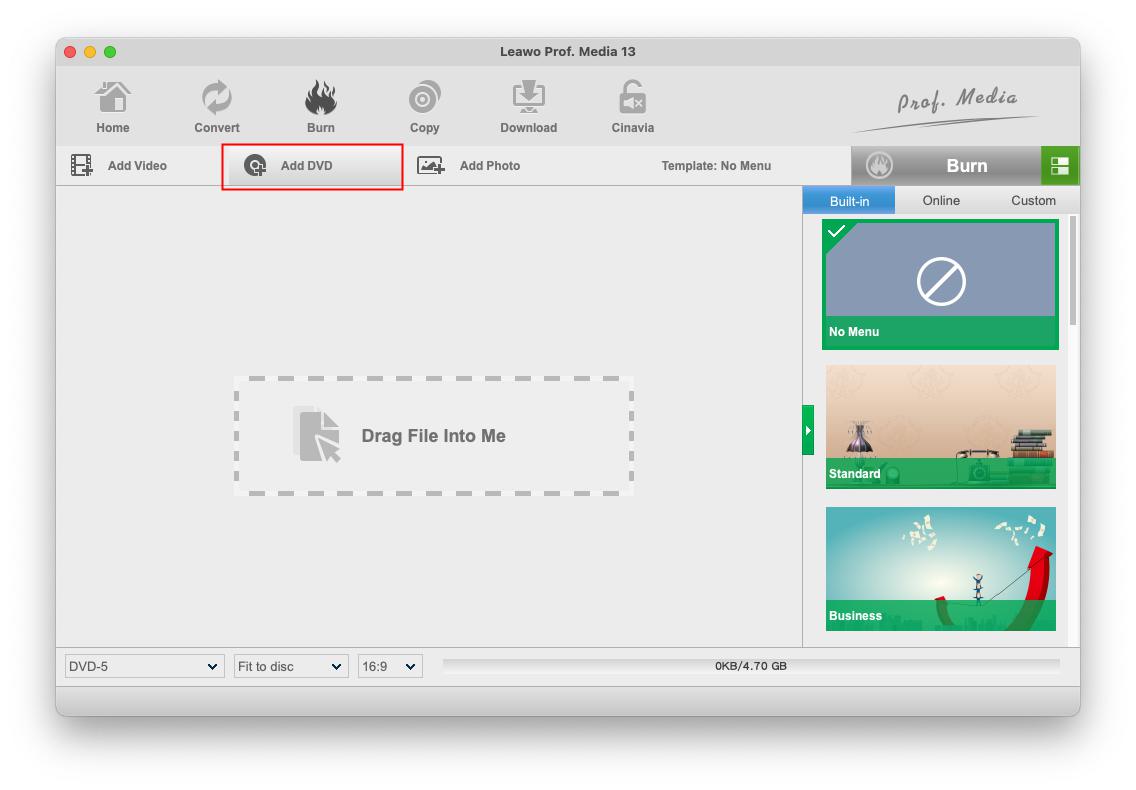
The Burn tab of Leawo Prof. Media 13 for Mac with Add DVD outlined, an empty "Drag File Into Me" area, the template column (No Menu, Standard, Business) and the disc type, Fit to disc and 16:9 menus at the bottom.
What You Can Do With It on a Mac
Combine DVDs, keep only the titles you want
Leawo DVD to Blu-ray Converter for Mac lets you add several DVD discs, folders or ISO files to one project. Leawo's Mac guide describes the three loading modes: Full Movie takes every title, Main Movie takes one, and Custom Mode takes the titles you tick. That last one is how you drop trailers and extras from a TV box set before merging the episodes.
Choose the Blu-ray size and resolution
Leawo DVD to Blu-ray Converter for Mac targets BD-25 or BD-50. The Burn tab's disc menu, shared with Leawo's other burning modules, also offers 1920x1080 and 1280x720 variants, and Leawo's Mac guide says to match the choice to the source and the blank disc. For DVD material, the disc size is what matters most.
Edit the menu: drag, retype, add music
Leawo DVD to Blu-ray Converter for Mac's menu editor lets you drag every thumbnail and button to a new spot, double-click "Play" to retype it, swap the background for an image or a video, and add background music with Fade in, Fade out or Loop Play.

The Mac menu editor shared by the Burn tab's modules, shown in the earlier Prof. Media 12 for Mac: a Childhood template with "My DVD", Play and Scene, the Background Image switch with Image File and Video File, and the music, image and save buttons at the bottom left.
Burn to an external writer, or to a folder or ISO
Leawo DVD to Blu-ray Converter for Mac's Burn panel offers Folder, ISO File and the burner macOS sees, in any combination. On the Mac, files go to a com.leawo.tmcu folder inside Movies unless you choose another place.
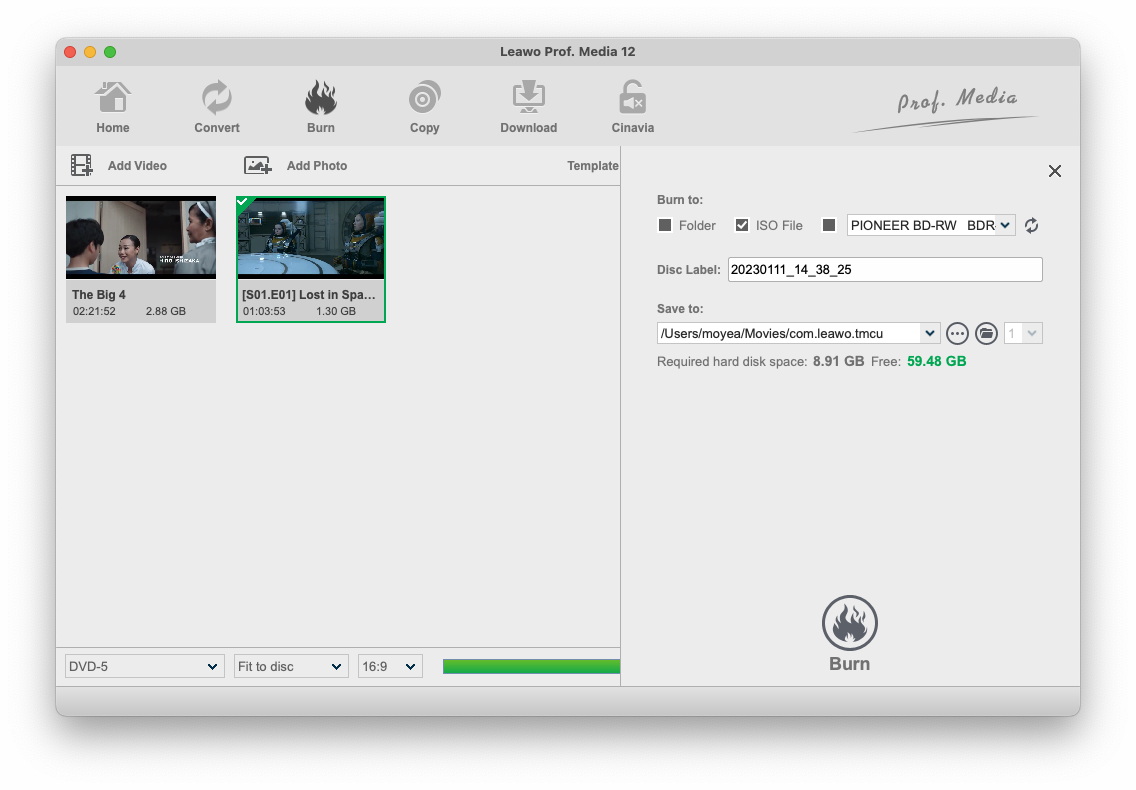
The Mac burn panel (Prof. Media 12 for Mac, burning two video files): ISO File ticked, a PIONEER BD-RW BDR drive in the burner menu, a disc label, Save to /Users/moyea/Movies/com.leawo.tmcu, and 8.91 GB required against 59.48 GB free.
Why It Makes Sense on a Mac
- Works without a built-in drive. Rip-free consolidation from DVD folders or ISOs already on an external disk.
- Native Apple silicon build, as well as the Intel one.
- Menus with your own music and images pulled straight from your Mac's library.
Real-World Uses
- Clearing a shelf before a move: merge a DVD box set onto a couple of BD-50s with an external writer on your MacBook.
- Home-video DVDs burned years ago on an old iMac, collected onto one Blu-ray with a family menu.
- A Blu-ray ISO archive on a NAS, built on a Mac mini with no burner at all.
Who It's For, and Who Should Skip It
Good fit: Mac users with an external Blu-ray writer and a Blu-ray player in the living room who want fewer, fuller discs.
Skip it if:
- You watch through Apple TV, Plex or Infuse. A ripper that makes MP4 or MKV files fits that setup; no blank discs needed.
- You don't own and won't buy a Blu-ray writer and have no use for ISO files.
- You're burning video files, not DVDs. That's Leawo Blu-ray Creator for Mac.
Steps on a Mac
- Check your chip (Apple menu > About This Mac), download the matching .dmg and install Leawo Prof. Media.
- Click Burn on the toolbar, then the Add DVD drop-down to add a DVD disc, DVD folder or DVD ISO. Add more DVDs the same way.
- Choose Full Movie, Main Movie or Custom Mode and the titles to include.
- Set the disc type (BD-25 or BD-50) at the bottom left.
- Pick a menu template on the right, and edit it if you like.
- Click the green Burn button, tick Folder, ISO File and/or your external burner, and set Save to.
- Click Burn at the bottom of the panel. You can cancel any time from the Burning screen.
Where it falls short on a Mac
- Mac burning has a rough history on Trustpilot. Older reviews from Mac users describe failed burns and an error code on a MacBook Pro (see below). They predate Prof. Media 13, but they're the reason to test with your own external drive first.
- Thin Mac documentation. Leawo's Mac guide covers this module only inside the general Burn chapter, and most of its screenshots show Prof. Media 12 burning video files rather than DVDs.
- Chip list stops at M1/M2. Leawo's requirements haven't been updated to name newer Apple chips, even though there's an arm64 build.
- No independent review of the Mac or Windows module exists that we could find.
What Users Say
Leawo's review page for DVD to Blu-ray Converter had no published reviews when we looked. Leawo's product page shows its own picks, such as Milley Forbes: "A very smart tool for backing up DVD contents. The movie-only DVD to Blu-ray conversion mode is especially useful." For a less filtered view, here's what Mac users have written about Leawo's burning tools on Trustpilot.
Mac users on Trustpilot
Leawo's overall Trustpilot scores were 4.3 out of 5 (158 reviews, leawo.com) and 4.4 out of 5 (151 reviews, leawo.org) on November 1, 2026, covering all its products.
- Todd Johnson (4 stars, December 2019), "Burning DVD To MacBook Pro": "I was trying to burn a DVD on my 2019 MacBook Pro and kept getting the error code 4082."
- Robert Thomson (1 star, August 2019): "Leawo will not burn to the Apple SuperDrive."
- Pierre (4 stars, January 2018): "The mudule, Blu-ray Creator for Mac didn't work at first."
- Frans Vandenburg (5 stars, October 2023): "My main concern was about preserving some rare DVDs from my old collection, most of which are out of print."
- Shane Short (5 stars, October 2026), titled: "Support responded to my issue very…"
Reading these together: the Mac burning complaints are years old and involve DVD burning or Blu-ray Creator, not this module directly, while recent reviews mostly praise Leawo's support. A 5-minute trial burn with your own drive and discs is the way to find out whether you'll join the happy ones.
Mac vs Windows Edition
| | Mac | Windows |
|---|
| Installer | Intel or Apple chip .dmg | One .exe (13.0.1.6) |
| Graphics | No requirement listed | GeForce GTX 260 or better |
| Burner | External USB writer | Internal or external writer |
| Price | $44.95 / year or $69.95 lifetime | Same |
Mac Pricing
| Option | Price | Covers | Money-back window |
|---|
| 1 Year for Mac | $44.95 | This module on 1 Mac, auto-renewing | 5 days |
| Lifetime for Mac | $69.95 | This module on 1 Mac, one payment | 14 days |
| Mac bundle with Blu-ray Ripper and Blu-ray Copy (lifetime) | $129.94 (list $269.85) | 8 disc modules on 1 Mac | 14 days |
Mac prices on the order page on November 1, 2026.
FAQs
Which Blu-ray burner works with Leawo DVD to Blu-ray Converter for Mac?
Leawo DVD to Blu-ray Converter for Mac lists whatever recordable Blu-ray drive macOS recognises in its Burn panel; Leawo's own Mac screenshot shows an external Pioneer BD-RW. Leawo doesn't publish a supported-drive list, so test your drive with the trial.
Can I read the DVDs with Apple's SuperDrive and burn on another drive?
Yes, as two steps. Leawo DVD to Blu-ray Converter for Mac accepts DVD folders and ISO files, so you can add the DVDs from any drive and then pick your Blu-ray writer (or Folder/ISO) in the Burn panel.
Should I pick 1080p or 720p for DVD sources?
Leawo's guide says to choose by the source's size and resolution and the disc you're burning. DVD video is lower resolution than either, so neither adds detail; the choice mainly affects how the content is packed onto the Blu-ray.
Can I play the Blu-ray ISO on my Mac?
Leawo DVD to Blu-ray Converter for Mac only creates the ISO; macOS has no built-in Blu-ray player, so you'd need a Blu-ray player app (Leawo offers a free Blu-ray Player) to watch it on the Mac.
Does one license cover a MacBook and an iMac?
No. A Leawo DVD to Blu-ray Converter for Mac license is for one Mac, and the Windows edition is a separate purchase.
Mac System Requirements
- macOS: 10.13 High Sierra to macOS 27
- Processor: 1 GHz or faster Intel, or Apple M1/M2
- Memory: 512 MB RAM (1 GB or more recommended)
- Disk: 25 GB or more free for a Blu-ray project
- Other: a recordable Blu-ray drive for disc output, and an internet connection
Conclusion
If you have an external Blu-ray writer on your Mac and still watch discs, Leawo DVD to Blu-ray Converter for Mac is a reasonable way to turn a DVD shelf into a few Blu-rays with menus, and it runs natively on Apple silicon. The Custom Mode and the menu editor make it more than a copier.
If your viewing happens through Apple TV or a media server, skip it and rip instead. Either way, Mac burning has caused trouble for some Leawo users in the past, so do a 5-minute trial burn with your own drive and blank disc before you pay $69.95.
Download Free TrialBuy Now