Recovery Explorer Professional for Windows: Recovery for Encrypted Drives, Exotic RAIDs and Virtual Machines
Recovery Explorer Professional for Windows is a $209.95 data recovery program from SysDev Laboratories for the hard cases: BitLocker, VeraCrypt and LUKS volumes, encrypted NAS shares, Drobo and ZFS RAID-Z arrays, VMware datastores and virtual disks buried inside other storage. It's for technicians, IT admins and experienced users who've outgrown basic recovery tools but don't need a $699.95 forensic suite.
The cases it's built for don't fit consumer recovery software. A laptop's BitLocker volume is corrupted and Windows won't open it, a Drobo stops responding, a TrueNAS pool is gone, or a VM's disk file sits deleted inside a VMFS datastore. If you have the key or password and the disks still read, Recovery Explorer Professional can usually get to the files without decrypting or repairing anything first.
Quick facts
- Version: 10.23, released October 29, 2026
- Developer: SysDev Laboratories (the makers of UFS Explorer)
- Runs on: Windows XP SP3 through Windows 11 and Windows Server, 32-bit and 64-bit
- Decrypts: BitLocker, FileVault 2, encrypted APFS, LUKS 1 and 2, TrueCrypt, VeraCrypt, eCryptfs, encrypted VMDK and DMG files, and NAS volume or shared-folder encryption (with the key or password)
- Special storage: Drobo BeyondRAID, ZFS RAID-Z, Synology Hybrid RAID, Btrfs-RAID, Storage Spaces, LVM thin provisioning, Intel Optane and NAS SSD caches
- Price: $209.95 for a Personal license, perpetual for Windows, with 360 days of free updates
- Free trial: no time limit and every function works, but it only copies files up to 768 KB each, and Save and Copy are disabled in some hex editor dialogs
- Download size: 48.9 MB
- What we checked: the Windows installer (file version 10.23.0.7982, 48.9 MB) downloaded from SysDev, and the $209.95 price on the order page, both on November 3, 2026. We didn't run a recovery or decrypt a volume with it.
Before you buy
- You need the key. Recovery Explorer Professional decrypts volumes you have the password, recovery key or key file for. It doesn't crack encryption.
- Test with the trial first. The trial runs every function and lists every file it finds. If your files show up and their previews open, the paid version will copy them.
- Refunds are narrow. SysDev refunds only when the paid version fails because of a software bug it can't fix within 7 days, and only if you tried the trial first. "It didn't find my files" and buying the wrong edition aren't covered.
- The license is for Windows only. The Linux and macOS versions need their own license, and recovering data for paying clients needs the $539.95 Commercial license.
Download Free TrialBuy Now
Overview
Recovery Explorer is SysDev's line for people who aren't data recovery engineers, and Professional is its top edition. It includes everything in Recovery Explorer Standard (single disks) and RAID (arrays and NAS boxes), then adds the parts that usually push people to expensive lab tools: built-in decryption, ZFS and VMware file systems, Drobo and RAID-Z, hybrid cached storage, and a hex editor with low-level analysis tools.
It shares its recovery engine with UFS Explorer Professional Recovery, SysDev's tool for recovery labs, which costs $699.95. The Recovery Explorer version leaves out enterprise arrays, hardware-encrypted drives, bad-sector maps and some third-party hardware integration, and keeps the price at $209.95. Everything runs read-only: arrays are built and volumes decrypted virtually, so the source disks are never changed.
Features
Built-in decryption for encrypted volumes
Recovery Explorer Professional opens encrypted volumes itself, without the operating system or the original encryption software, as long as you supply the password or key. It supports Windows BitLocker, Apple FileVault 2 and encrypted APFS, LUKS 1 and 2, TrueCrypt and VeraCrypt, eCryptfs folders, encrypted VMware VMDK files and Apple DMG images, password-based OpenBSD softraid encryption, and full-volume or shared-folder encryption on NAS units from Synology, QNAP, Asustor and others. That matters when the volume's own metadata is damaged and the normal password prompt no longer appears.
RAID support that includes Drobo and ZFS
Recovery Explorer Professional reassembles standard RAID levels (0, 1, 1E, 3, 4, 5, 6), nested levels (10, 50, 60, 50E) and custom layouts, automatically when the metadata survives and by hand when it doesn't. Beyond the RAID edition, it handles Drobo BeyondRAID, ZFS RAID-Z pools, Microsoft Storage Spaces with dedicated tools, and hybrid or cached storage such as Intel Optane Memory, Drobo with an mSATA cache and Synology or QNAP SSD write-caches. It can build several configurations from the same disks to compare them, and split an assembled array back into its parts.
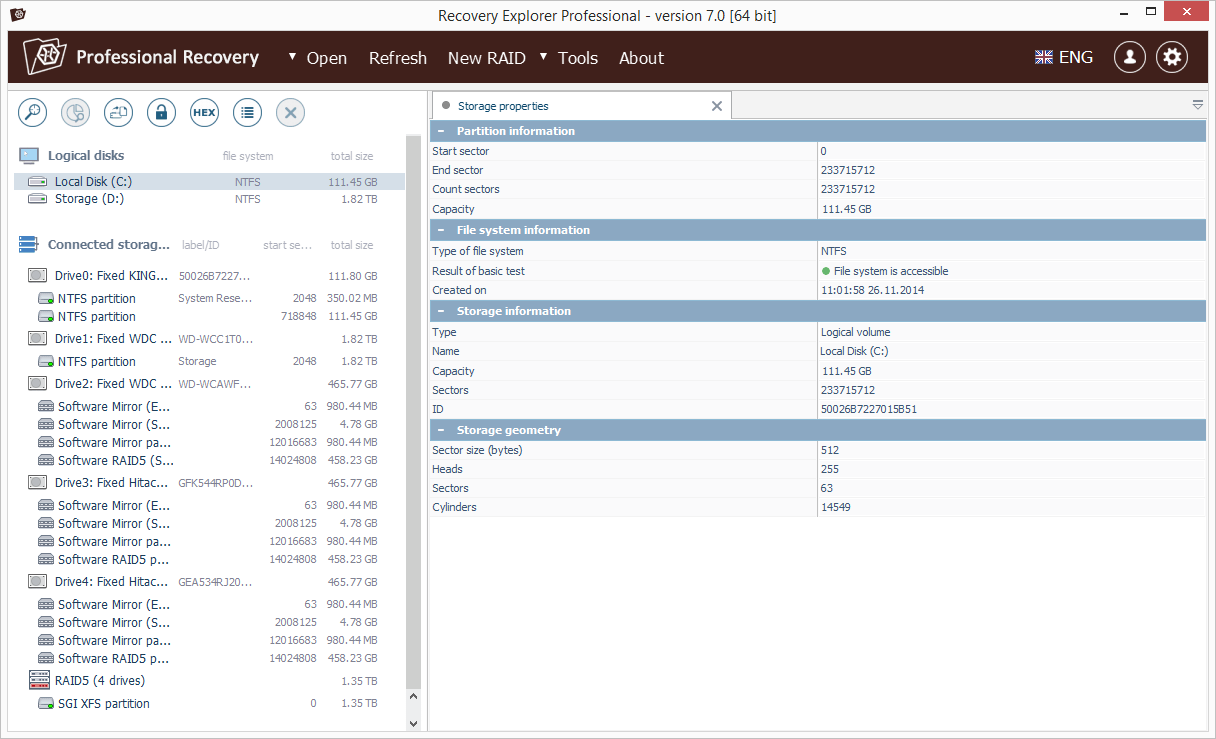
The main window: logical disks, five physical drives with their software RAID partitions, the assembled four-drive RAID 5, and the properties of the selected NTFS volume (screenshot from version 7.0).
The widest file system list in the Recovery Explorer line
Recovery Explorer Professional recovers from NTFS (including ReFS with data deduplication), FAT, exFAT, HFS+, APFS, Ext2/3/4, XFS, JFS, ReiserFS, Btrfs, F2FS, ZFS, and VMware VMFS and VMFS6. It also gives read-only access to legacy HFS, IBM/Microsoft HPFS and Novell NetWare (NWFS, NSS, NSS64) volumes, and to the special Ext4 layout on WD My Cloud Home drives. Some come with limits: ZFS recovery after damage works only on simple, mirror, stripe and span volumes, and recovering deleted VMDK files from VMFS is limited.
Virtual machines and disk images, even nested ones
Recovery Explorer Professional opens VMware VMDK, Hyper-V VHD/VHDX, VirtualBox VDI, QEMU/XEN QCOW, Parallels, Apple DMG and sparsebundle, EnCase E01/Ex01 and R-Studio RDR images, plus Synology Sparse iSCSI LUNs and split images from DeepSpar DDI and MRT tools. Its disk-on-disk feature opens a virtual disk that's stored inside another storage, such as a VMDK on a VMFS datastore on a RAID, directly, without extracting each layer first.
A hex editor and low-level analysis tools
Recovery Explorer Professional includes a hex viewer for disks, partitions, files and file fragments, and a hex editor for disks and partitions. Around it are a parity calculator, field highlighting, a data interpreter, side-by-side comparison of storages, parallel pattern search, XOR, and reverse address translation that shows which file a given sector belongs to. These are the tools you use to check a RAID layout by eye or fix a damaged structure by hand.

Raw data comparison: two RAID member drives side by side in the hex view, with the bytes that differ highlighted.
Careful reading of unstable drives
Recovery Explorer Professional lets you choose how a disk is accessed and set a timeout for read errors, so a weak drive isn't hammered with retries. Read-once access saves everything it reads to a sparse image file, so no sector is read twice, and a basic disk imager and S.M.A.R.T. monitor help you decide when to stop and image the whole disk. It's more than the Standard and RAID editions offer, but less than UFS Explorer's bad-sector maps and drive activity monitor.
Configurable scans, previews and reports
Recovery Explorer Professional can index the existing file system, scan the full range for lost partitions and files, and limit the search to chosen file system families. IntelliRAW finds files by content when the structure is gone, and scans can be paused, resumed and saved. Found files can be previewed, filtered and saved with "tasks", and the program produces basic and interactive HTML reports of the results.

Scan settings for a four-drive RAID 5: index the existing XFS file system, full-range scan, file system families to look for, and file name encodings.

The scan result: the recovered folder tree, a list of photos, and a preview of the selected picture with View and Save as buttons.
Benefits
- One tool for the awkward cases. Encrypted laptops, Drobos, TrueNAS pools and VM datastores normally each need a different specialist tool. Professional covers all of them.
- A third of the price of the lab version. UFS Explorer Professional Recovery costs $699.95. For work that doesn't involve enterprise arrays or physically failing drives, Recovery Explorer Professional uses the same engine for $209.95.
- Nothing changes on the source. Decryption and RAID assembly happen in memory, so you can try keys and configurations without risking the disks.
- Room to work by hand. When automatic detection fails, the hex editor, parity calculator and storage comparison let an experienced user work it out.
Real-World Uses
- A corrupted BitLocker drive. A laptop's system drive won't open after a failed update. With the 48-digit recovery key from the user's Microsoft account, Recovery Explorer Professional decrypts the volume and copies the user's files to another disk.
- A dead Drobo. The Drobo's controller has failed and BeyondRAID can't be read anywhere else. Connect the disks to a Windows PC and Professional reassembles the pack.
- A lost TrueNAS or FreeNAS pool. The pool won't import after a hardware change. Professional assembles the RAID-Z and opens the ZFS file system so the datasets can be copied off.
- A deleted VM on an ESXi host. A datastore disk is imaged and opened, and the VMFS volume is searched for the VM's files, then the guest's own disk is opened directly to pull out documents.
- An encrypted Synology share. The NAS died with an encrypted shared folder on it. With the share's password, the folder is decrypted from the bare disks.
Who It's For, and Who Should Skip It
It's a good fit for IT admins, repair technicians and experienced home users who face encrypted volumes, unusual RAIDs, ZFS or VMware, and who are comfortable with partition tables and RAID parameters. The interface is more technical than the other Recovery Explorer editions, but it's still far easier than lab tools.
Skip it if:
- you're recovering ordinary deleted files from a single unencrypted disk. Recovery Explorer Standard does that for $47.95.
- your problem is a standard RAID or NAS with no encryption. Recovery Explorer RAID costs $94.95 and covers it.
- you run a recovery lab: physically failing drives, enterprise arrays, hardware-encrypted or ATA-password drives, drives with 520-byte sectors. UFS Explorer Professional Recovery has the tools for those.
- you don't have the password or key for an encrypted volume. No recovery software can help there.
Usage Guide
- Install it on a healthy disk. Download the 48.9 MB installer and install it on the PC's system drive, never on a disk you're recovering from.
- Connect the source disks. Attach every member of an array, or the encrypted drive, by SATA or USB. Don't let Windows initialize or format them.
- Launch and check the storage list. The program lists logical disks, physical drives and any arrays it assembled automatically. Use New RAID to build one by hand if needed.
- Decrypt encrypted volumes. Select the volume and enter its password, recovery key or key file when prompted.
- Open or scan. Open an intact file system directly, or start a scan, choosing the file system families to look for. Save long scans so you can resume them.
- Preview and save. Check that files open in the preview, then save them to a separate disk. Create an HTML report if you need a record of what was recovered.
- Activate. After buying, enter your name and registration code in the Software Activation and License dialog to save files larger than 768 KB.
Tips
- Find the recovery key before you start. BitLocker recovery keys are often saved in the user's Microsoft account or an Active Directory, and Synology encryption keys in an exported key file.
- Use read-once access on suspect drives. It saves what's read to an image, so a second pass doesn't stress the disk again.
- Check a large file before buying. Open the preview of a photo or document bigger than 768 KB. A clean preview means the decryption and RAID parameters are right.
- Save to a different, large disk. Recovering a NAS or VM datastore can mean terabytes of output.
Where it falls short
- Limited help for physically damaged drives. SysDev rates its handling of damaged drives as "Limited": no bad-sector maps, no adaptive rebuilding of degraded arrays and only basic read-retry settings. Clicking or dying disks belong in a lab.
- No enterprise or hardware-protected storage. Enterprise storage arrays, Synology RAID-F1, drives with hardware encryption or an ATA password, and drives with non-standard sector sizes need UFS Explorer Professional Recovery.
- Partial support on some file systems. ZFS damage recovery works only on simple, mirror, stripe and span volumes, deleted-file recovery on HFS+ and Ext2/3/4 often loses original names, and VMFS recovery of deleted VMDKs is limited.
- Old screenshots. The vendor's screenshots still show version 7.0, so the current interface may look a little different.
Comparisons
Recovery Explorer Standard vs. RAID vs. Professional
The three Recovery Explorer editions share one interface and scanning engine. Standard ($47.95 for Windows) recovers from single disks, USB sticks, memory cards and disk images. RAID ($94.95) adds RAID and NAS reassembly with the manual RAID builder, but no encryption, ZFS or Drobo. Professional ($209.95) adds decryption, Drobo BeyondRAID and ZFS RAID-Z, ZFS, VMFS and F2FS, cached storage, nested virtual disks, configurable disk reading and the hex editor. Pick Professional only if you need one of those extras.
Recovery Explorer Professional vs. UFS Explorer Professional Recovery
Both come from SysDev and share the same core recovery engine. UFS Explorer Professional Recovery ($699.95) is built for data recovery specialists and forensic work: adaptive RAID recovery with bad-sector maps, enterprise arrays and Synology RAID-F1, hardware-encrypted and ATA-password drives, drives with non-standard sector sizes, iSCSI access to remote storage, file-system-map imaging and deeper integration with DeepSpar and MRT hardware. Recovery Explorer Professional does the logical work, decryption and unusual storage for $490 less.
Editions and Pricing
Every license is perpetual for one operating system, covers the current major version and includes 360 days of free updates. Prices below are for Windows.
| License | Price | Who can use it | Computers |
|---|
| Trial | Free | Anyone, saves files up to 768 KB | Any |
| Personal | $209.95 | One person, personal or educational use, or non-commercial use at work | Your own PCs (one at work) |
| Commercial | $539.95 | A company, including paid recovery services | 1 |
| Corporate | $929.95 | A company or organization, non-commercial or educational use | Up to 10 |
FAQs
Can Recovery Explorer Professional recover a BitLocker drive without the recovery key?
No. Recovery Explorer Professional needs the password, recovery key or key file to decrypt a BitLocker volume, as it does for every encryption type it supports. It can't break or bypass encryption.
Does Recovery Explorer Professional work with TrueNAS and other ZFS pools?
Yes, with limits. Recovery Explorer Professional assembles ZFS pools including RAID-Z and reads the file system, but recovery after file system damage and deleted-file recovery only work on simple, mirror, stripe and span volumes.
Can I use Recovery Explorer Professional for client work?
Only with the Commercial license. The $209.95 Recovery Explorer Professional Personal license doesn't allow commercial use. Recovering data for paying customers needs the $539.95 Commercial license, which covers one computer.
Can I move the license to my Mac or Linux PC?
No. A Recovery Explorer Professional license is for one operating system, and the macOS and Linux versions are sold separately. The Windows license covers both the 32-bit and 64-bit builds.
Will Recovery Explorer Professional write to my disks?
No. Recovery Explorer Professional works read-only, assembling arrays and decrypting volumes virtually. The hex editor can write to disks and partitions, but only when you make and save an edit yourself.
What happens after the 360 days of updates?
Recovery Explorer Professional keeps working at the version you have. You stop getting free updates, and you can renew the updates period by buying a new license at a discount.
Can I upgrade from Recovery Explorer Standard or RAID to Professional?
Yes. SysDev offers upgrades to a more advanced edition for the same operating system at a discount, requested through its contact form, and a wrong edition bought by mistake can be swapped rather than refunded. Moving on to UFS Explorer is discounted too: within 30 days of purchase, the full price of your Recovery Explorer license counts toward the UFS Explorer one, falling to 50% after a year.
How quickly is Recovery Explorer Professional activated after buying?
Recovery Explorer Professional's registration code arrives by email, usually 15 to 45 minutes after payment. Enter your name and the code in the trial's Software Activation and License dialog, with no new download needed.
System Requirements
- Windows XP SP3 or later, including Windows 10, Windows 11 and Windows Server
- 32-bit (x86) or 64-bit (x86-64) processor
- At least 20 MB of free disk space for the program and 1 GB of RAM
- Recommended: 64-bit Windows, over 1 GB of free disk space for the program and temporary files, 2 GB of RAM and a 4-core CPU
- A separate drive with enough space to save the recovered files
Conclusion
Recovery Explorer Professional for Windows is worth $209.95 if your problem involves encryption, Drobo, ZFS, VMware or cached storage, and the disks themselves still work. It handles cases that would otherwise need several specialist tools or the $699.95 UFS Explorer, with the same engine and a gentler interface. The one reason to buy it is that it decrypts and reads storage the cheaper editions can't. The main reason not to is physical damage: its tools for failing drives are limited, and the refund policy won't help if your files don't come back. If your case is a plain disk or an unencrypted RAID, the Standard or RAID edition costs far less. Either way, run the free trial on your disks first.
Download Free TrialBuy Now