Recovery Explorer Standard for Mac: Get Back Deleted Files from Your Disks and Cards
Recovery Explorer Standard for macOS is a $47.95 file recovery app from SysDev Laboratories for Mac users who deleted the wrong files, formatted the wrong card or can no longer open a drive. It recovers from internal and external disks, SSDs, USB sticks and memory cards formatted with APFS, HFS+, Windows or Linux file systems, and an optional wizard walks you through it if you've never done this before.
It's built for the everyday accidents: an emptied Trash, an SD card you formatted in the camera before copying the photos, an external drive that macOS suddenly wants to initialize. Recovery Explorer Standard reads the disk without changing it, finds what the file system has lost track of and lets you copy it somewhere safe.
Quick facts
- Version: 10.23, released October 29, 2026
- Developer: SysDev Laboratories, the company behind UFS Explorer
- Runs on: macOS 11 Big Sur and later, Apple Silicon and Intel Macs. Windows and Linux versions are separate licenses.
- Recovers from: internal drives and SSDs, external USB disks, flash drives, memory cards, cameras, disk images and virtual disks
- File systems: APFS, HFS+, NTFS, ReFS, FAT32, exFAT, Ext2/3/4, XFS, Btrfs, JFS, ReiserFS and UFS
- Price: $47.95 for the Personal license, a one-time payment with 360 days of free updates
- Free trial: scans and previews everything, but only copies files up to 256 KB
- What we checked: the macOS installer downloaded from SysDev on November 3, 2026 reports version 10.23 (a 22.5 MB zip), and the order page charged $47.95 for the Personal license on November 3, 2026. We didn't run a recovery ourselves.
Before you buy: what Standard doesn't do
Recovery Explorer Standard handles one disk at a time: it doesn't rebuild RAID arrays, NAS volumes or Fusion Drives, which need Recovery Explorer RAID. It also can't open encrypted volumes, so an encrypted APFS or FileVault disk needs Recovery Explorer Professional or UFS Explorer. Run the trial first: if your files show up with working previews, the license will save them.
Download Free TrialBuy Now
Overview
Recovery Explorer Standard opens on a list of your Mac's volumes and every connected drive with its partitions. Pick one and the right side tells you its file system and whether it's still readable. From there you either Explore a volume that still opens, start a scan for lost data, or click Recover data in Wizard mode to be guided through choosing a drive, a scan type and the files to save.
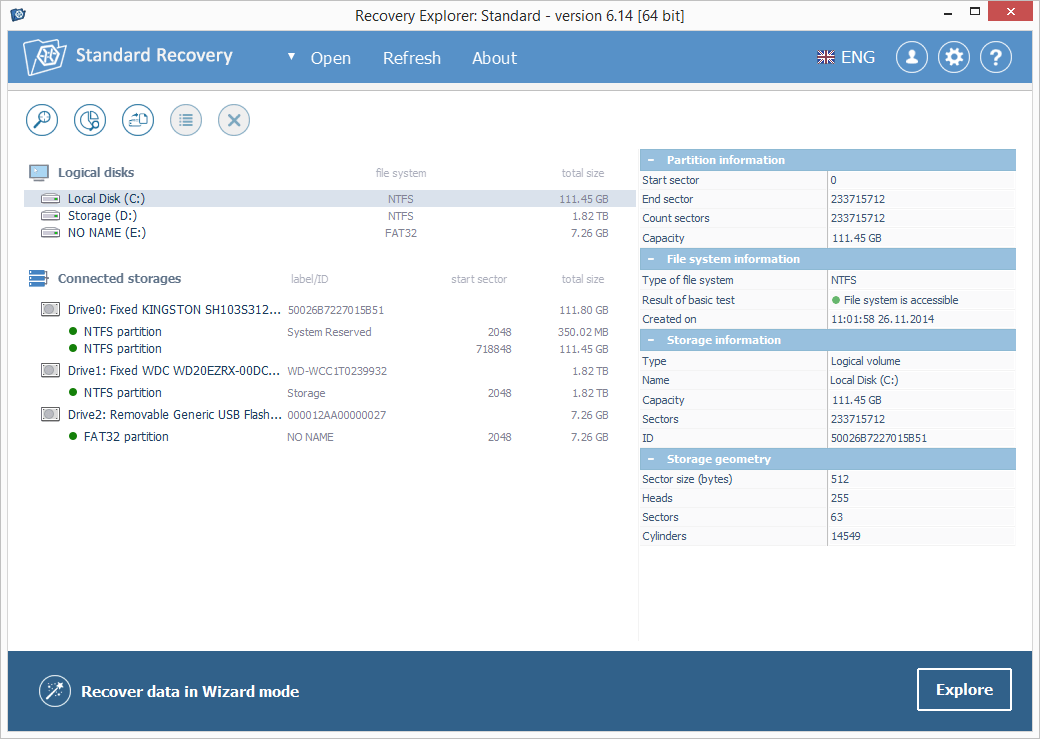
The main window, shown in version 6.14 on Windows (SysDev doesn't publish Mac screenshots): logical disks and connected drives on the left, partition, file system and storage details on the right, and the Wizard mode and Explore buttons at the bottom.
SysDev sells it as the beginner-friendly sibling of UFS Explorer Standard Recovery. Both use the same recovery engine, but Recovery Explorer Standard hides the technical controls behind a wizard and costs less. It works read-only, so scanning never writes to the disk you're recovering from.
Features
Wizard mode for first-time users
Recovery Explorer Standard's wizard asks a few plain questions (which storage, which file systems to look for, whether to search by file content) and then runs the scan. The file system step shows Windows, Linux and Mac file systems side by side with everything ticked, so you don't have to know what your card or disk was formatted with.

The wizard's "Which one of the file systems to search?" step (version 6.14 on Windows): Windows, Linux/Unix/BSD and Mac OS X file systems all ticked, with file name encoding options below.
Recovery after deletion, formatting and corruption
Recovery Explorer Standard finds files deleted from the Trash, partitions that were deleted or resized, and data on drives that were formatted, damaged by a crash or a power cut, or hit by malware. When a drive shows up as unreadable or macOS asks to initialize it, Recovery Explorer Standard can often still open the file system and let you copy the files off before you do anything else.
Reads Windows and Linux disks on your Mac
Recovery Explorer Standard reads NTFS, ReFS and exFAT from Windows and Ext4, XFS, Btrfs and other Linux and BSD file systems, so it doubles as a way to open a drive macOS can't mount. You can browse intact folders on such a disk without scanning and copy them straight to your Mac. It also opens disk images and virtual disks, including Apple DMG and sparsebundle, VMware VMDK, VirtualBox VDI and Parallels HDD.
Lost partition search and deep content scan
Recovery Explorer Standard searches a whole disk for partitions that no longer appear in the partition table, then scans the one you pick. Its IntelliRAW search looks for files by their content (photos, documents, videos and many other formats) when the file system is too damaged to list them. Scans can be paused, resumed and saved to reopen later.
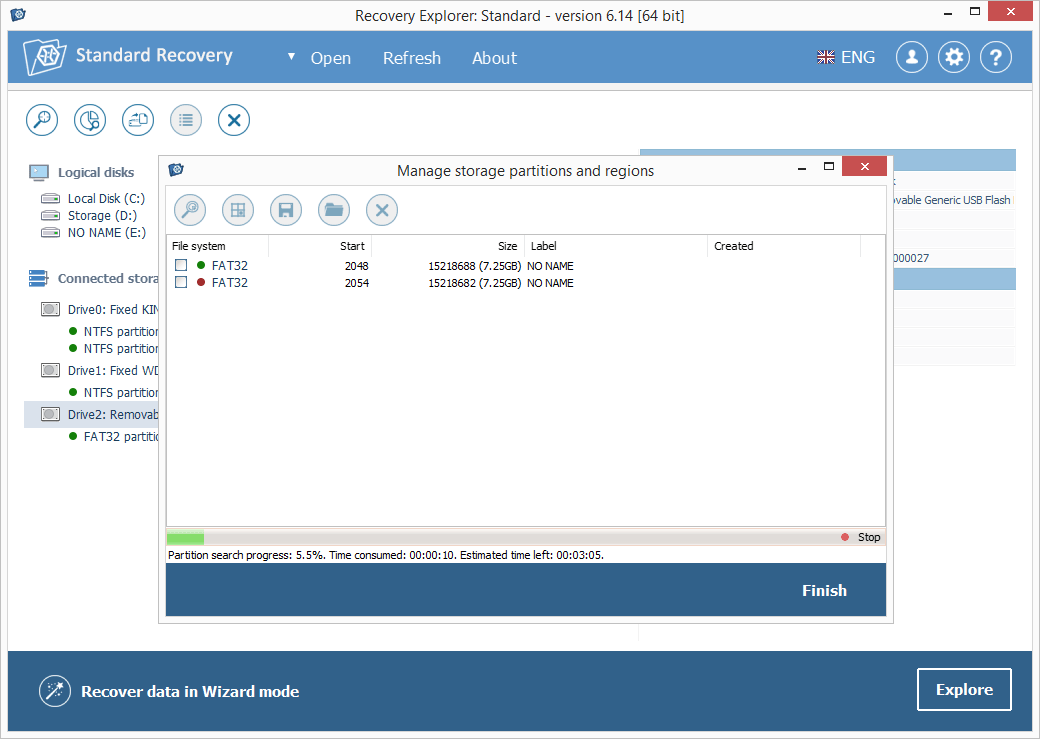
The partition search on a USB flash drive (version 6.14 on Windows): two FAT32 partitions found so far, with a progress bar and the estimated time left.
Preview, sort and filter before saving
Recovery Explorer Standard shows found files in a folder tree, with lost files grouped under $LostFiles and content-scan results sorted by type (JPEG images, PNG images, movie files and so on). You can preview images, documents and videos, search by name, sort by date or size, and check how much you've selected before saving.
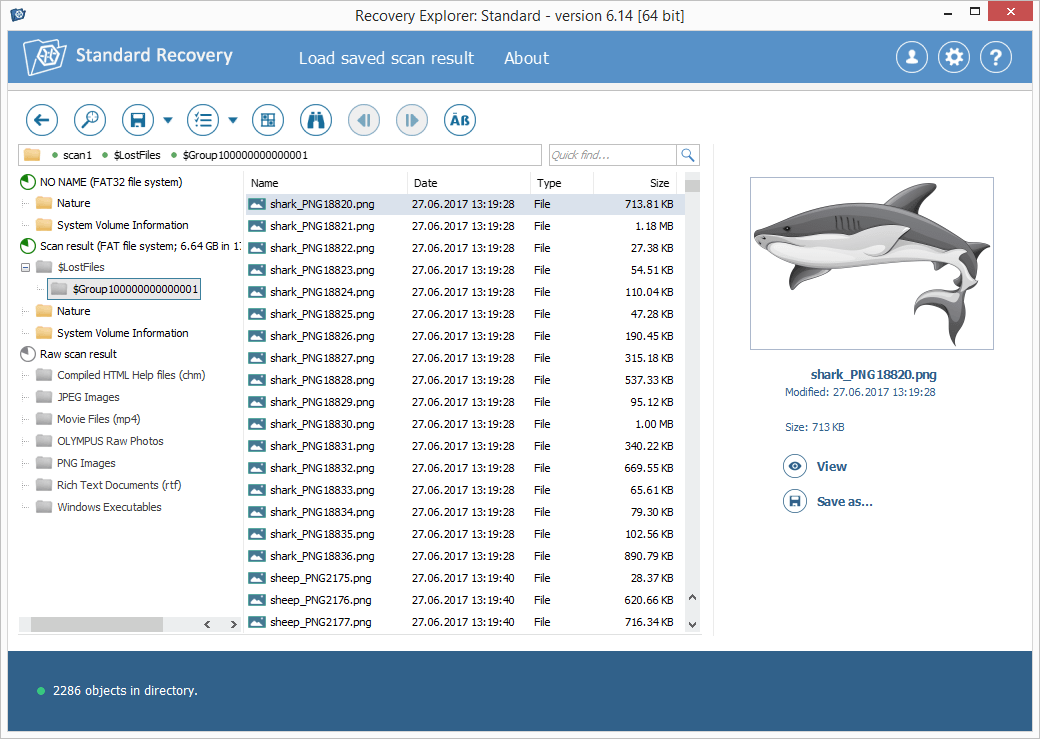
Scan results from a FAT32 flash drive (version 6.14 on Windows): lost PNG files listed with dates and sizes, a preview of the selected image on the right, and the raw scan result grouped by file type in the tree.
Disk imager and S.M.A.R.T. monitor
Recovery Explorer Standard can copy a drive to an image file so you scan the copy instead of a disk that's starting to fail, and it shows each drive's S.M.A.R.T. health readings. Both are basic versions of what UFS Explorer offers, but they cover the common "is this drive dying?" question.
Benefits
- You know before you pay. The trial lists and previews every file it can recover, so the $47.95 only goes on a recovery you've already seen work.
- You don't need to know file systems. The wizard searches for all of them, which is handy for a camera card or a drive from someone else's PC.
- Your disk stays as it is. Read-only scanning means a failed attempt doesn't reduce your chances with a lab later.
- It's yours to keep. There's no subscription; the license works forever, with a year of free updates.
Real-World Uses
- The emptied Trash. You cleared the Trash on an external drive and a project folder went with it. A scan of that drive finds the deleted files with their folder structure.
- The formatted camera card. The camera's "format" wiped an SD card before you copied a trip's photos. The content scan finds the JPEG and RAW files by their signatures.
- The drive macOS wants to initialize. An external disk shows "the disk you attached was not readable." Before clicking Initialize, you open it in Recovery Explorer Standard and copy the files off.
- A Linux or Windows disk. An old PC or Raspberry Pi drive uses NTFS or Ext4. Recovery Explorer Standard reads it on your Mac without extra drivers.
Who It's For, and Who Should Skip It
Recovery Explorer Standard suits home Mac users with an ordinary data accident on a single disk, card or stick, who want a guided tool at a modest one-time price.
Skip it if:
- Your data was on a RAID, NAS or Fusion Drive. Recovery Explorer RAID ($94.95) rebuilds those.
- The volume is encrypted. Encrypted APFS and FileVault disks need Recovery Explorer Professional or UFS Explorer Standard Recovery.
- The drive clicks, grinds or isn't detected at all. That's physical damage, which no software fixes. Take it to a recovery lab.
- You want fine control over a failing drive. UFS Explorer Standard Recovery adds bad-sector maps, configurable read retries and an advanced imager.
Usage Guide
- Stop using the drive. Every file you write to it can overwrite something you want back.
- Install it. Download the zip, open it and run "Install Recovery Explorer Standard" on a different disk from the one you're recovering.
- Choose the storage. Launch the program, then pick the volume or the whole drive, or click Recover data in Wizard mode.
- Explore or scan. If the volume still opens, Explore it. Otherwise run a scan, adding the content search if the quick scan comes up short.
- Check the results. Preview the files that matter, and use sorting and search to find them.
- Save to another drive. Select the files and save them to a different disk, never back onto the one you scanned.
Where It Falls Short
- Some file names are lost on HFS+ and Ext2/3/4. On these file systems only part of the deleted files come back with their original names, so expect folders of renamed files.
- Weak at deleted files on UFS/UFS2. Recovery of deleted data from BSD file systems is very limited.
- The trial limit is small. At 256 KB, the trial can save a text file or a small image, but not a typical photo, so you're mostly judging by the previews.
- Limited help for damaged drives. SysDev's own comparison rates its handling of damaged drives as "limited" next to UFS Explorer's.
Recovery Explorer Standard vs UFS Explorer Standard Recovery
Both programs come from SysDev and share one recovery engine, so on an ordinary deleted-files job they find the same data. The differences:
| Feature |
Recovery Explorer Standard |
UFS Explorer Standard Recovery |
| Ease of use | High, with an optional wizard | Moderate, more manual controls |
| Encrypted volumes (APFS, BitLocker) | No | Yes |
| Spanned volumes (Apple Software RAID, LVM, mdadm, Dynamic Disks) | No | Yes |
| Bad-sector maps, configurable read retries | No | Yes |
| ZFS volumes | No | Yes, simple volumes |
Choose Recovery Explorer Standard for a simple, guided recovery at the lowest price. UFS Explorer Standard Recovery costs a little more and earns it when the disk is encrypted, part of a spanned volume or physically struggling.
Editions and Pricing
Recovery Explorer comes in three editions, each licensed per operating system. All are one-time payments with unlimited use and 360 days of free updates.
| Edition |
Personal license |
What it adds |
| Recovery Explorer Standard | $47.95 | Single disks, SSDs, USB drives and memory cards |
| Recovery Explorer RAID | $94.95 | RAID, NAS and Fusion Drive reconstruction |
| Recovery Explorer Professional | $209.95 | Encrypted storage and advanced analysis tools |
Recovery Explorer Standard also has a Commercial license ($79.95, one computer, for commercial use and paid services) and a Corporate license ($139.95, up to ten computers in one organization, for non-profit internal or educational use).
FAQs
Does Recovery Explorer Standard work on Apple Silicon Macs?
Yes. Recovery Explorer Standard for macOS runs on Apple Silicon (arm64) and Intel Macs with macOS 11 Big Sur or later.
Is Recovery Explorer Standard safe to run on the drive I lost files from?
Recovery Explorer Standard only reads from the drive it scans, so the scan itself doesn't overwrite anything. What does the damage is saving files or installing software onto that same drive, so install the program and save recovered files on a different disk.
Can I use the Mac license on Windows too?
No. A Recovery Explorer Standard license covers one operating system, so the Mac license won't activate the Windows or Linux version.
How do I activate Recovery Explorer Standard after buying?
Recovery Explorer Standard is activated with a registration code that arrives by email, usually 15 to 45 minutes after payment. Enter your name and the code in the trial's "Software Activation and License" dialog; you don't download anything new.
What happens when the 360 days of updates run out?
Recovery Explorer Standard keeps working without a time limit. You simply stop receiving new versions unless you renew.
Can I upgrade from Recovery Explorer Standard if I need more later?
Yes. SysDev upgrades Recovery Explorer Standard to a more advanced edition for the same operating system at a discount, on request through its contact form. For an upgrade to UFS Explorer, the discount is the full price you paid within 30 days of buying, then falls to 85%, 75%, 65% and finally 50% of it after a year.
System Requirements
- macOS 11 Big Sur or later
- Apple Silicon (arm64) or Intel processor
- At least 1 GB of RAM, 2 GB and four CPU cores recommended
- 20 MB of disk space for the program, over 1 GB recommended for temporary files
- A second drive to save recovered files to
Conclusion
Recovery Explorer Standard is worth $47.95 for a Mac user with an ordinary accident on one external disk, SSD, USB stick or memory card: deleted files, a formatted card, a drive macOS won't read. It's simple enough for a first-timer, reads Windows and Linux disks too, and the trial shows you the files before you pay. The main reason to choose something else is your storage: RAIDs, NAS boxes and Fusion Drives need Recovery Explorer RAID, and encrypted volumes need Professional or UFS Explorer.
Download Free TrialBuy Now