UFS Explorer Standard Recovery for macOS: Get Back Deleted Files from Almost Any Disk, Right on Your Mac
You emptied the Trash a day too soon. An external drive that held your photo archive now asks to be initialized. A friend hands you a USB stick formatted on Windows and asks if you can get their files back. Most Mac recovery apps handle the first case and stumble on the rest, especially when the disk uses a Windows or Linux file system.
UFS Explorer Standard Recovery from SysDev Laboratories is a recovery tool built for exactly that mix. It reads the Mac's own APFS and HFS+, but also NTFS, exFAT, FAT, Ext4, Btrfs, ZFS and more, scans for deleted and lost files, and copies them to a safe place, without ever writing to the damaged disk.
Quick facts
- Version: 10.22
- Developer: SysDev Laboratories
- Runs on: macOS 11 and later, on Apple Silicon and Intel Macs (a separate build covers macOS 10.9 to 10.15). Windows and Linux editions are sold separately.
- Recovers from: internal and external drives, SSDs, USB sticks, memory cards, disk images and virtual machine disks
- File systems: APFS (including encrypted), HFS+, NTFS, ReFS, FAT, exFAT, Ext2/3/4, XFS, Btrfs, UFS, ZFS and more
- Price: $69.95 USD, Personal license, perpetual for macOS, with 1 year of updates
- Free trial: no time limit, with full scanning, preview and disk imaging, but it only saves files up to 256 KB each
- Download size: about 21 MB
Before you buy: it's for single disks and logical damage
Standard Recovery handles one disk at a time and logical problems: deletion, formatting, lost partitions, damaged file systems. A drive that's clicking, not detected or won't power on needs a hardware lab, which no software can replace. For RAID arrays, NAS boxes or other multi-disk setups, SysDev points you to UFS Explorer RAID Recovery or its Professional line. The trial lets you scan and preview everything, so you can see exactly what's recoverable before paying.
Overview
The main window lists your logical disks and every connected storage device with its partitions. Select one and the right-hand panel shows its file system, whether that file system is still accessible, its size and geometry. From there you either Explore a readable volume directly, much like the Finder would, or Start scan to dig for files that are gone.
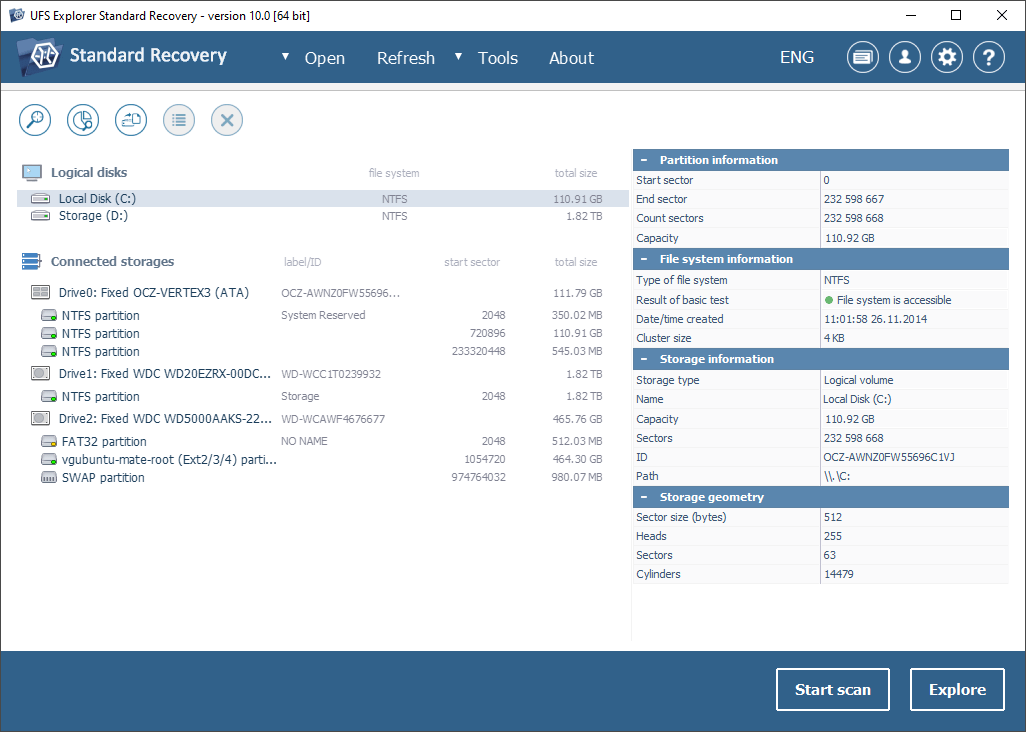
The main window (version 10.0 on Windows, from SysDev's product page): logical disks, three connected drives with NTFS, FAT32, Ext2/3/4 and swap partitions, partition and file system details on the right, and the Start scan and Explore buttons.
Every operation is read-only. The program never writes to the source disk, so trying it can't make things worse.
Features
Three ways to scan
A quick scan uses whatever file system records are left, giving fast results with original names and folders. A deep scan reads the disk sector by sector to recover as much as possible from badly damaged or formatted volumes. IntelliRAW finds files by their content signatures when no file system structure survives. Any scan can be paused to look at what's been found, saved, and resumed later, so a long scan of a big drive never has to start over.
Lost partition search
If a partition has vanished or a drive shows up blank, the program searches for lost partitions, aligns them automatically, or lets you define one manually. You choose which file systems to look for and how to search.
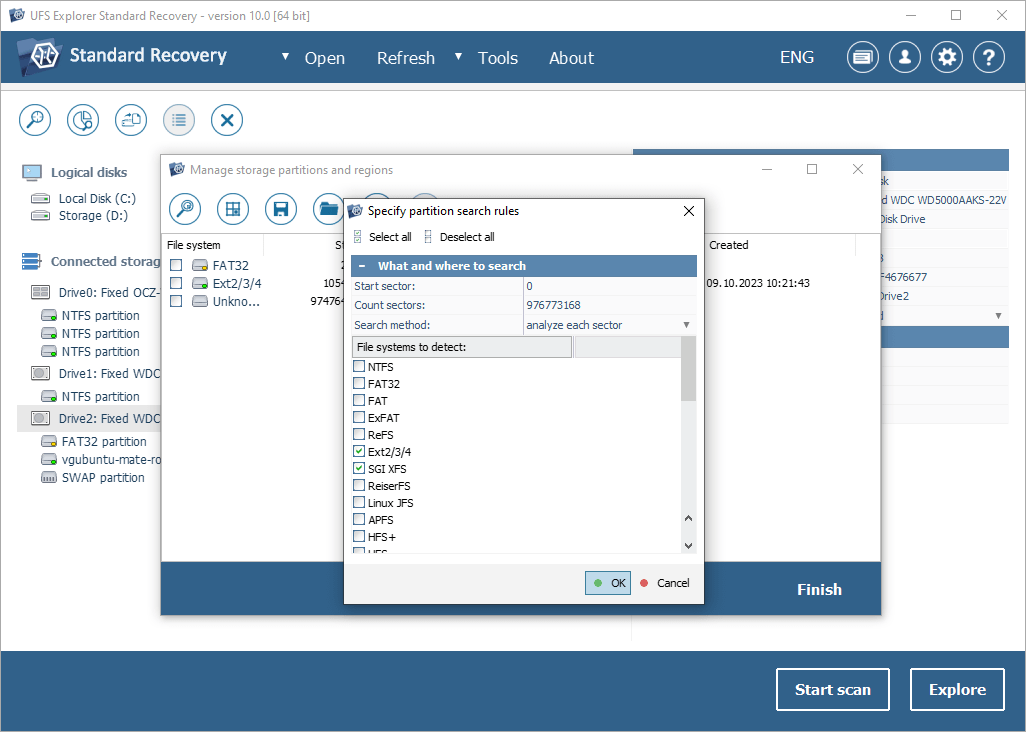
Managing a drive's partitions (version 10.0 on Windows): the partition search rules dialog with the start and count sectors, "analyze each sector" as the search method, and Ext2/3/4 and SGI XFS ticked among the file systems to detect.
A professional disk imager for failing drives
When a drive is degrading, every read risks making it worse. The built-in imager makes a full sector-by-sector copy with multi-pass reading and configurable bad-block handling, and maps the areas it couldn't read so you know which files might be affected. You then recover from the image instead of the drive. The imager works fully in the free trial, with no file size limit.
Encrypted volumes and virtual disks
Give it the password or recovery key and it decrypts APFS-encrypted, BitLocker and BitLocker To Go volumes on the fly, then scans and recovers as normal. It never bypasses encryption. It also opens virtual machine disks directly: VMware VMDK, Hyper-V VHD/VHDX, VirtualBox VDI, QEMU QCOW2 and Parallels, plus Apple DMG and raw images, with no need to run the VM.
Spanned volumes and many file systems
It automatically assembles volumes that span several partitions or disks, such as Apple RAID, Linux LVM and mdadm, and Windows LDM, and recognizes partition maps from MBR and GPT to Apple Partition Map and Solaris slices. Results can be filtered, searched and sorted, and you can preview images, PDFs and documents before saving.
Benefits
The standout benefit is breadth. One license covers recovery from your Mac's APFS drive, a Windows-formatted USB stick, a Linux server disk and a VMware virtual disk, so you don't need a different tool for each.
It's also safe by design. Read-only operation and image-first recovery protect a fragile disk from further damage, which matters most when the data is irreplaceable.
And the trial is genuinely useful: unlimited scanning and preview mean you'll know whether your files are intact before you spend anything.
Real-World Uses
- Emptied Trash. Scan your Mac's APFS volume and recover documents deleted days ago.
- "Initialize" prompt on an external drive. Search for the lost partition and recover the archive from it.
- A camera card formatted by mistake. Run a deep scan or IntelliRAW and pull the photos back.
- A dying hard drive. Image it first with multi-pass reading, then recover from the image.
- Files inside a broken VM. Open the VMDK or VHDX directly and copy out what you need.
Who It's For
SysDev aims Standard Recovery at both home users and professionals offering computer repair and data recovery services. Its interface is clean but technical, so it suits Mac users comfortable with terms like partitions and file systems, IT staff, and repair shops that deal with disks from every kind of computer. Someone who wants a one-button recovery may find it more than they need.
Usage Guide
- Install and launch. Unzip the download, install the app and open it.
- Connect the storage. Attach the drive or card, or open a disk image or virtual disk.
- Try Explore first. If the file system is still accessible, browse it directly without scanning.
- Scan if files are missing. Choose a quick scan, a deep scan or IntelliRAW.
- Preview and filter. Check files in the preview, and search or filter by type.
- Save to another disk. Copy the files you need to a different drive, never the one you're recovering from.
Tips
- Stop using the drive the moment you notice files are missing. A quick format rarely destroys the data, but new writes can.
- Image unstable drives first, and work from the image.
- Save your scan state on large disks so you can come back later without rescanning.
What Users Say
On TechJockey, UFS Explorer Standard Recovery rates 4.4 out of 5 from 4 verified ratings, with 95% of reviewers recommending it. Its sub-scores are 4.6 for customer support, 4.5 for ease of use, and 4.3 each for features and value for money.
The best way to judge it for yourself is the free trial: it scans and previews without limits, so you can see exactly what it finds on your own disk before paying.
Comparisons
Standard Recovery vs. RAID Recovery vs. Professional
Standard Recovery covers single disks, removable media, images and virtual disks. RAID Recovery adds reconstruction of RAID arrays and NAS devices. The Professional family adds advanced tools for complex and multi-disk cases.
UFS Explorer vs. Recovery Explorer
SysDev also makes Recovery Explorer, a line aimed at less technical users with a simpler workflow. UFS Explorer gives more control and wider file system coverage.
macOS vs. Windows and Linux
The license is per platform. This listing is the macOS edition, and SysDev sells Windows and Linux editions separately.
Editions and Pricing
The license sold here is the Personal license for macOS at $69.95 USD. It's perpetual, so the program keeps working forever, and it includes 1 year of updates. SysDev also sells Commercial and Corporate licenses for business use.
FAQs
Does it work on Apple Silicon Macs?
Yes. SysDev lists Apple Silicon among the supported architectures, alongside Intel Macs.
My Mac runs an older macOS. Can I still use it?
Yes. The main build needs macOS 11 or later, and SysDev offers a separate build for macOS 10.9 through 10.15.
Can it recover files from a Windows-formatted drive on my Mac?
Yes. It reads NTFS, ReFS, FAT and exFAT, as well as Linux and BSD file systems, on a Mac.
What happens after the year of updates?
The software keeps working permanently. You just stop receiving new versions unless you renew.
Can it crack an encrypted drive if I forgot the password?
No. It needs the valid password, passphrase or recovery key to open APFS-encrypted or BitLocker volumes, and never bypasses encryption.
How much RAM does it need?
1 GB is the minimum, but SysDev recommends 8 GB and 4 CPU cores for comfortable scanning of large drives.
System Requirements
- macOS: 11 and later (separate build for 10.9 to 10.15)
- Processor: Apple Silicon or Intel (64-bit recommended, 4 logical cores recommended)
- Memory: 1 GB minimum, 8 GB recommended
- Disk space: 30 MB for the program, plus a separate drive for recovered files
Conclusion
UFS Explorer Standard Recovery brings serious, read-only data recovery to the Mac, with an unusually broad reach: Apple, Windows, Linux and BSD file systems, encrypted volumes, disk images and virtual machines, plus a professional disk imager for drives on their last legs.
It asks a little more of you than one-click recovery apps, and it's built for single disks rather than arrays. Run the free trial on your drive, and if your files show up in the preview, the $69.95 perpetual license is a reasonable price to get them back.