AnyMP4 Screen Recorder: Record Your Screen, Games, Webcam and Phone in One Windows App
AnyMP4 Screen Recorder is a Windows screen recorder (a Mac version is sold separately) that captures the whole screen, a region or one window, games, your webcam, system sound and microphone, and even a phone screen mirrored to the PC, with drawing tools you can use while recording. A lifetime license for one PC costs $49.96 at checkout, or $24.90 a month.
It's for people who record meetings, lessons, tutorials and gameplay often enough that the free Xbox Game Bar feels too limited, but who don't want to learn OBS Studio's scenes and sources.
Quick facts
- Price: lifetime license for 1 PC $49.96 at checkout (one-time, list price $62.45 less a $12.49 discount the order page applies); 1-month license $24.90 (renews monthly)
- Developer: AnyMP4 Studio (anymp4.com)
- Version: 1.6.10 for Windows
- Runs on: Windows 11, 10, 8 and 7 (64-bit); the separate Mac version needs macOS 10.13 or later
- Recording modes: Video, Audio, Game, Window, Webcam, Phone recorder and Screen Capture (screenshots)
- Output: MP4, MOV, AVI, WMV, MKV, FLV and GIF; screenshots as PNG, JPG, BMP, GIF or TIFF; preset sizes up to 3840x2160 (4K)
- Free trial: the unregistered copy records up to 3 minutes and can't trim a clip before saving
- Refund: 30-day money-back guarantee
- What we checked: the download link gives a 2.5 MB setup stub that fetches the real installer, screen-recorder-x64.exe (128.6 MB, file version 1.6.10, validly signed by OKWare Co., Ltd., file dated August 24, 2026), which we downloaded; and the order page prices (lifetime $62.45 less $12.49 = $49.96 with no renewal, 1-month $24.90 renewing monthly) on November 28, 2026. We didn't make test recordings.
Before you buy
- The license is per platform. This page's licenses are for the Windows version. The Mac version is a separate product.
- Pick lifetime unless you need it for a few weeks. Two months of the monthly plan cost about what the lifetime license does, and the monthly plan renews until you cancel it.
- Try the 3-minute limit first. Record a short clip of the exact app or game you care about, with the audio sources you need, before paying.
- Check the watermark setting. The unregistered app shows "Default Text Watermark (ON)" at the bottom of the recorder; look at it before judging trial clips.
Download Free TrialBuy Lifetime LicenseBuy 1-Month License
Overview
Most screen recording jobs are simple: grab a Zoom call, a lecture, a bug you want to show support, a game moment. AnyMP4 Screen Recorder puts each of those behind its own mode in a compact control panel. You choose the area (full screen, a fixed size such as 1920x1080, or a window), switch System Sound, Microphone and Webcam on or off, and press the big REC button. A small floating bar then lets you pause, stop, take a snapshot, set a stop timer and draw on the screen. When you stop, the recording opens in a preview window where you can trim it, record again or save it.
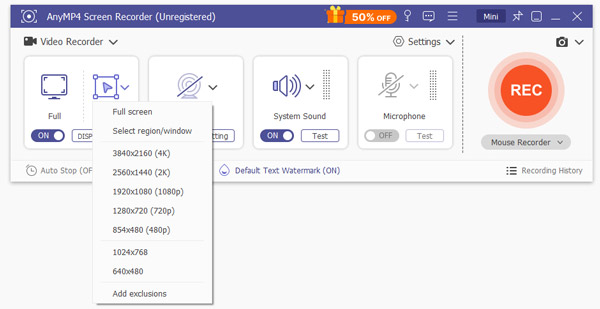
The Video Recorder panel: the region menu (Full screen, Select region/window, preset sizes from 3840x2160 down to 640x480, Add exclusions), System Sound and Microphone switches and the REC button.
Features
Seven recorders behind one menu
AnyMP4 Screen Recorder lists Video Recorder, Audio Recorder, Screen Capture, Game Recorder, Window Recorder, Webcam Recorder and Phone Recorder in one drop-down, plus a "Last Recorder" entry that reopens your previous setup. The Game Recorder captures the window of the game you pick from a list, so other windows don't end up in the video, and the Window Recorder can lock onto one window, exclude others and keep recording in the background while you work elsewhere.
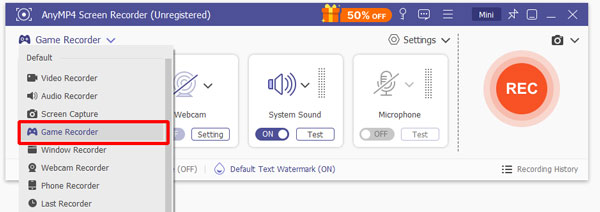
The mode menu with Game Recorder selected (unregistered copy).
Draw and annotate while you record
AnyMP4 Screen Recorder's toolbox works during the recording, so you don't have to stop and edit afterwards: rectangles, ellipses, lines, arrows, a pencil, an airbrush, text, numbered callouts, inserted pictures, a cursor spotlight and zoom. An eraser, undo and redo, and a clear-all button fix mistakes on the fly. For tutorials that's the main time saver.
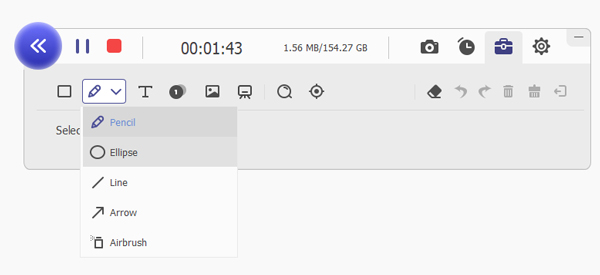
The floating bar during a recording (timer at 00:01:43) with the drawing tools open.
Clean audio from two sources
AnyMP4 Screen Recorder records system sound and your microphone together or separately, with a sound check for each, microphone noise cancellation and microphone enhancement. The Audio Recorder mode saves sound alone as MP3, M4A, WMA or AAC, which is handy for calls, podcasts and voice-overs. You can also record video with no sound at all.
Phone screens and webcam overlay
AnyMP4 Screen Recorder's Phone Recorder mirrors an Android phone or iPhone to the PC over USB or Wi-Fi (pairing by PIN or QR code) and records it with its audio, so you can make an app tutorial without a capture card. The webcam can be recorded on its own or as a picture-in-picture over the screen.
Scheduled and unattended recording
AnyMP4 Screen Recorder can start and stop recordings on a timer (Task Schedule) or stop automatically after a set length (Auto Stop). AnyMP4 says recording length is limited only by disk space, which makes it usable for long webinars or for watching a screen overnight.
Trim, split and tidy up afterwards
AnyMP4 Screen Recorder opens each recording in a preview window with a quick trimmer, and an Advanced Trimmer splits a clip into segments, adds fade in/out and merges the parts. The recording history also offers merge, convert, compress and metadata editing. It's enough to cut the dead air off a recording; it is not a full video editor.
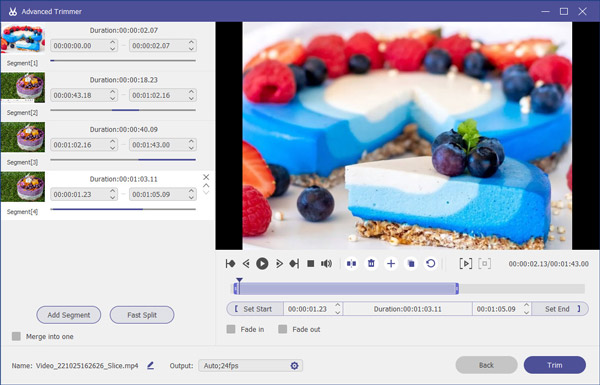
The Advanced Trimmer: segments on the left, Set Start/Set End, Fast Split, Fade in/Fade out and Merge into one.
Benefits
- Less setup than OBS. You choose a mode and press REC; there are no scenes or sources to build.
- More control than the built-in tools. Windows' Game Bar records one app window; AnyMP4 adds regions, the full desktop, scheduling, annotations and phone mirroring.
- One purchase, kept for good. The lifetime license is a one-time payment with free updates, not a subscription.
Real-World Uses
- A teacher records a lesson in PowerPoint with webcam picture-in-picture and arrows drawn live on the slides.
- A support agent captures a bug in one window with the Window Recorder while chatting in another, then trims the clip before sending it.
- A remote worker schedules a webinar recording for 9 a.m. with system sound only and lets it stop automatically after two hours.
- A mobile app reviewer mirrors an Android phone to the PC and records the app with its audio for a YouTube walkthrough.
- A gamer records a match with the Game Recorder, then cuts the highlights with the Advanced Trimmer.
Who It's For, and Who Should Skip It
Good fit: teachers, trainers, support staff, small-business marketers and casual gamers who record regularly and want everything in one simple window.
Skip it if: you only record a clip once in a while (Windows' Game Bar or the Snipping Tool's screen recording is free), you stream live (OBS Studio is free and built for streaming), or you need real editing with multiple tracks and titles (a video editor such as Camtasia combines recording and editing). Mac users need the separate Mac version, not this license.
Usage Guide
- Install. Run the downloaded screen-recorder.exe; it fetches and installs the full program (about 129 MB).
- Register. After buying, click the key icon and enter your email address and the registration code from the order email.
- Pick a mode and area. Video Recorder opens by default. Choose Full, a preset size or "Select region/window".
- Set audio and webcam. Turn on System Sound, Microphone or both, use Test to check levels, and switch the webcam on if you want an overlay.
- Record. Click REC. Use the floating bar to pause, draw, take snapshots or set a stop time, and the hotkeys shown at the start for quick control.
- Trim and save. Click the red square to stop. In the preview, drag the trim sliders, then save, or choose Record Again.
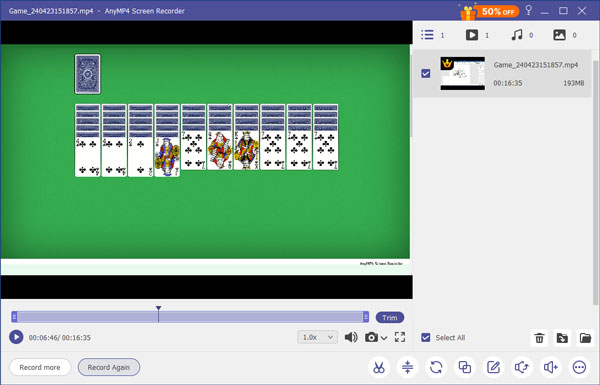
The preview after stopping: a 16-minute, 193 MB game recording with the trim bar, Record more, Record Again and the editing tools along the bottom.
Where it falls short
- Light editing only. Trimming, splitting, merging and compressing are there; multi-track timelines, titles and transitions aren't.
- No live streaming. It records to files; it doesn't broadcast to Twitch or YouTube.
- Full-screen video players can be tricky. A Trustpilot reviewer using AnyMP4's own Blu-ray Player reported that screen-capture programs didn't seem to work with it in full-screen mode; protected video often blocks capture.
- Support can be slow at times. One Trustpilot reviewer waited almost two weeks to get a blocked registration code released.
- The download is a stub. The 2.5 MB file you download needs an internet connection to fetch the 129 MB program.
What Users Say
On AnyMP4's product page
AnyMP4's page shows four short testimonials, one credited to Software Informer with a 5.0/5 rating. The most balanced of them says:
"AnyMP4 Screen Recorder produces video and audio recordings of a high quality (up to 4K in the case of video recordings) and supports all the most widely used formats for the output, be it a video, an audio file, or an image. This excellence comes at a price – this is not a cheap tool, but good quality multimedia never is."
Another, from a freelance tutor who records client sessions, calls it "a loyal sidekick who never let me down" and adds: "It is storng, reliable, and bug-free software that allows freelancers to record the moments they need." Treat a vendor's own page as the friendliest possible sample.
Trustpilot (AnyMP4 as a company)
AnyMP4's Trustpilot profile shows a TrustScore of 4.2 from 240 reviews, covering all its products (we read it through a page summarizer). About a quarter of all reviews are 1-star. Recent examples:
- Karmenu Vella (5 stars, November 2, 2026), "AnyMP4 is a great app with superb support.": "Very straightforward and easy to use - no complications at all."
- Tom Schoute (3 stars, May 2026, updated July 2026), "Release my blocked registration code - support please contact me": "I sent support a message almost 2 weeks ago with the request to release my registration code." He later wrote that it was resolved, after a long delay.
- Trustpilot's own summary of the profile mentions complaints about slow support replies and unexpected subscription charges or activation problems after a computer or OS change.
Download sites and review platforms
FileHorse shows an 8.76 average from 13 user ratings, and its editor lists "Free version has recording time limit" and "Watermark in trial version output" as cons. G2 has a single user review, which praises the tool as dependable and names the price as the only complaint. We found no in-depth independent test of the current version.
The pattern: people like how simple it is and the recording quality; the complaints are about price, support response times and subscription renewals. The lifetime license avoids the last one.
Comparisons
AnyMP4 Screen Recorder vs Xbox Game Bar
Game Bar is free and built into Windows (Windows + G), but records one app window at a time, with no region selection, drawing, scheduling or phone mirroring. AnyMP4 is worth paying for once you need any of those.
AnyMP4 Screen Recorder vs OBS Studio
OBS Studio is free, open source and far more powerful for streaming and multi-source scenes, but it takes time to set up. AnyMP4 trades that power for a one-click workflow, live annotations and a built-in trimmer.
Editions and Pricing
Each button orders that license for the Windows version. Prices are from the order page on November 28, 2026.
| License |
Price |
Term |
PCs |
Buy |
| Lifetime License | $49.96 (list $62.45) | One-time, free updates | 1 | Buy Lifetime |
| 1-Month License | $24.90 | Renews monthly until cancelled | 1 | Buy 1-Month |
FAQs
Does the AnyMP4 Screen Recorder trial add a watermark?
AnyMP4 Screen Recorder's unregistered copy shows a "Default Text Watermark (ON)" setting in the recorder, and FileHorse lists a trial watermark as a con. The guide's stated trial limits are a 3-minute recording cap and no trimming before saving; registering removes them.
Can AnyMP4 Screen Recorder record Zoom or Teams meetings?
Yes. AnyMP4 Screen Recorder records any window or screen area with system sound and your microphone, so the other participants and your own voice are both captured. Let the others know you're recording, and check your company's rules.
Does the lifetime license cover the Mac version too?
No. AnyMP4 Screen Recorder for Windows and Screen Recorder for Mac are licensed separately; the licenses on this page are for Windows.
Is there a limit on recording length?
With a license, AnyMP4 Screen Recorder has no time limit; recordings can run as long as you have disk space. Long 4K recordings fill a drive quickly, so check free space before an all-day session.
Can I move the AnyMP4 Screen Recorder license to a new PC?
The lifetime license is for one PC at a time. A Trustpilot reviewer got AnyMP4 support to move a lifetime key to a new PC, and another had to ask support to release a blocked code, so contact support@anymp4.com before reinstalling on a new machine.
How do I cancel the monthly plan?
The AnyMP4 Screen Recorder 1-month license renews automatically. Turn off renewal in your 2Checkout (Verifone) account using the order email, or ask AnyMP4 support to cancel it.
What if it doesn't work for me?
AnyMP4 offers a 30-day money-back guarantee, subject to its refund policy. Test the trial on your own apps first, since a refund depends on the reason.
System Requirements
- Windows 11, 10, 8 or 7, 64-bit
- Internet connection for installation (the download is a setup stub) and registration
- Sound card and microphone for audio; a webcam for webcam recording
- Free disk space for recordings (4K video needs a lot)
- Mac users: the separate Mac version needs macOS 10.13 or later
Conclusion
AnyMP4 Screen Recorder is worth $49.96 if you record every week and want one simple tool that covers meetings, lessons, games, webcam and phone screens, with live drawing and a usable trimmer. The reason to buy it is how little setup each recording takes. The reason not to: if you only record now and then, Windows' free tools do the basics, and if you stream or edit seriously, OBS Studio or a full editor serves you better. Run a 3-minute trial recording of your own workflow first, then take the lifetime license rather than the monthly plan.
Download Free TrialBuy Lifetime LicenseBuy 1-Month License