UFS Explorer Standard Recovery for Linux: Read-Only File Recovery for Ext4, XFS, Btrfs and Everything Else on Your Desk
UFS Explorer Standard Recovery for Linux is a $69.95 data recovery program from SysDev Laboratories that runs on a Linux desktop and gets back deleted and lost files from single disks, USB sticks, memory cards, disk images and virtual machine disks, whether they use Ext4, XFS, Btrfs, NTFS, exFAT, APFS or ZFS. It's for Linux users, admins and repair techs who need a graphical recovery tool that never writes to the damaged disk.
The situations are familiar: an rm -rf one directory too high, a USB drive that Ubuntu suddenly calls unreadable, a home server disk with an XFS volume that xfs_repair can't fix. Linux has free command-line tools for some of these. UFS Explorer gives you one program with a file browser, previews and a disk imager that covers nearly all of them.
Quick facts
- Version: 10.23, released October 29, 2026
- Developer: SysDev Laboratories
- Runs on: Linux with a graphical desktop (X11 or Wayland), x86 and ARM, 32- and 64-bit. Installer, DEB packages for Debian, Ubuntu and Mint, and a portable archive
- Recovers from: HDDs, SSDs, NVMe, USB sticks, memory cards, disk images and virtual machine disks
- File systems: Ext2/3/4, XFS, Btrfs, JFS, ReiserFS, NTFS, ReFS, FAT, exFAT, APFS, HFS+, UFS/UFS2 and ZFS
- Price: $69.95 for a Personal license, perpetual for Linux, with 360 days of free updates
- Free trial: no time limit, with full scanning, preview and disk imaging, but it only saves files up to 256 KB each
- Download size: 19.7 MB
- What we checked: the Linux installer package (ufs-explorer-std.install inside ufsxsci.tar.xz, 19.7 MB, built October 29, 2026, the date the vendor's release log gives for version 10.23) downloaded from SysDev, and the price of $69.95 on the order page, both on November 2, 2026. We didn't run a recovery with it.
Before you buy
- It's for one disk at a time. Standard Recovery handles single disks plus automatically detected spanned volumes (LVM, mdadm, Windows LDM, Apple RAID). Manually configured RAID arrays, RAID-based NAS boxes and Unraid-style multi-disk shares need UFS Explorer RAID Recovery or the Professional line.
- The license covers Linux only. Running it on Windows or macOS means buying a separate license for that system.
- Test with the trial first. SysDev's refund policy isn't a satisfaction guarantee: a refund is only considered if you tried the trial before buying and the paid version then fails on an operation because of a software error.
- It needs a desktop. The program has a graphical interface, so a headless server needs its disks moved to a machine with a desktop, or a Linux live system with one.
Download Free TrialBuy Now
Overview
Open UFS Explorer and the main window lists every logical disk and connected drive with its partitions. Pick a partition and the right-hand panel tells you its file system, whether that file system is still accessible, its size and its geometry. From there you have two choices: Explore a volume that still reads, much like a file manager would, or Start scan to dig for files that are gone.
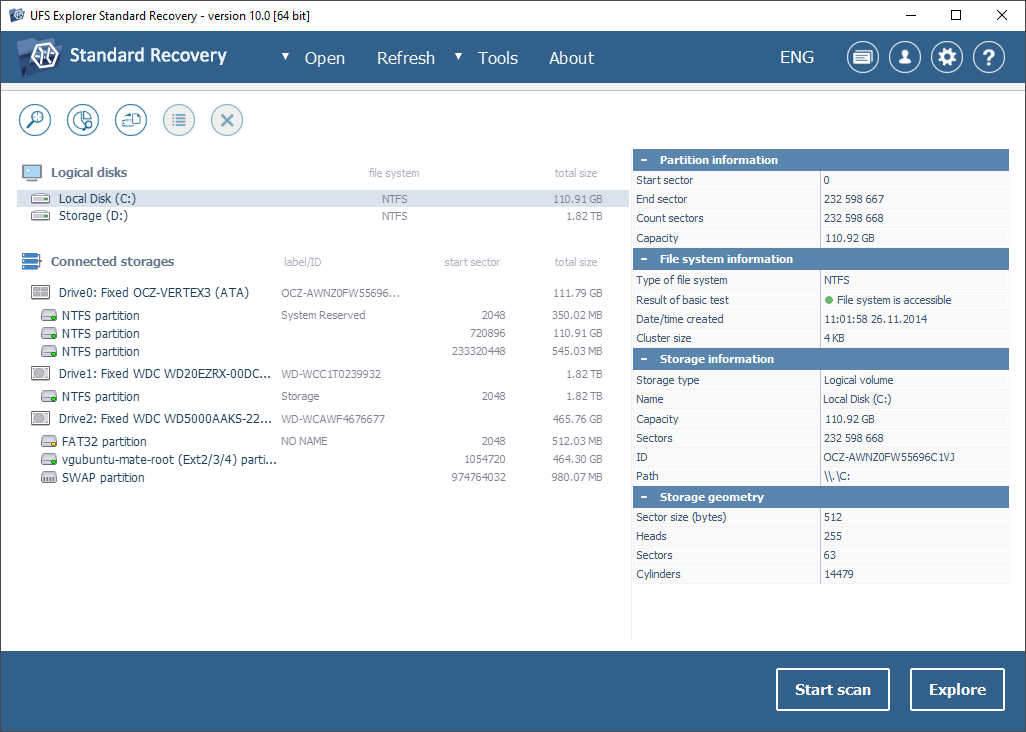
The main window (version 10.0, shown in the Windows build): connected drives including a "vgubuntu-mate-root" Ext2/3/4 partition and a swap partition, partition and file system details on the right, and the Start scan and Explore buttons.
Every operation is read-only. The program never writes to the disk you're recovering from, so trying it can't make the damage worse. Recovered files go to a different drive you choose.
Features
Deep support for Linux file systems, and everyone else's
UFS Explorer Standard Recovery reads and recovers Ext2, Ext3 and Ext4, XFS and Extended XFS, Btrfs, JFS and ReiserFS, so it handles the disks most Linux machines and home servers actually use. It also covers Windows NTFS, ReFS, FAT and exFAT, Apple APFS and HFS+, and BSD/Solaris UFS and ZFS, which is handy when someone hands you a camera card, a Windows laptop drive or an old Mac disk. Version 10.23 added scanning of XFS file systems with inode sizes over 512 bytes and the NREXT64 feature, and better directory tree rebuilding on XFS.
Three scan modes you can pause and resume
UFS Explorer offers a quick scan that uses what's left of the file system records, giving fast results with original names and folders, a deep scan that reads the whole disk sector by sector, and IntelliRAW, which finds files by their content signatures when no file system structure survives. Any scan can be paused to look at what's been found, and its state saved and resumed later, so a long scan of a big disk never has to start over.
Lost partition search
When a partition has vanished or a disk shows up blank, UFS Explorer searches for lost partitions, aligns them automatically or lets you define one by hand. You choose which file systems to look for, so you can tell it to hunt only for Ext4 and XFS.
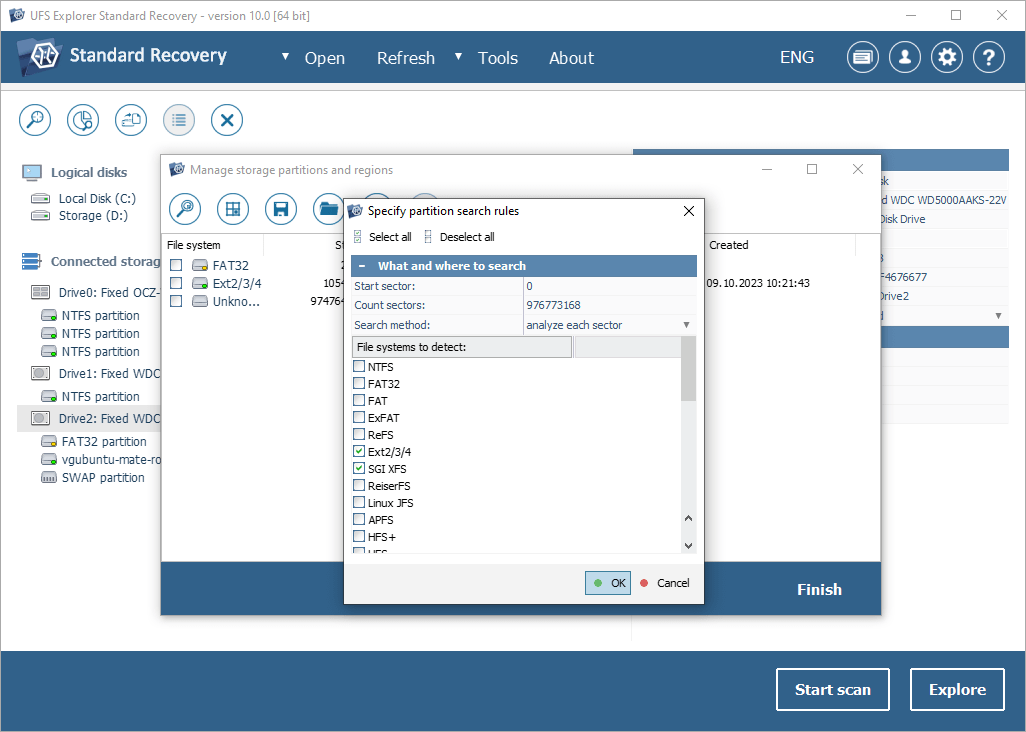
The partition search rules dialog (version 10.0, Windows build): start and count sectors, "analyze each sector" as the search method, and Ext2/3/4 and SGI XFS ticked among the file systems to detect.
A disk imager for drives that are dying
UFS Explorer's built-in imager makes a full sector-by-sector copy of a failing drive with multi-pass reading and configurable bad-block handling, then maps the areas it couldn't read so you know which files may be affected. You recover from the image instead of the drive, which spares a weak disk repeated reads. The imager works fully in the free trial, with no size limit.
Search, filter and preview before you save
UFS Explorer lets you filter results by name mask, size and modification date, sort them, and preview photos, PDFs, documents and video before saving. Recent versions added previews for DOC, XLS, PPT, Outlook MSG, HTML, EML and RTF files and an embedded video player, so you can check a file is intact before you copy it.
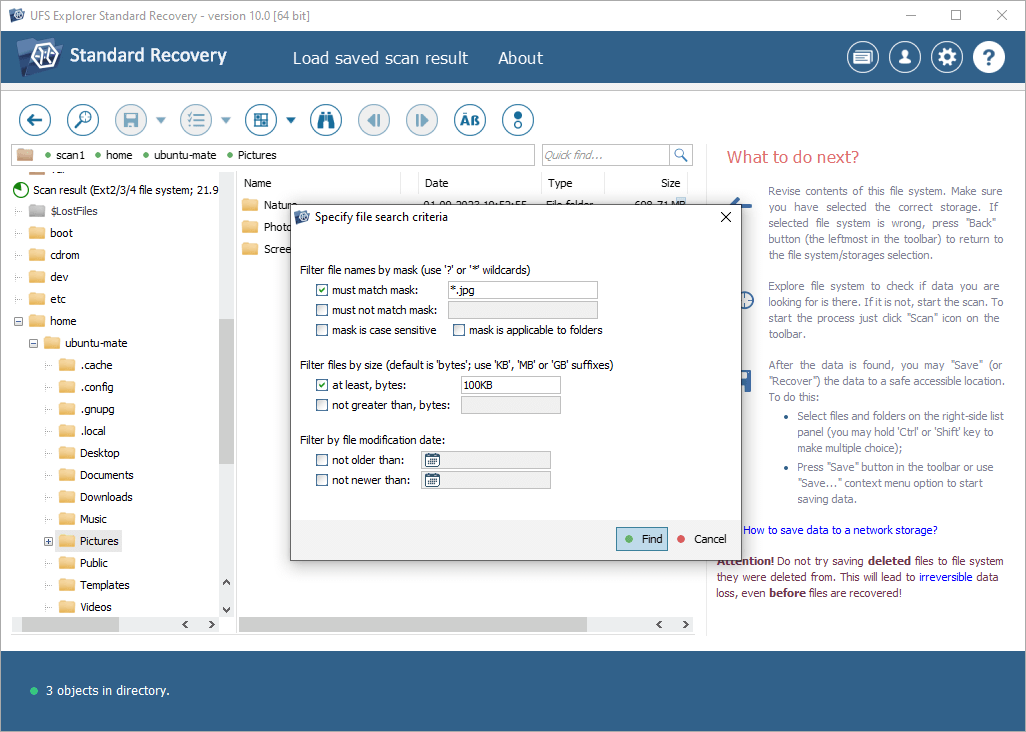
Searching a scan result of an Ext2/3/4 file system (version 10.0, Windows build): the home/ubuntu-mate folder tree on the left and a filter for *.jpg files of at least 100 KB.
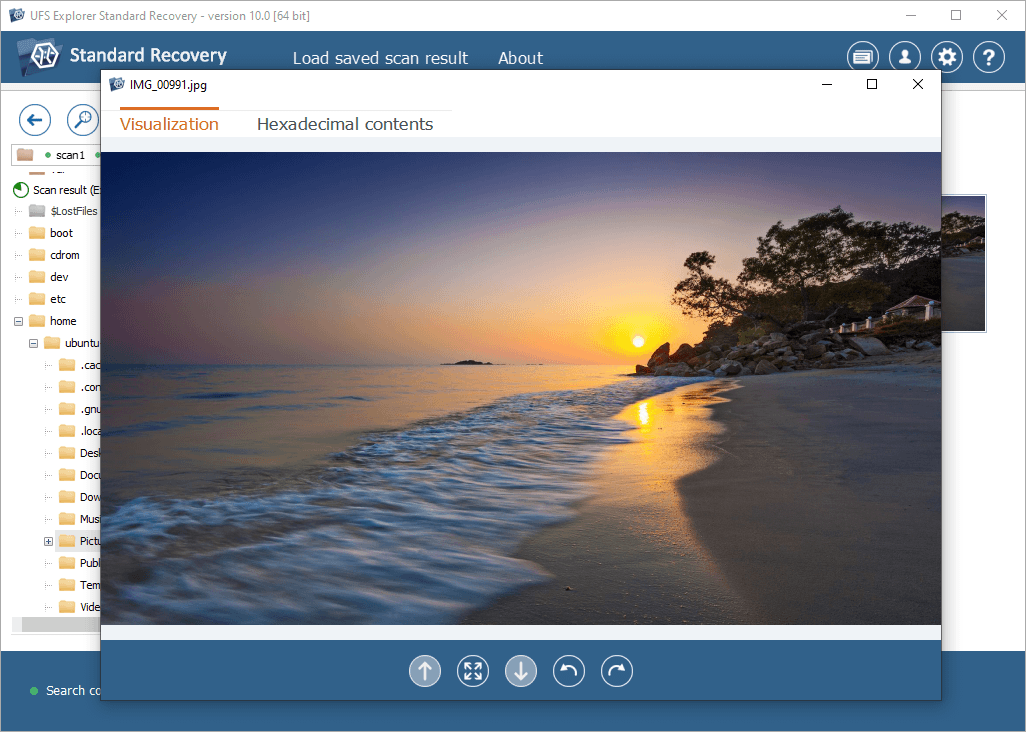
Previewing a found photo, IMG_00991.jpg, with Visualization and Hexadecimal contents tabs (version 10.0, Windows build).
Virtual disks, encrypted volumes and spanned storage
UFS Explorer opens VMware VMDK, Hyper-V VHD/VHDX, VirtualBox VDI, QEMU/XEN QCOW2 and Parallels disks directly, including snapshots, so you can pull files out of a broken VM without booting it. It assembles LVM, mdadm and Windows dynamic-disk volumes automatically. Give it the password or recovery key and it decrypts BitLocker, BitLocker To Go and APFS-encrypted volumes. It never bypasses encryption.
Benefits
The main benefit is one tool for every disk that lands on your Linux box. Free Linux recovery tools tend to specialize: one undeletes on a single file system, another carves files without names. UFS Explorer rebuilds folder trees with original names on Ext4, XFS and Btrfs, and the same program also handles the NTFS laptop drive and the exFAT camera card.
It's also safe by design. Read-only operation and image-first recovery mean a mistake in the recovery tool can't cost you more data, which matters most when the files are irreplaceable.
And the trial does real work. Unlimited scanning and previews tell you whether your files are intact before you spend anything, and small files such as configs and scripts under 256 KB can be saved for free.
Real-World Uses
- A deleted project folder on Ext4. Unmount the partition, run a quick scan, and copy the folder back with its structure to another drive.
- An XFS data disk that won't mount. When
xfs_repair gives up, scan the disk with the XFS file system selected and copy out what it rebuilds.
- A formatted USB stick or SD card. Run a deep scan or IntelliRAW and pull the photos back.
- A slow, failing drive. Image it first with multi-pass reading, then recover from the image.
- Files inside a broken VM. Open the QCOW2 or VMDK file directly and copy out the documents.
Who It's For, and Who Should Skip It
It's for Linux desktop users who lost files and want a graphical tool, sysadmins and homelab owners with Ext4, XFS or Btrfs disks, and repair shops that handle disks from every kind of computer. SysDev pitches it at both home users and professionals. The interface is clean but technical, so you'll be fine if partitions and file systems don't scare you.
Skip it if:
- Your data was on a RAID array, NAS or Unraid-style multi-disk share. Standard Recovery isn't built for that. UFS Explorer RAID Recovery is.
- You only work over SSH on headless servers. This is a GUI program. Free command-line tools such as TestDisk/PhotoRec or, for XFS, xfs_undelete may suit you better, at the cost of more manual work.
- The drive clicks, isn't detected or won't spin up. That's physical damage, and no software can fix it. You need a recovery lab.
- You need it on Windows or a Mac too. Each operating system needs its own license.
Usage Guide
- Download to a different disk. Never download or install the program on the disk holding your lost files. If the lost data was on the system disk, shut down and boot a Linux live system instead.
- Install. Extract the archive, open a terminal in that folder and run
sudo ./ufs-explorer-std.install. On Debian, Ubuntu or Mint you can install the DEB package instead.
- Launch. Start it from the desktop menu under System utilities, or as root with
sudo /usr/lib/ufs-explorer/ufs-explorer-std.
- Explore first. If the file system is still accessible, browse it directly without scanning.
- Scan if files are missing. Choose a quick scan, a deep scan or IntelliRAW.
- Preview, filter and save. Check files in the preview and copy the ones you need to a different drive.

Installing on Ubuntu, from SysDev's user manual: cd ~/Downloads, then sudo ./ufs-explorer-std.install waiting for the password.
Tips
- Unmount the partition or stop using the disk as soon as you notice files are missing. A quick format rarely destroys data, but new writes can.
- Don't count on SSDs. TRIM can wipe deleted data within seconds, so recovery from SSDs is less predictable than from hard drives.
- Save the scan state on large disks so you can come back without rescanning.
- Download the right edition's trial. One user found that a scan saved in the Professional Recovery trial couldn't be opened in Standard Recovery, so a long scan in the wrong trial is wasted time.
Where it falls short
- Deleted files can lose their names. When the file system metadata is gone, IntelliRAW finds files by content, but names and folder structure may not come back. One Unraid user described 40 GB of his results as "soup".
- Multi-disk shares confuse it. A user who ran Standard Recovery on the disks of a five-disk Unraid share found only empty folders, which fits the vendor's own warning that multi-disk setups need RAID Recovery.
- The product line is confusing. UFS Explorer Standard, RAID and Professional Recovery and SysDev's separate Recovery Explorer line look alike, and it's easy to download the wrong trial.
- Scans of large disks take hours, and at least one user reported a scan that failed with an error after about three hours and no reply from support.
- No command-line mode. It needs an X11 or Wayland desktop.
What Users Say
Independent reviews of UFS Explorer Standard Recovery are thin. Most "reviews" found online come from competing recovery-software makers, so they're left out here. What's left is the vendor's own testimonials, two review directories and, most useful for Linux users, discussions on the Unraid forums, where UFS Explorer is the tool regulars recommend when an XFS disk can't be repaired.
On the Unraid forums (Linux home servers)
Fefepaille, whose XFS disk became unmountable after a crash, July 2024: "TLTR : xfs_repair didn't help me. Even the beta 7.0. Using UFS Explorer in another setup was the solution." Later: "Well, UFS works pretty well. I got like.... 40GB of soup. (maybe old removed files) The rest (about 7TB) are ok, with a correct structure." The post doesn't say which UFS Explorer edition was used.
JorgeB, replying in that thread: "xfs_repair is failing, you can try 7.0.0-beta, since it includes a newer version, if the same, the best bet will be using a file recovery app, like UFS explorer."
Squid, in a thread on recovering deleted files: "Personally, I'd go with UFS Explorer, although it does cost $"
uaktags, January 21, 2021, after deleting a share by mistake: "In the end though, Standard didn't work at all. It took about 3hours before it errors out and I haven't heard back from support." The same post warns about the product names: "If you make the mistake and get UFS Professional Recovery's trial, like i did, and start the painstaking 8-11hour scan for lost data.....don't worry, you can NOT use that saved scan on the Standard versions." This user recovered the files with the free xfs_undelete instead.
Wesiwestside, after deleting 3 TB of movies on a five-disk array: "I tried to recover the files with UFS Explorer Standard Recovery but only found empty folders. The cause may be that the movie folder is in a share which has all five disks included."
On review directories
TechJockey rates UFS Explorer Standard Recovery 4.4 out of 5 from 4 verified ratings, with 95% recommending it. Its sub-scores are 4.6 for customer support, 4.5 for ease of use, and 4.3 each for features and value for money. There are no written reviews there.
SoftwareSuggest shows one review, 5 out of 5, from Dimitar V., a data recovery engineer, July 28, 2023, titled "Best logical Data Recovery SOftware": "Fast, smooth, and reliable work with logical-based cases of data recovery. Highly recommended." His likes: "Fast and reliable work. Almost all file systems are covered. Must-have tool."
On the vendor's testimonials page (56 reviews)
Gregory Gibbons: "Unbelievable - the Standard Edition of your software is working, I am recovering my data - you guys are the absolute best. Buffalo would have me spending $2000+ on data recovery, that's their only advice."
Rodrigo Eggea, COPEL Telecom, about version 4: "I have a Iomega Home Media Network and all files disapeared suddenly, and Iomega support doesn't help! It uses XFS filesystem and UFS 4 Standard Edition recovered the lost filesystem and I could recover all my important data with path and filenames!"
Issac Silva, edition not stated: "I installed Linux Mint and Ubuntu and both OS's would not let me mount the drive. I spent an entire night, trying to figure out a way to mount the drive and/or some way to access the drive, I had no luck." He found UFS Explorer, ran the trial, and wrote: "This recovery software is amazing, would have saved me hours of work but glad I found it."
Klaus (from Germany), edition not stated, about an Ext3 disk his media player had damaged: "I tried a lot of other recovery tools that all were not able to rebuild or recover the large media files recorded by the media player. But your software is great! It recovers all my recordings."
Andre Bauer, EPC-Firmengruppe: "i need a tool to read ext2, ext3 and raiserfs filesystems on windows machines and recover fat and ntfs disks from user workstations (recover crashed disks or deleted files) ... all with one product ... very good."
The common threads: people praise UFS Explorer for reading Linux file systems, XFS above all, that other tools and even the system's own repair tools couldn't handle, and for getting back folder structure and file names. The complaints are about the confusing edition lineup, long scans, slow support in one case, and poor results on multi-disk shares, which Standard Recovery isn't made for. The vendor testimonials are hand-picked and many are years old, so the trial on your own disk is the real test.
Comparisons
Standard Recovery vs. RAID Recovery vs. Professional Recovery
Standard Recovery covers single disks, removable media, images, virtual disks and automatically detected spanned volumes. RAID Recovery adds reconstruction of RAID arrays and RAID-based NAS devices, including manually defined RAID parameters. The Professional family adds tools for complex, multi-disk and badly damaged storage. If your lost files sat on one disk, Standard is enough.
UFS Explorer vs. free Linux tools
Free tools such as TestDisk/PhotoRec and xfs_undelete run from the terminal and cost nothing, and one Unraid user got his XFS files back with xfs_undelete after UFS Explorer failed. UFS Explorer's case is breadth and comfort: a graphical browser over the rebuilt file system, previews before saving, a disk imager for failing drives, and one program for Ext4, XFS, Btrfs, NTFS, APFS and virtual disks. Try the free tools first if you're comfortable in a shell and the case is simple.
Editions and Pricing
UFS Explorer Standard Recovery licenses are perpetual, include 360 days of free updates from the date of purchase, and cover one operating system each. The Linux Personal license is the one sold here.
| License | Price | Users | Computers | Intended for |
|---|
| Personal | $69.95 | 1 | 1 | Home and office use |
| Commercial | $139.95 | Any | 1 | Corporate environment |
| Corporate | $209.95 | Any | Up to 10 | Corporate environment |
FAQs
Which Linux distributions does UFS Explorer Standard Recovery run on?
UFS Explorer Standard Recovery for Linux is built for glibc 2.27 and runs on most distributions released in 2018 or later, with an X11 or Wayland desktop. DEB packages cover Debian, Ubuntu and Mint, and a separate legacy build supports distributions back to 2006.
Does UFS Explorer Standard Recovery work on a Raspberry Pi or other ARM computer?
Yes. SysDev ships an ARM build of UFS Explorer for Linux that supports 32- and 64-bit ARM, and it needs an ARMv7 or later CPU with hardware floating point.
Can I use the Linux license on Windows or macOS?
No. A UFS Explorer license covers one operating system. Running it on Windows or macOS needs that system's download and a separate license.
Can I run UFS Explorer Standard Recovery from a live USB if my system disk lost the files?
Yes. SysDev says the Linux version of UFS Explorer can run from most modern Linux live CDs. If the lost data was on the system disk, it recommends shutting the computer down and booting a live system instead of installing anything on that disk. SysDev also sells its own bootable UFS Explorer Backup and Emergency Recovery CD.
Do I need root to run it?
UFS Explorer Standard Recovery needs root rights in practice, because it reads raw disks, so you install it with sudo and start it as root, for example with sudo /usr/lib/ufs-explorer/ufs-explorer-std.
What happens after the 360 days of updates?
UFS Explorer keeps working permanently, since the license is perpetual. You just stop receiving new versions unless you upgrade the license.
Can I get a refund if it doesn't find my files?
UFS Explorer refunds are rare: SysDev only considers one when you tested the trial before buying, the paid version then fails on an operation because of a software error, the failure isn't caused by hardware, and SysDev can't supply a fix within 7 days. Because the trial shows everything it can find, a scan that finds nothing won't qualify.
Can UFS Explorer open an encrypted LUKS volume?
UFS Explorer Standard Recovery decrypts BitLocker, BitLocker To Go and APFS-encrypted volumes, and LUKS isn't among its supported encryption types, so don't count on it for LUKS-encrypted Linux disks. Check with the free trial before you buy.
System Requirements
- Linux: glibc 2.27 or later (most distributions from 2018 on), with an X11 or Wayland desktop. A legacy build supports glibc 2.3 and later
- Processor: x86 (i386 or amd64) or ARM (ARMv7 or later with hardware float, 32- or 64-bit). 4 logical cores recommended
- Memory: 1 GB minimum, 8 GB recommended
- Disk space: 30 MB for the program, over 1 GB recommended for temporary files, plus a separate drive for recovered files
Conclusion
UFS Explorer Standard Recovery for Linux is worth $69.95 if you lost files from a single disk and want a graphical tool that understands Ext4, XFS and Btrfs as well as it understands NTFS. The reason to buy it is its file system coverage: Linux forum regulars reach for it when an XFS disk can't be repaired, and it rebuilds folders with their names rather than just carving files. The main reason not to is scope. It isn't for RAID arrays, NAS boxes or multi-disk shares, it needs a desktop, and SysDev's refund policy won't help if it doesn't find your files. So run the free trial on your disk first: if your files show up in the preview with their names, the license is a fair price for getting them back.
Download Free TrialBuy Now