Aiseesoft PDF to Image Converter: Turn PDF Pages into JPG, PNG or TIFF Files on Windows
Aiseesoft PDF to Image Converter is a $25 Windows program that saves the pages of PDF files as images (JPEG, PNG, GIF, BMP, TGA, PPM, TIFF or JPEG 2000), several PDFs at a time, with a page range, pixel or DPI size and color mode you choose. The license is a one-time payment for one PC, and there's a free trial.
You need it when a PDF has to become a picture: a slide for a presentation that only takes images, a page of a catalogue to post online, a scanned contract that an image editor or an upload form won't accept as PDF. Opening each page and taking a screenshot gives you blurry results and takes forever. This tool does the whole batch in one pass at the resolution you set.
Quick facts
- Version: 3.1.62 (installer dated December 29, 2023)
- Developer: Aiseesoft Studio
- Runs on: Windows 10, 8 and 7. A separate Mac edition exists with its own license.
- Output formats: JPEG, PNG, GIF, BMP, TGA, PPM, TIFF, JPEG 2000
- Price: $25.00 on the order page, one-time, one PC (Aiseesoft's own page shows $20.00 with a 20% coupon)
- Refunds: 30-day money-back guarantee
- What we checked: the 15.6 MB installer, whose file version is 3.1.62, and the order page, which charged $25.00 for "Aiseesoft PDF to Image Converter" with no renewal, on November 4, 2026. We didn't convert files with it, so the trial's limits and the output quality are untested.
Before you buy
- It's an older, stable tool, not a fresh one. The current build dates from December 2023 and the window still looks like a Windows 7 program. Windows 11 isn't on Aiseesoft's list, so run the trial on your PC first.
- It only exports images. It won't turn a PDF into Word or Excel, edit the PDF, or read text from scans (OCR).
- For one or two pages a free converter is enough. The program earns its price on batches, page ranges and exact DPI settings.
Download Free TrialBuy Now
Overview
The program is a single window. A file list fills most of it, with columns for the file name, size, total pages, the pages you've selected, the output format and the output name. To the right sits a Preview pane with page arrows and a Page Range box: leave it on All, or type ranges such as 1,3,5-10. Under the list you pick the output format and folder, then press the large convert button. A small progress window counts the files done and failed.
Each PDF in the list can have its own format and page range, so one batch can produce TIFFs from a scanned contract and JPEGs from a brochure at the same time.
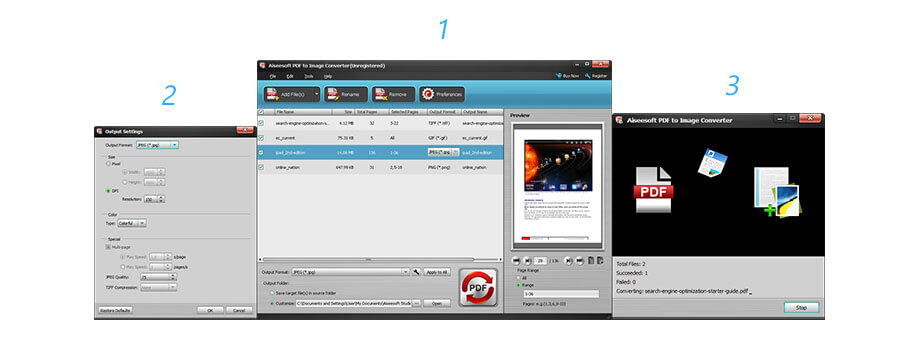
Three windows from Aiseesoft's guide: the Output Settings dialog (size in pixels or DPI, color type, multi-page and JPEG quality options), the main window with four PDFs queued and a preview of page 29, and the progress window after converting two files. The screenshots show an older Windows theme.
Features
Eight image formats from one PDF
Aiseesoft PDF to Image Converter saves pages as JPEG, PNG, GIF, BMP, TGA, PPM, TIFF or JPEG 2000. PNG and TIFF suit text and line art, JPEG suits photos and keeps files small, and TGA or PPM cover older design and print workflows. The images open in Photoshop, GIMP and any other editor.
Pick the pages, with a preview
Aiseesoft PDF to Image Converter converts all pages or only the ones you type into the Range box (single pages and ranges separated by commas). The preview pane steps through the PDF page by page, so you can find page 47 of a long report without opening another reader.
Control size, resolution and color
Aiseesoft PDF to Image Converter sets the output size either as width and height in pixels or as a DPI value, and the color as colorful, grayscale or monochrome. JPEG quality has its own setting. A higher DPI gives sharper text for printing or for OCR in another program; monochrome keeps scanned forms small.
Multi-page TIFF and animated GIF
Aiseesoft PDF to Image Converter can put every converted page into one multi-page TIFF or GIF instead of one file per page. For GIF you set the play speed between pages, and for TIFF the compression. A multi-page TIFF is what many fax, archive and document systems expect.
Batch conversion and output folders
Aiseesoft PDF to Image Converter takes several PDFs at once and converts them in one run, saving the images next to the source file or in a folder you choose. It can also check for updates daily, weekly or monthly.
Benefits
- Sharper than screenshots. Rendering at a set DPI gives clean text at any size, which a screen capture can't.
- Hours saved on long documents. A 200-page catalogue becomes 200 numbered images in one batch.
- Files stay on your PC. Unlike online converters, nothing is uploaded, which matters for contracts, medical records and other private PDFs.
- Pay once. No subscription for a tool you may only need a few times a year.
Real-World Uses
- Presentations and social posts: export one infographic page of a report as a PNG at 300 DPI for a slide or a LinkedIn post.
- Online shops: turn a supplier's PDF catalogue into JPEG product images for a web store.
- Document systems: convert scanned PDFs into a single multi-page TIFF for an archive or fax system that won't take PDF.
- Upload forms: government and job portals that accept only JPG get a JPEG of each signed page, in grayscale to keep the file small.
Who It's For, and Who Should Skip It
Good fit: office workers, designers and online sellers who regularly need images from PDFs, want control over resolution and pages, and would rather not upload documents to a website.
Skip it if you need to edit PDFs, convert them to Word or Excel, or read text from scans: those need a full PDF converter or editor. Skip it too if you only convert a page now and then: a free online converter or your PDF reader's export does that. On a Mac, buy the separate Mac edition; this one is Windows only.
Usage Guide
- Download the installer with the button on this page, run it and open Aiseesoft PDF to Image Converter.
- Click Add File(s) and choose one or more PDFs. Each appears in the list with its page count.
- Select a file, check pages in the Preview pane and set Range to All or to the pages you want.
- Choose the Output Format, and open its settings to set pixels or DPI, the color type, JPEG quality or the multi-page option. Use Rename to change the output name.
- Choose the output folder (the source folder or your own) and press the convert button. The progress window shows how many files succeeded.
Tips
- For text that has to stay readable when printed or zoomed, use PNG or TIFF at 300 DPI. 150 DPI is plenty for the web.
- Use Apply to All after setting one file's format to give the whole batch the same settings.
- Monochrome TIFF makes the smallest files for scanned black-and-white documents.
Where it falls short
- Dated interface. FileHippo's editors called it "slightly dated looking" in 2016, and the window hasn't changed much since.
- No other output types. Images only: no Word, Excel, HTML or OCR.
- Few independent reviews. Most of what's written about it comes from Aiseesoft itself or from old download-site write-ups.
What Users Say
FileHippo editors' review (November 2016)
"The app performs adequately and can convert PDF files to various image formats in lossless quality." The reviewers added: "The ability to configure the DPI size and color of the converted image is likewise very useful," and "Aiseesoft PDF to Image Converter is easy to navigate and can be used by people of levels of expertise." Their one complaint: "Overall, Aiseesoft PDF to Image Converter has a standard, albeit slightly dated looking interface."
That review covered version 3.1.36; the current build is 3.1.62.
Customer comments on Aiseesoft's page (5.0 from 8 reviews)
"I've tried several free PDF to JPG or PDF to PNG online PDF converter software. Some cannot help me to convert specific PDF pages to images. Until my friend recommends the software for me, I find this PDF to Image Converter is the most suitable one for me." Andrew Jackson
"This PDF to picture programs successfully turn particular pages of my PDF files to JPEG on my HP computer of Windows 7." Angelia Walter
"It works just as I expected. I use it to convert PDF to Image for saving. The output image quality is satisfying and the conversion speed is fast." Duncan
These are chosen by Aiseesoft and all five-star, so read them as testimonials. One also credits it with "basic editing" of PDFs, which the product page doesn't list.
The pattern: people like the page-range selection, the DPI and color control and the speed. The only recurring criticism is the old-fashioned look. There are no recent independent tests.
Comparisons
Aiseesoft PDF to Image Converter vs free online converters
Free websites (Aiseesoft runs its own free PDF to JPG and PDF to PNG pages) are fine for one short, non-private PDF. The desktop program wins when you have many files, need a page range, a set DPI or a multi-page TIFF, or can't upload the document.
Windows edition vs Aiseesoft Mac PDF to Image Converter
Aiseesoft sells a Mac PDF to Image Converter for Mac OS X 10.7 and later at the same $25 list price. The licenses are separate: buy the edition for the computer you'll use.
Editions and Pricing
| License | Price | Term | PCs |
|---|
| Lifetime License (our Buy Now button) | $25.00 | One-time payment | 1 |
| Same license on Aiseesoft's store | $20.00 with its 20% coupon | One-time payment | 1 |
US dollar prices from November 4, 2026, before any sales tax or VAT.
FAQs
Does Aiseesoft PDF to Image Converter work on Windows 11?
Aiseesoft PDF to Image Converter lists Windows 10, 8 and 7. Windows 11 isn't named, so install the free trial and convert a test file before buying.
Is Aiseesoft PDF to Image Converter a subscription?
No. Aiseesoft PDF to Image Converter is sold as a one-time $25 license for one PC, and the order page sets no renewal.
Can Aiseesoft PDF to Image Converter make one image file of a whole PDF?
Yes, for TIFF and GIF: Aiseesoft PDF to Image Converter has a Multi-page option that puts all converted pages into one file. JPEG and PNG always produce one image per page.
Can I get my money back?
Aiseesoft offers a 30-day money-back guarantee on Aiseesoft PDF to Image Converter. Aiseesoft's refunds are generally tied to problems with the software rather than a change of mind, so try the trial first.
Will Aiseesoft PDF to Image Converter convert PDF to Word or extract text?
No. Aiseesoft PDF to Image Converter only outputs images. For Word, Excel or OCR you need a fuller PDF converter.
System Requirements
- Windows 10, 8 or 7
- 15.6 MB installer
- A separate edition for Mac OS X 10.7 or later
Conclusion
Worth $25 if you regularly turn PDFs into images and want it done offline, in batches, at an exact resolution. Aiseesoft PDF to Image Converter is a small, focused Windows tool with the controls that matter (page ranges, DPI, color mode, multi-page TIFF) and a one-time license. The main reason not to buy is that it's an older program with no Windows 11 listing and little independent testing, and a free online converter covers occasional single pages. Run the trial on your own PDFs first.
Download Free TrialBuy Now