Leawo DVD Creator for Mac: Burn Videos and Photos to a Menu-Driven DVD
Leawo DVD Creator for Mac is a $29.95-a-year (or $39.95 lifetime) macOS program that turns video files and photo slideshows into DVDs that play in a standalone DVD player, with menus, chapters and subtitles, written to a disc, a DVD folder or an ISO image. It runs on Intel and Apple silicon Macs with macOS 10.13 or later, and it's for Mac users who need to hand over a DVD and don't need Blu-ray.
Think of the wedding clip, the school concert or the family slideshow that grandparents want to watch on the TV. You drop the MP4s from your iPhone or the export from iMovie into the window, pick a menu theme, and burn.
Quick facts
- Program: the Burn tab of Leawo Prof. Media for Mac 13.0.8 (updated June 2026)
- Download: 241 MB Intel DMG or 316 MB native Apple silicon DMG
- macOS: 10.13 High Sierra through macOS 26 Tahoe and macOS 27
- Input: about 30 video formats including MP4, MOV, M4V, MKV, AVI and AVCHD, plus JPG, PNG and BMP photos and DVD ISO files
- Output: DVD-5 or DVD-9 disc, DVD folder or ISO, NTSC or PAL, 16:9 or 4:3
- Price: $29.95 for one year or $39.95 lifetime, one Mac
- Trial: converts only the first 5 minutes of content
- Developer: Leawo Software Co., Ltd.
- What we checked: the Mac download page for DVD Creator (it serves the Prof. Media for Mac DMGs: ltmcu_setup.dmg, 252,961,353 bytes, and ltmcu_setup_arm64.dmg, 331,793,186 bytes), Leawo's Mac user guide for this module, the Mac spec sheet and trial limit, Leawo's Mac review page, and the order page for "Leawo DVD Creator for Mac": $29.95 for one year (auto-renewal unticked, renewal quoted at $19.09) and $39.95 lifetime, on November 1, 2026. We didn't burn a disc on a Mac.
Before you buy
- Lifetime is the better buy. $39.95 once is cheaper than a year plus one renewal ($49.04).
- Might you want Blu-ray later? Leawo Blu-ray Creator for Mac ($59.95 lifetime) includes DVD Creator, so it's $20 more for both.
- DVD is standard definition. A 4K or 1080p iPhone clip is scaled down to DVD resolution. That's what DVD players need, but it won't look like the original on a big TV.
- You need a DVD writer such as Apple's USB SuperDrive, unless you only want an ISO or folder.
Download Free TrialBuy Now
Overview
On a Mac, DVD Creator is the Burn tab of Leawo Prof. Media. Add Video and Add Photo sit at the top left, your clips appear as thumbnails with their length and size, menu templates run down the right side, and three drop-downs at the bottom set the disc (DVD-5 or DVD-9), the quality ("Fit to disc" by default) and the aspect ratio. A bar shows how much of the 4.7 GB disc is used.
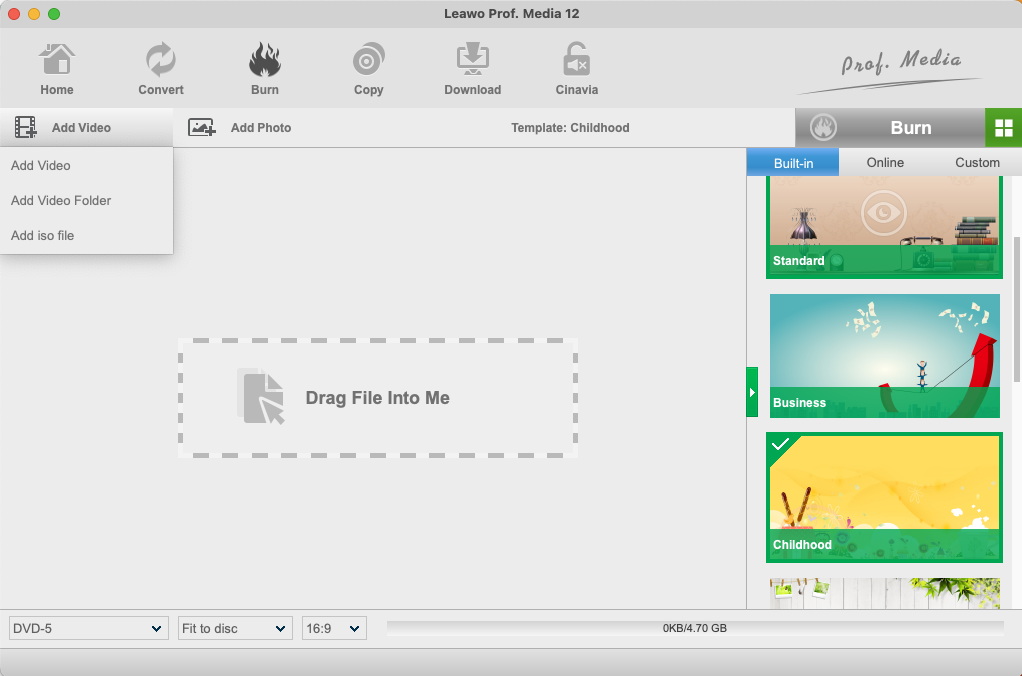
The Burn tab on a Mac: the Add Video menu (Add Video, Add Video Folder, Add iso file), Built-in, Online and Custom menu templates with Childhood selected, and DVD-5, Fit to disc and 16:9 at the bottom with 0 KB of 4.70 GB used (Prof. Media for Mac, from Leawo's Mac guide).
Features
Burn almost any video without converting it first
Leawo DVD Creator for Mac takes the files a Mac already has, such as MOV and M4V from iMovie and iPhone, MP4 and MKV downloads, and AVCHD from older camcorders, and encodes them to DVD-Video in one step. Several clips can go on one disc, each becoming a title on the menu. You can also burn an existing DVD ISO to a blank disc.
40+ menu templates you can edit
Leawo DVD Creator for Mac offers more than 40 disc menu templates, some built in and more on the Online tab, in themes such as Standard, Business, Childhood, Holiday and Wedding. You can move and rename every item on a menu, change fonts, and swap in your own background picture, video or music. No Menu is there for discs that should start playing straight away.
Chapters every few minutes, or exactly where you want them
Leawo DVD Creator for Mac's Create Chapter tab splits a clip into a set number of chapters or one every so many minutes, and an Insert chapter button adds one at the playhead. That makes a long event video easy to skip through with a remote.

The Create Chapter tab on a Mac: five chapters listed with start times, "Set chapters" set to 5 or "Set chapter length", and Insert chapter and Delete buttons (Prof. Media 12 for Mac).
An editor for each clip
Leawo DVD Creator for Mac's editor has tabs for Video & Audio (playback speed from 1x to 4x, volume up to 500%, Remove Noise), Trim, Watermark, Crop, Effect, 3D and Create Chapter. The 3D tab adds an anaglyph or side-by-side effect to 2D footage, with a depth slider from -50 to +50.

The 3D tab on a Mac: a Red/Cyan preview, the 3D Depth slider, and Red/Cyan, Red/Green, Red/Blue, Blue/Yellow, Interleaved and Side by Side buttons (Prof. Media 12 for Mac).
Photo slideshows with music
Leawo DVD Creator for Mac's Add Photo button turns JPG, PNG or BMP pictures into a slideshow. You set how long each photo stays on screen and the transition, and add background music. Export your album from the Photos app as JPEGs, add the folder, and the slideshow becomes one title on the disc.
Disc, folder and ISO in one burn
Leawo DVD Creator for Mac's Burn panel lets you tick Folder, ISO File and your burner together, name the disc, and choose where files go, with the space needed shown against what's free. NTSC or PAL is set in Prof. Media's Copy & Burn settings.
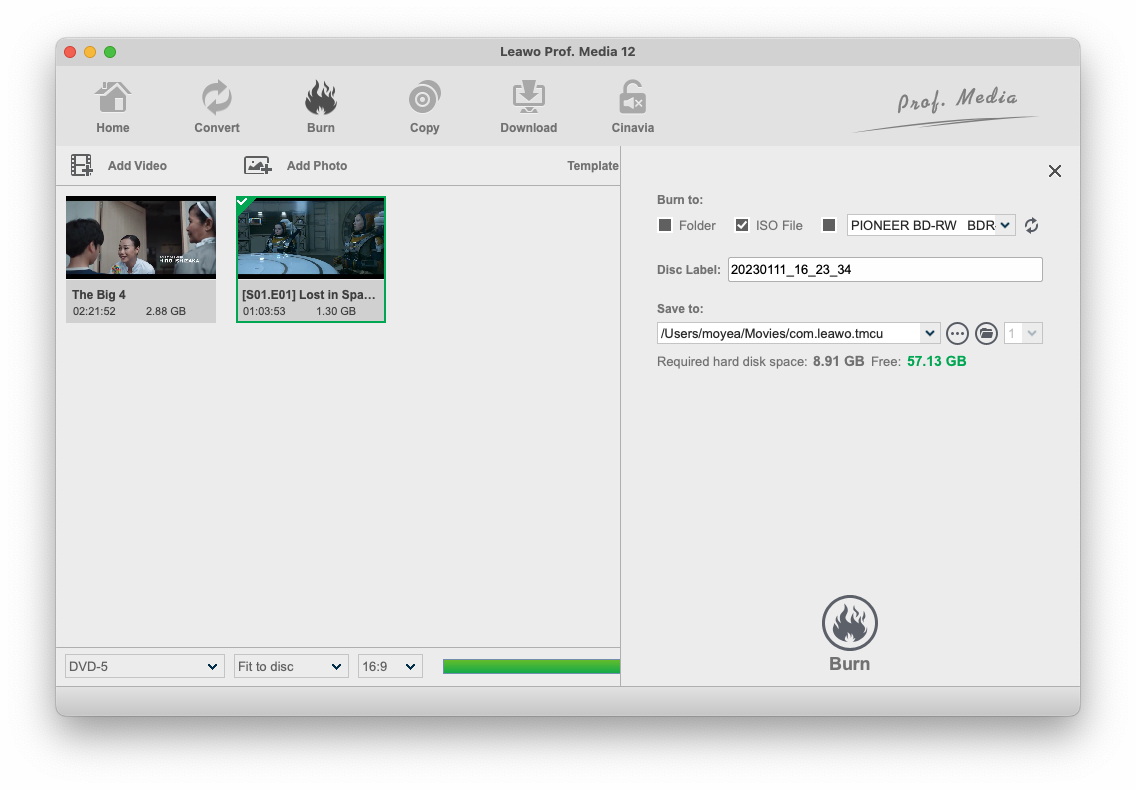
The Burn to panel with two clips loaded: ISO File ticked, a Pioneer BD-RW burner listed, a date-stamped disc label, a save path in the Movies folder, and 8.91 GB required against 57.13 GB free (Prof. Media 12 for Mac).
Benefits
- Discs anyone can use. Older relatives, schools and clients still have DVD players and know how to press Play.
- Your Mac's videos as they are. No separate converter to turn MOV or MKV into something burnable.
- Cheap to own. $39.95 once covers every disc you'll ever make on that Mac.
Real-World Uses
- The school play filmed on an iPhone, trimmed, chaptered by scene and burned for each family.
- A memorial or anniversary slideshow of exported photos with a favorite song.
- Old camcorder footage (AVCHD .MTS files) on a disc for relatives without computers.
- A video portfolio for a client who asked for a disc.
Who It's For, and Who Should Skip It
It fits Mac users who make DVDs from their own videos and photos a few times a year and want menus without learning DVD authoring.
Skip it if:
- You want HD on a disc. Blu-ray Creator for Mac burns HD Blu-rays and includes DVD Creator.
- You want to copy a movie DVD. That's Leawo DVD Copy for Mac.
- Nobody you share with has a DVD player. A shared album or a link is easier.
- You need professional DVD authoring with scripted menus, multiple angles or switchable subtitle streams you design yourself.
Usage Guide
- Install. Click the Apple Chip or Intel Chip download on Leawo's page, drag Leawo Prof. Media to Applications and open it.
- Add media. On the Burn tab click Add Video (a file, a folder or an ISO) or Add Photo, or drag files in.
- Edit. Click a clip's edit icon to trim, crop, add a watermark, set chapters or change the speed.
- Pick a menu. Choose a template from Built-in, Online or Custom, click it to customize the text, background and music, or choose No Menu.
- Set the disc. At the bottom left choose DVD-5 or DVD-9, the quality and 16:9 or 4:3.
- Burn. Click the green Burn button, tick your DVD writer, Folder and/or ISO File, set the label and location, and click Burn in the panel.
- Register with Help > Activate in the Mac menu bar to remove the 5-minute limit.
Tips
- Burn one, then copy the ISO. A Mac reviewer found the program re-converts for every extra copy. Tick ISO File on the first burn and use the ISO for the rest.
- Choose DVD-9 for long videos. Dual-layer blanks give the picture almost twice the room.
- Set NTSC or PAL before you start to match the country where the disc will be played.
Where it falls short
- Multiple copies mean re-converting. A Mac reviewer asked for "a way to burn multiple copies without going through the conversion process each time".
- No project saving. Leawo's Mac users have asked for it on the Blu-ray Creator page for years, and Leawo's feature list still only mentions saving menu templates.
- Speed claims rely on Intel graphics. Leawo credits its burning speed to Intel Quick Sync, which Apple silicon Macs don't have.
- Few reviews. The Mac review page has four short reviews, the newest from 2015.
- Standard definition only, which is the nature of DVD.
What Users Say
Leawo's review page for DVD Creator for Mac, which Leawo moderates, has four reviews, all 5 stars, posted between 2013 and 2015. We found no independent review of the Mac edition. They're short, but one makes the same point as many Mac users of Leawo's burners: it fills the gap iDVD left.
Leawo's review page for DVD Creator for Mac (5.0 out of 5, 4 reviews)
"Works great for the price. Basic Interface that works as designed. Nice alternative to idvd since it no longer exists for macs" Mark, 5 stars, April 2013
"Easy to use, amazing product that produces great quality DVDs, and many different options for menus. Highly Recommended." Rocky Tun, 5 stars, January 2014
"Maybe I am doing it wrong but is there a way to burn multiple copies without going through the conversion process each time. This is the only problem I have with the program." Olivia, 5 stars, January 2014
"Excellent" Max Gab, 5 stars, June 2015
From the Blu-ray Creator for Mac page (same Burn tab)
Blu-ray Creator for Mac includes DVD Creator and uses the same Burn tab, and its 16 Mac reviews average 4.5. Two points apply to DVDs too:
"I'm really impressed with the media compatibility and encoding speed of this product, also the easy to use menu design functions (which nicely includes adding your own images, video and music for menu backgrounds)" Damon Packard, 5 stars, May 2013 (from his longer review)
"There isn't great precision in the editing tool so it requires a lot of guessing." Lee Ann Obringer, 4 stars, April 2014, who also missed being able to save a project.
The recurring themes
Mac users like that it's easy, the menus are flexible, and it reads many formats. The complaints are re-converting for extra copies, no project saving and an imprecise trimmer. Leawo as a company has a 4.4 TrustScore from 151 Trustpilot reviews, with Mac users mostly praising support. All of the Mac reviews are years old, so the 5-minute trial is the honest test.
Comparisons
Mac edition vs Windows edition
The editions share the templates, editor, slideshow tool and prices. The Mac edition is a native Intel or Apple silicon app that needs macOS 10.13 or later and a recordable DVD drive. The Windows edition runs on Windows 7 to 11. Licenses don't transfer between platforms.
DVD Creator vs Blu-ray Creator for Mac
Blu-ray Creator for Mac adds BD-25 and BD-50 Blu-ray output and includes DVD Creator, for $39.95 a year or $59.95 lifetime. If you'll ever want an HD disc, the extra $20 lifetime is worth it.
DVD Creator vs burning a data disc in the Finder
The Finder can burn video files to a data disc, but most DVD players won't play that. DVD Creator writes real DVD-Video with menus and chapters that any DVD player understands.
Editions and Pricing
| Option |
Price |
Term |
Modules |
Money-back period listed |
| DVD Creator for Mac, 1 Year |
$29.95 |
One year, one Mac (renewal quoted at $19.09) |
DVD Creator |
5 days |
| DVD Creator for Mac, Lifetime |
$39.95 |
One-time payment, one Mac |
DVD Creator |
14 days |
| Blu-ray Creator, Lifetime |
$59.95 |
One-time payment, one computer |
Blu-ray Creator, DVD Creator |
14 days |
Both DVD Creator licenses include free upgrades. Make sure Mac is selected in the pricing section the Buy Now button opens.
FAQs
Is Leawo DVD Creator for Mac a replacement for iDVD?
Leawo DVD Creator for Mac covers what most people used iDVD for: menus from themes, chapters, slideshows with music and burning to DVD, on current macOS versions. A Mac reviewer called it a "Nice alternative to idvd since it no longer exists for macs".
Can I burn iPhone videos straight to DVD?
Yes. Leawo DVD Creator for Mac accepts the MOV and MP4 files an iPhone records. Copy them from the Photos app to a folder first (File > Export), then add them with Add Video.
Does Leawo DVD Creator for Mac run on M1, M2, M3 or M4 Macs?
Yes. Leawo DVD Creator for Mac is part of Prof. Media for Mac, which has a native Apple silicon download next to the Intel one.
How many hours of video fit on one DVD?
Leawo DVD Creator for Mac's default "Fit to disc" quality fits your clips to the disc you chose, and the bar at the bottom shows the space used. The more video you put on a DVD-5, the lower the picture quality, so use DVD-9 or split very long footage over two discs.
Can I add subtitles to a DVD made with Leawo DVD Creator for Mac?
Leawo DVD Creator for Mac lets you choose the subtitle and audio track for each loaded video, so a movie file with embedded subtitles can keep them on the disc.
What does the trial version do?
Leawo DVD Creator for Mac's trial has all the features but converts only the first 5 minutes of content, enough to test a menu and check the result on your DVD player.
System Requirements
- macOS: 10.13 High Sierra, 10.14 Mojave, 10.15 Catalina, 11 Big Sur, 12 Monterey, 13 Ventura, 14 Sonoma, 15 Sequoia, 26 Tahoe, 27
- Processor: 1 GHz or faster Intel, or Apple M1/M2 (native Apple silicon build available)
- Memory: 512 MB RAM, 1 GB or more recommended
- Free disk space: 5 GB or more
- Drive: a recordable DVD drive
- Other: Internet connection (also used to download Online menu templates)
- Download: 241 MB (Intel) or 316 MB (Apple silicon)
Conclusion
Leawo DVD Creator for Mac is good value for Mac users who make the occasional DVD from their own videos and photos. It reads nearly anything your Mac produces, adds menus, chapters and slideshows, and runs natively on Apple silicon, for $39.95 once.
The one reason to buy it: it's an inexpensive, iDVD-like way to turn Mac videos into a DVD anyone can play. The main reason not to: if there's any chance you'll want HD, Blu-ray Creator for Mac includes it for $20 more, and the workflow has gaps such as no project saving and re-converting for each copy. Burn a 5-minute test disc in the trial and play it on the target player first.
Download Free TrialBuy Now