Wondershare Filmora for Windows: An Easy Timeline Editor with AI Tools, Sold as a One-Time License
Wondershare Filmora is a timeline video editor for Windows PCs, sold here as a $79.99 perpetual license: you pay once and keep the version you buy, with no yearly renewal. It's for YouTubers, gamers, teachers and small businesses who want keyframes, tracking, color grading, automatic subtitles and screen recording without the learning curve or subscription of Premiere Pro.
The usual story: Clipchamp or the Photos app was fine for trimming a clip, but now you want captions, a tracked crop for Shorts and music that ducks under your voice. Filmora covers that middle ground, and its AI tools wait until you ask for them.
Quick facts
- Current version: Filmora 16.0 for Windows, released in September 2026
- Developer: Wondershare Software Co., Ltd.
- Runs on: Windows 11, 10, 8.1 and 7 (64-bit), plus Windows 11 and 10 on ARM, natively
- Price: $79.99 one-time for the perpetual Windows license, with 1,000 AI credits granted once
- Updates: free updates within the major version you buy. The next major version is a paid upgrade.
- License covers: Windows only. A perpetual Windows license doesn't activate the Mac version.
- Free version: the editing tools work, but exported videos carry a Filmora watermark
- Installer: a 2 MB online installer that downloads the full app (Wondershare asks for at least 10 GB of free disk space)
What we checked: the Windows installer link on Wondershare's site (filmora_full846.exe, 2,074,104 bytes, an online installer), Wondershare's Windows release notes listing version 16.0 as the latest, Wondershare's Windows pricing page (Perpetual plan $79.99 one-time, down from $129.99) and the price on the order page ($79.99, no discount, one-time, listed as "Wondershare Filmora (Video Editor)"), all on October 30, 2026. We didn't edit a project with it ourselves.
Before you buy
- The order page doesn't name a version. It lists "Wondershare Filmora (Video Editor)" at $79.99, the same price as the Perpetual plan on Wondershare's Windows store ("Updates Within Filmora 16"). Check the version in the app after you activate, and contact Wondershare support right away if it isn't Filmora 16.
- Perpetual means this version, not every future one. Wondershare's pricing FAQ says perpetual plans include "all updates to the current major version but don't include upgrades to future major versions." Moving to Filmora 17 will cost extra.
- It's tied to Windows. Wondershare's FAQ says that with the Perpetual plan "if you purchase a Windows license, it will only work on Windows devices." If you might move to a Mac, the Basic ($49.99 a year) or Advanced ($59.99 a year) subscription covers both.
- AI tools run on credits. The perpetual license comes with 1,000 credits once. They don't refill, and generative features such as text to video and AI Extend use them up.
- Refunds are narrow. Wondershare's 30-day refund covers cases such as a duplicate purchase or a technical problem support can't fix, not a change of mind. Try the free version on your own footage first.
Download Free TrialBuy Now
Overview
Filmora's editing window has four parts. Top left is the Media panel, with tabs for your files, Stock Media, Audio, Titles, Transitions, Effects, Filters and Stickers, plus Import and Record buttons. In the middle is the Property panel, which changes with whatever you select: Video, Audio, Speed, Animation, Color and Color Mask, with sub-tabs such as Mask, Tracking, AI Matting and Retouch. The Player sits on the right, and the Timeline runs along the bottom with the split, crop, text and AI tools above it.
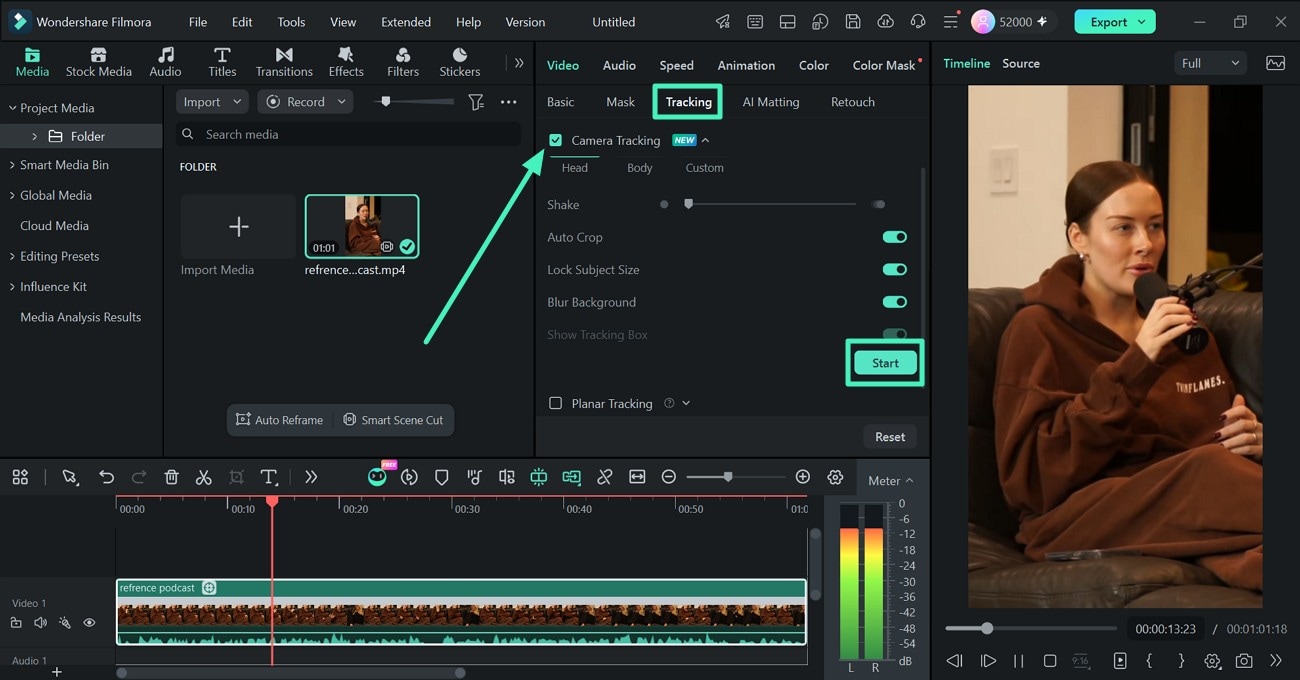
Filmora for Windows with a podcast clip loaded: the Media panel (left), the Video > Tracking tab with Camera Tracking switched on (center), the Player (right) and the timeline with an audio meter (bottom).
When you open Filmora, a start screen offers New Project in 16:9 or 9:16, plus shortcuts to Add Captions, the Screen Recorder, Text to Video and AI tools such as Smart Short Clips and Smart Scene Cut. Filmora runs natively on Windows on ARM laptops as well as on regular Intel and AMD PCs.
Features
A real editing timeline: keyframes, speed curves, multicam
Filmora for Windows covers the editing basics of a paid editor: cut, trim and split on a multi-track timeline, keyframe animation with Keyframe Motion Blur, speed curves for slow motion and speed ramps, a pen tool for custom motion paths, multicam editing to sync and switch camera angles, and compound clips that group clips, effects and audio into one item to keep a long timeline tidy. Version 16 adds Track Matte, which uses one track to reveal or hide another for text fills and layered reveals.
Camera Tracking turns wide shots into vertical clips
Filmora 16's Camera Tracking follows a head, a body or an area you draw and reframes the shot so the subject stays in frame. Switches auto-crop, lock the subject's size and blur the background, and a Shake slider adds or removes handheld movement. It's the fastest way in Filmora to turn a landscape podcast or vlog into a 9:16 clip for Shorts, TikTok or Reels, with no hand-made crop keyframes. Planar Tracking, in the same tab, pins a graphic or blur to a moving surface.
Automatic subtitles you can edit and style
Filmora for Windows turns speech into subtitles automatically, then lets you fix the text line by line, style it and apply the style to every caption at once. Captions sit on their own Subtitle Track, Dynamic Captions highlight words as they're spoken, and Filmora 16's Smart Text Correction flags likely transcription errors.
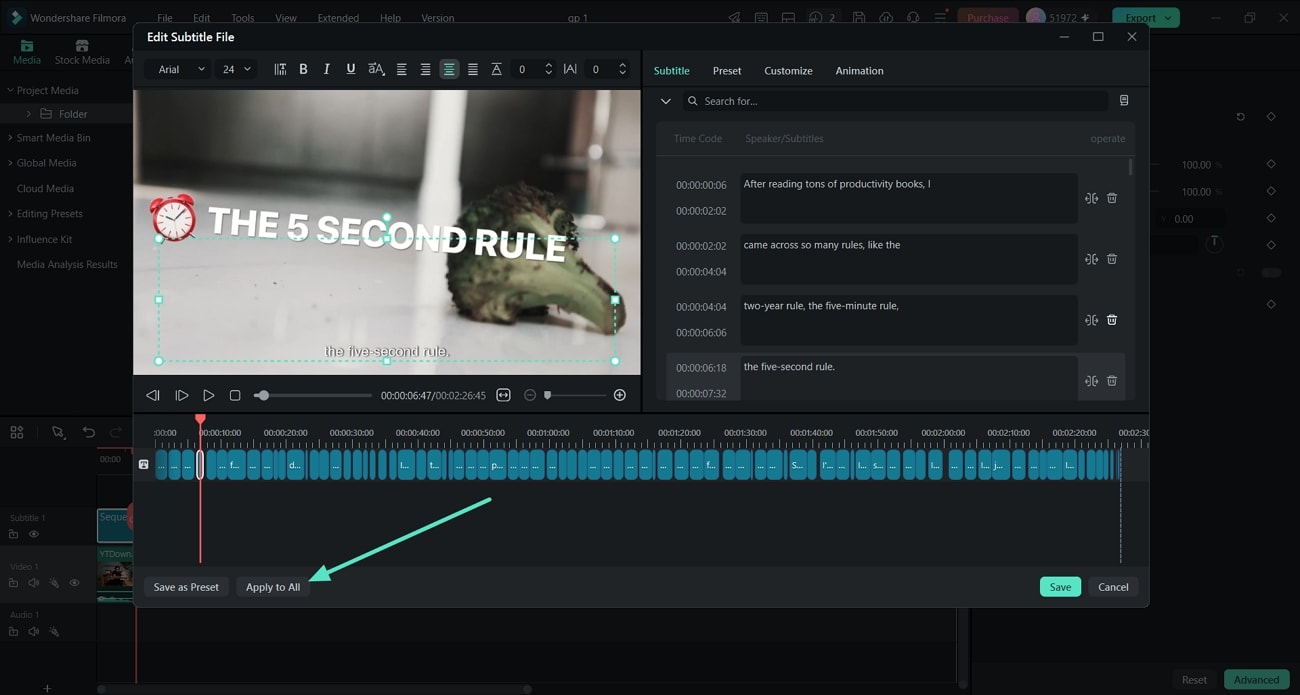
The Edit Subtitle File window in Filmora for Windows: time-coded caption lines on the right, a styled title in the preview, the caption track below and the Apply to All button.
Clean audio without a separate app
Filmora for Windows includes an AI audio denoiser, silence detection that finds pauses in spoken footage for you to review and remove, auto ducking that lowers background music under dialogue, audio sync, and music that stretches or trims itself to fit the length of your video. Beat detection can place effects or cuts on the music's beats.
Color from one click to masked corrections
Filmora's color tools start with Auto Color for flat or faded clips, then go on to more than 100 3D LUTs, an AI Color Palette that copies the look of a reference image or video, and manual controls. The new Color Mask applies a correction only inside a shape, pen or AI mask, such as brightening a face without touching the sky. Chroma key removes green or blue screens.
Screen, game and webcam recording built in
Filmora for Windows records without a separate tool. Filmora 16's Multi-Source Recording captures the screen, camera, microphone and system audio in one take and keeps the sources separately editable on the timeline. Game Recording detects your game window and records it with mic and webcam, and Screen Annotation lets you draw arrows and highlights live while you record a tutorial.
Export to a file, YouTube, TikTok or Vimeo
Filmora's Export window saves to MP4 and other formats with your choice of resolution, encoder and quality, with GPU acceleration, or uploads straight to YouTube, TikTok and Vimeo. Version 16 adds batch export with presets and XML export, so a timeline can move to another editor.
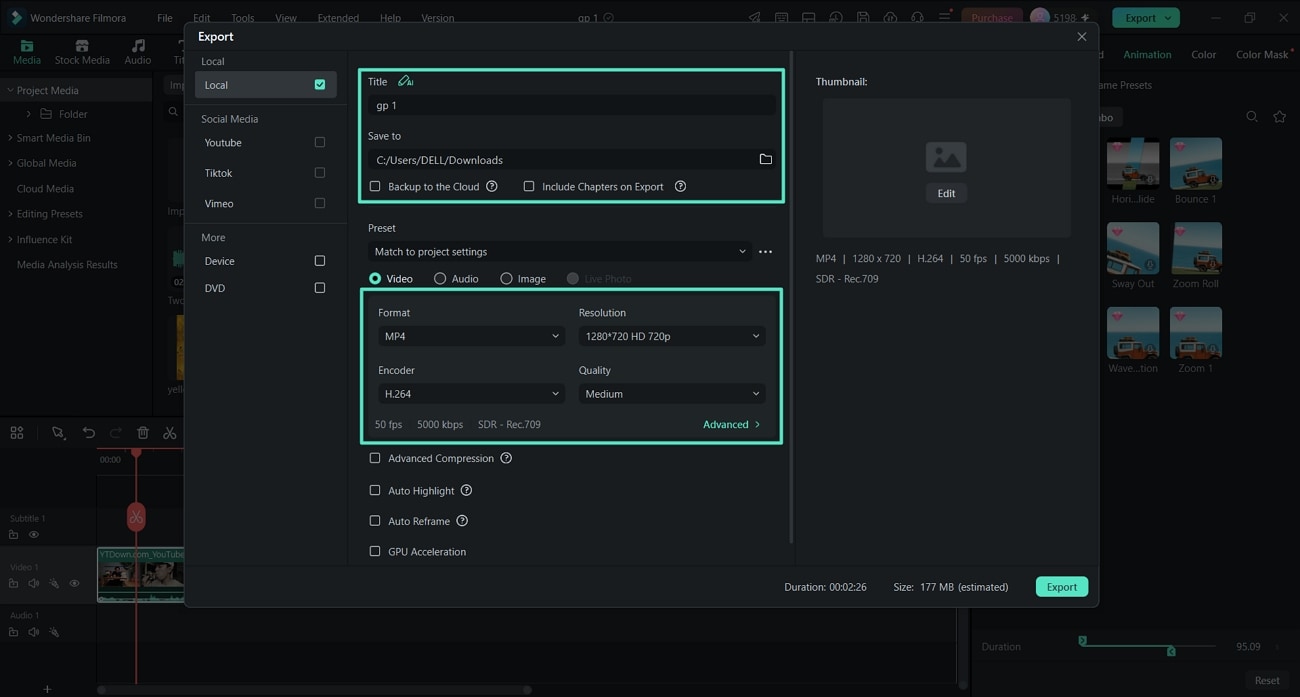
Filmora for Windows' Export window: Local, YouTube, TikTok, Vimeo, Device and DVD targets on the left, MP4 with H.264 at 1280 x 720 in the middle, and Auto Highlight, Auto Reframe and GPU Acceleration options.
Benefits
- You stop paying every year. At $79.99 once, the perpetual license costs about the same as 19 months of Wondershare's Basic subscription, then nothing more, as long as Filmora 16 does what you need.
- You won't outgrow it quickly. Keyframes, tracking, masks and multicam are there when your channel or projects get more ambitious.
- Less grunt work. Auto subtitles, silence detection, auto ducking and Camera Tracking take care of the jobs that eat hours in a basic editor.
Real-World Uses
- A weekly YouTube video: record screen, webcam and mic in one take, cut the pauses with silence detection, add Dynamic Captions and export a 16:9 video plus a vertical Short made with Camera Tracking.
- Gaming highlights: let Game Recording catch the session with your commentary, then use Smart Short Clips to pull out the best moments.
- A lesson or software demo: annotate the screen live while recording, then add callout titles and captions for viewers watching with the sound off.
- A product video for a small shop: remove a green-screen background, brighten the product with a Color Mask and let stock music duck under the voiceover.
Who It's For, and Who Should Skip It
Good fit: Windows users who've outgrown Clipchamp or the Photos app, YouTubers, gamers, teachers and small businesses making their own videos. It's especially good value if you'd rather pay once and stay on one major version for a while.
Skip it if:
- You only trim the odd clip. Clipchamp comes with Windows 11 and handles simple edits.
- You edit long films or client work professionally. Premiere Pro or DaVinci Resolve go further on color, audio and collaboration.
- You might switch to a Mac. The perpetual license won't move. Pick a Basic or Advanced subscription instead.
- Your PC is old. Filmora needs 8 GB of RAM and a GPU with 2 GB of video memory at minimum, and 16 GB for HD and 4K. On a weaker laptop, a lighter editor such as Movavi Video Editor (4 GB RAM minimum) may run better.
Usage Guide
- Install: run the downloaded installer. It downloads the full app, so stay online and allow at least 10 GB of disk space.
- Activate: launch Filmora and sign in with your Wondershare ID.
- Start a project: click New Project, choose 16:9 or 9:16, then drag your clips into the Media panel or use Import.
- Edit: drag clips to the timeline, split and trim them, add titles, transitions and effects from the top tabs, and fine-tune each clip in the Property panel.
- Export: click Export, pick Local or a social site, set the format and resolution, and export.
Tips
- Update your graphics driver first. Wondershare's tech specs warn that Filmora may need a newer graphics driver to run.
- Check credit costs before you click. AI jobs show their cost first. Save the one-time credits for the tools you'll use most.
Where it falls short
- Long, complex projects. The most common complaint in Trustpilot reviews is lag or freezing on longer, effect-heavy timelines.
- Paid extras. Premium effects and stock content sit behind a separate Creative Assets add-on, which PCMag puts at $19.99 a month or $79.99 a year, and AI features cost credits.
- Support. Recent Trustpilot reviewers describe slow, drawn-out replies from Wondershare support.
- No DVD menus or VR editing. PCMag lists "Lacks DVD authoring and VR capabilities" among its cons.
What Users Say
Tech press
PCMag (Michael Muchmore, July 31, 2026) rated Filmora 4.0 out of 5 ("Excellent") after testing it on a Windows PC: "Wondershare's Filmora video editing software offers a wealth of AI tools, fast rendering speeds, and a clear user experience for a reasonable one-time or annual rate." Its pros include "Good render speeds", "Pleasant interface" and "Affordable, with perpetual and free options"; its cons are "Some AI features are hard to find" and "Lacks DVD authoring and VR capabilities". On pricing: "I like that Wondershare still offers a perpetual license for $79.99." PCMag's Editors' Choice picks remain CyberLink PowerDirector and Adobe Premiere.
TechRadar (Steve Paris, May 12, 2022, reviewing the older Filmora 11.0.9) gave it 4.5 stars: "A good video editor for beginners and more advanced users alike, Filmora has a lot to offer. You might find some interface choices confusing, but it clicks fast, and you'll be editing in no time." Its reasons to avoid: "Clips can be hard to tell apart when editing", "Some tools aren't with the others" and "Can't preview an effect".
Trustpilot: the praise
Filmora's Trustpilot page showed a TrustScore of 4.1 out of 5 from 15,718 reviews on October 29, 2026.
- Jim Wilde (4 stars, April 2026): "Quite simply, one of the best products of its type. Easy to use, with plenty of functionality."
- Christy Darlington (5 stars, May 2026): "Love the easy to use tools, perfect for beginners."
Trustpilot: the complaints
- Karol Lang (2 stars, October 2026), "Terrible Performance and Too Many Paid Features": "This program can't handle complex projects longer than 10 minutes."
- Matthew Parker (1 star, March 2026), "Lifetime licence is not for a lifetime if you change OS": "I then changed over to a Mac computer and they wouldn't let me licence the product on the Mac."
- Gary Hurlstone (1 star, October 2026): "the product is o.k, but the customer service is a long, drawn out process".
Review sites
Wondershare's Windows product page shows ratings of 4.5 out of 5 on G2, Capterra and GetApp.
The pattern: people who make short and mid-length videos praise how fast they get good-looking results and how much the editor does for the price. The complaints cluster around slowdowns on long, complex timelines, a perpetual license that doesn't move to a Mac, paid add-ons and AI credits, and slow support. Test the free version on your longest typical project before you buy.
Comparisons
Filmora vs Movavi Video Editor
Both are easy Windows editors with auto subtitles, silence removal, noise removal, motion tracking and chroma key. Filmora goes further with multicam, Camera Tracking, color masks, track mattes and built-in game and multi-source recording, and its $79.99 perpetual license is cheaper than Movavi's $149.95 lifetime license. Movavi Video Editor is lighter (4 GB RAM minimum against Filmora's 8 GB) and simpler to learn, and its yearly plan costs $69.95.
Filmora vs Premiere Pro
Premiere Pro is the professional standard, sold only as a subscription, with deeper tools for long-form and team work. Filmora is far easier to learn, includes templates, stock media and screen recording, and can be bought outright. Choose Premiere Pro if editing is your job; choose Filmora if you want good results quickly.
Editions and Pricing
The license sold through the Buy Now button on this page is the perpetual Windows license. Wondershare's Windows store showed these plans on October 30, 2026:
| Plan | Price | Platforms | AI credits | Upgrades |
|---|
| Perpetual (Windows) | $79.99 one-time | Windows only | 1,000, one-time | Updates within Filmora 16 |
| Basic | $49.99 per year | Windows and Mac | None included | All versions while subscribed |
| Advanced | $59.99 per year | Windows and Mac | 1,000 every 30 days | All versions while subscribed |
| Free | $0 | Windows and Mac | None | Exports carry a watermark |
The Advanced plan adds 10 GB of cloud storage and 2.9 million Creative Assets. Subscriptions renew automatically, and Wondershare's store prices change with promotions.
FAQs
Does Filmora run on Windows 7 or a Windows on ARM laptop?
Yes to both. Filmora 16 supports 64-bit Windows 11, 10, 8.1 and 7, and runs natively on Windows 11 and 10 on ARM. A 32-bit Windows isn't supported.
Do I have to pay again when Filmora 17 comes out?
Only if you want it. The perpetual Filmora license keeps working on the version you bought and gets its updates, and upgrading to the next major version is an optional paid upgrade.
Can I use my Filmora Windows license on a Mac?
No. A perpetual Filmora license works only on the platform you bought it for. Filmora's Basic and Advanced subscriptions cover both Windows and Mac, and Wondershare Filmora for Mac is sold as its own $79.99 perpetual license.
What graphics card does Filmora need?
Filmora needs at least an NVIDIA GeForce GTX 1050 Ti or MX550, an AMD Radeon RX 500 (not the RX Vega series) or Intel UHD Graphics 630, with 2 GB of video memory. Wondershare recommends 4 GB for HD and 4K editing and an RTX 3000 or RX 6000 card with 8 GB for 8K.
Does Filmora need an internet connection?
For some things. Filmora needs a connection to install (the installer downloads the app), to register, and for online services such as Creative Assets, cloud storage and the AI features.
What happens when Filmora's AI credits run out?
Filmora's credit-based AI tools stop until you add credits. The perpetual license's 1,000 credits are granted once. Advanced subscribers get 1,000 credits every 30 days, and unused credits are reclaimed when the next batch arrives. The regular editing tools never use credits.
System Requirements
- Windows: 11, 10, 8.1 or 7 (64-bit), or Windows 11 or 10 on ARM
- Processor: Intel 6th Gen or AMD Ryzen 3 1300X or higher (Intel 9th Gen or newer recommended for HD and 4K)
- Memory: 8 GB RAM, 16 GB for HD and 4K, 32 GB for 8K
- Graphics: GTX 1050 Ti, MX550, Radeon RX 500 or Intel UHD 630 or later with 2 GB VRAM (4 GB for HD and 4K)
- Display: 1280 × 800 or larger, 1920 × 1080 recommended
- Disk: at least 10 GB free, SSD recommended for HD and 4K
- Internet: required for registration and online services
Conclusion
Filmora is worth $79.99 if you want a capable, easy Windows editor and would rather pay once than every year. Camera Tracking, auto subtitles, silence detection and built-in screen and game recording cover most of what YouTubers and small businesses need, and PCMag and thousands of Trustpilot users agree it's quick to learn and good value.
The main reasons to hold back are performance on long, complex timelines and the licensing: the perpetual license stays on Windows and on Filmora 16, and its AI credits don't refill. Run the free version on your own footage, ideally your longest project, before you buy. If it keeps up, the perpetual license is a good deal.
Download Free TrialBuy Now