Short answer: the best video editing software for YouTube for most creators is Wondershare Filmora (also sold as Wondershare Filmora for Mac): $79.99 once at checkout, with a 9:16 Shorts workflow, auto captions, screen and webcam recording, audio denoise and a YouTube upload button in the Export window. Choose Movavi Video Suite (or Movavi Video Suite for Mac) if you make screen-recorded tutorials on an older computer, VideoPad Video Editor if you want a classic movie editor with direct YouTube upload and a one-time price, and VideoProc Vlogger if your channel has no budget at all.
This page is about the YouTube workflow: recording, cutting, captions, Shorts, sound, thumbnails and uploading. For a general comparison of editors for home movies and family videos, see What's the Best Video Editing Software for Windows and Mac?
At a glance: the YouTube checklist
| What you need |
Wondershare Filmora |
Movavi Video Suite |
VideoPad Video Editor |
VideoProc Vlogger |
| Price (November 5, 2026) |
$79.99 one-time at checkout (Windows or Mac) |
$99.95 a year, or $29.95 for one month |
$79.99 Home or $139 Master's Edition, one-time (sale prices) |
Free |
| Runs on |
Windows 7 to 11 (64-bit), Windows on ARM, macOS 10.15+ |
Windows 10/11 (64-bit), macOS 12+ |
Windows 7 to 11, macOS 10.5+ |
Windows 7 to 11 (64-bit), Mac OS X 10.11+ |
| Free version |
Watermark on exports |
7-day trial with a watermark |
Free for non-commercial use |
Free, no watermark |
| Upload to YouTube from the app |
✓ |
✓ |
✓ (also Vimeo, Flickr) |
✗ (export MP4, then upload) |
| Automatic subtitles |
✓ speech to text, animated captions |
✓ one click, 13 languages |
✓ speech to text |
✗ (import an SRT file) |
| Vertical Shorts help |
✓ 9:16 projects, Auto Reframe, Smart Short Clips |
✓ auto crop that follows the speaker |
Manual crop |
Motion crop with automatic keyframes |
| Screen and webcam recording |
✓ built in (120 fps game recording on Windows) |
✓ separate Screen Recorder included |
Webcam capture, no screen recorder |
✗ (voiceover recording only) |
| Audio cleanup |
AI denoise, silence detection, auto ducking |
AI noise removal, one-click silence removal |
Normalize, audio effects |
Denoise, 10-band equalizer |
| 4K export |
✓ |
✓ (3840 x 2160) |
✓ (up to 2160p) |
✓ (4K, 8K, HDR) |
| Minimum RAM |
8 GB (16 GB for HD/4K) |
4 GB |
Not published |
1 GB (8 GB for 4K) |
How we picked
- We started from the jobs a YouTube channel repeats every week: record the screen or camera, cut out mistakes and pauses, add captions, clean up the sound, cut a vertical Short, make a thumbnail and upload.
- We checked each editor against those jobs on the vendor's own product pages, user guides and FAQs, and left out claims the vendor doesn't make (VideoProc Vlogger, for example, has no automatic captions, so the table says so).
- We opened the order pages for the price you pay today, read each vendor's license terms on monetized YouTube videos, and checked the current installers.
- We only included editors listed on this site and still updated by their makers.
What we checked: Wondershare Filmora at $79.99 at checkout for both the Windows and Mac perpetual licenses, Movavi Video Suite at $99.95 a year and $29.95 a month on Movavi's order page (version 27.0.0, updated September 29, 2026), VideoPad at $79.99 (Home Edition) and $139 (Master's Edition) on NCH's store, and the VideoPad 18.61 Windows installer (dated November 4, 2026), all on November 5, 2026. We didn't edit or upload a video with these editors ourselves, and we didn't run speed tests, so nothing here is a render-time comparison.
What makes the best video editing software for YouTube
A YouTube editor is judged by different things than a home movie editor. Fancy transitions matter far less than how fast you can turn a 20-minute recording into a clean, captioned upload every week. These are the features that save the most time:
- Silence and mistake removal. Talking-head and tutorial footage is mostly pauses and retakes. A tool that finds the silent parts for you saves more time than any effect.
- Automatic captions. Many viewers watch on mute, and captions you can edit and export as an SRT file help both viewers and search.
- A vertical version for Shorts. Reframing a 16:9 video to 9:16 by hand means keyframing a crop. Auto reframe tools follow the speaker for you.
- Screen and webcam recording. Tutorial, software and gaming channels need a recorder, and having it inside the editor means one less program to learn.
- Audio cleanup. Viewers forgive soft video before they forgive a humming room or music that drowns your voice.
- Export presets and upload. A preset that already knows YouTube's formats, plus an upload button, removes the last step where beginners get stuck.
Movie and film editing software in the classic sense (multi-track timelines, transitions, titles, color correction) is still the core of all four editors here. The difference is how much of the YouTube routine around that timeline each one automates.
Wondershare Filmora: best for most YouTube creators
Wondershare Filmora 16
- Pages on this site: Wondershare Filmora (Windows) and Wondershare Filmora for Mac
- Price: $79.99 one-time at checkout for the Windows or the Mac perpetual license (each works on its own platform only); Wondershare also sells cross-platform yearly plans from $49.99 a year on its own store
- Runs on: Windows 11, 10, 8.1 and 7 (64-bit) and Windows on ARM; macOS 10.15 or later on Intel and Apple silicon
- Free version: full editor, but exports carry a Filmora watermark
- Best for: weekly talking-head, tutorial, gaming and vlog channels that also post Shorts
Wondershare Filmora covers more of the YouTube routine than any other editor here. When you start it, you choose a 16:9 or 9:16 project, and the start screen has shortcuts to Add Captions and the Screen Recorder. Its recorder captures the screen, camera, microphone and system audio in one session and keeps each source as a separate track you can still edit, and on Windows its Game Recording handles gameplay at up to 120 fps on hardware that can keep up.
For the edit itself, Silence Detection finds the pauses in spoken footage for you to review, AI Audio Denoise removes background noise, and auto ducking lowers your music under your voice. Speech to Text writes the subtitles, Dynamic Captions animates them in the bold, word-highlight style that is common on Shorts, and Filmora 16 adds a separate Subtitle Track and a Smart Text Correction tool for fixing transcription mistakes.
Shorts are where Filmora pulls ahead. Smart Short Clips scans a long video for highlights using speech and scene detection and cuts several short clips from it, Auto Reframe turns a landscape clip into a vertical one, and Wondershare's own Shorts guide recommends its Shorts preset (9:16, 1080 x 1920, MP4) and says you can log into your YouTube account in Filmora and publish directly after editing.
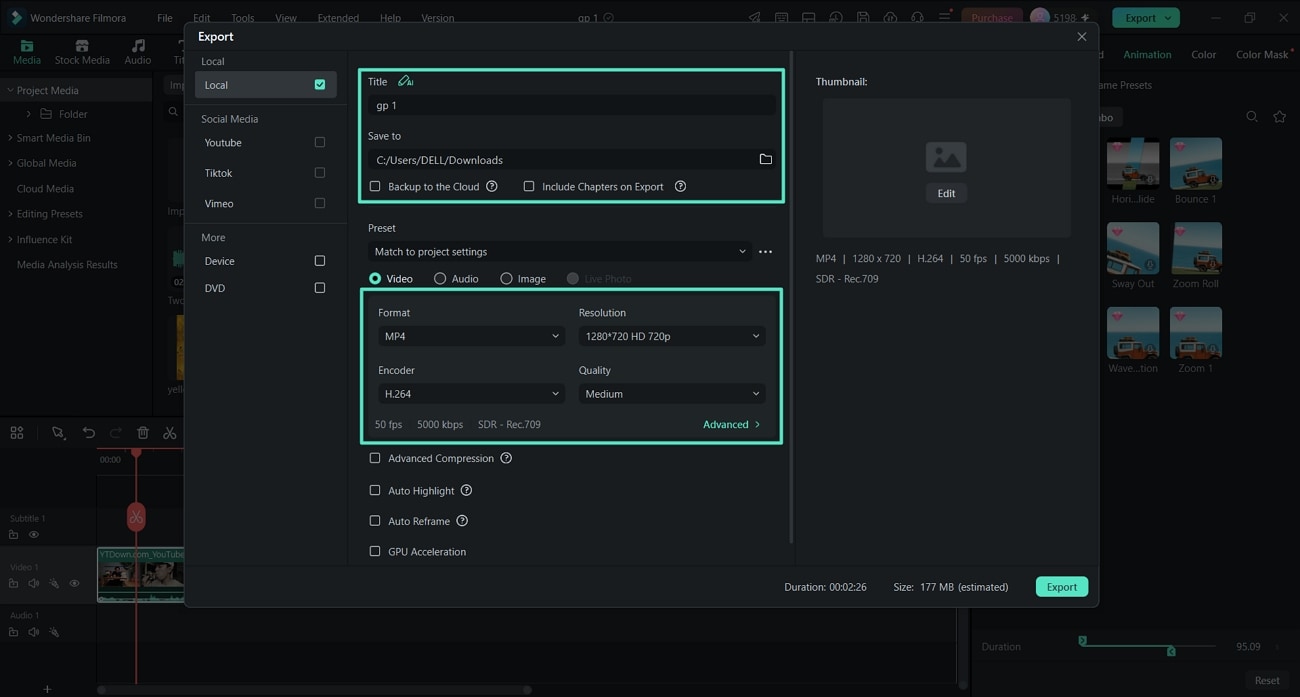
Filmora for Windows' Export window: Local, YouTube, TikTok and Vimeo targets on the left, MP4 with H.264 at 1280 x 720 and 50 fps in the middle, an Include Chapters on Export option, Auto Reframe and GPU Acceleration checkboxes, and a Thumbnail panel with an Edit button on the right.
That Export window is also where you set the thumbnail, next to a box for including chapters, so the last three YouTube chores happen in one place. On the Mac, the same Record menu offers Record PC Screen, Record Voiceover and Record from Webcam.
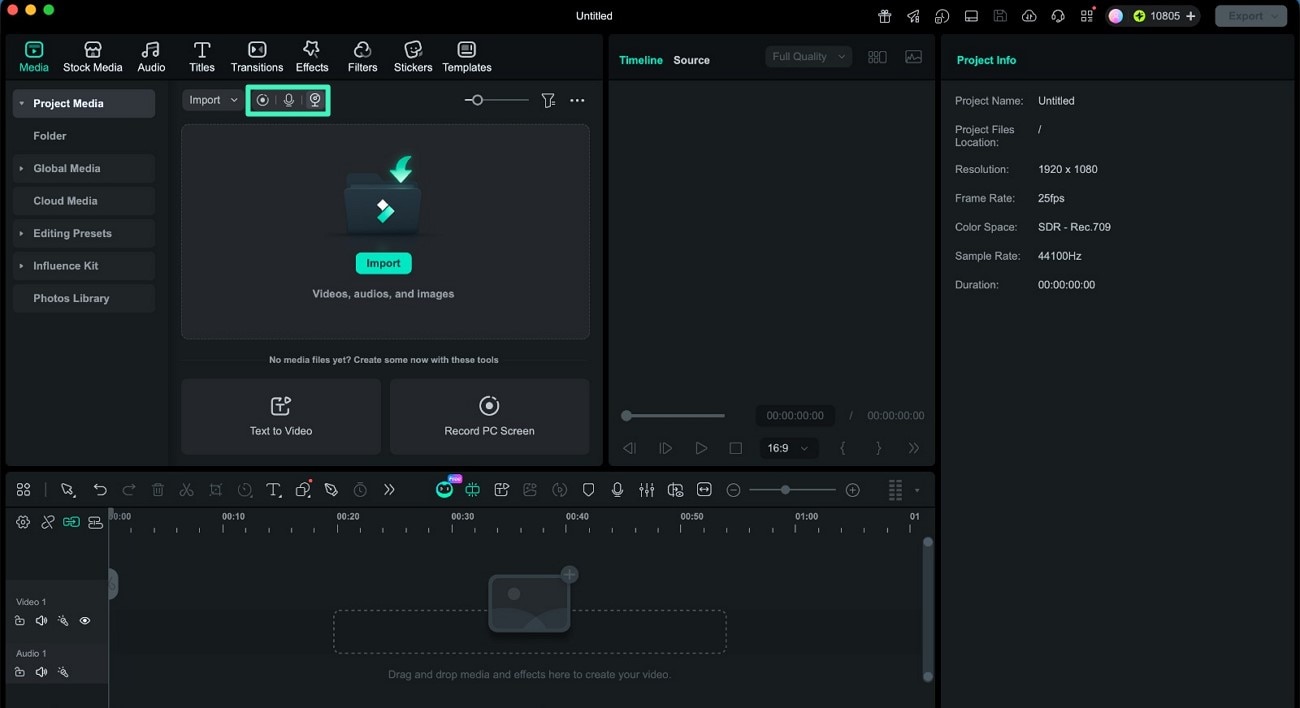
Filmora for Mac's Media panel with the Record menu open: Record PC Screen, Record Voiceover and Record from Webcam, plus Text to Video and Record PC Screen shortcuts at the bottom.
What we like
- Shorts tools (9:16 projects, Auto Reframe, Smart Short Clips) built in
- Recorder, captions, denoise and upload in one program
- Thumbnail and chapters set in the Export window
- Pay once: $79.99, no yearly renewal
- Native on Windows on ARM laptops
Watch out for
- Needs 8 GB of RAM, and 16 GB for HD and 4K editing
- The perpetual license stays on one platform and one major version
- Some AI tools use credits, and the perpetual license includes a one-time batch
- Users report slowdowns on long, complex projects
What reviewers say about Filmora
PCMag (Michael Muchmore, July 31, 2026) rated Filmora 4.0 out of 5: "Wondershare's Filmora video editing software offers a wealth of AI tools, fast rendering speeds, and a clear user experience for a reasonable one-time or annual rate." Its cons: "Some AI features are hard to find."
On Trustpilot (4.1 out of 5 from 15,718 reviews on October 29, 2026), Christy Darlington (5 stars, May 2026) wrote: "Love the easy to use tools, perfect for beginners." The criticism comes from heavier projects: Karol Lang (2 stars, October 2026) said, "This program can't handle complex projects longer than 10 minutes."
For a deeper look at how Filmora compares with Movavi's editor, see Filmora vs Movavi Video Editor: Which Should You Buy?
Buy Filmora for WindowsDownload Filmora FreeBuy Filmora for MacDownload Filmora for Mac
Movavi Video Suite: best for tutorial channels and older PCs
Movavi Video Suite 27
- Pages on this site: Movavi Video Suite (Windows) and Movavi Video Suite for Mac
- Price: Video Suite Plus $99.95 a year, Video Suite $29.95 for one month, or $104.95 a year with Movavi Photo Editor added (the same plans for Windows and Mac)
- Runs on: Windows 10 and 11 (64-bit); macOS 12 or later on Intel or Apple M1 and newer
- Trial: 7 days, with a Trial watermark on output videos
- Best for: software tutorials, lessons and webinar recordings, and creators on a 4 GB laptop
Movavi Video Suite bundles three programs a tutorial channel uses every week: Movavi Video Editor, Movavi Screen Recorder and Movavi Video Converter, opened from one launcher, plus a capture tool for webcams, camcorders and VHS players. The editor inside is the same Movavi Video Editor sold on its own, with one-click Silence removal, AI noise removal, Auto subtitles in 13 languages, background removal, and an auto crop that keeps the speaker centered when you turn a horizontal clip into a vertical one for Shorts.

The Video tab of the Movavi Video Suite launcher: Video Editor, Video Converter and Screen Recorder tiles with Launch buttons, plus capture from cameras, VHS and TV, Watch video, and Gecata (sold separately, with Buy and Try Out buttons).
Movavi Screen Recorder captures the full screen, a window or an area you draw, with system audio, your microphone and your webcam, and lets you draw arrows and shapes on the screen while you record and take screenshots. One limit to plan around: the webcam is burned into the recording, so you can't move it later. When the edit is done, Movavi Video Editor's Export window has an Upload tab that signs into YouTube and publishes the video for you, and you can also save the auto subtitles as an SRT file to upload as a separate caption track. Our step-by-step guide, How to Edit a YouTube Video with Movavi Video Editor, walks through that whole workflow.
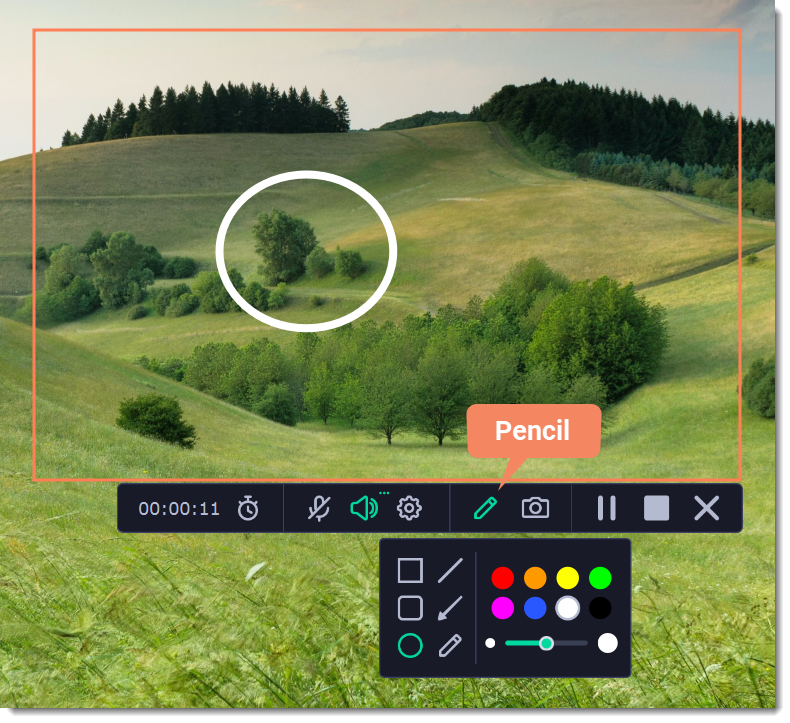
Movavi Screen Recorder (from Movavi's version 23 guide) recording an area of the screen: the timer, microphone, system sound and settings buttons, and the Pencil panel with shapes, arrows and colors for drawing on the screen.
Movavi's lighter system requirements matter for creators on older hardware: Movavi Video Suite asks for a dual-core 1.5 GHz processor, 4 GB of RAM and Intel HD Graphics 2000, half the memory Filmora wants.
What we like
- Editor, screen recorder and converter in one purchase
- One-click silence removal and noise removal
- Auto subtitles you can save as SRT
- Runs on 4 GB of RAM
- Monetized personal channels are allowed with a Movavi credit
Watch out for
- A subscription: $99.95 every year you keep it
- Webcam overlay can't be moved after recording
- Extra effects packs and templates are separate subscriptions
- No Windows 7 or 8 support
What reviewers say about Movavi Video Suite
TechRadar (Steve Paris, August 2025) scored Movavi Video Suite 2025 4.5 out of 5: "Everything works well, with elegant interfaces that are designed for ease of use - including powerful AI tools that simplify complex tasks." He placed the editor between the free and professional tools: "It's unlikely to trouble the likes of Premiere Pro and Resolve any time soon, but it's superior to the likes of Apple iMovie or ClipChamp." His reasons to avoid included "Need a decently powerful machine".
Movavi's Trustpilot page (all products) showed 3.5 out of 5 from 22,156 reviews on October 31, 2026. Wayne K (5 stars, October 2026) wrote, "First I use Movavi Screen Recorder, and I find it is excellent for what I wanted to do with audio files," while Valentin Mladinescu (3 stars, October 2026) was "Dissapointed on the subscription model for payment."
Buy Movavi Video SuiteDownload Movavi Video Suite TrialBuy Movavi Video Suite for MacDownload the Mac Trial
VideoPad Video Editor: a classic movie editor with a YouTube button
VideoPad Video Editor 18.61
- Page on this site: VideoPad Video Editor
- Price: Home Edition $79.99 and Master's Edition $139, one-time, on NCH's store on November 5, 2026 (sale prices; normally $129 and $195); a Master's Edition plan billed $32.49 a quarter
- Runs on: Windows 7 to 11, and a Mac version for macOS 10.5 or later
- Free version: for non-commercial use only
- Best for: creators who want a traditional multi-track movie editor and a one-time price, and hobby channels that don't earn money
VideoPad Video Editor from NCH Software is the most traditional movie editing software in this list: a multi-track timeline, over 50 transitions and effects, titles, green screen, picture-in-picture, stabilization, speed changes and narration recording. For YouTube it adds what matters most: you save your login once and upload directly to YouTube, Vimeo or Flickr from VideoPad, it exports from 720p up to 4K (1080p, 1440p, 2160p), and its automatic subtitling tools turn speech into subtitles. For thumbnails, its Snapshot button saves a still frame from your video.
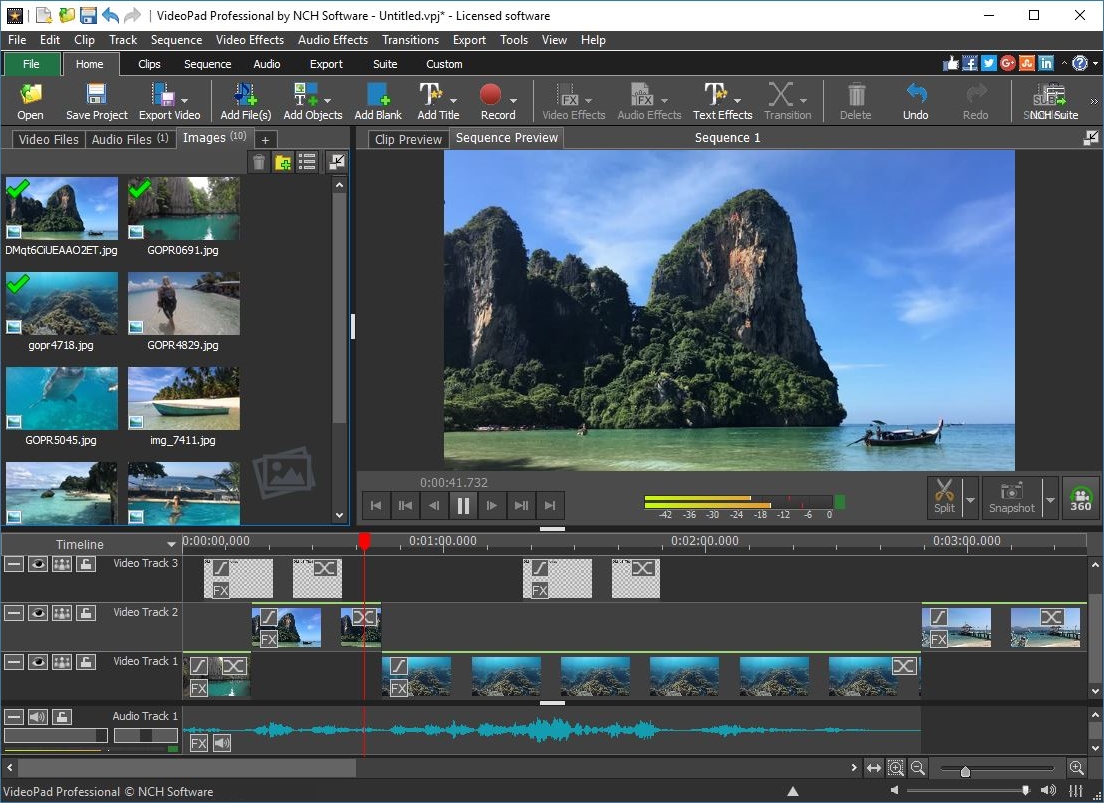
VideoPad Professional's main window from NCH's screenshot page (an older version): image files in the media bin, the Sequence Preview with Split and Snapshot buttons, and a timeline with three video tracks and one audio track.
VideoPad's weak spots are the AI-style shortcuts. There is no automatic silence removal or auto reframe for Shorts, so you crop vertical versions by hand, and reviewers found its speech-to-text captions less reliable than the rest of the program. NCH also sells a separate screen recorder rather than building one in, though VideoPad can capture from a webcam or camcorder. The free version is generous for a hobby channel, but NCH limits it to non-commercial use.
What we like
- Direct upload to YouTube, Vimeo and Flickr
- One-time price, and NCH's store promises a no-questions-asked refund
- Exports up to 4K, plus DVD and 360-degree video
- Free for non-commercial use
- Small 9 MB installer, updated in November 2026
Watch out for
- No silence removal or auto reframe for Shorts
- Automatic subtitles reviewed as unreliable
- Home Edition is limited to two audio tracks
- The free version nags with notifications
What reviewers say about VideoPad
Tom's Guide (Jackie Dove, March 2021, 3.5 out of 5): "With an interface that's easy to use and learn, and offering plenty of essential features, VideoPad is an appealing, cross-platform video editor." Its reasons to avoid: "Annoying notifications in free version", "Windows version has more features than Mac version" and "Auto speech to text subtitling feature works poorly".
TechRadar (Steve Paris, October 2020, reviewing VideoPad 8.9, 3.5 out of 5): "It's a competent editor with a good range of options, but some of its features are pretty basic or lack more in-depth features, while others are just plain confusing." Both reviews cover older versions than today's 18.61.
Download VideoPad for Windows
VideoProc Vlogger: the best free option for a new channel
VideoProc Vlogger 1.4
- Page on this site: VideoProc Vlogger
- Price: free, with no watermark and no time limit
- Runs on: Windows 7 to 11 (64-bit) and Mac OS X 10.11 or later, native on Apple silicon
- Needs: 1 GB of RAM (2 GB recommended, 4 GB for HD, 8 GB for 4K and 8K)
- Best for: new channels, vlogs and B-roll-heavy videos with no budget
VideoProc Vlogger from Digiarty is a free timeline editor with no watermark, which already puts it ahead of most free options for a channel that hasn't earned anything yet. It handles 4K, 8K and HDR footage with hardware acceleration, has speed ramping with a visual curve, motion crop with automatic keyframes (handy for a vertical crop that follows the action), 3D LUTs, green screen, lens correction for GoPro and drone footage, audio denoise and a 10-band equalizer. Its Export panel lets you pick H.264 or HEVC and a frame rate from 15 up to 120 fps.

VideoProc Vlogger's Video export settings: Medium quality, the H264 codec and the FPS list open with options from 15 to 120, including 59.94 and 60.
The price of free is the YouTube routine around the edit. VideoProc Vlogger has no automatic captions (Digiarty's own guide tells you to extract the audio, transcribe it with an online service and import the SRT file), no screen recorder, no silence removal and no upload button, so you export an MP4 and upload it in your browser. The 1.4 update, announced in March 2022, is still the latest version on the product page, although the installer was rebuilt in May 2026.
What we like
- Free with no watermark
- Runs on very old computers
- 4K, 8K and HDR, up to 120 fps export
- Speed ramping and motion crop
Watch out for
- No auto captions, screen recorder or upload button
- Still on version 1.4, from March 2022
- No silence removal for talking-head videos
What reviewers say about VideoProc Vlogger
Creative Bloq (Paul Hatton, June 15, 2023, 4 out of 5): "Vlogger has taken all the main features of a more advanced video editor and packed them into a simple and intuitive interface that is completely free to use." Its reasons to avoid: "No collaboration capability" and "Lacks 3D tools". The vendor's page shows 4.5 out of 5 from 631 user reviews.
Download VideoProc Vlogger Free
Hobby channel or earning channel: what you'll pay
A channel that earns money may need a different license, because the vendors' terms differ as much as their prices. Here is what each vendor's terms say about monetized YouTube videos, as of November 5, 2026:
| Editor |
Hobby channel (no income) |
Monetized personal channel |
Brand or company channel |
| Wondershare Filmora |
Free version works, with a watermark |
Individual license, if the video description says "Video is made by Filmora"; Filmora's built-in music and sound effects can't be used commercially |
Business plan (also the option if you don't want the credit) |
| Movavi Video Suite |
Personal license (the trial adds a watermark) |
Personal license allowed if the video description credits Movavi and links to movavi.com |
Business license, whatever the channel's size |
| VideoPad Video Editor |
Free version (non-commercial use only) |
Buy the Home or Master's Edition |
Home or Master's Edition |
| VideoProc Vlogger |
Free, no watermark |
Free; there is no paid edition |
Free; there is no business edition |
What you pay in your first year (USD, one computer)
VideoPad Video Editor Master's Edition (one-time)$139.00
Movavi Video Suite Plus (yearly, renews)$99.95
Wondershare Filmora perpetual (one-time)$79.99
VideoPad Video Editor Home Edition (one-time)$79.99
Filmora price at checkout; Movavi and NCH prices on their order pages, all checked November 5, 2026. VideoPad's prices are a sale that NCH's store says runs until November 15. In the second year, only Movavi Video Suite charges again ($99.95).
Minimum RAM each editor asks for (GB, lower suits older laptops)
Wondershare Filmora (16 GB for HD/4K)8 GB
VideoProc Vlogger (4 GB for HD, 8 GB for 4K)1 GB
From each vendor's published system requirements. NCH doesn't publish a RAM minimum for VideoPad.
Which should you choose?
| Your channel |
Pick |
Why |
| Weekly talking-head or vlog videos plus Shorts |
Wondershare Filmora |
Smart Short Clips and Auto Reframe turn one video into several Shorts |
| Gaming channel on Windows |
Wondershare Filmora |
Game Recording at up to 120 fps, with mic and webcam as separate tracks |
| Software tutorials or lessons on a 4 GB laptop |
Movavi Video Suite |
Screen Recorder, silence removal and auto subtitles at half Filmora's RAM |
| Monetized personal channel that doesn't want a subscription |
Wondershare Filmora or VideoPad Home Edition |
Both are $79.99 once; Filmora automates more, VideoPad feels like classic movie editing software |
| Short films, family movies and the occasional upload |
VideoPad Video Editor |
Free for non-commercial use, with direct YouTube upload and 4K export |
| Brand-new channel, zero budget, old computer |
VideoProc Vlogger |
Free, no watermark, runs on 1 GB of RAM |
Who should skip each one:
- Skip Wondershare Filmora if your computer has 4 GB of RAM, or if you switch between Windows and Mac (the perpetual license covers one platform; only the yearly plans cover both).
- Skip Movavi Video Suite if you only edit camera footage and already have a screen recorder: Movavi Video Editor on its own costs less, and the suite's yearly price comes back every year.
- Skip VideoPad Video Editor if your channel lives on Shorts and captions, since you'll crop and fix subtitles by hand.
- Skip VideoProc Vlogger if you make talking-head or tutorial videos: without captions, silence removal or a recorder, you'll need extra tools for the parts that take longest.
What commonly goes wrong
- Finding the watermark after hours of work. Filmora's free version and Movavi's trial both stamp exports. Export a 10-second test on day one, so the purchase decision comes before the big edit.
- Using built-in music on a monetized channel. Stock music licenses vary by vendor and plan. Movavi asks for a credit and link in the description, and Wondershare's license bars Filmora's built-in music and sound effects from commercial use. When in doubt, use music you've licensed yourself.
- Trusting auto captions blindly. Every speech-to-text tool mishears names and jargon, and reviewers singled out VideoPad's. Read the captions through before you publish.
- Buying for a computer that can't keep up. Filmora wants 16 GB of RAM for HD and 4K editing. On a weaker laptop, edit with proxies or lower-resolution previews, or pick Movavi or VideoProc Vlogger.
- Forgetting a subscription. Movavi's plans renew automatically. Note the renewal date if you only need the suite for one project.
- Expecting a refund for a change of mind. Wondershare's refund covers duplicate purchases and technical problems it can't fix, and Movavi's 14-day guarantee covers technical problems that can't be solved. Of the four, only NCH's store promises a no-questions-asked refund.
FAQs
What is the best video editing software for YouTube beginners?
Wondershare Filmora is the best video editing software for most YouTube beginners, because it handles recording, captions, Shorts and uploading without a second program, for $79.99 once. If your budget is zero, start with VideoProc Vlogger and move to a paid editor when captions and silence removal start costing you hours.
What do most YouTubers use to edit their videos?
Most YouTubers use either a professional editor built for film work or an easier consumer editor such as Wondershare Filmora or Movavi Video Editor. The consumer editors trade some depth for speed: auto captions, silence removal and templates do in a click what professional editors leave to you, and they cost far less.
Can I upload to YouTube directly from the editor?
Yes, from three of the four. Wondershare Filmora, Movavi Video Editor (in Movavi Video Suite) and VideoPad Video Editor all sign into your YouTube account and upload from the export step. VideoProc Vlogger exports an MP4 that you upload in your browser.
Which editor makes YouTube Shorts from a long video?
Wondershare Filmora does it most automatically: Smart Short Clips picks highlights from a long video and Auto Reframe turns them vertical, and Wondershare recommends exporting Shorts at 9:16, 1080 x 1920, MP4. Movavi Video Editor's auto crop also follows the speaker when you change a clip to 9:16.
Can I make money on YouTube with videos made in a free editor?
VideoProc Vlogger is free with no watermark and has no paid tier, so there's nothing to upgrade to. VideoPad's free version is for non-commercial use only, so buy the Home or Master's Edition once your channel earns money. With a paid license, Movavi's personal license allows monetized YouTube videos if you credit Movavi and link to movavi.com in the description, and Filmora's individual license allows them if the description says "Video is made by Filmora".
What's the best video editing program for a PC with 4 GB of RAM?
Movavi Video Suite is the best paid video editing program for a 4 GB PC: it asks for 4 GB of RAM and Intel HD Graphics 2000, and still includes auto subtitles and a screen recorder. VideoProc Vlogger runs on even less (1 GB minimum) but needs 4 GB for HD editing. Wondershare Filmora needs 8 GB.
Which YouTube video editing software works on a Mac?
All four work on a Mac. Wondershare Filmora for Mac needs macOS 10.15 or later, Movavi Video Suite for Mac needs macOS 12 or later, VideoPad has a Mac version for macOS 10.5 or later, and VideoProc Vlogger runs on Mac OS X 10.11 or later, natively on Apple silicon. Note that Filmora's and Movavi's Windows and Mac licenses are sold separately.
Is film or movie editing software different from a YouTube editor?
Not really: film and movie editing software and YouTube editors share the same timeline, cuts, titles and color tools. What a YouTube-focused editor adds is the routine around the edit, such as screen recording, auto captions, vertical Shorts and a YouTube upload button. VideoPad Video Editor is the closest to a classic movie editor here, while Wondershare Filmora leans furthest toward YouTube.
How do I make a YouTube thumbnail with these editors?
Wondershare Filmora has a Thumbnail panel with an Edit button right in its Export window, and VideoPad's Snapshot button saves any frame of your video as an image you can turn into a thumbnail. For text-heavy thumbnails, most creators still finish the image in a photo editor.
Conclusion
For most YouTube channels, Wondershare Filmora is the editor to buy. At $79.99 once, it covers the whole weekly routine in one program: record the screen, webcam and mic, cut the pauses, add captions, spin off vertical Shorts with Auto Reframe, set the thumbnail and upload. Its main cost is hardware: plan on 16 GB of RAM for HD and 4K work.
On an older 4 GB laptop, or for a tutorial channel that lives on screen recordings, Movavi Video Suite does most of the same jobs and runs lighter, at $99.95 a year. VideoPad Video Editor suits people who want classic movie editing software with a YouTube button and a one-time price, and VideoProc Vlogger is the right start for a channel with no budget. Try the free version of your pick on a real episode before you pay.
Buy Filmora for WindowsDownload Filmora FreeBuy Filmora for Mac