MobiKin Backup Manager for Android: Back Up a Phone to Your PC for a One-Time $29.95
MobiKin Backup Manager for Android is a $29.95 one-time Windows program that copies an Android phone's contacts, messages, call logs, photos, videos, music, documents and apps to your PC and restores them later, to that phone or a new one. It's for people who want a local backup they control, rather than a cloud account.
You run each backup yourself. There's no schedule, and app data isn't included, so it protects your files rather than cloning your phone.
Quick facts
- Version: 3.0.10, released October 21, 2026
- Developer: MobiKin
- Runs on: Windows 11, 10, 8 and 7. A separate Mac version exists
- Backs up: Android 6 and above, including Android 17
- Connection: USB cable or Wi-Fi
- Price: $29.95 one time for 1 PC
- Trial: backs up but can't restore
- Guarantee: 30 days, with listed exceptions
What we checked: the installer (24 MB, digitally signed by Shenzhen Qixingshi Technology Co., Ltd), MobiKin's trial and refund terms, and the order page, which showed a one-time $29.95 lifetime license with no renewal, on November 6, 2026. We didn't back up or restore a phone, so speed and reliability claims here are the vendor's or its users'.
Download Free TrialBuy Now
Overview
The program has two main buttons, Backup and Restore. You connect the phone, tick the data types you want and pick a folder on your PC. The backup stays on your computer, so nothing depends on a cloud account or a storage quota.
A helper app, MobiKin Assistant for Android, does the work on the phone side and reads your data once you authorize it. It's the reason the setup takes a few extra taps the first time.
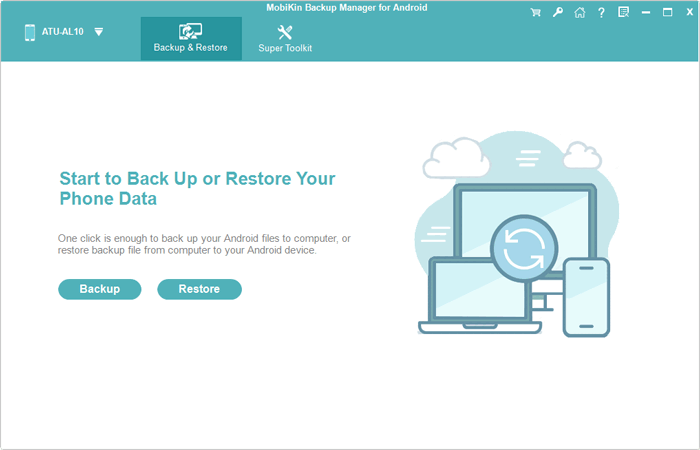
The main window. Everything starts from these two buttons.
Features
Eight data types in one backup
MobiKin Backup Manager for Android saves contacts, messages, call logs, photos, videos, music, documents and apps. Before you start, it lists the count and size of each type, so you can leave out the 40 GB of video and keep the backup small.
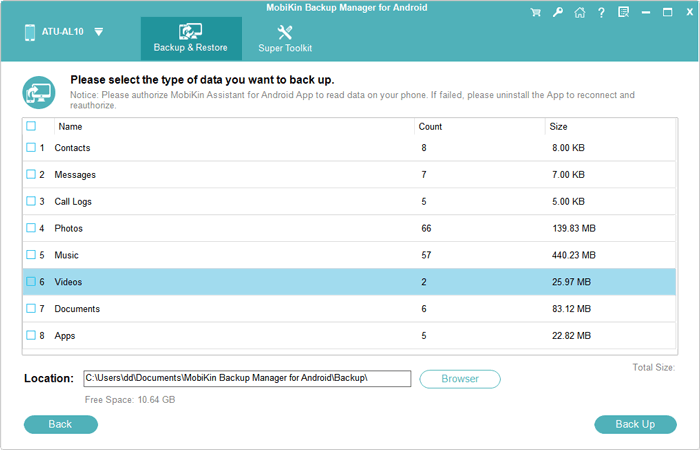
The backup screen, with a count and size for each data type and a folder you choose.
Restore everything or just part of it
MobiKin Backup Manager for Android lists your backups by device and date, and you tick what to bring back. It can restore to the original phone or another Android device, which makes it useful when you change phones. For apps, you can choose individual packages from the backup.
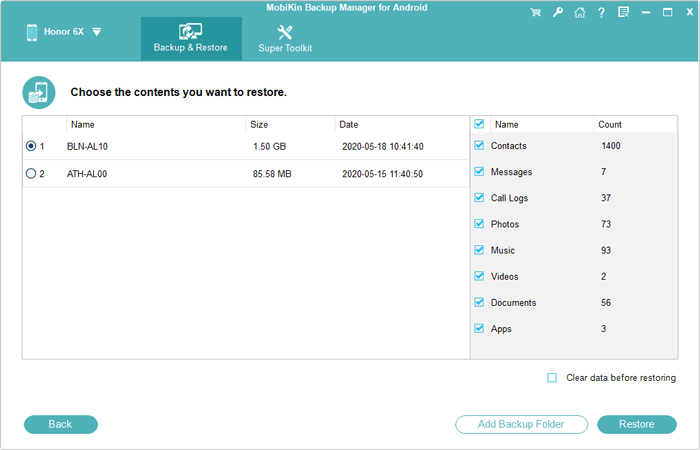
The restore screen. Note the Clear data before restoring box at the bottom right.
Optional clean restore
MobiKin Backup Manager for Android keeps what's on the phone unless you tick Clear data before restoring. That box wipes the selected data types first, and the program asks you to confirm. Leave it off if you're adding old data to a phone you already use.
Add older backups from any folder
MobiKin Backup Manager for Android can load backups stored outside its default folder through Add Backup Folder. If you moved old backups to an external drive, you can still restore from them.
Readable exports
MobiKin Backup Manager for Android can also export data as HTML, CSV or vCard files, according to MobiKin. That gives you contacts and messages you can open, share or print on a PC.
USB or Wi-Fi
MobiKin Backup Manager for Android connects by cable or, on the same Wi-Fi network, by scanning a QR code with the helper app. Windows may ask you to allow the helper through its firewall the first time. A cable is the simpler choice for a large photo library.
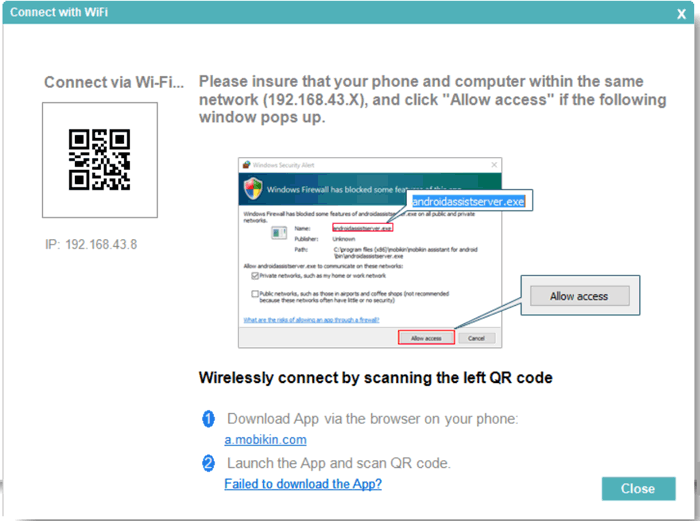
The Wi-Fi dialog, with a QR code and a note about the firewall prompt.
Benefits
- No monthly storage bill. Your PC's disk is the only limit.
- A copy you can see. The backup is a folder on your computer, not something locked inside an account.
- Help when you switch phones. Restoring to a different Android device is built in.
Real-World Uses
- Before a risky update: save your contacts and messages before installing a new Android version.
- Moving to a new phone: back up the old one, then restore selected data to the new one.
- Before a factory reset: keep your files safely on the PC while you wipe a misbehaving phone.
- A parent's old phone: save the photos and messages from a phone that's about to be retired.
Who It's For, and Who Should Skip It
Buy it if you want a simple, local Android backup on a Windows PC and you'll remember to run it. It suits people with limited cloud storage or a preference for keeping their data at home.
Skip it if you want backups to run by themselves, because Google's built-in backup or a sync app does that and this doesn't. Skip it too if you need app logins and game saves preserved, since app data isn't copied. If you have a Samsung Galaxy, try Samsung's free Smart Switch first. On a Mac, you need the separate Mac version, which has its own license.
Usage Guide
- Install the program on your PC and open it.
- Connect the phone by USB, enable USB debugging if asked, and tap Allow on the phone. Or click the Wi-Fi icon and scan the QR code with the helper app.
- Click Backup and tick the data types you want.
- Click Browser to choose a folder, then click Back Up. Keep the phone connected until it reaches 100%.
- To restore, connect the phone, click Restore, pick a backup and tick the data you want.
- Leave Clear data before restoring off unless you mean to wipe those data types. Click Restore.
- If you're restoring text messages, tap Yes on the phone when it asks.
Before you buy
- Run the trial backup first. It shows whether your phone connects and what the program can see. MobiKin says some models may not work because it couldn't test them all.
- Remember that restore is locked. You can't try a restore until you've paid, so check the backup folder and the file counts while you still have the guarantee.
- Read the refund rules. The 30-day guarantee doesn't cover a change of mind. It focuses on problems such as serious technical faults that support can't solve.
- Pick Lifetime unless you'll cancel. The $19.95 1-Year license renews automatically, and MobiKin rejects refund requests for renewals you didn't stop in time.
Where it falls short
- No scheduling. Backups are manual, and users ask for automatic ones on MobiKin's own review page.
- No incremental backups or cloud option. Each run is a fresh backup to your PC, so repeat runs of a big phone take time and disk space.
- No app data. MobiKin's FAQ says apps are saved without their data, so logins and in-app content won't come back.
- No direct phone-to-phone copy. You back up to the PC and then restore. MobiKin sells Transfer for Mobile for direct copying.
- Mixed version claims. One line on the product page says Android 6 to 16, while the headline and specs say Android 17.
What Users Say
Independent reviews of this product are thin. We found one hands-on test, a few download-site summaries and comments on MobiKin's own site.
Consuming Tech: a hands-on review
Mat Diekhake tested version 1.4.10 on a Moto G9 Power and concluded: "I found MobiKin Backup Manager 1.4.10 easy to use." He had to enable USB debugging first, and the program showed him how. His main complaint was: "I couldn't get the Android notification off my smartphone because it said it was processing even after 21 minutes." That test predates the current 3.x release.
FileHorse
Marian Marinescu's write-up lists "Easy and intuitive user interface" and "Quick backup and restore speed" as pros, and "Requires USB debugging enabled" as a con. Read its list with care: it also says "No wireless backup option" and "Mac version not available," and MobiKin's current pages show both a Wi-Fi connection and a Mac version.
On MobiKin's review page
The product page shows 4.5 out of 5 from 132 reviews. These are comments hosted by the vendor, many are a single line and we can't verify who wrote them, so treat them as a guide to recurring themes. The useful ones are the requests:
"I just used this software to successfully back up all contacts, photos, videos, etc. on my Samsung S9. It only took a few minutes." - Shirley West
"At first, it didn't recognize my phone. So I contacted the support team and they were very patient to help me. It works great now!" - Aolorard
"Straightforward and efficient, though there isn't an option to automate backups." - Seraphina
"Great for full backups, but I wish it supported incremental backups to save time" - Percival
"Great for local backup, but lack of cloud support." - Brooks CZL
MobiKin on Trustpilot
The company page shows 3.6 out of 5 from 48 reviews, read through a page summarizer. Reviewers rarely name a product, so these reflect MobiKin's service as a whole:
"I got my refund back with no hassle." - Harris Karagiaouris, September 12, 2025
"But, I cannot re-activate the Mobikin that I already paid for." - Joseph C Gravina, February 4, 2026
A few reviewers report failed restores with a MobiKin product without saying which one, so don't assume that any restore will work until you've tried yours.
The pattern: people like how simple it is and that it needs no root access. The complaints are about what's missing, such as scheduling, incremental backups and cloud storage. Connection problems come up, and support gets credit for solving them.
Comparisons
MobiKin Backup Manager for Android vs Google's built-in backup
Google's backup is free and automatic, and it uses your Google storage. MobiKin Backup Manager for Android costs $29.95, runs only when you start it and keeps everything on your PC. Use Google for everyday protection, and this for a full local copy of large photo and video libraries.
MobiKin Backup Manager vs MobiKin Assistant for Android
Backup Manager focuses on backup and restore. MobiKin Assistant for Android, listed here at $39.95, is a broader phone manager for editing contacts, sending messages and moving individual files. Choose Backup Manager if backup is all you need.
Editions and Pricing
| License | Term | PCs | Price |
|---|
| Lifetime (this listing) | One time | 1 PC | $29.95 |
| Lifetime | One time | 2-5 PCs | $49.95 |
| Lifetime | One time | 6-10 PCs | $89.95 |
| 1 Year | Auto-renews | 1 PC | $19.95 |
| 1 Year | Auto-renews | 2-5 PCs | $39.95 |
| 1 Year | Auto-renews | 6-10 PCs | $79.95 |
Larger licenses run up to 26-30 PCs at $249.95 for Lifetime.
FAQs
Does MobiKin Backup Manager for Android need root access?
No. MobiKin Backup Manager for Android works without rooting, using USB debugging or the Wi-Fi connection and its helper app.
Can I back up a phone with a broken screen with MobiKin Backup Manager for Android?
Only if USB debugging was already on. MobiKin's FAQ says the data can be found if debugging was enabled before the screen broke, because you can't approve the connection otherwise.
Can MobiKin Backup Manager for Android restore WhatsApp chats?
MobiKin doesn't list WhatsApp among its eight data types, and app data isn't saved. MobiKin sells WhatsApp Recovery for Android separately.
Can I connect two phones to MobiKin Backup Manager for Android at once?
Yes. MobiKin's FAQ says you can connect and manage more than one Android device at the same time on a PC.
Can I restore a Backup Manager backup to an iPhone?
No. MobiKin Backup Manager for Android restores to Android devices only.
Does the MobiKin Backup Manager for Android Lifetime license ever renew?
No. The Lifetime license was a one-time $29.95 on the order page, with the renewal term shown as lifetime. Only the 1-Year licenses renew automatically.
Can I use a Windows license for MobiKin Backup Manager for Android on a Mac?
No. MobiKin treats the Windows and Mac versions as separate products, each with its own license code.
System Requirements
- Windows 11, 10, 8 or 7
- 750 MHz Intel or AMD processor
- 512 MB RAM or more
- 1 GB or more of free disk space, plus room for your backups
- An Android phone or tablet on Android 6 or above, connected by USB cable or Wi-Fi
Conclusion
MobiKin Backup Manager for Android is worth $29.95 if you want a simple local backup you run yourself. The reason to buy it is a one-time price for a full copy of your files on your own PC. The main reason not to is that it won't run on a schedule or save app data, and you can't test a restore before paying. Run the trial backup first.
Download Free TrialBuy Now