ShareMouse Pro: A Software KVM for Multi-Computer, Multi-Monitor Desks
ShareMouse Pro Edition is a $149.95 one-time purchase that links up to nine Windows PCs and Macs and 16 displays to a single mouse and keyboard on your local network. It's built for people who have outgrown a two-computer setup: developers with test machines, traders and video editors with walls of screens, and laptop users who plug into more than one desk.
Picture three computers and six monitors. A hardware KVM for that means a rack of cables and a button for every change of machine. With ShareMouse Pro the cursor simply travels across the whole array, and one setting after another keeps it from wandering off when you're aiming at a scroll bar on a screen edge.
Quick facts
- Capacity: up to 9 computers and 16 displays per license
- Version: 7.0.31 (October 22, 2026), from Bartels Media GmbH
- Systems: Windows 10/11 and macOS 14, 15, 26 and 27, freely mixed
- Price: $149.95 once; the license never expires
- Updates: 12 months included, renewal optional at a discount
- Try it: a 30-minute demo with all Pro features, repeatable by restarting every client
- Money back: no refund policy
What we checked: this review draws on the vendor's manual and shop terms, and we didn't build a multi-computer setup to test it. We confirmed product version 7.0.31 in the 9.6 MB Windows installer and a price of $149.95 on the order page, with no auto-renewal shown, on November 5, 2026.
Before you buy
- One license covers one person's set of computers. Nine machines at one workplace need one Pro license, registered on any one of them. Three people with their own sets need three.
- Every sale is final. Test each computer in your setup with the demo, especially shared displays and sync events.
- Save your installers. Bartels Media keeps no archive of old versions. Once your update period ends, you depend on your own copy.
- Support has limits. The vendor excludes analysis of individual system setups. In a nine-machine, mixed-network setup, you are the support desk.
Download Free Trial Buy Now
Overview
The Pro Edition is the same ShareMouse program as the cheaper editions, enabled by a different license key, so there's nothing different to install. What changes is scale and control. Standard stops at two computers. Pro goes to nine, and adds the options you only come to need once a setup grows: saved layouts, monitors shared between machines, synchronized locking and shutdown, and rules that stop the pointer from crossing by accident.
It's still a KVM without the video part. The computers exchange input, files and clipboard over the LAN, while every computer drives its own monitors, so everything has to be physically in front of you.
What Pro Adds
Up to nine computers on one mouse and keyboard
ShareMouse Pro takes you from two computers to nine, in any combination of Windows and Mac, with any of them in charge. Hardware KVM boxes come in fixed port counts, so a fifth machine can mean a new box. Here you install the program on the new computer and drag its displays into place.
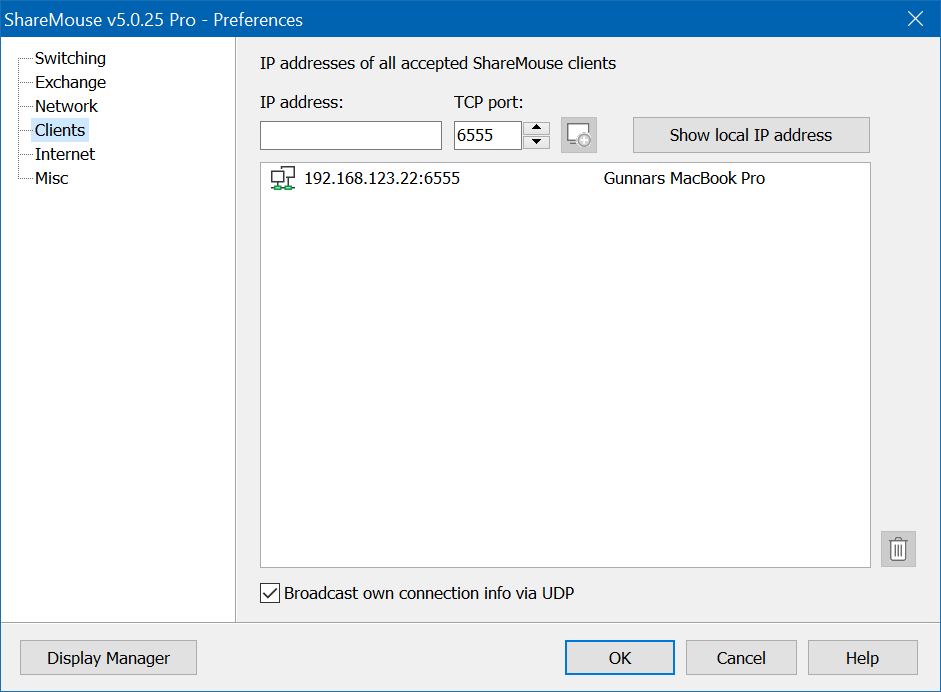
The Clients page, from a version 5 Pro window. In larger or fussy networks you can list computers by IP address instead of relying on automatic discovery.
Layout profiles that follow a laptop between workplaces
ShareMouse Pro stores several display arrangements and switches between them. Workplace Auto-Switch detects where a laptop is being used and picks the right layout, so going from the office desk to the home desk needs no rearranging. You can also change layouts from the tray menu or a hotkey.
One monitor shared by several computers
ShareMouse Pro understands a display connected to two computers through different inputs. Drag one monitor icon onto the other in the Monitor Manager and they merge into a shared display with a layout for each computer. If the monitor supports DDC, ShareMouse can even switch the monitor's input for you, so a single ultrawide can serve a desktop and a laptop.
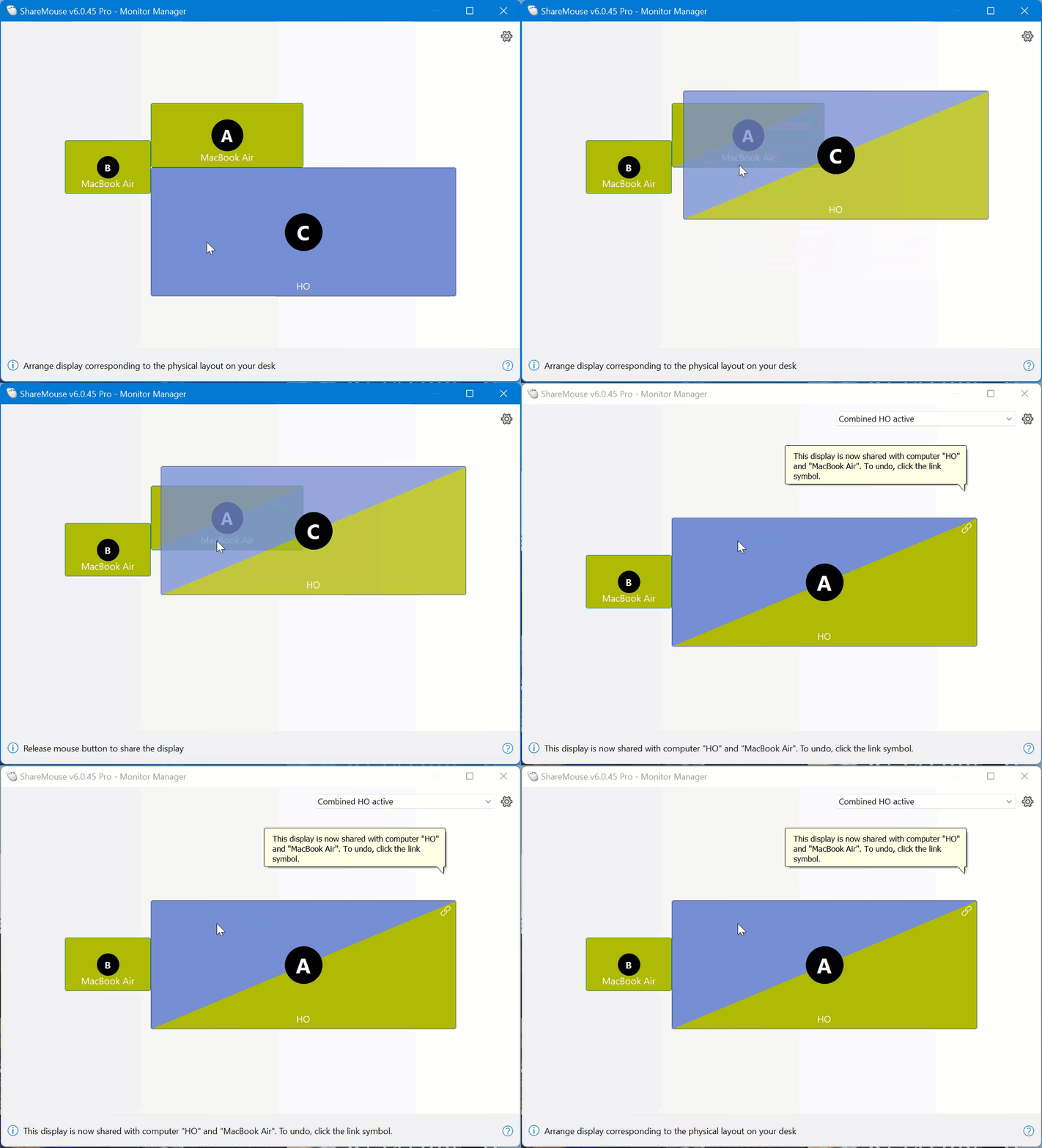
The Monitor Manager in a version 6 Pro window, animated from the vendor's manual: merging two icons of one physical monitor into a shared display.
Lock, log in and shut down together
ShareMouse Pro can pass events from one computer to the rest: lock, login, suspend, shutdown and screen saver. Lock your main PC when you leave and the whole desk locks with it. Each option is set per computer, with a countdown warning first. Use shutdown sync with care, because macOS sends the same signal for logging out as for shutting down, and the manual says recent Windows 10 updates no longer send a shutdown signal at all.
Rules that stop the pointer from crossing by accident
ShareMouse Pro can hold the cursor on a screen while a program runs full screen or maximized, near display corners, while you work in chosen programs, or unless you hold CTRL, SHIFT or ALT. Double-tapping the screen border overrides the block. Gamers and anyone who clicks close buttons in screen corners will want this one.
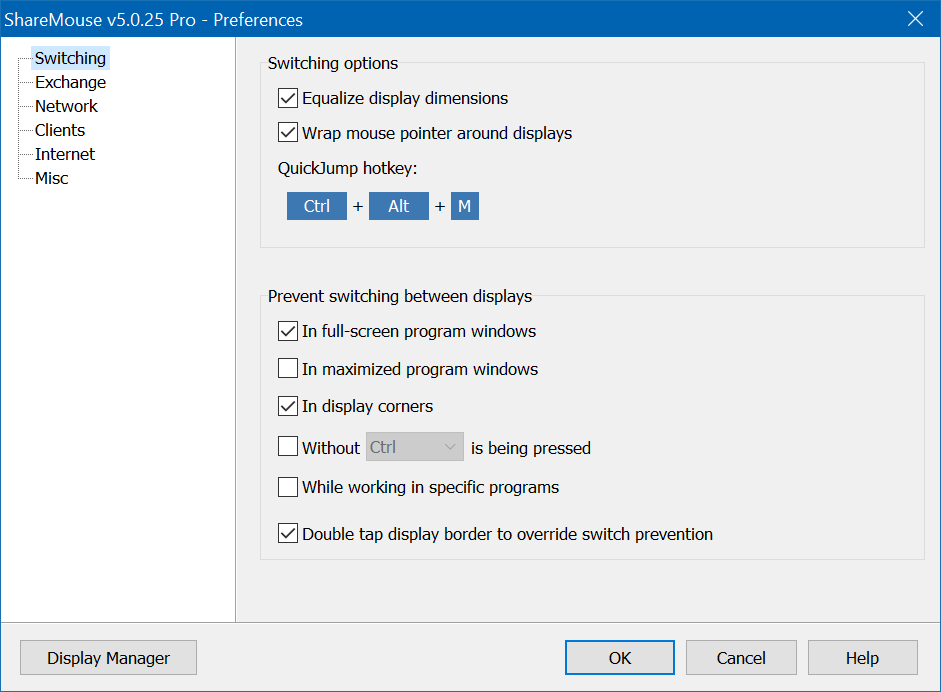
The Switching page, from a version 5 Pro window: size compensation, wrap-around, the QuickJump hotkey and the switch prevention rules.
Wrap-around and size compensation for mixed screens
ShareMouse Pro fixes two annoyances of mismatched monitors. Equalize Display Dimensions lets the pointer cross the dead zones beside a smaller screen, instead of stopping at the bezel. Wrap-around sends it from the far right of the array to the far left, which saves a long trip across a large setup.
CTRL-ALT-DEL on a remote Windows PC
ShareMouse Pro sends CTRL-ALT-DEL to another PC through a hotkey of your choice, which is what you need to sign in to it after a lock or restart. It requires the ShareMouse Windows service, so it isn't available in portable mode.
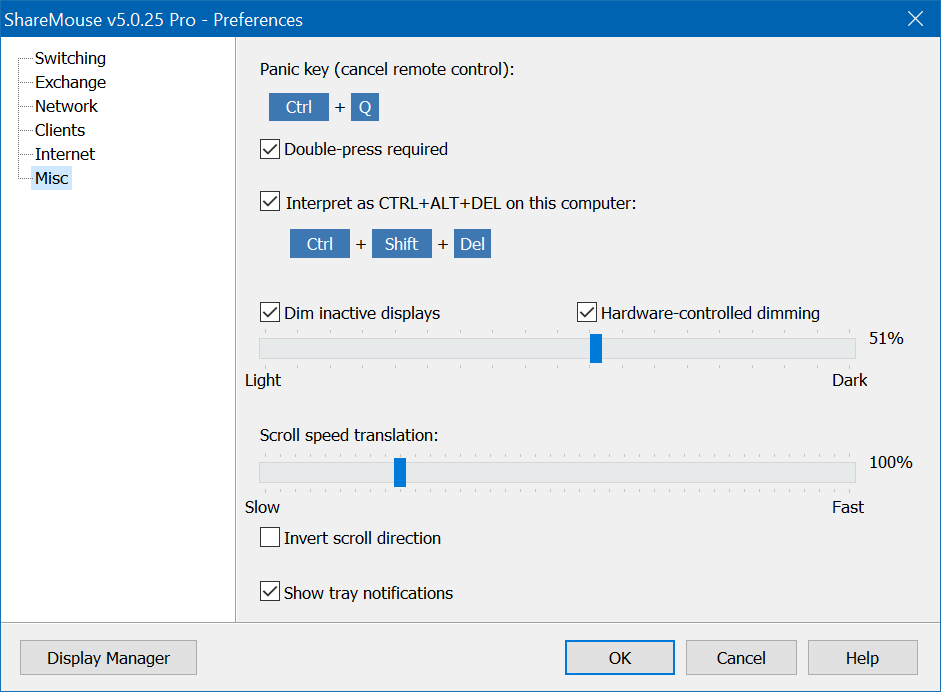
The Misc page, from a version 5 Pro window: the panic key, the CTRL-ALT-DEL hotkey, dimming and scroll speed.
Benefits
- Less hardware to buy and maintain. Adding a machine costs a software install, not another switch and cables.
- Your attention stays on the work. Dimming inactive displays and arrow trails show at a glance where the cursor is on a big array.
- A cleaner shutdown of the day. One lock or shutdown can cover the whole desk, instead of a walk along the row.
- Room to grow. You pay once for nine computers even if you start with three.
Real-World Uses
- A developer with a test bench. A Windows workstation, a Mac build machine and two test PCs all run from one keyboard, and a compiled build gets dragged onto each test PC in turn.
- A trader or analyst with a wall of screens. Three PCs and a dozen monitors behave like one surface, and the QuickJump hotkey lands on the right display without a long swipe.
- A hybrid worker. The same laptop docks at an office with two monitors and at home with one, and Workplace Auto-Switch sets the layout each time.
- A shared ultrawide. A desktop and a laptop take turns on one big monitor, and ShareMouse flips the input when you change layouts.
- A small studio. Video on a Mac, renders on a PC: the shortcuts stay on one keyboard and the render machine locks along with the main one.
Who It's For, and Who Should Skip It
Pro is the right buy if you have three or more computers, more than four displays, a monitor shared between machines, a laptop that moves between desks, or if you lose time to the cursor slipping onto the wrong screen. The extra $50 over Standard is small next to what a nine-port hardware KVM would cost.
Skip it in these cases:
- Two computers with up to four displays and no need for the extras: Standard does the job for $50 less.
- Teams wanting central deployment: licensing is per workplace, so a department needs one license per person.
- Linux machines, phones or tablets as peers: none of these are supported. Windows and macOS only.
- Headless computers or servers without a monitor: every computer must have its own screen, so use remote desktop software for those.
- Pre-boot and BIOS work: a hardware KVM still wins, as ShareMouse only runs once the system has started.
Usage Guide
- Fetch the Windows installer with the button on this page, and the Mac version from the ShareMouse download page. Keep a copy of each.
- Install on your main computer first, then one more, and confirm those two connect before adding the rest. That way you know which machine caused any network problem.
- Give every computer a unique name, and open TCP 6555 and UDP 1046 in the firewalls. Macs need Accessibility and Full Disk Access approved.
- On a shared office network, set one password on all the machines so that only your set connects.
- Lay out all your displays in the Monitor Manager, then merge any shared display and assign its inputs.
- Create a named layout for each workplace, and turn on the switch prevention rules you want. These are set separately on each computer.
- Register your license key on one computer only. The license can stay on a laptop that moves between workplaces.
Where it falls short
- More machines mean more network trouble. Computers with several adapters need each adapter on its own subnet, or manual IP lists. Older routers may stumble over the UDP packets, and plugging in a device can reshuffle IP addresses.
- A computer in use resists takeover. Its local mouse and keyboard must sit untouched for a few seconds before you can control it, which can catch you out in a shared space.
- The Mac is the fussier side. Secure Input in password fields can block remote typing, the permission settings need reconfirming after updates, and ghost pointers can appear if you leave a screen through the Dock.
- Special characters take getting used to. Windows and Mac keyboards put symbols such as @ on different keys, and key remapping doesn't cover everything.
- Pasting needs the hotkey. The right-click Paste command can't fetch another computer's clipboard, and images embedded in documents transfer only between Windows PCs.
- Dimming can clash with video. The manual suggests turning it off if a video player keeps leaving full screen.
What Users Say
ShareMouse divides people. The review record below covers older versions, and many complaints date from a time of different prices, so keep today's terms in mind: $149.95 once, updates for 12 months. Few of these reviews are from buyers with large setups, so treat them as a read on the program in general.
The case for it
Grex, on Alternative.me (August 2018), liked how far it goes beyond the basics: "The level of control you have with ShareMouse is respectable. You can set the scroll speed on any machine and also set automatic screen dimming procedures." The same review called it perhaps the best in its class, and adds: "It also liberates you from the master/slave system that defines many of these platforms."
AddictiveTips (September 2011) saw its Mac support as the main edge: "The advantage of ShareMouse over Mouse Without Borders is that it is cross-platform; works on both Windows and Mac."
The case against it
Micah (Alternative.me, July 2021) used it almost daily on a MacBook and gave up: "The software quit regularly 3-4 times a day on my Macbook." He says "the software stopped working once I was outside of the support window" and went back to a hardware switch: "When I bought ShareMouse originally I was hoping to replace my KVM with this software but it's been more useful to just keep using that." That review reads the terms as a yearly subscription, which they aren't: the license is permanent, but updates stop after 12 months.
On price, Javier Campos (August 2021) tracked the rises: "they started at $30 a few years ago, went to $50 in 2019 and 2020 all of a sudden $130, no reason for increase, same product". Today's Pro price is higher still.
Macworld's 2011 review of an early beta listed "problems with waking from sleep" among the cons, a point worth testing on your own machines if you use sleep often.
Limits people run into
Make Tech Easier spotted the limit that surprises most newcomers: "Unfortunately, you can't drag-and-drop application windows like browser windows." On AlternativeTo, several commenters object to paying for more than one screen per computer, and others report a good experience over many versions.
Scores
Alternative.me: 3.2 of 5 from 5 reviews. AlternativeTo: about 4.2 of 5 from around ten ratings. FileHorse: 8.6 of 10 from 5 ratings, with "Potential Connectivity Issues" among its listed cons. These are tiny samples for a product of this age.
The themes repeat: effortless when the network cooperates, frustrating when it doesn't, and pricier than it used to be. Stability on Macs and support replies are the things to watch.
Comparisons
ShareMouse Pro vs ShareMouse Standard
Standard is capped at two computers and four displays, and lacks every option in the "What Pro Adds" section above. If your desk fits inside that limit and the pointer behaves, save the $50. Decide before buying: an upgrade is possible only in the month of purchase.
ShareMouse Pro vs a multi-port hardware KVM
A hardware KVM lets several computers share one screen and works before the system boots, but its resolution and port count are fixed, and every switch is a key press. ShareMouse Pro suits desks where each computer already has its own monitors.
ShareMouse Pro vs Synergy
Synergy is the obvious rival for mixed setups, and it adds Linux. Choose it if a Linux machine is on your desk. For Windows and Mac only, compare both trials on your own network.
ShareMouse Pro vs TeamViewer or VNC
Remote desktop tools bring another computer's screen to you. ShareMouse sends your input to a computer you can already see, and has none of the screen lag. They solve different problems, and some people use both.
Editions and Pricing
Both paid editions are one-time purchases that include 12 months of maintenance. Here's how Pro compares with Standard, line by line:
| What you get | Standard ($99.95) | Pro ($149.95) |
|---|
| Computers | 2 | Up to 9 |
| Displays in total | 4 | Up to 16 |
| Commercial use, file drag and drop, clipboard, password | Yes | Yes |
| Layout profiles | No | Yes |
| Shared displays | No | Yes |
| Sync events (lock, login, shutdown, screen saver) | No | Yes |
| Switch prevention | No | Yes |
| Wrap-around and size compensation | No | Yes |
| CTRL-ALT-DEL to a remote PC | No | Yes |
A free edition also exists for personal use on two computers and two displays, without file or clipboard sharing.
Download Free Trial Buy Now
FAQs
How many ShareMouse Pro licenses do I need for nine computers?
One. A ShareMouse Pro license covers one set of up to nine computers at a workplace, registered on any one of them. Add a second license only when a second person runs their own set.
Can ShareMouse Pro handle a tenth computer?
No. ShareMouse Pro's limit is nine computers and 16 displays per license, and the shop lists no larger tier for sale. You'd need to split your computers into two sets with separate passwords.
Does the shared display feature in ShareMouse Pro need a special monitor?
No, but automatic input switching does. ShareMouse Pro can treat any monitor with several inputs as a shared display. Only a monitor that supports DDC lets it change the input for you, and otherwise you press the button on the monitor yourself.
Can I move my ShareMouse Pro license from an old laptop to a new one?
Yes. ShareMouse Pro licenses can be released and registered on another device at any time. If you're replacing the computer holding the license, release it first.
Does ShareMouse Pro work on company-managed PCs?
Usually, but check with IT. ShareMouse Pro needs local network access through TCP 6555 and UDP 1046 and hooks the keyboard, which endpoint security may block. Without admin rights, the portable edition works, but it loses the Windows service and with it CTRL-ALT-DEL and login sync.
Can I upgrade from ShareMouse Standard to Pro later?
Only within the same month as your purchase, through the vendor's upgrade page. After that, plan on buying a new Pro license, so choose Pro up front if there's any chance your desk will grow.
Does ShareMouse Pro slow down the network?
No. ShareMouse Pro sends only a few bytes for each mouse movement or key press. File drags and large clipboards use bandwidth just as any file copy would. A wired connection gives the lowest latency.
Can ShareMouse Pro work between two offices over the internet?
No. ShareMouse Pro works on a local network only, and the computers are expected to be within your view. A VPN link may work with reduced performance, but the vendor doesn't support it.
System Requirements
- Windows 10/11 or macOS 14, 15, 26, 27 on every computer
- At least two computers, nine at most, each with its own monitor
- Ethernet or Wi-Fi on one local network, with wired preferred
- Windows service installed for CTRL-ALT-DEL and login sync
- A brief internet connection to register the license
Conclusion
ShareMouse Pro is worth $149.95 if you run three or more computers, a big display array, or a laptop that moves between desks. For that kind of setup it costs far less than matching hardware and does things a hardware switch can't, like dragging files between machines. The one reason to buy is a single cursor across Windows and Mac machines with room to grow to nine. The main reason not to is the risk: no refunds, limited support and reports of instability on some Macs. So test every machine in the demo first, on a normal working day. If your desk is only two computers with simple needs, Standard is the better deal.
Download Free Trial Buy Now