ShareMouse Standard: One Mouse and Keyboard for Two Computers
ShareMouse Standard Edition is a $99.95 one-time purchase that lets you run two Windows PCs or Macs, in any mix, from one mouse and keyboard over your local network, and adds file drag and drop and a shared clipboard. It suits someone with a laptop next to a desktop, including anyone using the setup for paid work, which the free edition doesn't allow.
You know the routine: your hand leaves one mouse, finds the other, and your eyes follow a beat later. With ShareMouse you push the pointer past the edge of the desktop's screen and it lands on the laptop's, and whatever you type goes with it. There's no box, no cable and no button.
Quick facts
- Version: 7.0.31, released October 22, 2026
- Developer: Bartels Media GmbH, Trier, Germany
- Runs on: Windows 10 and 11, macOS 14, 15, 26 and 27, in any mix
- Limits: two computers and four displays in total
- Price: $99.95, one payment, no subscription
- Includes: a lifetime license and 12 months of updates and new versions
- Trial: every feature for 30 minutes per session, and restarting ShareMouse starts a new session
- Refunds: none, so test first
What we checked: we read the vendor's manual and shop terms but didn't run ShareMouse across two computers ourselves. We downloaded installer ShareMouseSetup.exe (product version 7.0.31, 9.6 MB) and read the order page price of $99.95, with no auto-renewal shown, on November 5, 2026.
Before you buy
- There are no refunds. Bartels Media's stated policy is to let you test first and pay after, so run the demo on your actual machines, on your actual network.
- Count your displays honestly. A closed laptop lid still counts, and so does a monitor you rarely look at. A laptop plus one external monitor on one side, and a desktop with one monitor on the other, is three. Standard stops at four in total.
- You buy one license, not two. It's registered on one of the two computers and covers the pair. The other computer just needs ShareMouse installed.
- Keep the installer. The vendor has no download archive, so after your 12 months of updates end, your backup is the only copy of the last version you're entitled to.
- Choose the edition carefully. A license can only be upgraded to Pro within the same month you bought it.
Download Free Trial Buy Now
Overview
ShareMouse is a software KVM without the V: it sends mouse and keyboard input between computers, but not their screens, so each computer needs its own monitor within your sight. It has been around since about 2011 and is now on version 7. You install it on both computers, they find each other on the network without any configuration, and either one can control the other. There's no fixed server and client.
Standard is the middle of three editions. The free edition does only the mouse and keyboard part, and only for personal use on two displays. Standard adds the things that save real time during a working day, files and clipboard between machines, along with password protection, and it permits commercial use.
Features
Move between two computers by moving the mouse
ShareMouse Standard hands the pointer and keyboard to the other computer the moment you cross the edge of the screen. It works from either side, so you can sit at the laptop and drive the desktop one minute and do the reverse the next. The input devices stay plugged in where they are, which also avoids the wait some hardware switches cause while the operating system detects USB devices again.

The Monitor Manager: drag the display icons until they match your desk, so the pointer crosses where you expect. This image comes from an older version.
Drag files from one computer to the other
ShareMouse Standard moves files and whole folders with a plain drag and drop, even from a PC to a Mac, without setting up network shares. Larger transfers show a progress bar. This feature and the shared clipboard are the two biggest reasons to pay rather than stay on the free edition.
Copy on one computer, paste on the other
ShareMouse Standard transfers text, formatted text, images and files through the clipboard in either direction. You copy as usual, move across, and press the remote paste hotkey. If you set that hotkey to CTRL + SHIFT + V, plain CTRL + V keeps pasting the local clipboard, so you choose each time which one you want.

The Exchange settings, from a version 5 Pro window. The drag and drop and clipboard options are in Standard, while the sync options lower down are Pro only.
Password protection with AES encryption
ShareMouse Standard can require a password, which also turns on AES 128 encryption of keystrokes, mouse data, clipboard contents and file transfers on your network. Set it up on an office or shared network: by default, any other ShareMouse installation on the LAN joins your setup automatically.

Network settings, from a version 5 window: the password, the network adapter to prefer and the ports used.
Windows and Mac keyboards that behave
ShareMouse Standard lets the Mac remap CTRL, ALT and WIN to Control, Option and Command, so your shortcuts work the way your hands expect when you cross from one system to the other. Version 7 also keeps the Caps Lock, Num Lock and Scroll Lock lights in step, and a hotkey can jump straight to a display.
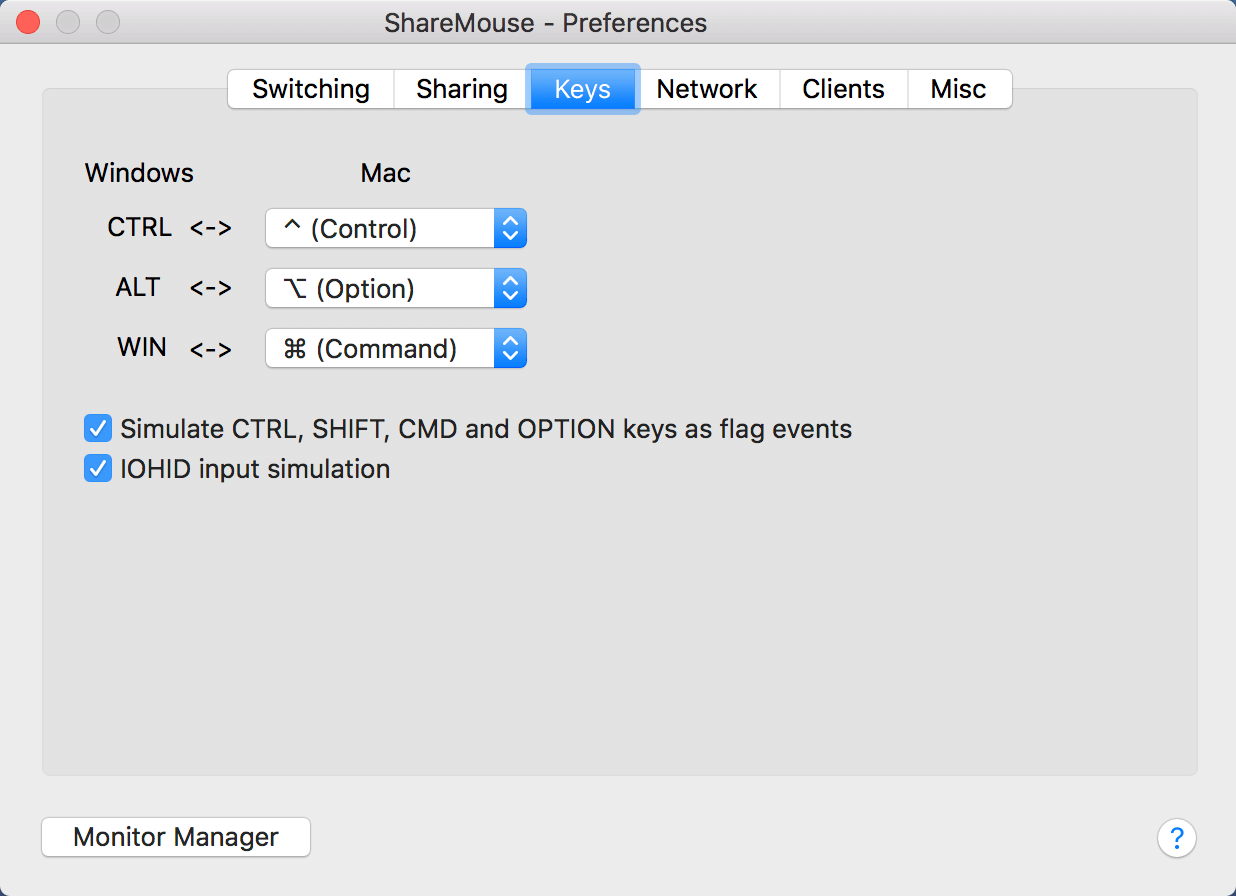
The Keys tab of the Mac version, where you map Windows modifier keys to Mac ones.
Benefits
- One desk, one set of input devices. The second keyboard goes in a drawer, or stays there if you never had one.
- A laptop gets a proper keyboard. Its small keys and trackpad stop being what you work with all day.
- No more emailing files to yourself. Moving a document between the computers takes one drag.
- It keeps working if you change hardware. Because the software doesn't care how your mouse is connected, there's nothing to replace when you swap a mouse or keyboard.
Real-World Uses
- The work laptop beside the home PC. You keep the company laptop open for mail and chat on the left, do your main work on the desktop, and move across in a flick. Check first that a company VPN doesn't block it (see below).
- A Mac for design, a PC for accounts. A designer drags finished artwork from the Mac straight into a folder on the Windows machine that runs the invoicing software.
- A freelancer visiting a client. The portable edition runs from a USB stick without installing anything, so you can use your own laptop's keyboard on a loaned machine and leave nothing behind.
- A media PC by the TV. From the couch, your laptop's keyboard and trackpad control the computer connected to the TV, with no wireless keyboard to buy.
Who It's For, and Who Should Skip It
Buy Standard if you have exactly two computers side by side, no more than four displays between them, and you either work on them for pay or want file and clipboard sharing. A Mac and PC user gets the most from it, since that's where the free alternatives run thin.
Skip it in these cases:
- Two Windows PCs at home: Microsoft's free Mouse Without Borders may do the job.
- Only Macs and iPads: Apple's Universal Control comes with the system.
- Linux in the mix: ShareMouse has no Linux version. Look at Synergy or Input Leap.
- Only one monitor: ShareMouse doesn't show another computer's screen, so you want a hardware KVM switch.
- Another room or another city: it needs to be on the same local network and within view. That's a job for remote desktop software.
- Three computers, or a fifth display: you need Pro.
Usage Guide
- The button on this page fetches the Windows installer, and the Mac version is on the ShareMouse download page. Save a copy of each, then install on both computers. On Windows, keep the default service option if you want to work with UAC prompts.
- On a Mac, open System Settings and allow ShareMouse under Accessibility and Full Disk Access. You'll need to confirm these again after each ShareMouse update.
- Allow ShareMouse through the firewall on both computers when asked. It uses TCP port 6555 and UDP port 1046.
- Wait for the green check mark on the tray or menu bar icon, which means the two computers have found each other.
- Open the Monitor Manager from the icon and arrange the displays to match your desk.
- Move the mouse across and try it, then test a file drag and a paste. If you're on a shared network, set the same password on both computers.
- After buying, enter the license key in one of the installations. There's nothing to reinstall.

The tray menu in demo mode. Register for professional use is where the license key goes.
Where it falls short
- It disconnects during the demo. After 15 to 30 minutes in demo mode it drops the connection until you restart ShareMouse on both computers, so plan short test sessions.
- Mac permissions come back with every update. The manual says you may have to untick and retick the Accessibility setting each time, or ShareMouse won't work.
- Wi-Fi on a Mac can stutter. Apple's AirDrop and Handoff link can cause dropouts, and some USB Ethernet adapters with the RTL8153 chip cause trouble too. A wired connection is the better choice.
- Security software can get in the way. ShareMouse has to hook the keyboard, so an antivirus may quarantine its files as a suspected keylogger until you allow them.
- VPNs often break it. Your VPN needs split tunneling for local traffic, and the vendor doesn't support VPN setups.
- It starts with the operating system, not before. For BIOS screens you still need a real keyboard on that computer.
- Support is limited. The vendor says support doesn't cover troubleshooting individual system setups, and buyers have complained about it (see below).
What Users Say
Opinions split quite sharply. People like how easily it starts working, and the complaints are about price, support and reliability on some Macs. Most reviews are several years old, so the prices they mention no longer apply: today Standard is $99.95 once, with 12 months of updates.
Praise for the easy setup
On Alternative.me, Jim Kenson wrote in May 2019: "Easily the best and easiest to use mouse and keyboard sharing software. Really! Run the software on each of your computers and you are good."
A reviewer called grex (August 2018, same site) praised the same thing: "ShareMouse doesn't even require a configuration to get going. That means there's no need to mess with machine names or IP configurations."
On the Solar2D developer forum in July 2015, michael714 wrote: "With one mouse and one keyboard, I can switch back and forth between my MacBookPro and my Dell Inspiron just by moving the mouse from one screen to the other. You can even drag and drop files. It's unbelievable."
Macworld's Karl Hodge (November 2011, an early beta) found: "Little in the way of configuration is required. Install the software on the target machines and it just works."
Complaints about price and the free edition
Javier Campos (Alternative.me, August 2021) uses it almost every day but isn't happy with what it costs: "The software is good, but its ridiculously expensive". He adds: "It fails from time to time, requires restart for it to word. Very handy, but not worth it for the price!"
ShezCrafti tried the free edition in January 2012 and it quit working after two weeks: "the reason ShareMouse stopped working for me, without warning, is because the software determined that I fit their vague definition of either a professional user or a power user." The vendor's rules are now spelled out on its site: more than two displays, a company setting, or any paid feature means you need a license.
FileHorse's review lists "Professional License Pricing" and "Detection of Professional Use" as cons, next to "Seamless File Drag & Drop" and "Automatic Configuration" as pros.
Complaints about support
Tom (Alternative.me, November 2021) reported keyboard delays between his PC and Mac the day after buying: "It takes the Mac a few seconds to register that caps lock has been turned on and it will also on occasion register that I'm holding down a key when I'm not." He called the support reply he got "sarcasm and zero help". His review, titled "Shocking customer service", is a good reason to take the no-refund policy seriously.
Ratings on review sites
The samples are small and don't agree. Alternative.me shows 3.2 out of 5 from 5 reviews. AlternativeTo shows about 4.2 out of 5 from around ten ratings, with commenters there praising the easy setup and grumbling about the price of using more screens. FileHorse's page data shows 8.6 out of 10 from 5 ratings.
The pattern: when it works on your network, people praise it. When it doesn't, there's little help to be had. That's the argument for spending a full day with the demo before you pay.
Comparisons
ShareMouse Standard vs a hardware KVM switch
A hardware switch needs cables and a button press, but it can share one monitor and it works in the BIOS. ShareMouse needs no cables, switches as you move, and adds file and clipboard transfer, but each computer keeps its own monitor. If you already have two screens on the desk, ShareMouse is the tidier choice.
ShareMouse Standard vs Mouse Without Borders
Mouse Without Borders is free and handles up to four computers, but it's Windows only. Pay for ShareMouse when a Mac is involved. With two Windows PCs, try the free option first.
ShareMouse Standard vs Synergy and Input Leap
Synergy (paid) and Input Leap (free and open source, though AlternativeTo now marks it discontinued) also cover Windows and Mac, and they add Linux, which ShareMouse doesn't. ShareMouse's case against them is setup that needs no configuration.
Editions and Pricing
| Edition | Price | Computers | Displays | What you get |
|---|
| Free | $0 | 2 | 2 in total | Mouse and keyboard sharing, personal use only |
| Standard | $99.95 | 2 | 4 in total | Commercial use, file drag and drop, clipboard sharing, password protection |
| Pro | $149.95 | Up to 9 | Up to 16 | All of Standard, plus layout profiles, shared displays, sync events, switch prevention, wrap-around, size compensation and CTRL-ALT-DEL |
The prices are one-time payments, and the license stays valid for good. It includes 12 months of maintenance, meaning every update and new major version released in that time. After that you can renew at a discount, or just keep using your last version.
Download Free Trial Buy Now
FAQs
Does ShareMouse Standard need a license for each computer?
No. ShareMouse Standard needs one license for the pair: you install the program on both computers and register the key on just one. Older reviews that mention a license per computer describe the old pricing.
Can I move the ShareMouse license to a new computer?
Yes. ShareMouse licenses can be released from a computer or USB stick at any time and registered on another one, so replacing a laptop doesn't cost you a new license.
Is ShareMouse Standard a subscription?
No. ShareMouse Standard is one payment with no automatic renewal. Some older reviews say otherwise, but the shop's terms are explicit. What runs out after 12 months is your right to new versions, not the right to use the program.
Will ShareMouse keep working after a new macOS or Windows release if I don't renew?
Maybe not. ShareMouse licenses cover only the versions released during your maintenance term, and the vendor warns that an operating system upgrade may need a newer version. Budget for an occasional renewal if you always install the latest macOS.
Can I try Pro features with a ShareMouse Standard license?
Yes. ShareMouse lets you try features of a higher edition even after you register Standard, but you'll see occasional license reminders that name those features. It's a fair way to find out what you're missing, although the paid upgrade is only open during the month you bought.
Does ShareMouse Standard work with Bluetooth mice and trackpads?
Yes. ShareMouse uses whatever input device the operating system reports, wired or wireless. Two-finger rotate and zoom gestures work, but multi-finger gestures aren't supported.
Can I drag a program window from my PC to my Mac with ShareMouse?
No. ShareMouse moves the pointer, files and clipboard between computers, not application windows. You can't use the second computer's screen as an extra monitor for the first.
Does ShareMouse send my typing over the internet?
No. ShareMouse sends input over your local network only. It goes online just for license registration and optional update checks, so you can block it from the internet in your firewall afterwards.
System Requirements
- Windows 10 or 11, or macOS 14, 15, 26 or 27, in any mix
- Two computers, each with its own monitor
- A local Ethernet or Wi-Fi connection between them
- Internet access briefly for license registration
- Administrator rights for the full install (the portable edition runs without them, but has no Windows service)
Conclusion
ShareMouse Standard is worth $99.95 if you have a two-computer desk with a Mac on it, or you're using two computers for paid work and want files and clipboard to move with you. The one reason to buy it is a PC and a Mac sharing input, files and clipboard with almost no setup. The main reason not to is the price against free options and the no-refund policy, combined with thin support. Run the demo for a full working day. If the pointer crosses smoothly and your network behaves, you can buy with confidence. If you have more than two computers, or more than four screens, look at Pro instead.
Download Free Trial Buy Now