PhoneRescue for iOS (Windows): Recover iPhone Data and Fix a Stuck iPhone from Your PC
Your iPhone froze on the Apple logo during an update. Or you cleared out a message thread you meant to keep, or you finally replaced a cracked phone and realized the old one held photos that never made it to iCloud. If your computer is a Windows PC, Apple's own tools give you two options: restore everything from a backup, or nothing at all.
PhoneRescue for iOS from iMobie takes a more surgical approach. It looks inside your iPhone, your iTunes backups and your iCloud account, shows you what's recoverable, and lets you pick exactly what to bring back. A second set of tools, called Device Rescuer, tries to revive an iPhone that's stuck, frozen or locked.
Quick facts
- Version: 4.3.0
- Developer: iMobie Inc.
- Runs on: Windows 11, 10, 8, 7 and Vista, 64-bit. A Mac version is sold separately.
- Devices: iPhone, iPad and iPod touch running iOS 5 or later
- Recovers from: the device itself, iTunes backups and iCloud
- Price: $69.99 USD, one-time purchase with lifetime free upgrades, for 1 computer and unlimited devices
- Free version: scans and previews everything, but recovering data and the Device Rescuer tools need a license
- Guarantee: 60-day money-back guarantee under iMobie's refund policy
- Languages: English, Japanese, German, French, Spanish, Simplified Chinese, Arabic, Italian and Portuguese
Before you buy: three things to know
Updates have slowed. The last entry in PhoneRescue's public update history is version 4.3.0, which improved recovery success after an earlier release added iOS 18 support. iMobie's spec sheet now lists support up to iOS 27, but no newer version appears in the history, so test it with your own iPhone first.
Results vary. Independent reviewers like how easy it is but call its recovery success inconsistent, and iMobie as a company has a 3.3 out of 5 rating on Trustpilot from about 1,500 reviews, with some customers describing refunds as slow.
Removing a lock screen erases the iPhone. That's how Apple's system works, and iMobie says so plainly in its guide. Only use that tool if you accept losing what's on the device or have a backup.
The free version scans and previews without a license. Use it to check that the files you need actually show up before you pay.
Overview
PhoneRescue opens on a simple home screen with two tabs. Data Recovery has three modes: Recover from iOS Device, Recover from Backup and Recover from iCloud. Device Rescuer has three repair tools: Repair iOS System, Remove Lock Screen Passcode and Recover Screen Time Passcode. Each mode lists the situations it's meant for on the right, so it's easy to pick the right one even in a panic.
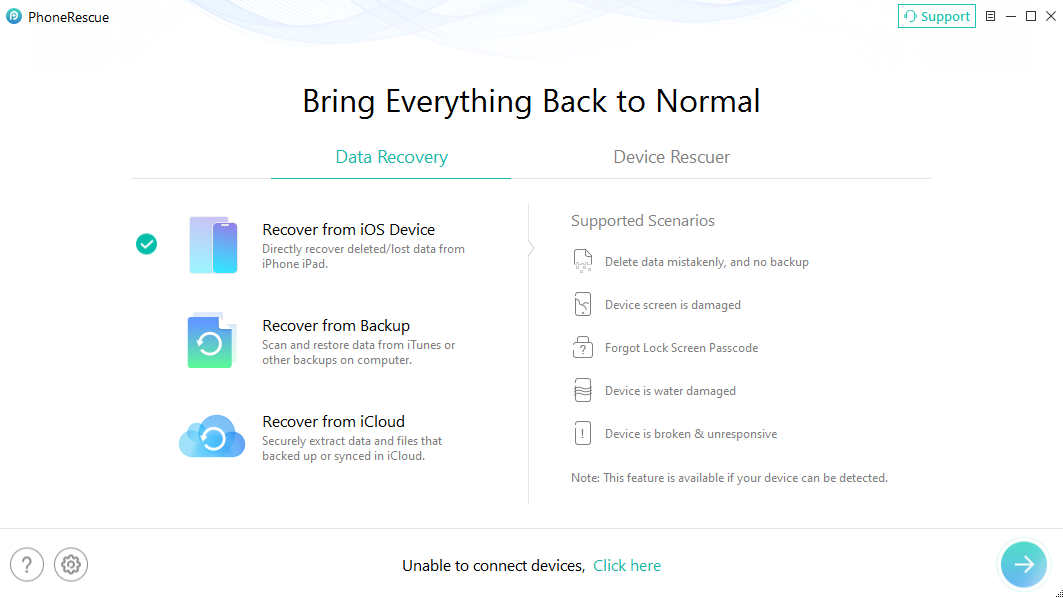
The Data Recovery tab with Recover from iOS Device selected, and its supported scenarios: mistaken deletion with no backup, a damaged screen, a forgotten passcode, water damage, and a broken or unresponsive device.
It recovers a wide range of data: contacts, messages and attachments, call history, voicemail, calendars, reminders, notes, Safari history and bookmarks, photos and photo videos, thumbnails, music, videos, audiobooks, playlists, ringtones, books and voice memos, plus WhatsApp, Line and Kik chats with their attachments and documents, photos, audio and video stored by other apps.
Features
Scan the iPhone directly, only for what you need
Connect the iPhone with a USB cable and PhoneRescue asks what to look for, grouped into Personal Data, Media Data and App Data. Untick what you don't need and the scan finishes faster.
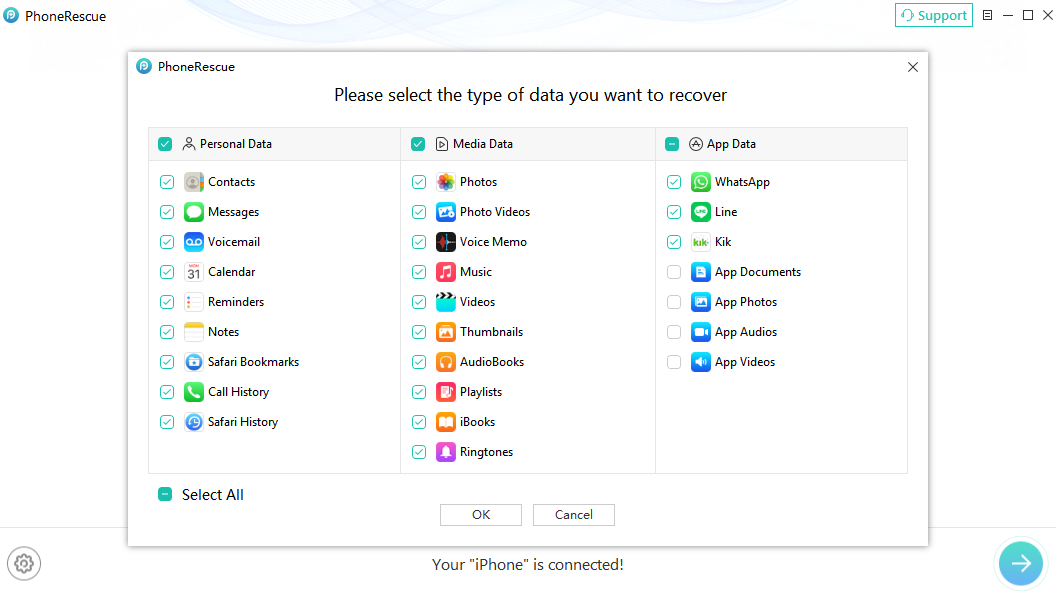
Choosing data types before a scan: personal data, media and app data such as WhatsApp, Line and Kik.
Show only what's been deleted
Results appear by category with counts. A drop-down switches between List all items, Only list deleted and Only list existed, so you're not wading through everything that's still on the phone. There's a search box, and a preview pane shows each item's details. Two buttons at the bottom send your selection either to the computer or back to the device. Messages, contacts, notes, photos, and app audio and video can go back to the iPhone. Everything else is saved to the PC.
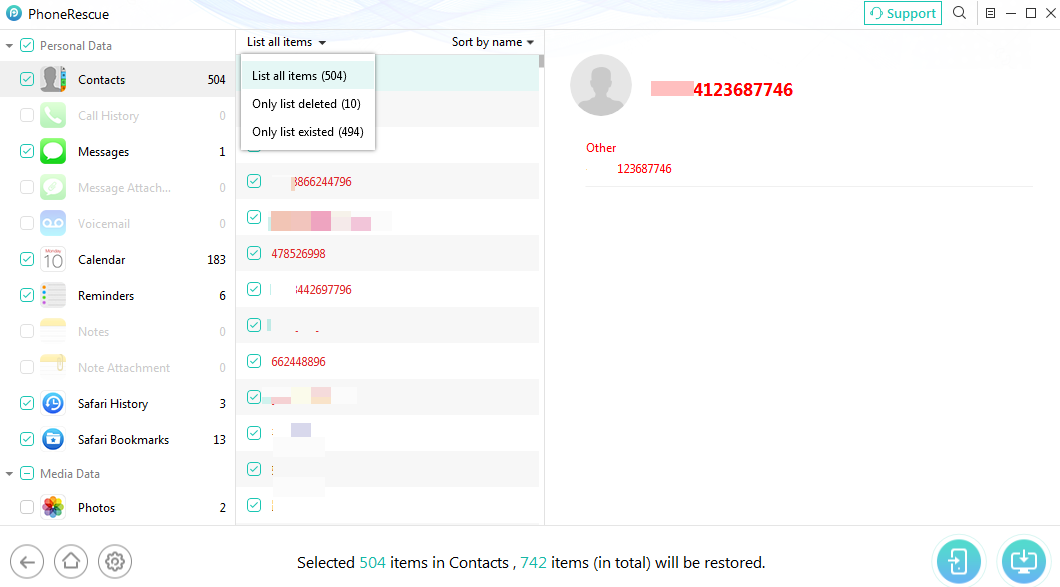
Scan results for Contacts, with the filter open showing 504 items in total, 10 deleted and 494 existing, and buttons to restore to the device or the computer.
Take items out of a backup without restoring it
Recover from Backup reads iTunes backups on your PC, as well as backups made with iMobie's AnyTrans. You can pull out just the missing items instead of overwriting your whole phone. iMobie says it handles encrypted backups and even damaged backups that iTunes refuses to restore, and it's meant for a phone that's lost, factory reset or won't sync with iTunes.
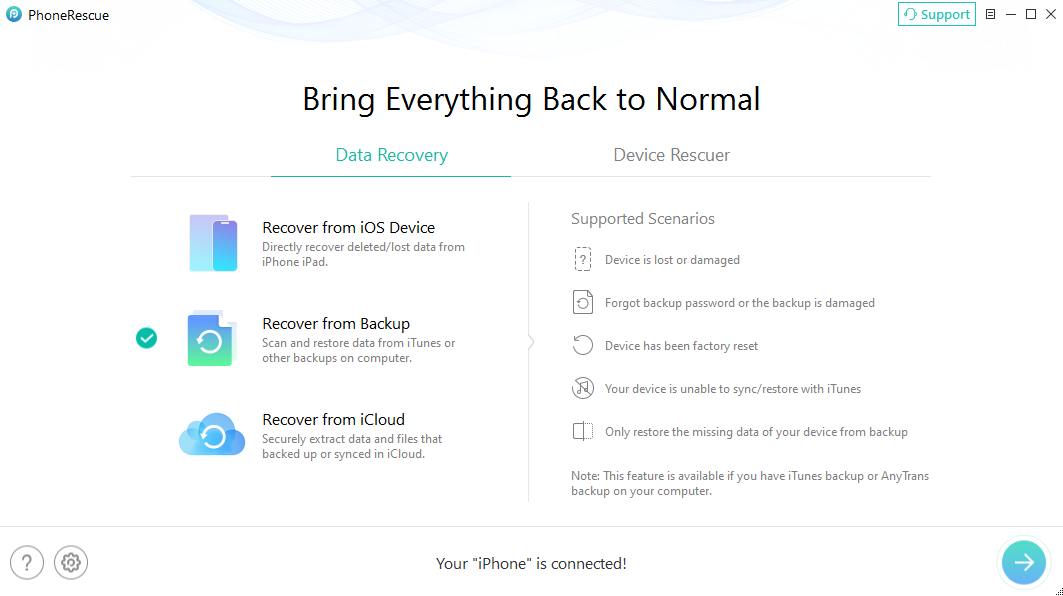
Recover from Backup selected, listing its scenarios: a lost or damaged device, a forgotten backup password or damaged backup, a factory reset, a device that won't sync with iTunes, and restoring only missing data.
Pull your data from iCloud
Recover from iCloud extracts data you've backed up or synced to iCloud and lets you choose what to keep, without erasing what's currently on your iPhone. It's the mode for a phone that's lost, broken or factory reset, or for moving data from one iCloud account to another.
Device Rescuer: system repair, lock screen and Screen Time
Repair iOS System targets an iPhone that failed an iOS update, shows a white, blue or black screen, keeps restarting, won't turn on, is stuck in a boot loop, or is stuck in Recovery or DFU mode. Remove Lock Screen Passcode removes a forgotten 4- or 6-digit passcode, Touch ID or Face ID. It puts the device into Recovery mode, downloads the matching firmware, erases the device and updates it to the latest iOS. Recover Screen Time Passcode retrieves or removes a forgotten Screen Time or Restrictions passcode.
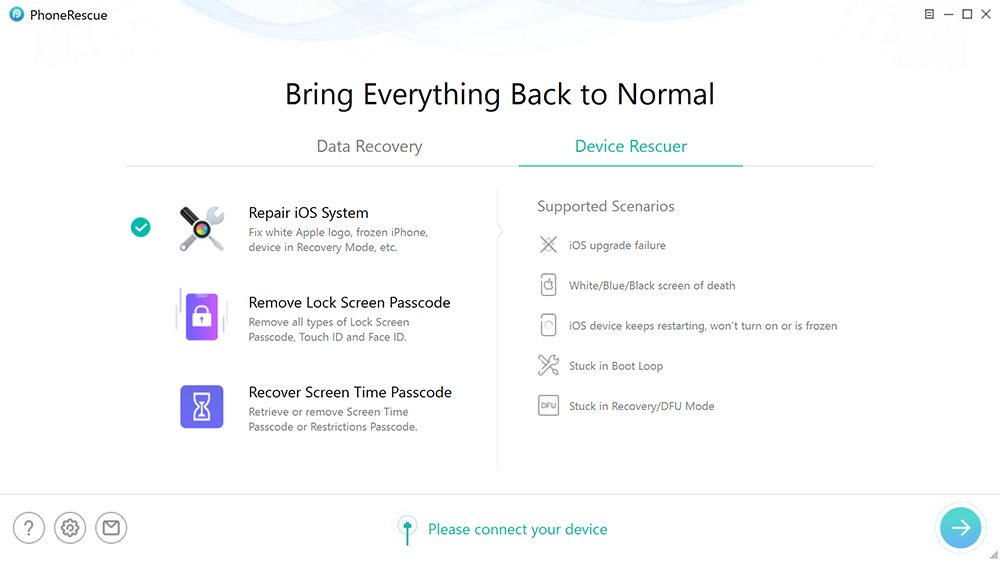
The Device Rescuer tab with Repair iOS System selected and its scenarios: iOS upgrade failure, screens of death, restart loops, boot loops and Recovery/DFU mode.
Benefits
The strongest argument for PhoneRescue is that it puts recovery and repair in one program. When an iPhone dies mid-update, you usually want two things at once: the phone working again and your data safe. Having both on one home screen saves a lot of searching at a stressful moment.
Second, the "Only list deleted" filter and the restore-to-device option make it practical for everyday mistakes. You see just the ten contacts you lost, not five hundred you didn't, and you can send them straight back to the phone.
Third, the lifetime license covers unlimited devices on one computer, which suits a family where everyone's iPhone ends up at the same PC when something goes wrong.
Real-World Uses
- The update that went wrong. An iOS update stalls and the iPhone is stuck on the Apple logo. Repair iOS System is the first thing to try, and once the phone is back you can check for anything missing.
- The deleted contacts. You cleared out old contacts and removed a few you needed. Scan the device, switch to Only list deleted, and restore those few straight back to the iPhone.
- The phone that went in the sink. The iPhone won't turn on, but it backed up to your PC last month. Recover from Backup pulls the photos and messages out to your computer.
- The encrypted backup. Your iTunes backup is encrypted and iTunes won't restore it. PhoneRescue's backup mode is built for that case.
- The child's Screen Time code. You set a Screen Time passcode on your kid's iPad and can't remember it. Recover Screen Time Passcode gets it back or removes it.
Who It's For
PhoneRescue for iOS (Windows) suits iPhone and iPad owners who use a Windows PC and want both data recovery and basic iOS repair in one place, especially households with several Apple devices. It's less suited to anyone who needs guaranteed results on the very latest iOS release, given the pause in public updates, or to anyone hoping to get past a lock screen without losing data, which no tool can do.
Usage Guide
- Prepare iTunes. Install the latest version of iTunes so Windows can talk to your iPhone. In iTunes, go to Preferences, then Devices, and tick "Prevent iPods, iPhones, and iPads from syncing automatically". Then close iTunes.
- Install and launch PhoneRescue. Run the installer on a stable internet connection and open the program. Leave iTunes closed while PhoneRescue runs.
- Activate it if you've bought it. Click Activate and enter the activation code from your order email.
- Choose a tab and mode. Data Recovery for lost files, Device Rescuer for a stuck or locked device. Select the mode and click the arrow at the bottom right.
- Connect and scan. Plug in the iPhone with a USB cable, pick the data types, and let it scan.
- Filter and recover. Use Only list deleted and the search box, preview items, tick what you want, and restore to the computer or the device.
Tips if your iPhone isn't detected
- Check the USB cable and try another one if it's loose or damaged.
- Reinstall iTunes, which supplies the Apple device driver PhoneRescue needs.
- Run Windows from an Administrator account.
- Stop using the iPhone as much as possible once you notice data is missing, so new data doesn't overwrite it.
What Users Say
iMobie's product page shows a 4.7 rating from 203 reviews collected on its site, with testimonials like this from Travis Lee:
"Excellent software for retrieving data from my broken old device. It gets back some pictures I have forgotten a long time ago. it is quite a surprise."
And from Sarah: "My iPhone was disabled due to too many failed lock screen passcode attempts. Thanks to PhoneRescue, it recovered the passcode and rescued my iPhone."
Dejan Cvetnarevic of TechJury tested PhoneRescue and gave it 5 out of 5 for ease of use but 3.5 out of 5 for customer support. His editor's summary: "PhoneRescue by iMobie is a data recovery tool designed for iOS devices, offering features like data retrieval, iOS system repair, and lock screen removal. While it provides a user-friendly interface and supports various data types, its recovery success rate can be inconsistent, and the free version has limited functionality."
On Trustpilot, iMobie as a company rates 3.3 out of 5 from about 1,500 reviews across all its products. Complaints include slow or complicated refunds and features that didn't work for a reviewer's device, though iMobie replies to almost all negative reviews.
Comparisons
PhoneRescue vs. restoring with iTunes
iTunes restores a whole backup over your iPhone, wiping anything newer. PhoneRescue lets you browse the same backup and take only what's missing, and it can try encrypted or damaged backups that iTunes won't restore.
Windows version vs. Mac version
This listing is the Windows edition. iMobie sells a separate Mac edition for macOS 10.13 or later. Buy the one for the computer you'll run it on.
PhoneRescue for iOS vs. PhoneRescue for Android
iMobie also makes a separate PhoneRescue for Android. This edition only works with iPhone, iPad and iPod touch.
Editions and Pricing
The license sold here is the Lifetime Plan at $69.99 USD, a one-time purchase for 1 computer and unlimited devices, with lifetime free upgrades and all Pro features. iMobie also offers PhoneRescue on 1-month and 1-year subscriptions that renew automatically, and a bundle with its AnyTrans phone manager. Business and educational licenses are available too. Purchases come with a 60-day money-back guarantee, or 7 days for the 1-month subscription.
FAQs
Does it work with the newest iPhones?
iMobie's specifications list support for iPhones up to the iPhone 18 series and iOS up to iOS 27. Its public update history stops at version 4.3.0, so run the free scan on your own phone to make sure it connects and finds your data.
Is it a subscription?
Not this one. The license sold here is a one-time purchase with lifetime upgrades. iMobie's monthly and yearly plans do renew automatically, so check which plan you're buying if you purchase elsewhere.
How many iPhones can I use it with?
Unlimited devices, on 1 computer. You'd need another license to run it on a second PC.
Will scanning change anything on my iPhone?
Scanning and selective recovery don't overwrite your existing data, according to iMobie. The exception is Remove Lock Screen Passcode, which erases the device and updates its iOS.
Can it recover data without the iPhone?
Yes, if you have a backup. Recover from Backup works with iTunes backups on your PC, and Recover from iCloud works with data you've synced or backed up to iCloud.
Does it run on 32-bit Windows?
iMobie's product page and tech specs say 64-bit only, though an older guide page mentions 32-bit. Plan on a 64-bit version of Windows 7 or later.
What does the refund guarantee cover?
iMobie offers 60 days on the lifetime and yearly plans and 7 days on the monthly plan, under its refund policy. Some Trustpilot reviewers describe the process as slow, which is another reason to test with the free version first.
System Requirements
- Operating system: Windows 11, 10, 8, 7 or Vista, 64-bit
- Processor: Pentium IV 2.4 GHz or faster
- Memory: 512 MB RAM
- Disk space: 100 MB free
- Display: 1024 x 768 or higher
- Other: iTunes (for the Apple device driver) and a working USB cable
- Devices: iPhone, iPad and iPod touch with iOS 5 or later
Conclusion
PhoneRescue for iOS gives Windows users a clear, friendly way to look inside an iPhone, an iTunes backup or iCloud and take back only what they lost, plus a set of repair tools for an iPhone that's stuck or locked. The lifetime license for unlimited devices is good value for a household full of Apple gear.
The honest caveats are inconsistent recovery results in independent testing and a public update history that hasn't moved in a while. The free scan answers the only question that matters: are your files there? If they are, the one-time license is a fair price to get them back.