VideoProc Converter AI: Convert, Compress, Upscale and Stabilize Video on Windows in One Program
VideoProc Converter AI is a Windows program from Digiarty that converts and compresses video with GPU acceleration, rips DVDs, downloads and records video, and adds AI tools that upscale video and photos, smooth motion, stabilize shaky clips and clean up audio. The Lifetime License for 1 PC lists at $89.95, it runs on Windows 7 to 11, and the free trial lets you test every tool with limits.
It's for the person whose phone shoots HEVC that the TV won't play, whose GoPro footage is too shaky and too big to email, and who has a shelf of DVDs and a folder of old 480p clips worth keeping.
Quick facts
- Current version: 8.12, released September 18, 2026
- Developer: Digiarty Software, Inc. (also behind WinX DVD Ripper and Aiarty)
- Runs on: Windows 11, 10, 8.1, 8 and 7, in 64-bit and 32-bit versions. The Mac version is sold separately.
- Formats: 370+ input and 420+ output formats and codecs, including HEVC, AV1, ProRes and MKV
- AI tools: video Super Resolution (2x, 3x, 4x), Frame Interpolation up to 480 fps, Stabilization, Image AI up to 10K with face restoration and colorizing, Audio AI noise and vocal removal
- Price: $89.95 list for the Lifetime License (1 PC), $59.95 a year for Premium 365 (3 PCs), $159.95 for the Family License (3 to 5 PCs)
- Free trial: 5 watermark-free exports per AI tool, conversions and edits on files under 5 minutes, downloads below 1080p
- Money-back guarantee: 30 days
- What we checked: the Windows installer we downloaded from VideoProc on October 21, 2026 is version 8.12.0.0 (283 MB), digitally signed by Digiarty Software, Inc. VideoProc's own buy page showed the Lifetime License for 1 PC at $89.95, cut to $54.95 in a flash sale, on October 21, 2026. We couldn't load the order page from our location to confirm the final checkout price, and we didn't run conversions or upscales ourselves.
Before you buy
The converter, compressor and DVD tools run well on ordinary PCs, but the AI tools want a capable graphics card: Super Resolution uses DirectX 12 or NVIDIA TensorRT and Frame Interpolation needs a Vulkan 1.2 GPU. Test the AI tool you care about with the trial's 5 free exports before paying. Also check the order page for the current price, since VideoProc runs frequent sales on its own store.
Download Free TrialBuy Now
Overview
VideoProc Converter AI opens on a home screen of large buttons, one per module: Video, DVD, Downloader, Recorder, and the AI tools such as Super Resolution, Frame Interpolation, Image AI and Audio AI. Each module has its own window with the same basic layout: a file list or preview on the left, settings on the right, and a big RUN button at the bottom right.
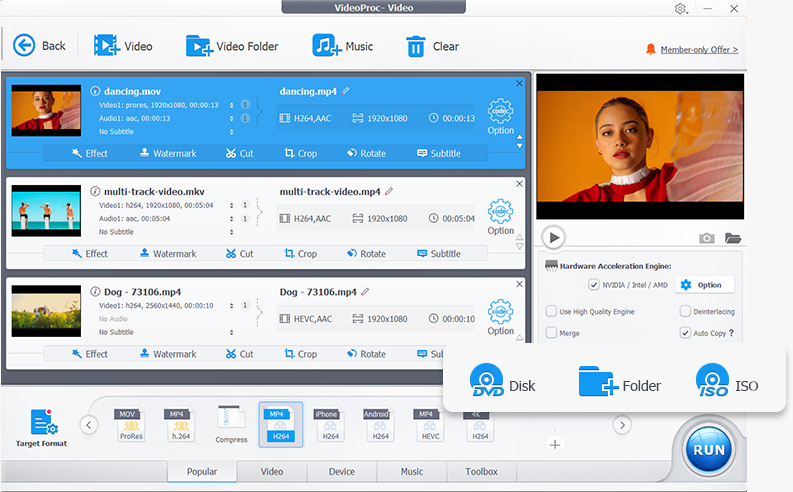
The Video module on Windows, from VideoProc's product page: three clips (MOV, MKV and MP4) queued for H.264 MP4, each with Effect, Watermark, Cut, Crop, Rotate and Subtitle buttons, the hardware acceleration panel on the right, the target format bar and the RUN button. The DVD Disk/Folder/ISO box at the lower right is a callout added by VideoProc.
The hardware acceleration engine is the reason conversions are fast: VideoProc detects NVIDIA, Intel or AMD graphics and uses them for decoding and encoding. Files are processed locally; nothing is uploaded.
Features
Convert almost anything, quickly
VideoProc Converter AI reads 370+ formats, from phone HEVC and GoPro 5.3K footage to MKV, AVI, WMV, MXF and DJI 10-bit HDR, and writes 420+ outputs, including AV1 MP4, ProRes MOV for editing, and presets for iPhone, Android, TVs, YouTube and Facebook. Audio can be converted or extracted to MP3, FLAC, AAC and more with Dolby Digital 5.1, and an Auto Copy option passes streams through untouched when no re-encoding is needed.
AI Super Resolution for old and low-res video
VideoProc Converter AI's Super Resolution upscales video 2x, 3x or 4x, or to a set resolution, while removing blur, noise and compression artifacts. Choose Gen Detail to generate texture, Real Smooth for a natural restoration, or the Anime model for cartoons, with a High Quality or a faster mode. Version 8.11 added a Keep Original Colors option for footage whose colors drifted after enhancement.
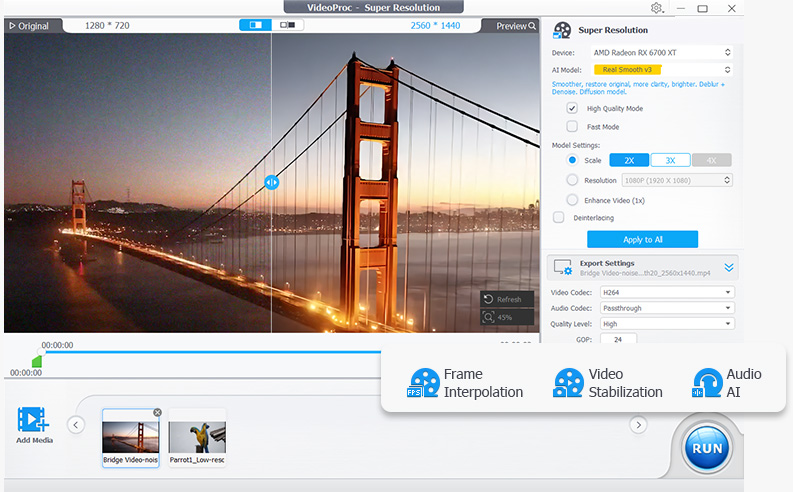
The Super Resolution window: a 1280 x 720 night clip upscaled 2x to 2560 x 1440 with the Real Smooth v3 model on an AMD Radeon RX 6700 XT, with a before/after divider in the preview. The box naming Frame Interpolation, Video Stabilization and Audio AI is a callout added by VideoProc.
Frame Interpolation and Stabilization
VideoProc Converter AI's Frame Interpolation generates new frames to turn 30 or 60 fps footage into 120, 240 or 480 fps, or into slow motion up to 20x. Stabilization steadies GoPro, drone and phone footage, with presets and a cropping ratio that trades stability against how much of the frame you keep.
Image AI: upscale, restore faces and colorize photos
VideoProc Converter AI also handles still images. Image AI upscales photos and AI art up to 8K or 10K, removes noise, blur and JPEG artifacts, restores faces in old or blurry portraits, and adds color to black-and-white photos. It processes whole folders and exports PNG or JPG.
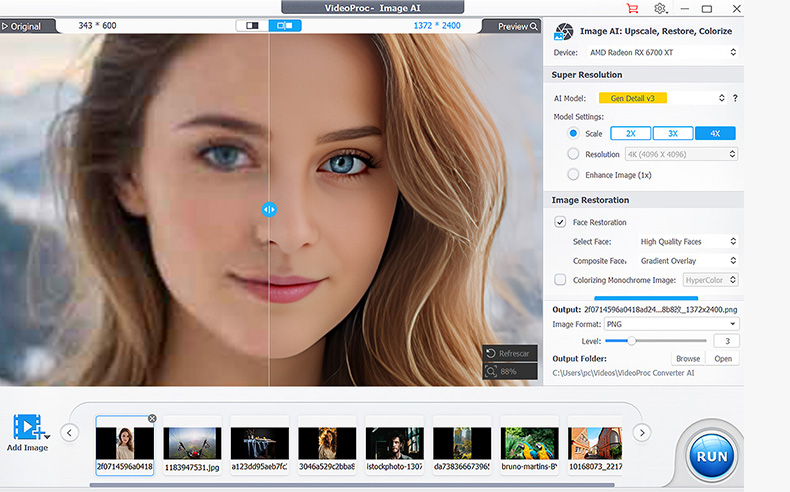
Image AI on Windows: a 343 x 600 portrait upscaled 4x to 1372 x 2400 with the Gen Detail v3 model and Face Restoration switched on, with a strip of images queued for batch processing.
Audio AI: remove noise or vocals
VideoProc Converter AI's Audio AI removes background noise from vlogs, interviews and recordings, and its Vocal Remover separates vocals from the music in songs and videos, so you can keep either one.
Compress, edit, DVD, download and record
VideoProc Converter AI's compressor shrinks oversized or 4K videos to a target file size. The quick editor cuts, trims, splits, merges, crops, rotates, changes speed from 0.10x to 16x, adds subtitles, watermarks and effects, and fixes fisheye, noise, interlacing and audio sync. The DVD module converts discs to MP4, HEVC or MKV, or copies them 1:1 to an ISO or folder. The downloader saves video, audio and subtitles from 1000+ sites (for fair use), and the recorder captures the screen and webcam with picture-in-picture and green screen.
Benefits
- One program instead of six: a converter, compressor, DVD ripper, downloader, recorder and AI enhancer share one license and one interface.
- Speed on ordinary PCs: GPU-accelerated conversion makes batch jobs of phone and camera footage quick.
- Runs on old Windows: a 32-bit build and Windows 7 support keep older PCs useful.
- A one-time price: the Lifetime License includes major and minor updates.
Real-World Uses
- Phone video that won't play: convert iPhone HEVC to H.264 MP4 for an older TV or a client's PC.
- Too big to share: compress a 4K GoPro clip to fit an email or messaging limit.
- Action footage: stabilize a shaky bike ride, then interpolate it to 120 fps for slow motion.
- Family archive: rip home DVDs to MP4 and run the old clips through Super Resolution.
- Tutorials: record the screen with a webcam overlay and remove the room noise with Audio AI.
Who It's For, and Who Should Skip It
Good fit: Windows users who regularly convert, shrink or rip video and want AI upscaling and stabilizing in the same program, without paying for separate tools.
Skip it if: you only need occasional format conversion, since the free HandBrake does that well. Skip it too if AI restoration quality is your main goal: a dedicated enhancer such as Digiarty's own Aiarty Video Enhancer offers more model choice and control. And if you need a timeline editor with transitions and titles, VideoProc's quick edits aren't a substitute for a real editor.
Usage Guide
- Install: download the 64-bit installer (283 MB), or the 32-bit version for 32-bit Windows and PCs with graphics drivers older than September 2020, then run it.
- Update your graphics driver if VideoProc says hardware acceleration or an AI tool isn't available.
- Pick a module on the home screen, such as Video, DVD, Downloader, Recorder or one of the AI tools.
- Add files: drag in videos, a folder, a DVD or a link.
- Choose the output: a target format or device preset, or for AI tools the model and scale.
- Edit if needed: use the Cut, Crop, Effect, Watermark or Subtitle buttons on each clip.
- Tick hardware acceleration and click RUN.
- Register: after buying, enter the licensed email and code from the registration window to remove the trial limits.
Where it falls short
- The downloader breaks when sites change. Several Trustpilot reviewers report failed downloads until an update or a reinstall, and version 8.11's notes include a fix for the YouTube analysis engine failing to update.
- AI upscaling doesn't impress everyone. Some 1-star reviewers say Super Resolution barely improved clarity or distorted faces, and one 5-star reviewer warns it "needs better than average hardware" for 4K.
- Major updates can trip up licenses. A lifetime-license owner reported being unable to enter the key in a new AI version.
- Refunds aren't automatic. A few reviewers say the 30-day guarantee wasn't honored, so contact support early and keep the order details.
What Users Say
Trustpilot: 4.3 out of 5 from 517 reviews
VideoProc's Trustpilot page covers both the Windows and Mac versions: 75% of reviews are 5 stars, 8% 4 stars and 13% 1 star. One 1-star reviewer, Mr P Cuthbert, quoted a VideoProc message offering "a free license for any of our programs as an award" for reviews, so the high share of 5-star reviews deserves some caution. We read these reviews through a summarizer, so treat the wording as close but not guaranteed exact.
The praise
Gerry Fonzi (5 stars, August 2026) called it "one of the most powerful (if not, the most powerful) video enhacer & processor."
todd reed (5 stars, August 2026): "Excellent for downloading podcasts."
Leonard Zane (5 stars, September 2026), after a program update fixed a failed download: "downloading the selected file was quick and everything worked fine!"
JG (5 stars, October 2026) praised "a customer service department that is genuiunely interested in solving your problem", and Jean-Michel Cohen-Namia (5 stars, October 2026), who had a graphics processor problem, said "I've got a very fast answer from the support team and the problem got the right solution."
Gene (5 stars, July 2026), titled "Have the correct hardware this program works": "this program needs better than average hardware to properly upscale video to 4k."
The complaints
nirav patel (1 star, January 2026), titled "Do not buy this if you want actual AI video correction": "the software only changes the resolution numbers without any real improvement to clarity."
Mehrdad (1 star, November 2024): "The so-called 'super resolution' barely improves video clarity and often introduces artifacts."
New England Submission Fightin (1 star, February 2026): "I have a lifetime license" but "there is no means to add my key to the new version."
Cameron (1 star, late 2024), titled "Downloader Doesn't Work Anymore": "just gives me 'Analysis Failed' to all video."
Thomas B. (1 star, August 2025), after two tests on a one-minute video: "Both were way out of sync. Test failed."
Jason Long (1 star, August 2024): "They advertise a 30 day money back guarantee, but they refused to honor it."
The pattern
People like having many tools in one program, the conversion speed and the downloader when it works, and many 5-star reviews are really thanks to support for fixing a problem. The 1-star reviews cluster around AI upscaling that didn't meet expectations, downloads failing after site changes, license trouble after big updates and refund disputes. The trial is the best way to find out which group you'll be in.
Comparisons
VideoProc Converter AI vs. HandBrake
HandBrake is free and an excellent converter, but it only converts. VideoProc Converter AI adds GPU-accelerated device presets, DVD copying to ISO, a downloader, a screen recorder, quick edits and the AI tools. If conversion is all you need, start with HandBrake; if you want the rest in one place, VideoProc is the simpler path.
VideoProc Converter AI vs. Aiarty Video Enhancer
Both come from Digiarty. VideoProc is the generalist: conversion, compression, DVD, download and recording, with AI upscaling, frame interpolation and stabilization built in. Aiarty Video Enhancer is a dedicated restoration tool with more AI models, strength control and HDR, but it doesn't convert, download or rip DVDs, and it doesn't stabilize. Choose VideoProc for everyday video jobs, Aiarty when restoration quality matters most.
Editions and Pricing
| License (Windows) |
List price |
Sale price on October 21, 2026 |
PCs |
Term and updates |
| Premium 365 |
$59.95 a year |
$34.95 |
3 |
Renews yearly, 1 year of updates |
| Lifetime License |
$89.95 |
$54.95 |
1 |
One-time, lifetime updates |
| Family License |
$159.95 |
$79.95 |
3 to 5 |
One-time, lifetime updates |
Sale prices are from VideoProc's own buy page and change often. All plans include every AI and media feature, unlimited watermark-free exports and a 30-day money-back guarantee, and the lifetime plans came with bonus licenses for Aiarty Image Matting (6 months) and DearMob iPhone Manager. Premium 365 renews automatically, with a reminder 7 days before.
FAQs
Does VideoProc Converter AI still run on Windows 7 or a 32-bit PC?
Yes. VideoProc Converter AI supports Windows 7, 8, 8.1, 10 and 11 and offers a separate 32-bit installer, which VideoProc also recommends for PCs with graphics drivers older than September 2020. The AI tools need a newer graphics card to run at a usable speed.
Can I use a Windows license of VideoProc Converter AI on a Mac?
No. VideoProc Converter AI sells separate Windows and Mac licenses, so a Mac needs the Mac version's own license.
What happens to the trial after the 5 free AI exports?
VideoProc Converter AI's trial gives 5 watermark-free exports per AI tool; after that you need a license to keep exporting watermark-free. Until you register, conversions and edits are also limited to files under 5 minutes, downloads to below 1080p, and recordings carry a watermark.
Can VideoProc Converter AI copy protected DVDs?
VideoProc Converter AI reads commercial and homemade DVDs, VIDEO_TS folders and ISO images. Whether you may copy a commercial disc depends on the law where you live, so check before ripping discs you don't own the rights to.
Does VideoProc Converter AI upload my videos for AI processing?
No. VideoProc Converter AI processes files locally on your PC, including the AI tools, so nothing is uploaded.
Do lifetime licenses of VideoProc Converter AI get the new AI features?
Yes. VideoProc Converter AI's Lifetime and Family licenses include lifetime major and minor updates, which covers new AI models as they're released.
System Requirements
- OS: Windows 11, 10, 8.1, 8 or 7, 32-bit or 64-bit
- CPU: 1 GHz Intel or AMD processor or faster
- RAM: 1 GB (2 GB recommended; 2 GB minimum for the AI tools)
- Disk: 200 MB for installation, 1 GB for the AI tools
- GPU for conversion: NVIDIA GeForce GT 630, Intel HD Graphics 2000, AMD Radeon HD 7700 or newer
- GPU for AI: Super Resolution via DirectX 12 (Intel 4th-gen Core graphics, AMD Radeon R9 390, NVIDIA GTX 960 or newer) or NVIDIA TensorRT; Frame Interpolation via Vulkan 1.2
Conclusion
VideoProc Converter AI is a good buy if you handle video often and want one Windows program for converting, compressing, ripping, downloading and light AI enhancement. The reason to buy it is breadth at a one-time price: six tools in one, with GPU-accelerated conversion. The reason to hesitate is that its AI upscaling is a bonus rather than the main event, with mixed reports, and the downloader depends on keeping up with sites. Use the trial's 5 free AI exports on your own footage, and if restoration is what you really need, look at a dedicated enhancer instead.
Download Free TrialBuy Now