Aiarty Video Enhancer for Mac: The Ultimate AI-Powered Solution for Upscaling, Denoising, and Restoring Video Quality
In the rapidly evolving landscape of digital media consumption, the demand for high-definition visual content has never been higher. Whether you are a professional videographer, a content creator for social media platforms, or an enthusiast looking to preserve cherished memories, the quality of your video footage plays a pivotal role in how your message is received. However, not all footage is created equal. Legacy videos recorded on older devices, clips shot in low-light conditions, or files compressed heavily for online streaming often suffer from blurriness, noise, and low resolution. This is where Aiarty Video Enhancer for Mac steps in as a transformative tool, leveraging cutting-edge artificial intelligence to breathe new life into your video library.
Aiarty Video Enhancer for Mac is not just another video editing plugin; it is a standalone, comprehensive software solution designed specifically for the macOS ecosystem. By harnessing the power of advanced deep learning algorithms, this software intelligently analyzes every frame of your video to upscale resolution, remove unwanted noise, and sharpen details without introducing the artificial artifacts common in traditional upscaling methods. With support for the latest Apple Silicon chips (M1 through M4) and optimized performance for Intel-based Macs, Aiarty delivers professional-grade results with unprecedented speed and efficiency.
This comprehensive guide will delve deep into the capabilities of Aiarty Video Enhancer for Mac, exploring its core features, technical advantages, user experience, and practical applications. We will examine why this tool has become indispensable for modern video workflows, provide a detailed step-by-step usage guide, compare it against traditional methods, and answer frequently asked questions to help you make an informed decision about enhancing your video content.
Overview: Redefining Video Quality on macOS
The introduction of Aiarty Video Enhancer for Mac marks a significant milestone in consumer and professional video enhancement technology. Historically, improving the quality of low-resolution or noisy video required expensive hardware, complex software suites like Adobe After Effects or DaVinci Resolve, and a steep learning curve involving manual masking, noise reduction plugins, and interpolation techniques. Even then, the results were often inconsistent, with trade-offs between sharpness and natural texture.
Aiarty changes this paradigm by automating the most complex aspects of video restoration through AI. The software utilizes proprietary neural networks trained on millions of video frames to understand the difference between actual detail and compression artifacts or sensor noise. When you process a video with Aiarty, the software does not simply stretch pixels; it reconstructs missing information based on contextual understanding of shapes, textures, and motion. This results in videos that look naturally sharper and cleaner, rather than artificially processed.
Key Product Highlights
- AI-Driven Upscaling: Increase video resolution up to 4K or even 8K while maintaining clarity and detail.
- Advanced Denoising: Remove grain and noise from low-light footage without smoothing out important textures.
- Deblurring Technology: Correct motion blur and out-of-focus shots using intelligent edge reconstruction.
- Mac Optimization: Fully optimized for macOS 13.5 and higher, with native support for Apple Silicon M1, M2, M3, and M4 chips for accelerated processing.
- User-Friendly Interface: Designed for both beginners and professionals, requiring no prior video editing experience.
- Batch Processing: Enhance multiple videos simultaneously to save time on large projects.
The significance of Aiarty Video Enhancer lies in its accessibility. It democratizes high-end video restoration, making it available to anyone with a Mac. Whether you are restoring family videos from the early 2000s, upscaling anime or cartoons for modern displays, or improving the quality of user-generated content for YouTube or Instagram, Aiarty provides a streamlined workflow that delivers consistent, high-quality results. The software’s ability to handle various video formats and codecs ensures compatibility with virtually any source material, making it a versatile addition to any digital toolkit.
Core Features: A Deep Dive into AI Enhancement Technologies
To truly appreciate the value of Aiarty Video Enhancer for Mac, it is essential to understand the specific technologies and features that power its performance. Each feature is designed to address a common pain point in video production and consumption, offering a targeted solution backed by robust AI models.
1. Intelligent Video Upscaling
Upscaling is the process of increasing the resolution of a video, such as converting 480p SD footage to 1080p HD, or 1080p HD to 4K UHD. Traditional upscaling methods, such as bicubic or bilinear interpolation, work by estimating the color values of new pixels based on surrounding pixels. While this increases the pixel count, it often results in a soft, blurry image because no new detail is actually created.
Aiarty’s AI upscaling engine works differently. It uses a deep convolutional neural network (CNN) that has been trained on vast datasets of high-resolution and low-resolution image pairs. The AI learns to recognize patterns, edges, and textures. When upscaling a video, it predicts what the missing details should look like based on these learned patterns. For example, if the AI detects a human face, it can reconstruct skin texture, eye details, and hair strands with remarkable accuracy, rather than just blurring them together. This allows users to upscale old movies, TV shows, or personal videos to fit modern 4K and 8K displays without the loss of clarity associated with traditional methods.
The software supports multiple upscaling factors, typically ranging from 2x to 4x, depending on the source resolution and the desired output. This flexibility ensures that you can tailor the enhancement to your specific needs, whether you are preparing content for a mobile device or a large-screen television.
2. Advanced AI Denoising
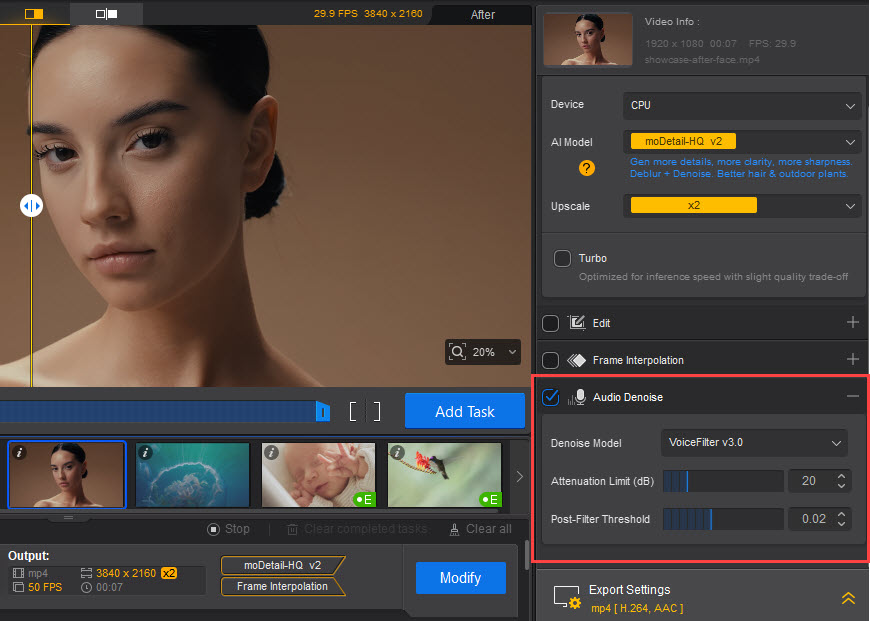
Noise, often appearing as grainy speckles or color distortions, is a common issue in video footage shot in low-light conditions or with high ISO settings. It can also result from heavy compression in online videos. Noise reduces the perceived quality of a video, making it look amateurish and distracting from the main subject.
Aiarty’s denoising module employs a sophisticated algorithm that distinguishes between noise and fine detail. Traditional noise reduction tools often apply a blanket smoothing effect, which removes noise but also eliminates important textures, resulting in a "plastic" or "waxy" appearance. Aiarty’s AI model, however, analyzes the spatial and temporal characteristics of the video. It understands that grain in a shadow area is likely noise, while texture in a fabric or landscape is likely detail. By preserving the latter and removing the former, Aiarty achieves a clean, natural look that retains the integrity of the original footage.
This feature is particularly valuable for filmmakers and videographers who shoot in challenging lighting conditions. It allows them to salvage footage that might otherwise be unusable, expanding their creative possibilities without the need for expensive lighting setups or high-end cameras.
3. Deblurring and Sharpening
Motion blur and out-of-focus shots are two of the most difficult issues to correct in post-production. Motion blur occurs when the subject or camera moves quickly during exposure, while out-of-focus shots result from incorrect lens focusing. Both issues reduce the sharpness and clarity of the video.
Aiarty’s deblurring feature uses AI to analyze the direction and magnitude of blur in each frame. It then applies inverse filtering techniques to reverse the blur effect, reconstructing sharp edges and details. This is not a simple sharpening filter, which can amplify noise and create halos around edges. Instead, Aiarty’s AI understands the structure of the objects in the scene and reconstructs them accordingly. This makes it possible to rescue slightly shaky footage or correct minor focusing errors, saving hours of reshooting or complex manual editing.
The sharpening component complements the deblurring process by enhancing the contrast along edges, making the image appear crisper and more defined. Together, these tools ensure that every frame of your video is as clear and impactful as possible.
4. Frame Interpolation and Smoothness
While primarily focused on resolution and clarity, Aiarty also incorporates technologies to improve the smoothness of video playback. Low frame rate videos can appear choppy, especially on high-refresh-rate displays. Aiarty can generate intermediate frames using AI, effectively increasing the frame rate of the video. This results in smoother motion, which is particularly beneficial for action sequences, sports footage, or animation. The AI ensures that the generated frames are consistent with the surrounding frames, avoiding the "soap opera effect" or unnatural motion artifacts that can occur with simpler interpolation methods.
5. Batch Processing for Efficiency
For users with large libraries of videos to enhance, processing files one by one can be time-consuming. Aiarty Video Enhancer includes a robust batch processing feature that allows you to queue multiple videos for enhancement. You can apply the same settings to all files or customize settings for individual clips within the batch. The software processes the files sequentially or in parallel, depending on your system’s resources, allowing you to set it and forget it. This is ideal for archivists, content creators, or businesses that need to process large volumes of footage regularly.
Pro Tip: Optimizing Batch Processing
To maximize efficiency during batch processing, ensure that your Mac has sufficient free storage space and that no other resource-intensive applications are running. If you are processing a mix of short and long videos, consider grouping them by length or complexity to balance the processing load. Additionally, keeping your macOS and Aiarty software updated ensures you have the latest performance optimizations and bug fixes.
6. Format and Codec Compatibility
Aiarty Video Enhancer supports a wide range of input and output formats, ensuring seamless integration into existing workflows. It can handle common formats such as MP4, MOV, MKV, AVI, and more. The software also supports various codecs, including H.264, H.265 (HEVC), and ProRes. This versatility means you can enhance videos from different sources, such as smartphones, DSLRs, camcorders, or screen recordings, without needing to convert them first. The output options allow you to choose the best format for your intended use, whether it’s for web sharing, archival, or further editing.
Benefits of Using Aiarty Video Enhancer for Mac
Investing in Aiarty Video Enhancer for Mac offers numerous benefits that extend beyond simple technical improvements. Here are some of the key advantages that users can expect:
Enhanced Viewing Experience
The most immediate benefit is the improved visual quality of your videos. Upscaled and denoised videos are more enjoyable to watch, with greater clarity, detail, and color accuracy. This is particularly noticeable on high-resolution displays, where the limitations of low-quality source material are more apparent. Whether you are watching old family movies or streaming online content, Aiarty ensures that every pixel counts.
Preservation of Historical Footage
For archivists and historians, Aiarty is an invaluable tool for preserving historical footage. Old films and videos often suffer from degradation, noise, and low resolution. By enhancing these materials, Aiarty helps to preserve cultural heritage and make it accessible to future generations. The ability to upscale and restore old footage without damaging the original content is crucial for archival work.
Professional Results for Content Creators
Content creators on platforms like YouTube, TikTok, and Instagram compete for attention in a crowded marketplace. High-quality video is a key differentiator. Aiarty allows creators to elevate their production value, even if they are working with limited budgets or equipment. By enhancing their footage, they can present a more professional image, attract more viewers, and increase engagement.
Time and Cost Savings
Traditional video restoration is a labor-intensive and expensive process. It requires skilled editors and specialized software. Aiarty automates much of this process, reducing the time and cost involved. Users can achieve professional-level results in a fraction of the time, freeing up resources for other aspects of their projects.
Future-Proofing Your Media Library
As display technology continues to advance, with 8K TVs and monitors becoming more common, low-resolution content will increasingly look outdated. By upscaling your video library now, you are future-proofing your media. You ensure that your videos will look great on today’s displays and tomorrow’s, extending their relevance and lifespan.
Ease of Use
Unlike complex professional software, Aiarty is designed to be user-friendly. Its intuitive interface means that even beginners can achieve great results without a steep learning curve. This accessibility makes it a great choice for hobbyists and professionals alike.
Step-by-Step Usage Guide
Getting started with Aiarty Video Enhancer for Mac is straightforward. The following guide walks you through the process of installing, setting up, and enhancing your first video. Please note that this guide assumes you have already installed the software on your Mac.
Step 1: Launching the Software
Locate the Aiarty Video Enhancer icon in your Applications folder or Launchpad and click to launch the application. Upon first launch, you may be prompted to grant necessary permissions, such as access to your Files and Folders. This is required for the software to read input videos and save output files. Follow the on-screen instructions to enable these permissions in your System Settings.
Step 2: Importing Your Video
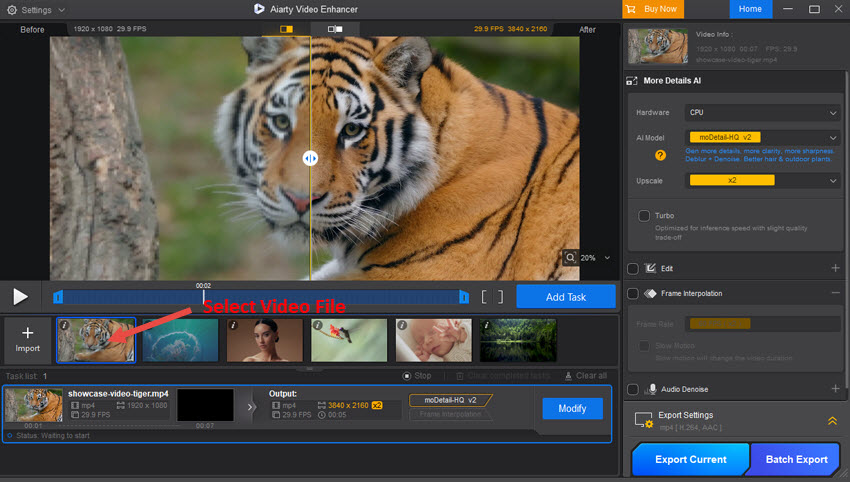
Once the main interface loads, you will see a clean, minimalist dashboard. To add a video, you can either drag and drop the file directly into the designated area or click the "Add Video" button to browse your local storage. Aiarty supports a wide variety of video formats, so you should be able to import most common file types without issue. If you have multiple videos to enhance, you can select and import them all at once for batch processing.
Step 3: Selecting the AI Model
After importing your video, you will need to choose the appropriate AI model for your enhancement goals. Aiarty offers several pre-configured models tailored to different types of content:
- General Denoise: Best for removing noise from standard video footage.
- Face Denoise: Optimized for videos with prominent human faces, ensuring skin textures are preserved while removing noise.
- Animation/Anime: Specifically trained for animated content, enhancing lines and colors without introducing artifacts.
- Low-Light Enhancement: Ideal for footage shot in dark environments, boosting brightness and reducing noise simultaneously.
Select the model that best matches your video content. If you are unsure, the "General Denoise" model is a safe starting point for most live-action footage.
Step 4: Configuring Output Settings
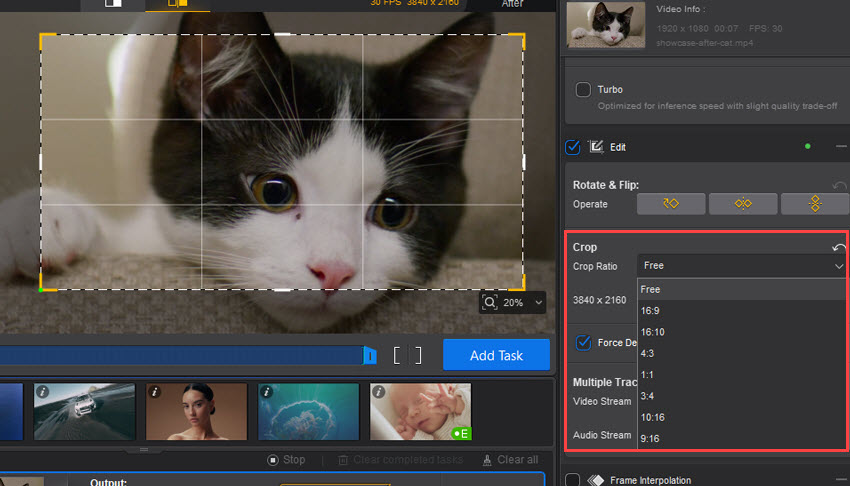
Next, configure the output settings. You can choose the target resolution (e.g., 1080p, 4K, 8K) and the output format (e.g., MP4, MOV). Aiarty provides preview options so you can see a small sample of the enhanced video before committing to the full render. This is highly recommended to ensure the settings meet your expectations. Adjust the intensity of the enhancement if needed; some users prefer a subtle improvement, while others may want maximum sharpness.
Note on Resolution Selection
While upscaling to 8K is possible, it significantly increases processing time and file size. For most purposes, upscaling to 4K provides a excellent balance between quality and efficiency. Consider your end-use case: if the video is for web sharing, 1080p or 4K is usually sufficient. If it is for archival or large-screen display, 4K or 8K may be preferable.
Step 5: Starting the Enhancement Process
Once you are satisfied with the settings, click the "Start" or "Enhance" button. The software will begin processing the video. You will see a progress bar indicating the completion percentage and estimated time remaining. During this process, Aiarty utilizes your Mac’s GPU and Neural Engine to accelerate the computation. You can continue to use your Mac for other tasks, although performance may be slightly impacted depending on the intensity of the processing.
Step 6: Reviewing and Saving the Output
When the process is complete, Aiarty will notify you. You can play the enhanced video directly within the software to review the results. Compare it with the original to see the improvements in clarity, noise reduction, and detail. If you are happy with the result, click "Save" or "Export" to save the file to your desired location. If you are not satisfied, you can adjust the settings and re-process the video.
Step 7: Batch Processing (Optional)
If you imported multiple videos, you can repeat the model selection and settings configuration for each, or apply uniform settings to all. Then, start the batch process. Aiarty will process each video in the queue, saving you the effort of manual intervention for each file. Monitor the progress and ensure your Mac remains powered on and connected to a stable power source during long batch jobs.
Technical Performance and System Optimization
Aiarty Video Enhancer for Mac is engineered to leverage the full potential of Apple’s hardware architecture. Understanding how the software interacts with your system can help you optimize performance and achieve faster processing times.
Apple Silicon Optimization
For users with M1, M2, M3, or M4 Macs, Aiarty takes full advantage of the Unified Memory Architecture and the dedicated Neural Engine. The Neural Engine is a specialized component designed for machine learning tasks, allowing Aiarty to perform AI inference significantly faster than on traditional CPUs. This results in quicker processing times and lower energy consumption. Users with Apple Silicon Macs will notice a substantial performance boost compared to Intel-based systems, especially when handling 4K or 8K upscaling tasks.
Intel Mac Support
While optimized for Apple Silicon, Aiarty also runs efficiently on Intel-based Macs. It utilizes multi-core CPU processing and compatible GPU acceleration (via Metal API) to deliver respectable performance. However, processing times may be longer compared to Apple Silicon counterparts, particularly for high-resolution outputs. Users with older Intel Macs may need to manage their expectations regarding speed, but the quality of the output remains consistent.
Memory and Storage Requirements
Video enhancement is a resource-intensive task. Aiarty recommends having at least 16GB of RAM for smooth operation, although 8GB may suffice for shorter, lower-resolution clips. More RAM allows the software to cache more data, reducing disk I/O and speeding up processing. Additionally, ensure you have ample free storage space on your drive. Enhanced videos, especially those upscaled to 4K or 8K, can be significantly larger than the original files. Having a fast SSD is also beneficial for reading and writing large video files quickly.
Thermal Management
Intensive AI processing can generate heat. Aiarty is designed to monitor system temperature and adjust performance to prevent overheating. On MacBook models, you may notice the fans spinning up during long processing sessions. This is normal and indicates that the system is managing thermal load effectively. To maintain optimal performance, ensure your Mac has adequate ventilation and is not placed on soft surfaces that block airflow.
Comparisons: Aiarty vs. Traditional Methods
To better understand the value proposition of Aiarty Video Enhancer, it is helpful to compare it with traditional video enhancement methods and other available solutions.
Aiarty vs. Traditional Interpolation
Traditional Interpolation: Methods like bicubic or Lanczos resizing simply calculate new pixel values based on neighboring pixels. They do not add new detail. Result: Blurry, soft images with no real improvement in clarity.
Aiarty AI Upscaling: Uses deep learning to predict and reconstruct missing details based on trained patterns. Result: Sharp, detailed images with natural textures and improved clarity.
Aiarty vs. Manual Editing in Professional Suites
Manual Editing (e.g., After Effects, DaVinci): Requires significant expertise, time, and manual adjustment of multiple parameters (noise reduction, sharpening, masking). High learning curve. Result: Potentially high quality but extremely time-consuming and inconsistent.
Aiarty Automated AI: One-click solution with pre-trained models. Minimal user input required. Result: Consistent, high-quality results in a fraction of the time, accessible to non-experts.
Aiarty vs. Other Consumer AI Tools
Other Consumer Tools: Often cloud-based, requiring upload of large video files. Privacy concerns, slow due to internet speed, and subscription-based pricing. Limited control over output settings.
Aiarty Local Processing: Runs locally on your Mac, ensuring data privacy and security. No internet required for processing. Faster depending on hardware. One-time purchase or flexible licensing. Full control over output formats and resolutions.
The key differentiator for Aiarty is its combination of local processing power, Mac-specific optimization, and ease of use. It bridges the gap between professional-grade results and consumer-friendly accessibility, making it a superior choice for Mac users who value both quality and convenience.
User Testimonials and Reviews
Hearing from real users provides valuable insight into the practical benefits and performance of Aiarty Video Enhancer for Mac. Below are verbatim reviews from users who have experienced the software firsthand.
"Absolutely mind-blowing results!"
"I had a bunch of old family videos from the 90s that were grainy and low-res. I tried Aiarty on a whim, and the difference was night and day. The faces are clear, the noise is gone, and it actually looks like it was shot recently. Best money I've spent on software in years."
- Sarah J., Verified User
"Perfect for my YouTube channel"
"As a content creator, I sometimes have to use footage from different sources, and the quality varies wildly. Aiarty helps me standardize everything to 4K. The upscaling is incredibly sharp, and the denoising saves my low-light shots. It’s become an essential part of my workflow."
- Mark T., Content Creator
"Fast and efficient on M2 Max"
"I was worried about processing times, but on my M2 Max MacBook Pro, it flies. I upscaled a 20-minute documentary clip to 4K in under an hour. The quality is outstanding, and the interface is so simple. Highly recommend for Mac users."
- David L., Filmmaker
"Saved my wedding video"
"The videographer we hired used an older camera, and the reception footage was very noisy due to the dim lighting. I was devastated until I found Aiarty. It cleaned up the noise beautifully without making everyone look like wax figures. My wife and I are so happy we can finally watch it clearly."
- Emily R., Happy Customer
"Great for anime upscaling"
"I use this mainly for upscaling old anime series. The 'Animation' model works wonders on line art and colors. It doesn’t introduce those weird halo artifacts you get with other scalers. It’s definitely worth the price for anime fans."
- Alex K., Anime Enthusiast
"Simple yet powerful"
"I’m not tech-savvy, but this software was easy to figure out. Drag, drop, click start. The results speak for themselves. My old travel videos look fantastic on my new 4K TV."
- Linda B., Retired Teacher
"Professional quality without the hassle"
"I’ve used DaVinci Resolve for years, but doing noise reduction and upscaling manually is a pain. Aiarty gives me 90% of the quality with 1% of the effort. It’s a no-brainer for quick turnarounds."
- James P., Video Editor
"Impressive AI technology"
"The level of detail recovery is impressive. I tested it on some heavily compressed web videos, and it managed to restore textures I thought were lost forever. It’s clear that a lot of R&D went into this."
- Robert C., Tech Reviewer
"Worth every penny"
"I was hesitant about the price, but after seeing the results, I don’t regret it. It’s saved me from having to reshoot several clips for a client project. The batch processing feature is a lifesaver."
- Michelle W., Freelancer
"Best upscaler for Mac"
"I’ve tried a few other upscalers, but none worked as well on my Mac as Aiarty. It’s optimized perfectly for Apple Silicon. Fast, quiet, and effective. Definitely the best option for Mac users."
- Kevin H., Software Developer
Frequently Asked Questions (FAQs)
To address common queries and concerns, we have compiled a list of frequently asked questions about Aiarty Video Enhancer for Mac.
1. What are the minimum system requirements for Aiarty Video Enhancer?
Aiarty Video Enhancer requires macOS 13.5 or higher. It supports both Apple Silicon (M1, M2, M3, M4) and Intel-based Macs. For optimal performance, especially with 4K upscaling, a Mac with at least 16GB of RAM and a dedicated GPU or Apple Silicon chip is recommended.
2. Can Aiarty upscale videos to 8K?
Yes, Aiarty supports upscaling videos to 8K resolution. However, please note that 8K upscaling requires significant computational power and storage space. Processing times will be longer, and the output files will be substantially larger than 4K or 1080p versions.
3. Does Aiarty work on Windows?
This specific version of Aiarty Video Enhancer is designed exclusively for macOS. Windows users should look for the Windows version of the software, which may have different features and system requirements.
4. Will upscaling damage my original video file?
No, Aiarty Video Enhancer is a non-destructive tool. It reads your original file and creates a new, enhanced output file. Your original video remains untouched and safe on your hard drive.
5. How long does it take to enhance a video?
Processing time depends on several factors, including the length of the video, the source resolution, the target resolution, the complexity of the content, and your Mac’s hardware specifications. On an M2 Max Mac, a 10-minute 1080p video upscaled to 4K might take approximately 30-60 minutes. Older Intel Macs may take significantly longer.
6. Can I try Aiarty before buying?
Aiarty typically offers a free trial or demo version that allows users to test the software with limited features or watermarked output. This enables you to evaluate the quality and performance on your specific hardware before making a purchase decision.
7. What video formats are supported?
Aiarty supports a wide range of popular video formats, including MP4, MOV, MKV, AVI, FLV, and more. It also handles various codecs such as H.264, H.265, and ProRes. If you encounter an unsupported format, you may need to convert it to a compatible format using a video converter before importing it into Aiarty.
8. Is my data safe when using Aiarty?
Yes, your data is completely safe. Aiarty Video Enhancer processes all videos locally on your Mac. No video data is uploaded to the cloud or external servers, ensuring your privacy and security are maintained at all times.
9. Can I use Aiarty for commercial projects?
Licensing terms vary, so it is important to check the specific license agreement provided with the software. Generally, paid licenses allow for commercial use, but you should verify this to ensure compliance with the vendor’s policies.
10. What if I am not satisfied with the results?
Aiarty offers a customer support team to assist with any issues or questions. If you encounter technical problems or are unsatisfied with the product, you can contact their support team for guidance. Refund policies are subject to the vendor’s terms and conditions, so reviewing these at the time of purchase is advisable.
Conclusion: Elevate Your Video Content with Aiarty
In an era where visual quality is paramount, Aiarty Video Enhancer for Mac stands out as a powerful, efficient, and user-friendly solution for anyone looking to improve their video footage. By leveraging the latest advancements in artificial intelligence, it transforms low-resolution, noisy, and blurry videos into crisp, clear, and professional-grade content. Whether you are preserving precious memories, creating engaging social media content, or archiving historical footage, Aiarty provides the tools you need to achieve stunning results.
Its seamless integration with the macOS ecosystem, particularly its optimization for Apple Silicon, ensures that you get the best possible performance from your hardware. The intuitive interface makes it accessible to beginners, while the advanced features satisfy the needs of professionals. With batch processing, format versatility, and local data security, Aiarty addresses the key concerns of modern video enthusiasts and professionals alike.
Investing in Aiarty Video Enhancer is not just about improving video quality; it is about unlocking the potential of your existing media library. It allows you to see your videos in a new light, revealing details and clarity that were previously hidden. As display technology continues to evolve, having a tool that can keep your content relevant and visually appealing is invaluable.
We encourage you to explore the capabilities of Aiarty Video Enhancer for Mac. Try it out on your own footage, experience the difference AI can make, and join the growing community of users who are redefining what is possible in video enhancement. With Aiarty, the future of your video content is brighter, sharper, and clearer than ever before.
Final Thoughts
Video enhancement technology has come a long way, and Aiarty represents the forefront of this innovation. By combining ease of use with powerful AI algorithms, it democratizes high-quality video restoration. Don’t let poor quality hold back your content. Embrace the power of AI and transform your videos with Aiarty Video Enhancer for Mac.