Aiseesoft Data Recovery: Get Back Files You Deleted, Formatted or Lost in a Crash
You pressed Shift + Delete on the wrong folder. Or you emptied the Recycle Bin a day too early, or your camera's SD card suddenly shows up as unreadable, or Windows won't boot at all and the only copy of a project is sitting on that drive. The files are usually still there, at least for a while. What you need is a program that can find them before something else overwrites the space they occupy.
Aiseesoft Data Recovery is a Windows file recovery tool built for exactly that moment. Pick a drive, a card or a folder, let it scan, then browse what it found by file type or by original folder, preview it and copy it back. It covers hard drives, USB flash drives, memory cards and camera cards, and it can build a bootable USB stick to rescue files from a PC that won't start.
Quick facts
- Version: 3.0.58
- Developer: Aiseesoft Studio
- Runs on: Windows 11, 10, 8.1, 8, 7, Vista and XP (SP2 or later). A separate Mac version exists.
- Recovers from: internal and external hard drives and SSDs, partitions, the Recycle Bin, USB flash drives, SD and CompactFlash cards, Memory Sticks, digital cameras, camcorders, drones and dashcams
- Recovers: photos, videos, audio, documents, emails, archives, eBooks, databases and program files
- Price: $64.95 USD, lifetime license
- Trial: free download, activated with an email address and registration code after purchase
- Guarantee: 30-day money-back guarantee when there is a quality problem
Before you buy: scan first, pay second
Opinions on this program are split. Aiseesoft's own page shows glowing testimonials, but an independent hands-on test by DiskTuna, a data recovery specialist site, found an older version recovered far fewer files than rival tools, and Aiseesoft Studio has a 3.9 out of 5 rating on Trustpilot from about 600 reviews, with several complaints about slow refunds and being steered toward subscriptions. The program has been redesigned since that test, but the lesson stands: install the free version, run a full scan of your drive or card, and check that the files you need actually appear in the results and open in the preview before you buy a license. The refund promise is limited to quality problems.
Overview
The program opens on a clean, two-column screen. On the left are three recovery modes: Hard Drive Recovery, USB / SD Card Recovery and, under Advanced Recovery, Crashed PC Recovery. On the right you pick where to look: one of your disks, or a specific location such as the Recycle Bin, the Desktop or a folder you choose. It even lists partitions Windows has lost track of, shown as "Lost Disk".
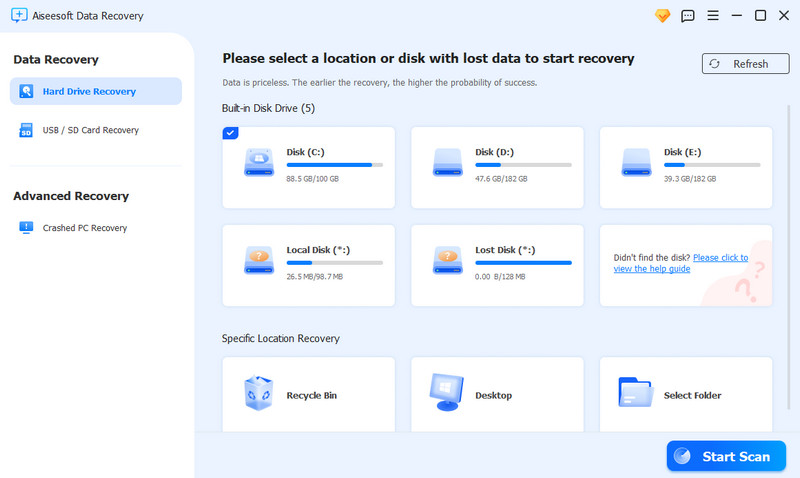
The Hard Drive Recovery screen: built-in disks, a lost partition, and shortcuts for the Recycle Bin, Desktop and a chosen folder, with Start Scan at the bottom right.
Once you start, it runs a quick scan and then carries straight on into a deep scan, so the first results show up early while it keeps digging. When it's done you get every recoverable file sorted into categories, with tools to narrow the list down to the handful you actually need.
Features
Quick scan and deep scan in one pass
You don't have to choose a scan type up front. The quick scan finishes first and tells you how many files it found, then the deep scan keeps going to find more. You can pause or stop the deep scan at any point, and a notice offers to export the quick scan's results while the deep scan runs. Aiseesoft says recovered data isn't stored on its servers.
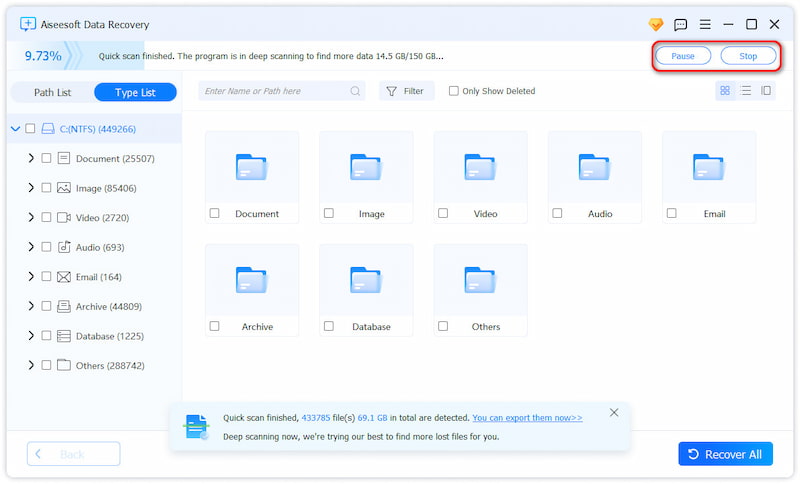
A deep scan at 9.73% after the quick scan finished, with Pause and Stop buttons and found files already grouped into Document, Image, Video, Audio, Email, Archive, Database and Others.
Find the right file among thousands
A scan of a busy drive can turn up hundreds of thousands of files. You can switch between a Type List (every JPG, every PNG, every Word file) and a Path List that follows the original folders. There's a search box for names and paths, a Filter button, an Only Show Deleted checkbox to hide files that are still intact, and thumbnail, list and detail views. Click a file to preview it before you recover, so you don't waste time restoring the wrong version.
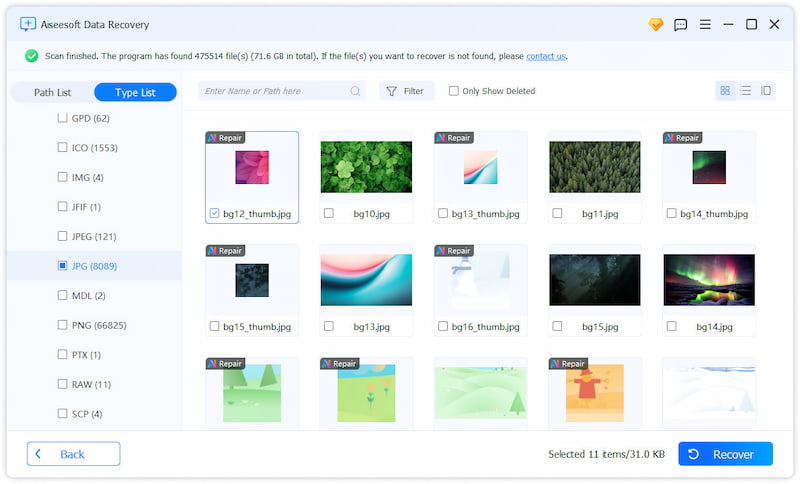
Finished scan results in Type List view: 8,089 JPG files shown as thumbnails, some marked Repair, with 11 items selected for recovery.
USB drives, SD cards and camera cards
The USB / SD Card Recovery mode walks you through connecting the card or stick, either straight into a card slot or through a reader, then scans it the same way. Aiseesoft lists support for SD, CompactFlash and Memory Stick cards, flash drives from brands like SanDisk, Samsung and Kingston, and the microSD cards inside cameras, camcorders, drones and dashcams.
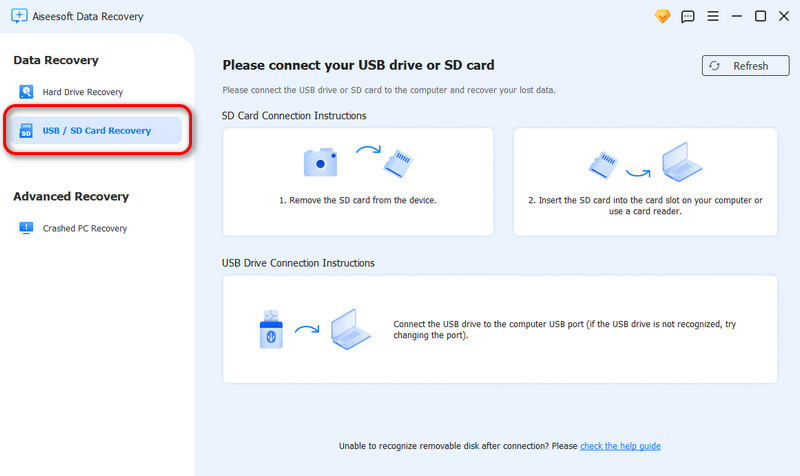
USB / SD Card Recovery mode, showing how to connect an SD card or a USB drive before scanning.
Rescue files from a PC that won't boot
Crashed PC Recovery is for a computer that won't start, gets stuck on a blue or black screen, or loops through Windows automatic repair. On a working PC, the program creates a bootable USB drive. You plug that into the crashed machine, boot from it, and scan its disk to copy your files off.
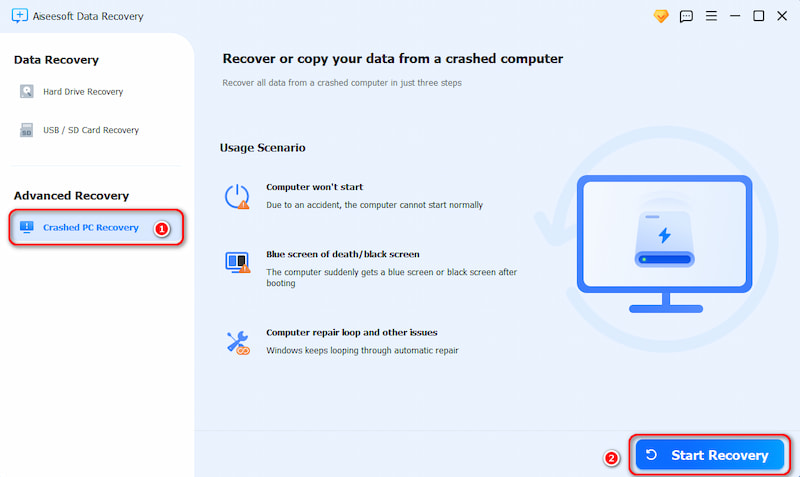
The Crashed PC Recovery screen lists the situations it's meant for, with a Start Recovery button to begin making the boot drive.
AI Repair for damaged photos
Recovered photos sometimes come back broken: a thumbnail that's blurry or only partly there. Files like that get a Repair tag in the results. Open one in the preview window and an AI Repair button tries to restore it. Aiseesoft says this works on JPG, JPEG and PNG files.
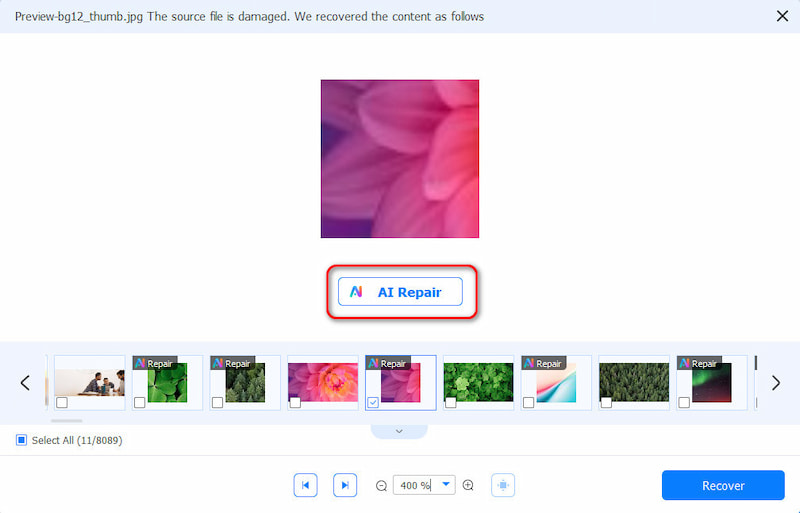
The preview window for a damaged JPG, with the AI Repair button and a strip of other photos tagged Repair.
A long list of file types
Beyond the obvious photos and documents, the vendor lists camera RAW formats such as CR2 and CRW, Photoshop PSD files, audio from MP3 and WAV to AIFF and OGG, video from MP4 and MOV to AVI, WMV and FLV, eBooks in EPUB and MOBI, ZIP and RAR archives, emails, databases, and even EXE and MSI program files.
Benefits
The big advantage is that you can see before you commit. Because results appear while the deep scan is still running, you often know within minutes whether the file you're desperate for is recoverable. The preview then tells you whether it's intact, which matters more than how many files a scan finds.
It also keeps the job simple for people who've never done this before. Three modes, a big Start Scan button, and results laid out like a file browser. You don't need to know what a partition table or an MFT is to get a deleted folder back.
And the bootable USB option means a dead Windows install doesn't have to mean dead files. If the disk itself is still readable, you can get your documents out without pulling the drive or paying a repair shop just to copy data.
Real-World Uses
- The Shift + Delete mistake. You permanently deleted a project folder, skipping the Recycle Bin. Scan the drive it was on, switch to Path List, find the folder and restore it.
- The corrupted camera card. Your SD card from a weekend trip suddenly asks to be formatted. Don't. Put it in a card reader, run USB / SD Card Recovery, and use the image filter to pull out the JPG and RAW files.
- The laptop stuck in a repair loop. Windows keeps failing automatic repair. Build a bootable USB on another PC, boot the laptop from it, and copy your files to an external drive.
- The reformatted drive. You formatted an external drive thinking it was a different one. A deep scan looks for files that are still physically on the disk.
- The dashcam clip you need. A dashcam overwrites old footage in a loop, but a clip that was deleted or lost to a card error may still be found on the card if you scan it right away.
Who It's For
Aiseesoft Data Recovery suits home users and small offices who have just lost something and want a guided, point-and-click way to try to get it back. Photographers, drone pilots and anyone who works off memory cards will make the most of the card recovery and photo repair. People who want maximum recovery from a badly damaged or reformatted drive, or who are comfortable with more technical tools, should compare results from more than one program before paying, because the DiskTuna test suggests this isn't the strongest option for heavy file-system damage.
Usage Guide
- Install it on a different drive from the one you're recovering. Download and install the program, then launch it. Installing onto the drive that held the lost files can overwrite them.
- Register, if you've bought it. A pop-up asks you to register. Enter the email address from your order and the registration code from your confirmation email.
- Pick a mode. Choose Hard Drive Recovery for internal or external disks, USB / SD Card Recovery for removable media, or Crashed PC Recovery for a machine that won't boot.
- Choose where to look. Select a disk, or narrow it to the Recycle Bin, Desktop or a specific folder for a faster scan, then click Start Scan.
- Browse the results. Use Type List or Path List, search by name, tick Only Show Deleted, and preview files to check they open.
- Recover. Select the files and click Recover (or Recover All), and save them to a different drive from the one you scanned.
Tips for a better recovery
- Stop using the drive. Every file you save to it after the loss can overwrite something you want back. Aiseesoft's own screen puts it plainly: the earlier the recovery, the higher the chance of success.
- Let the deep scan finish if your file isn't in the quick scan results. You can pause it if you need the PC for something else.
- Trust the preview, not the file count. A file that shows up but won't preview may not open after recovery either.
- Don't format a card that asks to be formatted. Scan it first.
What Users Say
Aiseesoft's product page carries short testimonials from customers. One, signed Gloria, describes the classic case:
"I accidentally deleted a very important folder on my computer early in the morning. I often use "SHIFT + DELETE" to remove files. So I can't find them back in recycle bin. Thanks to this data recovery, I easily recovered all my deleted files. Great lost files recovery!"
Another, from Big Kevin: "It Worked just as I expected! It can recover data according to the specific hard drive. And it has a very fast scanning speed. I used it to recover some important pictures, and it worked great!"
Independent opinion is much cooler. Joep of DiskTuna, a site about photo repair and file recovery, tested an older version on NTFS drives with about a million files. His verdict: "not worth your time. For undelete type recovery it's useless, there are free alternatives that are better, Recuva to name one." In his reformatted-drive test, he wrote, "Aiseesoft needed well over an hour. Found about 50% of total files, only 285000 or so in original directory tree." The program has gained a new interface and features since then, so treat this as a reason to test it yourself rather than a final word.
On Trustpilot, Aiseesoft Studio as a whole rates 3.9 out of 5 from about 600 reviews covering all its products. A recent 1-star review titled "Refund Endless Cycle - Don't Trust", from a reviewer named Owend, says: "I bought Aiseesoft Data Recovery. First warning sign was they try to push you into a subscription rather than the one-time purchase." The reviewer was trying to recover JPG photos from a Kodak camera's SD card and says another tool did it after this one failed.
Comparisons
Windows version vs. Mac version
This listing is the Windows program. Aiseesoft sells a separate Mac version, which needs Mac OS X 10.7 or later and supports Apple silicon Macs, so buy the one that matches the computer you'll run it on.
Aiseesoft Data Recovery vs. free tools
Free undelete tools such as Recuva can be enough for a simple deletion on a healthy drive. What Aiseesoft adds is a guided layout, card and camera recovery in the same interface, the bootable USB for crashed PCs, and AI photo repair. DiskTuna's test of an older version found free tools recovered more after a simple deletion, so if your case is straightforward, it's worth trying a free tool first.
Aiseesoft Data Recovery vs. Aiseesoft FoneLab
Data Recovery works on computers and the storage you connect to them. If you lost photos or messages on an iPhone itself, that's a job for Aiseesoft's separate FoneLab iPhone Data Recovery instead.
Editions and Pricing
The license sold here is a lifetime license for $64.95 USD, a one-time payment with no renewal. Aiseesoft's own store also sells the program on a 1-month license for 1 PC, a 1-year license for 2 PCs and a lifetime license for 3 PCs, with frequent discounts. Every plan carries the same 30-day money-back guarantee for quality problems. The download is free, so you can scan and preview before deciding.
FAQs
Can it get back files after I've emptied the Recycle Bin?
That's one of the main cases it's built for. You can point it straight at the Recycle Bin, or scan the whole drive if the files were deleted with Shift + Delete and never went to the bin.
Does it work on SSDs?
Aiseesoft lists SSDs among supported drives. Keep in mind that SSDs with TRIM enabled often clear deleted data quickly, so recovery from an SSD is less likely than from a hard drive or a memory card, whatever tool you use.
Will my recovered files keep their original names and folders?
Often, yes, when the file system is intact enough. Files whose folder information is gone are listed by type instead, which is why the program offers both Path List and Type List views.
Can it recover files from my phone?
It can scan a phone's removable SD card through a card reader. Data stored inside an iPhone or an Android phone's internal memory needs Aiseesoft's separate phone recovery programs.
Is the $64.95 license a subscription?
No. The license sold here is a lifetime license and is billed once. Aiseesoft's own store also offers monthly and yearly plans, which do renew, so check what you're buying if you purchase there.
How do I activate it after buying?
Your order confirmation email contains a registration code (it may be labeled activation key, license code or KEYCODE). Enter it along with the email address you used on the order. If the email doesn't arrive, Aiseesoft has a page for retrieving lost registration codes and a support contact.
Can I get a refund if it doesn't find my files?
Aiseesoft promises a refund within 30 days when there's a quality problem. Some Trustpilot reviewers describe the refund process as slow, which is one more reason to confirm your files show up in the free scan before paying.
Does it run on older Windows versions?
Yes. Aiseesoft lists Windows XP (SP2 or later) and Vista alongside Windows 7, 8, 8.1, 10 and 11, which is handy when you need to pull files off an old machine.
System Requirements
- Operating system: Windows 11, 10, 8.1, 8, 7, Vista or XP (SP2 or later)
- Processor: 1 GHz Intel or AMD CPU or faster
- Memory: 512 MB RAM or more (1024 MB recommended)
- Disk space: 200 MB free
Conclusion
Aiseesoft Data Recovery gives you a friendly, guided way to look for lost files on Windows, with useful extras: a bootable USB for a PC that won't start, card recovery for cameras and drones, and AI repair for damaged photos. The interface makes it easy to see quickly whether your file is still there.
What it can't give you is a guarantee, and independent reports suggest it isn't the strongest tool for badly damaged drives. So use it the smart way: stop writing to the drive, install the free version somewhere else, scan, and preview. If your files are there and open properly, a one-time $64.95 lifetime license is a fair price to get them back.