Stellar Converter for Microsoft 365: Export Office 365 Mailboxes to PST
Stellar Converter for Microsoft 365 is a Windows app that downloads mailboxes from Microsoft 365 (Office 365) and saves them as Outlook PST files, one mailbox or the whole organization's when you sign in as an administrator. At checkout the Standard edition costs $49 a year and the Technician edition, which adds MSG, EML, HTML, RTF and PDF output, $99 a year. It's for small businesses and IT admins who need offline copies of cloud mailboxes: before a user leaves, before a license is cancelled, or for an archive.
Microsoft's own route to a PST export goes through eDiscovery in the Purview portal, which takes admin roles, searches and a download tool. This app does it from one window with a preview of every folder before you save.
Quick facts
- Version: 4.0.0.0, released July 2024
- Developer: Stellar, an email and data recovery tools company founded in 1993. Earlier versions were called Stellar Office 365 Extractor and Stellar Converter for Office 365
- Platform: 64-bit Windows 11, 10, 8.1 and 8, with Microsoft Outlook 2010 SP2 to 2024 installed
- Exports: emails, attachments, contacts, calendars, tasks and journals to PST; contacts also to CSV
- Price: Standard $49 a year, Technician $99 a year, at checkout
- Free demo: connects and previews mailboxes; saving needs a license
- What we checked: the installer (version 4.0.0.0, 10.5 MB, signed by Stellar Information Technology Private Limited) downloaded from Stellar, the version 4 user guide, and checkout prices of $49.00 (Standard) and $99.00 (Technician), each for 12 months, on November 18, 2026. We didn't export a live tenant ourselves.
Before you buy
Outlook must be installed on the PC, and the login screen connects through a Microsoft 365 profile set up in Outlook. Plan for a fast internet connection: mailboxes are downloaded, so big ones take time.
To export other users' mailboxes, sign in as an administrator with access rights; mailboxes you can't reach appear as Disconnected until an admin grants permission. The Standard edition saves PST only. Licenses at checkout are yearly.
Download Free TrialBuy StandardBuy Technician
Overview
The window looks like Outlook: a ribbon on top, a folder tree on the left, the message list in the middle and a preview pane on the right. Click Connect to Microsoft 365, choose Connect to single mailbox or Connect to all mailboxes, pick the Outlook profile, and the app loads the mailboxes under Connected and Disconnected Mailboxes. Browse any folder, search by sender, recipient, subject or date, tick what you want and click Save.
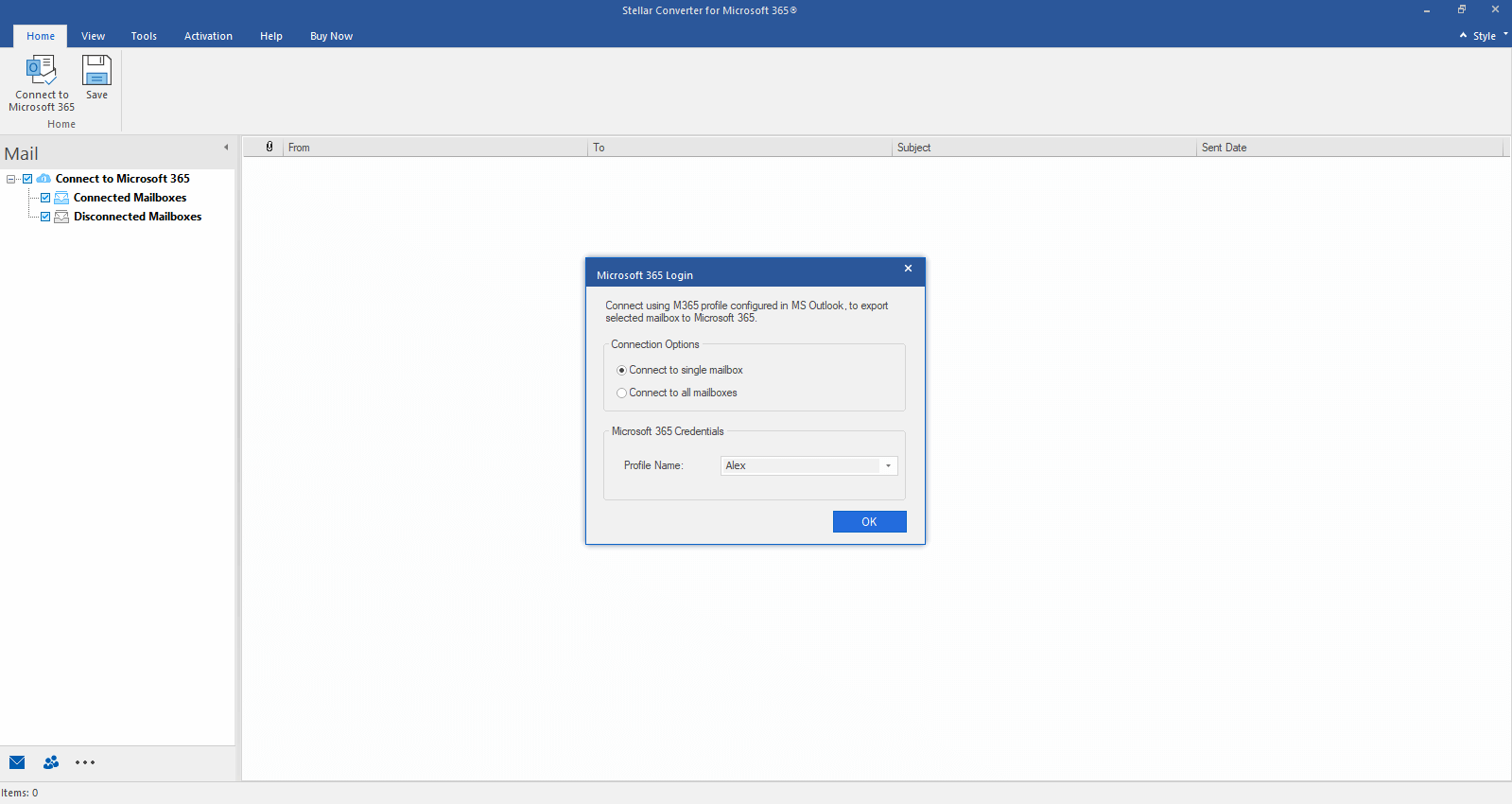
The Microsoft 365 Login dialog: connect to one mailbox or all of them, using a profile configured in Outlook.
Features
One mailbox or the whole tenant
Stellar Converter for Microsoft 365 connects either to a single user's mailbox or, with an administrator login, to every mailbox in the organization. Stellar sets no limit on the number or size of mailboxes.
Everything in the mailbox, with preview
Stellar Converter for Microsoft 365 shows every folder, including Archive, Calendar, Contacts, Tasks, Journal and Notes, with a preview of each message and its attachment names, and exports all of it to PST.

A loaded mailbox: folder tree on the left, 1,165 items in the list with search boxes over each column, and the preview on the right.
Filters and selective export
Stellar Converter for Microsoft 365 can leave out Junk and Deleted Items, export only a date range, or skip mail from a given sender. You can save the whole account, a folder with its subfolders, or a single email.
New or existing PST
Stellar Converter for Microsoft 365 saves to a new PST file or adds to an existing one, keeping the folder structure, and it writes a log of what was exported. Contacts can also go out as a CSV file.

The Save File dialog: save as a new PST, or add to an existing PST.
More formats in Technician
Stellar Converter for Microsoft 365 Technician also saves mail as MSG, EML, HTML, RTF and PDF, useful when the copy is for a lawyer, an auditor or anyone without Outlook.
Benefits
- Offline copies you control. A PST keeps the mail readable after a license is gone.
- Simpler than eDiscovery. No compliance searches or export tool to set up.
- See before you save. The demo shows exactly what will be exported.
- Precise exports. Date and sender filters keep PST files small.
Real-World Uses
- An employee leaves. Export their mailbox to PST before removing the Microsoft 365 license.
- Cutting costs. A small company drops a few mailboxes and keeps the history as PST archives.
- Switching providers. Take PST copies before moving mail to another host.
- A records request. Export one year of a mailbox, as PDF with the Technician edition, for an auditor.
Who It's For, and Who Should Skip It
It suits small and mid-size businesses and IT consultants who need PST copies of Microsoft 365 mailboxes now and then, on a Windows PC with Outlook.
Skip it if you want continuous cloud-to-cloud backup (a dedicated Microsoft 365 backup service fits better), if you have no Outlook installed, or if you only need your own mailbox once: Outlook's own Import/Export to a PST file does that for free. Large organizations with compliance needs may already have eDiscovery set up.
Usage Guide
- Make sure Outlook is installed and has a profile for the Microsoft 365 account. Install and launch Stellar Converter for Microsoft 365.
- Click Connect to Microsoft 365. Choose single mailbox, or all mailboxes for an admin account, and pick the profile.
- Wait for the mailboxes to load under Connected Mailboxes. Clicking Stop keeps only what has loaded so far.
- Browse and search the folders, and tick the mailboxes, folders or emails to export.
- Activate the license, click Save, choose a new or existing PST (or another format in Technician), and set filters if needed.
- Import the PST into Outlook to check it.
Where it falls short
- Outlook dependency. It won't run the export without Outlook installed.
- Yearly license. Both editions renew each year at checkout.
- Speed depends on your connection. Everything is downloaded from Microsoft's servers.
- Heavy on memory. The user guide asks for 8 GB of RAM minimum, 16 GB recommended.
- One direction. It exports from Microsoft 365; importing PST files into Microsoft 365 is a different Stellar product.
What Users Say
Softpedia (earlier version)
Softpedia's editor rated the earlier Stellar Converter for Office 365 3.5 out of 5 and wrote that "Visually-wise, Stellar Converter for Office 365 is not really attractive, but it compensates through the intuitiveness of its functions."
Trustpilot (Stellar as a company)
Stellar scores 4.8 out of 5 from 5,609 reviews across all its products (November 18, 2026), 89% five-star and 4% one-star. LaurentK, recovering mail from a damaged PST, called the tool "excellent", and John Backer said a Stellar tool was "a game changer for me as I could lose many years of memories and data."
The criticism: Nick wrote "Do not purchase. Software is terrible and customer service worse," and Geetha Jawalkar said "the team was not helpful in recovering my deleted photos and videos." None of these name the Microsoft 365 converter.
Recurring themes
Independent coverage of this converter is thin. Reviews of Stellar's other email converters (OST, MBOX) mostly rate them well for ease of use; the usual complaints are price and slow conversion of very large mailboxes.
Comparisons
Stellar Converter for Microsoft 365 vs Microsoft Purview eDiscovery export
eDiscovery is free with most business plans and exports to PST, but it needs compliance roles, a search per export and Microsoft's download tool. Stellar's app is a one-window export with preview and filters, for a yearly fee.
Standard vs Technician
Standard exports to PST. Technician adds MSG, EML, HTML, RTF and PDF. For plain archiving into Outlook, Standard is enough.
Editions and Pricing
| Edition | Price at checkout | License | Saves to | Buy |
|---|
| Standard | $49 | One year | PST (contacts also CSV) | Buy Standard |
| Technician | $99 | One year | PST, MSG, EML, HTML, RTF, PDF | Buy Technician |
Prices checked on the order page on November 18, 2026. Each button orders that edition.
FAQs
Does Stellar Converter for Microsoft 365 need Outlook installed?
Yes. Stellar Converter for Microsoft 365 needs Microsoft Outlook 2010 SP2 through 2024 installed on the PC.
Can it export every mailbox in my organization?
Yes. Stellar Converter for Microsoft 365 connects to all mailboxes when you sign in with an administrator account that has access to them. Mailboxes without permission show as Disconnected until an admin grants access.
What does the free demo do?
Stellar Converter for Microsoft 365's demo connects to the account and previews all mailbox data. Saving to PST needs an activated license.
Can I export only some emails?
Yes. Stellar Converter for Microsoft 365 saves a whole account, a folder with its subfolders, or a single email, and filters by date range, sender, and Junk or Deleted Items.
Is there a mailbox size limit?
No. Stellar Converter for Microsoft 365 sets no limit on mailbox size or count; the time it takes depends on your internet speed.
Is the license a subscription?
Yes. At checkout, both editions of Stellar Converter for Microsoft 365 are one-year licenses: $49 Standard and $99 Technician.
System Requirements
- 64-bit Windows 11, 10, 8.1 or 8
- Microsoft Outlook 2024, 2021, 2019, 2016, 2013 or 2010 SP2
- Intel-compatible x86 or x64 processor
- 8 GB RAM minimum, 16 GB recommended
- 250 MB of free disk space, plus room for the PST files, and an internet connection
Conclusion
Stellar Converter for Microsoft 365 is worth $49 a year for a small business or IT consultant who regularly needs PST copies of Microsoft 365 mailboxes and finds eDiscovery a chore. The one reason to buy it: a one-window export of one mailbox or the whole tenant, with preview and filters. Take Technician only if you need PDF, EML or MSG output.
The main reason not to: it needs Outlook installed, renews yearly, and for a single personal mailbox Outlook's free export does the job. Preview your mailboxes in the demo first.
Download Free TrialBuy StandardBuy Technician